Chapter 13. Server Images as Code
Chapter 11 touched on the idea of creating multiple server instances from a single source (“Prebuilding Servers”), and recommended using cleanly built server images (“Creating a Clean Server Image”). If you wondered what’s the best way to follow that advice, this chapter aims to help.
As with most things in your system, you should use code to build and update server images in a repeatable way. Whenever you make a change to an image, such as installing the latest operating system patches, you can be sure you are building it consistently.
By using an automated, code-driven process to build, test, deliver, and update server images, you can more easily keep your servers up-to-date, and ensure their compliance and quality.
The basic server image life cycle involves building a custom image from an origin source (see Figure 13-1).
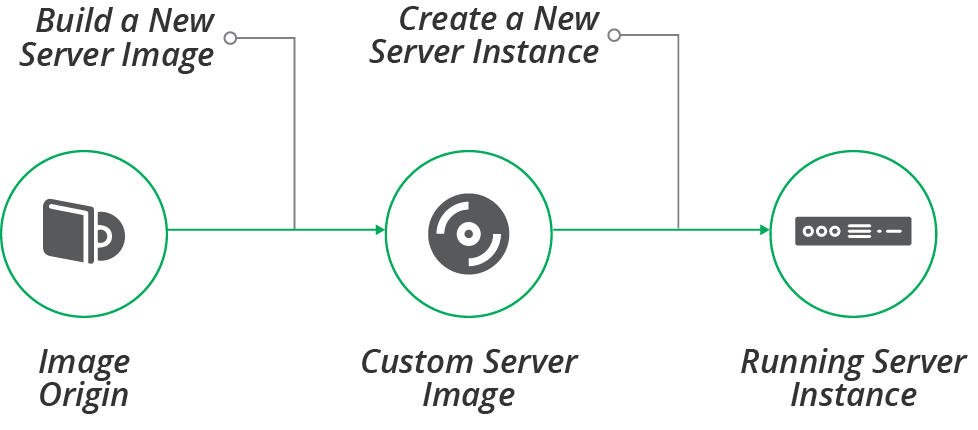
Figure 13-1. Server image life cycle
Building a Server Image
Most infrastructure management platforms have a format for server images to use for creating server instances. Amazon has AMIs, Azure has managed images, and VMware has VM templates. Hosted platforms provide prepackaged stock images with common operating systems and distributions so that you can create servers without needing to build images yourself.
Why Build a Server Image?
Most teams eventually build custom images rather than using the stock images from the platform vendor. Common reasons for doing this include:
- Compliance with organizational governance
-
Many organizations, especially those in regulated industries, need to ensure that they build servers following stricter guidelines.
- Hardening for security
-
Stock server images tend to have many different packages and utilities installed, to make them useful for a wide variety of cases. You can build custom images stripped to the minimum elements. Hardening can include disabling or removing unused user accounts and system services, disabling all network ports not strictly needed for operation, and locking down filesystem and folder permissions.1
- Optimizing for performance
-
Many of the steps you take to harden images for security, such as stopping or removing unneeded system services, also reduce the CPU and memory resources a server uses. Minimizing the size of the server image also makes it faster to create server instances, which can be helpful with scaling and recovery scenarios.
- Installing common packages
-
You can install a standard set of services, agents, and tools on your server images, to make sure they’re available on all of your instances. Examples include monitoring agents, system user accounts, and team-specific utilities and maintenance scripts.
- Building images for server roles
-
Many of the examples in this chapter go further than building a standard, general-purpose image. You can build server images tailored for a particular purpose, such as a container cluster node, application server, or CI server agent.
How to Build a Server Image
Chapter 11 described a few different ways of creating a new server instance, including hot-cloning an existing instance or using a snapshot from an existing instance (see “Prebuilding Servers”). But instances built from a well-managed server image are cleaner and more consistent.
There are two approaches to building a server image. The most common, and most straightforward, is online image building, where you create and configure a new server instance, and then turn that into an image. The second approach, offline image building, is to mount a disk volume and copy the necessary files to it, and then turn that into a bootable image.
The main trade-off between building images online and offline is speed and difficulty. It’s easier to build a server image online, but it can be slow to boot and configure a new instance, on the order of minutes or tens of minutes. Mounting and preparing a disk offline is usually much faster, but needs a bit more work.
Before discussing how to implement each of these options, it’s worth noting some tools for building server images.
Tools for Building Server Images
Tools and services for building server images generally work by orchestrating the process of creating a server instance or disk volume, running a server configuration tool or scripts to customize it, and then using the infrastructure platform API to convert the server instance into an image. You should be able to define this process as code, for all of the usual reasons. I’ll share examples of image building code shortly, to illustrate the online and offline approaches.
Netflix pioneered the heavy use of server images, and open sourced the Aminator tool it created for doing it. Aminator is specific to Netflix’s ways of working, building CentOS and Red Hat images for AWS EC2.2
The most popular tool for building images, as of this writing, is HashiCorp’s Packer. Packer supports a variety of operating systems and infrastructure platforms.
Some of the infrastructure platforms offer services for building their server images, including AWS Image Builder and Azure Image Builder.
The examples of server image building code in this chapter use a simple, fictional image builder language.
Online Image Building Process
The online method for building server images involves booting a new, clean server instance, configuring it, and then converting it into the infrastructure platform’s server image format, as shown in Figure 13-2.
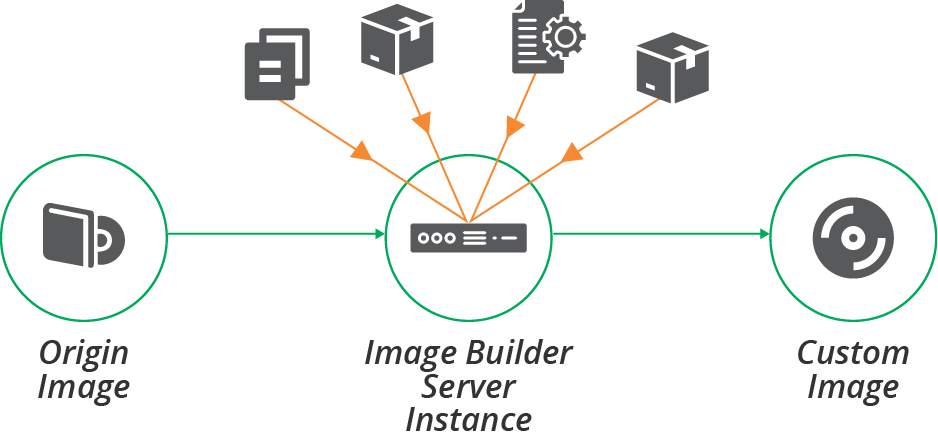
Figure 13-2. Online process for building a server image
The process starts by booting a new server instance from an origin image, as shown in Example 13-1. See “Origin Content for a Server Image” for more about the options for origin images. If you use a tool like Packer to build your image, it uses the platform API to create the server instance.
Example 13-1. Example image builder code for booting from an origin image
image:name:shopspinner-linux-imageplatform:fictional-cloud-serviceorigin:fci-12345678region:europeinstance_size:small
This example code builds an FCS image named shopspinner-linux-image, booting it from the existing FCI whose ID is fci-12345678.3 This is a stock Linux distribution provided by the cloud vendor. This code doesn’t specify any configuration actions, so the resulting image is a fairly straight copy of the origin image.
The code also defines a few characteristics of the server instance to boot for building the image, including the region and instance type.
Infrastructure for the builder instance
You probably need to provide some infrastructure resources for your server image building instance—for example, an address block. Make sure to provide an appropriately secure and isolated context for this instance.
It might be convenient to run the builder instance using existing infrastructure, but doing this might expose your image building process to compromise. Ideally, create disposable infrastructure for building your image, and destroy it afterward.
Example 13-2 adds a subnet ID and SSH key to the image builder instance.
Example 13-2. Dynamically assigned infrastructure resources
image:name:shopspinner-linux-imageorigin:fci-12345678region:europesize:smallsubnet:${IMAGE_BUILDER_SUBNET_ID}ssh_key:${IMAGE_BUILDER_SSH_KEY}
These new values use parameters, which you can automatically generate and pass to the image builder tool. Your image building process might start by creating an instance of an infrastructure stack that defines these things, then destroys them after running the image builder tool. This is an example of an infrastructure tool orchestration script (see “Using Scripts to Wrap Infrastructure Tools” for more on this topic).
You should minimize the resources and access that you provision for the image builder server instance. Only allow inbound access for the server provisioning tool, and only do this if you are pushing the configuration (see “Pattern: Push Server Configuration”). Only allow outbound access necessary to download packages and configuration.
Configuring the builder instance
Once the server instance is running, your process can apply server configuration to it. Most server image building tools support running common server configuration tools (see “Server Configuration Code”), in a similar way to stack management tools (see “Applying Server Configuration When Creating a Server”). Example 13-3 extends Example 13-2 to run the Servermaker tool to configure the instance as an application server.
Example 13-3. Using the Servermaker tool to configure the server instance
image:name:shopspinner-linux-imageorigin:fci-12345678region:europeinstance_size:smallsubnet:${IMAGE_BUILDER_SUBNET_ID}configure:tool:servermakercode_repo:servermaker.shopspinner.xyzserver_role:appserver
The code applies a server role, as in “Server Roles”, which may install an application server and related elements.
Offline Image Building Process
The process of booting a server instance, applying the configuration, and then shutting the instance down to create the server image can be slow. An alternative is to use a source image that is mountable as a disk volume—for example, an EBS-backed AMI in AWS. You can mount a copy of this image as a disk volume, and then configure the files on that disk image, as shown in Figure 13-3. Once you have finished configuring the disk image, you can unmount it and convert it to the platform’s server image format.
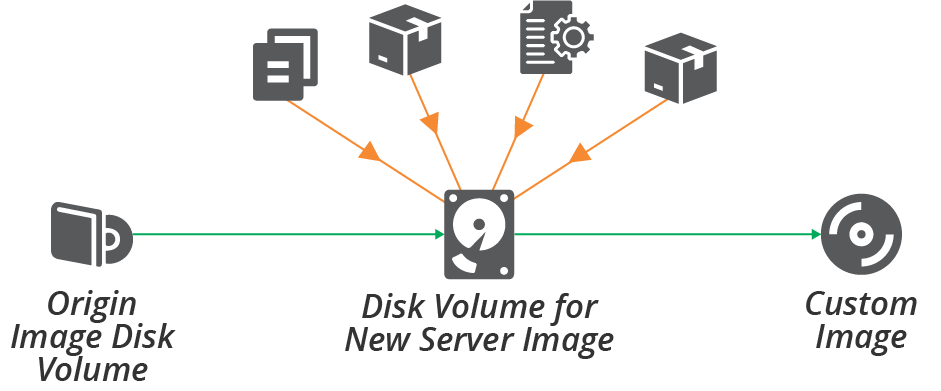
Figure 13-3. Offline process for building a server image
To build an image on a disk volume, you need to mount the volume on the compute instance where your image building tool runs. For example, if you build images using a pipeline as described later in this chapter, this could be a CD tool agent.
Another requirement is a tool or scripts that can properly configure the disk volume. This can be tricky. Server configuration tools apply configuration code to the server instance on which they are running. Even if you write simpler scripts, like a shell script, those scripts often run a tool like a package installer, which defaults to installing files in the running server’s filesystem:
yum install javaMany tools have command-line or configuration options that you can set to install files to a different path. You can use this to install packages to a different path (for example, yum install java --prefix /mnt/image_builder/):
yum install --prefix /mnt/image_builder/ javaHowever, this is tricky and easy to get wrong. And not all tools support an option like this one.
Another approach is to use the chroot command, which runs a command with a different filesystem root directory:
chroot /mnt/image_builder/ yum install javaThe advantage of using the chroot command is that it works for any tool or command. Popular image building tools like Packer support chroot out of the box.4
Origin Content for a Server Image
Several elements come together for building server images:
- Image builder code
-
You write code to define the image, which your builder tool uses. A Packer template file is one example. This code defines the other elements to assemble into the image.
- Origin source image
-
In many cases, you build an image starting with another image. You may need a source image in your platform’s format, like an AMI. Or it may be an operating system installation image, whether physical like a DVD or data like an ISO image. In some cases, you build the image from scratch, such as when you run an OS installer. Each of these is described in more detail later.
- Server configuration code
-
You may use a server configuration tool or scripts to customize the image, as explained in the previous section.
- Other sever elements
-
You may use any or all of the elements, and sources of those elements, described in “What’s on a Server” to build your server image. It’s common to use packages from public or internal repositories when building images.
This set of elements comes into play when you use a pipeline to automate the image building process, as described later in this chapter. Types of origin source images are worth some more specific attention.
Building from a Stock Server Image
Infrastructure platform vendors, operating system vendors, and open source projects often build server images and make them available to users and customers. As mentioned earlier, many teams use these stock images directly rather than building their own. But when you do build your own, these images are usually a good starting point.
One issue with stock images is that many of them are over-provisioned. Makers often install a wide variety of tools and packages, so that they are immediately useful to the broadest number of users. But you should minimize what you install on your custom server images, both for security and for performance.
You can either strip unneeded content from the origin image as part of your server image configuration process or find smaller origin images. Some vendors and organizations build JEOS (Just Enough Operating System) images. Adding the things you need to a minimal base image is a more reliable approach for keeping your images minimal.
Building a Server Image from Scratch
Your infrastructure platform may not provide stock images, especially if you use an internal cloud or virtualization platform. Or, your team may simply prefer not to use a stock image. The alternative is to build custom server images from scratch.
An OS installation image gives you a clean, consistent starting point for building a server template. The template building process starts by booting a server instance from the OS image and running a scripted installation process.5
Provenance of a Server Image and its Content
Another concern with base images, as with any content from third parties, is their provenance and security. You should be sure you understand who provides the image, and the process they use to ensure that they build the images safely. Some things to consider:
-
Do images and packages include software with known vulnerabilities?
-
What steps does the vendor take to scan their code for potential problems, such as static code analysis?
-
How do you know whether any included software or tools collect data in ways that contradict your organizational policies or local laws?
-
What processes does the vendor use to detect and prevent illicit tampering, and do you need to implement anything on your end, such as checking package signatures?
You shouldn’t completely trust the content that comes from a vendor or third party, so you should implement your own checks. “Test Stage for a Server Image” suggests how to build checking into a pipeline for server images.
Changing a Server Image
Server images become stale over time as updated packages and configurations are released. Although you can apply patches and updates every time you create a new server, this process takes longer as time goes by, reducing the benefit of using a server image. Regularly refreshing your images keeps everything running smoothly.
In addition to keeping images up-to-date with the latest patches, you often need to improve the base configurations, add and remove standard packages, and make other routine changes to your server images. The more you bake into your custom server images rather than frying into server instances as you create them, the more often you need to update your images with changes.
The next section explains how to use a pipeline to make, test, and deliver changes to your server images. There are a few prerequisites to cover before getting into pipelines, however. One is how to make updates—whether to use the existing server image as the base for your change or rebuild the image from first principles. Another prerequisite is versioning your server images.
Reheating or Baking a Fresh Image
When you want to build a new version of a server image—for example, to update it with the latest operating system patches—you can use the same tools and processes that you used to build the first version of the image.
You could use the previous version of the image as the origin source image—reheating the image. This ensures that the new version is consistent with the previous version, because the only changes are the ones you explicitly make when you apply server configuration to the new image.
The alternative is to bake a fresh image, building the new version of the image from the original sources. So, if you built the first image version from scratch, you build each new version from scratch as well.
While reheating images may limit the changes from one version to the next, baking a fresh image for the new version should give the same results, given that you are using the same sources. Fresh builds are arguably cleaner and more reliably reproducible because they don’t include anything that may have been left over by previous builds.
For example, your server configuration may install a package that you later decide to remove. That package is still found on newer server images if you reheat from the older images. You need to add code to explicitly remove the package, which leaves you with superfluous code to maintain and clean out later. If instead, you bake fresh images each time, the package will simply not exist on newer server images, so there’s no need to write any code to remove it.
Versioning a Server Image
It’s essential that everyone who uses server images, and servers created from them, can track the versions. They should be able to understand what version was used to create any given server instance, which version is the latest for a given image, and what source content and configuration code were used to create the image.
It’s also helpful to be able to list which server image versions were used to create instances currently in use—for example, so you can identify instances that need to be updated when you discover a security vulnerability.
Many teams use different server images. For example, you may build separate images for application servers, container host nodes, and a general-purpose Linux OS image. In this case, you would manage each of these images as a separate component, each with its separate version history, as illustrated in Figure 13-4.
In this example, the team updated the application server image to upgrade the version of Tomcat installed on it, bumping that image to version 2, while the others remained at version 1. The team then updated all of the images with Linux OS updates. This bumped the application server image to version 3, and the other images to version 2. Finally, the team upgraded the container software version on the host node image, bumping it to version 3.
Most infrastructure platforms don’t directly support version numbering for server images. In many cases, you can embed version numbers in the name of the server image. For the examples in Figure 13-4, you might have images named appserver-3, basic-linux-2, and container-node-3.
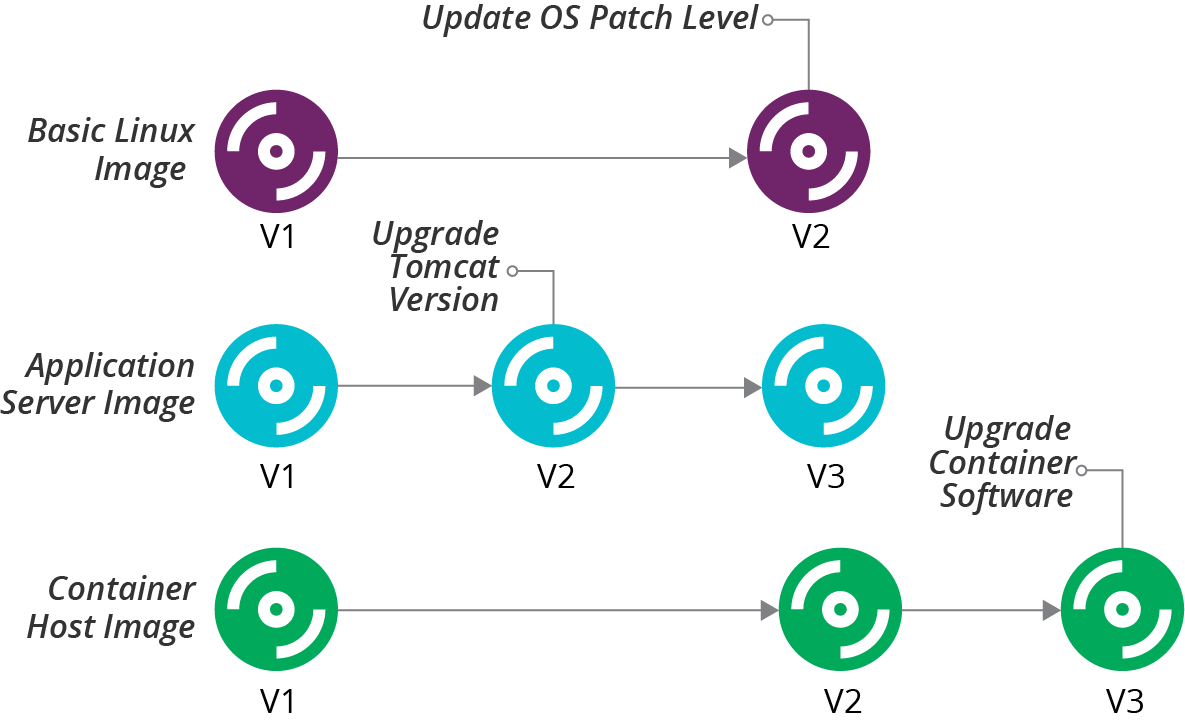
Figure 13-4. Example version history for multiple server images
Another option is to put version numbers and image names in tags if your platform supports it. An image could have a tag named Name=appserver and another named Version=3.
Use whatever mechanism makes it easiest to search, discover, and report on image names and versions. Most of the teams I’ve worked with use both of those methods, since tags are easy to search, and names are easy for humans to see.
You can use different version numbering schemes. Semantic versioning is a popular approach, using different fields of a three-part version number (such as 1.0.4) to indicate how significant the changes are from one version to the next. I like to add a date and time stamp into the version (for example, 1.0.4-20200229_0420, to make it easy to see when a particular version was built.
In addition to putting the version number on the server image itself, you can tag or label server instances with the server image name and version used to create it. You can then map each instance back to the image used to create it. This ability is useful for rolling out new image versions.
Updating Server Instances When an Image Changes
When you build a new version of a server image, you may replace all of the server instances based on that image, or wait for them to be replaced naturally over time.
A policy of rebuilding existing servers to replace old image versions can be disruptive and time-consuming. But it also ensures the consistency of servers and continuously exercises your system’s resilience (see also “Continuous Disaster Recovery”). A good pipeline makes it easier to manage this process, and zero-downtime changes (see “Zero Downtime Changes”) make it less disruptive. So this policy is favored by many teams with mature and pervasive automation.
It’s easier to wait to replace servers with the new image version when they are rebuilt for other reasons. This might be the case if you deploy software updates or other changes by rebuilding server instances (see “Pattern: Immutable Server”).
The drawback of waiting to update servers with new image versions is that this may take a while, and leave your estate with servers built from a wide variety of image versions.
This situation creates inconsistency. For example, you may have application servers with different versions of OS package updates and configuration, leading to mysteriously inconsistent behavior. In some cases, the older image versions, and the servers built from them, may have security vulnerabilities or other issues.
There are a few strategies you can use to mitigate these issues. One is to track running instances against the image versions used to create them. This could be a dashboard or report, similar to Table 13-1.
| Image | Version | Instance count |
|---|---|---|
basic-linux |
1 |
4 |
basic-linux |
2 |
8 |
appserver |
1 |
2 |
appserver |
2 |
11 |
appserver |
3 |
8 |
container-node |
1 |
2 |
container-node |
2 |
15 |
container-node |
3 |
5 |
If you have this information readily available, and you can drill into the list of specific servers, then you can identify server instances that urgently need rebuilding. For example, you learn about a security vulnerability that was fixed in the latest update to your Linux distribution. You included the patch in basic-linux-2, appserver-3, and container-node-2. The report shows you that you need to rebuild 19 of your server instances (4 basic Linux servers at version 1, 13 application servers at versions 1 and 2, and 2 container nodes at version 1).
You may also have age limits. For example, you could have a policy to replace any running server instances built from a server image older than three months. Your report or dashboard should then show the number of instances that are past this date.
Providing and Using a Server Image Across Teams
In many organizations, a central team builds server images and makes them available for other teams to use. This situation adds a few wrinkles to managing server image updates.
The team using the image needs to be sure that it is ready to use new versions of an image. For example, an internal application team may install bug tracking software onto the base Linux image provided by the compute team. The compute team may produce a new version of the base Linux image with updates that have an incompatibility with the bug tracking software.
Ideally, server images feed into each team’s infrastructure pipeline. When the team owning the image releases a new version through its pipeline, each team’s infrastructure pipeline pulls that version and updates its server instances. The internal team’s pipeline should automatically test that the bug tracking software works with the new image version before rebuilding servers that its users depend on.
Some teams may take a more conservative approach, pinning the image version number they use. The internal application team could pin their infrastructure to use version 1 of the basic Linux image. When the compute team releases version 2 of the image, the internal application team continues to use version 1 until they are ready to test and roll out version 2.
Many teams use the pinning approach when their automation for testing and delivering changes to server infrastructure isn’t as mature. These teams need to do more manual work to be sure of image changes.
Even with mature automation, some teams pin images (and other dependencies) whose changes are riskier. The dependencies may be more fragile because the software the team deploys onto images is more sensitive to changes in the operating system. Or the team providing the image—perhaps an external group—has a track record of releasing versions with problems, so trust is low.
Handling Major Changes to an Image
Some changes to server images are more significant, and so more likely to need manual effort to test and modify downstream dependencies. For example, a new version of the application server image may include a major version upgrade for the application server software.
Rather than treating this as a minor update to the server image, you may either use semantic versioning to indicate it is a more significant change, or even build a different server image entirely.
When you use semantic versioning, most changes increment the lowest digit of the version, for example, 1.2.5 to 1.2.6. You indicate a major change by incrementing the second or first digit. For a minor application server software update that shouldn’t create compatibility issues for applications, you might increment version 1.2.6 of the server image to 1.3.0. For a major change that may break applications, you increment the highest digit, so 1.3.0 would be replaced by 2.0.0.
In some cases, especially where you expect the older image version to be used by teams for some time, you may create a new image entirely. For example, if your basic Linux image uses Centos 9.x, but you want to start testing and rolling out Centos 10.x, rather than incrementing the version number of the image, you could create a new image, basic-linux10-1.0.0. This makes migration to the new OS version a more explicit undertaking than a routine image update.
Using a Pipeline to Test and Deliver a Server Image
Chapter 8 describes using pipelines to test and deliver infrastructure code changes (“Infrastructure Delivery Pipelines”). Pipelines are an excellent way to build server images. Using a pipeline makes it easy to build new versions of an image, ensuring they are built consistently. With a mature pipeline integrated with pipelines for other parts of a system, you can safely roll out operating system patches and updates across your estate weekly or even daily.
It’s a good idea to build new server images often, such as weekly, rather than leaving it for long periods, such as every few months. This fits with the core practice of continuously testing and delivering changes. The longer you wait to build a new server image, the more changes it includes, which increases the work needed to test, find, and fix problems.
A basic server image pipeline would have three stages, as shown in Figure 13-5.
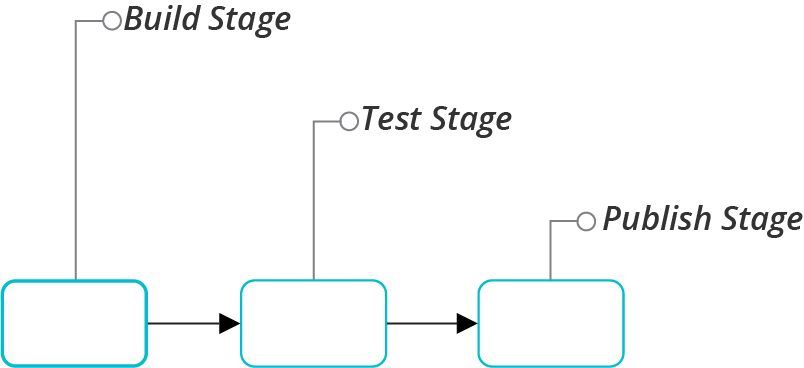
Figure 13-5. A simple server image pipeline
Each of these stages for building, testing, and publishing a server image merits a closer look.
Build Stage for a Server Image
The build stage of a server image pipeline automatically implements the online image building process (“Online Image Building Process”) or offline image building process (“Offline Image Building Process”). The stage produces a server image, which the following stages treat as a release candidate (see Figure 13-6).
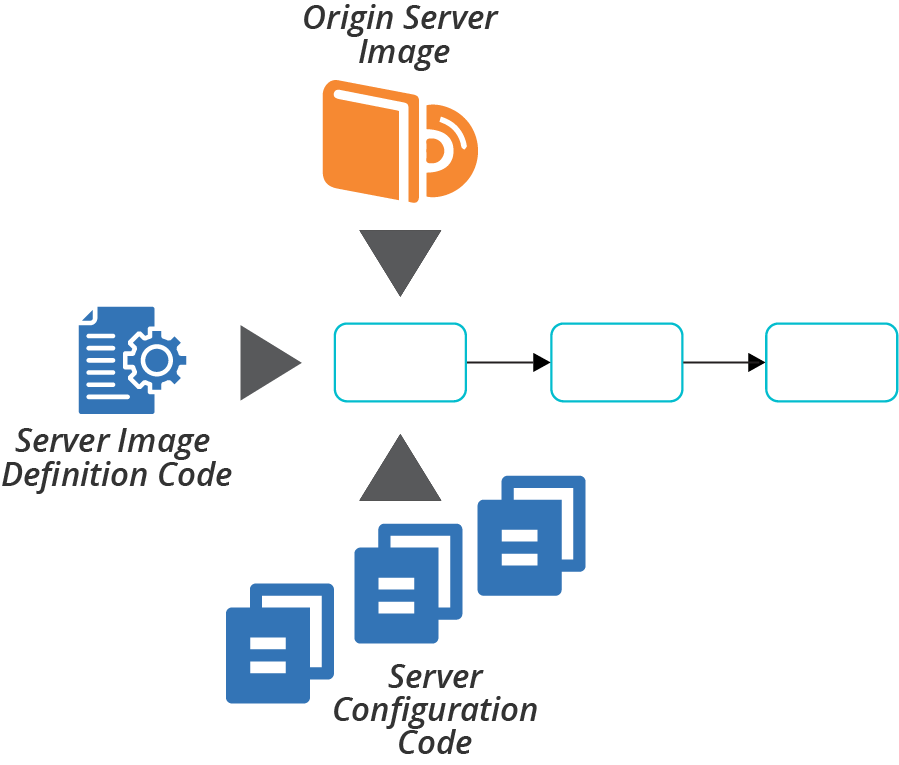
Figure 13-6. Server image build stage
You can configure the server image build stage to run automatically on changes to any of the inputs to the image listed in “Origin Content for a Server Image”. For example:
-
Someone commits a change to the image builder code, such as Packer template
-
The vendor publishes a new version of your origin source image, such as an AMI provided by the OS vendor
-
You make changes to server configuration code used for the server image
-
Package maintainers publish new versions of packages installed on the server image
In practice, many changes to source elements like OS packages are difficult to automatically detect and use to trigger a pipeline. You may also not want to build a new server image for every package update, especially if the image uses dozens or even hundreds of packages.
So you could automatically trigger new images only for major changes, like the source server image or image builder code. You can then implement scheduled builds—for example, weekly—to roll up all of the updates to smaller source elements.
As mentioned, the result of the build stage is a server image that you can use as a release candidate. If you want to test your image before making it available—recommended for any nontrivial use case—then you should not mark the image for use at this point. You can tag the image with a version number, according to the guidance given earlier. You might also tag it to indicate that it is an untested release candidate; for example, Release_Status=Candidate.
Test Stage for a Server Image
Given the emphasis on testing throughout this book, you probably understand the value of automatically testing new images as you build them. People usually test server images using the same testing tools that they use to test server code, as described in “Testing Server Code”.
If you build server images online (see “Online Image Building Process”), you could run your automated tests on the server instance after you configure it and before you shut it down and convert it to an image. But there are two concerns with this. First, your tests might pollute the image, leaving test files, log entries, or other residue as a side effect of your tests. They might even leave user accounts or other avenues for accessing servers created from the image.
The other concern with testing the server instance before you turn it into an image is that it may not reliably replicate servers created from the image. The process of converting the instance into an image might change important aspects of the server, such as user access permissions.
The most reliable method for testing a server image is to create and test a new instance from the final image. The drawback of doing this is that it takes longer to get the feedback from your tests.
So a typical server image test stage, as shown in Figure 13-7, takes the identifier of the image created in the build stage, uses it to create a temporary instance, and runs automated tests against that. If the tests pass, then the stage tags the image to indicate that it’s ready for the next stage of the pipeline.
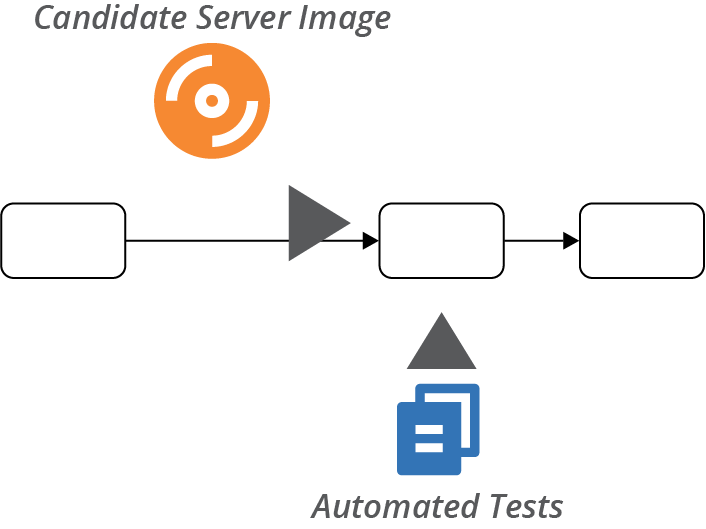
Figure 13-7. Server image test stage
Delivery Stages for a Server Image
Your team’s image pipeline may have additional stages for other activities—for example, security testing. Ultimately, an image version that passes its test stages is tagged as ready for use.
In some systems, the pipeline that creates the image includes the stages to rebuild servers with the new image (see Figure 13-8). It could run a stage for each delivery environment in the progression to production, perhaps triggering application deployment and test stages.
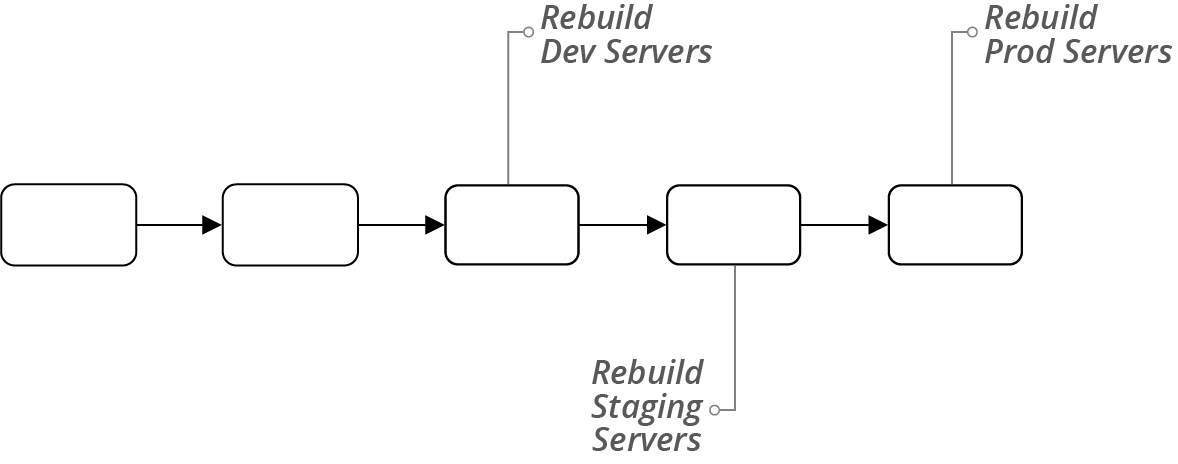
Figure 13-8. Pipeline that delivers images to environments
In systems where different teams are responsible for managing infrastructure and environments, the image pipeline may end once it has marked the image as ready for use. Other teams’ pipelines take new image versions as inputs, as described in “Providing and Using a Server Image Across Teams”.
Using Multiple Server Images
Some teams only maintain a single server image. These teams create the different types of servers they need by applying server configuration roles (see “Server Roles”) when creating server instances. Other teams, however, find it useful or necessary to maintain multiple server images.
You need multiple images to support multiple infrastructure platforms, multiple server hardware architectures, or multiple server hardware architectures. And multiple images can be useful to optimize server creation time, following the strategy of baking over frying (“Baking Server Images”).
Let’s examine each of these scenarios—supporting multiple platforms, and baking roles into server images—and then discuss strategies for maintaining multiple server images.
Server Images for Different Infrastructure Platforms
Your organization may use more than one infrastructure platform as part of a multicloud, poly-cloud, or hybrid cloud strategy. You need to build and maintain separate server images for each of these platforms.
Often, you can use the same server configuration code, perhaps with some variations that you manage using parameters, across platforms. You might start with different source images on each platform, although in some cases, you can use images from your OS vendor or a trusted third party that builds them consistently for each.
Each infrastructure platform should have a separate pipeline to build, test, and deliver new versions of the image. These pipelines may take server configuration code as input material. For example, if you update the server configuration for your application servers, you would push the change into each of the platform pipelines, building and testing a new server image for each.
Server Images for Different Operating Systems
If you support multiple operating systems or distributions, such as Windows, Red Hat Linux, and Ubuntu Linux, you’ll need to maintain separate images for each OS. Also, you probably need a separate image for each major version of a given OS that your organization uses. You need a separate source image to build each of these OS images. You might be able to reuse server configuration code across some of these OS images.
But in many cases, writing server configuration code to handle different operating systems adds complexity, which requires more complex testing. The testing pipeline needs to use server (or container) instances for each variation. For some configurations, it can be simpler to write a separate configuration code module for each OS or distribution.
Server Images for Different Hardware Architectures
Some organizations run server instances on different CPU architectures, such as x86 and ARM. Most often, you can build nearly identical server images for each architecture, using the same code. Some applications exploit specific hardware features or are more sensitive to their differences. In these cases, your pipelines should test images more thoroughly across the different architectures to detect issues.
Server Images for Different Roles
Many teams use a general-purpose server image and apply role configuration (see “Server Roles”) when creating server instances. However, when configuring a server for a role involves installing too much software, such as an application server, it can be better to bake the role configuration into a dedicated image.
The example earlier in this chapter (“Versioning a Server Image”) used custom images for application servers and container host nodes, and a general-purpose Linux image. This example shows that you don’t necessarily need to have a separate image for each server role you use.
To decide whether it’s worth maintaining a separate image for a particular role, consider the time and cost of having pipelines, tests, and storage space, and weigh these against the drawbacks of configuring server instances when you create them—speed, efficiency, and dependencies—as explained in “Frying a Server Instance”.
Layering Server Images
Teams that have a large number of role-based server images may consider building them up in layers. For example, create a base OS image with the default packages and configurations that you want to install on all servers. Then use this image as the source image to build more specific role-based images for application servers, container nodes, and others, as shown in Figure 13-9.
In this example, the ShopSpinner team uses a base Linux image as the source image for building an application server image and a container host node image. The application server image has Java and Tomcat preinstalled. The team uses this image, in turn, as the source image for building images with specific applications preinstalled.
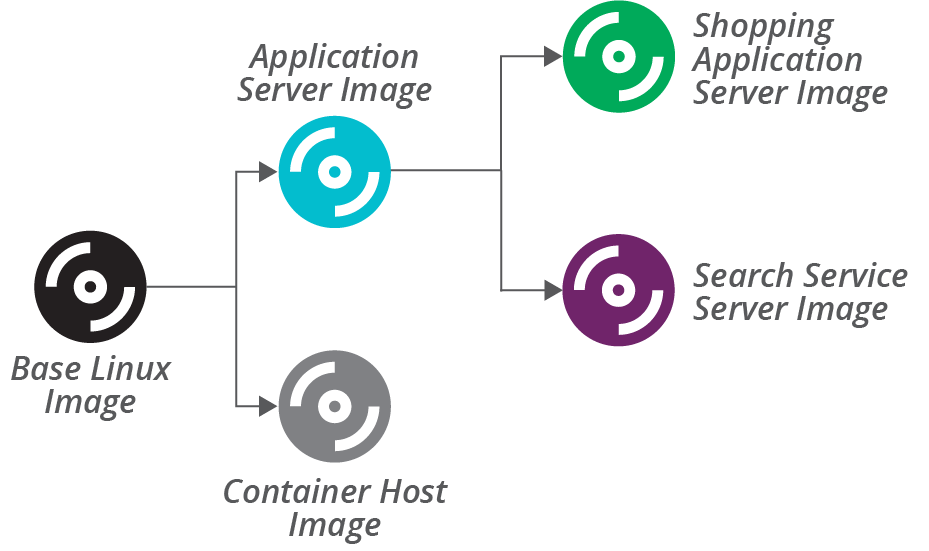
Figure 13-9. Layering server images
Governance and Server Images
Traditional approaches to governance often include a manual review and approval process each time a new server image is built. As “Governance in a Pipeline-based Workflow” explains, defining servers as code and using pipelines to deliver changes creates opportunities for stronger approaches.
Rather than inspecting new server images, people responsible for governance can inspect the code that creates them. Better yet, they can collaborate with infrastructure and other teams involved to create automated checks that can run in pipelines to ensure compliance. Not only can your pipelines run these checks every time a new image is built, but they can also run them against new server instances to ensure that applying server configuration code hasn’t “unhardened” it.
The ShopSpinner shopping application and search service frequently need to be scaled up and down to handle variable traffic loads at different times of the day. So it’s useful to have the images baked and ready. The team builds server instances for other applications and services from the more general application server image because the team doesn’t create instances of those as often.
A separate pipeline builds each server image, triggering when the input image changes. The feedback loops can be very long. When the team changes the base Linux image, its pipeline completes and triggers the application server and container host pipelines. The application server image pipeline then triggers the pipelines to build new versions of the server images based on it. If each pipeline takes 10–15 minutes to run, this means it takes up to 45 minutes for the changes to ripple out to all of the images.
An alternative is to use a shallower image building strategy.
Sharing Code Across Server Images
Even given an inheritance-based model where server roles inherit configuration from one another, you don’t necessarily need to build images in the layered model we just described. You can instead layer the server configuration code into server role definitions, and apply all of the code directly to build each image from scratch, as shown in Figure 13-10.
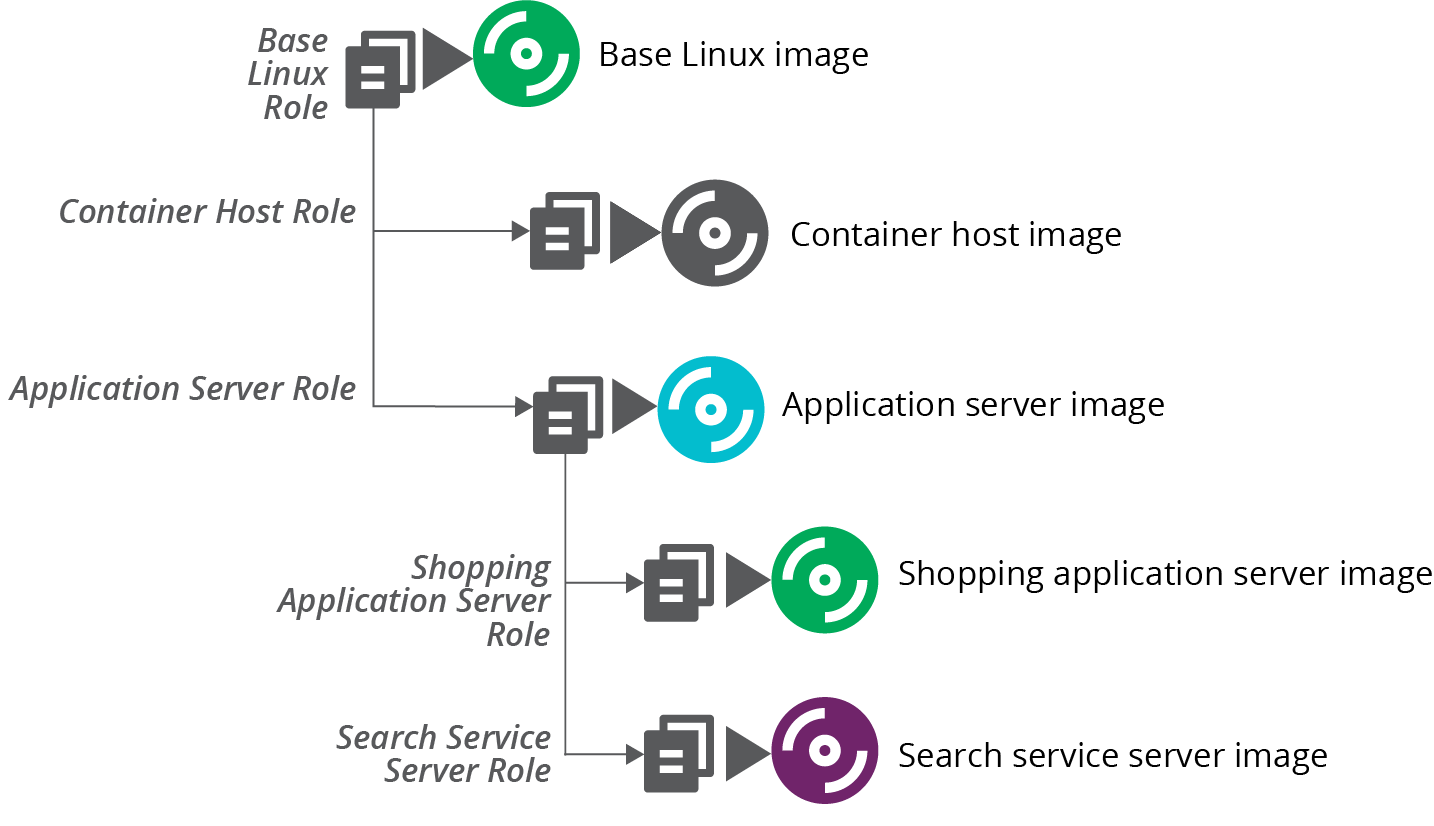
Figure 13-10. Using scripts to layer roles onto server images
This strategy implements the same layered mode. But it does so by combining the relevant configuration code for each role and applying it all at once. So building the application server image doesn’t use the base server image as its source image, but instead applies all of the code used for the base server image to the application server image.
Building images this way reduces the time it takes to build images at the bottom of the hierarchy. The pipeline that builds the image for the search service immediately runs when someone makes a change to the base Linux server configuration code.
Conclusion
You can build and maintain servers without creating custom images. But there are benefits from creating and maintaining an automated system for building server images. These benefits are mainly around optimization. You can create server instances more quickly, using less network bandwidth, and with fewer dependencies by pre-baking more of your configuration into server images.
1 For more information on security hardening, see “Proactively Hardening Systems Against Intrusion: Configuration Hardening” on the Tripwire website, “25 Hardening Security Tips for Linux Servers”, and “20 Linux Server Hardening Security Tips”.
2 Netflix described its approach for building and using AMIs in a blog post.
3 FCS is the Fictional Cloud Service, similar to AWS, Azure, and others mentioned in “Infrastructure Platforms”. An FSI is a Fictional Server Image, similar to an AWS AMI or Azure Managed Image.
4 See Packer’s chroot builders for AWS AMIs and Azure server images.
5 Some scripted OS installers include Red Hat Kickstart, Solaris JumpStart, Debian Preseed, and the Windows installation answer file.