Chapter 7. String Fundamentals
So far, we’ve studied numbers and explored Python’s dynamic typing model. The next major type on our in-depth object tour is the Python string—an ordered collection of characters used to store and represent text- and bytes-based information. We looked briefly at strings in Chapter 4. Here, we will revisit them to fill in details we skipped earlier.
Before we get started, let’s get clear on what we won’t be covering here. Chapter 4 also briefly previewed Unicode strings and files—tools for dealing with non-ASCII text. Unicode is a key tool for programmers, especially those who work in the internet domain. It can pop up, for example, in web pages, emails, GUI toolkits, file-processing tools, XML and JSON text, and more. At the same time, Unicode can be a heavy topic for programmers just starting out, and a complete understanding of it relies on tools that we haven’t yet studied in full, like files.
In light of that, this book splits its strings coverage between the essentials here, and their extension to Unicode and byte strings in Chapter 37 of its advanced topics part. That is, this chapter tells only part of the string story in Python—the part that most scripts use, and most Python learners need to know up front. Despite this limited scope, everything we learn here will apply directly to Unicode and bytes processing, too, because Python text strings are Unicode, even if they’re simple ASCII text, and byte strings are simply strings constrained to byte values.
After you’ve learned the basics here, Chapter 37 is recommended reading for the rest of the string saga, and most programmers will want to follow up with its coverage eventually. Unicode is rarely optional in programming today, though it’s best deferred until you’ve had a chance to master strings in general. So let’s get started!
String Object Basics
From a functional perspective, strings can be used to represent just about anything that can be encoded as text or bytes. In the text department, this includes symbols and words (e.g., your name), contents of text files loaded into memory, internet addresses, Python source code, and so on. Strings can also be used to hold the raw bytes used for media files and network transfers, and both the encoded and decoded forms of non-ASCII Unicode text.
You may have used strings in other languages, too. Python’s strings serve the same role as character arrays in languages such as C, but they are a somewhat higher-level tool than arrays. Unlike in C, strings in Python come with a powerful set of precoded processing tools. Also unlike languages such as C, Python has no distinct type for individual characters; instead, you just use one-character strings for one-character info.
Strictly speaking, Python strings are categorized as immutable sequences, meaning that the characters they contain have a left-to-right positional order and cannot be changed in place. In fact, strings are the first representative of the larger class of objects called sequences that we will explore here. Pay attention to the sequence operations covered in this chapter, because they will work the same on other sequence types you’ll meet later, such as lists and tuples.
As a first step, Table 7-1 previews common string literals and operations discussed in this chapter, by abstract example (don’t expect its code snippets to run!). As it shows, empty strings are written as a pair of quotation marks (single or double) with nothing in between, and there are a variety of ways to code strings. For processing, strings support expression operations such as concatenation (combining strings), slicing (extracting sections), indexing (fetching by offset), and so on. Besides expressions, Python also provides a set of string methods that implement common string-specific tasks, as well as modules for more advanced text-processing tasks such as pattern matching.
| Operation | Interpretation |
|---|---|
S = '' |
Empty string |
S = "app's" |
Double quotes, same as single |
S = 'c\no\td\x00e' |
Escape sequences |
S = """… |
Triple-quoted block strings |
S = r'\temp\data.txt' |
Raw strings (ignore escapes) |
B = b'h\xc4ck' |
Byte strings (Chapter 4, Chapter 37) |
S = 'py\U0001F40D' |
Unicode strings (Chapter 4, Chapter 37) |
S = u'py\U0001F40D' |
Python 2.X compatibility (Chapter 37) |
S1 + S2S * 3 |
Concatenate, repeat |
S[i]S[i:j]len(S) |
Index, slice, length |
S1 > S2, S1 == S2 |
Comparisons: magnitude, equality |
'a %s coder' % kind |
String-formatting expression |
'a {0} coder'.format(kind) |
String-formatting method |
f'a {kind} coder' |
String-formatting literal (3.6+) |
S.find('od')S.rstrip()S.replace('od', 'ood')S.split(',')S.isdigit()S.lower()S.endswith('thon')S.join(strlist)S.encode('utf8')B.decode('latin1') |
String methods (see ahead for all 43): search, remove whitespace, replacement, split on delimiter, content test, case conversion, end test, delimiter join, Unicode encoding, Unicode decoding, etc. (see Table 7-3) |
'py' in S.lower()for x in S: print(x)[c * 2 for c in S]map(ord, S) |
Membership, iteration |
re.match('Py(.*)on', line) |
Pattern matching: library module |
Beyond the core set of string tools in Table 7-1, Python also supports more advanced pattern-based string processing with the standard library’s re (for “regular expression”) module demoed in Chapter 37, and even higher-level text processing tools such as HTML, JSON, and XML parsers. This book and this chapter, though, are focused on the fundamentals represented by Table 7-1.
This chapter begins with an overview of string literal forms and string expressions, then moves on to look at more advanced tools such as string methods and formatting. Python comes with many string tools, and we won’t cover them all here; the complete story is chronicled in the Python library manual. Our goal here is to explore enough commonly used tools to give you a representative sample; methods we won’t see in action here are analogous to those we will.
String Literals
By and large, strings are fairly easy to use in Python. The first thing you need to know about them, though, is that there are many ways to write them in your code:
Single quotes:
'cod"e'Double quotes:
"cod'e"Triple quotes:
'''…code…''',"""…code…"""Escape sequences:
"c\to\nd\0e"Raw strings:
r"C:\new\test.bin"(Chapter 37) Bytes literals:
b'co\x01de'(Chapter 37) Unicode literals:
'h\u00c4ck'
The single- and double-quoted forms are by far the most common; the others serve specialized roles, and we’re postponing further discussion of the last two advanced forms until Chapter 37. Let’s take a quick look at all the other options in turn.
Single and Double Quotes Are the Same
Around Python strings, single- and double-quote characters are interchangeable, though they must match, and must be straight quotes (beware tools that autocorrect to slanted quotes!). That is, string literals can be written enclosed in either two single or two double straight quotes—the two forms work the same and return the same type of object. For example, the following two strings, coded at the usual REPL, are identical once they are read by Python:
$python3>>>'python', "python"('python', 'python')
The reason for supporting both is that it allows you to embed a quote character of the other variety inside a string without escaping it with a backslash. You may embed a double-quote character in a string enclosed in single-quote characters, and vice versa, without having to use the escapes you’ll meet in a moment:
>>>'python"s', "python's"# Mixed quotes sans escapes('python"s', "python's")
This book generally prefers to use single quotes around strings just because they are marginally easier to read, except in cases where a single quote is embedded in the string. This is a purely subjective style choice, but Python displays strings this way, too, and most Python programmers do the same today, so you probably should too.
Note that the comma is important in the preceding code. Without it, Python automatically concatenates adjacent string literals of any kind. It is almost as simple to add a + operator between them to invoke concatenation explicitly, but adjacent literals are concatenated early when your code is read (and as you’ll learn ahead, wrapping this form in parentheses also allows it to span multiple lines for larger blocks of text that can’t use triple quotes):
>>>title = "Learning " 'Python' " 6E"# Implicit concatenation when read>>>title'Learning Python 6E'
Adding commas between these strings would result in a tuple, not a string. Also notice in all of these outputs that Python prints strings in single quotes unless they embed one. If needed, you can also embed quote characters by escaping them with backslashes:
>>> 'python\'s', "python\"s"
("python's", 'python"s')
To understand why, you need to move on to learn how escapes work in general.
Escape Sequences Are Special Characters
The prior example embedded a quote inside a string by preceding it with a backslash (\). This is representative of a general pattern in strings: backslashes are used to introduce special character codings known as escape sequences.
Escape sequences let us embed characters in strings that cannot easily be inserted into a string literal or typed on a keyboard. The character \, and one or more characters following it in the string literal, are replaced with a single character in the resulting string object, which has the value specified by the escape sequence. For example, here is a five-character string that embeds a newline and a tab:
>>> s = 'a\nb\tc'
The two characters \n stand for a single character—the newline character (technically speaking, code-point value 10, which means newline in Unicode and its ASCII subset). Similarly, the sequence \t is replaced with the tab character (code point 9). The way this string looks when printed depends on how you print it. The interactive echo shows the special characters as escapes, but print interprets them instead:
>>>s'a\nb\tc' >>>print(s)a b c
To be completely sure how many actual characters are in this string, use the built-in len function—it returns the actual number of characters in a string, regardless of how it is coded or displayed:
>>> len(s)
5
This string is five characters long: it contains an ASCII a, a newline character, an ASCII b, and so on.
Note
But length is not bytes: If you’re accustomed to all-ASCII text, it’s tempting to think of this len result as meaning five bytes too, but you probably shouldn’t. Really, “bytes” in today’s Unicode world doesn’t hold the meaning it once did. For one thing, the Python string object includes admin data that makes it larger in memory than its text alone.
For another, string content and length both reflect code points (identifying numbers) assigned by Unicode, and a single character’s code point does not necessarily map to a single byte—either when decoded in memory or encoded in files. Under encoding UTF-16, for example, ASCII characters are multiple bytes in files and may be any size at all in memory depending on how Python allocates their space. Moreover, code-point values of non-ASCII characters like 🐍 and 👍 are far too large to fit in an 8-bit byte in any form.
In fact, Python defines str strings formally as sequences of Unicode code points, not bytes, to make this clear. There’s much more on how Unicode text obviate bytes in Chapter 37 when you’re ready to take the plunge. For now, to avoid confusion, think characters instead of bytes in strings.
Notice that the original backslash characters in the preceding examples are not really stored with the string in memory; they are used only to describe special character values to be stored in the string. For coding such special characters, Python recognizes a full set of escape code sequences, listed for reference in Table 7-2.
| Escape | Meaning |
|---|---|
\\ |
Backslash (stores one \) |
\' |
Single quote (stores ') |
\" |
Double quote (stores ") |
\n |
Newline (a.k.a. linefeed) |
\r |
Carriage return (e.g., in Windows \r\n) |
\t |
Horizontal tab |
\v |
Vertical tab |
\a |
Bell (where supported) |
\b |
Backspace |
\f |
Formfeed |
\x |
Hexadecimal code-point or byte value (exactly 2 hex digits) |
\ |
Octal code-point or byte value (up to 3 digits, 377 ceiling) |
\0 |
Null: octal binary 0 character (doesn’t end string) |
\u |
Unicode character code point, 16-bit value (exactly 4 hex digits) |
\U |
Unicode character code point, 32-bit value (exactly 8 hex digits) |
\N{ |
Character with ID name in Unicode database |
\ |
Ignored (precedes a continuation line) |
\ |
Retained verbatim, but a warning in 3.12, an error in the future |
Some of Table 7-2’s escapes come with usage rules. Again for reference, here are the fine points:
The
\x,\uand\Uescape sequences require exactly two, four, and eight hexadecimal digits, respectively. Use digits0–9andA–F(uppercase or lowercase) forh.The
\oescape accepts one to three octal digits and issues a warning for values over\377in Python 3.12 because values too big for a byte cause issues in byte strings. Use digits0–7foro.Both
\uand\Uare recognized only instrtext-string literals (e.g.,'…'), where they give a character’s Unicode code-point value. This is the code point’s decoded value.\xand\oescapes work in bothbytesbyte-string literals (b'…'), where they give a byte’s absolute value; and instrtext-string literals, where they give a character’s Unicode code-point value.Lettered escapes like
\nstand for their Unicode code points in text and their ASCII encodings in bytes, even if the two values agree (there is more on Unicode escapes in Chapter 37).
Let’s get back to running code. Some string escape sequences allow you to embed absolute values as characters of a string. When you do this, you’re really giving the code-point value of the desired character. For instance, here’s a five-character string that embeds two characters with zero values (coded as octal escapes of one digit):
>>>s = 'a\0b\0c'>>>s'a\x00b\x00c' >>>len(s)5
The character associated with code point 0 is generally known as NULL (or NUL). Importantly, in Python, a character like this does not terminate a string the way a “null byte” typically does in C. Instead, Python keeps both the string’s length and text in memory. In fact, no character terminates a string in Python. Here’s a string that is all absolute escape codes—an absolute 1 and 2 (coded in octal), followed by an absolute 3 (coded in hexadecimal), and nonprintables all:
>>>s = '\001\002\x03'>>>s'\x01\x02\x03' >>>len(s)3
Notice that Python displays nonprintable characters in hex, regardless of how they were specified. When needed, you can freely combine characters, absolute-value escapes, and the more symbolic escapes in Table 7-2. To demo, the following string contains the characters “HACK”, a tab and newline, and an absolute zero character coded in hex:
>>>S = 'H\tA\nC\x00K'>>>S'H\tA\nC\x00K' >>>len(S)7 >>>print(S)H A CK
This becomes more important to know when you process binary data files in Python. Because their contents are represented as strings in your scripts, it’s OK to process binary files that contain any sorts of binary byte values. When opened in binary modes, files return raw bytes from the external file as bytes—a string variant that supports most of the syntax and tools in this chapter (you’ll find more on files and bytes in Chapters 4, 9, and 37).
Two limits in Table 7-2 merit callouts. First of all, octal escapes with values too large for a byte issue warnings as of Python 3.12 and will be errors soon—despite the fact that these escapes in text strings denote code points, not bytes:
>>> '\400'
<stdin>:1: SyntaxWarning: invalid octal escape sequence '\400'
'Ā'
This seems unlikely to break much code, but the last entry in Table 7-2 may: if Python does not recognize the character after a \ as being a valid escape code, it simply keeps the backslash in the resulting string—at least for the moment:
>>>x = 'C:\py\code'<stdin>:1: SyntaxWarning: invalid escape sequence '\p' >>>x# Keeps \ literally (and displays it as \\)'C:\\py\\code'>>>len(x)# But not for long: don't rely on this anymore!10
Despite this behavior being expected (and even relied upon) for three decades, it has recently been judged bad and has started issuing a warning when used. In Python 3.12, it invokes a syntax warning that doesn’t stop your program but clutters your output with nags. Worse, this will be treated as a programming-ending error in a future Python, so you should not use this going forward—and are expected to change all the code you’ve written in the past that does!
Even without this backward-incompatible Python change, though, strings that rely on this behavior seem as likely to lose backslashes in escapes as to retain them elsewhere. Instead, code literal backslashes explicitly such that they are retained in your strings in all Pythons, by either doubling them with \\ (an escape for one \), or using raw strings—the topic of the next section.
Raw Strings Suppress Escapes
As we’ve already seen, escape sequences are handy for embedding special characters in strings. Sometimes, though, the special treatment of backslashes for introducing escapes can lead to trouble. It’s surprisingly common, for instance, to see Python newcomers trying to open a file on Windows with a filename argument that looks something like this:
myfile = open('C:\new\text.dat', 'w')
thinking that they will open a file called text.dat in the directory C:\new. The problem with this is that \n is taken to stand for a newline character, and \t is replaced with a tab. In effect, the call tries to open a file named C:(newline)ew(tab)ext.dat, with usually less-than-stellar results.
This is just the sort of thing that raw strings are meant to address. If the letter r (uppercase or lowercase, but usually the latter) appears just before the opening quote of any string literal covered in this chapter, it turns off the escape mechanism. The result is that Python retains your backslashes literally, exactly as they appear in the string. Hence, to fix the filename problem, just remember to add the letter r on Windows:
myfile = open(r'C:\new\text.dat', 'w')# Works: disable \ escapes
Alternatively, because, as noted in the preceding section, two backslashes are really an escape sequence for one backslash, you can keep your backslashes by simply doubling them up when they should be taken verbatim:
myfile = open('C:\\new\\text.dat', 'w') # Also works: \\ means \
In fact, Python itself sometimes uses this doubling scheme when it prints strings with embedded backslashes:
>>>path = r'C:\new\text.dat'# Raw string: keep \s>>>path# Show as Python code'C:\\new\\text.dat' >>>print(path)# User-friendly formatC:\new\text.dat >>>len(path)# String length: \s15
As covered in Chapter 5, the default format at the interactive prompt prints results as if they were code, and therefore escapes backslashes in the output. The print statement provides a more user-friendly format that shows that there is actually only one backslash in each spot. To verify this is the case, you can check the result of the built-in len function, which returns the number of characters in the string, independent of display formats. If you count the characters in the print(path) output, you’ll see that there really is just 1 character per backslash, for a total of 15.
Besides directory paths on Windows, raw strings are also commonly used for regular expressions in text pattern matching, supported with the re module introduced in Chapter 37. Also note that Python scripts can usually use forward slashes in directory paths on both Windows and Unix because this slash is interpreted portably (e.g., 'C:/new/text.dat' works when opening Windows files, too). Raw strings are useful for paths using native Windows backslashes, though, and any other time you want to ensure that Python will leave your \ alone. They also work for triple-quoted strings to suppress escapes (and future invalid-escape errors!) in text of the sort up next.
Note
Raw-string quirk: Despite its role, even a raw string cannot end in a single backslash, because the backslash escapes the following quote character. That is, r'…\' is not a valid string literal: you still must escape the surrounding quote character to embed it in the string, and Python assumes that is your intent. The upshot is that a raw string cannot end in an odd number of backslashes, including one. If you need to end a raw string with a single backslash, you can use two and slice off the second (r'…\\'[:-1]), tack one on manually (r'…' + '\\'), or skip the raw string syntax and just double up the backslashes in a normal string ('…\\'). All three of these forms create the same two-character string with a Unicode ellipsis and one backslash.
Triple Quotes and Multiline Strings
So far, you’ve seen single quotes, double quotes, escapes, and raw strings in action. Python also has a triple-quoted string literal format, sometimes called a block string, that is a syntactic convenience for coding multiline data. This form begins with three quotes (of either the single or double variety), is followed by any number of lines of text, and is closed with the same triple-quote sequence that opened it. Single and double quotes embedded in the string’s text may be, but do not have to be, escaped—the string does not end until Python sees three unescaped quotes of the same kind used to start the literal. For example:
>>>quip = """Python strings...sure have...a lot of options""">>> >>>quip'Python strings\n sure have\na lot of options'
This string spans three lines. As you learned in Chapter 3, the interactive prompt changes to ... on continuation lines like this in some interfaces, but not in others. This book omits the dots in some examples to enable cut-and-paste, but don’t type them yourself if they’re listed as they are here but absent in your REPL, and extrapolate as needed.
Prompts aside, Python collects all the triple-quoted text in this example into a single multiline string, with embedded newline characters (\n) at the places where your code has physical line breaks. Notice that, as in the literal, the second line in the result has leading spaces, but the third does not—what you type is truly what you get. To see the string with the newlines interpreted, print it instead of echoing:
>>> print(quip)
Python strings
  sure have
a lot of options
In fact, triple-quoted strings will retain all the enclosed text, including any to the right of your code that you might intend as comments. So don’t do this—put your comments above or below the quoted text, or use the automatic concatenation of adjacent strings mentioned earlier, with explicit newlines if needed, and surrounding parentheses to allow line spans (you’ll learn more about this latter form when you study syntax rules in Chapters 10 and 12):
>>>menu = """...Open # Comments here added to string!...Save # Ditto...""">>>menu'\nOpen # Comments here added to string!\nSave # Ditto\n' >>>menu = (...'Open\n' # Comments here ignored...'Save\n' # But newlines not automatic...)>>>menu'Open\nSave\n'
So why use triple-quoted strings? For one thing, they are useful anytime you need multiline text in your program—for example, to embed multiline error messages, or HTML, XML, JSON, or YAML code in your Python source code files. You can usually embed such blocks directly in your scripts by triple-quoting without resorting to external text files or explicit concatenation and newline characters.
Triple-quoted strings are also commonly used for docstrings (documentation strings), which are string literals that are taken as comments when they appear at specific points in your file (and are covered in full in Chapter 15). These don’t have to be triple-quoted blocks, but they usually are to allow for multiline comments and may need to be triple-quoted raw strings (e.g., r''') to avoid invalid escape errors in the future (see the 3.12 syntax warnings noted above).
Finally, triple-quoted strings are also sometimes used as a “horribly hackish” way to temporarily disable lines of code during development. Really, it’s not too horrible, and it’s actually a fairly common practice today, but it wasn’t the original intent of the literal. If you wish to turn off a few lines of code and run your script again, simply put three quotes above and below them, like this:
X = 1
"""
import os                            # Disable this code temporarily
print(os.getcwd())
"""
Y = 2
This was tagged as “hackish” because Python really might make a string out of the lines of code disabled this way, but this is probably not significant in terms of performance. For large sections of code, it’s also easier than manually adding hash marks before each line and later removing them. This is especially true if you are using a text editor that does not have support for editing Python code specifically. In Python, practicality often beats aesthetics.
Strings in Action
Once you’ve created a string with the literal expressions we just met, you will almost certainly want to do things with it. This section and the next two demonstrate string expressions, methods, and formatting—the first line of text-processing tools in the Python language.
Basic Operations
Let’s begin by interacting with the Python interpreter to illustrate the basic string operations listed earlier in Table 7-1. You can concatenate strings using the + operator and repeat them using the * operator:
>>>len('abc')# Length: number of items3 >>>'abc' + 'def'# Concatenation: a new string'abcdef' >>>'Py!' * 4# Repetition: like 'Py!' + 'Py!' + 'Py!' + 'Py!''Py!Py!Py!Py!'
The len built-in function here returns the length of a string (or any other object with a length). Formally, adding two string objects with + creates a new string object, with the contents of its operands joined, and repetition with * is like adding a string to itself a given number of times (minus one). In both cases, Python lets you create arbitrarily sized strings; there’s no need to predeclare anything in Python, including the sizes of data structures—you simply build string objects as needed and let Python manage the underlying memory space automatically, as we learned in Chapter 6.
Repetition may seem a bit obscure at first, but it comes in handy in a surprising number of contexts. For example, to print a line of 80 dashes, you can count up to 80, or let Python count for you:
>>>print('------…more…------')# 80 dashes, the hard way>>>print('-' * 80)# 80 dashes, the easy way
Notice that the operator overloading and polymorphism called out in Chapter 5 and earlier is at work here already: we’re using the same + and * operators that perform addition and multiplication when using numbers. Python does the correct operation because it knows the types of the objects being added and multiplied. But be careful: the rules aren’t quite as liberal as you might expect. For instance, Python doesn’t allow you to mix numbers and strings in + expressions: 'abc'+9 raises an error instead of automatically converting 9 to a string (we’ll fix this ahead).
As shown near the end of Table 7-1, you can also iterate over strings in loops using for statements, which repeat actions, and test membership for both characters and substrings with the in expression operator, which is essentially a search. For substrings, in is much like the str.find() method covered later in this chapter, but it returns a Boolean result instead of the substring’s position (don’t be alarmed if the following’s print indents your prompt; its end=' ' changes the default newline character at the end of the display to a space):
>>>myjob = 'hacker'>>>for c in myjob:# Step through items, print each + ' '...print(c, end=' ')# Suppress newlines after each item... h a c k e r >>>'k' in myjob# FoundTrue >>>'z' in myjob# Not foundFalse >>>'HACK' in 'abcHACKdef'# Substring search, no position returnedTrue
The for loop, previewed in Chapter 4, assigns a variable to successive items in a sequence (here, a string) and executes one or more statements (normally indented) for each item. In effect, the variable c becomes a cursor stepping across the string’s characters. Because iteration turns out to be a big idea in Python, we will discuss iteration tools like these and others listed in Table 7-1 in more detail later in this book (see Chapters 14 and 20).
Indexing and Slicing
Because strings are ordered collections (a.k.a. sequences) of characters, we can access their components by position. As introduced in Chapter 4, characters in a string are fetched by indexing—providing the numeric offset of the desired component in square brackets after the string. You get back the one-character string at the specified position.
As in most C-like languages, Python offsets start at 0 and end at one less than the length of the string (and the “start at 0” part may be a short-lived hurdle if you’re accustomed to counting from 1). Unlike C, however, Python also lets you fetch items from sequences such as strings using negative offsets. Technically, a negative offset is added to the length of a string to derive a positive offset, but you can also think of negative offsets as counting backward from the end. The following interaction demonstrates:
>>>S = 'code'>>>S[0], S[-2]# Indexing from front or end('c', 'd') >>>S[1:3], S[1:], S[:-1]# Slicing: extract a section('od', 'ode', 'cod')
In this code, the first line defines a four-character string and assigns it to the name S. The next line indexes it in two ways: S[0] fetches the item at offset 0 from the left—the one-character string 'c' at the front; and S[−2] gets the item at offset 2 back from the end—or equivalently, at offset (4 + (−2)) from the front.
The last line in the foregoing example demonstrates slicing, a generalized form of indexing that returns an entire section, instead of a single item. It can be used to extract columns of data, chop off prefixes and suffixes, and more. Slicing can also be viewed as a type of parsing (decomposing content), especially when applied to strings, because it’s an easy way to extract substrings. In fact, we’ll explore slicing in the context of text parsing later in this chapter.
Slicing works like this: when you index a sequence object such as a string on a pair of offsets separated by a colon, Python returns a new object containing the contiguous section identified by the offset pair. The left offset is taken to be the lower bound (inclusive), and the right is the upper bound (noninclusive). That is, Python fetches all items from the lower bound up to but not including the upper bound and returns a new object containing the fetched items. If omitted, the left and right bounds default to 0 and the length of the object you are slicing, respectively.
For instance, in the example we just ran, S[1:3] extracts the items at offsets 1 and 2—it grabs the second and third items and stops before the fourth item at offset 3. Next, S[1:] gets all items beyond the first—the upper bound, which is not specified, defaults to the length of the string, which is off the end. Finally, S[:−1] fetches all but the last item—the lower bound defaults to 0, and −1 refers to the last item, noninclusive. In more graphic terms, indexes and slices map to cells as shown in Figure 7-1.
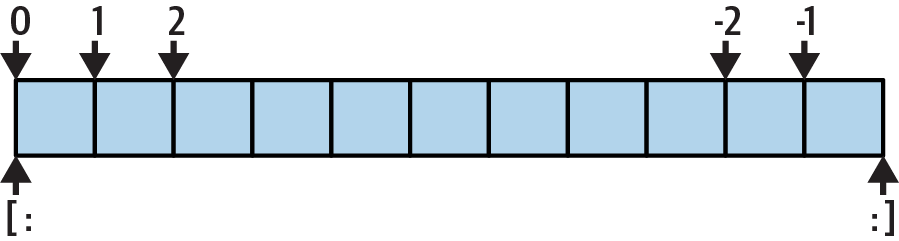
Figure 7-1. Indexes and slices: positives start from the left (0) and negatives from the right (-1)
All of which may seem confusing at first glance, but indexing and slicing are simple and powerful tools to use once you get the knack. Remember, if you’re unsure about the effects of a slice, try it out interactively. In the next chapter, you’ll see that it’s even possible to change an entire section of another object in one step by assigning to a slice (though not for immutables like the strings we’re studying here). For now, here’s a cheat sheet of the details for reference:
Indexing—S[I]—fetches components at offsets in sequences:
The first item is at offset 0.
Negative indexes mean counting backward from the end or right.
Out-of-bounds offsets are an error.
S[0]fetches the first item.S[−2]fetches the second item from the end (likeS[len(S)−2]).
Slicing—S[I:J]—extracts contiguous sections of sequences:
The upper bound is noninclusive.
Slice bounds default to 0 and the sequence length, if omitted.
Out-of-bounds offsets are adjusted be in bounds.
S[1:3]fetches items at offsets 1 up to but not including 3.S[1:]fetches items at offset 1 through the end (the sequence length).S[:3]fetches items at offset 0 up to but not including 3.S[:−1]fetches items at offset 0 up to but not including the last item.S[:]fetches items at offsets 0 through the end—making a top-level copy ofS.
Extended slicing—S[I:J:K]—accepts a step (or stride) K, which defaults to +1:
Allows for skipping items and reversing order—see the next section.
The second-to-last bullet item listed here turns out to be a common technique: S[:] makes a full top-level copy of a sequence object—an object with the same value, but a distinct piece of memory (you’ll find more on copies in Chapter 9). This isn’t very useful for immutable objects like strings, but it comes in handy for objects that may be changed in place, such as lists: making a copy can avoid the side effects of shared references shown in Chapter 6.
Also per the cheat sheet, slices differ from indexes in their policy on out-of-bounds (off the end) offsets: they’re always errors in indexing, because the offset does not exist, but scaled to be in bounds in slicing, because this can be useful in programs that need to accommodate sizes flexibly:
>>>S = 'code'>>>S[99]IndexError: string index out of range >>>S[1:99]'ode'
Because we’re going to explore this oddity in an end-of-part exercise, though, we’ll cut the story short here.
Extended slicing: The third limit and slice objects
Though not commonly used, slice expressions also support an optional third index, used as a step (sometimes called a stride). The step is added to the index of each item extracted. With it, the full-blown form of a slice is S[I:J:K], which means “extract all the items in S, from offset I through J−1, by K.” The third limit, K, defaults to +1, which is why normally all items in a slice are extracted from left to right. If you specify an explicit value, however, you can use the third limit to skip items or to reverse their order.
For instance, S[1:10:2] will fetch every other item in S from offsets 1–9; that is, it will collect the items at offsets 1, 3, 5, 7, and 9. As usual, the first and second limits default to 0 and the length of the sequence, respectively, so X[::2] gets every other item from the beginning to the end of the sequence:
>>>S = 'abcdefghijklmnop'>>>S[1:10:2]# Skipping items'bdfhj' >>>S[::2]'acegikmo'
You can also use a negative stride to collect items in the opposite order. For example, in the slicing expression S[::−1], the first two bounds default to sequence length–1 and –1 (they really default to None and None, but that’s unimportant here), and a stride of −1 indicates that the slice should go from right to left instead of the usual left to right. In much simpler terms, the effect is to reverse the sequence:
>>>S = 'hello'>>>S[::−1]# Reversing items'olleh'
With a negative stride, the meanings of the first two bounds are essentially reversed. That is, the slice S[5:1:−1] fetches the items from 2 to 5, in reverse order (the result contains items from offsets 5, 4, 3, and 2):
>>>S = 'abcedfg'>>>S[5:1:−1]# Bounds roles differ'fdec'
Skipping and reversing like this are the most common use cases for three-limit slices, but see Python’s standard library manual for more details (or run a few experiments interactively). We’ll revisit three-limit slices again later in this book, in conjunction with the for loop statement.
Later in the book, you’ll also learn that slicing is equivalent to indexing with a slice object, a finding of importance to class writers seeking to support both operations:
>>>'code'[1:3]# Slicing syntax'od' >>>'code'[slice(1, 3)]# Slice objects with index syntax + object'od' >>>'code'[::-1]'edoc' >>>'code'[slice(None, None, -1)]'edoc'
String Conversion Tools
One of Python’s design mottos is that it refuses the temptation to guess. As a prime example, you cannot add a number and a string together in Python, even if the string looks like a number (i.e., is all digits):
>>> '62' + 1
TypeError: can only concatenate str (not "int") to str
This is by design: because + can mean both addition and concatenation, the choice of conversion would be ambiguous—do you want '621' or 63? Instead, Python treats this as an error. In Python, magic is generally omitted if it will make your coding life more complex.
What to do, then, if your script obtains a number as a text string from a file or user interface? The trick is that you must simply employ conversion tools before you can treat a string like a number, or vice versa. For instance:
>>>int('62'), str(62)# Convert from/to string(62, '62')
The int function converts a string to a number, and the str function converts a number to its string representation (essentially, what it looks like when printed). Now, although you can’t mix strings and number types around operators such as +, you can manually convert operands before that operation if needed:
>>>S = '62'>>>I = 1>>>S + ITypeError: can only concatenate str (not "int") to str >>>int(S) + I# Force addition63 >>>S + str(I)# Force concatenation'621'
Similar built-in functions handle floating-point-number conversions to and from strings, if you need to mix the two in expressions:
>>>float('1.5') + 2.84.3 >>>'1.5' + str(2.8)'1.52.8'
The built-in eval function introduced in Chapter 5 runs a string containing Python expression code, and so can also convert a string to any kind of object. The functions int and float convert only to numbers, but this restriction means they are usually faster (and more secure, because they do not accept arbitrary expression code). As we also saw briefly in Chapter 5, string formatting provides other ways to convert numbers to strings; more on it ahead.
Character-code conversions
On the subject of conversions, it is also possible to convert a single character to its underlying integer code by passing it to the built-in ord function—this returns the numeric “ordinal” value used to represent the corresponding character in memory (technically, its Unicode code point, as you’ll learn in Chapter 37, but this isn’t crucial yet). The chr function performs the inverse operation, taking an integer code and converting it to the corresponding character:
>>>ord('h')# Character => ID (code point)104 >>>chr(104)# ID => character (string)'h' >>>for c in 'hack':# All code points in a string...print(c, ord(c))... h 104 a 97 c 99 k 107
You can use a loop to apply ord to all characters in a string as shown, but these tools can also be used to perform a simple sort of string-based math. To advance to the next character, for example, convert and do the math in integer:
>>>S = '5'>>>S = chr(ord(S) + 1)>>>S'6' >>>S = chr(ord(S) + 1)>>>S'7'
At least for single-character strings, this provides an alternative to using the built-in int function to convert from string to integer (though this only makes sense if character ordinals are ordered as your code expects!):
>>>int('5')5 >>>ord('5') - ord('0')5
String comparisons
Another reason for introducing ordinals here is that it helps us understand string comparisons: when we compare two text strings, Python automatically compares them left to right, character by character, and lexicographically—that is, by the same character code-point values returned by ord—until the first mismatch or end of either string. In the following, for example, the code-point of t is greater than that of k, and the longer string at the end wins:
>>> 'hack' == 'hack', 'hact' > 'hack', 'hacker' > 'hack'
(True, True, True)
The same holds true for the byte stings you’ll meet in Chapter 37 (they are compared byte for byte until a result is known), and the next chapter’s richer collections like lists do similar (Python compares all their parts for you).
“Changing” Strings Part 1: Sequence Operations
Remember the term immutable sequence? As we’ve seen, being a sequence means that strings support operations like concatenation, repetition, indexing, and slicing. The immutable part means that you cannot change a string in place—for instance, by assigning to an index:
>>>S = 'text'>>>S[0] = 'n'TypeError: 'str' object does not support item assignment
How to modify textual information in Python, then? To change a string, you generally need to build a new string using tools such as concatenation and slicing, and assign the result back to the string’s original name if desired:
>>>S = 'text'>>>S = S + 'ual!'# To change a string, make a new one>>>S'textual!' >>>S = S[:4] + ' processing' + S[-1]>>>S'text processing!'
The first example adds a substring at the end of S, by concatenation. Really, it makes a new string and assigns it back to S to save it, but you can think of this as “changing” the original string. The second example replaces three characters with many by slicing, indexing, and concatenating. As you’ll see in the next section, you can achieve similar effects with string methods like replace:
>>>S = 'text'>>>S = S.replace('ex', 'hough')>>>S'thought'
Like every operation that yields a new string value, string methods generate new string objects. If you want to retain those objects, you can assign them to variable names. Whether by sequence operations or methods, generating a new string object for each string change is not as inefficient as it may sound—remember, as discussed in the preceding chapter, Python automatically garbage-collects (reclaims the space of) old unused string objects as you go, so newer objects reuse the space held by prior values. Python is usually more efficient than you might expect.
But string methods can do much more, as the next section will explain.
Note
Except for bytearray: As previewed in Chapter 4 and to be covered in Chapter 37, Python has a string type known as bytearray, which is mutable and so may be changed in place. bytearray objects aren’t really text strings; they’re sequences of small, 8-bit integers. However, they support most of the same operations as normal strings and print as ASCII characters when displayed. Accordingly, they provide another option for large amounts of simple 8-bit text that must be changed frequently. Richer Unicode text and str strings in general, though, require techniques shown here.
String Methods
In addition to all the string operations already introduced, strings provide a set of methods that support more sophisticated text-processing goals. In Python, expressions and built-in functions may work across a range of types, but methods are generally specific to object types—string methods, for example, work only on string objects. Some method names are used by multiple objects in Python for consistency (e.g., many have count and copy methods, and most mutables have a pop), but they are still more type specific than other tools.
Method Call Syntax
As introduced in Chapter 4, methods are simply functions that are associated with and act upon particular objects. Technically, they are attributes attached to objects that happen to reference callable functions which always have an implied subject. In finer-grained detail, functions are packages of code, and method calls combine two operations at once—an attribute fetch and a call:
- Attribute fetches
- An expression of the form
object.attributemeans “fetch the value ofattributeinobject.” - Call expressions
- An expression of the form
function(arguments)means “invoke the code offunction, passing zero or more comma-separatedargumentobjects to it, and returnfunction’s result value.”
Putting these two together allows us to call a method of an object. The method call expression:
object.method(arguments)
is evaluated from left to right—Python will first fetch the method of the object and then call it, passing in both object and the arguments. Or, in plain words, the method call expression means this:
Callmethodto processobjectwitharguments.
If the method computes a result, it will also come back as the result of the entire method-call expression. As a more tangible example:
>>>S = 'hack'>>>result = S.find('ac')# Call the find method to look for 'ac' in string S
This mapping holds true for methods of both built-in types, as well as user-defined classes we’ll study later. As you’ll see throughout this part of the book, most objects have callable methods, and all are accessed using this same method-call syntax. To call an object method, as you’ll see in the following sections, you have to go through an existing object; methods cannot be run (and make little sense) without a subject.
All String Methods (Today)
Table 7-3 summarizes the methods and call patterns for built-in string objects in Python 3.12. These change over time, so be sure to check Python’s standard library manual for the most up-to-date list, or run a dir or help call interactively on any string or the str type name, as shown in Chapter 4.
In this table, S is a string object; optional arguments are enclosed in [] brackets; nested [] mean optional following an optional; *X and **X mean any number X; and the listed methods implement higher-level operations such as splitting and joining, case conversions, content tests, and substring searches and replacements.
S.capitalize() |
S.ljust( |
S.casefold() |
S.lower() |
S.center( |
S.lstrip([ |
S.count( |
S.maketrans( |
S.encode([ |
S.partition( |
S.endswith( |
S.removeprefix( |
S.expandtabs([ |
S.removesuffix( |
S.find( |
S.replace( |
S.format( |
S.rfind( |
S.format_map( |
S.rindex( |
S.index( |
S.rjust( |
S.isalnum() |
S.rpartition( |
S.isalpha() |
S.rsplit([ |
S.isascii() |
S.rstrip([ |
S.isdecimal() |
S.split([ |
S.isdigit() |
S.splitlines([ |
S.isidentifier() |
S.startswith( |
S.islower() |
S.strip([ |
S.isnumeric() |
S.swapcase() |
S.isprintable() |
S.title() |
S.isspace() |
S.translate( |
S.istitle() |
S.upper() |
S.isupper() |
S.zfill( |
S.join( |
As you can see, strings have many methods, and we don’t have space to cover them all here; omissions can be found in other resources when needed. To help you get started, though, let’s work through some code that demonstrates some of the most commonly used methods in action and illustrates Python text-processing basics along the way.
“Changing” Strings, Part 2: String Methods
As we’ve seen, most strings cannot be changed in place directly because they are immutable. We explored changing strings with sequence operations in the preceding section, but let’s resume that story here in the context of methods.
By way of review, to make a new text value from an existing string, you can construct a new string with sequence operations such as slicing and concatenation. For example, to replace two characters in the middle of a string, you can use code like this, much as we did in the prior section:
>>>S = 'textly!'>>>S[:4] + 'ful' + S[-1]# Make a new string with sequence ops'textful!'
But, if you’re really just out to replace a substring, you can use the string replace method instead:
>>>S = 'textly!'>>>S.replace('ly', 'ful')# Replace all 'ly' with 'ful' in S'textful!'
The replace method is more general than this code implies. It takes as arguments the original substring (of any length) and a new substring (of any length) to replace the original, and performs a global search and replace—subject to an optional third argument that limits the number of replacements made:
>>> '--@--@--@--'.replace('@', 'PY', 2)
'--PY--PY--@--'
In such a role, replace can be used as a tool to implement simple template replacements (e.g., in form letters). If you need to replace one fixed-size string that can occur at any offset, you can do a replacement again, or search for the substring with the string find method and then slice:
>>>S = 'xxxxPYxxxxPYxxxx'>>>where = S.find('PY')# Search for position>>>where# Occurs at offset 44 >>>S = S[:where] + 'CODE' + S[(where+2):]>>>S'xxxxCODExxxxPYxxxx'
The find method returns the offset where a substring appears, or −1 if it is not found (it searches from the front by default, and its cousin rfind searches in reverse). As we saw earlier, this is a substring search operation just like the in expression, but find returns the position of a located substring. In this context, replace does the job easier, and can do more—in the following, replacing both multiple occurrences and multiple targets:
>>>S = 'xxxxPYxxxxPYxxxx'>>>S.replace('PY', 'CODE', 1)# Replace one'xxxxCODExxxxPYxxxx' >>>S.replace('PY', 'CODE')# Replace all'xxxxCODExxxxCODExxxx' >>>'xxxxWHATxxxxHOWxxxx'.replace('WHAT', 'CODE').replace('HOW', 'PYTHON')'xxxxCODExxxxPYTHONxxxx'
As a reminder, replace returns a new string object each time (which is why two calls can be strung together here). Because strings are immutable, methods, like sequence operations, never really change the subject string in place—even if they are called “replace!” To save the new string object produced by a method call, assign it to a name:
>>>S = S.replace('PY', 'CODE')>>>S'xxxxCODExxxxCODExxxx'
The fact that concatenation operations and the replace method generate new string objects each time they are run is a potential downside of using them to change strings: each interim result must create a full-fledged object with a fresh copy of its text. If you have to apply many changes to a very large string, you might be able to improve your script’s performance by converting the string to an object that does support in-place changes:
>>>S = 'text'>>>L = list(S)# Explode string into a list>>>L['t', 'e', 'x', 't']
The built-in list function (really, an object construction call) builds a new list out of the items in any sequence (or other iterable)—in this case, “exploding” the characters of a string into a list. Once the string is in this form, you can make multiple changes to it without generating a new copy for each change:
>>>L[0] = 'h'# Works for lists, not strings>>>L[3] = '!'>>>L['h', 'e', 'x', '!']
After your changes, you can convert back to a string if needed (e.g., to write to a file) by using the string join method to “implode” the list back into a string:
>>>S = ''.join(L)# Implode back to a string>>>S'hex!'
The join method may look a bit backward on first encounter. Because it is a method of strings (not of lists), it is called through the desired delimiter string. join puts the strings in a list (or other iterable) together, with the delimiter between list items; in this case, it uses an empty string delimiter to convert from a list back to a string. More generally, any string delimiter and iterable of strings will do:
>>> 'PY'.join(['which', 'language', 'is', 'best', '?'])
'whichPYlanguagePYisPYbestPY?'
Though subject to Python implementation, joining substrings all at once might run faster than concatenating them individually. The mutable bytearray string noted earlier may help with efficiency too; because it can be changed in place, it offers an alternative to this list/join combo for simple kinds of byte-sized text like ASCII.
More String Methods: Parsing Text
Another common role for string methods is as a simple form of text parsing—that is, analyzing structure and extracting substrings. To extract substrings at fixed offsets, we can employ slicing techniques:
>>>line = 'aaa bbb ccc'>>>col1 = line[:3]>>>col2 = line[4:8]>>>col3 = line[-3:]>>>col1, col2, col3('aaa', 'bbb ', 'ccc')
Here, the columns of data appear at fixed offsets and so may be sliced out of the original string. This technique passes for parsing, as long as the components of your data have known positions. If instead some sort of delimiter separates the data, you can pull out its components by splitting. This will work even if the data may show up at arbitrary positions within the string:
>>>line = 'aaa bbb ccc'>>>cols = line.split()>>>cols['aaa', 'bbb', 'ccc']
The string split method chops up a string into a list of substrings, around a delimiter string. We didn’t pass a delimiter in the prior example, so it defaults to whitespace—the string is split at groups of one or more spaces, tabs, and newlines, and we get back a list of the resulting substrings. In other applications, more tangible delimiters may separate the data. To demo, the next example splits (and hence parses) the string at commas, a separator common in some database roles (string conversion tools covered earlier can change substrings here into numbers):
>>>line = 'Python,3.12,scripting,33'>>>line.split(',')['Python', '3.12', 'scripting', '33']
Delimiters can be longer than a single character, too:
>>>line = 'youPYarePYaPYstringPYcoder'>>>line.split('PY')['you', 'are', 'a', 'string', 'coder']
Although there are limits to the parsing potential of slicing and splitting, both run fast and can handle basic text-extraction chores. Comma-separated text data is also part of the CSV file format; for a more advanced tool on this front, see also the csv module in Python’s standard library.
Other Common String Methods
Other string methods have more focused purposes—for example, to strip off whitespace at the end of a line of text, perform case conversions, test content, and test for a substring at the end or front:
>>>line = "Python's strings are awesome!\n">>>line.rstrip()# Drop whitespace (or other)"Python's strings are awesome!" >>>line.upper()# Case conversions"PYTHON'S STRINGS ARE AWESOME!\n" >>>line.isalpha()# Content testsFalse >>>line.endswith('awesome!\n')# Suffix and prefix testsTrue >>>line.startswith('Python')True
Alternative techniques can also sometimes be used to achieve the same results as string methods—the in membership operator can be used to test for the presence of a substring, for instance, and length and slicing operations can be used to mimic endswith:
>>>line.find('awesome') != -1# Search via method call or expressionTrue >>>'awesome' in lineTrue >>>sub = 'awesome!\n'>>>line.endswith(sub)# End test via method call or sliceTrue >>>line[-len(sub):] == subTrue
Note that none of the string methods accepts patterns—for pattern-based text processing, you must use the Python re standard library module, an advanced tool that will be introduced briefly in Chapter 37 but is mostly outside the scope of this text. Because of their limitations, though, string methods may run more quickly than the re module’s tools.
Again, because there are so many methods available for strings, we won’t look at every one here. You’ll see some additional string examples later in this book, but for more details you can also turn to the Python library manual and other reference resources, or simply experiment interactively on your own. As noted in Chapter 4, help(S.method) gives info for a method of any string object S; use help(str.method) if you have no S.
All that being said, one method is noticeably absent from this section’s coverage: format performs string formatting, which combines many operations in a single step. It’s also part of a larger topic in Python, which we turn to next.
String Formatting: The Triathlon
Although you can get a lot done with the string methods and sequence operations you’ve already met, Python also provides a more advanced way to combine string processing tasks: string formatting allows us to perform multiple type-specific substitutions on a string in a single step. It’s never strictly required, but it can be convenient, especially when laying out text to be displayed to a program’s users.
We’ve used string formatting informally in this book already, but it’s finally time to dig into its details. As suggested in earlier examples, this story is regrettably convoluted by Python’s history: there are today three different string-formatting tools that broadly overlap in functionality. This curious state of affairs reflects a common pattern in software development—new tools arise that boldly promise to be radical improvements over the past, only to be supplanted by even newer tools that boldly make the exact same claims.
The net effect handicaps languages with redundancy, and users with unnecessarily steep learning curves. While learning resources could present just one of many options, that would both impose authors’ opinions and do a vast disservice to readers: even if you’re able to pick just one of the formatting tools for your own work, the fact that the others have been available for decades and have been used by millions of programmers virtually guarantees that you’ll be seeing them in the wild when you begin reusing other people’s code. Try as it may, the new cannot erase the old.
Hence, this chapter presents all three formatting tools for the sake of inclusiveness. If you’re new to Python or programming in general, you probably should focus on the current latest-and-greatest f-string option—not because it’s necessarily “better,” but because it’s more likely to garner development attention and less likely to be deprecated in a backward-incompatible future (its predecessors have been spared this fate to date, but Python has a history here).
But that’s not to say that the others are out of the race: the expression and method alternatives may feel more comfortable to readers with backgrounds in some other tools, and both are pervasive in the vast reams of Python code written over the last thirty-some years. Learning all three options hedges your bets best.
String-Formatting Options
As a preview of what we’re going to explore in this section, here are today’s entries in the string-formatting race:
- Formatting expression:
'…%s…%s…' % (value, value) - The original technique available since Python’s inception, this form is loosely based upon the C language’s
printfmodel and sees widespread use in much existing code. Values on the right replace targets on the left. - Formatting method:
'…{}…{}…'.format(value, value) - A newer technique added in Python 3.0, this form is derived in part from a same-named tool in C#/.NET. It largely overlaps with the expression’s functionality but aims to address usage modes subjectively deemed subpar.
- Formatting literal:
f'…{value}…{value}…' - The very latest (so far) added in Python 3.6, this form is known as f-strings. It shares much with the method but apes a host of languages that support string interpolation—substituting inline expressions with their results.
You can also format strings manually with string methods, though it’s too cumbersome to count. And technically, an additional tool, string.Template, predates the method—and drives the formatting set’s length up to a whopping four—but it’s so scantly used that it gets less billing than the three primary options above and is relegated to a brief sidebar here (and you’d be excused for pretending it doesn’t exist at all, given the heft of the formatting toolbox!).
The following sections present all three formatting options above in turn. While it may be tempting to jump straight to whatever the blogosphere may be recommending as you read these words, these sections partly build on each other (e.g., f-strings use the method’s format specifier and assume it’s earlier coverage), so a linear read is suggested.
The String-Formatting Expression
Since string-formatting expressions are the original in this department, we’ll start with them. Python defines the % binary operator to work on strings. You may recall that this is also the remainder of division, or modulus, operator for numbers. When applied to strings, the % operator provides a simple way to format values as strings according to a format definition. It’s a much more concise way to code multiple substitutions than processing parts individually.
Formatting expression basics
To format strings with an expression:
On the left of the
%operator, provide a format string containing one or more embedded conversion targets, each of which starts with a%(e.g.,%d).On the right of the
%operator, provide the object that you want Python to insert into the format string on the left in place of the conversion target; for multiple targets, provide multiple objects in a tuple.
For instance, in the following formatting example, the integer 3 replaces the %d in the format string on the left, and the string 'format' replaces the %s. The result is a new string that reflects these two substitutions, which may be printed or saved for use in other roles:
>>>'There are %d ways to %s!' % (3, 'format')# Formatting expression'There are 3 ways to format!'
Technically speaking, string formatting in any flavor is usually optional—you can generally do similar work with multiple concatenations and conversions. However, formatting allows us to combine many steps into a single operation. It’s powerful enough to warrant a few more introductory examples:
>>>option = 'expression'>>>'Meet the formatting %s!' % option# String substitution'Meet the formatting expression!' >>>'%d %s %g you' % (1, 'formatter', 4.0)# Type-specific substitutions'1 formatter 4 you' >>>'%s -- %s -- %s' % (42, 3.14159, [1, 2, 3])# All types match a %s target'42 -- 3.14159 -- [1, 2, 3]'
The first example here plugs a string into the target on the left, replacing the %s marker. In the second example, three values are inserted into the target string.
Notice that when you’re inserting more than one value, you need to group the values on the right in parentheses—that is, put them in a tuple. The % operator’s right side generally expects a tuple of one or more items (or a dictionary of items for key references, covered ahead), but allows a single nontuple item if there is just one substitution target. You’ll know which form to use when coding the expression, of course, but this difference was nevertheless deemed a quirk sufficient to justify other formatting options over time.
The third example again inserts three values—an integer, a floating-point number, and a list—but notice that all of the targets on the left are %s, which stands for conversion to string. As every type of object can be converted to a string (the one used when printing), every object type works with the %s conversion code. Because of this, unless you need to do special formatting, %s is often the only code you need to remember for the formatting expression.
Again, keep in mind that formatting always makes a new string, rather than changing the string on the left; because strings are immutable, it must work this way. As before, assign the result to a variable name if you need to retain it.
Formatting expression custom formats
For more advanced type-specific formatting, you can use any of the conversion type codes listed in Table 7-4 in formatting expressions; they appear after the % character in substitution targets. C programmers will recognize most of these because Python string formatting supports all the usual C printf format codes (but returns the result, instead of displaying it like printf). Some of the format codes in the table provide alternative ways to format the same type; for instance, %e, %f, and %g provide alternative ways to format floating-point numbers.
| Code | Meaning |
|---|---|
s |
String (or any object’s str(X) string) |
r |
Same as s, but uses repr, not str |
a |
Same as s, but uses ascii, not str |
c |
Character (integer code or string) |
d |
Decimal (signed base-10 integer) |
i |
Integer (see d) |
u |
Same as d (obsolete: no longer unsigned) |
o |
Octal integer (base 8) |
x |
Hex integer (base 16) |
X |
Same as x, but with uppercase letters |
e |
Floating point with exponent, lowercase |
E |
Same as e, but uses uppercase letters |
f |
Floating-point decimal |
F |
Same as f, but uses uppercase letters |
g |
Floating-point e or f |
G |
Floating-point E or F |
% |
Literal % (coded as %%) |
All told, conversion targets in the format string on the expression’s left side support a variety of conversion operations with a fairly sophisticated syntax all their own. In formal terms, the general structure of conversion targets looks like the following, where […] denotes an optional part (its two square-bracket characters are not included in the expression’s code), and no spaces are allowed between parts (though some parts may contain spaces):
%[(keyname)][flags][width][.precision]typecode
One of the type code characters in the first column of Table 7-4 shows up at the end of this target string’s format, at typecode. Between the % and this type code character, you can do any (or none) of the following:
Provide a key name for indexing the dictionary used on the right side of the expression.
List flags that specify zero padding (
0), left justification (−), numeric sign (+), or a blank before positive numbers and a–for negatives (a space), where-overrides0, and+overrides a space.Give a total but minimum field width for the substituted text.
Set the number of digits (precision) to display after a decimal point for floating-point numbers.
Both the width and precision parts can also be coded as a * to specify that they should take their values dynamically from the next item in the input values on the expression’s right side (useful when this isn’t known until your code is run, but unavailable when keynames are used). And if you don’t need any of these extra tools, a simple %s in the format string will be replaced by the corresponding value’s default print string, regardless of its type.
Advanced formatting expression examples
Formatting target syntax is documented in full in the Python standard manuals and other reference resources, but to demonstrate common usage, let’s explore a few examples. The first formats integers using the default, and then in a six-character field with left justification and zero padding:
>>>x = 1234>>>res = 'integers: ...%d...%-6d...%06d' % (x, x, x)>>>res'integers: ...1234...1234 ...001234'
The %e, %f, and %g formats display floating-point numbers in different ways, as the following interaction demonstrates—%E is the same as %e but the exponent is uppercase, and g chooses formats by number content (it’s formally defined to use exponential format e if the exponent is less than −4 or not less than precision, and decimal format f otherwise, with a default minimum total-digits precision of 6; no, really!):
>>>x = 1.23456789>>>x# Default REPL display1.23456789 >>>'%e | %f | %g' % (x, x, x)'1.234568e+00 | 1.234568 | 1.23457' >>>'%E' % x'1.234568E+00'
For floating-point numbers, you can achieve a variety of additional formatting effects by specifying left justification, zero padding, numeric signs, total field width, and digits after the decimal point. For simpler tasks, you might get by with simply converting to strings with a %s type code or the str built-in function we used earlier:
>>>'%-6.2f | %05.2f | %+06.1f' % (x, x, x)'1.23 | 01.23 | +001.2' >>>'%s' % x, str(x)('1.23456789', '1.23456789')
When sizes are not known until runtime, you can use a dynamically computed width and precision by specifying them with a * in the format string to force their values to be taken from the next item in the inputs to the right of the % operator—the 4 in the tuple here gives precision:
>>> '%f, %.2f, %.*f' % (1/3.0, 1/3.0, 4, 1/3.0)
'0.333333, 0.33, 0.3333'
As usual, experiment with some of these examples and operations on your own for more insight.
Dictionary-based formatting expressions
As a more advanced extension, % string formatting also allows conversion targets on the left to refer to the keys in a dictionary coded on the right and use the corresponding values. Syntactically, this form requires () key references on the left of %, and a single dictionary (or other mapping) on the right. Functionally, it allows formatting to be used as a basic template tool. You’ve met dictionaries only briefly thus far in Chapter 4, but the following demos the idea:
>>> '%(qty)s more %(tool)s' % {'qty': 1, 'tool': 'formatter'}
'1 more formatter'
Here, the (qty) and (tool) in the format string on the left refer to keys in the dictionary literal on the right and fetch their associated values. Programs that generate text such as HTML or XML often use this form: they build up a dictionary of values and substitute them all at once with a single formatting expression, using key references and a template string either loaded from a file or coded in the script. The following demos the idea (notice that its first comment is above the triple quote to keep it out of the string, and “…” prompts may not appear in your REPL):
>>># Template with substitution targets>>>reply = """...Hello %(name)s!...Welcome to %(year)s...""">>>values = {'name': 'Pat', 'year': 2024}# Build up values to substitute>>>print(reply % values)# Perform substitutionsHello Pat! Welcome to 2024
This trick is also sometimes used in conjunction with the vars built-in function, which returns a dictionary containing all the variables that exist in the place it is called:
>>>name = 'Pat'>>>year = 2024>>>vars(){'name: 'Pat', 'year': 2024, …plus built-in names set by Python…}
When used on the right side of a format operation, this allows the format string to refer to variables by name—using dictionary-key syntax:
>>>'%(name)s from %(year)s' % vars()# Variables are keys in vars()'Pat from 2024'
Although formatting expressions are positional by nature, dictionaries also allow them to reuse values more than once (see Chapter 5 for another demo of this in action):
>>> '%(value)f, %(value).2f, %(value).f' % ({'value': 1 / 3.0})
'0.333333, 0.33, 0'
We’ll study dictionaries in more depth in Chapter 8. See also Chapter 5’s section “Hex, Octal, and Binary” for examples that convert to hexadecimal and octal number strings with the %x and %o formatting expression target codes, which we won’t repeat here. Additional formatting expression examples also appear ahead as comparisons to the formatting method and f-string—the first of which is this chapter’s next topic.
The String-Formatting Method
As noted, Python 3.0 added a second way to format strings that some see as more Python specific. Unlike formatting expressions, the formatting method is not as closely based upon the C language’s “printf” model; is sometimes more explicit in intent; and avoids the value-or-tuple quirk of %: substituted values are just arguments, whether one or many.
On the other hand, the new technique still relies on “printf” concepts like type codes and formatting specifications. Moreover, it largely overlaps with formatting expressions; often yields more verbose code; and in practice can be just as complex in most roles. And if we’re all being honest, the value-or-tuple quirk of the % expression is much more of a concern in theory than practice. Luckily, the two are similar enough that many core concepts overlap.
Formatting method basics
The string object’s format method at the heart of this option is based on function call syntax, instead of an expression. Specifically, it uses the call’s subject string as a template and takes any number of arguments that represent values to be substituted according to the template.
This option requires knowledge of functions and calls but is mostly straightforward. Within the subject string, curly braces designate substitution targets and arguments to be inserted—either by relative position ({}), absolute position (e.g., {1}), or keyword (e.g., {name}). As you’ll learn when we explore argument passing in depth in Chapter 18, arguments to functions and methods may be passed by position (e.g., value) or keyword (e.g., name=value), and Python’s ability to collect arbitrarily many arguments allows for general method-call patterns. As initial examples:
>>>template = '{}, {}, and {}'# Relative position>>>template.format('expr', 'method', 'fstring')'expr, method, and fstring' >>>template = '{0}, {1}, and {2}'# Absolute position>>>template.format('expr', 'method', 'fstring')'expr, method, and fstring' >>>template = '{first}, {second}, and {third}'# Keyword name>>>template.format(first='expr', second='method', third='fstring')'expr, method, and fstring' >>>template = '{first}, {0}, and {third}'# Combos ({0} or {})>>>template.format('method', first='expr', third='fstring')'expr, method, and fstring'
By comparison, the last section’s formatting expression can be a bit more concise, but uses dictionaries instead of keyword arguments for named references, and as you’ll see in a moment doesn’t allow quite as much flexibility for value sources in the template string itself (which may be an asset or liability, depending on your perspective):
>>>template = '%s, %s, and %s'# Equivalent %s>>>template % ('expr', 'method', 'fstring')'expr, method, and fstring' >>>template = '%(first)s, %(second)s, and %(third)s'>>>template % dict(first='expr', second='method', third='fstring')'expr, method, and fstring'
Note the use of dict() to make a dictionary from keyword arguments here, introduced in Chapter 4 and covered in full in Chapter 8; it’s an often less cluttered alternative to the {…} literal. Naturally, the subject string in the format method call can also be a literal that creates a temporary string, and arbitrary object types can be substituted at targets much like the expression’s %s code:
>>> '{pi}, {} and {years}'.format(62, pi=3.14, years=[1995, 2024])
'3.14, 62 and [1995, 2024]'
Just as with the % expression and other string methods, format creates and returns a new string object, which can be printed immediately or saved for further work (as another reminder, strings are immutable, so format really must make a new object). String formatting in any of its forms is not just for display:
>>>X = '{pi}, {} and {years}'.format(62, pi=3.14, years=[1995, 2024])>>>X'3.14, 62 and [1995, 2024]' >>>X.split(' and ')['3.14, 62', '[1995, 2024]'] >>>Y = X.replace('and', 'but under no circumstances')>>>Y'3.14, 62 but under no circumstances [1995, 2024]'
Adding keys, attributes, and offsets
Like % formatting expressions, format calls can become more complex to support more advanced usage. For instance, format strings can name object attributes and dictionary keys—as in normal Python syntax, square brackets name dictionary keys and dots denote object attributes of an item referenced by position or keyword. The first of the following examples indexes a dictionary on the key kind and then fetches the attribute platform from the already imported sys module object. The second does the same, but names the objects by keyword instead of position:
>>>import sys# Standard-library module>>>'This {1[kind]} runs {0.platform}'.format(sys, {'kind': 'laptop'})'This laptop runs darwin' >>>'This {map[kind]} runs {sys.platform}'.format(sys=sys, map={'kind': 'phone'})'This phone runs linux'
Square brackets in format strings can also name offsets to index lists (and other sequences), but only a single positive offset works syntactically within each [], so this feature is not as general as you might think. To reference negative offsets or slices, or to use arbitrary expression results in general, you must run expressions outside the format string itself, just as you would for % expressions (note the use of *parts here to unpack a tuple’s items into individual function arguments; you’ll learn more about this form when we study function arguments in Chapter 18):
>>>somelist = list('HACK')>>>somelist['H', 'A', 'C', 'K'] >>>'zero={0[0]}, two={0[2]}'.format(somelist)'zero=H, two=C' >>>'first={}, last={}'.format(somelist[0], somelist[-1])# [-1] fails in fmt'first=H, last=K' >>>parts = (somelist[0], somelist[-1], somelist[1:3])# [1:3] fails in fmt>>>'first={}, last={}, middle={}'.format(*parts)# Or {0}, {1}, {2}"first=H, last=K, middle=['A', 'C']"
If you simply cannot do without full generality inside format strings, stay tuned for the f-string and its arbitrary nested expressions (albeit in a code literal instead of a method object, and at the cost of more redundancy and less utility).
Formatting method custom formats
Another similarity with % expressions is that format lets you can achieve more specific layouts with extra format-string syntax. For the formatting method, we use a colon after the possibly empty substitution target’s identification, followed by a format specifier that can name the field size, justification, and a specific type code. Here’s the formal structure of what can appear as a substitution target in a format string—its four parts are all optional (denoted by surrounding [] here, which aren’t coded in the format string), and must appear without intervening spaces:
{[fieldname][component][!conversionflag][:formatspec]}
Text outside a {} substitution target is taken literally and may use doubled {{ and }} to escape braces (each is replaced with a single brace). Within a {} substitution target:
fieldname- Is an optional number or keyword identifying an argument, which may be omitted to reference arguments by relative position
component- Is a string of zero or more
.nameor[index](brackets required!) references, which are used to fetch attributes and indexed values of an argument, and may be omitted to use the whole argument value conversionflag- Starts with a
!if present, which is followed bys,r, orato callstr,repr, orasciibuilt-in functions on the value, respectively (this may bypass the value’s normal formatting) formatspec- Starts with a
:if present, followed by text that specifies how the value should be presented, including details such as field width, alignment, padding, decimal precision, and so on, and ends with an optional type code
The formatspec component after the colon character has a rich format all its own and is formally described as follows. As you’ll see later, this part is reused by f-strings (again, […] in this denotes an optional component whose square brackets are not coded literally, and spaces aren’t allowed between parts but may appear within some):
[[fill]align][sign][z][#][0][width][grouping][.precision][typecode]
Within this formatspec part of the {} substitution target, the salient parts are these:
fill- Can be any fill character other than
{or} align- May be
<,>,=, or^, for left alignment, right alignment, padding after a sign character, or centered alignment sign- Can be
+(to sign all numbers),−(to sign only negatives), or a space (to use a space for positives) grouping- May be , or
_to request a comma or underscore separator, added for thousands in decimal number type codes, and four-digit groups in nondecimal number type codes (which support only_) widthandprecision- Similar to those in the
%expression of the preceding section, as shown by examples ahead typecode- Similar to those in the
%expression, with the exceptions described below this list - Others
- For numbers, a
0beforewidthenables sign-aware zero-padding (redundantly with somefillusage), and#invokes an alternate form (e.g., adding0band0Xprefixes for binary and hex type codesbandX).
The formatspec may also contain nested {} substitution targets for any of its parts, to use argument-list values dynamically (much like the * in formatting expressions). These nested {} use fieldname to identify arguments from which values are pulled, and their formatted results are used in place of the nested {}. Nesting may be only one level deep, and f-strings (ahead) use an arbitrary expression instead of fieldname in a nested {}.
The method’s typecode options largely overlap with those used in % expressions and listed earlier in Table 7-4, but the formatting method adds a b to display integers in binary format (much like using the bin built-in), adds a % to display percentages, uses only d for base-10 integers (i and u are unused), uses ! conversion flags for some cases, and requires a string object for s (to flexibly allow any type like the expression’s %s, either omit the type code or formatspec in full, or use a !s conversion flag described earlier).
See Python’s library manual for more on substitution syntax that we’ll omit here. In addition to the string’s format method, a single object may also be formatted with the format(object, formatspec) built-in function (which the method uses internally), and may be customized in user-defined classes with the __format__ operator-overloading method (see Part VI). Different objects may use different format specifiers, but most follow norms.
Advanced formatting method examples
As you can tell, the syntax in formatting methods can be complex. Because your best ally in such cases is often the interactive prompt here, let’s turn to some examples. In the following, {0:10} means the first positional argument in a field 10 characters wide; {1:<10} means the second positional argument left-justified in a 10-character-wide field; ^10 center aligns in 10; and {0.platform:>10} means the platform attribute of the first argument, right-justified in a 10-character-wide field (notice again the use of dict() to make a dictionary from keyword arguments):
>>>'{0:10} = {1:10}'.format('text', 123.4567)'text = 123.4567' >>>'{0:>10} = {1:<10}'.format('text', 123.4567)' text = 123.4567 ' >>>'{1[kind]:^10} = {0.platform:^10}'.format(sys, dict(kind='laptop'))' laptop = darwin '
As demoed earlier, you can omit the argument number if you’re selecting them from left to right—though this may make your code less explicit, thereby negating one of the purported pluses of format versus %. Code readers must count to match {}s to arguments off to the right (something the f-string’s inline expressions wholly avoid):
>>> '{:10} = {:10}'.format('text', 123.4567)
'text       =   123.4567'
Floating-point numbers support the same type codes and formatting specificity in formatting method calls as in % expressions. For instance, in the following {2:g} means the third argument formatted by default according to the “g” floating-point representation, {:.2f} designates the “f” floating-point format with just two decimal digits (and rounding), and {:06.2f} denotes a field with a width of six characters and zero padding on the left:
>>>'{0:e}, {1:.3e}, {2:g}'.format(3.14159, 3.14159, 3.14159)'3.141590e+00, 3.142e+00, 3.14159' >>>'{:f}, {:.2f}, {:06.2f}'.format(3.14159, 3.14159, 3.14159)'3.141590, 3.14, 003.14'
Hex, octal, and binary formats are supported by the formatting method as well (% has all these except binary). In fact, string formatting is an alternative to some of the built-in functions that format integers to a given base:
>>>'{:X}, {:o}, {:b}'.format(255, 255, 255)# Hex, octal, binary'FF, 377, 11111111' >>>hex(255), int('FF', 16), 0xFF# Other to/from hex('0xff', 255, 255) >>>oct(255), int('377', 8), 0o377# Other to/from octal('0o377', 255, 255) >>>bin(255), int('11111111', 2), 0b11111111# Other to/from binary('0b11111111', 255, 255)
The formatting method also supports separator insertions (but % currently does not): you can add commas and underscores between thousands groups in numbers, and underscores between four-digit groups in hex, octal, and binary formats, and absolute argument numbers let you reuse values passed in (% uses dictionaries to do the same):
>>>'{:,.2f}'.format(12345.678)'12,345.68' >>>'{0:,} {0:_} {1:_x} {1:_b}'.format(2 ** 32, 0x1FFFF)'4,294,967,296 4_294_967_296 1_ffff 1_1111_1111_1111_1111'
Formatting parameters can either be hardcoded in format strings or taken from the arguments list dynamically by nested format syntax—much like the * syntax in formatting expressions’ width and precision:
>>>'{:.4f}'.format(1 / 3.0)# Parameters hardcoded'0.3333' >>>'%.4f' % (1 / 3.0)# Ditto for expression'0.3333' >>>'{0:.{1}f}'.format(1 / 3.0, 4)# Take value from arguments'0.3333' >>>'%.*f' % (4, 1 / 3.0)# Ditto for expression'0.3333'
In fact, format allows any component of a formatspec string to be taken from arguments at runtime, rather than hardcoded at programming time (this is more general than %). In the following, a number is zero filled, left-justified, signed, twelve wide, comma separated, with two decimal digits—both statically and dynamically (and with and without argument numbering that nearly breaches this page’s width limits!):
>>>'{0:0<+12,.2f}!'.format(1234.564)'+1,234.56000!' >>>'{0:{1}{2}{3}{4}{5}.{6}{7}}!'.format(1234.564, 0, '<', '+', 12, ',', 2, 'f')'+1,234.56000!' >>>'{:{}{}{}{}{}{}{}{}}!'.format(1234.564, 0, '<', '+', 12, ',', '.', 2, 'f')'+1,234.56000!'
Finally, Python’s built-in format function noted earlier can also be used to format a single item. It may simpler than using the format method in this case, and is roughly similar to formatting one item with the % expression:
>>>'{:.2f}'.format(1.2345)# String method'1.23' >>>format(1.2345, '.2f')# Built-in function'1.23' >>>'%.2f' % 1.2345# Expression'1.23' >>>f'{1.2345:.2f}'# Preview: f-string'1.23'
Technically, the format built-in runs the subject object’s __format__ method, which the str.format method does internally for each formatted item. It’s still more verbose than the original % expression’s equivalent here, though, and the f-string alternative may best both when the value is a variable’s name—which leads us to the next section.
The F-String Formatting Literal
If you’ve survived the formatting story this far, there’s some good news: the third and last variant is mostly just a takeoff on the second. The f-string is a text-string literal that embeds substitution values in the format string itself, rather than listing them separately. The code it uses to specify custom formatting, though, is the same as that used for the formatting method. Hence, much of what you just learned for the method applies here in full.
F-strings, added in Python 3.6, perform what’s generally called string interpolation—replacing the text of an expression with the result of running it live, when the f-string itself is run. These expressions are coded inside the f-string and can be arbitrary Python expression code. The effect isn’t functionally different from listing replacement values after a % in the expression, or as arguments in the format method. Because they embed values where they are to be substituted, though, f-strings are often shorter and may seem easier to read to some observers.
Syntactically, f-strings begin with the letter f (uppercase or lowercase, but usually the latter) before any string-literal form (single, double, or triple quotes). The f prefix may be combined with r in any order to code formatted raw strings that ignore backslashes (e.g., rf), and f-strings concatenate implicitly with an adjacent text-string literal of any kind (but use the f prefix on other concatenated literals if you want them to be f-strings too—even on continuation lines).
As a preview of Chapter 37, the f cannot be combined with byte-string prefix b (which means that the f-string, like the format method but unlike the % expression, works only for text, not bytes); and cannot be mixed with the backward-compatible and seldom-used u (which would yield prefixes inappropriate for this family-oriented text).
F-string formatting basics
Within the f-string literal, curly braces are used to denote substitutions just like the formatting method. Unlike the method, though, {} contains inline Python expressions whose formatted runtime results replace the bracketed part:
>>>what = 'coding'>>>tool = 'Python'>>>f'Learning {what} in {tool}''Learning coding in Python'
As usual, the f-string result is a new string that we’re letting the REPL display, but it can also be assigned to a name to be used elsewhere in our code. F-strings also frequently appear in print calls to display formatted text, though sometimes more often than they should: there’s no reason to use an f-string for simple space-separated prints.
In its simplest form like this, an f-string’s expressions enclosed in {} are evaluated and then formatted per their print-string defaults. This isn’t much different from the equivalent expression or method, but is slightly easier on your keyboard and may be slightly easier on your eyes:
>>>'Learning %s in %s' % (what, tool)# Expression equivalent'Learning coding in Python' >>>'Learning {} in {}'.format(what, tool)# Method equivalent'Learning coding in Python'
Importantly, any expression can be used in the curly braces and works as it would outside the f-string:
>>>task = f'Learning {what.upper() + '!'} in {tool + str(3.12)}'>>>task'Learning CODING! in Python3.12'
Moreover, {} expressions are evaluated both where they appear (subject to the name-scoping details you’ll meet later in this book) and when the f-string is run to make a string (not when your code is first read by Python). Like the formatting expression and method, it’s a runtime operation that uses the current values of any variables it names:
>>>what = 'f-strings'>>>task# F-strings built when run (only)'Learning CODING! in Python3.12' >>>task = f'Learning {what.upper() + '!'} in {tool + str(3.12)}'>>>task'Learning F-STRINGS! in Python3.12'
As a preview, this runtime nature also means that f-strings, unlike all other text-string literals, don’t work as Chapter 15’s docstrings. This makes sense if you keep in mind that f-strings are run-time code, more like the % expression and format method calls. When coded in a function, for example, an f-string won’t be run until that function is called.
One syntax quirk here: as this example demos, you can embed quotes within an f-string’s {} even if they are the same as the quotes used for the f-string at large—but this is new as of Python 3.12. In earlier Pythons, backslash escapes didn’t help for nested quotes, though other enclosing-quote tricks did, and none of this applies outside a {}:
f'Learning {what + '!'}'# OK as of Python 3.12f'Learning {what + '!'}'# An error before Python 3.12f'Learning {what + \'!\'}'# And this doesn't make it workf"Learning {what + '!'}"# OK before (and after) Python 3.12f'''Learning {what + '!'}'''# Dittof'Learning '{what + '!'}''# An error in 3.12+f'Learning \'{what + '!'}\''# OK if escape quotes outside {}
Also new as of Python 3.12, a backslash can be used in an f-string’s {} part and works just like it does outside the {}, as do both comments and newlines (the following may stretch the limits of f-strings, but prove these points):
>>>f'{'\n'.join([what] * 3) + '\x21'}''f-strings\nf-strings\nf-strings!' >>>f'Learning { # Your comment here...what.upper() + '!'...} in {tool + str(3.12)}''Learning F-STRINGS! in Python3.12'
In other words, if you like f-strings, you’ll like them best in Python 3.12+. As this book is based on 3.12 (and 3.13 is right around the corner), it will generally use 3.12’s f-string rules; mod examples’ quotes for older Pythons if needed.
F-string custom formats
As noted, f-strings use the same custom-format syntax as string methods, so there’s not much new to learn here. In the abstract, f-strings are coded with a format like this (as usual, […] means an optional part here and its square brackets are not part of the f-string’s code, but spaces are generally allowed between the parts here):
f'…literaltext… {expression[=] [!s, !r, or !a] [:formatspec]} …literaltext…'
As in the method, text outside a {} is taken literally and uses {{ and }} to escape braces, and the {} part can be repeated to embed multiple values. In each, the expression part is any Python expression code and is run to produce the substitution value before formatting it. As in the formatting method, the optional !s, !r, or !a render the expression in user-friendly, as-code, or ASCII-with-escapes form—which is the same as calling str, repr, or ascii for the entire expression enclosed by {}.
Within a {}, the formatspec that is coded after a : is (nearly) identical to that used in the string method and presented earlier, so we won’t repeat its syntax here; see the section “Formatting-method custom formats” for the options that f-strings share with the method. As a minor convenience for developers, f-strings also allow an = character after expression to add the expression’s text and an “=” as a label before its value formatted with a repr default.
Advanced f-string examples
All of which is easier to explain by example than narrative, so let’s get back to running code. Numbers can be formatted in a variety of ways spelled out for the formatting method earlier—including defaults, fixed decimal digits, comma and underscore separators, exponents, signs, and leading zeroes:
>>>a = 3.14156>>>b = 1_234_567>>>f'{a} and {b}'# Defaults'3.14156 and 1234567' >>>f'{a:.2f} and {b:09}'# Decimals, padding'3.14 and 001234567' >>>f'{a * 1000:,.2f} and {b:,} and {b:_}'# Comma and underscore separators'3,141.56 and 1,234,567 and 1_234_567' >>>f'{a * 1000:e} and {b:+012,}'# Exponents, signs, and padding'3.141560e+03 and +001,234,567' >>>f'{b:_X} and {b:_o} and {b // 64:_b}'# Hex, octal, binary, underscores'12_D687 and 455_3207 and 100_1011_0101_1010'
Adding a = after the expression may be useful when you’re debugging code, as it labels data automatically (though this may be more readable for simple variable names than larger expressions):
>>>f'{a=:e} and {b=:+012,}'# Labeled'a=3.141560e+00 and b=+001,234,567' >>>f'{a + 1=:e} and {b * 2=:+012,}''a + 1=4.141560e+00 and b * 2=+002,469,134'
String formats can vary according to the s/r/a flag also coded before the format specifier (but after an =). To demo, the following uses a non-ASCII character (an “A” with either an umlaut mark or diaeresis):
>>>c = 'h\xc4ck'# \xc4 (a.k.a \u00c4) is non-ASCII Ä>>>f'{c} and {c} and {c}'# Defaults'hÄck and hÄck and hÄck' >>>f'{c!s} and {c!r} and {c!a}'# Display mode, two ways"hÄck and 'hÄck' and 'h\\xc4ck'" >>>f'{str(c)} and {repr(c)} and {ascii(c)}'"hÄck and 'hÄck' and 'h\\xc4ck'" >>>f'{c=!s} and {c=!r} and {c=!a}'# Labeled"c=hÄck and c='hÄck' and c='h\\xc4ck'" >>>f'{c=!s:8} and {repr(c)} and {c:0>8}'# Width, fill, alignment"c=hÄck and 'hÄck' and 0000hÄck"
Advanced tip: as in the formatting method, parts of the format specifier can be fetched dynamically at runtime instead of being hardcoded, by using nested {} expressions. The nested expression’s formatted result is used where it appears:
>>>width = 8>>>f'{a:.8f} and {c:0>8}'# Hardcoded parameters'3.14156000 and 0000hÄck' >>>f'{a:.{width}f} and {c:0>{width}}'# Dynamic parameters'3.14156000 and 0000hÄck' >>>f'{a=:.{width}f} and {c * 2:0>{width * 3}}''a=3.14156000 and 0000000000000000hÄckhÄck'
Like the format method, any part of a formatspec in a {} can be a nested {}—though they contain expressions in the f-string, not argument identifiers. This is why f-string formats are just “(nearly)” identical. Other parts of f-strings don’t allow {}s (forward reference: for economy, the following assigns many names positionally with sequence-assignment syntax covered formally in Chapter 11—it’s like a=0, b='<', and so on):
>>>what = 1_234.564>>>a, b, c, d, e, f, g, h = 0, '<', '+', 12, ',', '.', 2, 'f'>>> >>>f'{what:0<+12,.2f}!''+1,234.56000!' >>> >>>f'{what:{a}{b}{c}{d}{e}{f}{g}{h}}!'# But don't try this at home?'+1,234.56000!'
Usage tip: because f-strings run expressions that reference variables, they may not be easy to use as templates when substitution values are collected in a container at runtime—as they often would be. In the following, a ** converts dictionary keys to keyword arguments, as you’ll learn later in this book:
>>>values = dict(tool='Python', role='scripting')# Collected values>>>'Use %(tool)s for %(role)s.' % values# Expression: keys'Use Python for scripting.' >>>'Use {tool} for {role}.'.format(**values)# Method: keywords'Use Python for scripting.' >>>'Use {0[tool]} for {0[role]}.'.format(values)# Method: reused-arg keys'Use Python for scripting.' >>>f'Use {values['tool']} for {values['role']}.'# F-string: expressions'Use Python for scripting.'
For more impressive f-string results, assign substitution values to same-scope variables when possible:
>>>tool = 'Python'>>>role = 'scripting'>>>f'Use {tool} for {role}.''Use Python for scripting.'
But also bear in mind that f-strings may not be easy to use when templates are loaded from external files at runtime—as they often would be. While the format expression and method can treat such templates as simple text data, f-strings are Python program code, and hence may have to be run post load with the eval function of Chapter 5—and trusted to not contain code that will do damage (e.g., erasing files is fairly easy in a Python expression):
>>>fs = """f'Use {tool} for {role}.'"""# As if loaded from a file>>>eval(fs)# Run as code – and trust!'Use Python for scripting.'
F-strings are a powerful tool, but their nested expressions make them geared more toward in-program formatting than data-based roles. For more details on the f-string, see its full disclosure in Python’s language reference manual.
And the Winner Is…
The previous edition of this book went to considerable lengths (about seven pages) to show how the formatting method, newest at the time, was functionally redundant with the expression, in order to underscore the downsides of feature bloat in programming languages. Given that the number of primary formatting tools in Python has climbed from two to three since then, that message may not have entirely hit its mark. Consequently, this edition has dropped most of the rhetoric, and opted to leave this race’s call up to you.
But if you’re looking for a guideline, there is no killer argument for dismissing any formatting option out of hand for all use cases. As stated at the start of this section, f-strings may be best in most new code, on logistical grounds alone: newer is less likely to be culled by Python sooner. In fact, we’ll be using them regularly in the rest of this book where warranted, so expect more examples ahead. Even so, you will also see the expression and method often in existing code and may have to use them in roles that f-strings don’t address (e.g., for substitutions in text loaded from files).
More fundamentally, this book is not in the business of telling you what to do, and you are welcome to use any formatting option you prefer. Imposing new tools on programmers is exclusive, divisive, and probably rude. Despite norms in the software field today, the choice of development options should be yours—and yours alone—to make.
As for the bloat: change is not always bad, but it can be when it creates redundancy or incompatibility. In fact, you’ve just had a front-row seat to one of its worst consequences: N functionally equivalent options can multiply newcomers’ learning requirements by N. We’ll return to this and other perils of ego-fueled churn and convolution in software development at the end of this book. For now, we’ll close by simply noting that this stuff still matters. With any luck, a future edition won’t have yet another formatting tool to doc, and future learners won’t have yet another one to grok.
General Type Categories
Now that we’ve explored the first of Python’s collection objects, the string, let’s close this chapter by defining a few general type concepts that will apply to most of the types we’ll look at from here on. With regard to built-in types, it turns out that operations work the same for all the types in the same category, so we’ll only need to define most of these ideas once. We’ve examined only numbers and strings so far, but because they are representative of two of the three major type categories in Python, you already know more about several other types than you might think.
Mutable Types Can Be Changed in Place
The string’s immutable classification is an important constraint to be aware of, yet it tends to trip up new users. If an object type is immutable, you cannot change its value in place; Python raises an error if you try. Instead, you must run code to make a new object containing the new value. The major core types in Python break down as follows:
- Immutables (numbers, strings, tuples, frozensets)
- None of the object types in the immutable category support in-place changes, though we can always run expressions to make new objects and assign their results to variables as needed.
- Mutables (lists, dictionaries, sets, bytearray)
- Conversely, the mutable object types can always be changed in place with operations that do not create new objects. Although such objects can be copied manually, in-place changes support direct modification.
Generally, immutable types give some degree of integrity by guaranteeing that an object won’t be changed by another part of a program. For a refresher on why this matters, see the discussion of shared object references in Chapter 6. To see how lists, dictionaries, and tuples participate in type categories, we need to move ahead to the next chapter.
Chapter Summary
In this chapter, we took an in-depth, second-pass tour of the string object type. We learned about coding string literals, and we explored string operations, including sequence expressions, string method calls, and string formatting in its expression, method, and literal flavors. Along the way, we studied a variety of concepts in depth, such as slicing, method call syntax, and triple-quoted block strings. We also defined some core ideas common to a variety of types: sequences, for example, share an entire set of operations demoed here for strings.
In the next chapter, we’ll continue our types tour with a look at the most general object collections in Python—lists and dictionaries. As you’ll find, much of what you’ve learned here will apply to those types as well. And as mentioned earlier, in the final part of this book we’ll return to Python’s string model to flesh out the details of Unicode text and binary data, which are of interest to some, but not all, Python programmers, and depend on tools we haven’t yet studied in full. Before moving on, though, here’s another chapter quiz to review the material covered here.
Test Your Knowledge: Quiz
Can the string
findmethod be used to search a list?Can a string slice expression be used on a list?
How would you convert a character to its ASCII integer code? How would you convert the other way, from an integer code to a character?
How might you go about changing a string in Python?
Given a string
Swith the value'c,od,e', name two ways to extract the two characters in the middle.How many characters are there in the string
"a\nb\x1f\000d"?Write an expression, method call, and f-string to format
'Python'and3.12at a string’s beginning and end.
Test Your Knowledge: Answers
No, because methods are always type specific; that is, they only work on a single object type. Expressions like
X+Yand built-in functions likelen(X)are generic, though, and may work on a variety of types. In this case, for instance, theinmembership expression has a similar effect as the stringfind, but it can be used to search both strings and lists. Python makes some attempt to name similar methods consistently (many objects have acopymethod, for example, and mutable objects may share method names likepop), but methods are still more type specific than other operation sets.Yes. Unlike methods, expressions are generic and apply to many types. In this case, the slice expression is really a sequence operation—it works on any type of sequence object, including strings, lists, and tuples. The only difference is that when you slice a list, you get back a new list.
The built-in
ord(S)function converts from a one-character string to an integer character code;chr(I)converts from the integer code back to a string. Keep in mind, though, that these integers are only ASCII codes for text whose characters are drawn only from ASCII character set. In the Unicode model, text strings are really sequences of Unicode code point identifying integers, which may fall outside the 7-bit range of numbers reserved by ASCII (we previewed Unicode Chapter 4 and will revisit it in Chapter 37).Strings cannot be changed; they are immutable. However, you can achieve a similar effect by creating a new string—by concatenating, slicing, using a method call like
replace, or running formatting operations—and then assigning the result back to the original variable name.You can slice the string using
S[2:4]or split on the comma and index the string usingS.split(',')[1]. Try these interactively to see for yourself.Six. The string
"a\nb\x1f\000d"contains the charactersa, newline (\n),b, literal value31(as hex escape\x1f, which is a code point that stands for the nonprintable control character US), literal value0(an octal escape\000), andd. Pass the string to the built-inlenfunction to verify this and print each of its character’sordresults to see the actual code point (identifying number) values. See Table 7-2 for more details on escapes.There’s no right answer for what goes in the middle of the result string, but as examples:
'%s is %s' % ('Python', 3.12)works for the expression, and'{} is {}'.format('Python', 3.12)suffices for the method call. There’s almost no reason to use an f-string if all parts are known and formatted per defaults (f'{'Python'} is {3.12}'seems silly), but f-strings are more useful if values are first assigned to variables:x='Python'; y=3.12; f'{x} is {y}'or similar garners full points.