Chapter 22. Modules: The Big Picture
This chapter begins our in-depth look at the Python module—the highest-level program organization unit, which packages program code and data for reuse, and provides self-contained namespaces that minimize variable name clashes across your programs. Modules were introduced in Chapter 3, and we’ve been using them more and more since Chapter 16, but this part of the book provides a focused, detailed look at this Python tool.
This first chapter in Part V reviews module basics, and offers a general look at the role of modules in the overall structure of programs. In the chapters that follow, we’ll dig into the coding details behind that theory. Along the way, we’ll also flesh out module fine points omitted so far—you’ll learn about reloads, the __name__ and __all__ attributes, package imports, relative import syntax, namespace packages, the __getattr__ hook, the __main__.py file, and so on. Because modules and classes are really just glorified namespaces, this part formalizes namespace concepts as well.
Module Essentials
In simple and concrete terms, modules typically correspond to Python source code files. Each file of code is a module automatically, and modules import other modules to use the names they define. Modules might also correspond to extensions coded in external languages such as C, Java, or C#, and even to entire directories in package imports, which extend the model for nested files. In all their forms, modules are processed with two statements and one tool:
import- Lets a client (importer) fetch a module as a whole
from- Allows clients to fetch particular names from a module
importlib.reload- Provides a way to reload a module’s code without stopping Python
We’ve used imports in prior examples to load both Python standard library modules, as well as code files that reside in the current directory—the one we are in when launching the REPL or a script file. While straightforward on the surface, these tools imply an underlying model that’s richer than you might think. Before we delve into its details, though, let’s begin by getting a handle on the purpose of modules in our Python programs.
Why Use Modules?
In short, modules provide an easy way to organize components into a system, by serving as self-contained packages of variables known as namespaces. All the names defined at the top level of a module file become attributes of the imported module object, but a file’s names can’t be seen without imports, and don’t clash with names in other files.
This model is related to the scopes we studied in the last part of this book. As we learned in Chapter 17, imports give access to names in a module’s global scope. The file surrounding a function is always that function’s own global scope, but imports allow one file to see the global names of another file as attributes. That is, the module file’s global scope morphs into the module object’s attribute namespace when it is imported.
Ultimately, this allows us to link individual files into a larger program system, with three primary benefits:
- Code reuse
- Modules make code permanent. Because a module’s code is saved in a file, you can both run it multiple times and use it in multiple programs. As you’ve learned, code you type at a Python REPL goes away when you exit Python, but code in module files can be rerun as many times as you wish. Moreover, the tools you define in modules may be reused by any number of external clients, and in programs coded both now and in the future.
- Minimizing redundancy
- Module reuse naturally enables shared copies of common code. If more than one file uses the same or similar code, you can write it once in a module that can then be imported by many clients. For example, in the prior chapter’s benchmarking examples, test scripts imported common timer and test-runner functions, instead of repeating them. In other words, modules—like functions—help us factor code to avoid the redundancy that results from copy-and-paste programming. As for functions, this minimizes work when common code must be changed.
- Namespace partitioning
- Modules are also the highest-level namespace structure in a Python program. Although they are fundamentally just packages of names, these packages are also self-contained—you can never see a name in another file unless you explicitly import that file. Much like the local scopes of functions, this helps avoid name clashes across your programs. In fact, you can’t avoid this feature—everything “lives” in a module. Because both the code you run and the objects you create are always implicitly enclosed in modules, modules group components by nature.
At least that’s the abstract story. To truly understand the role of modules in a Python system, we need to digress for a moment and explore the general structure of a Python program.
Python Program Architecture
So far in this book, many examples have sugarcoated the complexity of Python programs. In practice, programs usually involve more than just one file. For all but the simplest scripts, your programs will take the form of multifile systems—as the code-benchmarking programs of the preceding chapter illustrated. Even if you can get by with coding a single file yourself, you will almost certainly wind up using external files that someone else has already written.
This section reviews the general architecture of Python programs—the way you divide a program into a collection of source code files (a.k.a. modules) and link the parts into a whole. As you’ll see, Python fosters a modular program structure that groups functionality into coherent and reusable units, in ways that are almost automatic. Along the way, this section also explores the central concepts of Python modules, imports, and object attributes.
How to Structure a Program
At a base level, a Python program consists of text files containing Python statements, with one main top-level file, and zero or more supplemental files known as modules.
Here’s how this works. The top-level (a.k.a. script) file contains the main flow of control of your program—this is the file you run to launch your application. The module files are libraries of tools, used to group components used by the top-level file, and possibly elsewhere. Top-level files use tools defined in module files, and modules use tools defined in other modules.
Although they are files of code too, module files generally don’t do anything when run directly; rather, they define tools intended for use in other files. A file imports a module to gain access to the tools it defines, which are known as its attributes—variable names attached to objects such as functions. Ultimately, we import modules and access their attributes to use their tools.
Imports and Attributes
To make this a bit more concrete, Figure 22-1 sketches the structure of a Python program composed of three files: a.py, b.py, and c.py. The file a.py is chosen to be the top-level script file; it will be a simple text file of statements, which is executed from top to bottom when launched. The files b.py and c.py are modules; they are simple text files of statements as well, but they are not usually launched directly. Instead, as explained previously, modules are normally imported by other files that wish to use the tools the modules define.
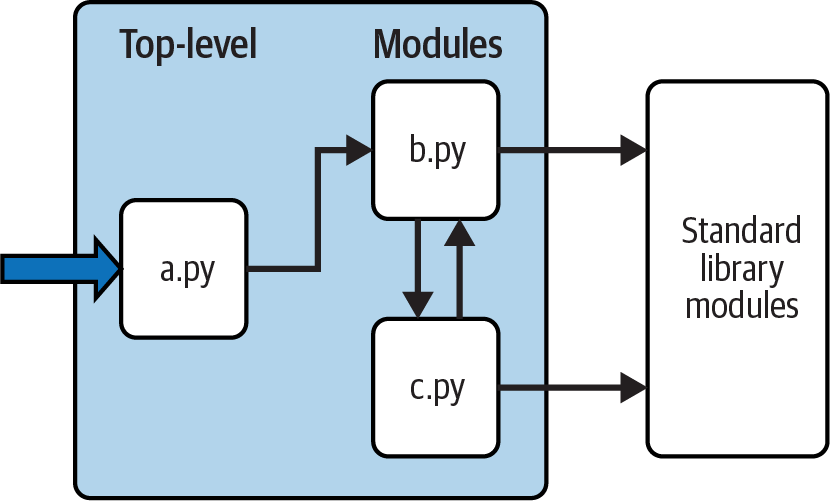
Figure 22-1. Program architecture in Python
For instance, suppose the file b.py in Figure 22-1 defines a function called job for external use, per Example 22-1 (and ignoring c.py for the moment). As you learned when studying functions in Part IV, b.py will contain a Python def statement to generate the function, which you can later run by passing values in parentheses after the function’s name.
Example 22-1. b.py (module)
defjob(tool):(tool,'coder')
This function probably seems trivial at this point in this book, but we’re keeping it simple to focus on module basics. Now, suppose a.py wants to use job. To this end, it might contain Python statements like those in Example Example 22-2.
Example 22-2. a.py (script)
importbb.job('Python')
The first of these, a Python import statement, gives the file a.py access to everything defined by top-level code—that is, code not nested inside a function or class—within the file b.py. The code import b roughly means:
Load the file b.py (unless it’s already loaded), and give me access to all its attributes through the name
b.
To satisfy such goals, import (and, as you’ll see later, from) statements execute and load other files on request. More formally, in Python, cross-file module linking is not resolved until such import statements are executed at runtime; their net effect is to assign module names—simple variables like b—to loaded module objects. In fact, the module name used in an import statement serves two purposes: it identifies the external file to be loaded (by base name b here), but it also becomes a variable assigned to the loaded module.
Similarly, objects defined by a module’s code are also created at runtime, while the import is executing: import literally runs statements in the target file one at a time to create its contents. Along the way, every name assigned at the top level of the file becomes an attribute of the module, accessible to importers. For example, the second of the statements in a.py calls the function job defined in the module b—and created by running its def statement during the import—using object attribute notation. The code b.job means:
Fetch the value of the name
jobthat lives within the objectb.
This happens to be a callable function in our example, so we pass a string in parentheses ('Python'). If you run a.py, the words “Python coder” will be printed—hardly a shocker if you’ve read prior chapters, but illustrative.
As we’ve seen, the object.attribute notation is general and pervasive in Python code because most objects have useful attributes that are fetched with the “.” operator. Some attributes reference callable objects like functions that take action (e.g., a salary computer), while others are simple values that denote data (e.g., a person’s name).
Imports are similarly general because any file can import tools from any other file. For instance, the file a.py in Figure 22-1 may import b.py to call its function, but b.py might also import c.py to leverage different tools defined there. In fact, import chains can go as deep as you like: in this example, module a can import b, which can import c, which can import b again, and so on. More realistically, in the benchmarking code of the prior chapter, test scripts imported runner modules, which imported timer modules.
The main point behind all this is that modules (and module packages, described in Chapter 24) are the topmost level of code reuse in Python. Components coded in module files can be used both in your original program, and in any other programs you may write later. For instance, if we later discover that the function b.job in Example 22-1 is widely useful, we can deploy it in completely different programs; all we have to do is import b again from the other programs. While unlikely in this simple demo, modules by nature create packages of reusable tools.
Standard Library Modules
Notice the rightmost portion of Figure 22-1. As we’ve seen along the way, some of the modules that your programs will import are provided by Python itself and are not files you will code.
Python automatically comes with a large collection of utility modules known as the standard library. This collection, hundreds of modules large at last count, contains platform-independent support for common programming tasks: operating system interfaces, object persistence, text pattern matching, network and internet scripting, GUI construction, multithreading, and much more.
None of these tools are part of the Python language itself, but you can use them by simply importing the appropriate modules on any standard Python installation. Because they are standard library modules, you can also be reasonably sure that they will be available and will work portably on most platforms on which you will run Python code.
This book’s examples employ a few of the standard library’s modules—time, timeit, sys, and os in the last chapter’s code, for instance—but we’ll really only scratch the surface of the library’s story here. For a complete look, browse the Python standard library reference manual, available either online at python.org and elsewhere. See Chapter 15 for more on these manuals; the PyDoc tool discussed there also provides library-module info and lists every importable module, including the standard library.
Because there are so many standard library modules, browsing is the best way to get a feel for what tools are available. You can also find tutorials on Python library tools books that cover application-level programming, but the standard manuals are free, viewable in any web browser, and updated each time Python is rereleased. As of Python 3.10, sys.stdlib_module_names also provides a simple list of all standard library modules—importable or not:
$python3>>>len(sys.stdlib_module_names)# That's a lot of modules300
How Imports Work
The prior section talked about importing modules without fully explaining what happens when you do so. Because imports are at the heart of program structure in Python, this section goes into more formal detail on the import operation to make this process less abstract.
Some C programmers like to compare the Python module import operation to a C #include, but they really shouldn’t—in Python, imports are not textual insertions of one file into another. They are really runtime operations that perform three distinct steps the first time a program imports a given file:
Find the module’s file.
Compile it to bytecode (if needed).
Run the module’s code to build the objects it defines.
To help you better understand module imports, the following sections explore each of these steps in turn.
First, though, bear in mind that all three of these steps are carried out only the first time a module is imported during a program’s execution. Later imports of the same module in a program’s run bypass all three of these steps and simply fetch the already loaded module in memory.
Python does this by storing loaded modules in a normal dictionary named sys.modules, and checking for a module’s name there at the start of an import operation. In fact, sys.modules['name'] means the same as name after an import name, and sys.modules’ keys iterator or keys method lists all imported modules:
>>>import sys, os>>>sys.modules['os'] is os# Name string => moduleTrue >>>sorted(sys.modules)# Or sys.modules.keys()…names of all loaded modules…
We’ll explore other roles for sys.modules in upcoming chapters. On imports, though, if the requested module is not already present in sys.modules, a three-step process begins.
Step 1: Find It
First, Python must locate the module file referenced by an import statement. Notice that the import statement in the prior section’s example names the file without a .py extension and without its directory path: it just says import b, instead of something like import c:\dir\b.py or similar on Unix. Path and extension details are omitted in imports on purpose; instead, Python uses a standard module search path along with known file types to locate the module file corresponding to an import statement.
Because this is the main part of the import operation that programmers must know about, we’ll return to this topic by itself in a moment.
Step 2: Compile It (Maybe)
After finding a source code file that matches an import statement by traversing the module search path, Python next compiles it to a lower-level form known as bytecode, if necessary. We discussed bytecode in Chapter 2, but it’s a bit richer than explained there.
When you first import a module, Python compiles the module’s .py source code file to bytecode, and saves the bytecode in a file with a .pyc extension if possible. On later program runs, Python will load the bytecode from its .pyc file and skip the compile step, as long as the bytecode file uses a compatible format and was made by the importing Python, and you have not edited and saved the source code file since the bytecode file was made.
Importantly, if you change a module’s source code, its bytecode file will be re-created the next time you run a program that imports the module. This ensures that a module’s bytecode is always in sync with its source, and your Python.
All of this is automatic and can generally be taken on faith by most Python users, but a brief look at the complete story can help make the process less mysterious than it should be. In more detail, bytecode files can be created in two flavors, the first of which is used by default, and the second of which came online in Python 3.7:
Timestamp-based bytecode files are created by simply importing modules and are the default, original, and most common option. This is the flavor to use if you want imports to be fast, and don’t have atypical needs.
Hash-based bytecode files are created by using the
compileallorpy_compilelibrary modules. Once created, the Python command-line switch--check-hash-based-pycsmay be used to configure their operation (see Python’s manual for this flag’s three options).
In either model, Python automatically saves enough info to know when a bytecode file must be re-created. Specifically, bytecode files embed a “magic” number identifying the bytecode’s format, along with either the source code file’s last-modified timestamp and size, or a hash value derived from the source code file’s content. Bytecode filenames also include the implementation name and version of the Python that created them.
When a module is imported, Python first checks to see if it was previously imported by the program, and uses the already loaded module if so. Otherwise, it looks for a usable bytecode file corresponding to the module’s source code file, by comparing the info saved with the bytecode file against the current specs of the running Python and the source code file. A .pyc bytecode file is usable if it has the same base name as the source code file, and:
Uses a compatible format—by checking the “magic” number
Is up to date with the source code file—by comparing either saved timestamp and size, or hash value
Was created by the running Python—by inspecting implementation and version tags in the filename
If there is a bytecode file that passes all these checks, it is loaded, and the compilation step is skipped. If not, the source code is compiled to bytecode, and either saved or resaved in a bytecode file with all the noted info.
Programs still run if bytecode files cannot be saved (compiled code is then simply created in memory and discarded on exit), and the -B Python command-line switch can turn off bytecode saves, though it’s rarely needed. When they are saved, bytecode files are written to and loaded from a subdirectory named __pycache__ that’s located alongside their corresponding source code files.
The __pycache__ subdirectory avoids both clutter in your source code folders, and contention and recompiles when multiple Pythons are installed. For example, here’s what happens when the same module file in this chapter’s examples folder is imported by three different Pythons—two CPythons, and the PyPy we used in the preceding chapter (on Windows, use dir and py instead of ls and Python commands here):
$lscodefile.py $python3.12>>>import codefile$python3.8>>>import codefile$pypy3>>>>import codefile$ls__pycache__ codefile.py $ls __pycache__codefile.cpython-312.pyc codefile.cpython-38.pyc codefile.pypy310.pyc
Technically, the __pycache__ subdirectory was introduced in Python 3.2 and isn’t available earlier, but this book is focused on Python 3.X only, and you’re very unlikely to come across a 3.1 or 3.0 in the wild today.
Also, keep in mind that bytecode compilation happens when a file is being imported. Because of this, you will not usually see a .pyc bytecode file for the top-level file of your program, unless it is also imported elsewhere—only imported files leave behind .pyc files on your machine. The bytecode of top-level files is used internally and discarded; bytecode of imported files is saved in files to speed up future imports.
Top-level files are often designed to be executed directly and not imported at all. Later, though, you’ll see that it is possible to design a file that serves both as the top-level code of a program and as a module of tools to be imported. Such a file may be either executed and imported and does generate a .pyc in the latter role. To learn how this works, watch for the discussion of the special __name__ attribute and __main__ in Chapter 25.
Note
Running from bytecode only: As a now-special case, programs will also run if Python finds only bytecode files but no source code files, though this involves more than just deleting your .py files. As of Python 3.2, it generally requires that m.pyc files be located where m.py files normally would be—via either moving and renaming from __pycache__ or generating with the legacy option of Python’s compileall (-b in its command-line mode). For instance, the following makes .pyc files from all .py files in the current directory without requiring moves and renames:
$ python3 -m compileall -b -l .
Running from just bytecode requires a compatible Python and doesn’t fully conceal your code, but is used by some tools to ship programs in standalone form when the hosting Python version can be included or ensured. See Python docs for more info, and the related “Part I, Getting Started” solution in Appendix B.
Step 3: Run It
After compiling or loading the module’s bytecode, the final step of an import operation executes the bytecode. This effectively runs all the statements in the module’s file in turn, from top to bottom, and any assignments made to names during this step generate attributes of the resulting module object. This is how the tools defined by the module’s code are created. For instance, def statements in a file are run at import time to create functions and assign attributes within the module to those functions. The functions can then be called later in the program by the file’s importers.
Because this last import step actually runs the file’s code, if any top-level code in a module file does real work, you’ll see its results at import time. For example, top-level print statements in a module show output when the file is imported. Function def statements (and class statements up later in this book) simply define objects for later use.
As you can see, import operations involve quite a bit of work—they search for files, possibly run a compiler, and run Python code. Because of this, any given module is imported only once per process by default. Future imports skip all three import steps and reuse the already loaded module in memory, per the sys.modules check noted earlier. If you need to import a file again after it has already been loaded (for example, to support dynamic customizations), you can force the issue with an importlib.reload call—a tool we’ll study in the next chapter.
Bear in mind that this process is completely automatic—it’s a side effect of running programs—and most programmers probably won’t care about or even notice the mechanics, apart from faster startups due to skipped compile steps. One part of this process is likely to show up on your radar, though, per the next section’s elaboration.
The Module Search Path
As mentioned earlier, the part of the import procedure that most programmers will need to care about is usually the first “find it” part—locating the file to be imported. Because you may need to tell Python where to look to find files to import, you need to know how to tap into its module search path (the set of directories searched) in order to extend it. This section covers the components that make up the search path and describes how to mod it for folders of your own.
Special case: built-in modules like sys, coded in C and statically linked into Python, are always checked first before scanning the module search path. Given that there are only a few standard library modules in this category, we can safely ignore it here, and focus on the search used for the vast majority of modules you’ll import—including your own. If you’re curious, sys.builtin_module_names lists the special items in this extrasearch category:
>>>sum(1 for m in sys.builtin_module_names if m[0] != '_')# Count non _X11
Search-Path Components
In many cases, you can rely on the automatic nature of the module search path and won’t need to configure this path at all. If you want to be able to import user-defined files across directory boundaries, though, you will need to customize this path. Roughly, Python’s module search path is composed of the concatenation of the following components, some of which are preset for you and some of which you can tailor to tell Python where to look:
The home directory of the program
Directories listed in
PYTHONPATH(if set)Standard library directories and files
The site-packages directory of third-party extensions
The directories listed in any .pth files (if present)
Ultimately, the concatenation of these five components initializes the built-in sys.path—a changeable list of directory-name strings that are searched from first to last for imported files (we’ll revisit this later in this section). The first, third, and fourth components of the search path are defined automatically. The second and fifth components, though, can be used to extend the path to include your own source code directories. Here’s a rundown on all five:
- Home directory (automatic)
Python first looks for the imported file in the code’s “home” directory. The meaning of this entry depends on how you are running the code. When you’re running a program, this entry is the directory containing your program’s top-level script file. When you’re working interactively in a REPL, this entry is instead the directory in which you are currently working (which is why we’ve used this directory for imported files so far). Code run with Python’s
-cand-mswitches used in earlier chapters also uses the current working directory for the home component.Because this directory is always searched first, if a program is located entirely in a single directory, all of its imports will work automatically with no path configuration required. On the other hand, because this directory is searched first, its files will also override modules of the same name in directories elsewhere on the path; be careful not to accidentally hide standard library modules this way if you need them in your program, or use package tools you’ll meet later that can partially sidestep this issue with nested folders.
Also remember that this home directory pertains only to the search path used to resolve imports, and does not impact the current working directory used for relative filenames in your script. Pathless files created by a script will still show up where you are when you launch it (specifically, in the folder returned by
os.getcwd), not in the script’s home folder at the front of the module search path. Module imports and file access are disjoint ideas.- Any
PYTHONPATHdirectories (configurable) Next, Python searches all directories listed in your
PYTHONPATHenvironment variable setting, from left to right (assuming you have set this at all: it’s not generally preset for you). In brief,PYTHONPATHis simply a list of user-defined and platform-specific names of directories that contain Python source code or bytecode files. You can add all the directories from which you wish to be able to import, and Python will extend the module search path to include all the directories yourPYTHONPATHlists. See Appendix A for tips on setting this variable.Because Python searches the home directory first, this setting is only important when importing files across directory boundaries—that is, if you need to import a file that is stored in a different directory from the file that imports it. You may need to set your
PYTHONPATHvariable once you start writing substantial programs and tools, but when you’re first starting out, as long as you save all your module files in the directory in which you’re working (i.e., the home directory) your imports will work without needing to make this setting.- Standard library directories (automatic)
- Next, Python automatically searches the directories where the standard library modules are installed on your machine. These include modules coded in Python, and others coded in C. Because these directories are always searched, they normally do not need to be added to your
PYTHONPATH(or included in path files, ahead). - The standard library site-packages directory of third-party extensions (automatic)
- Next, Python automatically adds the site-packages subdirectory of its standard library to the module search path. By convention, this is the place where most third-party extensions are installed, often automatically by Python’s
pipinstall tool. Because the site-packages install directory of such extensions is always part of the module search path, clients can import the modules of these extensions without any path settings. - Any .pth path-file directories (configurable)
Finally, a lesser-used feature of Python allows users to add directories to the module search path by simply listing them, one per line, in a text file whose name ends with a .pth suffix (for “path”). These path-configuration files are a somewhat advanced installation-related feature; we won’t cover them fully here, but they provide an alternative to
PYTHONPATHsettings.In short, text files of directory names dropped in an appropriate directory can serve roughly the same role as the
PYTHONPATHenvironment variable setting. For instance, a file with .pth extension and any name may be placed in the site-packages subdirectory of the installed Python’s standard library to extend the module search path. To locate this subdirectory inspectsys.pathfor a path ending in site-packages, per its coverage ahead.- When such a file is present, Python will add the directories listed on each line of the file, from first to last, near the end of the module search path list—currently after the site-packages directory as described here. In fact, Python will collect the directory names in all the .pth path files it finds and filter out any duplicates and nonexistent entries. Because they are files rather than shell settings, path files can apply to all users of a given Python, instead of just one user or shell, and may be simpler to set up than environment variables in some contexts.
- For more details on this feature, consult Python’s library manual, and especially its documentation for the standard library module
site—this module configures the locations of Python libraries and path files, and its documentation describes the expected locations of path files in general. When getting started, though, you may be better served by settingPYTHONPATH, and only if you must import across directories. Path files are used more often by third-party libraries installed in Python’s site-packages.
All that being said, Python’s import mechanism is wildly extensible, and even more convoluted than described here. For example, PYTHONPATH entries may also name ZIP files treated like read-only folders; PYTHONHOME can set standard library locations; a file named with suffix ._pth can fully override sys.path norms; “virtual environments” made with module venv avoid package version clashes by localizing search paths to install folders; relative-import “.” syntax of Chapter 24 constrains module search in packages; and all this has morphed regularly, and may again.
While this book covers common usage, its description is intentionally narrow for space, durability, and audience. You should consult Python’s manuals for more on the imports story if and when unique requirements arise.
Configuring the Search Path
The net effect of all of the foregoing is that both the PYTHONPATH and path file components of the search path allow you to tailor the places where imports look for files. The way you set environment variables and where you store path files varies per platform. For instance, on macOS and Windows, you might set PYTHONPATH to a list of directories separated by colons and semicolons, respectively, like this:
/Users/me/pycode/utilities:/Volumes/ssd/pycode/package1# Unix paths listC:\Users\me\pycode\utilities;d:\pycode\package1# Windows paths list
On Unix systems (e.g., macOS, Linux, and Android), an export shell command sets environment variables for the shell and anything it runs, and can be coded in startup files like ~/.bash_profile for permanence. The following on macOS sets the path to enable imports of modules from the code folders of Chapters 21 and 20 (“…” is snipped text):
$pwd/Users/me/…/LP6E/Chapter22 $export PYTHONPATH=/Users/me/…/LP6E/Chapter21:/Users/me/…/LP6E/Chapter20$python3>>>import pybench, permute>>>pybench<module 'pybench' from '/Users/me/…/LP6E/Chapter21/pybench.py'> >>>permute<module 'permute' from '/Users/me/…/LP6E/Chapter20/permute.py'> >>>permute.permute1([1, 2, 3, 4])>>>pybench.runner([(100, 5, '[x ** 2 for x in range(2 ** 16)]')])
Path syntax like “..” for parent folders also works on PYTHONPATH and is interpreted relative to the current working directory—which is not necessarily the home directory of launched programs, if their top-level scripts live elsewhere. Windows consoles use similar commands (e.g., replace export with set, or use setx for permanence), but Windows users generally set environment variables in Settings; search for the environment-variables GUI there.
Instead of—or in addition to—PYTHONPATH, you might create a text file in your Python install’s site-packages folder named with a .pth extension (e.g., mypath.pth) which looks like this on macOS:
/Users/me/pycode/utilities# Unix .pth paths file/Volumes/ssd/pycode\package1# One path per line
These settings are analogous on all platforms, but the details vary too widely for fully inclusive coverage here. See Appendix A for pointers on extending your module search path with PYTHONPATH on various platforms.
To see how your Python configures the module search path on your platform, and to find the location of its site-packages folder which can host path files, you can always inspect sys.path—the topic of the next section.
The sys.path List
If you want to see how the module search path is truly configured on your machine, print the built-in sys.path list. This list of directory-name strings is the actual module search path within Python; on imports, Python searches each directory in this list from left to right and uses the first file match it finds.
Inspecting the module search path
Python configures sys.path at program startup, merging the path components we met earlier. The result is a list of directories searched on each import of a new file. Python exposes this list for multiple reasons. For one thing, it provides a way to verify the search-path settings you’ve made—if you don’t see your settings somewhere in this list after restarting Python, you need to recheck your work. On macOS, for example, with these custom settings:
PYTHONPATHset to/Users/me/pycode1:/Users/me/pycode2A mypath.pth path file in the Python install’s site-packages that lists
/Users/me/pycode3
The search path looks like this when inspected in a REPL or printed from a script:
>>>import sys>>>sys.path['', '/Users/me/pycode1', '/Users/me/pycode2', '/Library/Frameworks/Python.framework/Versions/3.12/lib/python312.zip', '/Library/Frameworks/Python.framework/Versions/3.12/lib/python3.12', '/Library/Frameworks/Python.framework/Versions/3.12/lib/python3.12/lib-dynload', '/Library/Frameworks/Python.framework/Versions/3.12/lib/python3.12/site-packages', '/Users/me/pycode3']
The empty string at the front means the current directory, and the two custom settings are merged in per the order given earlier. The rest are standard library folders and files, and the site-packages home for third-party extensions.
Changing the module search path
The sys.path list also provides a way for scripts to tailor their search paths manually at runtime. By modifying the program-wide sys.path list, you modify the search path for all future imports made anywhere in a program’s run. Such changes last only for the duration of the single run, however; PYTHONPATH and .pth files offer more permanent ways to modify the path—the first per user, and the second per installed Python.
On the other hand, some programs really do need to change sys.path. Scripts that run on web servers, for example, often run as the user “nobody” to limit machine access. Because such scripts cannot usually depend on “nobody” to have set PYTHONPATH in any particular way (grammatically incorrect but true), they sometimes set sys.path manually to include required source directories, prior to running import statements. A sys.path.append, sys.path.insert, or other list operation will often suffice, though will endure for a single program run only:
>>>sys.path.append('/Users/me/pycode4')# Extend search path for this run>>>import module# All imports search the new dir last
You can mod sys.path arbitrarily in code to influence future imports, and this also works in a REPL. Bear in mind, though, that deleting folders may remove access to important tools, and your changes will be discarded when the program or REPL ends. To make path changes span scripts and sessions, use other techniques instead.
Module File Selection
Besides folders, file types also factor into imports. As noted earlier, filename extensions (e.g., .py) are omitted from import statements by design: Python chooses the first file it can find on the search path that matches the imported name. This need not, however, be a .py source code file or a .pyc bytecode file, as the next section explains.
Module sources
Really, imports are the point of interface to a host of external components—source code, bytecode, compiled extensions, ZIP files, Java classes, and more. Python automatically selects any type that matches a module’s name. For example, an import statement of the form import b might today load or resolve to any of the following:
A source code file named b.py
A bytecode file in __pycache__ named b.cpython-312.pyc or similar
A bytecode file named b.pyc if no b.py source code file was located
A directory named b, for package imports described in Chapter 24
A compiled built-in module, coded in C and statically linked into Python when it is built
A compiled extension module (e.g., b.so or b.pyd) coded in C and dynamically linked on import
A source or bytecode file embedded in a ZIP file, automatically extracted when imported
An in-memory image’s module, for frozen (standalone) executables
A Java class, in the Jython version of Python
A .NET component, in the IronPython version of Python
Most of the items on this list extend imports beyond simple files. To importers, though, differences in the loaded file type are completely irrelevant, both when importing and when fetching module attributes. Saying import b gets whatever module b is, according to your module search path, and b.attr fetches an item in the module, be it a Python variable or a linked-in C function. Some standard library modules used in this book, for example, are actually coded in C, not Python; because they look just like Python-coded module files, their clients don’t have to care.
Selection priorities
Given all the options listed in the prior section, there is a potential for conflicts. Python will always load the item with a matching name found in the first (leftmost) directory of your module search path, during the left-to-right scan of sys.path. But what happens if it finds multiple matching items in the same directory? In this case, Python follows a standard picking order, though this order is not guaranteed to stay the same over time or across implementations.
In general, you should not depend on which type of file Python will choose within a given directory—make your module names distinct, or configure your module search path to make your module-selection preferences explicit.
Path Outliers: Standalones and Packages
Finally, while all of the foregoing reflects normal module usage, some tools bend the rules enough to merit a word in closing. For instance, module search paths are not relevant when you run standalone executables discussed in Chapter 2, which typically embed bytecode within their runnable files, and run without path settings. This is a delivery option outside the scope of this book, but see Appendix A for another overview of options in this domain.
In addition, while it’s syntactically illegal to include path and extension details in a standard import, package imports, covered in Chapter 24, allow import statements to include part of the directory path leading to a file as a set of period-separated names. Even so, package imports still rely on the normal module search path to locate the leftmost directory in a package path (they are relative to a directory in the search path), and cannot make use of any platform-specific path syntax in the import statements (such syntax works only on the search path). As hinted earlier, packages can also use “.” syntax to restrict import searches—but we’ll save this story for Chapter 24.
Chapter Summary
In this chapter, we covered the basics of modules and explored the operation of import statements. We learned that imports find the designated file on the module search path, compile it to bytecode, and execute all of its statements to generate its contents. We also learned how to configure the search path to be able to import from directories other than the home and standard library directories, primarily with PYTHONPATH settings.
As this chapter also discussed, the import operation and modules are at the heart of program architecture in Python. Larger programs are divided into multiple files, which are linked together at runtime by imports. Imports in turn use the module search path to locate files, and modules define attributes for external use. The net effect divides a program’s logic into reusable and self-contained software components.
You’ll see what this all means in terms of actual statements and code in the next chapter. Before we move on, though, let’s run through the usual chapter quiz.
Test Your Knowledge: Quiz
How does a module source code file become a module object?
Why might you have to set your
PYTHONPATHenvironment variable?Name the five major components of the module search path.
Name four file types that Python might load in response to an import operation.
What is a module namespace, and what does a module’s namespace contain?
Test Your Knowledge: Answers
A module’s source code file automatically becomes a module object when that module is imported. Technically, the module’s source code is run during the import, one statement at a time, and all the names assigned in the process become attributes of the generated module object.
You need to set
PYTHONPATHonly to import from directories other than Python’s standard library and the “home” directory—the current directory when working interactively, or the directory containing your program’s top-level file. In practice, this might be required for nontrivial programs that use libraries of tools.The five major components of the module search path are the top-level script’s home directory (the directory containing it), all directories listed in the
PYTHONPATHenvironment variable, the standard library directories, the site-packages root directory for third-party extension installs, and all directories listed in .pth path files located in standard places. Of these, programmers can customizePYTHONPATHand .pth files.Python might load a source code (.py) file, a bytecode (.pyc) file, a C extension module, or a directory of the same name for package imports. Imports may also load more exotic things such as ZIP file components, Java classes under the Jython version of Python, .NET components under IronPython, and statically linked C modules that have no files present at all. In fact, with import extensions, imports can load nearly arbitrary items.
A module namespace is a self-contained package of variables, which are known as the attributes of the module object. A module’s namespace contains all the names assigned by code at the top level of the module file (i.e., not nested in
deforclassstatements). A module’s global scope morphs into the module object’s attributes namespace. A module’s namespace may also be altered by assignments from other files that import it, though this is generally frowned upon (see Chapter 17 for more on the downsides of cross-file changes).