Appendix A. Platform Usage Tips
One of Python’s main strengths is its portability: most of the code you’ll write in your Python programs will work the same on all computing platforms. This has limits, of course; programs that use Python’s portable libraries weather device hops better than others, and platform idiosyncrasies and restrictions can sometimes pose interoperability hurdles that require special handling. But by and large, the Python language is cross-platform by design.
Python’s portability means you can run its code on just about every computing device on the planet—from smartphones and tablets to PCs and supercomputers—and each of these systems has unique setup and usage details. While this appendix cannot be an exhaustive user guide for every one of those devices, it provides just enough info to help you prepare to run this book’s code examples on your popular platform—or platforms—of choice.
Before we get started, here are two quick content notes up front. First, because you’re going to have enough on your plate just learning Python itself, the focus throughout this appendix is on keeping it simple. There are many ways to run code, and you may find advanced options useful once you graduate from Python novice to master. Especially when starting out, though, this book recommends walking the easiest path.
Second, a usage appendix like this is unavoidably doomed to grow out of date soon, given the rapid and constant change in the computing world (even the name of macOS, after all, has changed repeatedly on this book’s watch!). Hence, please consider this a snapshot of the current state and practice, and plan to consult the latest resources if when this story changes. For the present, let’s jump right into today’s usage options—while they last.
Using Python on Windows
As the current market-share leader for PCs, Windows will undoubtedly play host to many readers’ first encounter with Python. Python has been completely usable on this platform since its earliest days, and goes out of its way to smooth Windows’ proprietary edges so your code doesn’t have to. A well-coded Python program from Unix, for example, often runs unchanged on Windows despite the two platforms’ many glaring differences.
Today, there are at least three different ways to use Python on Windows: in Windows itself, in Windows Subsystem for Linux (a.k.a. WSL and WSL2), and in the third-party Cygwin Unix-like environment. We won’t cover Cygwin here because it’s not as widely used, and those who may care to use it probably already know how to use it.
WSL—including its newer WSL2 variant—brings Linux to your Windows PC without the hassles of dual-boot installs or separate devices. You get a standard Linux distribution (e.g., Ubuntu) that runs in the Windows UI and avoids some of the trade-offs of classic virtual machines. WSL comes with a command line to edit and run Python code, and WSL2 even runs Linux GUI apps (though they’re still marginal at this writing). Because WSL is really Linux, we’ll defer to the Linux section ahead for Python setup and usage info, as well as Microsoft’s online documentation for details on installing WSL itself.
While WSL may pique some readers’ interest, it requires extra setup steps and is not wholly without seams today. For most readers, the easiest way to use Python on Windows is to go native—with a Python built to run in Windows directly. Python doesn’t come with Windows but it is easy to install and use there. In short, Python for Windows can be installed by downloading a self-installer or visiting the Microsoft Store, and can be run with a simple Windows command-line interface; a graphical IDE—a GUI for editing and launching code; and clicks on program-file entries in Windows File Explorer.
In more detail, the recommended way to install Python for Windows begins with a visit to the Downloads page at python.org. There, you’ll fetch a Windows self-installer that you’ll run to install Python 3.X, along with its IDLE GUI and standard library (including the library’s tkinter GUI toolkit). Figure A-1 captures the Python installer in action; allow it to run if Windows asks for permission. You can generally accept all installation defaults, but it’s recommended to opt in to both adding Python to your PATH at the start of the install and lifting the Windows path-length limits for filenames at the end.
Note
Installation convolution: Though less common, you can also install Python from the Microsoft Store. In fact, typing python3 in a Windows command line at this writing automatically routes you to the store to run the install—confusingly! If you opt to accept this offer, python3 will run the store’s version after the install, and the Start menu will sprout separate entries for launching this Python and its IDLE (up shortly).
This guide uses and generally recommends the python.org install (and its py helper) because it’s more traditional and may be better suited to general use. That said, the store version ultimately comes from the same source, and either may be used for this book’s examples on Windows.
But beware: the store version imposes access restrictions that may matter to you later and should probably relegate it to a secondary option for most readers. You really shouldn’t install both the store and nonstore Windows Pythons, though, unless you need more drama in your life!
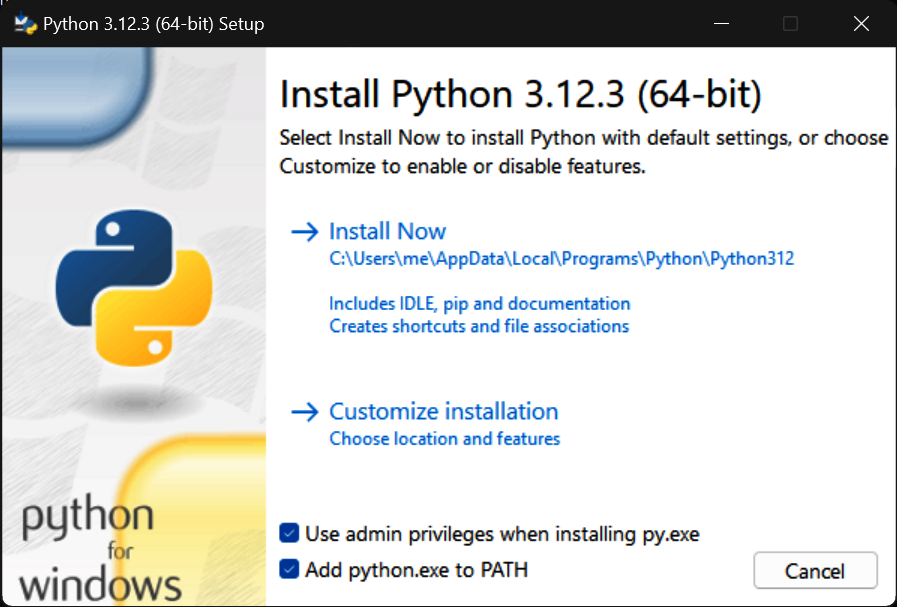
Figure A-1. The pyton.org installer on Windows
Once you’ve installed Python on Windows, running it there can be as simple as typing code at a command line and clicking file icons or as complex as learning the nuances of a full-featured IDE. Of these, command lines generally add the least number of moving parts.
To run Python from a command line on Windows, open either Command Prompt or PowerShell (the non-ISE flavor, normally). Once open, simply type py or other options presented in a moment and add a filename to run a file of code (i.e., a script).
For example, open Command Prompt from your Start menu (search for it there if needed). Then, type py and press Enter to start a Python interactive session where you can type and run code at the >>> prompt. To launch a script instead, type py script.py, with the name of your script. Figure A-2 demos these commands live on Windows. For space, some demos in this appendix, including this one, use Python’s -q flag to suppress messages on session startup; this is cosmetic and optional.
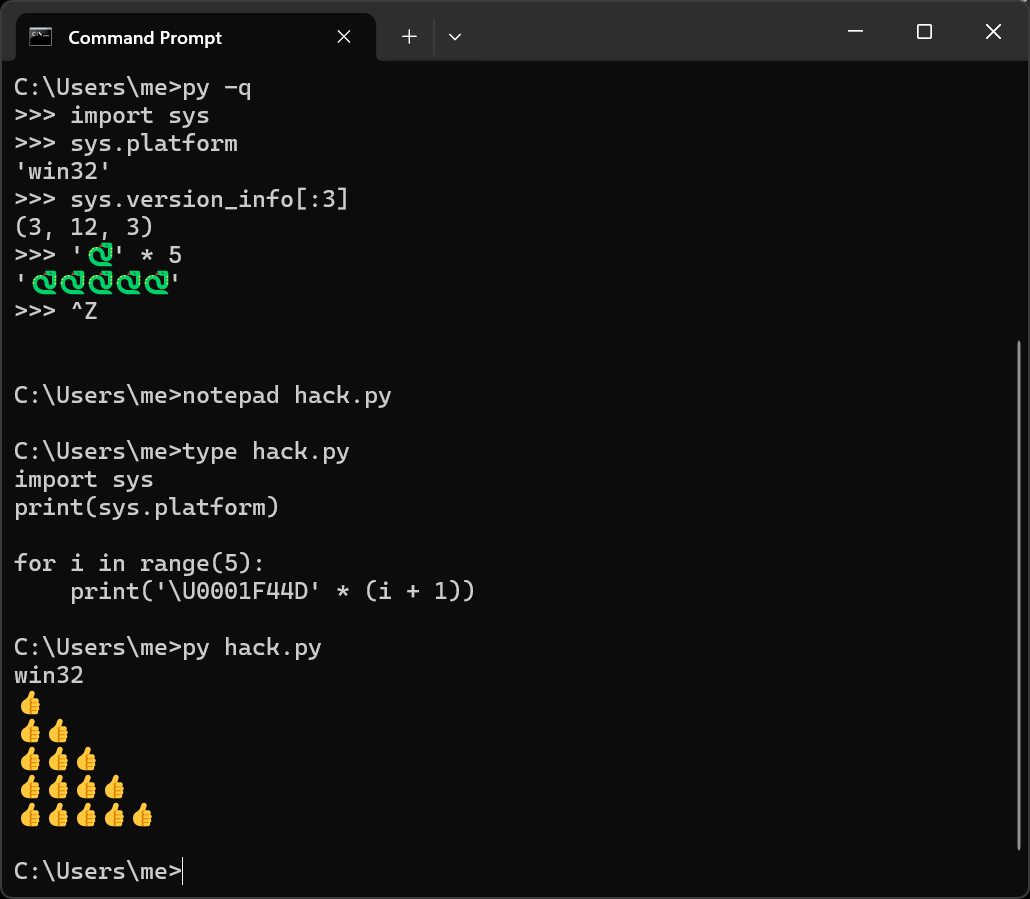
Figure A-2. Running Python by command lines on Windows
The py command is technically part of the Python Windows launcher that’s installed along with Python itself. By default, the launcher runs the most recent Python version installed on your PC, but you can also specify a version to run if there’s more than one (e.g., py -3 runs the latest 3.X, and py -3.8 runs an older version of it). If you have just one Python or want to use the latest, py suffices to launch an interactive session or script.
You can also start Python with command python if you opted to add Python to your system PATH during the install, though it’s pointless extra typing (python3 works too, but only if you installed from the Store per the earlier note). And just as on Unix, you can easily save a script’s printed output to a file by adding > filename.txt to the end of a command (see Chapter 3 for more on such stream redirections).
However, if you opt to go the command-line route, you’ll also need to choose a text editor to create files of code you wish to save (i.e., scripts to run and modules to import). As demoed in Figure A-2, Windows Notepad suffices, but any Windows text editor will fit the bill. To use Notepad, launch it from your Start menu (search there if needed) or by typing its name in a command line, with or without a filename to edit.
Besides command lines, you can also start Python’s interactive session by clicking the Python 3.12 (64-bit) (or similar) item in its Start-menu entry, shown in Figure A-3. This starts the usual Python REPL (Read-Eval-Print Loop) interactive session with its >>> prompt, just like an explicit py command in Command Prompt or PowerShell. You’ll still use py commands or other techniques, though, to run code files. In all console REPLs on Windows, type or tap the two-key combo Ctrl+Z (followed by Enter) at the >>> prompt to exit a Python interactive session or simply close the hosting window.
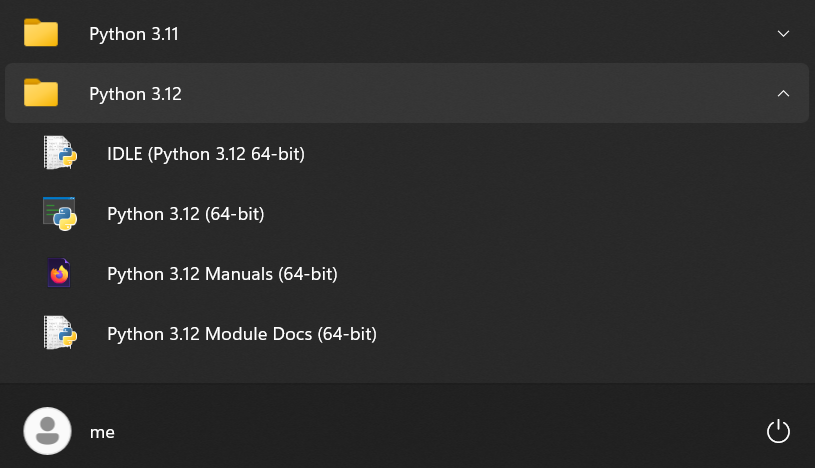
Figure A-3. Python Start-menu options on Windows
If command lines make you break out in hives, you can also run Python from graphical IDEs like PyCharm or Python’s own IDLE. Of these, IDLE is included with Python for Windows and provides a simple but sufficient IDE for running this book’s examples. Its utility partly overlaps with command lines (it’s ultimately just a place to type and run code), but it also includes a Python-friendly text editor for code files, and simplifies some common coding chores. Notably, it’s able to launch program files without command lines.
As examples, Figures A-4 and A-5 capture IDLE’s interactive “Shell” and editor windows, respectively, with default configurations. You can start IDLE from Python’s entry in your Start menu on Windows (try a search for “idle” there to locate and open IDLE quickly). The command py -m idlelib.idle also starts IDLE, for reasons covered elsewhere in this book (tl;dr: this is like a module import, but runs instead of importing), and right-clicks on code files in File Explore can open IDLE too, but require registry edits today.
IDLE’s own Help menu comes with ample usage info that we’ll defer to here, but one tip is worth a callout: a menu Run→Run Module (or its equivalent F5 shortcut key) in any editor window like that in Figure A-5 lets you launch a script without typing a command line. This runs the code in that window after it’s been saved to a file if needed and routes the code’s printed output back to the Shell window. Its Run… Customized version also lets you provide command-line arguments (see sys.argv in Python’s manuals for details).
Useful tricks to be sure, but even if you don’t use IDLE to run code this way, it has additional tools we’ll skip here for space, and its code editor alone makes for a compelling alternative to Notepad if you have no other option in mind for scripts and modules.
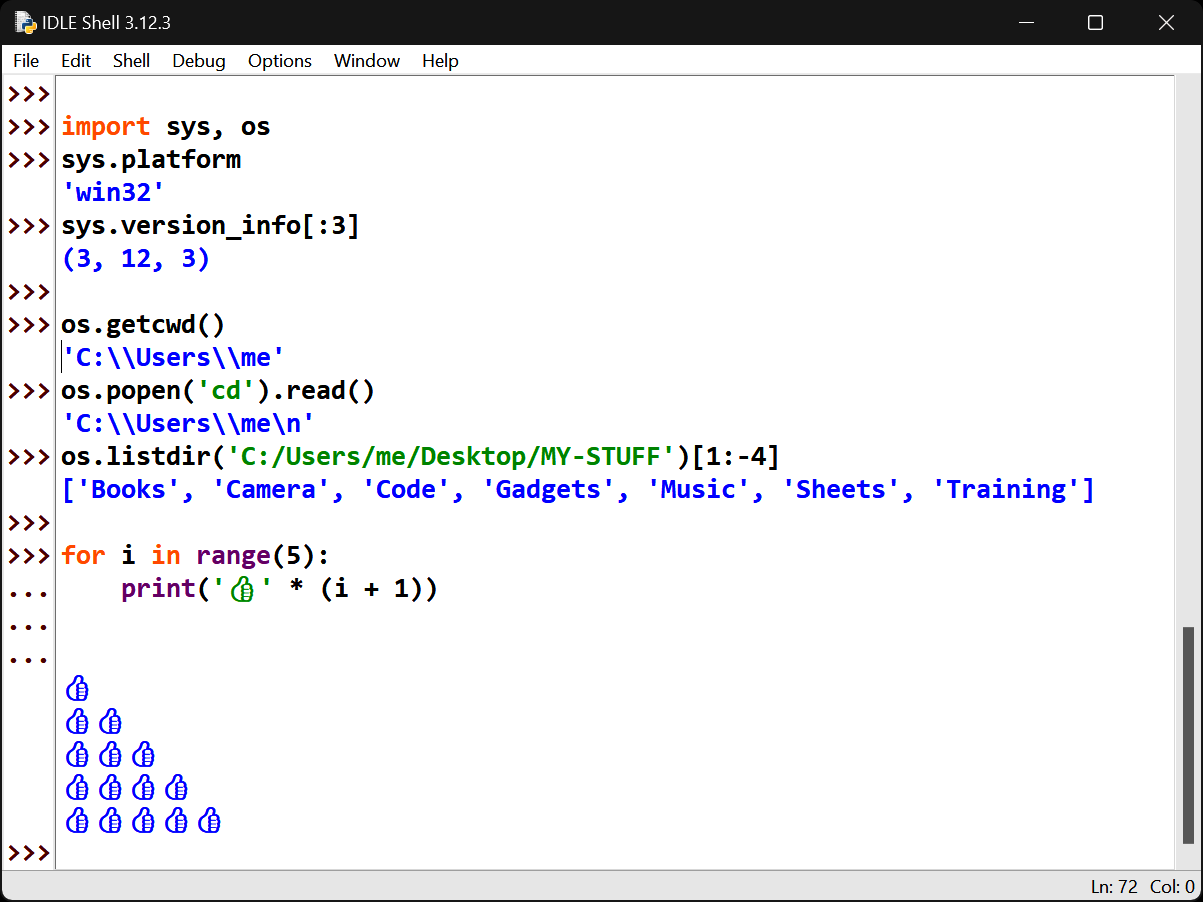
Figure A-4. The IDLE GUI’s Shell window on Windows
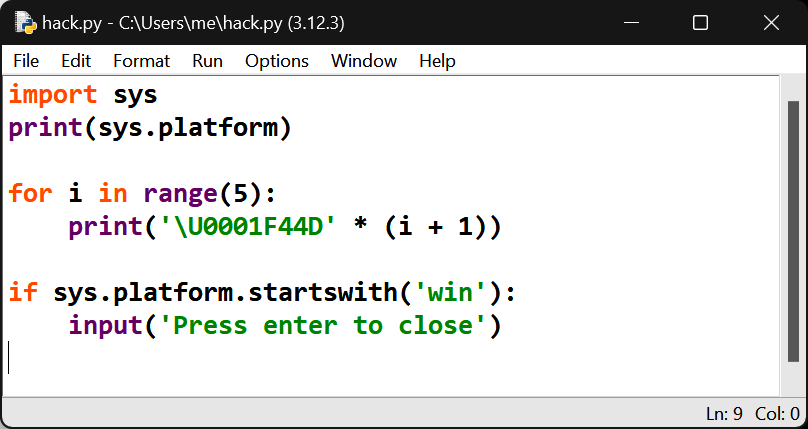
Figure A-5. An IDLE GUI editor window on Windows
Beyond py, python, python3, Start, and IDLE (which already qualifies as a Windows embarrassment of riches!), a Python program file can also be launched on Windows by typing just its name in a command line (e.g., hack.py), and by locating and clicking its name or icon in Windows File Explorer. These both work thanks to the magic of filename associations in Windows, which Python sets up automatically during its install: any file whose name ends in .py is routed to the py launcher when named or clicked.
Clicking, however, comes with a drawback: printed output of programs you launch this way is lost on program exit, because the program’s run window is closed. To keep the window (and hence output) open, simply add a call to Python’s input()at the bottom of your script to pause for a user Enter-key press. As in Figure A-5, this call can be conditional on the platform to pause selectively (some code may warrant standard-stream TTY tests too).
The input() trick won’t help if the program commits an error (alas, the error messages may perish with the window before the pause is ever reached!), so running by clicks is usually best used only for graphical programs, and others that log their errors to files. Tip for GUIs: a .py opens a console for standard stream IO when clicked, but a .pyw does not.
Before we move on, here are some advanced but useful tips for Python on Windows:
- Script #! lines
- The
pyWindows launcher treats the first line in a script’s file as special if it begins with#!. This line can name the version and location of the Python to be used to run the file’s code (e.g.,#!python3.12), and all the usual Unix-style lines work (e.g.,#!/usr/bin/python3.12). This line is entirely optional and no different than naming a Python in the command line used to launch it withpy(e.g.,py -3.12 hack.py) but may be useful when there are multiple Pythons installed on your PC, especially when scripts are run with clicks instead of command lines. - Environment variables
- Windows command-line interfaces use the
PATH(a.k.a.Path) environment variable to locate named programs likepython: every folder on this list is searched. This is normally set up for Python automatically during its install if you opt in, but you can tweak it later yourself in Settings (search for “environment variable” there). In the same way, you may also create or modPYTHONPATH, used to locate imported modules (per Chapter 22), as well asPYTHONUTF8andPYTHONIOENCODING, used on Windows to specify the default Unicode encoding of files and redirected streams (this convoluted story has changed in 3.X often and will again; see Chapter 37). - Other Windows options
- Most Python code works the same on Windows as on other platforms, especially if it uses Python’s portable system tools in modules like
os. In cases where Windows-specific tools are required, though, the pywin32 third-party extension allows your Python programs to access many Windows APIs directly.
For more about using Python on Windows, try python.org’s HOWTO as well as the copious resources on the web (with the usual caution about vetting their copious sources). Here, let’s move on to the next PC platform on our tour.
Using Python on macOS
As a Unix-based platform, macOS is well suited to Python, open source, and software development in general. At this writing, newer macOS PCs no longer come with a Python preinstalled (and if it seems they do, it’s just a stub for installing unrelated toolsets, per the note ahead). Older macOS systems do have a Python, but it’s the now-dated 2.X, and may issue a deprecation warning when launched (in other words, you can’t use it to run this book’s code, and it’s not long for the macOS world). Hence, an install is required.
As for Windows, the recommended way to install Python 3.X for macOS begins with a visit to the Downloads page at python.org. There, you’ll fetch a self-installer for macOS which you’ll run to install Python, along with its IDLE GUI and standard library (including the library’s tkinter GUI toolkit). The Python you’ll get today is a Universal 2 binary that runs natively on macOS PCs using both newer Apple Silicon (ARM) and older Intel (x86) chips, and can be run in the Rosetta 2 emulator (see the web for more on all such terms). Figure A-6 captures the install process on macOS.
Note
Installation convolution: If you type python3 in macOS’s Terminal before running the python.org install, you may get an Apple popup that asks if you want to install Python as part of Xcode’s “command line developer tools.” This is similar in spirit to the Microsoft Store redirect on Windows of the preceding section—and similarly confusing!
On macOS, though, most users should ignore the offer and instead install Python from python.org as described here because it makes your Python independent of the version and configuration choices made by a tools package. This is also true if you already have Xcode and its Python: install a new Python from python.org for generally better control.
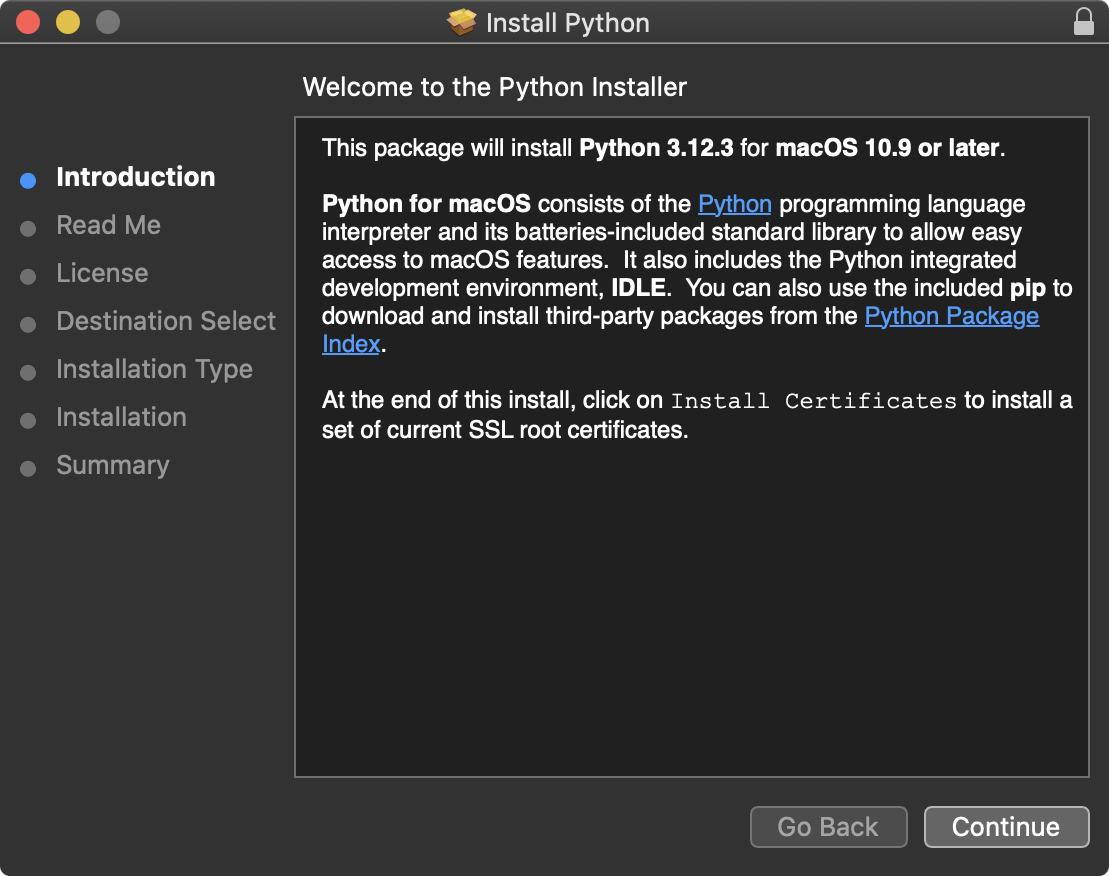
Figure A-6. The python.org installer on macOS
After the install, you can start Python both with its entries in Launchpad, which mostly mirrors your PC’s Applications folder in Finder, as well as command lines in Terminal, which provides a standard Unix command-line shell. Of these, Terminal may be the most basic way to get started with this book’s examples on macOS.
To run code by command line on macOS, open Terminal by clicking its entry in either Launchpad’s Other folder, or Applications→Utilities in Finder. Then, type python3 to start a Python interactive session where you can type and run code, or python3 script.py to launch a code file. This works because python3 is added to your system PATH by the install (and as a caution, python may mean Python 2.X on older PCs).
Figure A-7 demos Python commands live on macOS. As usual on Unix-based systems, type keys combo Control+D at the >>> prompt to exit a Python interactive session here (yes, this differs from Windows), and alias python3 to something shorter in your shell’s startup files if seven characters is too much (e.g., alias to py, if you want to avoid some disorientation when hopping to and from Windows).
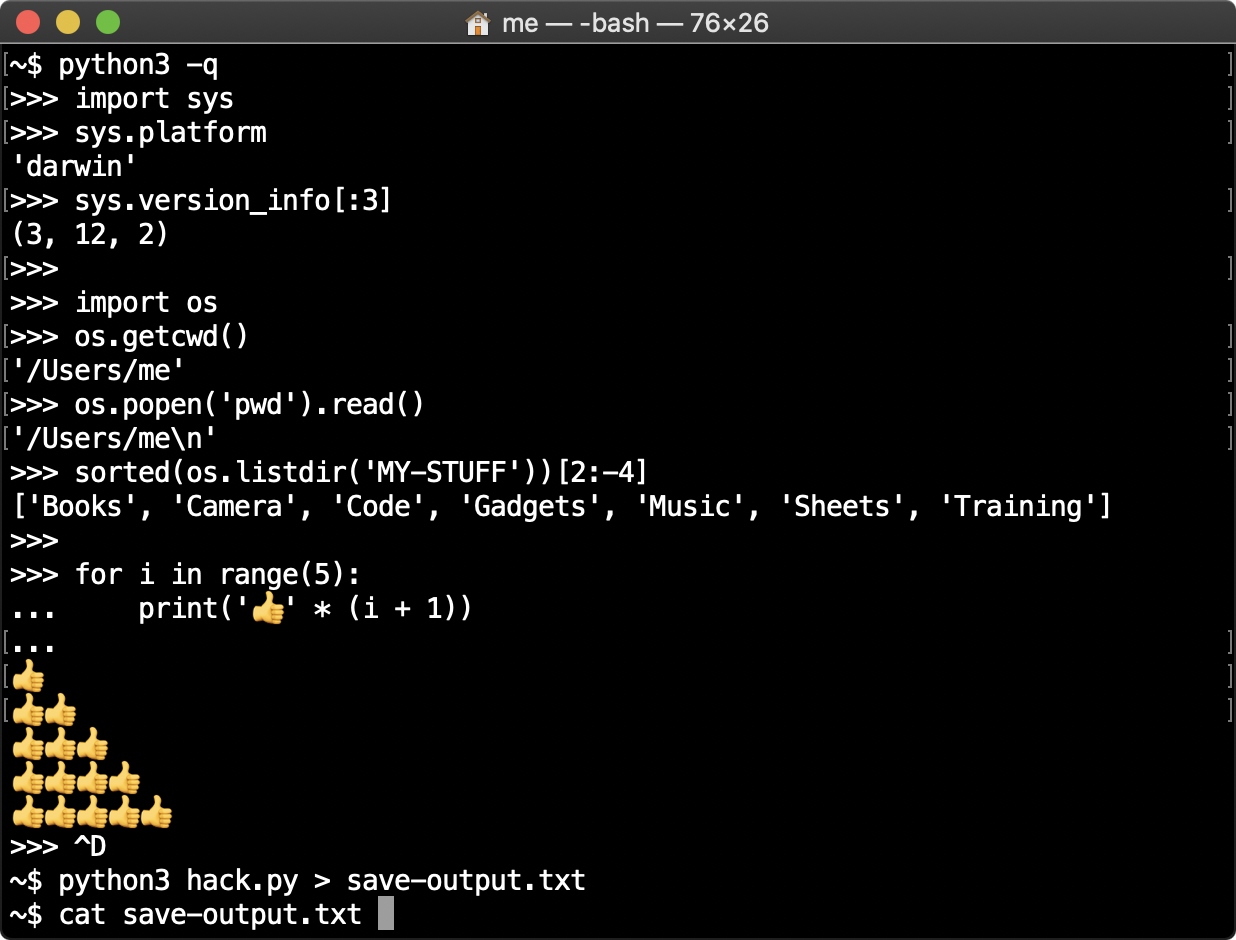
Figure A-7. Running Python in macOS Terminal
When using command lines to run code, you’ll also use a text editor to create files of Python code (scripts and modules) on macOS. Its built-in TextEdit suffices but isn’t very code-friendly out of the box (e.g., you’ll want to set a monospace font right away). Any macOS text editor is up to the task of editing Python code, including IDLE (up next), the vi and nano command-line-based editors familiar to Unix users, and other options you can explore on the web.
After the install on macOS, you’ll also find two tools for running Python code in other modes, available in both Launchpad and your Applications folder in Finder. As captured in both Figures A-8 and A-9, the Python Launcher allows you to run a file of Python code with either a click in Finder or a drag to its icon or name, and IDLE provides a basic edit-and-run IDE GUI for Python code. (Python itself, invoked by a python3 command, shows up in /Library/Frameworks, though you don’t normally need to care.)
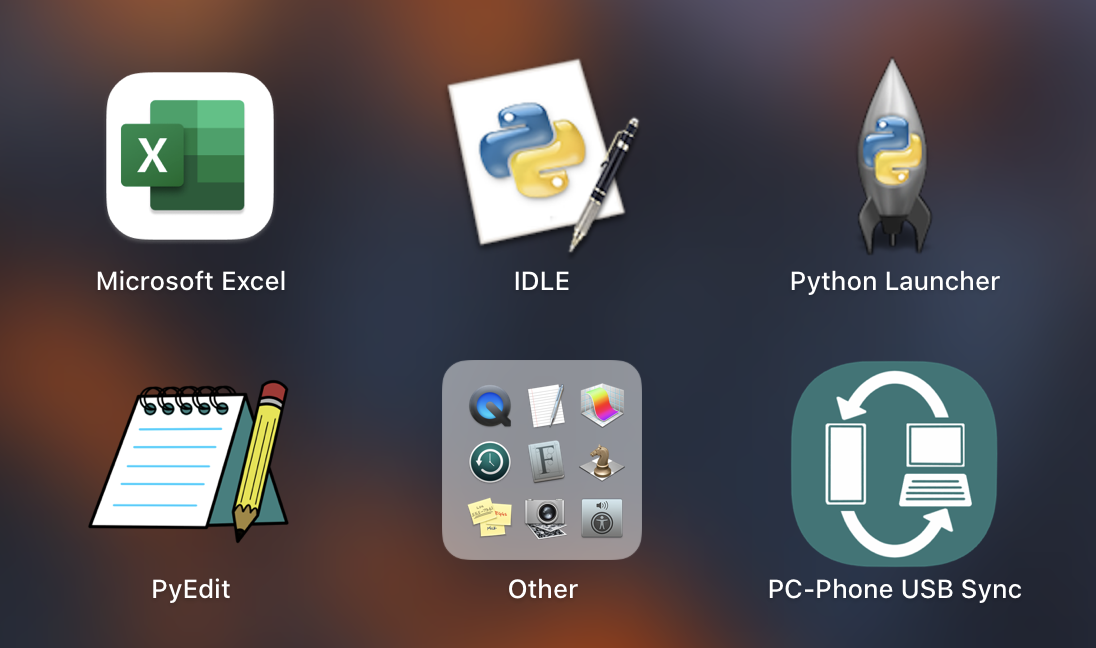
Figure A-8. Python’s IDLE and launcher in macOS Launchpad
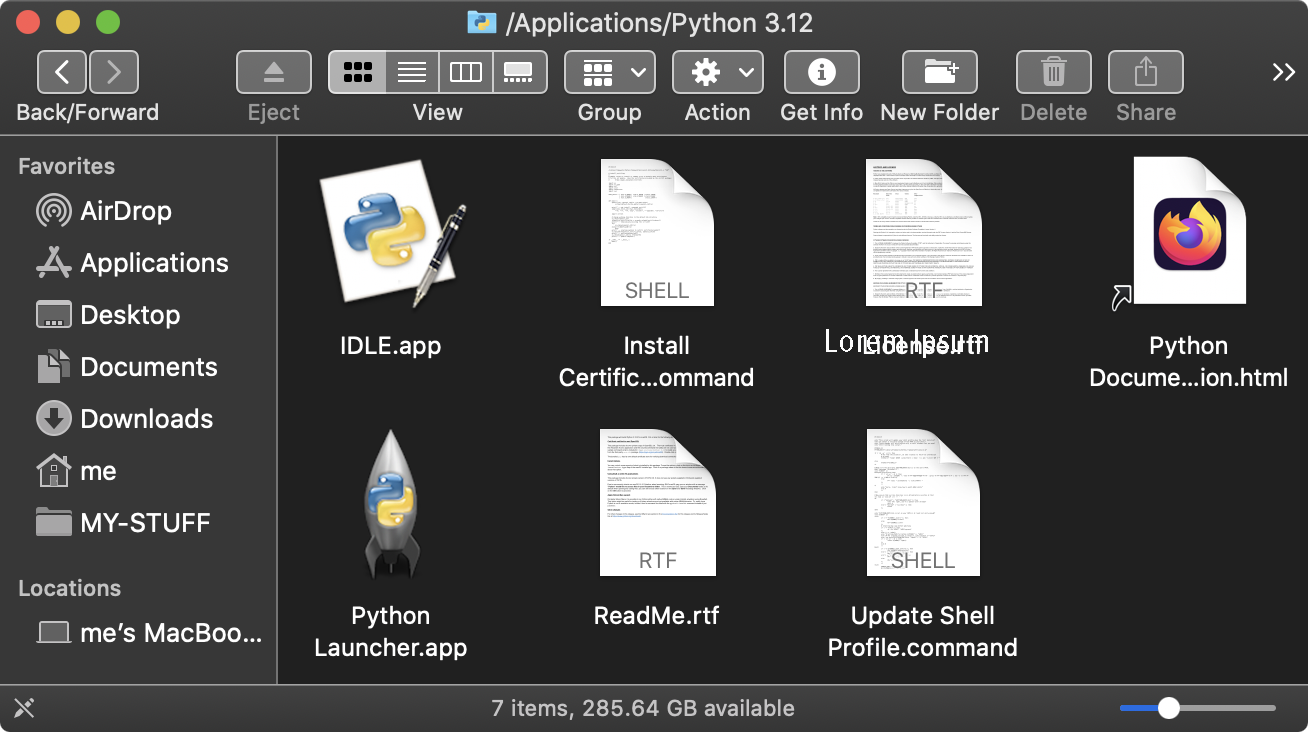
Figure A-9. Python’s Applications folder in macOS Finder
Figure A-10 shows IDLE on macOS. Launch it most easily with its Launchpad or Finder entries or by right-clicking (a.k.a. control-clicking) any Python code file in Finder and choosing IDLE in Open With (you can make this association permanent there if desired, and global in Finder’s Get Info).
Because IDLE is coded in Python as a tkinter GUI, it looks and works the same on all supported platforms (essentially, all PCs sans mobile heroics). As elsewhere, it allows you to edit and run files of Python code without having to use command lines or other editors. See IDLE’s earlier Windows coverage for more tips; as noted there, IDLE can serve as a Python-friendly code editor, even if you run files by command lines, clicks, or drags.
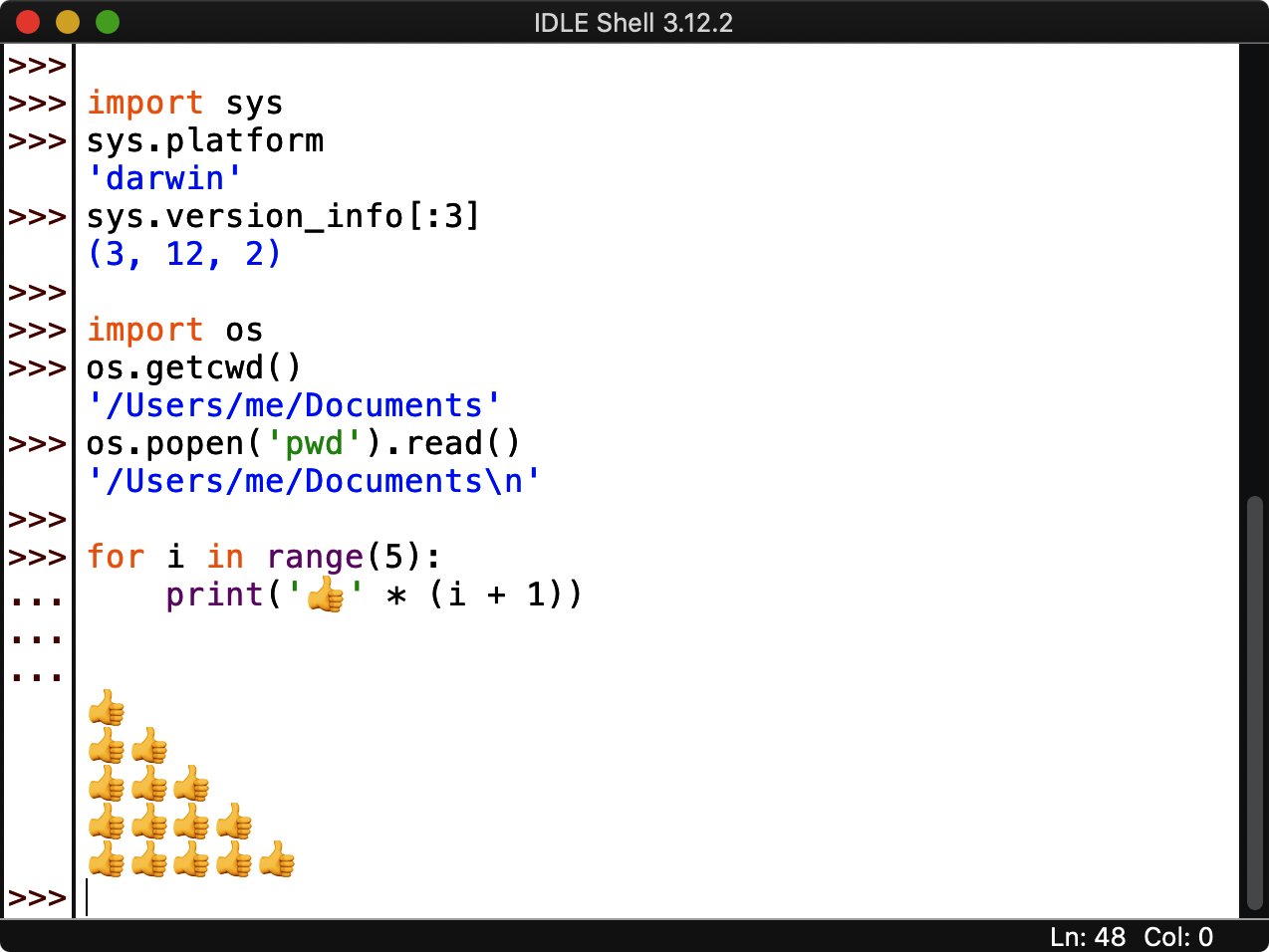
Figure A-10. The IDLE GUI’s Shell window on macOS
To wrap up, here are a handful of advanced usage tips, with macOS spins that also apply to other Unix platforms like Linux and Android coming up next:
- Script #! lines
- If the first line of a script begins with
#!, it’s treated as special on macOS, just as it is on Windows. On macOS, this is a function of the shell (e.g., Bash or Zsh) that’s running your command lines, not Python. For instance, a top-of-script line#!/usr/bin/python3.12tells the shell which Python should run the rest of the file’s lines. This isn’t different than naming your Python in a command line explicitly (e.g.,/usr/bin/python3.12 hack.py), but a#!line allows a script to be run by just its name (e.g.,hack.py) if it’s also made executable (seechmod). - Running by clicks
- Python code files run with a click in Finder, but you may have to choose the Python Launcher in Open With and make it permanent with Always (or Get Info). Unlike on Windows, output is retained in the resulting console window on exit and errors. A
#!first line isn’t required but can be used. - Environment variables
- On macOS, you can also set or change environment variables like
PATH—used to locate programs likepython3named in command lines, andPYTHONPATH—used to locate imported modules, with code in your shell’s startup files (e.g. ~/.bash_profile or ~/.zprofile).PATHis set automatically by python.org installs. For pointers on the shell code used to set these variables, see the example in Chapter 22, as well as the web and your PC’s docs (e.g.,info bashand the unfortunately codedman bash). - Other macOS options
- For completeness, it’s worth noting that there are additional platform-specific tools for Python on macOS (e.g., PyObjC), and the third-party Homebrew package manager provides an entirely different install scheme for Python on macOS, which works equally well but has extra setup steps that make it better suited to advanced readers.
For space, we’ll skip further details here; see the HOWTO at python.org and your local web search engine for more Python options on macOS.
Using Python on Linux
Python is a staple on Linux, where it’s used both for user applications and system tools. Because it’s so ubiquitous on this Unix-based platform, Python may come preinstalled with your Linux distribution; type python3 in a shell window (e.g., Terminal) to check. If you need to install manually, do the usual thing for your Linux flavor: a sudo apt install python3 in Terminal does the deed in Ubuntu distributions (try yum on some others).
Once you’ve got a Python 3.X installed, run code interactively and launch code files with the usual Terminal command lines, like those captured in Figure A-11. A python3 (or a version-specific name) starts an interactive session for typing and running code, and adding a filename (e.g., python3 script.py) runs a file. As on other platforms, your PATH setting is used by such commands to locate Python. As on all Unixes, the key combo Ctrl+D at >>> exits a Python REPL, and shorter shell aliases for python3 can avoid some typing.
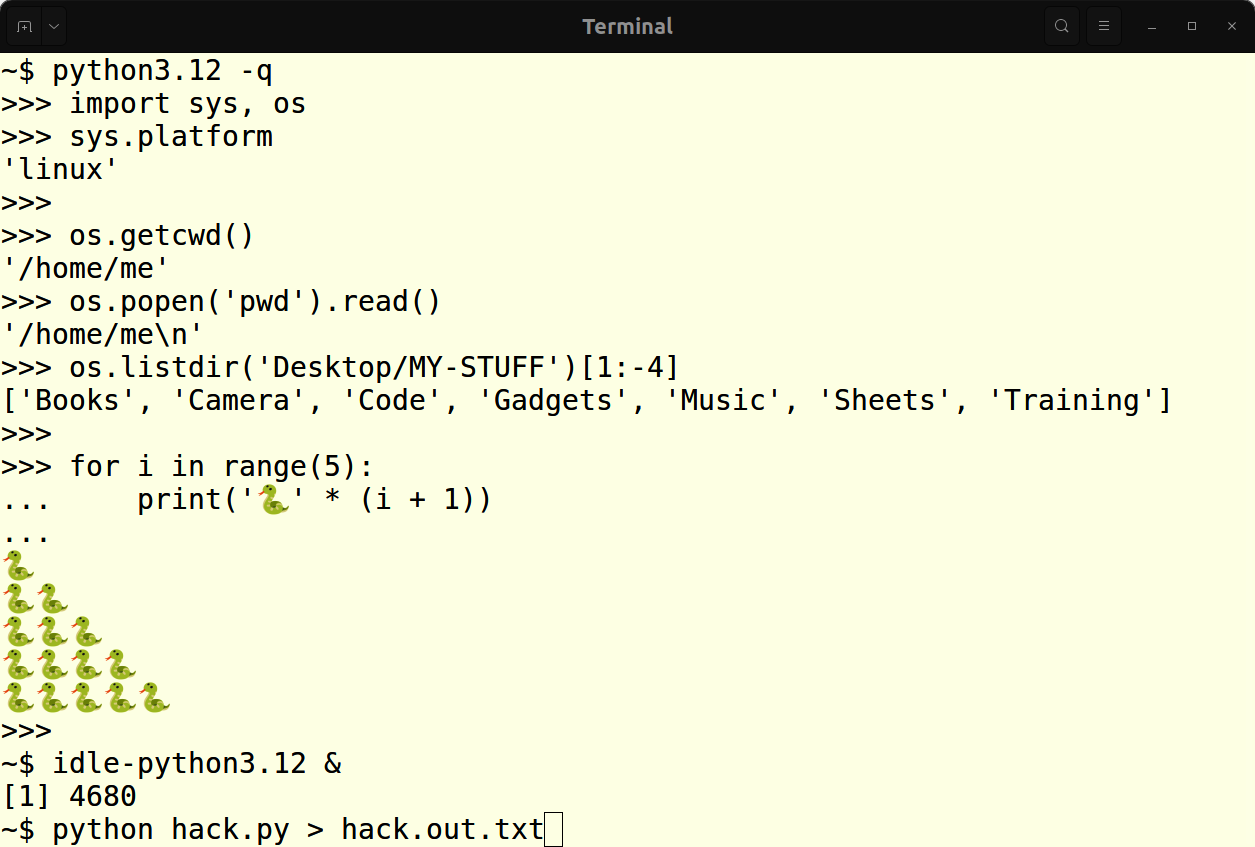
Figure A-11. Running Python in Linux Terminal
When using command lines, you’ll also need to use a text editor for scripts and modules. To make such a file of Python code, any Linux text editor will do, including the graphical Gedit default on Ubuntu and the shell-oriented vi and nano.
You can also use Python’s IDLE edit-and-run GUI on Linux. Launch it with an idle command line after installing it with sudo apt install idle3, or similar on other distributions. A code-file right-click and Open With in file explorers may start IDLE too.
IDLE fine print: you may need to force versions with a more specific name (e.g., idle-python3.12); emojis might not work until a font install (e.g., sudo apt install ttf-ancient-fonts-symbola); and a platform-agnostic command line python3 -m idlelib.idle starts IDLE, too, per the Windows flavor noted earlier.
Figure A-12 demos IDLE running on an Ubuntu Linux PC after all the kinks have been ironed out; it works the same on Linux as on Windows and macOS, and is covered in more detail in this appendix’s Windows section.
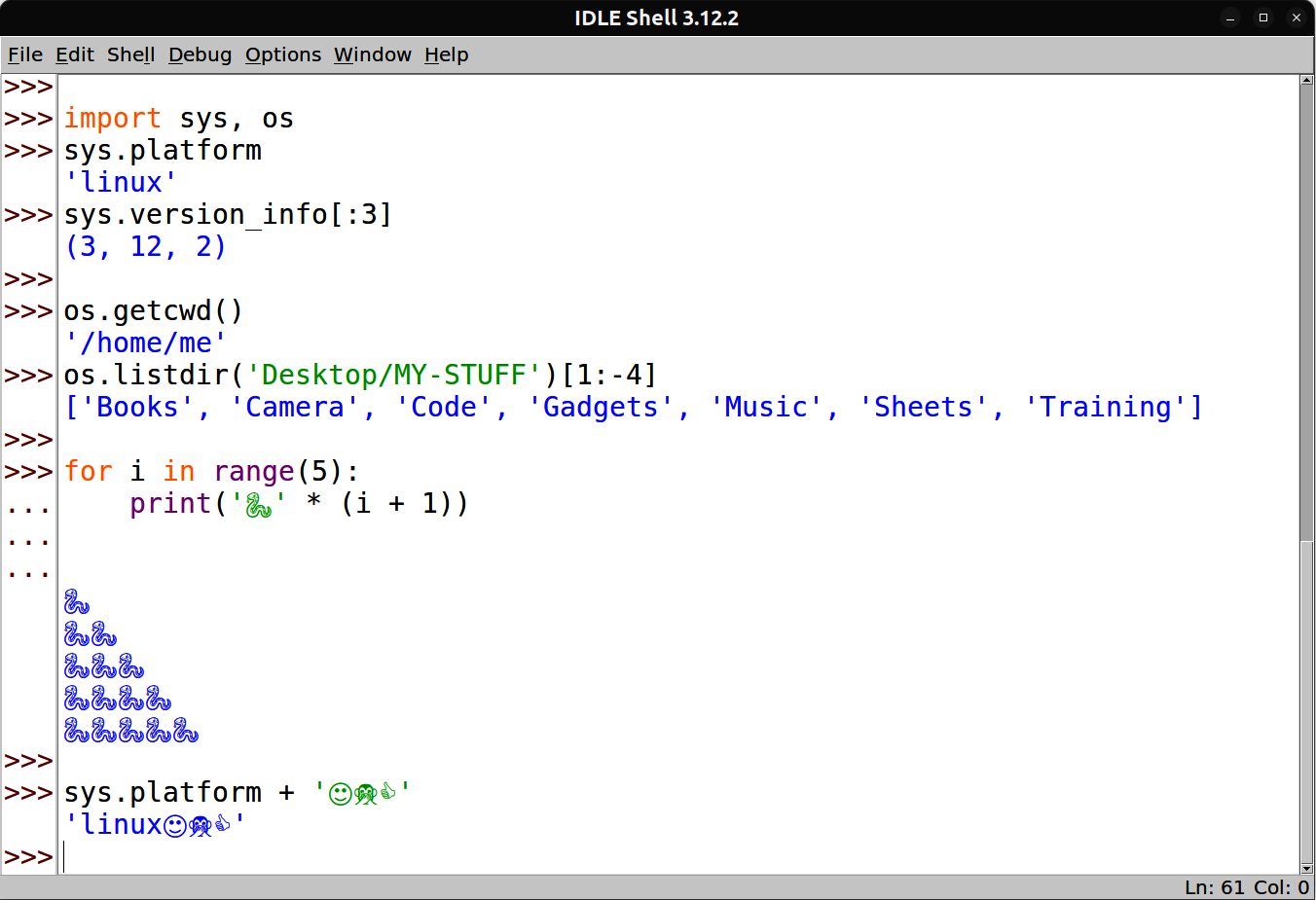
Figure A-12. The IDLE GUI’s Shell window on Linux
Also noteworthy on Linux:
If you wish to use Python’s portable tkinter GUI toolkit, you can install it separately if needed with
sudo apt install python3-tk(or similar, in the richly bifurcated world of Linux package installs).As on macOS, a line starting with
#!at the top of your script can denote which Python runs the file, and environment variables likePATHandPYTHONPATHcan be set in shell startup files, but the former is not usually required. See the macOS section’s coverage of both topics and Chapter 22’sPYTHONPATHexample.Python files can be run by clicks on Linux too, but details vary. In Ubuntu’s Files, “Run as a Program” runs a clicked Python file that has both executable permission (e.g.,
chmod +x script.py), and a#!/…first line that gives the path to Python, but the Windows caution about output disappearing on exit or error applies.It’s not uncommon on Linux to build Python from its source code distribution, from either python.org or GitHub. This entails a few simple command lines (
configureandmake), but is beyond the scope of both this chapter and most Python beginners; see the Downloads page at python.org for code and details.
For more info about Python on Linux, try the web at large or python.org’s HOWTO. Here, it’s time to move ahead to Python’s story on mobile.
Using Python on Android
Android is a secure derivative of Linux adapted for the unique constraints of mobile devices, and is the most widely used operating system in the world at this writing. Despite this platform’s Java and Kotlin programming-language biases, Python can be used as a first-class programming citizen on Android devices in both learning and development roles. This book’s examples, for instance, will work well on your Android phone or tablet.
To run Python locally on your Android, you’ll first install an app that supports it from an app store like Play or F-Droid. Among these apps, Termux, Pydroid 3, and QPython all allow you to run Python code on Android directly in multiple modes. While we can’t do justice to these and other Python apps, here’s a quick rundown of two to get you started.
The free and open source Termux app for Android provides a full-featured Linux shell, toolset, and package manager. To use Python in Termux, first install the Termux app from the F-Droid store (its Play version is defunct). Then, open the app from your Apps screen, and install Python 3.X inside it with a pkg install python command line in its shell.
Termux opens with a standard Bash command-line shell, where you can tap out commands to launch an interactive Python session with python, and run a file of code by adding a filename (e.g., python script.py). Stream redirection works as on all Unix, and command python3 is the same as python if you prefer Unix uniformity and don’t mind the extra tap. Both commands are automatically usable post install without PATH mods.
You can use code files (scripts and modules) located in any folder Termux has access to (which generally means shared or app-private storage, per ahead) and make and change them either with separate text editor apps or within Termux itself using Linux text editors like vi and nano (install them in Termux with pkg install as needed). Termux also supports Android’s Storage Access Framework to make its app-private storage visible to some file-explorer apps, although shared storage is more accessible and usable.
Figure A-13 demos the Termux app running Python code and file on Android. As on all Unixes, the keys combo Ctrl+D at >>> ends a Python interactive session in Termux (via Termux’s CTRL button or keyboards ahead), as does killing the app, and shell aliases can shorten the python (or python3) command. With apps, you’ll generally use the version of Python provided; in Termux, this means one of the versions in package repos, but you may be able to build a newer one from source code. You can also install a host of extensions to use in your code by command line, with both Termux’s pkg, and Python’s pip.
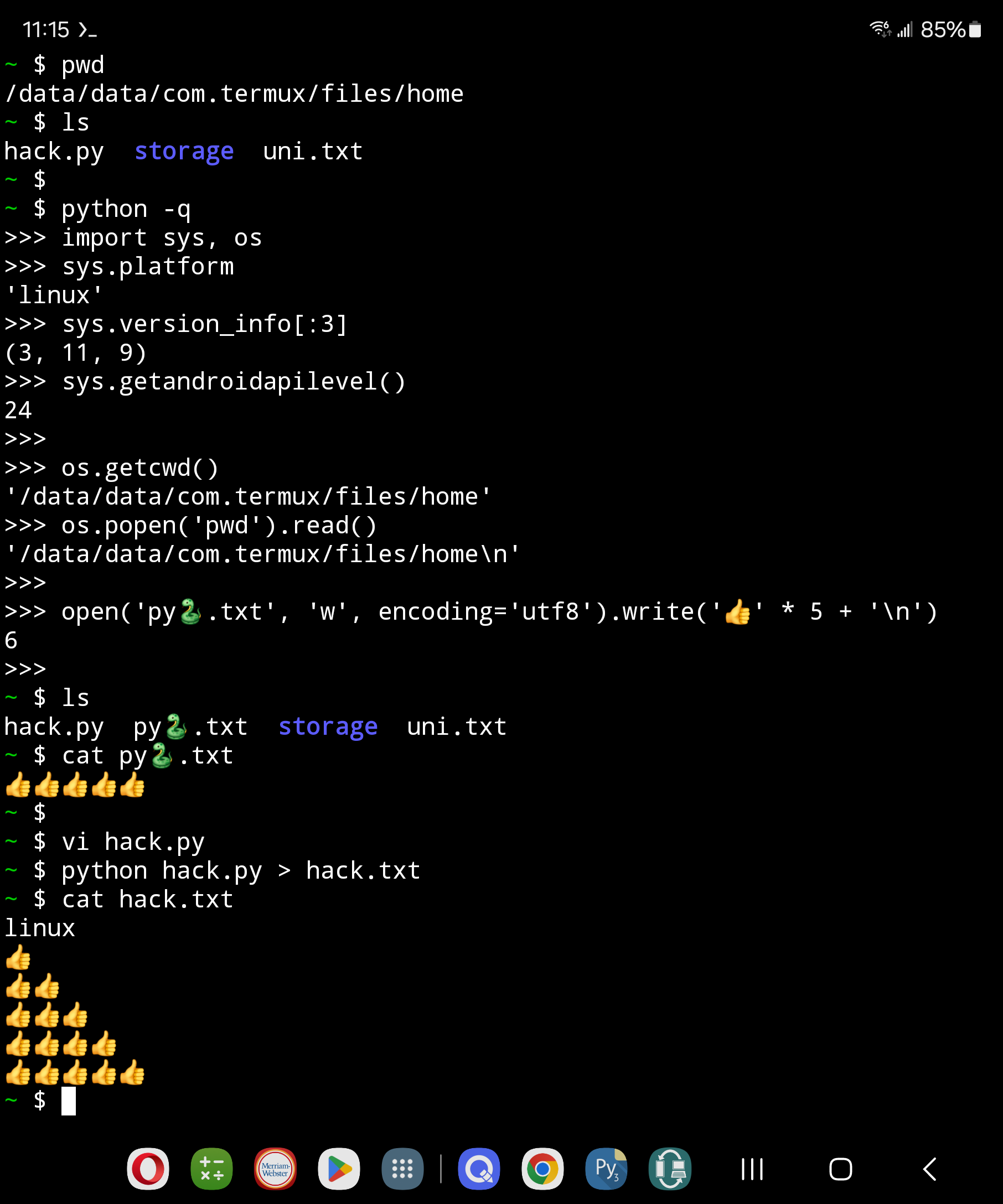
Figure A-13. Running Python in the Termux app on Android
Termux may be the path of least resistance for getting started with Python on Android. It has more features we’ll largely skip here, including home-screen widgets that run Python scripts on taps, and all Linux concepts covered earlier apply, including PYTHONPATH and PATH environment-variable settings. Its chief downside for some users may be that it is limited to command lines sans its optional X Window System support, which is considerably complex to use; IDLE, for example, would be difficult at best run in Termux.
If you’re looking for something a bit more graphical, the Pydroid 3 app also provides a command-line shell and interactive Python session, but adds a GUI IDE for editing and launching Python code. The IDE’s edit/run window is captured in Figure A-14.
Pydroid 3 is today installed from Play. Its shell and interactive session are less user-friendly than the richer command-line support in Termux, but its IDE may seem more comfortable for users unaccustomed to command lines. Similar in spirit to IDLE on PCs, this app’s IDE allows you to edit Python code, and launch it with a simple (and yellow) button press.
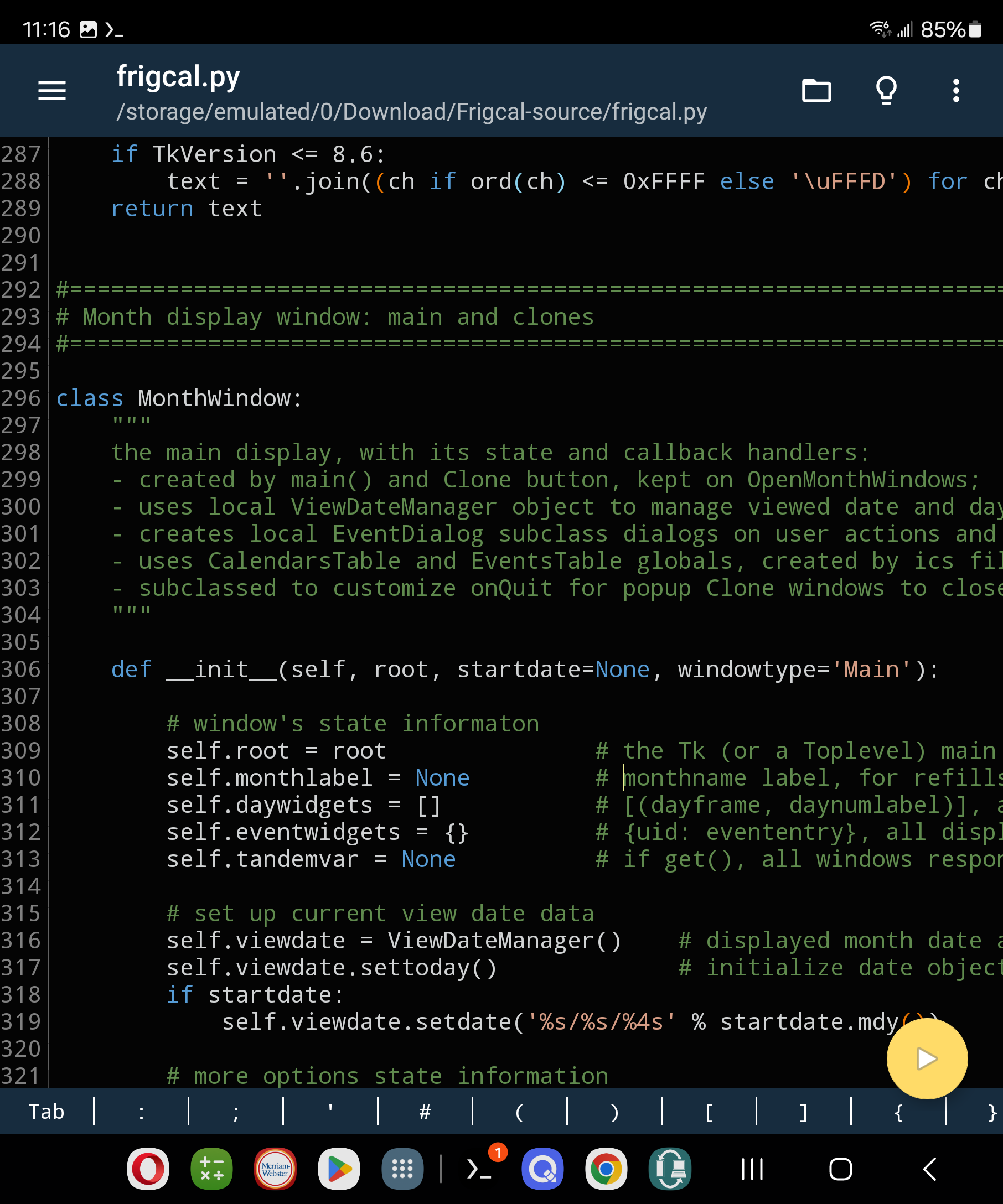
Figure A-14. The Pydroid 3 app’s IDE on Android
On top of its IDE, Pydroid 3 adds support for many popular tools, including scientific-programming libraries and, remarkably, Python’s tkinter GUI toolkit. As in Termux, Python’s version is preset in Pydroid 3 (though source builds are elusive), and Python’s pip is available to install extensions (though with a dedicated GUI in this app).
Fair warning: as a substantial trade-off, Pydroid 3 is also a freemium app, which will flash rude full-page ads at you unless and until you pay a required fee—an unfortunately common paradigm in Android, which you’ll have to weigh for yourself. In addition, Pydroid 3 has a history of waffling on support for storage access in response to Android and Play edicts. By contrast, Termux today is entirely free and void of ads, supports broad storage access, and chooses alternative app stores rather than limiting functionality for Android changes mandated by Play.
See the web and app stores for info about other Python programming apps on Android omitted here for space. While you’re at a store, you may also want to explore text editor apps like QuickEdit—which is able to colorize and run Python code; and alternative onscreen keyboards like Hacker’s Keyboard—which adds PC keys not available in stock options but commonly used for coding (e.g., arrows and Ctrl). Some Python apps also include tools to augment onscreen keyboards which can be tailored or disabled, and Bluetooth keyboards and casting to larger screens can naturally aid usability too.
It’s also worth noting in closing that CPython plans to add Android to its list of officially supported platforms soon, which may foster additional options going forward. Moreover, although most beginners will use an app to run Python code on Android as described, it’s also possible to build standalone apps for Android that are coded in Python but used like any other app. We’ll return to this option at the end of this appendix after one last platform.
Using Python on iOS
iOS—which includes its iPadOS offshoot in this guide—is a macOS derivative targeted at mobile devices. Like Android, it has limiting biases for programming languages (Swift and Objective-C), and is even more strict about carving up storage into restricted app sandboxes with proprietary access rules and tools. Despite these constraints, though, your iPhone or iPad can be used to run Python code, too, including the code in this book.
Like Android, you’ll normally use Python on your iOS devices by installing an app that runs Python code. Among these, Pythonista 3 provides an interactive Python session and a GUI for editing and running files of code, as in other IDEs. In addition, this app comes with access to native iOS features and a toolkit for building GUIs in Python for iOS. It also can share code files with the Files app to be opened with taps.
To vet for yourself, fetch Pythonista 3 from the App Store. Figure A-15 shows this app in action (yes, on a humble and historical iPod). Be sure to also explore the other iOS options on the store; the Pyto app, for example, provides similar functionality, and comes with the Toga UI library for coding portable GUIs (there’s more on Toga at standalone apps ahead).
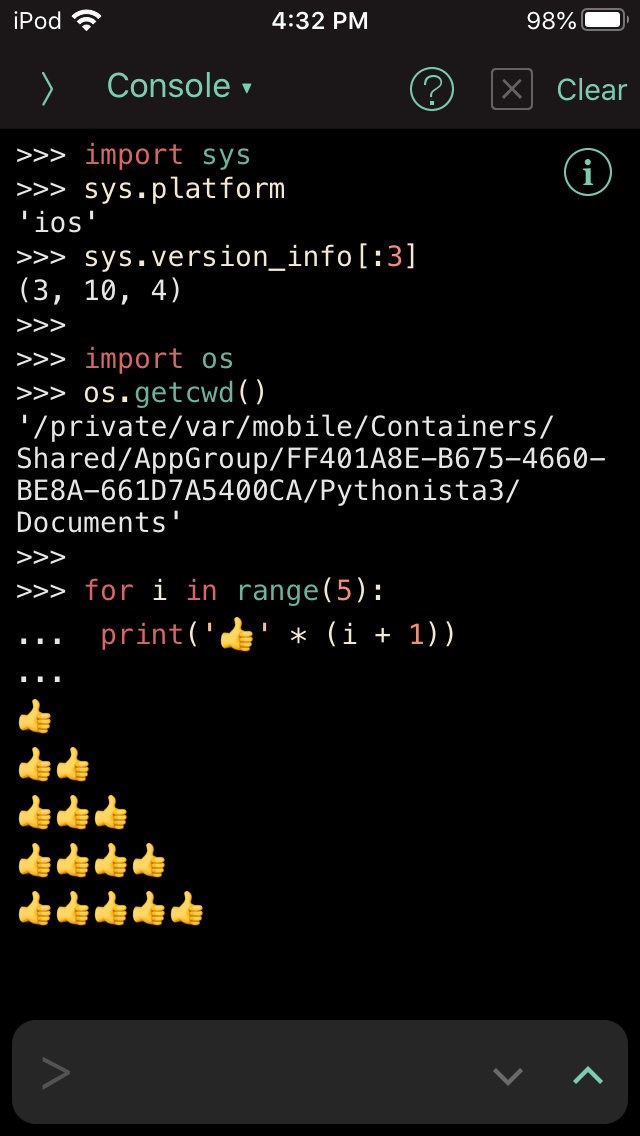
Figure A-15. Running Python in the Pythonista 3 app on iOS
Apart from app choices and platform restrictions, using Python on an iOS device is largely the same as on Android and PCs, so we’ll skip further details here. For more on using Python for iPhone and iPad, see the Apple app store and the web at large.
Like Android, iOS is also scheduled to be granted officially supported status in CPython soon, which may yield options impossible to predict today; watch the web for new developments. Also like Android, it’s possible to package your Python programs as standalone apps for iOS, but we must move on to this appendix’s next section to see how.
Standalone Apps and Executables
Besides running Python source code with the traditional schemes we’ve just met, it’s also possible to bundle Python code into a standalone program that users run the same way they run any other program on their device (e.g., by a click or tap). In fact, users can’t even tell these bundles are written in Python at all: no source code is visible, no other installs or apps are required, and changes in a locally installed Python have no effect on the bundle.
The way you’ll build standalones varies per platform. As a noncomprehensive sample of prominent tools today, you can build standalone executables for Windows and Linux with PyInstaller; standalone apps for macOS with PyInstaller and py2app; and standalone apps for Android and iOS with Buildozer and Briefcase (the latter also offers options for PCs).
On Android, for instance, it’s possible to develop standalone apps completely in Python. Although this takes more effort than running code in another app, its products are fully functional and idiomatic GUI apps coded in Python, which run with a tap, leverage Android APIs when needed, and can be both side-loaded and uploaded to app stores.
As a demo, Figure A-16 captures one of many Python-coded standalone apps for Android, running on a foldable. This app, made by this book’s author, is freely available in the Play store; is built for Android with Buildozer; uses the portable Kivy toolkit for its GUI; and relies on Kivy’s pyjnius to access Android Java APIs when required in a small fraction of its code (e.g., to request permissions, run services, open docs, and get drive labels).
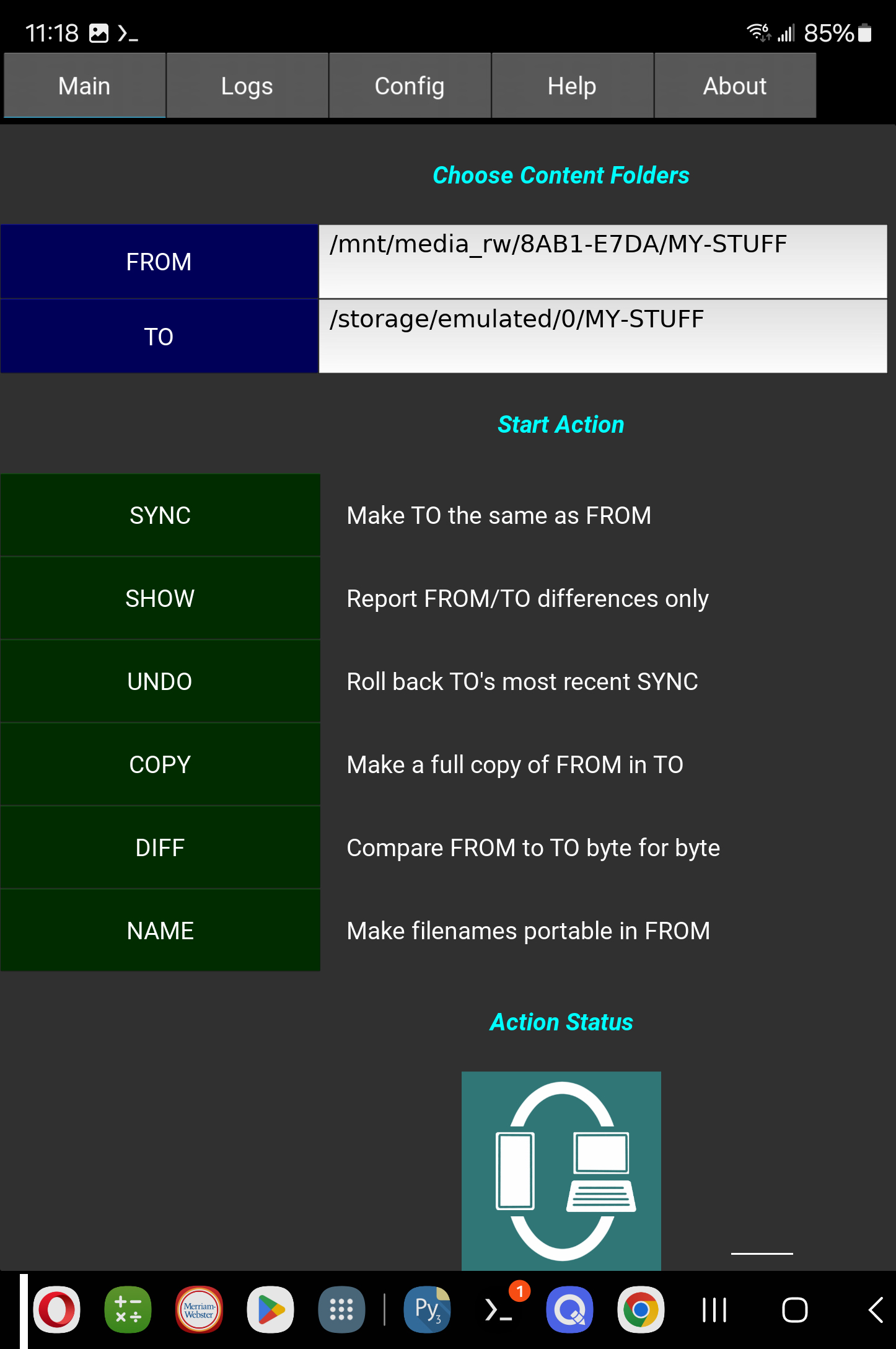
Figure A-16. A Python-coded standalone app running on Android
Crucially, such apps can also run on PC platforms—Windows, macOS, and Linux—from the same code base. Figure A-17, for instance, shows the same app running on macOS. Its code is bundled for macOS and other PCs with PyInstaller; its Kivy GUI is automatically cross-platform; and its POSIX file-sync code works everywhere. The net result is a Python-coded app that runs across a range of PC and mobile hosts, with native behavior on each.
To see this for yourself, fetch this app’s Android version on Play and its PC versions at this book’s website or quixotely.com. Disclaimer: if the Android app is unavailable on Play, check for it at the latter two sites or try a web search; book lifespans tend to be substantially longer than those of apps dependent on stores and platforms (see Termux’s troubles!).
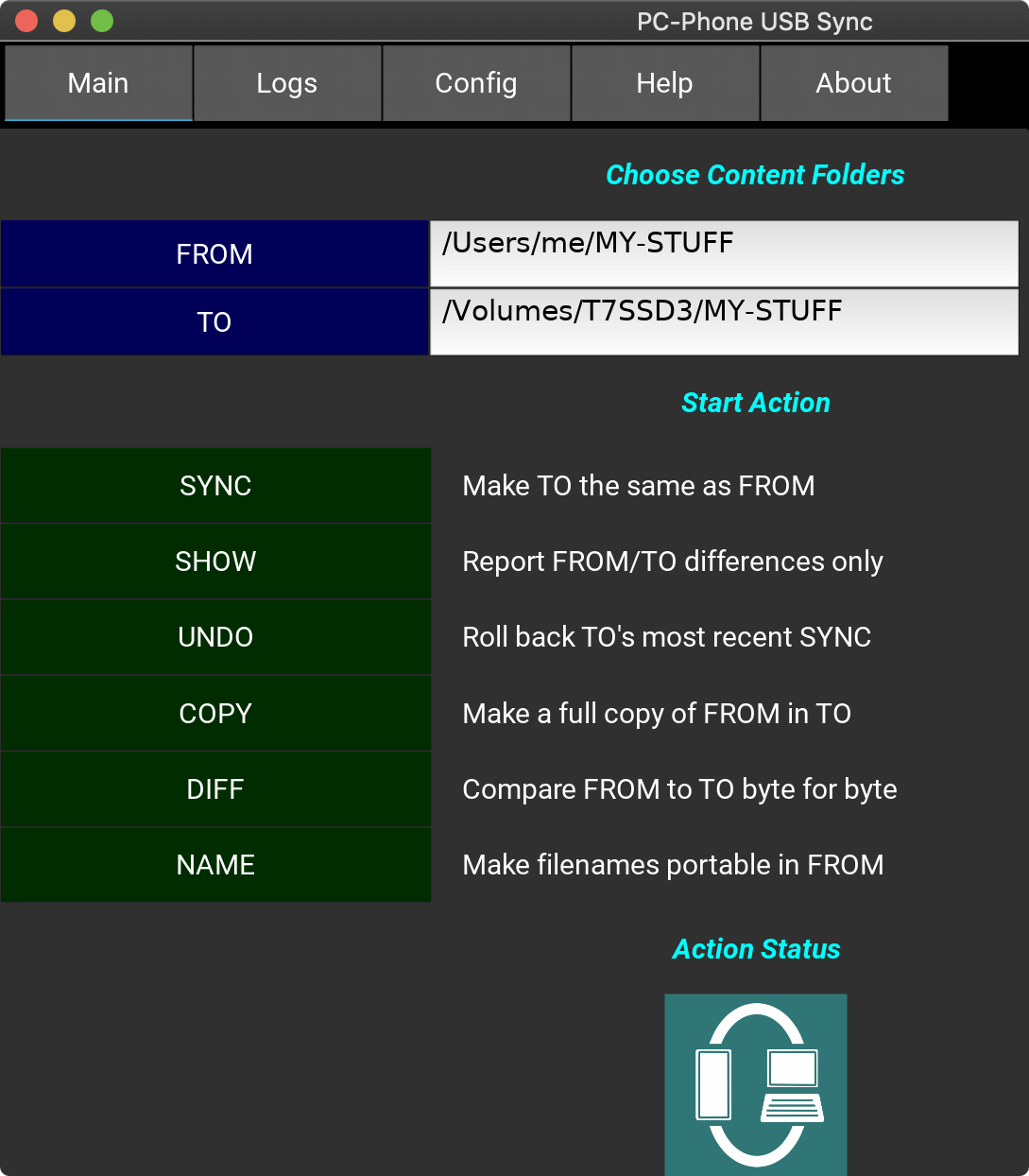
Figure A-17. The same app running on macOS
Nor is this toolset the only interoperability game in town. The alternative BeeWare, with its portable Toga GUI toolkit and Briefcase app builder, promises similar platform independence and advertises additional packaging options on PCs. Moreover, some apps built with such tools can work on iOS, too, though its lack of a user-accessible filesystem renders much cross-platform code unusable (e.g., POSIX file-path syncs are impossible).
The takeaway here: with a portable programming tool like Python, you’re not locked into a single platform’s proprietary realm—unless, that is, you develop for platforms that disqualify code that runs anywhere else. As always, choose your coding battles wisely. Security counts, but closed platforms enable monopolies and stifle innovation.
Standalones may not be very useful when you’re just getting started with Python (and make no sense at all for running the examples in this book!), but they may become more important when you start writing programs for others to use. When you’re ready to explore standalone deliverables in Python, see the web for current tools and details in this domain.
Etcetera
While the platform techniques we’ve explored here are perhaps the simplest and most common ways to use Python, there’s much more to this story. For instance, this appendix hasn’t said anything about using Python in:
Other IDEs like PyCharm, PyDev, Wing, or VSCode
Web-based notebooks like IPython or Jupyter
Alternative Python implementations like PyPy, Cython, Numba, or Jython
Alternative Python distributions like Anaconda and ActiveState
The cells and macros of spreadsheets like Excel
Web servers using frameworks like Flask and Django
Web browsers using the emerging WebAssembly and Pyodide
And lots of other options in no way judged by omission here. This book visits some of these in Chapter 1, summarizes Python implementations in Chapter 2, briefly reviews Jupyter and WebAssembly in Chapter 3, and uses PyPy for benchmarks in Chapter 21. In general, though, advanced usage contexts like these are interesting but out of scope for this Python fundamentals text, and best deferred until you’ve mastered the language itself.
In the end, Python usage details and options tend to evolve as rapidly as Python itself. Indeed, each prior edition of this book has had to revise its usage coverage radically, and this one expects to fare not better. As noted at the start of this appendix, you should expect to check both Python’s docs and the web at large for new-and-exciting developments almost certain to emerge by the time you read these words.