10 Inheritance and Cascading
In this chapter, I’ll address two other important topics about CSS: the inheritance principle, which refers to the details around defining and passing on CSS features, and the cascading principle, which refers to how a document can be formatted from a variety of stylesheets and different sources.
In this chapter, you’ll get to know the details about inheritance in CSS, which refers to how, when, and if a CSS feature gets defined and passed on in a central location. In the process, you’ll also learn how to force inheritance.
Besides inheritance, cascading is an indispensable topic in CSS; after all, the C in CSS stands for Cascading. Once you understand the principle of cascading, you can build one stylesheet on top of another and save yourself a lot of typing. The chapter concludes with a digression on how and which values you can pass to CSS features.
10.1 The Principle of Inheritance in CSS
An important principle in CSS is inheritance, which makes it possible to define various CSS features such as color, font, and font size once in a central location instead of assigning the same properties to each individual element again and again.
As you already know, an HTML document is built in a tree structure. The various HTML elements have ancestors and descendants, that is, the parent and child elements. Thanks to this relationship, the subsequent child elements inherit many style properties from the superordinate parent elements.
For a more understandable description of inheritance, you should take a closer look at the following simple HTML document:
...
    <link rel="stylesheet" href="css/style.css">
...
  <body>
      <header>Header</header>
      <article>
        <h1>Inheritance</h1>
        <p>1. Paragraph text for article</p>
        <ul>
          <li>List item 1</li>
          <li>List item 2</li>
          <li>List item 3</li>
        </ul>
        <p>2. Paragraph text for article</p>
      </article>
      <p>1. Paragraph text after the article</p>
      <p>2. Paragraph text after the article</p>
      <footer>Footer</footer>
  </body>
...
Listing 10.1 /examples/chapter010/10_1/index.html
The body element contains a header element, an article element, two p elements, and a footer element as direct descendants. This makes the body element the parent element of all these elements. Direct descendants of the article element, in turn, are the h1, p, and ul elements. These direct descendants of article are the indirect descendants (or children’s children) of the body element.
Related to this example, the following stylesheet should be applied to the document:
body {
    background: gray;
    font-family: Arial, Verdana;
    color: white;
}
...
Listing 10.2 /examples/chapter010/10_1/css/style.css
Starting from the body element, due to inheritance, the CSS features set here are inherited from element to element. All elements contained between <body> and </body> get the font family Arial (font-family) and a white font color (color), which was agreed on with the type selector body {...}.
Background (Color) Doesn’t Get Inherited!
Even if it seems to be the case in Figure 10.2, the gray background color (background: gray) doesn’t get inherited. The fact that everything here is nevertheless assigned a gray background color is due to the fact that the default value is transparent (translucent). For this reason, the gray color of the body element is displayed behind all elements. As a counter-demonstration, you’re welcome to use the following universal selector before the body selector to recolor all elements to black, so that none of the HTML elements are transparent from scratch anymore, but black:
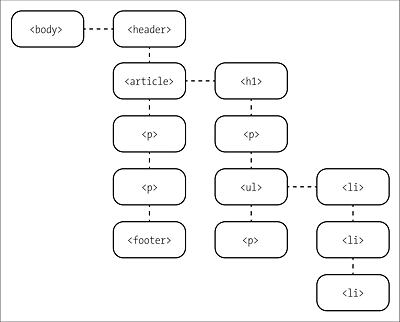
Figure 10.1 Thanks to Inheritance, CSS Features Are Passed on to the Descendants
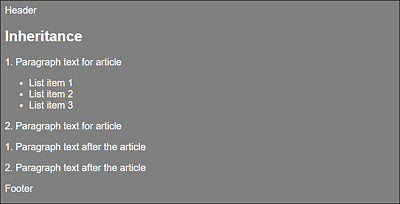
Figure 10.2 Due to Inheritance, the Text in This Example Is Displayed in White Arial Font with Gray <body> Background
The CSS rule with type selector body {...} is extended with the following CSS rule for demonstration purposes:
body {
  background: blue;
  font-family: Arial, Verdana;
  color: white;
}

article {
  background: lightblue;
  color: black;
}
Listing 10.3 /examples/chapter010/10_1/css/style.css
If, as in this example with the article selector, a new inheritable CSS feature is assigned to an element, such as the text color here, the element specified with the selector (here, article) and its descendants no longer inherit the CSS features of the parent element. In that case, the CSS features declared in the selector are inherited by the descendants. For this reason, the descendants of an article element now get a black text color. The font-family of the body selector, on the other hand, wasn’t declared in the article type selector, which is why the font family declared in the body selector (here, Arial) is still inherited by article and its descendants. Again, background is not passed on to the descendants by the article selector, but because of the transparent default background of HTML elements, they are also seen with a light blue background due to the light blue background of the article element.
Figure 10.3 shows that the inheritance is valid from the parent element and its descendants onward. The CSS features declared with the body selector apply here from body to the next element, for which new style properties may have been written that make this element the parent of its descendants (as in the example with the article selector).
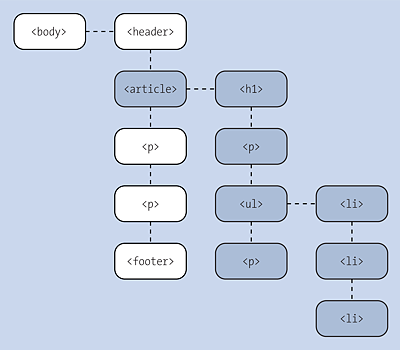
Figure 10.3 Inheritance Applies from the Parent Element to Its Descendants
Default Values for CSS Features
If no specific value has been assigned to a CSS feature, the web browser uses the default value specified for it in the CSS specification when inheriting it.
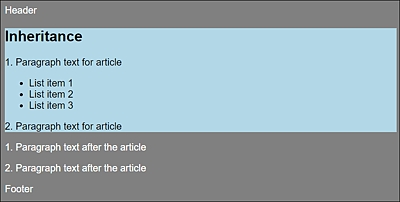
Figure 10.4 With the “article” Selector, This Element Takes over the Parent Role for the Included Descendants, Styling the Text Color Black
If this inheritance didn’t exist in CSS, you’d have to explicitly create a CSS rule for each element. Inheritance can help you write a more efficient and concise stylesheet. Often, for example, it’s sufficient to set the font and other CSS features fairly early in the body element, and the inheritance rule makes sure that you don’t have to repeat those CSS features later for each element.
Use Inheritance as Much as Possible
If you master inheritance and use it consciously, you can do without the odd selector or the multiple setting or changing of CSS features. For example, if you’ve set the font with the CSS feature font-family or the font size with font-size for body, this applies to the entire document, and you don’t need to do that again separately for p or li elements. Of course, this also has a positive effect on performance.
10.1.1 Be Cautious When Using Relative Properties
The inheritance of relative units such as font-size with percentage values (font-size: 90%) or em (font-size: 0.9em), surprising changes may occur because some web browsers reapply this value for each element if a font-size with percentages or em is also defined for further elements. For example, let's say you set CSS rules like the following:
This would result in the content of the p element displaying only a font size of 49% due to the inheritance of the relative value from the body element because such relative values would be applied cumulatively to each element. It’s not the value defined in the stylesheet that’s passed on, but the value calculated by the web browser.
10.1.2 Not Everything Gets Inherited
Not all CSS features are inherited by the descendants, as you’ve already experienced previously with the background property. Especially with CSS features such as margin, width, padding, or border it wouldn’t make much sense and more likely give you a headache than help you. For example, if the CSS feature border (for a border around an element) were passed on to each descendant, you would have to deactivate this inheritance using border: none for each descendant. In anticipation of this, here’s a brief list of some characteristics that don’t get inherited. These common values aren’t inherited:
-
background, border (see Chapter 11, Section 11.5)
-
width, height, padding, border, margin (see Chapter 11, Section 11.1)
-
position, top, right, bottom, left (see Chapter 12, Section 12.1)
-
float and clear (see Chapter 12, Section 12.3)
10.1.3 Enforcing Inheritance Using “inherit”
As mentioned in the previous section, there are CSS features that don’t get inherited. If the situation requires it, you can force inheritance using the inherit keyword. To better demonstrate the inherit keyword, let’s first look at an example without the keyword:
body {
  font-family: Arial, Verdana;
  color: white;
  background: gray;
}

article {
  border: 4px dotted black;
  background: lightblue;
  color: black;
}
...
Listing 10.4 /examples/chapter010/10_1_3/css/style.css
Based on this example, these few lines of CSS provide the following picture:
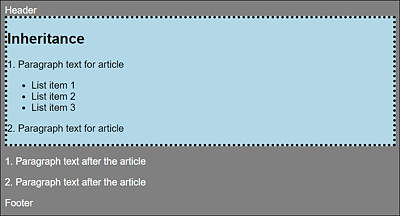
Figure 10.5 Not the Result We Wanted
If, in this example, you want to force all p elements inside <article> to also have the dotted black border, you can force this with inherit by adding the following CSS rule:
...
article {
  border: 4px dotted black;
  background: lightblue;
  color: black;
}

p {
  border: inherit;
  background: lightgray;
}
Listing 10.5 /examples/chapter010/10_1_3/css/style.css
By assigning inherit to the CSS feature, you force all p descendants following in the article element to inherit the border of the parent element (here, article). The result is shown in Figure 10.6.
Here you can also see that the inheritance only affects the child elements, so inherit really only changed the border values of p elements whose parent element was an article element. Consequently, no border was added to the other two p elements outside the article element, but the background color was changed. Thus, it’s important to understand that with inherit, a child element can inherit only the values of the parent element.
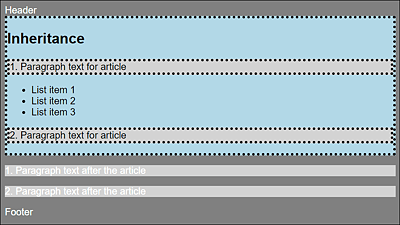
Figure 10.6 Inheritance Forced via “inherit”
10.1.4 Restoring the Default Value of a CSS Feature (“initial”)
When you assign the initial value to a CSS feature, the default value (or starting point) of the property specified in the CSS specification will be used. The value initial can be assigned to any CSS feature. Referring to Figure 10.6, if you want to reset the font color of the p elements to the default value of the web browser (which is usually black), you can do it as follows:
...
p {
  border: inherit;
  background: unset;
  color: initial;
}
...
Listing 10.6 /examples/chapter010/10_1_4/css/style.css
Here, you can use color:initial; to make sure that the font color of all p elements in the HTML document is reset to the default value of the web browser.
10.1.5 Forcing Inheritance or Restoring a Value ("unset")
The unset keyword gives you a middle ground between inherit and initial. When you use the keyword for a CSS feature, it behaves like the inherit keyword and inherits the value for the corresponding CSS feature of the parent element. If there’s no parent element here with a set value for this CSS feature, this keyword behaves like initial and resets a CSS feature to the default value given by the CSS specification.
10.1.6 Forcing Inheritance or Restoring Values for All Properties
Finally, there’s the property all, which is a short notation for inheriting all CSS features of the parent element with inherit or resetting them to the default value with initial. The unset value described previously can also be used along with all. Consider the following example:
...
      <p>1. Paragraph text after the article</p>
      <p class="p_outside">2. Paragraph text after the article</p>
      <footer>Footer</footer>
...
Listing 10.7 /examples/chapter010/10_1_6/index.html
With regard to our example, here I used a p_outside class for the second p element. For demonstration purposes, I want to reset and restyle this element with initial:
body {
  font-family: Arial, Verdana;
  color: white;
  background: gray;
}

article {
  border: 4px dotted black;
  background: lightblue;
  color: black;
}

p {
  border: inherit;
  background: lightgray;
  color: unset;
}

.p_outside {
  all: initial;
  display: block;
  margin: 5px;
  color: silver;
}
Listing 10.8 /examples/chapter010/10_1_6/css/style.css
Here, the paragraph text of the p element after the article element was covered with a white font and light gray background. Because the paragraph text with the p element above it should still remain in this format, I wrapped the new style in a p_outside class, reset all CSS features using all: initial;, and then began to restyle the paragraph text.
Note, however, that the CSS feature all was used only for demonstration purposes and isn’t intended for styling entire elements without any further consideration, only to reset everything again. If you happen to find yourself in the situation that you have to use this feature more often than necessary, you may want to rethink the way you use CSS.
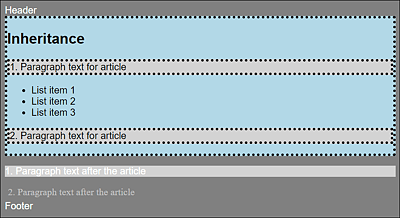
Figure 10.7 Using a Class, I Set All the CSS Features for the Second <p> Element outside the <article> Element to the Default Value with “all: initial;” and Restyled It