Chapter 3. How to Manage Terraform State
In Chapter 2, as you were using Terraform to create and update resources, you might have noticed
that every time you ran terraform plan or terraform apply, Terraform was able to find the resources it created
previously and update them accordingly. But how did Terraform know which resources it was supposed to manage? You could
have all sorts of infrastructure in your AWS account, deployed through a variety of mechanisms (some manually, some via
Terraform, some via the CLI), so how does Terraform know which infrastructure it’s responsible for?
In this chapter, you’re going to see how Terraform tracks the state of your infrastructure and the impact that has on file layout, isolation, and locking in a Terraform project. Here are the key topics I’ll go over:
-
What is Terraform state?
-
Shared storage for state files
-
Limitations with Terraform’s backends
-
Isolating state files
-
Isolation via workspaces
-
Isolation via file layout
-
-
The
terraform_remote_statedata source
Example Code
As a reminder, you can find all of the code examples in the book at: https://github.com/brikis98/terraform-up-and-running-code.
What Is Terraform State?
Every time you run Terraform, it records information about what infrastructure it created in a Terraform state file. By default, when you run Terraform in the folder /foo/bar, Terraform creates the file /foo/bar/terraform.tfstate. This file contains a custom JSON format that records a mapping from the Terraform resources in your configuration files to the representation of those resources in the real world. For example, let’s say your Terraform configuration contained the following:
resource"aws_instance" "example"{ami="ami-0c55b159cbfafe1f0"instance_type="t2.micro"}
After running terraform apply, here is a small snippet of the contents of the terraform.tfstate file (truncated
for readability):
{"version":4,"terraform_version":"0.12.0","serial":1,"lineage":"1f2087f9-4b3c-1b66-65db-8b78faafc6fb","outputs":{},"resources":[{"mode":"managed","type":"aws_instance","name":"example","provider":"provider.aws","instances":[{"schema_version":1,"attributes":{"ami":"ami-0c55b159cbfafe1f0","availability_zone":"us-east-2c","id":"i-00d689a0acc43af0f","instance_state":"running","instance_type":"t2.micro","(...)":"(truncated)"}}]}]}
Using this JSON format, Terraform knows that a resource with type aws_instance and name example corresponds
to an EC2 Instance in your AWS account with ID i-00d689a0acc43af0f. Every time you run Terraform, it can fetch the
latest status of this EC2 Instance from AWS and compare that to what’s in your Terraform configurations to determine
what changes need to be applied. In other words, the output of the plan command is a diff between the code on your
computer and the infrastructure deployed in the real world, as discovered via IDs in the state file.
The State File Is a Private API
The state file format is a private API that changes with every release and is meant only for internal use within Terraform. You should never edit the Terraform state files by hand or write code that reads them directly.
If for some reason you need to manipulate the state file—which should be a relatively rare occurrence—use
the terraform import or terraform state commands (you’ll see examples of both in Chapter 5).
If you’re using Terraform for a personal project, storing state in a single terraform.tfstate file that lives locally on your computer works just fine. But if you want to use Terraform as a team on a real product, you run into several problems:
- Shared storage for state files
-
To be able to use Terraform to update your infrastructure, each of your team members needs access to the same Terraform state files. That means you need to store those files in a shared location.
- Locking state files
-
As soon as data is shared, you run into a new problem: locking. Without locking, if two team members are running Terraform at the same time, you can run into race conditions as multiple Terraform processes make concurrent updates to the state files, leading to conflicts, data loss, and state file corruption.
- Isolating state files
-
When making changes to your infrastructure, it’s a best practice to isolate different environments. For example, when making a change in a testing or staging environment, you want to be sure that there is no way you can accidentally break production. But how can you isolate your changes if all of your infrastructure is defined in the same Terraform state file?
In the following sections, I’ll dive into each of these problems and show you how to solve them.
Shared Storage for State Files
The most common technique for allowing multiple team members to access a common set of files is to put them in version control (e.g., Git). Although you should definitely store your Terraform code in version control, storing Terraform state in version control is a bad idea for the following reasons:
- Manual error
-
It’s too easy to forget to pull down the latest changes from version control before running Terraform or to push your latest changes to version control after running Terraform. It’s just a matter of time before someone on your team runs Terraform with out-of-date state files and as a result, accidentally rolls back or duplicates previous deployments.
- Locking
-
Most version control systems do not provide any form of locking that would prevent two team members from running
terraform applyon the same state file at the same time. - Secrets
-
All data in Terraform state files is stored in plain text. This is a problem because certain Terraform resources need to store sensitive data. For example, if you use the
aws_db_instanceresource to create a database, Terraform will store the username and password for the database in a state file in plain text. Storing plain-text secrets anywhere is a bad idea, including version control. As of May 2019, this is an open issue in the Terraform community, although there are some reasonable workarounds, as I will discuss shortly.
Instead of using version control, the best way to manage shared storage for state files is to use Terraform’s built-in support for remote backends. A Terraform backend determines how Terraform loads and stores state. The default backend, which you’ve been using this entire time, is the local backend, which stores the state file on your local disk. Remote backends allow you to store the state file in a remote, shared store. A number of remote backends are supported, including Amazon S3; Azure Storage; Google Cloud Storage; and HashiCorp’s Terraform Cloud, Terraform Pro, and Terraform Enterprise.
Remote backends solve all three of the issues just listed:
- Manual error
-
After you configure a remote backend, Terraform will automatically load the state file from that backend every time you run
planorapplyand it’ll automatically store the state file in that backend after eachapply, so there’s no chance of manual error. - Locking
-
Most of the remote backends natively support locking. To run
terraform apply, Terraform will automatically acquire a lock; if someone else is already runningapply, they will already have the lock, and you will have to wait. You can runapplywith the-lock-timeout=<TIME>parameter to instruct Terraform to wait up toTIMEfor a lock to be released (e.g.,-lock-timeout=10mwill wait for 10 minutes). - Secrets
-
Most of the remote backends natively support encryption in transit and encryption at rest of the state file. Moreover, those backends usually expose ways to configure access permissions (e.g., using IAM policies with an Amazon S3 bucket), so you can control who has access to your state files and the secrets they might contain. It would be better still if Terraform natively supported encrypting secrets within the state file, but these remote backends reduce most of the security concerns, given that at least the state file isn’t stored in plain text on disk anywhere.
If you’re using Terraform with AWS, Amazon S3 (Simple Storage Service), which is Amazon’s managed file store, is typically your best bet as a remote backend for the following reasons:
-
It’s a managed service, so you don’t need to deploy and manage extra infrastructure to use it.
-
It’s designed for 99.999999999% durability and 99.99% availability, which means you don’t need to worry too much about data loss or outages.1
-
It supports encryption, which reduces worries about storing sensitive data in state files. Anyone on your team who has access to that S3 bucket will be able to see the state files in an unencrypted form, so this is still a partial solution, but at least the data will be encrypted at rest (Amazon S3 supports server-side encryption using AES-256) and in transit (Terraform uses SSL to read and write data in Amazon S3).
-
It supports versioning, so every revision of your state file is stored, and you can roll back to an older version if something goes wrong.
-
It’s inexpensive, with most Terraform usage easily fitting into the free tier.2
To enable remote state storage with Amazon S3, the first step is to create an S3 bucket. Create a main.tf file in a new folder (it should be a different folder from where you store the configurations from Chapter 2), and at the top of the file, specify AWS as the provider:
provider"aws"{region="us-east-2"}
Next, create an S3 bucket by using the aws_s3_bucket resource:
resource"aws_s3_bucket" "terraform_state"{bucket="terraform-up-and-running-state"# Prevent accidental deletion of this S3 bucketlifecycle{prevent_destroy=true}# Enable versioning so we can see the full revision history of our# state filesversioning{enabled=true}# Enable server-side encryption by defaultserver_side_encryption_configuration{rule{apply_server_side_encryption_by_default{sse_algorithm="AES256"}}}}
This code sets four arguments:
bucket-
This is the name of the S3 bucket. Note that S3 bucket names must be globally unique among all AWS customers. Therefore, you will need to change the
bucketparameter from"terraform-up-and-running-state"(which I already created) to your own name.3 Make sure to remember this name and take note of what AWS region you’re using because you’ll need both pieces of information again a little later on. prevent_destroy-
prevent_destroyis the second lifecycle setting you’ve seen (the first wascreate_before_destroyin Chapter 2). When you setprevent_destroytotrueon a resource, any attempt to delete that resource (e.g., by runningterraform destroy) will cause Terraform to exit with an error. This is a good way to prevent accidental deletion of an important resource, such as this S3 bucket, which will store all of your Terraform state. Of course, if you really mean to delete it, you can just comment that setting out. versioning-
This block enables versioning on the S3 bucket so that every update to a file in the bucket actually creates a new version of that file. This allows you to see older versions of the file and revert to those older versions at any time.
server_side_encryption_configuration-
This block turns server-side encryption on by default for all data written to this S3 bucket. This ensures that your state files, and any secrets they might contain, are always encrypted on disk when stored in S3.
Next, you need to create a DynamoDB table to use for locking. DynamoDB is Amazon’s distributed key–value store. It supports strongly consistent reads and conditional writes, which are all the ingredients you need for a distributed lock system. Moreover, it’s completely managed, so you don’t have any infrastructure to run yourself, and it’s inexpensive, with most Terraform usage easily fitting into the free tier.4
To use DynamoDB for locking with Terraform, you must create a DynamoDB table that has a primary key called LockID
(with this exact spelling and capitalization). You can create such a table using the aws_dynamodb_table resource:
resource"aws_dynamodb_table" "terraform_locks"{name="terraform-up-and-running-locks"billing_mode="PAY_PER_REQUEST"hash_key="LockID"attribute{name="LockID"type="S"}}
Run terraform init to download the provider code and then run terraform apply to deploy. (Note:
to deploy this code, your IAM User will need permissions to create S3 buckets and DynamoDB tables, as specified in
“Setting Up Your AWS Account”.) After everything is deployed, you will have an S3 bucket and DynamoDB table, but your
Terraform state will still be stored locally. To configure Terraform to store the state in your S3 bucket (with
encryption and locking), you need to add a backend configuration to your Terraform code. This is configuration for
Terraform itself, so it resides within a terraform block, and has the following syntax:
terraform{backend"<BACKEND_NAME>"{[CONFIG...]}}
where BACKEND_NAME is the name of the backend you want to use (e.g., "s3") and CONFIG consists of one or
more arguments that are specific to that backend (e.g., the name of the S3 bucket to use). Here’s what the backend
configuration looks like for an S3 bucket:
terraform{backend"s3"{# Replace this with your bucket name!bucket="terraform-up-and-running-state"key="global/s3/terraform.tfstate"region="us-east-2"# Replace this with your DynamoDB table name!dynamodb_table="terraform-up-and-running-locks"encrypt=true}}
Let’s go through these settings one at a time:
bucket-
The name of the S3 bucket to use. Make sure to replace this with the name of the S3 bucket you created earlier.
key-
The file path within the S3 bucket where the Terraform state file should be written. You’ll see a little later on why the preceding example code sets this to
global/s3/terraform.tfstate. region-
The AWS region where the S3 bucket lives. Make sure to replace this with the region of the S3 bucket you created earlier.
dynamodb_table-
The DynamoDB table to use for locking. Make sure to replace this with the name of the DynamoDB table you created earlier.
encrypt-
Setting this to
trueensures that your Terraform state will be encrypted on disk when stored in S3. We already enabled default encryption in the S3 bucket itself, so this is here as a second layer to ensure that the data is always encrypted.
To instruct Terraform to store your state file in this S3 bucket, you’re going to use the terraform init command again.
This command not only can download provider code, but also configure your Terraform backend (and you’ll see
yet another use later on, too). Moreover, the init command is idempotent, so it’s safe to run it over and over again:
$ terraform init

Initializing the backend...
Acquiring state lock. This may take a few moments...
Do you want to copy existing state to the new backend?
  Pre-existing state was found while migrating the previous "local" backend
  to the newly configured "s3" backend. No existing state was found in the
  newly configured "s3" backend. Do you want to copy this state to the new
  "s3" backend? Enter "yes" to copy and "no" to start with an empty state.

  Enter a value:
Terraform will automatically detect that you already have a state file locally and prompt you to copy it to the new S3
backend. If you type yes, you should see the following:
Successfully configured the backend "s3"! Terraform will automatically
use this backend unless the backend configuration changes.
After running this command, your Terraform state will be stored in the S3 bucket. You can check this by heading over to the S3 Management Console in your browser and clicking your bucket. You should see something similar to Figure 3-1.
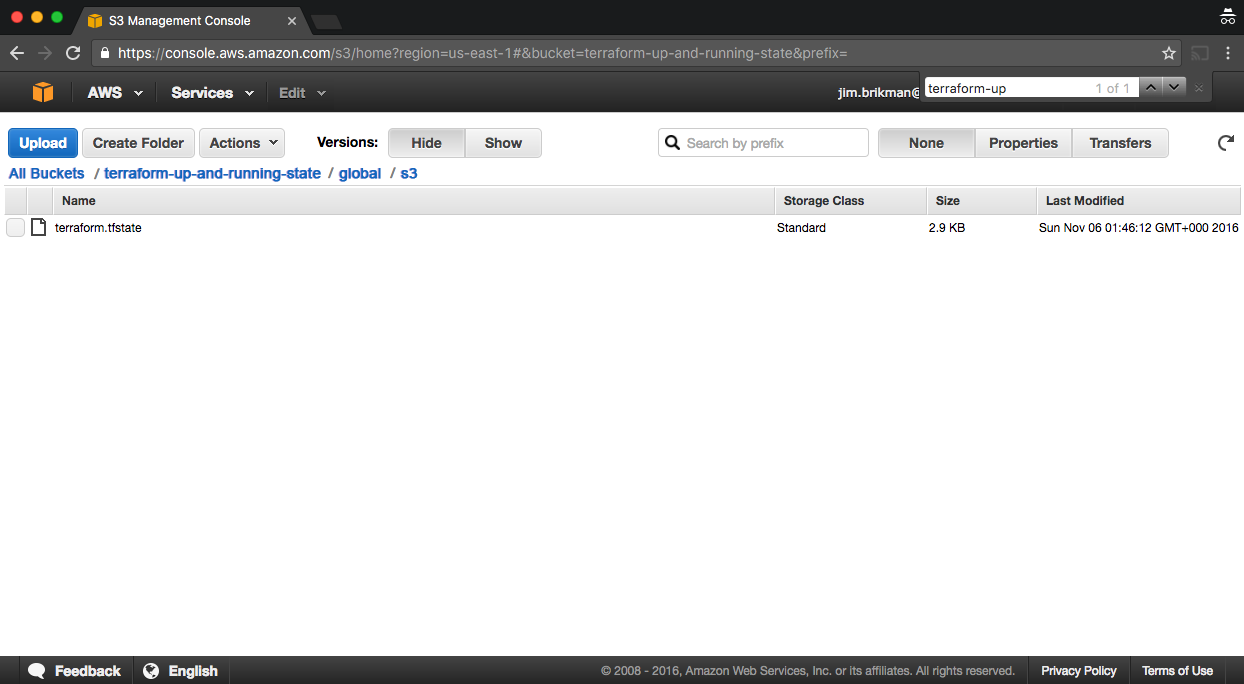
Figure 3-1. Terraform state file stored in S3
With this backend enabled, Terraform will automatically pull the latest state from this S3 bucket before running a command, and automatically push the latest state to the S3 bucket after running a command. To see this in action, add the following output variables:
output"s3_bucket_arn"{value=aws_s3_bucket.terraform_state.arndescription="The ARN of the S3 bucket"}output"dynamodb_table_name"{value=aws_dynamodb_table.terraform_locks.namedescription="The name of the DynamoDB table"}
These variables will print out the Amazon Resource Name (ARN) of your S3 bucket and
the name of your DynamoDB table. Run terraform apply to see it:
$ terraform apply

Acquiring state lock. This may take a few moments...

aws_dynamodb_table.terraform_locks: Refreshing state...
aws_s3_bucket.terraform_state: Refreshing state...

Apply complete! Resources: 0 added, 0 changed, 0 destroyed.

Releasing state lock. This may take a few moments...

Outputs:

dynamodb_table_name = terraform-up-and-running-locks
s3_bucket_arn = arn:aws:s3:::terraform-up-and-running-state
(Note how Terraform is now acquiring a lock before running apply and releasing the lock after!)
Now, head over to the S3 console again, refresh the page, and click the gray Show button next to Versions. You should now see several versions of your terraform.tfstate file in the S3 bucket, as shown in Figure 3-2.
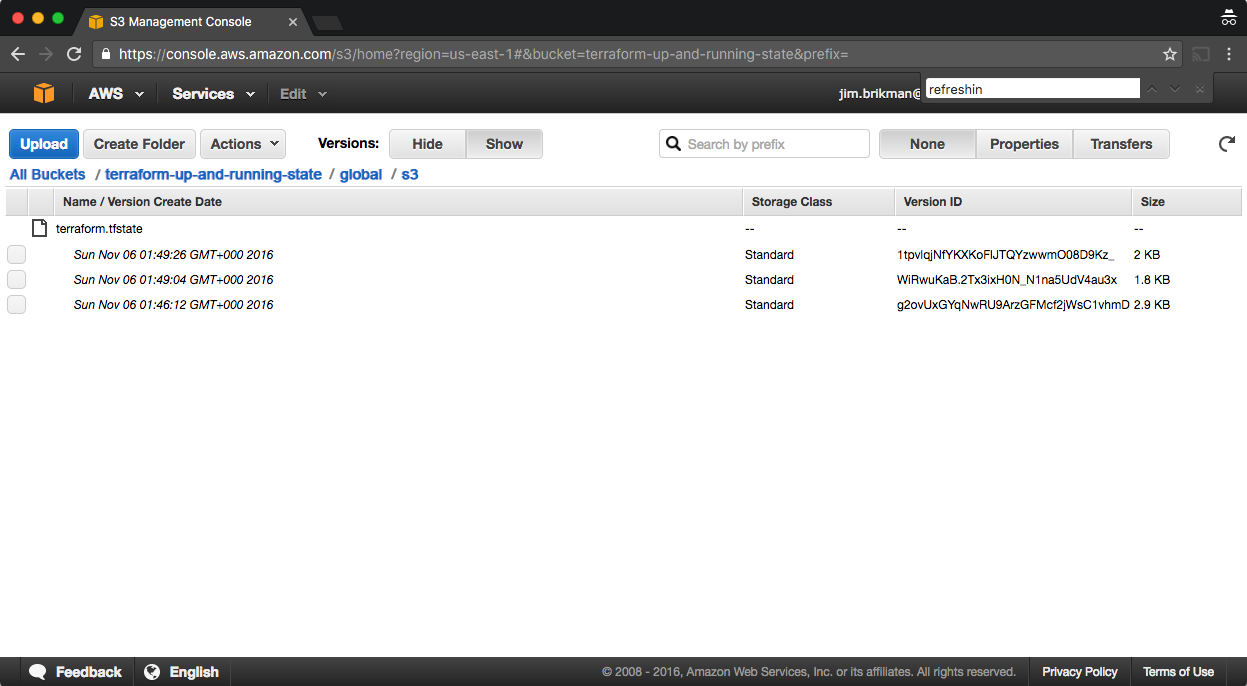
Figure 3-2. Multiple versions of the Terraform state file in S3
This means that Terraform is automatically pushing and pulling state data to and from S3, and S3 is storing every revision of the state file, which can be useful for debugging and rolling back to older versions if something goes wrong.
Limitations with Terraform’s Backends
Terraform’s backends have a few limitations and gotchas that you need to be aware of. The first limitation is the chicken-and-egg situation of using Terraform to create the S3 bucket where you want to store your Terraform state. To make this work, you had to use a two-step process:
-
Write Terraform code to create the S3 bucket and DynamoDB table and deploy that code with a local backend.
-
Go back to the Terraform code, add a remote
backendconfiguration to it to use the newly created S3 bucket and DynamoDB table, and runterraform initto copy your local state to S3.
If you ever wanted to delete the S3 bucket and DynamoDB table, you’d have to do this two-step process in reverse:
-
Go to the Terraform code, remove the
backendconfiguration, and rerunterraform initto copy the Terraform state back to your local disk. -
Run
terraform destroyto delete the S3 bucket and DynamoDB table.
This two-step process is a bit awkward, but the good news is that you can share a single S3 bucket and DynamoDB table
across all of your Terraform code, so you’ll probably only need to do it once (or once per AWS account if you have
multiple accounts). After the S3 bucket exists, in the rest of your Terraform code, you can specify the backend
configuration right from the start without any extra steps.
The second limitation is more painful: the backend block in Terraform does not allow you to use any variables or
references. The following code will not work:
# This will NOT work. Variables aren't allowed in a backend configuration.terraform{backend"s3"{bucket=var.bucketregion=var.regiondynamodb_table=var.dynamodb_tablekey="example/terraform.tfstate"encrypt=true}}
This means that you need to manually copy and paste the S3 bucket name, region, DynamoDB table name, etc. into
every one of your Terraform modules (you’ll learn all about Terraform modules in Chapters 4 and 6; for now, it’s enough to understand that
modules are a way to organize and reuse Terraform code, and that real-world Terraform code typically consists of many
small modules). Even worse, you must very carefully not copy and paste the
key value, but ensure a unique key for every Terraform module you deploy so that you don’t accidentally overwrite
the state of some other module! Having to do lots of copy-and-pastes and lots of manual changes is error prone,
especially if you need to deploy and manage many Terraform modules across many environments.
The only solution available as of May 2019 is to take advantage of partial configuration, in which you omit certain
parameters from the backend configuration in your Terraform code and instead pass those in via -backend-config
command-line arguments when calling terraform init. For example, you could extract the repeated backend arguments,
such as bucket and region, into a separate file called backend.hcl:
# backend.hclbucket="terraform-up-and-running-state"region="us-east-2"dynamodb_table="terraform-up-and-running-locks"encrypt=true
Only the key parameter remains in the Terraform code, since you still need to set a different key value for each
module:
# Partial configuration. The other settings (e.g., bucket, region) will be# passed in from a file via -backend-config arguments to 'terraform init'terraform{backend"s3"{key="example/terraform.tfstate"}}
To put all your partial configurations together, run terraform init with the -backend-config argument:
$ terraform init -backend-config=backend.hcl
Terraform merges the partial configuration in backend.hcl with the partial configuration in your Terraform code to produce the
full configuration used by your module.
Another option is to use Terragrunt, an open source tool that tries to fill in a few gaps in Terraform. Terragrunt can
help you keep your backend configuration DRY (Don’t Repeat Yourself) by defining all the basic backend settings (bucket name, region,
DynamoDB table name) in one file and automatically setting the key argument to the relative folder path of the
module. You’ll see an example of how to use Terragrunt in Chapter 8.
Isolating State Files
With a remote backend and locking, collaboration is no longer a problem. However, there is still one more problem remaining: isolation. When you first start using Terraform, you might be tempted to define all of your infrastructure in a single Terraform file or a single set of Terraform files in one folder. The problem with this approach is that all of your Terraform state is now stored in a single file, too, and a mistake anywhere could break everything.
For example, while trying to deploy a new version of your app in staging, you might break the app in production. Or, worse yet, you might corrupt your entire state file, either because you didn’t use locking or due to a rare Terraform bug, and now all of your infrastructure in all environments is broken.5
The whole point of having separate environments is that they are isolated from one another, so if you are managing all the environments from a single set of Terraform configurations, you are breaking that isolation. Just as a ship has bulkheads that act as barriers to prevent a leak in one part of the ship from immediately flooding all the others, you should have “bulkheads” built into your Terraform design, as shown in Figure 3-3.
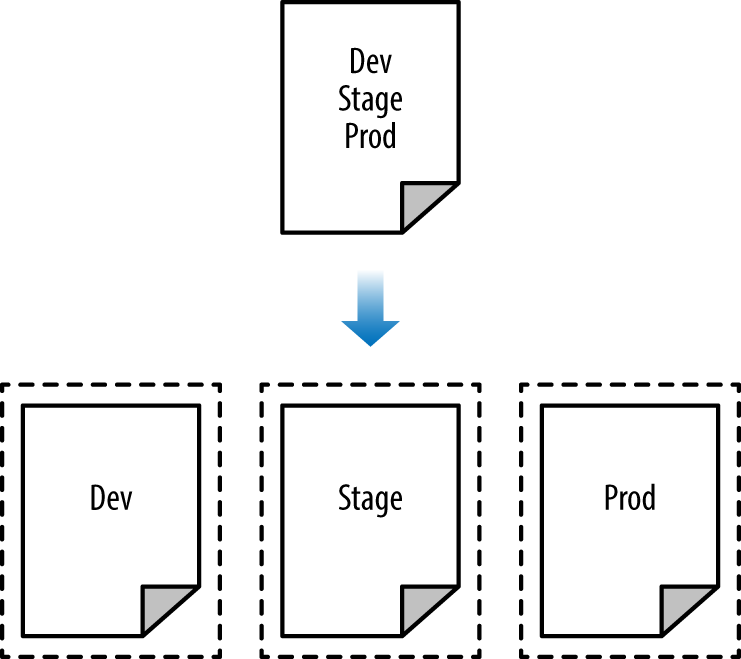
Figure 3-3. Adding “Bulkheads” to a Terraform design
As Figure 3-3 illustrates, instead of defining all your environments in a single set of Terraform configurations (top), you want to define each environment in a separate set of configurations (bottom), so a problem in one environment is completely isolated from the others. There are two ways you could isolate state files:
- Isolation via workspaces
-
Useful for quick, isolated tests on the same configuration.
- Isolation via file layout
-
Useful for production use cases for which you need strong separation between environments.
Let’s dive into each of these in the next two sections.
Isolation via Workspaces
Terraform workspaces allow you to store your Terraform state in multiple, separate, named workspaces. Terraform
starts with a single workspace called “default,” and if you never explicitly specify a workspace, the default
workspace is the one you’ll use the entire time. To create a new workspace or switch between workspaces, you use the
terraform workspace commands. Let’s experiment with workspaces on some Terraform code that deploys a single EC2
Instance:
resource"aws_instance" "example"{ami="ami-0c55b159cbfafe1f0"instance_type="t2.micro"}
Configure a backend for this Instance using the S3 bucket and DynamoDB table you created earlier in the chapter, but
with the key value set to workspaces-example/terraform.tfstate:
terraform{backend"s3"{# Replace this with your bucket name!bucket="terraform-up-and-running-state"key="workspaces-example/terraform.tfstate"region="us-east-2"# Replace this with your DynamoDB table name!dynamodb_table="terraform-up-and-running-locks"encrypt=true}}
Run terraform init and terraform apply to deploy this code:
$ terraform init


Initializing the backend...

Successfully configured the backend "s3"! Terraform will automatically
use this backend unless the backend configuration changes.

Initializing provider plugins...

(...)

Terraform has been successfully initialized!


$ terraform apply

(...)

Apply complete! Resources: 1 added, 0 changed, 0 destroyed.
The state for this deployment is stored in the default workspace. You can confirm this by running the terraform
workspace show command, which will identify which workspace you’re currently in:
$ terraform workspace show
default
The default workspace stores your state in exactly the location you specify via the key configuration. As shown in
Figure 3-4, if you take a look in your S3 bucket, you’ll find a terraform.tfstate file in the
workspaces-example folder.
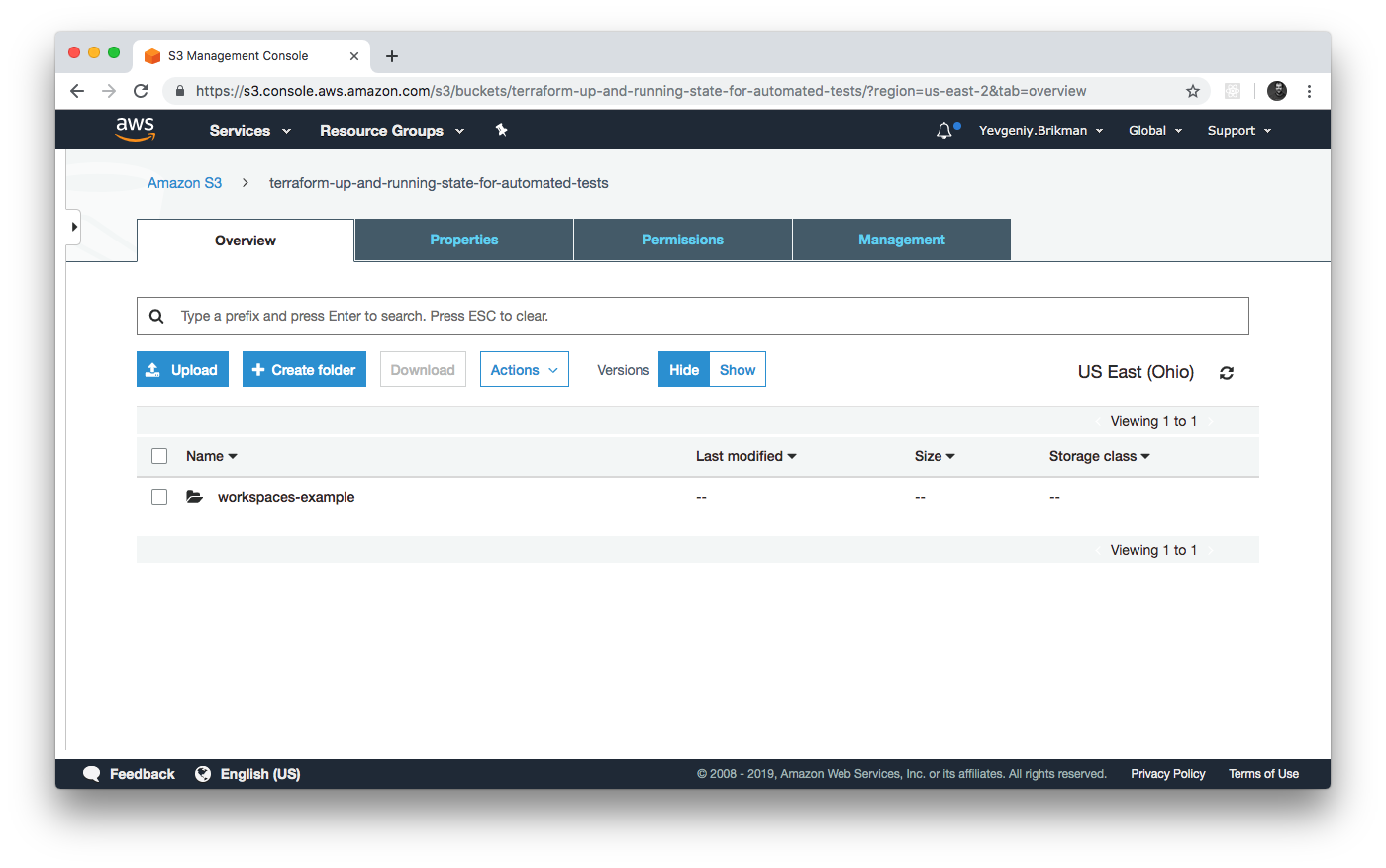
Figure 3-4. The S3 bucket after the state was stored in the default workspace
Let’s create a new workspace called “example1” using the terraform workspace new command:
$ terraform workspace new example1
Created and switched to workspace "example1"!

You're now on a new, empty workspace. Workspaces isolate their state,
so if you run "terraform plan" Terraform will not see any existing state
for this configuration.
Now, note what happens if you try to run terraform plan:
$ terraform plan

Terraform will perform the following actions:

  # aws_instance.example will be created
  + resource "aws_instance" "example" {
      + ami                          = "ami-0c55b159cbfafe1f0"
      + instance_type                = "t2.micro"
      (...)
    }

Plan: 1 to add, 0 to change, 0 to destroy.
Terraform wants to create a totally new EC2 Instance from scratch! That’s because the state files in each workspace are isolated from one another, and because you’re now in the example1 workspace, Terraform isn’t using the state file from the default workspace, and therefore, doesn’t see the EC2 Instance was already created there.
Try running terraform apply to deploy this second EC2 Instance in the new workspace:
$ terraform apply

(...)

Apply complete! Resources: 1 added, 0 changed, 0 destroyed.
Let’s repeat the exercise one more time and create another workspace called “example2”:
$ terraform workspace new example2
Created and switched to workspace "example2"!

You're now on a new, empty workspace. Workspaces isolate their state,
so if you run "terraform plan" Terraform will not see any existing state
for this configuration.
Run terraform apply again to deploy a third EC2 Instance:
$ terraform apply

(...)

Apply complete! Resources: 1 added, 0 changed, 0 destroyed.
You now have three workspaces available, which you can see by using the terraform workspace list command:
$ terraform workspace list
  default
  example1
* example2
And you can switch between them at any time using the terraform workspace select command:
$ terraform workspace select example1
Switched to workspace "example1".
To understand how this works under the hood, take a look again in your S3 bucket; you should now see a new folder called env:, as shown in Figure 3-5.
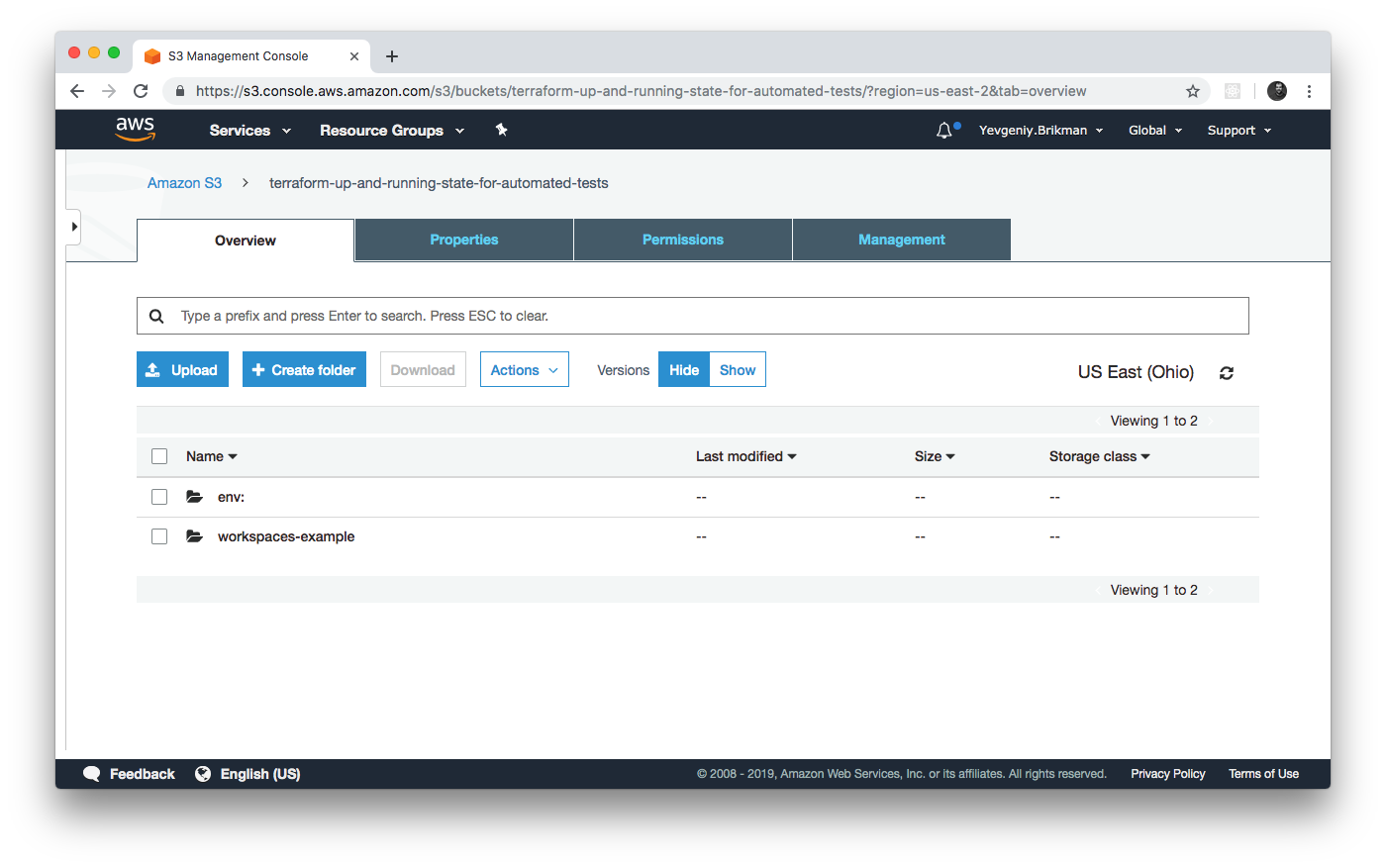
Figure 3-5. The S3 bucket after you’ve started using custom workspaces
Inside the env: folder, you’ll find one folder for each of your workspaces, as shown in Figure 3-6.
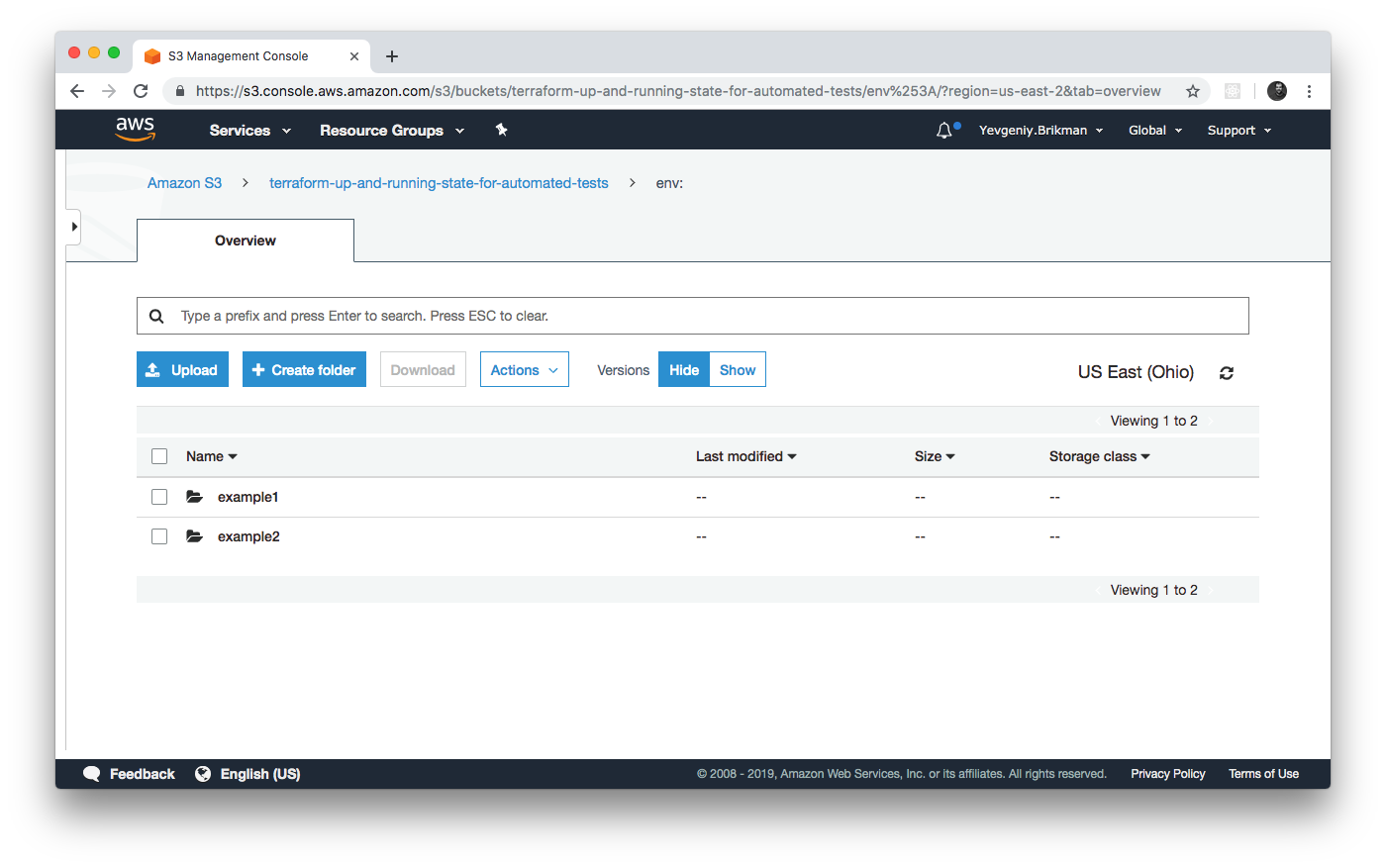
Figure 3-6. Terraform creates one folder per workspace
Inside each of those workspaces, Terraform uses the key you specified in your backend configuration, so you should
find an example1/workspaces-example/terraform.tfstate and an example2/workspaces-example/terraform.tfstate. In other
words, switching to a different workspace is equivalent to changing the path where your state file is stored.
This is handy when you already have a Terraform module deployed, and you want to do some experiments with it (e.g.,
try to refactor the code), but you don’t want your experiments to affect the state of the already deployed
infrastructure. Terraform workspaces allow you to run terraform workspace new and deploy a new copy of the exact
same infrastructure, but storing the state in a separate file.
In fact, you can even change how that module behaves based on the workspace you’re in by reading the workspace name
using the expression terraform.workspace. For example, here’s how to set the Instance type to t2.medium in
the default workspace and t2.micro in all other workspaces (e.g., to save money when experimenting):
resource"aws_instance" "example"{ami="ami-0c55b159cbfafe1f0"instance_type=terraform.workspace=="default" ? "t2.medium" : "t2.micro"}
The preceding code uses ternary syntax to conditionally set instance_type to either t2.medium or t2.micro,
depending on the value of terraform.workspace. You’ll see the full details of ternary syntax and conditional logic
in Terraform in Chapter 5.
Terraform workspaces can be a great way to quickly spin up and tear down different versions of your code, but they have a few drawbacks:
-
The state files for all of your workspaces are stored in the same backend (e.g., the same S3 bucket). That means you use the same authentication and access controls for all the workspaces, which is one major reason workspaces are an unsuitable mechanism for isolating environments (e.g., isolating staging from production).
-
Workspaces are not visible in the code or on the terminal unless you run
terraform workspacecommands. When browsing the code, a module that has been deployed in one workspace looks exactly the same as a module deployed in 10 workspaces. This makes maintenance more difficult, because you don’t have a good picture of your infrastructure. -
Putting the two previous items together, the result is that workspaces can be fairly error prone. The lack of visibility makes it easy to forget what workspace you’re in and accidentally make changes in the wrong one (e.g., accidentally running
terraform destroyin a “production” workspace rather than a “staging” workspace), and because you must use the same authentication mechanism for all workspaces, you have no other layers of defense to protect against such errors.
To get proper isolation between environments, instead of workspaces, you’ll most likely want to use file layout,
which is the topic of the next section. But before moving on, make sure to clean up the three EC2 Instances you just
deployed by running terraform workspace select <name> and terraform destroy in each of the three workspaces.
Isolation via File Layout
To acheive full isolation between environments, you need to do the following:
-
Put the Terraform configuration files for each environment into a separate folder. For example, all of the configurations for the staging environment can be in a folder called stage and all the configurations for the production environment can be in a folder called prod.
-
Configure a different backend for each environment, using different authentication mechanisms and access controls (e.g., each environment could live in a separate AWS account with a separate S3 bucket as a backend).
With this approach, the use of separate folders makes it much clearer which environments you’re deploying to, and the use of separate state files, with separate authentication mechanisms, makes it significantly less likely that a screw up in one environment can have any impact on another.
In fact, you might want to take the isolation concept beyond environments and down to the “component” level, where a component is a coherent set of resources that you typically deploy together. For example, after you’ve set up the basic network topology for your infrastructure—in AWS lingo, your Virtual Private Cloud (VPC) and all the associated subnets, routing rules, VPNs, and network ACLs—you will probably change it only once every few months, at most. On the other hand, you might deploy a new version of a web server multiple times per day. If you manage the infrastructure for both the VPC component and the web server component in the same set of Terraform configurations, you are unnecessarily putting your entire network topology at risk of breakage (e.g., from a simple typo in the code or someone accidentally running the wrong command) multiple times per day.
Therefore, I recommend using separate Terraform folders (and therefore separate state files) for each environment (staging, production, etc.) and for each component (VPC, services, databases). To see what this looks like in practice, let’s go through the recommended file layout for Terraform projects.
Figure 3-7 shows the file layout for my typical Terraform project.
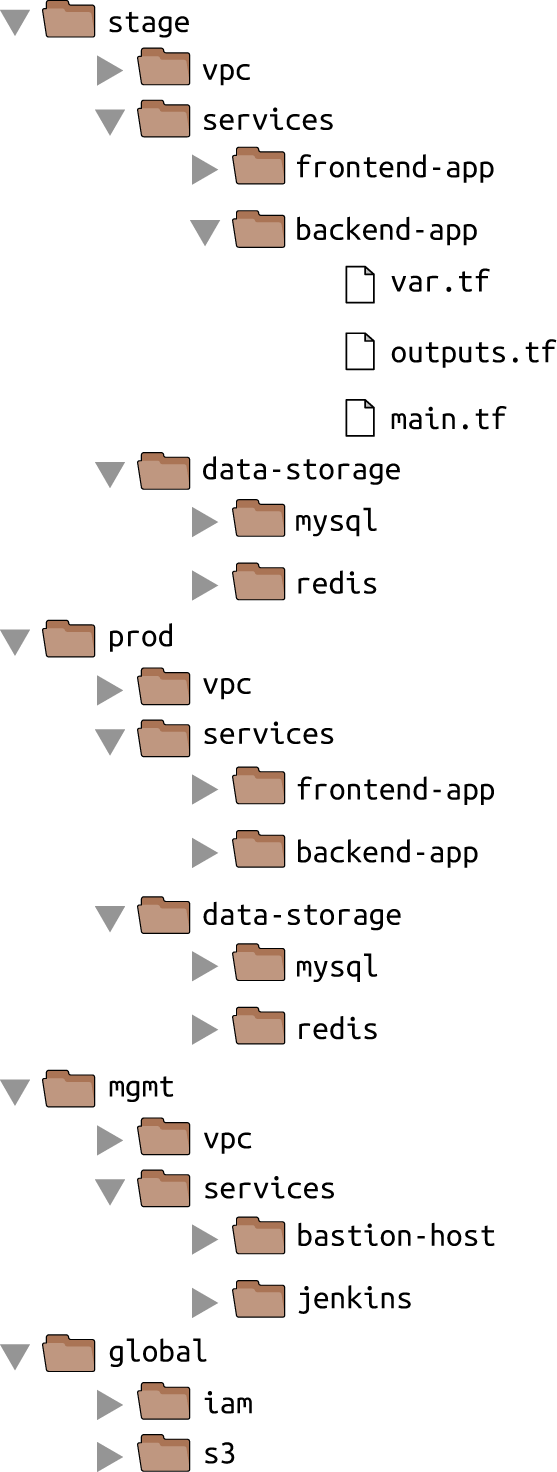
Figure 3-7. Typical file layout for a Terraform project
At the top level, there are separate folders for each “environment.” The exact environments differ for every project, but the typical ones are as follows:
- stage
-
An environment for preproduction workloads (i.e., testing)
- prod
-
An environment for production workloads (i.e., user-facing apps)
- mgmt
-
An environment for DevOps tooling (e.g., bastion host, Jenkins)
- global
-
A place to put resources that are used across all environments (e.g., S3, IAM)
Within each environment, there are separate folders for each “component.” The components differ for every project, but here are the typical ones:
- vpc
-
The network topology for this environment.
- services
-
The apps or microservices to run in this environment, such as a Ruby on Rails frontend or a Scala backend. Each app could even live in its own folder to isolate it from all the other apps.
- data-storage
-
The data stores to run in this environment, such as MySQL or Redis. Each data store could even reside in its own folder to isolate it from all other data stores.
Within each component, there are the actual Terraform configuration files, which are organized according to the following naming conventions:
- variables.tf
-
Input variables
- outputs.tf
-
Output variables
- main.tf
-
The resources
When you run Terraform, it simply looks for files in the current directory with the .tf extension, so you can use whatever filenames you want. However, although Terraform may not care about filenames, your teammates probably do. Using a consistent, predictable naming convention makes your code easier to browse; you’ll always know where to look to find a variable, output, or resource. If individual Terraform files are becoming massive—especially main.tf—it’s OK to break out certain functionality into separate files (e.g., iam.tf, s3.tf, database.tf), but that might also be a sign that you should break your code into smaller modules, instead, which is a topic I’ll dive into in Chapter 4.
Avoiding Copy/Paste
The file layout described in this section has a lot of duplication. For example, the same frontend-app and
backend-app live in both the stage and prod folders. Don’t worry, you won’t need to copy and paste all of that code!
In Chapter 4, you’ll see how to use Terraform modules to keep all of this code DRY.
Let’s take the web server cluster code you wrote in Chapter 2, plus the Amazon S3 and DynamoDB code you wrote in this chapter, and rearrange it using the folder structure in Figure 3-8.
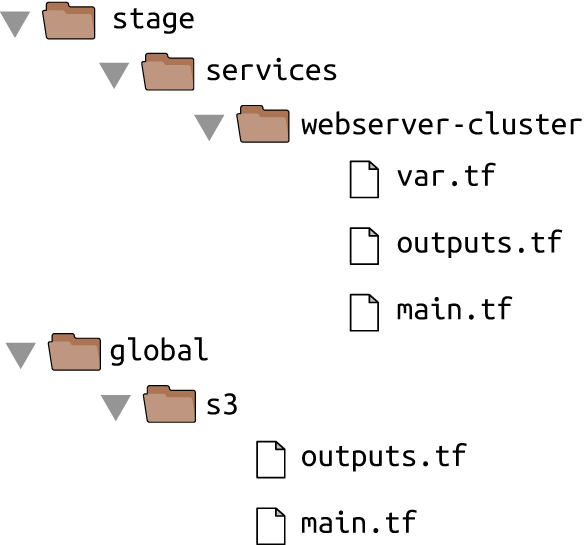
Figure 3-8. File layout for the web server cluster code
The S3 bucket you created in this chapter should be moved into the global/s3 folder. Move the output variables
(s3_bucket_arn and dynamodb_table_name) into outputs.tf. When moving the folder, make sure that you don’t miss
the (hidden) .terraform folder when copying
files to the new location so you don’t need to reinitialize everything.
The web server cluster you created in Chapter 2 should be moved into stage/services/webserver-cluster (think of this as the “testing” or “staging” version of that web server cluster; you’ll add a “production” version in the next chapter). Again, make sure to copy over the .terraform folder, move input variables into variables.tf, and output variables into outputs.tf.
You should also update the web server cluster to use S3 as a backend. You can copy and paste the backend config
from global/s3/main.tf more or less verbatim, but make sure to change the key to the same folder path as the web
server Terraform code: stage/services/webserver-cluster/terraform.tfstate. This gives you a 1:1
mapping between the layout of your Terraform code in version control and your Terraform state files in S3, so it’s
obvious how the two are connected. The s3 module already sets the key using this convention.
This file layout makes it easy to browse the code and understand exactly what components are deployed in each environment. It also provides a good amount of isolation between environments and between components within an environment, ensuring that if something goes wrong, the damage is contained as much as possible to just one small part of your entire infrastructure.
Of course, this very same property is, in some ways, a drawback, too: splitting components into separate folders
prevents you from accidentally blowing up your entire infrastructure in one command, but it also prevents you from
creating your entire infrastructure in one command. If all of the components for a single environment were defined in a
single Terraform configuration, you could spin up an entire environment with
a single call to terraform apply. But if all of the
components are in separate folders, then you need to run terraform apply separately in each one (note that if you’re
using Terragrunt, you can automate this process by using the apply-all command6).
There is another problem with this file layout: it makes it more difficult to use resource dependencies. If your app
code was defined in the same Terraform configuration files as the database code, that app could directly access
attributes of the database using an attribute reference (e.g., access the database address via
aws_db_instance.foo.address). But if the app code and database code live in different folders, as I’ve recommended,
you can no longer do that. Fortunately, Terraform offers a solution: the terraform_remote_state data source.
The terraform_remote_state Data Source
In Chapter 2, you used data sources to fetch read-only information from AWS,
such as the aws_subnet_ids data source, which returns a list of subnets in your VPC. There is another data source
that is particularly useful when working with state: terraform_remote_state.
You can use this data source to fetch the Terraform state file stored by another set of Terraform configurations in a
completely read-only manner.
Let’s go through an example. Imagine that your web server cluster needs to communicate with a MySQL database. Running a database that is scalable, secure, durable, and highly available is a lot of work. Again, you can let AWS take care of it for you, this time by using Amazon’s Relational Database Service (RDS), as shown in Figure 3-9. RDS supports a variety of databases, including MySQL, PostgreSQL, SQL Server, and Oracle.
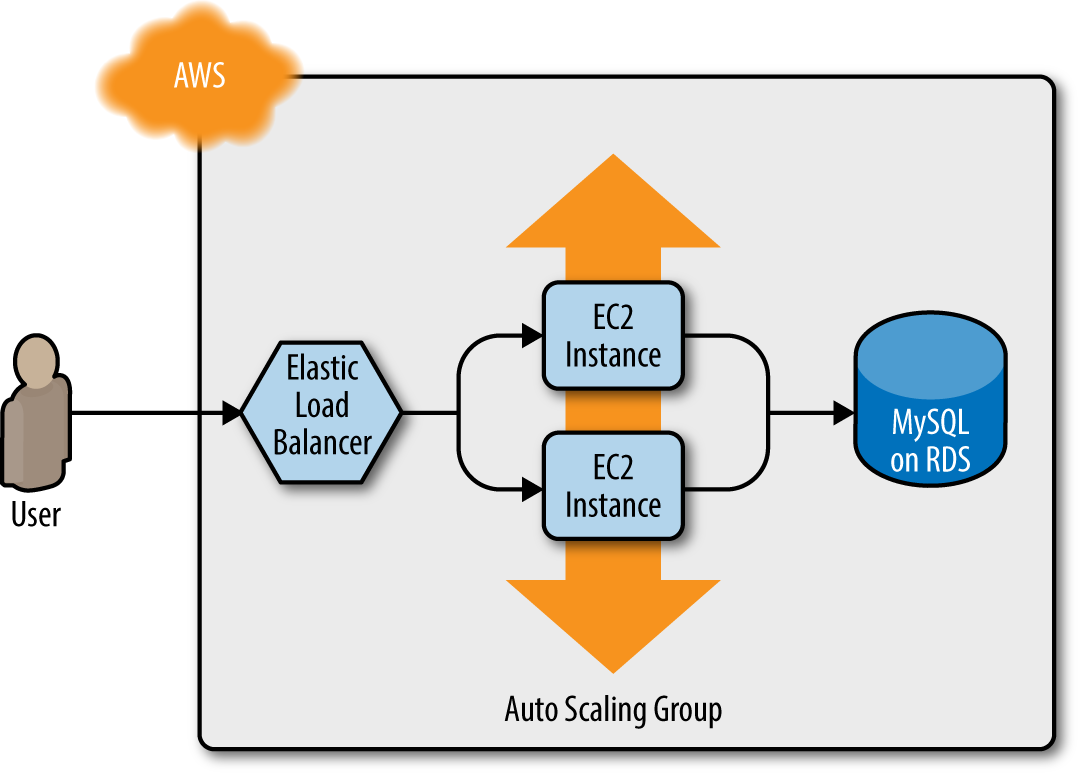
Figure 3-9. The web server cluster communicates with MySQL, which is deployed on top of Amazon RDS
You might not want to define the MySQL database in the same set of configuration files as the web server cluster, because you’ll be deploying updates to the web server cluster far more frequently and don’t want to risk accidentally breaking the database each time you do so. Therefore, your first step should be to create a new folder at stage/data-stores/mysql and create the basic Terraform files (main.tf, variables.tf, outputs.tf) within it, as shown in Figure 3-10.
Next, create the database resources in stage/data-stores/mysql/main.tf:
provider"aws"{region="us-east-2"}resource"aws_db_instance" "example"{identifier_prefix="terraform-up-and-running"engine="mysql"allocated_storage=10instance_class="db.t2.micro"name="example_database"username="admin"# How should we set the password?password="???"}
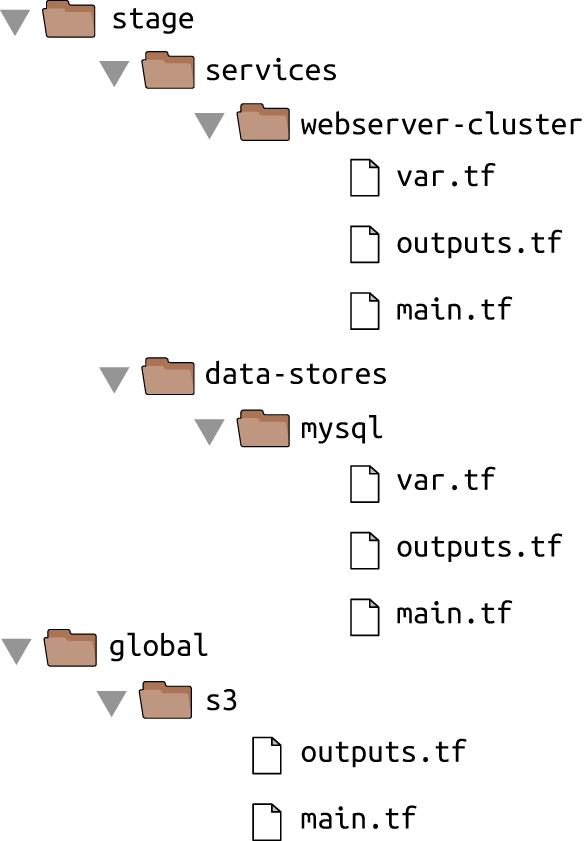
Figure 3-10. Create the database code in the stage/data-stores folder
At the top of the file, you see the typical provider resource, but just below that is a new resource:
aws_db_instance. This resource creates a database in RDS. The settings in this code configure RDS to run MySQL
with 10 GB of storage on a db.t2.micro Instance, which has one virtual CPU, 1 GB of memory, and is part of the AWS free
tier.
Note that one of the parameters that you must pass to the aws_db_instance resource is the master password to use for the
database. Because this is a secret, you should not put it directly into your code in plain text! Instead, there are two
better options for passing secrets to Terraform resources.
One option for handling secrets is to use a Terraform data source to read the secrets from a secret store. For example,
you can store secrets, such as database passwords, in AWS Secrets Manager, which is a managed service AWS offers specifically
for storing sensitive data. You could use the AWS Secrets Manager UI to store the secret and then read the secret back
out in your Terraform code using the aws_secretsmanager_secret_version data source:
provider"aws"{region="us-east-2"}resource"aws_db_instance" "example"{identifier_prefix="terraform-up-and-running"engine="mysql"allocated_storage=10instance_class="db.t2.micro"name="example_database"username="admin"password=data.aws_secretsmanager_secret_version.db_password.secret_string}data"aws_secretsmanager_secret_version" "db_password"{secret_id="mysql-master-password-stage"}
Here are some of the supported secret stores and data source combos that you might want to look into:
-
AWS Secrets Manager and the
aws_secretsmanager_secret_versiondata source (shown in the preceding code) -
AWS Systems Manager Parameter Store and the
aws_ssm_parameterdata source -
AWS Key Management Service (AWS KMS) and the
aws_kms_secretsdata source -
Google Cloud KMS and the
google_kms_secretdata source -
Azure Key Vault and the
azurerm_key_vault_secretdata source -
HashiCorp Vault and the
vault_generic_secretdata source
The second option for handling secrets is to manage them completely outside of Terraform (e.g., in a password manager
such as 1Password, LastPass, or OS X Keychain) and to pass the secret into Terraform via an environment variable. To
do that, declare a variable called db_password in stage/data-stores/mysql/variables.tf:
variable"db_password"{description="The password for the database"type=string}
Note that this variable does not have a default. This is intentional. You should not store your database password or
any sensitive information in plain text. Instead, you’ll set this variable using an
environment variable.
As a reminder, for each input variable foo defined in your Terraform configurations, you can provide
Terraform the value of this variable using the environment variable TF_VAR_foo.
For the db_password input variable, here is how you can set the TF_VAR_db_password environment variable on
Linux/Unix/OS X systems:
$  export TF_VAR_db_password="(YOUR_DB_PASSWORD)"
$ terraform apply

(...)
Note that there is intentionally a space before the export command to prevent the secret from being stored on disk in your
Bash history.7 An even better way to keep secrets from accidentally being stored on disk
in plain text is to store them in a command-line–friendly secret store, such as pass,
and to use a subshell to securely read the secret from pass and into an environment variable:
$ export TF_VAR_db_password=$(pass database-password)
$ terraform apply

(...)
Secrets Are Always Stored in Terraform State
Reading secrets from a secrets store or environment variables is a good practice to ensure secrets aren’t stored in
plain text in your code, but just a reminder: no matter how you read in the secret, if you pass it as an argument to a
Terraform resource, such as aws_db_instance, that secret will be stored in the Terraform state file, in plain text.
This is a known weakness of Terraform, with no effective solutions available, so be extra paranoid with how you store your state files (e.g., always enable encryption) and who can access those state files (e.g., use IAM permissions to lock down access to your S3 bucket)!
Now that you’ve configured the password, the next step is to configure this module to store its state in the S3 bucket you created earlier at the path stage/data-stores/mysql/terraform.tfstate:
terraform{backend"s3"{# Replace this with your bucket name!bucket="terraform-up-and-running-state"key="stage/data-stores/mysql/terraform.tfstate"region="us-east-2"# Replace this with your DynamoDB table name!dynamodb_table="terraform-up-and-running-locks"encrypt=true}}
Run terraform init and terraform apply to create the database. Note that Amazon RDS can take roughly 10 minutes to provision even
a small database, so be patient.
Now that you have a database, how do you provide its address and port to your web server cluster? The first step is to add two output variables to stage/data-stores/mysql/outputs.tf:
output"address"{value=aws_db_instance.example.addressdescription="Connect to the database at this endpoint"}output"port"{value=aws_db_instance.example.portdescription="The port the database is listening on"}
Run terraform apply one more time and you should see the outputs in the terminal:
$ terraform apply

(...)

Apply complete! Resources: 0 added, 0 changed, 0 destroyed.

Outputs:

address = tf-2016111123.cowu6mts6srx.us-east-2.rds.amazonaws.com
port = 3306
These outputs are now also stored in the Terraform state for the database, which is in your S3 bucket at the path
stage/data-stores/mysql/terraform.tfstate. You can get the web server cluster code to read the data from this state
file by adding the terraform_remote_state data
source in stage/services/webserver-cluster/main.tf:
data"terraform_remote_state" "db"{backend="s3"config={bucket="(YOUR_BUCKET_NAME)"key="stage/data-stores/mysql/terraform.tfstate"region="us-east-2"}}
This terraform_remote_state data source configures the web server cluster code to read the state file from the same
S3 bucket and folder where the database stores its state, as shown in Figure 3-11.
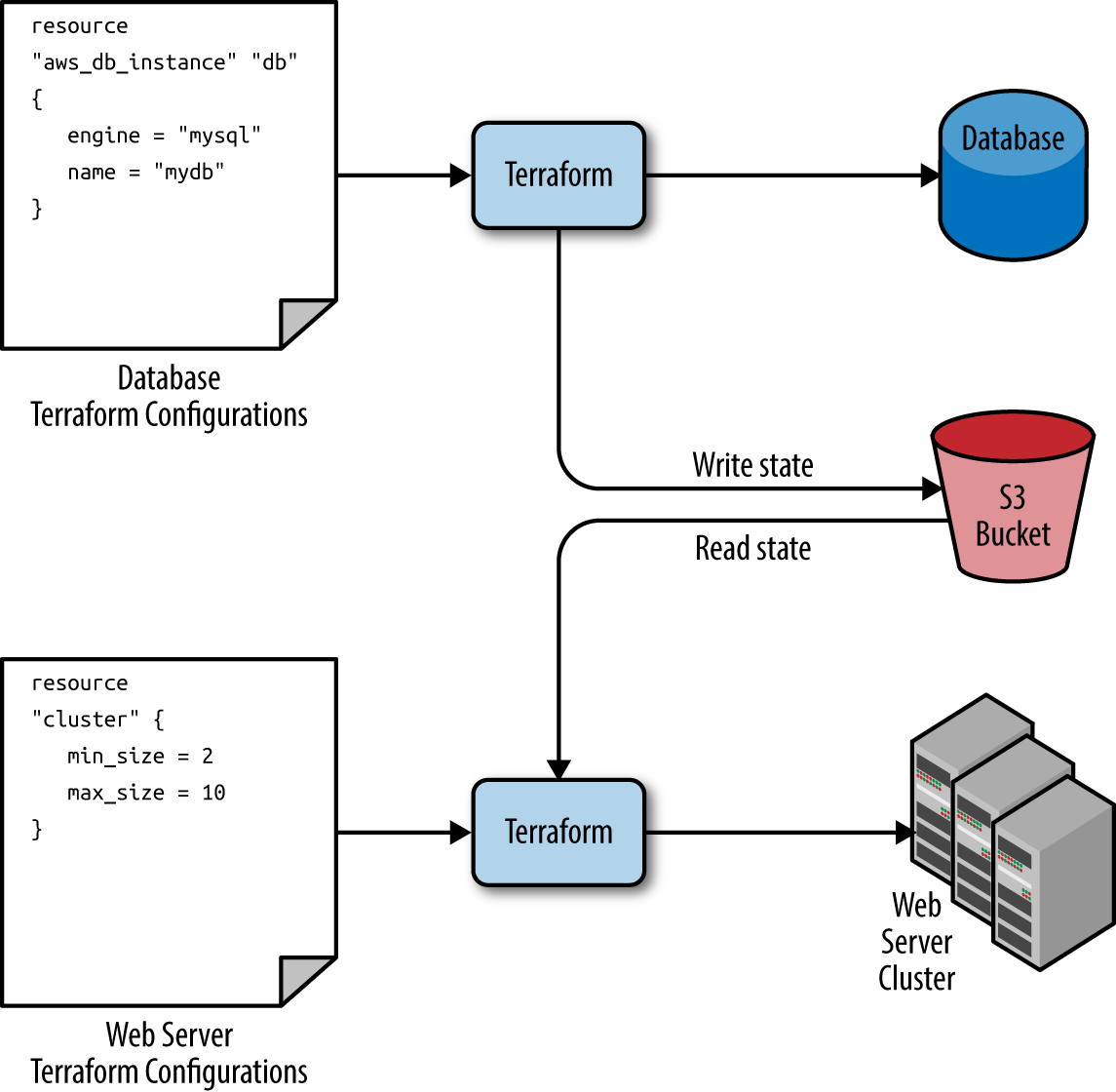
Figure 3-11. The database writes its state to an S3 bucket (top) and the web server cluster reads that state from the same bucket (bottom)
It’s important to understand that, like all Terraform data sources, the data returned by terraform_remote_state is
read-only. Nothing you do in your web server cluster Terraform code can modify that state, so you can pull in the
database’s state data with no risk of causing any problems in the database itself.
All of the database’s output variables are
stored in the state file and you can read them from the terraform_remote_state data source using an attribute
reference of the form:
data.terraform_remote_state.<NAME>.outputs.<ATTRIBUTE>
For example, here is how you can update the User Data of the web server cluster Instances to pull the database address
and port out of the terraform_remote_state data source and expose that information in the HTTP response:
user_data=<<EOF#!/bin/bashecho"Hello, World">>index.htmlecho"${data.terraform_remote_state.db.outputs.address}">>index.htmlecho"${data.terraform_remote_state.db.outputs.port}">>index.htmlnohupbusyboxhttpd-f-p${var.server_port}&EOF
As the User Data script is growing longer, defining it inline is becoming messier and messier.
In general, embedding one programming language (Bash) inside another (Terraform) makes it more difficult to maintain each one,
so let’s pause here for a moment to externalize the Bash script. To do that, you
can use the file built-in function and the template_file data source. Let’s talk about these one at a time.
Terraform includes a number of built-in functions that you can execute using an expression of the form:
function_name(...)
For example, consider the format function:
format(<FMT>,<ARGS>,...)
This function formats the arguments in ARGS according to the sprintf syntax in the string FMT.8 A great way to experiment with
built-in functions is to run the terraform console command to get an interactive
console where you can try out Terraform syntax, query the state of your infrastructure, and see the results
instantly:
$ terraform console

> format("%.3f", 3.14159265359)
3.142
Note that the Terraform console is read-only, so you don’t need to worry about accidentally changing infrastructure or state.
There are a number of other built-in functions that you can use to manipulate strings, numbers, lists, and
maps.9
One of them is the file function:
file(<PATH>)
This function reads the file at PATH and returns its contents as a string. For example, you could put your User Data
script into stage/services/webserver-cluster/user-data.sh and load its contents as a string as follows:
file("user-data.sh")
The catch is that the User Data script for the web server cluster needs some dynamic data from Terraform, including the
server port, database address, and database port. When the User Data script was embedded in the Terraform code, you
used Terraform references and interpolation to fill in these values. This does not work with the file function.
However, it does work if you use a template_file data source.
The template_file data source has two arguments: template, which is a string to render, and vars, which is a map
of variables to make available while rendering. It has one output attribute called rendered, which is the result of
rendering template. To see this in action, add the following template_file data source to
stage/services/webserver-cluster/main.tf:
data"template_file" "user_data"{template=file("user-data.sh")vars={server_port=var.server_portdb_address=data.terraform_remote_state.db.outputs.addressdb_port=data.terraform_remote_state.db.outputs.port}}
You can see that this code sets the template parameter to the contents of the user-data.sh script and the
vars parameter to the three variables the User Data script needs: the server port, database address, and database
port. To use these variables, you’ll need to update stage/services/webserver-cluster/user-data.sh script as follows:
#!/bin/bashcat>index.html<<EOF<h1>Hello,World</h1><p>DBaddress:${db_address}</p><p>DBport:${db_port}</p>EOFnohupbusyboxhttpd-f-p${server_port}&
Note that this Bash script has a few changes from the original:
-
It looks up variables using Terraform’s standard interpolation syntax, but the only available variables are the ones in the
varsmap of thetemplate_filedata source. Note that you don’t need any prefix to access those variables: for example, you should useserver_portand notvar.server_port. -
The script now includes some HTML syntax (e.g.,
<h1>) to make the output a bit more readable in a web browser.
A Note on Externalized Files
One of the benefits of extracting the User Data script into its own file is that you can write unit tests for it. The test code can even fill in the interpolated variables by using environment variables, because the Bash syntax for looking up environment variables is the same as Terraform’s interpolation syntax. For example, you could write an automated test for user-data.sh along the following lines:
exportdb_address=12.34.56.78exportdb_port=5555exportserver_port=8888 ./user-data.shoutput=$(curl"http://localhost:$server_port")if[[$output==*"Hello, World"*]];thenecho"Success! Got expected text from server."elseecho"Error. Did not get back expected text 'Hello, World'."fi
The final step is to update the user_data parameter of the aws_launch_configuration resource to point to the
rendered output attribute of the template_file data source:
resource"aws_launch_configuration" "example"{image_id="ami-0c55b159cbfafe1f0"instance_type="t2.micro"security_groups=[aws_security_group.instance.id]user_data=data.template_file.user_data.rendered# Required when using a launch configuration with an auto scaling group.# https://www.terraform.io/docs/providers/aws/r/launch_configuration.htmllifecycle{create_before_destroy=true}}
Ah, that’s much cleaner than writing Bash scripts inline!
If you deploy this cluster using terraform apply, wait for the Instances to register in the ALB, and open the ALB
URL in a web browser, you’ll see something similar to Figure 3-12.
Yay—your web server cluster can now programmatically access the database address and port via Terraform. If you were using a real web framework (e.g., Ruby on Rails), you could set the address and port as environment variables or write them to a config file so that they could be used by your database library (e.g., ActiveRecord) to communicate with the database.
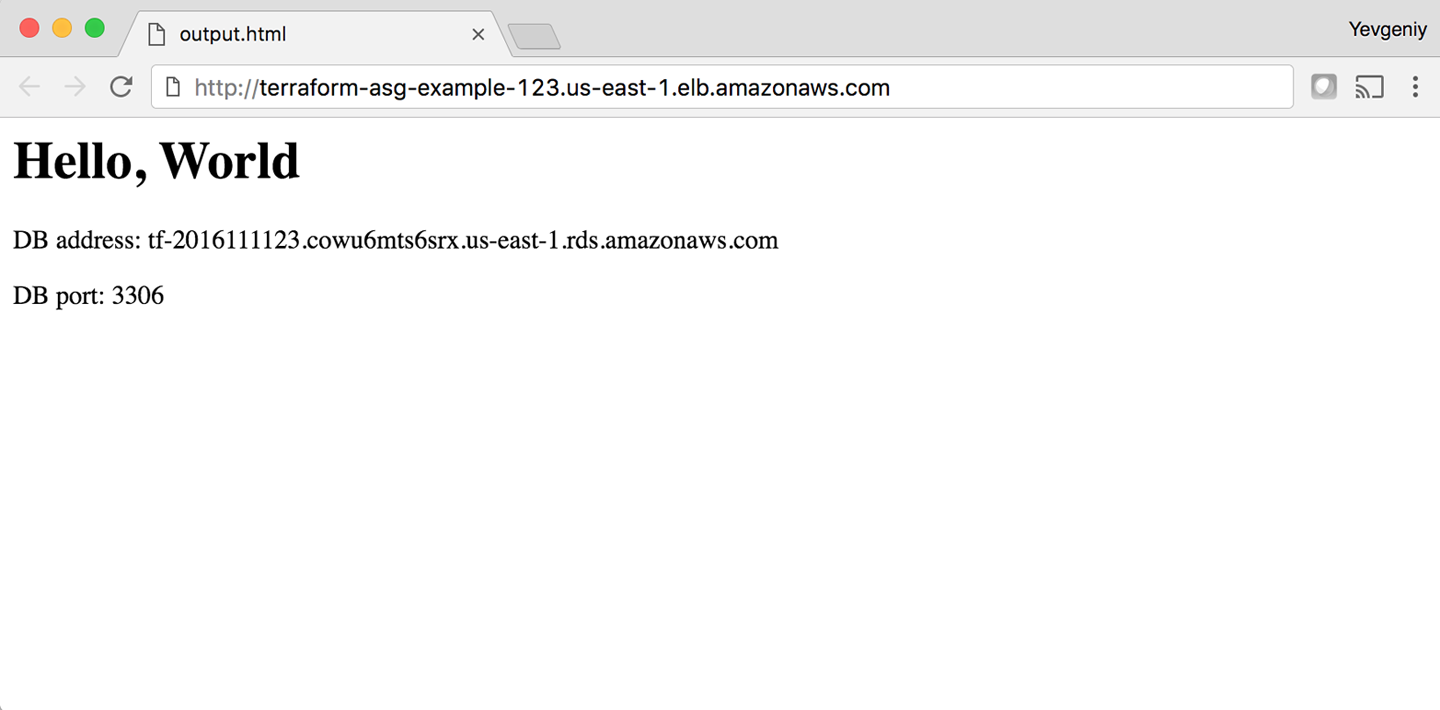
Figure 3-12. The web server cluster can programmatically access the database address and port
Conclusion
The reason you need to put so much thought into isolation, locking, and state is that infrastructure as code (IAC) has different trade-offs than normal coding. When you’re writing code for a typical app, most bugs are relatively minor and break only a small part of a single app. When you’re writing code that controls your infrastructure, bugs tend to be more severe, given that they can break all of your apps—and all of your data stores and your entire network topology, and just about everything else. Therefore, I recommend including more “safety mechanisms” when working on IAC than with typical code.10
A common concern of using the recommended file layout is that it leads to code duplication. If you want to run the web server cluster in both staging and production, how do you avoid having to copy and paste a lot of code between stage/services/webserver-cluster and prod/services/webserver-cluster? The answer is that you need to use Terraform modules, which are the main topic of Chapter 4.
1 Learn more about S3’s guarantees.
2 See pricing information for S3.
3 Here you can find more information on S3 bucket names.
4 Here is pricing information for DynamoDB.
5 Here’s a colorful example of what happens when you don’t isolate Terraform state.
6 For more information, see Terragrunt’s documentation.
7 In most Linux/Unix/OS X shells, every command you type is stored in some sort of history file (e.g., ~/.bash_history). If you start your command with a space, most shells will skip writing that command to the history file. Note that you might need to set the HISTCONTROL environment variable to “ignoreboth” to enable this if your shell doesn’t enable it by default.
8 Here’s where you can find documentation for the sprintf syntax.
9 Here’s the full list of built-in functions.
10 For more information on software safety mechanisms, see http://bit.ly/2YJuqJb.