3.5 Referencing an External Document via <link>
The link element is a standalone tag for the head of the HTML document between <head> and </head>, which you can use to create a relationship between the current document and an external document. In practice, the link element is often used to include an external CSS file in the current document. The <link> tag can be used more than once in the head element to include multiple resources in the current document. The type or purpose of the relationship depends on the value of the rel attribute used (see Table 3.4 for the attributes of the link element).
Even though the tag here is <link>, this standalone element has nothing in common with the familiar hypertext links, which are underlined and allow the user to navigate to other websites by clicking on this underlined text.
The following example shows you how you can include an external CSS file in the HTML document by using the link element.
<!doctype html>
<html lang="en">
  <head>
   <title>Logical linking via link</title>
   <link rel="stylesheet" type="text/css" href="style.css">
   <meta charset="UTF-8">
  </head>
  <body>
    <p>A simple paragraph text!</p>
  </body>
</html>
Listing 3.3 /examples/chapter003/3_5/index.html
You can specify the relationship between the document and the external document via the HTML attribute rel. Possible values for this attribute are listed in Table 3.4. In the example, the document is linked to an external stylesheet file. When using this tag, you should also make sure to specify the MIME type, which I’ve done here with the type attribute and the text/css value. However, the most important attribute that you must always use along with the link element is the href attribute, which specifies the URL of the linked resource. By specifying style.css, I assumed the stylesheet file is in the same directory as the HTML document.
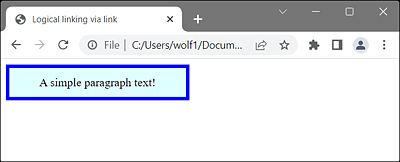
Figure 3.5 Thanks to the Logical Link to the External CSS File, the <p> Element Was Formatted Here in This Example
Specifying a Base URL via the <base> Element
If you want to set the resources from another URL using the base element, you still need to put <base> before <link> in the head area between <head> and </head>. Example:
...
<head>
  <title>Logical linking via link</title>
  <base href="https://css.sap-press.com/">
  <link rel="stylesheet" type="text/css" href="rheinwerk.css">
  <meta charset="UTF-8">
</head>
...
Here in <base>, https://css.sap-press.com/ was defined as the base URL for the references, so the reference to the CSS file https://css.sap-press.com/rheinwerk.css is added and used in <link>. If the base element were located behind the link element, the rheinwerk.css file would again be expected in the same directory as the current document, which may well be intentional. For this reason, you should pay attention to where you define the base element because only those references that are located after this element are extended with the base URL.
Regarding the rel attribute and its possible values, note that some of these values are only of limited use in practice because how (and whether) a logical link is displayed by the web browser isn’t specified. Especially for links with the link types next, prev, first, last, author, help, search, sidebar, and license, it’s therefore more advisable (for the time being) to insert a corresponding button or text for this yourself to create a hyperlink (see Chapter 5, Section 5.2). The global title attribute enables you to define a caption here that will be displayed if a web browser should support one of these links, that is, the just-mentioned rel values such as next, prev, first, and so on.
|
Attribute |
Meaning |
|---|---|
|
Specifies the URL to the resource to be linked. This attribute must be used. |
|
|
Defines the language of the resource to be linked. |
|
|
Specifies for which medium/device the target resource in href has been optimized. For example, this attribute is popular with stylesheets to define multiple styles for different media types. |
|
|
Sets the relationship or relatedness (the type of link) between the current document and the external resource in href. Possible values are as follows:
|
|
|
|
|
Specifies the size(s) for the resource to be linked. Makes sense only if the attribute is rel="icon". Example: size="16x16" (one size), size="16x16 32x32" (two sizes), or size="any" (any size). |
|
|
Specifies the MIME type for the document to link to (e.g., text/css for a CSS file). |
Table 3.4 HTML Attributes for the <link> HTML Element
If you take a closer look at the rel values in Table 3.4, you might notice that there are two different types of values here: (1) the attribute values for pure hypertext links, and (2) values for links to external resources. rel values to external resources are icon, pingback, prefetch, and stylesheet. All other values are pure hypertext links.
Confusion with the "rel" Attribute Values
Besides the rel attribute values shown here, you’ll probably come across other values on the internet. It’s quite hard to keep track of this as well as of what works and what doesn’t work on which web browsers. But I’m sure there’ll be some movement in this regard in the future. However, you should note that many of those values you find on the web are merely suggestions. Going into this topic in greater depth is beyond the scope of this chapter; however, you can find a good overview and recommendations at http://microformats.org/wiki/existing-rel-values. The W3C website also provides a useful overview at www.w3.org/TR/html5/links.html#sec-link-types.