17.5 Overview of JavaScript Data Types
As you already know, unlike other languages such as C++ or Java, you don’t have to specify a data type when declaring variables because this is determined at runtime in JavaScript based on the value that has been passed.
JavaScript defines multiple data types. The primitive types are string, number, boolean, and symbol, and the special types include undefined and null. In addition to the primitive data types, JavaScript also has the composite data type object for objects.
You can determine the type of a variable using the typeof operator. Possible return values are string, number, boolean, object, function, symbol, and undefined.
17.5.1 Number Data Type (Numbers)
In JavaScript, there’s no difference between integers and floating-point numbers. According to the ECMAScript standard, there’s no specific data type for integers, and all data types for numbers are represented internally by JavaScript as 64-bit floating-point values. For example:
let integerValue = 12345;
console.log(typeof integerValue); // Output: number
let floatingPointValue = 123.123;
console.log(typeof floatingPointValue); // Output: number
If a value doesn’t correspond to a correct numerical value, NaN (NaN = not a number) will be used as the value. If the value range has been exceeded or fallen below, Infinity or ‐Infinity will be used as the value. For this reason, there are two constants: Number.POSITIVE_INFINITY and Number.NEGATIVE_INFINITY. If you want to determine the smallest or largest possible number you can use, the Number.MIN_VALUE and Number.MAX_VALUE constants are useful:
console.log(Number.MIN_VALUE); // Output: 5e-324
console.log(Number.MAX_VALUE); // Output: 1.7976931348623157e+308
console.log(Number.NEGATIVE_INFINITY);  // Output: -Infinity
console.log(Number.POSITIVE_INFINITY);  // Output: Infinity
When specifying floating-point values, you must use a period instead of a comma. For higher or smaller floating-point values, you can use the E notation. For example, a specification of 5e-3 corresponds to 0.005. With -3, the decimal point is shifted to the left by as many digits as are indicated after the E character. The same is true for 54321e3, which moves the decimal point three places to the right because the number after E is positive. Thus, 1.2e4 corresponds to the value 12,000:
let floatingPointValue1 = 5e-3;
console.log(floatingPointValue1); // Output: 0.005
let floatingPointValue2 = 1.2e4;
console.log(floatingPointValue2); // Output: 12000
17.5.2 String Data Types (Strings)
Strings are used to represent text and consist of a string of zero or more 16-bit characters according to the UCS-2 encoding for letters, digits, and punctuation marks. You can insert such string literals in JavaScript by placing a text between single or double quotes. In JavaScript, there are no primitive data types for a single character as there are in other programming languages.
Let’s take a look at a simple example:
let aText1 = "String in JavaScript";
console.log(typeof aText1); // Output: string
let aText2 = 'Also a string in JavaScript';
console.log(typeof aText2); // Output: string
let aText3 = "12345";
console.log(typeof aText3); // Output: string
Whether you use single or double quotation marks is up to you. A good style is to choose one version and then use it consistently. What’s more convenient about using single quotes is that you can use special characters within the string without an escape sequence, which is an advantage especially because double quotes are often used in some countries. For example:
let aText4 = "Quotation marks in \"text\""; // escape sequence needed
console.log(aText4); // Output: Quotation marks in "text"
let aText5 = 'Quotation marks in "text"'; // without escape sequence
console.log(aText5); // Output: Quotation marks in "text"
Escape sequences are control characters that you can insert into strings as variable values. Such control characters are preceded by the character \ followed by the letter marking the control character. For example, you can insert a line break using the control character \n, or you can insert a tab feed via \t:
let aText6 = "Insert a line break\n"; // line break at the end
let aText7 = "The text will be output in the next line.\n";
let aText8 = "\tThe text will be indented.\n";
console.log(aText6 + aText7 + aText8);
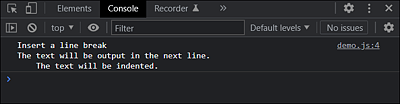
Figure 17.17 The Example with a Line Break and a Tab Feed during Execution
The most important control characters that are relevant in JavaScript applications are listed in Table 17.2.
|
Control Characters |
Meaning |
|---|---|
|
\' |
Outputs a single quote character inside the string. |
|
\" |
Outputs a double quote character inside the string. |
|
\\ |
Outputs the backslash character inside the string. |
|
\n |
Outputs a line break. However, the line break applies only to the console or the standard JavaScript tip dialogs. For a line break on web pages, of course, you use <br> instead of \n. |
|
\t |
Outputs the tab character, which means an indentation to the right. This control character also affects only the console or a standard message dialog. |
|
\uXXX |
This enables you to add a Unicode symbol. For this purpose, hexadecimal values are used. A specification such as \u00A9 adds the © character to the string. |
Table 17.2 Control Characters for Strings
Term Definition: Literals
One term you may come across more often is “literal,” which simply refers to the value that’s fixed in the code behind a string or a number. Values such as 56, "Doe", 3.1415, 'Are you sure?", or 2016 represent literals that literally occur as shown in the code:
let year = 2016; // 2016 is a literal.
let name = "Doe"; // "Doe" is a literal.
let query = 'Are you sure?'; // 'Are you sure?' is a literal.
let pi = 3.1415; // 3.1415 is a literal.
If you want to link individual strings together, you can do this using the + operator:
let text1 = "to be ";
let text2 = "not ";
let text3 = text1 + "or " + text2 + text1;
console.log(text3); // Output: to be or not to be

let text4 = "The value is: " + 123.123 + 100;
console.log(text4); // Output: The value is: 123.123100
When you mix numbers and strings with the + operator, the result will always be a string, as you can see in the example with "The value is: " + 123,123 + 100.
17.5.3 Template Strings
Template strings are string symbols that may span multiple lines and also allow embedded JavaScript expressions. Such template strings are enclosed between two grave accents (`) instead of between double or single quotes. This allows you to do without line breaks using the \n sequence. For example:
let text1 = "Last line";
console.log("First line\n" + "Second line\n" + text1);
// First line
// Second line
// Last line
You can write the same with the template strings as follows:
...
console.log(`First line
Second line
${text1}
`);
I think this looks much clearer because you can enter the text as you want it to be displayed. To insert JavaScript expressions into the strings, you can use the notation ${expression}. In the example, the value of the variable text1 was used as an expression.
17.5.4 Boolean Data Type
The Boolean data type can have only two values with the literals true and false. A Boolean value is a truth value and usually expresses the validity of a condition or expression. In addition, conditions that contain the value 0, an empty string, NaN, undefined, or null are interpreted as false. All other values are true. There’s nothing more to say about this at the moment. Nevertheless, here are a few simple string and number comparisons for testing:
let val1 = 123;
let val2 = 234;

let isAdmin = false;
let isUser = true;

console.log(val1 > val2); // Output: false
console.log(val1 < val2); // Output: true
You’ll use the Boolean values even more often in practice when it comes to branching within a JavaScript.
17.5.5 Undefined and Null Data Types
A variable that hasn’t yet been assigned a value has the value undefined. In addition, a nonexistent object property or nonexistent function parameters have the value undefined. For example:
let myname;
console.log(name); // Output: undefined
myname = "Wolfe";
console.log(myname); // Output: Wolfe
With the datatype null, on the other hand, you represent an empty object. In the following example, I anticipate the objects theme and create a mname object from last name and first name. I’ll then assign the value null to the mname object, which deletes the contents of the object. This specifies that the object variable hasn’t been assigned any values, that is, it’s an empty object.
let mname = {
    lname: 'Wolfe',
    fname: 'Jason'
};
console.log(mname); // Output: {lname: "Wolfe", fname: "Jason"}
mname = null;
console.log(mname); // Output: null
Unlike undefined, null is a JavaScript keyword. The type null was listed as a data type, but a typeof null returns the type object. Variables you’ve initialized with null are thus of the type object. An uninitialized variable, on the other hand, is undefined. Unlike null, undefined isn’t meant to be assigned to a variable. The value undefined simply indicates that a variable hasn’t yet been initialized with a value. null, on the other hand, is an empty object.
17.5.6 Objects
Objects are a collection of properties and methods, where a method is a function, and a property is a value or set of values of an object. In addition to browser objects and predefined objects, you can also create and use your own objects in JavaScript. The topic is quite important in JavaScript, so we won’t just cover it here in a subsection. The objects would also come too early at this point because you still need some basics in JavaScript itself for that. You can learn more about objects in JavaScript in Chapter 18.
17.5.7 Converting Data Types
Because JavaScript is very flexible and dynamic when it comes to data types, and because you can convert data types automatically during execution, I’ll get a little more specific about type conversion here. The following example shows what is meant by dynamic typing:
let val = 123;
console.log(typeof val); // Output: number
val = "Now a string";
console.log(typeof val); // Output: string
While such an example isn’t intended to form a precedent, it shows how the variable val is first used as a numerical value, and after it was assigned a string, the data type got converted into a string.
You’ve already seen something similar when you added a string with a numerical value using the + operator, whereupon the number was converted to a string:
let text = 5 + " You should be friends";
console.log(typeof text); // Output: string
However, this only applies to the + operator in conjunction with strings, which is used to link them together. On the other hand, if you use other operators such as -, *, or /, JavaScript no longer converts the numbers to strings, but tries to convert the strings to numbers. Consider this example:
let text1 = "100" - 44;    // 56
console.log(typeof text1); // Output: number
let text2 = "100" + 44;    // "10044"
console.log(typeof text2); // Output: string
console.log("10" / "2");   // Output: 5
For "100" - 44, the string "100" is converted to the number 100. The reason is that the arithmetic minus operator expects two numbers as operands. The same would happen if you were to calculate "100" - "44". Both strings would be implicitly converted to numbers. You can see the example here with "10" / "2". With "100" + 44, however, a string "10044" would be created because this is the standard behavior when the + operator is used in connection with strings.
After all, JavaScript can’t know which data type you need at any given moment. If you want to perform an addition operation on an example such as “100” + 44, you must explicitly convert the string “100” to a number. For such purposes, JavaScript provides the functions parseInt() and parseFloat(). You can use parseInt() to convert a string to an integer and parseFloat() to convert a string to a floating-point number. Here’s an example with parseInt():
let iVal = parseInt("100") + 44; // 144
console.log(typeof iVal);        // Output: number
In this example, the string "100" was first converted to an integer with parseInt(). Because the two operands to the right and left of the + operator are numbers, an addition is performed, and a number is passed to iVal as the result. For such conversions from a string to a number, you must check that the conversion was done properly and that the number isn’t NaN afterwards. Often the data doesn’t come as a simple literal as in the examples, but is entered by a user or read from a database. For this purpose, you can use, for example, the function isNaN(), which returns true if the number is invalid. Otherwise, it returns false. Let’s take a look at the following example:
let notANumber = "100 elements" - 50;
console.log(typeof notANumber);   // Output: number
console.log(notANumber);          // Output: NaN
console.log( isNaN(notANumber) ); // Output: true
The arithmetic calculation of "100 elements" - 50 doesn’t provide a meaningful value. Although typeof returns number here, the output of the variable notANumber confirms that no valid value was calculated and stored here, which is why the result is NaN. The check using the isNaN() function confirms this too. The isNaN() function is therefore needed because it isn’t possible to check the value for NaN with ==.