18 Arrays, Functions, and Objects in JavaScript
Objects and object-oriented programming are particularly important in JavaScript. Objects are the main data types in JavaScript. Much of JavaScript is somehow an object. For JavaScript, a web page is virtually already an object. Arrays and functions are also essential topics that you have to deal with every day in JavaScript development.
Because you’ll be dealing a lot with arrays, functions, and objects in web programming, you should at least know the basics. However, you won’t find a comprehensive treatise in this book. If you’re already familiar with another object-oriented language, you’ll have an easier time reading into the chapter, but you’ll find that much is a bit different in JavaScript.
This chapter deals with the following topics:
-
Functions
You’ll learn how to use recurring statements in JavaScript in functions (also called subroutines) and thus be able to reuse them at any time. -
Arrays
It can become quite cumbersome to always put data into a single variable of primitive data types when the data size gets larger. This is where arrays come into play, which can be used to store entire lists of different variables. -
Objects
As mentioned earlier, JavaScript is a language that supports and lives the object-oriented paradigm. Even functions are objects in JavaScript. For this reason, objects must also be addressed in this chapter.
18.1 Functions in JavaScript
Functions in JavaScript are subroutines with recurring JavaScript statements that you group together in a block and call using the function name and optional arguments. Optionally, such a function returns a value to the caller of the function.
If you come from a different programming language, it may be useful to know at this point that functions in JavaScript are real objects (i.e., first-class objects) and can therefore be assigned to variables. Likewise, functions can be used as parameters or return values of functions. If JavaScript is your first programming language, you shouldn’t pay much attention to this information yet, but keep it in mind.
18.1.1 Different Ways to Define a Function in JavaScript
In JavaScript, there are several ways to use functions (i.e., function objects), which I’ll describe in more detail in the following sections.
Defining Functions: Function Declaration
A JavaScript function must be introduced via the keyword function. This is followed by an identifier (the function name) and the parentheses (()). The name of the function is subject to the same restrictions as the variable names. Inside the parentheses, you can optionally write a list of formal parameters. Multiple parameters must be separated with a comma. The actual code or statement, also referred to as the function body, must be written between curly brackets ({}). Here’s the complete syntax of a function in JavaScript:
function sum(parameter1, parameter2) {
    // Code for the function
    let sum = parameter1 + parameter2;
    return sum;
}
let val1 = 200, val2 = 100;
let total = sum(val1, val2);      // Function call
console.log("Result=" + total);   // Output: Result=300
Listing 18.1 /examples/chapter018/18_1/script.js
The code inside the function gets executed when the function with sum() and the arguments (here, 200 and 100) is called. Optionally, such a function can also return a value to the caller with return if the caller of the function needs to continue working with that value. If you don’t want to return a value from a function, you can omit the return statement. JavaScript doesn’t require a semicolon at the end of the curly brackets of the function block.
Formal Parameters and Arguments
We refer to a formal parameter when we define the parameters in the program code. The arguments (or actual parameters) are the values we use in a function call.
Defining a Function: Function Expression
In addition to a function declaration, you can also create a function as a function expression in JavaScript. This works quite similar to the function declaration in the previous example, except that you assign the function to a variable, which makes this reference variable subsequently refer to the function object and can be used like an ordinary function:
let sum = function(parameter1, parameter2) {
    return parameter1 + parameter2;
}
let val1 = 100,
    val2 = 200;
let total = sum(val1, val2);    // Function call
console.log("Result=" + total); // Output: Result=300
Listing 18.2 /examples/chapter018/18_1/script2.js
In a function expression, you don’t use a function name, which makes this function an anonymous function.
Constructor functions
Up until now, I haven’t mentioned the more complex use of creating a function with the constructor because this is part of the programming of objects. The function is prefixed with the keyword new.
Use Function Declarations or Function Expressions?
For function declarations, you must give the function a name, while that’s optional for function expressions. As a result, in function declarations, you can call the function using the function name. In function expressions, this is done via the variable assigned to the function.
With function declarations, the interpreter can process the function at any time, even if the function declaration is written in the JavaScript code after the function call. For example, the following code can be executed without any problem:
let total = sum(100, 200);  // Function call
function sum(parameter1, parameter2) {  // Function declaration
    return parameter1 + parameter2;
}
With function expressions, however, this isn’t possible. The interpreter processes function expressions only if the corresponding statements exist; that is, the JavaScript code of the function expression must precede the function call. The following code would therefore not work with function expressions:
let total = sum(100, 200);  // !!! Incorrect function call !!!
let sum = function(parameter1, parameter2) {  // Function expression
    return parameter1 + parameter2;
}
18.1.2 Calling Functions and Function Parameters
If the function has been defined, you can call it by the function name. In the previous example, you’ve already done this by using sum(val1, val2). Using this function call, you pass the two values of val1 and val2 as arguments to the function sum(). In the example, these two values were added together in the function, parameter1 + parameter2, and returned.
Parameters and Arguments
Parameters are understood to be the signature specified in the function definition. The arguments, on the other hand, are what you pass to the function as a value when you call it.
If a function expects parameters, you can group them between parentheses. The individual parameters must be separated by a comma. You must also use parentheses () after a function call if the function doesn’t contain a parameter.
In JavaScript, it isn’t an error if you call a function with fewer or more arguments than you specified parameters in the function declaration. If you’ve used too few arguments in the call, the missing arguments will be initialized with the default value undefined. For example:
function simpleFunc( param1 ) {
   console.log(param1);  // Output: undefined
}
simpleFunc();
In this example, the simpleFunc() function was called without an argument, so the value of the parameter param1 in the function was initialized with the default value undefined. However, such an example should not set a precedent. The responsibility here is on you to decide what should happen if fewer or no arguments have been used. For example, you can respond to that in the following way:
function simpleFunc(param1) {
    if (param1 === undefined) {  // Has an argument been passed?
        console.log("simpleFunc(): No argument received!")
    } else {
        console.log(param1);
    }
}
The question as to how you should respond when a function with multiple parameters is called with fewer arguments, depends, of course, on the function itself. If multiple values are expected for a mathematical function, you’ll probably have to issue a warning or error message.
As an alternative, you can continue using a function if you use default values for omitted arguments. JavaScript knows the principle of default parameters, where the default value is used if no corresponding argument was passed to the function. Here’s a simple example you can use to create a user from first name and last name. Thanks to the default parameters you can call this function with none, one, or two arguments:
function userTemplate(fname = "John", lname = "Doe") {
    let user = {
        userfname: fname,
        userlname: lname
    }
    return user;
}

let user1 = userTemplate();
console.log(user1.userfname);  // Output: John
console.log(user1.username);  // Output: Doe
let user2 = userTemplate("Jason");
console.log(user2.userfname);  // Output: Jason
console.log(user2.username);  // Output: Doe
let user3 = userTemplate("Jason", "Wolfe");
console.log(user3.userfname);  // Output: Jason
console.log(user3.userlname);  // Output: Wolfe
Listing 18.3 /examples/chapter018/18_1_2/script.js
When you call a function with arguments, you can access them in the function via the arguments object. The arguments object is an array-like object with arguments[n], where n represents the number of arguments. The first argument starts with arguments[0]. You can determine the number of arguments passed to the function using arguments. length. The following example demonstrates the use of arguments:
function sumAll() {
    let sum = 0;
    if (arguments.length === 0) {  // Have no arguments been passed?
        return 0;  // ... then end function with 0
    }
    for (let i = 0; i < arguments.length; i++) {
        sum += arguments[i];
    }
    return sum;
}
let sum = sumAll(100, 200, 123, 300, 55);
console.log("Result=" + sum);  // Output: Result=778
Listing 18.4 /examples/chapter018/18_1_2/script2.js
In this example, all values passed to the sumAll() function are added using the arguments object. Before that, a check is run to see if any arguments have been passed at all. However, in practice, such tasks are now more likely to be implemented using the rest parameter.
The rest parameter also allows you to use a function with any number of function parameters. The rest parameter is a real array. The following function demonstrates the rest parameter:
function sumAll(iVal, ...myargs) {
    let sum = iVal;
    myargs.forEach(function(val) {
        sum += val;
    });
    return sum;
}
console.log(sumAll(100, 200, 300, 400));  // Output: 1000
Listing 18.5 /examples/chapter018/18_1_2/script3.js
The first parameter in this example—iVal—is still an ordinary parameter with the value 100. The remaining parameters are defined using ...myargs and stand for the rest (here, the values 200, 300, and 400). We implement the access to the remaining parameters of the myargs array in the example via the forEach() method, which calls the function written in it for each value of the myargs array. In each case, the current value is passed to val as a parameter to the function written in it. In the example, each value in the myargs array is added to the sum variable and returned at the end.
This function can be made somewhat clearer if we use the arrow function notation:
let sumAll = (iVal, ...myargs) => {
    let sum = iVal;
    myargs.forEach((val) => sum += val);
    return sum;
}
The syntax of the arrow function notation will be explained in more detail in Section 18.1.5.
18.1.3 Return Value of a Function
If you want to return a value from a function, you must use a return statement. You can use the return statement to specify the value to be returned. Functions without a return statement use a default value, which is again undefined in most cases. After a return statement in a function, the execution returns to the caller, where often the return value of a variable is assigned. You’ve already seen and used multiple examples of this.
It’s not an error to use a function without parentheses when calling it because a function can be passed or referenced to a variable in this way. For example:
let isDebug = true;

function debugMessage() {
    if (isDebug) {
        return 'Debug mode is active';
    }
    return 'Debug mode disabled';
}

let msg = debugMessage; // Assign function to variable
console.log(typeof msg); // function
let txt = msg();         // call debug_message()
console.log(txt);        // Output: Debug mode is active
isDebug = false;
console.log(msg());      // Output: Debug mode disabled
Listing 18.6 /examples/chapter018/18_1_3/script.js
In this example, the debug_message function was passed to the msg variable, rather than calling the debug_message function and passing the return value to msg, as might have been expected. In this assignment, you’ve created a msg variable that references the debug_message function object and, like debug_message(), can be called explicitly as a function by using msg().
18.1.4 The Scope of Variables in a Function
At this point, I need to mention an indispensable topic, namely the scope or visibility of variables. At the same time, I’ll also solve the mystery about let and var before variables. Each function creates a new scope, but at first that’s not a block scope, as is the case in other programming languages. The following example will demonstrate what that means:
let iVal = 111;  // Global vriable

function simple(param1) {
    if (param1) {
        var sVal = 222;
    }
    return sVal + iVal;  // Okay, thanks to variable hoisting
}

let sumUp = simple(true);
console.log(sumUp);
console.log(sVal + iVal);  // Error: sVal unknown
The iVal variable is a global variable and visible everywhere in the entire script. Consequently, this variable can be used both within a function and outside of it. I don’t think that’s a big surprise to anyone. The sVal variable, on the other hand, is only visible inside the simple() function, which is why using it outside of the function, as is done at the end of the example with console.log(sVal + iVal), leads to the error message that sVal is unknown. This is the scope JavaScript creates for each function. However, JavaScript doesn’t create a block scope within the if block here, as is usually the case in other programming languages. JavaScript uses variable hoisting and interprets the example as follows:
function simple(param1) {
    var sVal;
    if (param1) {
        sVal = 222;
    }
    return sVal + iVal;
}
Therefore, the sVal variable is visible within the entire function. This behavior—that a variable is declared via var inside a statement block within a function and is also visible outside the block inside the function—isn’t always desirable and can entail errors. In addition, it often makes it harder to understand the code. For this reason, the better alternative is the let keyword, which should be used instead of var. A variable created with let gets a block scope and is thus only visible in the current code block. In our example, you can implement a block scope as follows:
…
function simple(param1) {
    if (param1) {
        let sVal = 222; // Block scope with let
        console.log(sVal); // sVal now only valid inside the if block
    }
    return sVal + iVal; // Error: sVal now also unknown here
}
…
The let keyword enables you to restrict the scope of a variable to individual code blocks, as is the case by default in many other programming languages.
If you had used neither let nor var before the sVal variable in this example, you’d have defined a global variable you could have accessed from anywhere, even from outside the function. Usually you don’t want this at all, and it can be avoided even with strict mode by always writing a "use strict"; at the beginning of the JavaScript code.
Strict Mode for Functions
It’s also possible to switch only one function and not the entire JavaScript to strict mode. To do that, you only need to specify the corresponding "use strict"; (or 'use strict';) statement within the function as the first statement. For example:
function simple() {
  "use strict";
  // Code for the simple() function
}
In JavaScript, you can also define functions within functions so that they’re only visible and valid within the function. The following example calls a function to divide two values. Inside the function, normalize() is called, which checks if one of the values is 0, and in that case makes it a 1. The reason is that a division by 0 makes no sense. Calling the normalize() function outside the divide() function would result in an error because it isn’t visible there. Here’s the example:
function divide(x, y) {
    return normalize(x) / normalize(y);

    function normalize(val) {
        if (val == 0) {
            return 1;
        }
        return val;
    }
}
console.log(divide(4, 0));
Listing 18.7 /examples/chapter018/18_1_4/script.js
18.1.5 Defining Functions in Short Notation (Arrow Functions)
A more modern way to define functions with relatively little effort is available with arrow functions. In addition to the more compact notation, the main advantage of arrow functions is that the this keyword within the function refers to the context in which the function was defined, and not, as in a normal function, to the context in which the function is executed. For this purpose, here’s a simple example first:
let double = val => val * 2;
console.log(double(100)); // Output: 200
If you use multiple parameters with the arrow function notation, you must put the parameters in parentheses:
let sum = (param1, param2) => param1 + param2;
console.log(sum(100, 300)); // Output: 400
You already know the shorter version of the function from the introduction:
let sum = function(param1, param2) {
    return param1 + param2;
}
Surely, you’ve noticed that the function body has been omitted in the arrow functions. This is possible as long as there’s only one statement in the function. If you use multiple statements, you must also use curly brackets here, for example:
let debug = msg => {
    console.log("Debug output -> ");
    console.log(msg);
    console.log("<- Debug output")
}

let val = 1234;
debug("Current value val (" + val + ")");
The same applies to the return statement, which you can omit in a short form of the arrow function without a function body. The following principle applies here: once the function consists of multiple lines, you must use a return statement, for example:
let multiplication = (param1, param2) => {
    console.log("Multiplication is being executed");
    return param1 * param2;
}
console.log(multiplication(10, 5));
The only thing missing is the syntax for a function without parameters, where you have to use the empty function parentheses (). For example:
let simple = () => console.log("Function without parameters");
simple();
18.1.6 Using a Function in a Web Page
To make sure that this chapter doesn’t get too theoretical, we’ll demonstrate how you can call a function within a web page. A few things are anticipated here, but I figure this simple example is still comprehensible. In the example, you can enter two values each via HTML form elements and either add them together via a button or multiply them.
An event listener (document.addEventListener()) intercepts which button was clicked (click event), and then a corresponding JavaScript function gets called—calculateSum() for an addition and calculateMul() for a multiplication. In the function itself, the corresponding values of the input element are read, calculated, and passed to the JavaScript function showResult() for output of the calculation to a separate text field. The JavaScript code for this is shown in Listing 18.8, and part of the HTML code is printed in Listing 18.9. You can see the website in use in Figure 18.1.
document.addEventListener('DOMContentLoaded', function() {
    let button1 = document.getElementById('button-calculate-sum');
    button1.addEventListener('click', calculateSum);
    let button2 = document.getElementById('button-calculate-mul');
    button2.addEventListener('click', calculateMul);
});

function calculateSum() {
    let x = parseInt(document.getElementById('field1').value);
    let y = parseInt(document.getElementById('field2').value);
    let result = x + y;
    showResult(result);
}

function calculateMul() {
    let x = parseInt(document.getElementById('field1').value);
    let y = parseInt(document.getElementById('field2').value);
    let result = x * y;
    showResult(result);
}

function showResult(result) {
    let resultField = document.getElementById('result');
    resultField.value = result;
    console.log(result);
}
Listing 18.8 /examples/chapter018/18_1_6/js/calc.js
…
<body>
    <div>
        <label for="field1">Value 1: </label>
        <input id="field1" type="text" value="5">
    </div>
    <div>
        <label for="field2">Value 2:</label>
       <input id="field2" type="text" value="5">
    </div>
    <div>
        <label for="result">Result: </label>
        <input id="result" type="text">
    </div>
    <div>
        <button id="button-calculate-sum">Calculate sum</button>
        <button id="button-calculate-mul">Multiply</button>
    </div>
    <script src="js/calc.js"></script>
</body>
Listing 18.9 /examples/chapter018/18_1_6/index.html
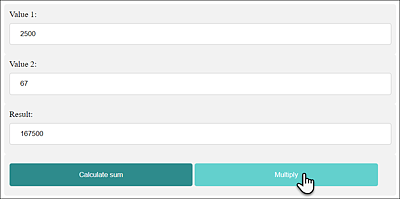
Figure 18.1 JavaScript Functions When Executed within a Web Page