17.2 Writing and Executing JavaScript Programs
In this section, I’ll show you how to write and run JavaScript in web development. The JavaScript code itself isn’t yet the focus at this point. As a tool for development, I recommend that you use an editor that can highlight JavaScript syntax and also detect syntax errors in the source code. This is enormously useful when you develop JavaScript code. I also use Microsoft’s Visual Studio Code for that, which is available for all platforms. But there are other exciting alternatives, such as Sublime Text (http://sublimetext. com), Notepad++ (https://notepad-plus-plus.org), or Nova 2 (https://nova.app).
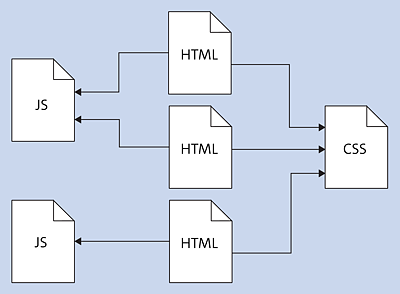
Figure 17.2 For the Reusability of Longer JavaScript Code, It’s Recommended to Store It in a Separate JavaScript File in Addition to a CSS and HTML File
When writing JavaScript code, it’s also advisable to separate the individual layers, that is, save HTML, CSS, and JavaScript in a separate file. This way, you can reuse the same JavaScript source code in different HTML files.
17.2.1 Integrating a JavaScript File in an HTML File
The first example in JavaScript will simply output a tip box with the text “Hello JavaScript”. The goal of the example is initially just to show you how to use JavaScript in HTML files. I usually prepare a folder named js or scripts for this, where I store the JavaScript source code.
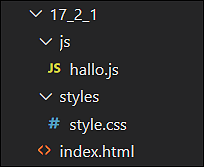
Figure 17.3 A Clean Folder Structure Helps You Keep Track of More Extensive Projects
Here’s a simple listing, which I’ll call hello.js, and store in the js directory. The recommended file extension for JavaScripts is .js. Although you can use other endings here, editors and browsers will know right away what the content is about.
function showHello() {
    alert('Hello JavaScript!');
}

// Call showHello() function
showHello();
Listing 17.1 /examples/chapter017/17_2_1/hello.js
The example defines a function with the identifier showHello that calls a JavaScript built-in function alert with the text “Hello JavaScript!”. The showHello function alone wouldn’t have any effect and must be called somewhere in the JavaScript, which is done here at the end of the example with showHello();. The alert function prints the text passed between the parentheses in a tip dialog.
I already briefly mentioned in Chapter 3, Section 3.7 that you can integrate a JavaScript in an HTML document by means of the script element. You can use this script element in the head (head element) and in the displayable body (body element) of the HTML document. Most of the time, it’s better to include the JavaScript right before the closing body element because then the entire DOM is loaded before the JavaScript starts running. You can either write the JavaScript code directly between the opening <script> and the closing </script>, or—the recommended variant—the script element remains empty and you use the src attribute to reference an external file with a JavaScript code:
<script src="js/hello.js"></script>
To do this, you now want to create an HTML file named index.html and include the JavaScript hello.js before the end of the body tag as follows:
<!doctype html>
<html>
<head>
    <title>A JavaScript during execution</title>.
    <meta charset="UTF-8">
    <meta name="viewport" content="width=device-width, initial-scale=1.0">
    <link rel="stylesheet" href="styles/style.css">
</head>
<body>
    <main>
        <article>
            <h1>Hello JavaScript!</h1>
            <p>Lorem ipsum ... </p>
        </article>
    </main>
    <script src="js/hello.js"></script>
</body>
</html>
Listing 17.2 /examples/chapter017/17_2_1/index.html
Once you’ve loaded index.html into the web browser, the tip dialog appears, which you can confirm via the OK button. The dialog looks different from web browser to web browser.
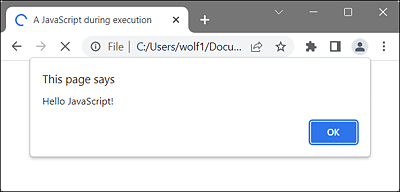
Figure 17.4 The JavaScript “hello.js” during Execution (Here, Microsoft Edge)
Integrating Multiple JavaScript Files in the HTML Document
You can integrate additional JavaScript files in an HTML file at any time. To do this, you just need to use a separate script element for each file.
17.2.2 Writing JavaScript within HTML
As mentioned earlier, you can also write the JavaScript code directly between the opening <script> and closing </script> in an HTML document as follows:
<script>
// JavaScript code;
...
</script>
However, you should use this method only in rare exceptional cases because this approach mixes JavaScript code and HTML code in one file. This may not really matter for a short JavaScript, but JavaScript source code can also become quite extensive. What is more, the JavaScript code can then not really be reused.
But anyway, here’s the HTML file index.html again with directly written JavaScript code between the opening <script> tag and the closing </script> tag. The example does the same as the one before and outputs a tip dialog that reads “Hello JavaScript!”.
<!doctype html>
<html>
<head>
    <title>A JavaScript during execution</title>.
    <meta charset="UTF-8">
    <meta name="viewport" content="width=device-width, initial-scale=1.0">
    <link rel="stylesheet" href="styles/style.css">
</head>
<body>
    <main>
        <article>
            <h1>Hello JavaScript!</h1>
            <p>Lorem ipsum ... </p>
        </article>
    </main>
    <script>
       function showHello() {
         alert('Hello JavaScript!');
       }
       // Call showHello() function
       showHello();
    </script>
</body>
</html>
Listing 17.3 /examples/chapter017/17_2/index.html
Integrating a JavaScript and Source Code between <script> and </script>
You can’t simultaneously include a JavaScript with src and write JavaScript code between <script> and </script>. If you do that, the source code between <script> and </script> will be ignored, and the integrated JavaScript will be executed.
17.2.3 Position of JavaScript and Its Execution in the HTML Document
I need to discuss the position of the JavaScript in the HTML document because, in the past, this file was often included in the head section. You might expect it there too because you also include linked CSS files there, for example. By the way, there’s nothing fundamentally wrong with including the JavaScript in the header of the HTML document. To understand why you should still prefer to include a JavaScript at the end of the HTML document, you need to know how script elements are executed in an HTML document.
When a web browser receives the HTML document from the web server, it usually starts processing the HTML code with a parser to create a certain structure, the DOM, from it. When this parser encounters a script element, it stops processing, and the JavaScript code inside the script element gets executed. After executing the JavaScript code, the parser continues to process the rest of the HTML document. The following is the result of this way of processing JavaScript code in HTML documents:
-
Slow page load due to external scripts
The fact that embedded scripts are executed while the HTML document is being read usually also slows down the page load when larger JavaScript files have to be downloaded from the web server. You can avoid the problem by writing the script elements at the end of the document before the closing <body> tag, if possible. Although the JavaScript must still be downloaded before execution, the fact that the HTML page is already displayed in the web browser means that it takes less time to build the web page. -
Access only to loaded elements
Because a JavaScript interrupts the execution of the parser and has access to the DOM tree, JavaScript can only access this DOM tree as far as the parser has already processed. You can’t use the JavaScript to access elements in the DOM tree that have yet to be processed by the parser. Again, it’s important at which position you place the script element. You can use JavaScript to access only those elements that precede the written script element in the document. Everything else further down in the HTML document doesn’t yet exist for the JavaScript. In addition, the DOMContentLoad event should be mentioned here, which is triggered when the DOM has been completely loaded. -
Access to previously included resources
As you already know, you can use multiple script elements in the HTML document. You can mix external JavaScript files and code written in the document as you like. Because the script elements are executed in the order in which you wrote them down, you could write different scripts that build on each other. Thus, scripts included later via the script element could use previous resources (e.g., variables, objects, or functions) from scripts previously included with the script element.
17.2.4 Attributes for Manipulating the Load Behavior of JavaScript (“async”, “defer”)
At this point, the standalone attributes async and defer for the script element should be mentioned, which enable youto manipulate the load behavior. Both attributes make sense only if you include a JavaScript with src.
-
async
This attribute ensures that the download of the JavaScript file is asynchronous. This means that the processing of the HTML code doesn’t pause. However, it also makes sure that the JavaScript code is executed directly as soon as the JavaScript file has been downloaded. For this reason, this attribute is only suitable for scripts that work independently of the HTML document. -
defer
This attribute also ensures that the processing of the HTML code doesn’t pause. However, with defer, unlike async, the JavaScript code won’t get executed until the HTML code has been completely processed. Only then will the JavaScript code be executed. The attribute was often avoided because older web browsers weren’t able to handle it. However, defer is no longer a problem for current web browsers.
17.2.5 The <noscript> Element for No JavaScript
If the visitor has JavaScript disabled or if the web browser doesn’t support JavaScript, you can place a special note between <noscript> and </noscript>. Here’s a simple example of this:
...
    <noscript>
        JavaScript is not available or is disabled. <br />
        For optimal use of this website it is recommended
        to use a browser with JavaScript or
        to enable JavaScript in your browser.
    </noscript>
...
Listing 17.4 /examples/chapter017/17_2_5/index.html
You shouldn’t overload your website unnecessarily with the noscript element, but use it only to inform visitors about the options that are available to them when JavaScript is enabled. If you need to use a lot of noscript elements, you should rethink the structure of your website. The most important information on your website should be accessible without JavaScript. Using JavaScript, you simply add additional functionality to the web page that may improve its operation. Many web developers make little use of the noscript element unless it’s a web page that was written as a pure JavaScript application and requires a JavaScript-enabled web browser to function.