3.7 Including Scripts in Web Pages Using <script>
You can use the script element to embed or reference scripts (e.g., JavaScript) in an HTML document. You can either write the script directly between <script> and </script>, or reference an external script via the src attribute, the meaning of which is described in Table 3.6. However, if you want to reference an external script using the src attribute, the space between the <script> start tag and the </script> end tag must be left empty. Unlike the other elements presented here for the head data of an HTML document, you can use the script element both in the head section and (multiple times) in the document body.
Here’s a simple example of the script element, where a simple JavaScript dialog box with the message A JavaScript! is displayed on the screen. You can see the example being run in Figure 3.6.
<!doctype html>
<html lang="en">
  <head>
    <title>Using the script element</title>
    <script type="text/javascript">
    <!--
      window.onload=alert("A JavaScript!")
    // -->
    </script>
    <meta charset="UTF-8">
  </head>
  <body>
      <p>The first paragraph text!</p>
  </body>
</html>
Listing 3.5 /examples/chapter003/3_7/index.html
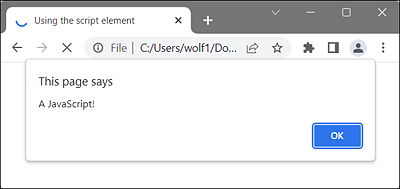
Figure 3.6 JavaScript (Here, a Simple Dialog Box) Is Executed before the Web Page Gets Displayed
JavaScript Disabled
If the user has JavaScript disabled in the browser or the web browser doesn’t support JavaScript at all, you have the option to generate alternative output using <noscript>. Anything you write between <noscript> and </noscript> will be used as an alternative if the browser can’t run scripts. Although hardly anyone deactivates JavaScript today and almost every smartphone is perfectly capable of JavaScript, new media are constantly being added that offer browsing the internet, but where only modest and limited browser functionality is available. For example, the latest generations of TVs often have internet features and a web browser built in, but most of the time JavaScript doesn’t work.
Let me also describe the use of the script element to reference an external JavaScript with the src attribute at this point:
...
  <head>
    <title>Using the script element</title>
    <script type="text/javascript" src="script.js"></script>
...
  </head>
...
Listing 3.6 /examples/chapter003/3_7/index2.html
This example is based on the assumption that a JavaScript named script.js is located in the same directory as the HTML document. The script here is usually executed immediately before the web browser continues with the web page. For such external scripts, you can affect the execution time via the async and defer attributes. Both attributes will be described in greater detail in Table 3.6.
While it’s a bit too early for details in JavaScript, it’s still worth mentioning here that a script code in the head section of an HTML page can increase the loading time because the rest of the page is blocked until the JavaScript has been executed. For this reason, it usually makes more sense to use the script code at the end of the HTML file, most conveniently before the closing <body> tag.
Table 3.6 provides an overview of the HTML attributes for the script element.
|
Attribute |
Meaning |
|---|---|
|
If you use async, the script gets executed asynchronously with the HTML document. The script is executed while the HTML document is parsed. This attribute can be used only for external scripts. |
|
|
This attribute sets the character encoding for the external script. |
|
|
If you use this attribute, the website gets parsed first and then the script is executed. This attribute can be used only for external scripts. |
|
|
This attribute specifies the URL to the external script. |
|
|
This attribute enables you to specify the MIME type for the stylesheet (here, mostly with text/javascript or text/ecmascript). |
Table 3.6 Attributes for the <script> Element