6.4 Adding an Icon for the Website (Favicon)
You’ll certainly have noticed the small icons in the address bar, tab, and/or among your favorites quite often. These icons are called favicons (short for favorite icons). It’s no big deal to add such an icon to the website. They work well as a (re)identifier for your website. You can specify them in the header of your document using the link element, which is described in detail in Chapter 3, Section 3.5.
To do this, you can use the HTML attribute rel with the value icon and the location and name of the icon with href. Optionally, you can use the sizes attribute. The size of a favicon is usually 16 × 16 and sometimes 32 × 32 pixels. Moreover, favicons should be saved in .ico format. If you use a different data format, you should specify the corresponding MIME type with the type attribute (e.g., for PNG format: type="image/png").
Additionally, you can add an icon for mobile devices such as iPhone, iPad, and so on. For this purpose, you need to specify the value apple-icon-touch for rel, and, correspondingly, the icon should be larger than the favicon. There are various size suggestions for this, such as 76 × 76 for iPhone, 120 × 120 for iPhone with Retina, or 180 × 180 pixels for iPad with Retina. If you use an image that’s too large, it will be scaled accordingly on the device. The icon appears on Apple mobile devices, for example, when you add a web page to the home screen. The round corners are added by the operating system itself.
Creating a Favicon
You can create icons or graphics for favicons using any image-editing software. You can also find many online tools on the web that allow you to create and download the icons in the web browser. Websites http://ionos.de/tools/favicon-generator and https://favicon.io are just two of a multitude of places to start.
Here’s an example where a favicon and an Apple icon have been added to the header section of the HTML document using the link element:
<head>
...
    <link rel="apple-touch-icon" sizes="180x180"
     href="images/apple-touch-icon.png" />
    <link rel="icon" type="image/png" sizes="16x16"
     href="images/favicon-16x16.png" />
</head>
...
Listing 6.7 /examples/chapter006/6_4/index.html
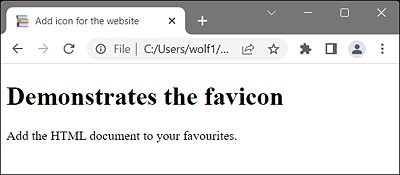
Figure 6.14 Here, You Can See the Favicon in the Top Left of the Table Bar

Figure 6.15 The Apple Touch Icon in the Right Side of an iPad