19.9 More Information about Events with the “event” Object
What you’ve probably wondered about JavaScript events like keyboard events (e.g., a keystroke) is whether it’s somehow possible to determine which key triggers an event. Yes, this is possible, and this information is even already provided as a property of the respective event.
Events are themselves objects that have a variety of properties and methods, which is a typical feature of JavaScript. More precisely, the event object gets passed to the function to be called. To access it, you must explicitly pass the event object to the function as the first parameter. Here’s a simple example that demonstrates this process:
...
<h1>Properties of events</h1>
<p onmousedown="showPos(event)" class="p-style">
  Click here!
</p>
<p>Keystroke: <input type="text" onkeydown="keyPressed(event)"></p>
<output></output>
<script src="js/script.js"></script>

...
Listing 19.32 /examples/chapter019/19_9/index.html
function showPos(ev) {
    let x = ev.clientX;
    let y = ev.clientY;
    let text = "Pos-X: " + x + " / Pos-Y: " + y;
    if (ev.shiftKey == true) {
        text += " / (Shift) key was pressed!";
    } else {
        text += " / (Shift) key was not pressed!";
    }
    text += " -> Mouse button: " + ev.button;
    document.querySelector('output').innerHTML = text;
    console.log(ev);
}

function keyPressed(ev) {
    let text = "Key code: " + ev.keyCode + "=" + String.fromCharCode(ev.keyCode);
    document.querySelector('output').innerHTML = text;
}
Listing 19.33 /examples/chapter019/19_9/js/script.js
You can see here how the event object is used as a parameter for the event handler to establish a link to the event’s properties. Within the function, you can access the values or properties of the event object, which was done here via clientX and clientY, returning the horizontal and vertical coordinate position, respectively, relative to the current window in which the corresponding event (in the example: onmousedown) was triggered. Likewise, it was tested here whether the shiftKey property equals true, which means that the (Shift) key was pressed at the same time the mouse was pressed.
In addition, console.log(ev) provides a convenient way to get all the information about the event object output to the JavaScript console, which is why you should open the JavaScript console.
I then set up something similar for the keyboard by using onkeydown, where the event object is used to output the keyboard code (keyCode) and, if possible, the corresponding character for it.
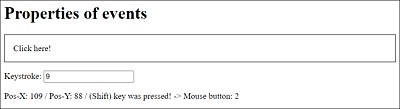
Figure 19.15 The “event” Object Can Also Be Used to Access Further Information about an Event
Besides the clientX, clientY, or shiftKey properties of an event object presented in the example, there are many more properties, some of which you can find listed in Table 19.9.
|
Property |
Description |
|---|---|
|
Returns whether or not the (Alt), (Ctrl), or (Shift) key was held down when the event occurred. |
|
|
Indicates whether an event can ascend or not—more precisely, whether an event also applies to the parent element and can ascend in the DOM tree. This is referred to as bubbling. |
|
|
Contains a value that indicates which mouse button was pressed. 0 stands for the left, 1 for the center, and 2 for the right mouse button. |
|
|
Contains the horizontal (clientX) and vertical (clientY) pixel value with the mouse cursor position relative to the upper-left corner of the window. |
|
|
Returns whether the default action of an event can be prevented or not. |
|
|
Returns the element whose event listener triggered the event. |
|
|
Contains the keyboard code of the last key pressed. You can determine the character using String.fromCharCode(event.keyCode). |
|
|
Indicates whether the meta key was pressed when the event occurred. In practice, this is the (cmd) key on a Mac. |
|
|
Contains the horizontal (screenX) and vertical (screenY) pixel value with the mouse pointer position relative to the upper-left corner of the screen. |
|
|
Returns the element that triggered the event. |
|
|
Returns the name of the event. |
Table 19.9 Overview of Some Properties of JavaScript Events