19.8 Overview of Common JavaScript Events
You’ve already learned that there’s a large set of JavaScript events for which you can set up an event handler for elements in the HTML document. This section provides a brief overview of the various events.
19.8.1 The JavaScript Events of the UI (Window Events)
Table 19.4 contains an overview of common JavaScript events that are primarily related to the web browser UI and that you can respond to with an event handler. After listing these events, I’ll describe how you can use onload and onunload separately.
|
JavaScript Event |
The Event Occurs When . . . |
|---|---|
|
An error occurred while a document or image was loaded. |
|
|
The document or frameset has been loaded. |
|
|
The document window has changed in size, that is, has been enlarged or reduced. |
|
|
The document was scrolled. |
|
|
The web browser removes a document from the window or frameset (or the web browser gets closed). |
Table 19.4 Events in the Web Browser UI
Using the JavaScript Events “onload” and “onunload”
The onload event occurs when an object has been loaded, so it’s common to use it in the body element to execute a script when the entire web page has been loaded with images, scripts, CSS, and so on. You’ll often find the following line in the body element:
<body onload="haveACookie()"> Once the entire web page has been loaded, the event handler haveACookie() will be executed. Besides that, there’s a pure JavaScript version that you can write as follows:
...
  window.onload=function() {
    // JavaScript code
  }

...
The counterpart of the onload event is the onunload event, which can be used when a user leaves the page, for example, by clicking a link, submitting a form, or closing the window in the web browser. The onunload event is also called when the user reloads the web page. However, in that case, the onload event will also be executed. Again, the usage is mainly in the body element, and the syntax is also the same as for the onload event:
<body onload="haveACookie()" onunload="setACookie()">
A JavaScript version can be used as follows:
...
  window.onunload=function() {
    // JavaScript code
  }

...
“DOMContentLoaded” versus “load”
I’ve already briefly mentioned the DOMContentLoaded event once in this book. The event gets triggered once the complete DOM tree of a web page has been loaded. You’re probably wondering what the difference is between the events load and DOMContentLoaded. As described previously, you can define an event listener as follows, for example:
function initJS() {
  // JavaScript code
}
window.addEventListener('load', initJS);
You can do almost the same with the DOMContentLoaded event as follows:
function initJS() {
  // JavaScript code
}
document.addEventListener('DOMContentLoaded', initJS);
The difference between the two versions is that with load, the event is only triggered when the complete document (the DOM tree), including all external resources such as JavaScript files, CSS files, or images, has been loaded. With the DCOMContentLoaded event, on the other hand, the event gets triggered if only the entire DOM tree of the web page has been loaded. In your daily work, I recommend you use DOMContentLoaded instead of load because it avoids waiting for external resources to load.
19.8.2 JavaScript Events That Can Occur in Connection with the Mouse
Many events can occur in connection with the mouse. Table 19.5 contains an overview of the different mouse events.
|
JavaScript Event |
The Result Occurs When . . . |
|---|---|
|
An element has been clicked. |
|
|
An element has been double-clicked. |
|
|
The mouse button is pressed over an element. |
|
|
The mouse pointer is placed over an element and is then moved. |
|
|
The mouse pointer is over the element. |
|
|
The mouse pointer gets moved away from an element. |
|
|
The pressed mouse button is released again. |
Table 19.5 Various Mouse Events to Which You Can Respond
Here’s a simple example that demonstrates some of the mouse events in action:
...
<h1>Mouse events</h1>
<p class="p-style">Mouse pointer here</p>
<script src="js/script.js"></script>
...
Listing 19.30 /examples/chapter019/19_8_2/index.html
let element = document.querySelector('.p-style');
element.addEventListener("mouseover", mymouseover);
element.addEventListener("mousedown", mymousedown);
element.addEventListener("mouseup", mymouseup);
element.addEventListener("mouseout", mymouseout);

function mymouseover() {
    element.innerHTML = "Mouse pointer over HTML element";
}

function mymousedown() {
    element.innerHTML = "Mouse button pressed";
}

function mymouseup() {
    element.innerHTML = "Mouse button released";
}

function mymouseout() {
    element.innerHTML = "Exit HTML element";
}
Listing 19.31 /examples/chapter019/19_8_2/js/script.js
In this example, different event handlers have been set up for the mouseover, mousedown, mouseup, and mouseout events for the HTML element with class="p-style" using the addEventListener() method. Depending on which mouse event setup with an event handler is currently occurring, a note about it will display.
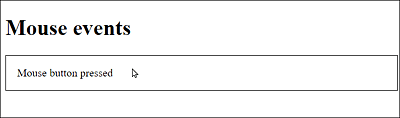
Figure 19.14 Responding to Events
19.8.3 JavaScript Events for Devices with a Touchscreen
Besides mouse events, you also need to consider touch events because an increasing number of devices are controlled with touchscreens instead of a mouse. The click event is the same for both mouse operation and touchscreens, and it can be used for both a mouse click on the desktop and the touchscreen on mobile devices. All other mouse events can also be used by mobile browsers on touch devices. Thus, you probably won’t need to use special touch events in most cases.
If you write mobile-only applications, it makes sense to replace mouse events with touch events. For an overview of JavaScript events for devices with touchscreens, take a look at Table 19.6. As an alternative, you can use a library that directly supports all events and use the relevant event depending on the end device.
|
JavaScript Event |
The Event Occurs When . . . |
|---|---|
|
The surface of the touchscreen gets touched. Corresponds to a mousedown. |
|
|
The finger is lifted from the surface of the touchscreen. Corresponds to a mouseup. |
|
|
The finger leaves the area. |
|
|
The finger slides across the touchscreen’s surface. Corresponds to a mousemove. |
Table 19.6 Various Events for Devices with Touchscreen
More Information Online
If you want to deal specifically with the processing of touch events on mobile devices, this isn’t as trivial as it may seem. I won’t go into a comprehensive description here. But you can find more information about touchscreens in an excellent documentation at https://developer.mozilla.org/en-US/docs/Web/API/Touch_events.
19.8.4 JavaScript Events That Occur in Connection with the Keyboard
You can also respond to keyboard events such as pressing, holding down, and releasing keys. Strictly speaking, when a key is pressed and released, three JavaScript events get triggered in the order keydown (press), keypress (keep pressed), and keyup (release). Table 19.7 contains an overview of the existing keyboard events.
|
JavaScript Event |
The Event Occurs When . . . |
|---|---|
|
A key on the keyboard gets pressed. |
|
|
A depressed key of the keyboard gets released. |
|
|
A key gets pressed and held down. |
Table 19.7 Various Keyboard Events to Which You Can Respond
19.8.5 JavaScript Events for HTML Forms
For the HTML forms I covered in Chapter 7, you can also find the available events in Table 19.8.
|
JavaScript Event |
The Event Occurs When . . . |
|---|---|
|
A form element loses its focus. |
|
|
The content of a form element such as <input>, <select>, or <textarea> has changed. |
|
|
An element such as <label>, <input>, <select>, <textarea>, or <button> gets the focus. |
|
|
The form gets reset. |
|
|
A text has been marked in an input field such as <input> or <textarea>. |
|
|
The form gets submitted. |
Table 19.8 Events That Can Occur in Connection with HTML Forms
19.8.6 JavaScript Events for the Web APIs
Due to the large number of Web application programming interfaces (APIs) that exist, there are also many more events. Especially for playing audio and video files with the <audio> and <video> elements, you’ll find an extensive list of event types. In addition, the new drag-and-drop API for dragging and dropping elements defines event types. Furthermore, there are various events for the Web APIs such as for the creation of offline web applications or for asynchronous communication.