17.4 Using Variables in JavaScript
As is the case in almost any other programming language, JavaScript allows you to create and use variables. You need variables if you want to further process values or data in your script that have been entered by a user via an HTML form or read from a database, for example. Such a variable has a fixed memory address in the memory, which the JavaScript interpreter can access when needed.
JavaScript isn’t a statically typed programming language, but a weakly typed or dynamic programming language, so such a variable can be of any type such as a string (string, text) or a number (integer, floating-point number). A variable can also store more complex forms of types and be an array (field of certain types) or even an object.
Term Definition: Statement(s)
A statement is almost any line of a script that ends with a semicolon. Consequently, statements are also the declaration and initialization of variables or the calling of functions.
In JavaScript, variables can be declared using either the let or var keyword. You can also initialize a variable name with values right at the declaration by using the = character. Such a variable initialization is similar to what happens in algebra:
let width = 5;                // Number
let pi = 3.14;                // Number
let aText = "Message";        // String
let userName = 'John Doe';    // String
let bigNum = 123456789;       // Number
Instead of the keyword let you can also use var here. You’ll get to know the difference when we come to the scope of variables. Generally, however, you should use the keyword let for the definition of variables.
The variable name (also called identifier) can be almost any name. However, it must begin with a letter and mustn’t contain any spaces or special characters. The only special character you can use is the underscore at the beginning or inside the variable identifier. The $ character is theoretically allowed here at the beginning or within the name. In addition, you mustn’t use JavaScript keywords as variable names. It’s also important to know that there’s a distinction between uppercase and lowercase. With var01 and Var01, you have two different variables (variable names).
Table 17.1 contains a list of JavaScript keywords; these can’t be used as variable names.
|
JavaScript Keywords |
|||||
|---|---|---|---|---|---|
|
async |
await |
break |
case |
class |
catch |
|
const |
continue |
debugger |
default |
delete |
do |
|
else |
enum |
export |
extends |
finally |
for |
|
if |
implements |
import |
in |
interface |
|
|
instanceof |
let |
new |
package |
private |
protected |
|
public |
return |
static |
super |
switch |
this |
|
throw |
try |
typeof |
var |
void |
while |
|
with |
yield |
||||
Table 17.1 Reserved Keywords in JavaScript
As mentioned at the beginning, unlike strictly typed programming languages such as C++ or Java, JavaScript doesn’t require a type to be specified. JavaScript determines the type dynamically when a value is assigned to the variable. Although you should avoid it, it’s theoretically possible to change the type at program runtime.
Everything you put between single or double quotation marks will be recognized by the interpreter as a string (text), for example:
let aText01 = "I am a string.";      // String
let aText02 = 'I am also a string.'; // String
If, on the other hand, you assign a numeric value to a variable name without enclosing this value in single and double quotation marks, the interpreter will recognize this as a numeric value:
let width = 5;             // Number
let pi = 3.14;             // Number
let textnumber = "12345";  // Caution! String
Terminating Statements with a Semicolon
In JavaScript, each statement is terminated with a semicolon. If you don’t use a semicolon at the end of a statement, and the line break is located at this position, JavaScript tries to insert the semicolon itself. Although you can omit the semicolon at the end of a statement, it’s recommended to end even individual commands or a sequence of commands with a semicolon. This also applies when you assign values to a variable name.
Because there’s frequent talk about initializing and assigning values, we’ll briefly explain what this means here. You can create a variable with the keyword let as follows:
let myname;             // Agreement on a variable
console.log(myname);    // Output: undefined
Such an empty agreed variable without an assigned value has a value called undefined. After creating an empty variable, you can assign a value to it at any time using the assignment operator (again):
let myname;
myname = "Sample name"; // Value assignment
console.log(myname);    // Output: Sample name
You can initialize a variable with a value along with the agreement. Such a variable initialization looks as follows:
let myname = "Sample name";
console.log(myname); // Output: Sample name
Similarly, you can arrange more than one variable at the same time or in one statement separated by commas:
let myname, myfname, myage;
Of course, you can do the initialization right here when agreeing on multiple variables:
let myname = "Doe", myfname = "John", myage = 40;
console.log(myname + "," + myfname + "," + myage); // Output: 'Doe, John',
Likewise, once you’ve assigned a value to a variable, you can assign a new value to it. In the following example, myname first receives the value "Doe" and is then assigned the value "Deer":
let myname = "Doe";
console.log(myname); // Output: Doe
myname = "Deer";
console.log(myname); // Output: Deer
17.4.1 Defining Constants
JavaScript also allows you to define constants. The keyword const is available for this purpose. You can’t change the value of such a constant after initialization. In practice, constants are usually written in capital letters at the beginning of the code, for example:
const TVAL = 'Test output'; // Create constant
console.log(TVAL);          // Output: Test output
TVAL = 'New test output';   // Error! The order can no longer be changed.
console.log(TVAL);
If you try to change the value of a constant, the web console usually displays an error message. However, the behavior also depends on the runtime environment. Some of them simply ignore this assignment without throwing an error.
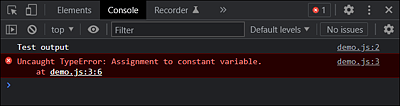
Figure 17.15 Google Chrome Returns an Error Message in the Console When Trying to Change a Constant Variable
17.4.2 Strict Mode Using “"use strict"”
A JavaScript is executed in default mode without any further precautions. You can use a strict mode where certain restrictions exist. This sounds a bit negative at first, but it’s actually pretty useful because JavaScript behaves much more strictly in this mode than in standard mode. Some constructs that can be executed without problems in standard mode will result in an error in strict mode. For example, erroneous or problematic code that’s accepted in standard mode will result in an error message in strict mode. Outdated JavaScript language constructs also trigger an error message. When using strict mode, it’s sufficient to write the following statement at the beginning of the JavaScript program:
"use strict";
The following example reports an error because there’s no let, var, or const in front of the variable myval, which isn’t necessarily an error, but it implicitly creates a global variable, which you shouldn’t do:
"use strict";
myval = "A text"; // Error in strict mode
console.log(myval);

Figure 17.16 Thanks to Strict Mode, the JavaScript Reports an Error Here
The problem with a global variable without let is that this variable is implicitly defined as a property of the global object, which is, for example, the window object in the web browser. Such global variables could override properties of the global object.
The strict mode makes sure that the use of error-prone features of JavaScript is simply not allowed. This leads to a script abort for previously ignored errors (without "use strict").