12.2 Controlling Stacking Using “z-index”
In the previous examples with relative and absolute positioning, you’ve already seen that overlapping of elements can occur if you change elements absolute (or relative or fixed) in their position or remove them from the document flow. You can see this again in Figure 12.15.
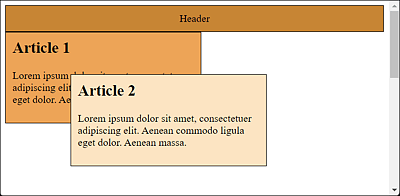
Figure 12.15 With Relative or Absolute (or Even Fixed) Positioning, You Must Expect Elements to Overlap
By default, the relative, absolute, and fixed elements are stacked in the order they were written in the document flow of the HTML document. The last element written is on top. You can change this behavior using the CSS feature z-index. The CSS feature z-index is effectively the third axis for an element. So far, you’ve only taken care of the horizontal and vertical position (i.e., the x- and y-axis). The third dimension is the z-axis, on which the elements are superimposed, as Figure 12.16 shows more clearly.
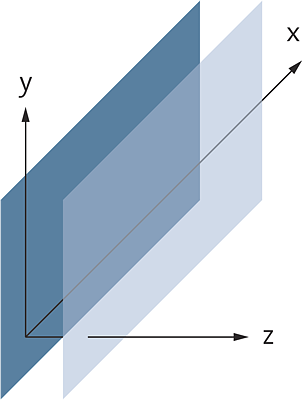
Figure 12.16 Elements Whose CSS Feature “position” Differs from the Default Value “static” Contain a Z-Axis in Addition to the X- and Y-Axis
Using the CSS feature z-index is very simple. The higher the noted value of z-index, the higher the element is in the stack. The element with the highest z-index value is thus at the top, and the element with the lowest z-index value is at the bottom. In case of equal values for z-index, the element that was last written in the document flow is on top.
As you can see in Figure 12.15, the CSS code still looks as follows:
...
      .article01 {
        width: 300px;
        padding: 10px;
        border: 1px solid black;
        background-color: sandybrown;
      }
      .article02 {
        position: relative;
        top: -75px;
        left: 100px;
        width: 300px;
        padding: 10px;
        border: 1px solid black;
        background-color: bisque;
      }
...
Listing 12.12 /examples/chapter012/12_2/css/style.css
...
      <article class="article01">
        <h1>Article 1</h1>
        <p>Lorem ipsum dolor ... </p>
      </article>
      <article class="article02">
        <h1>Article 2</h1>
        <p>Lorem ipsum dolor ... </p>
      </article>
...
Listing 12.13 /examples/chapter012/12_2/index.html
In this example, the second article element, which was moved relative to the article02 class selector, overlapped the first article element.
If you now want the first article element to be placed on top of the second article element, you can use the CSS feature z-index in class selector article02. If you’ve used the CSS feature z-index in the article02 class selector with any positive value that is lower than the z-index value in the article01 class selector, you might be confused at first to find that nothing has changed. This is because stacking or using the CSS feature z-index has no effect on statically positioned elements, as is the case in the example with the first article element and the article01 class selector.
In our case, you can solve the problem by providing the first article with the CSS feature position: relative; without using any values for positioning. The element will then remain in place as before. In the surrounding element, however, the element is considered to be positioned. So here’s the solution to the problem, based on which the first article element overlays the second article element using the CSS feature z-index:
...
.article01 {
  position: relative;
  width: 300px;
  padding: 10px;
  border: 1px solid black;
  background-color: orange;
  z-index: 2;
}
.article02 {
  position: relative;
  top: -75px;
  left: 100px;
  width: 300px;
  padding: 10px;
  border: 1px solid black;
  background-color: yellow;
  z-index: 1;
}
...
Listing 12.14 /examples/chapter012/12_2/css/style2.css
...
      <article class="article01">
        <h1>Article 1</h1>
        <p>Lorem ipsum dolor ... </p>
      </article>
      <article class="article02">
        <h1>Article 2</h1>
        <p>Lorem ipsum dolor ... </p>
      </article>
...
Listing 12.15 /examples/chapter012/12_2/index2.html
In Figure 12.17 (as opposed to Figure 12.15), you can see how the first article element is placed over the second article element in the stack. This is due to the higher z-index value (here, 2), which is used in the first article element with class selector article01. The second z-index value (here, 1) in class selector article02 didn’t necessarily have to be specified. But you’re welcome to increase the value of the CSS feature z-index in class selector article02 to 3 in order to see that the second article element will then be placed over the first one again.
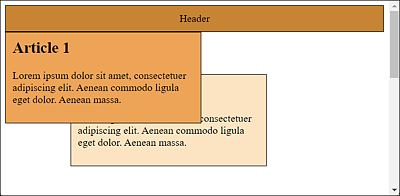
Figure 12.17 The CSS Feature “z-index” Can Be Used to Adjust the Order in the Stack of Relative, Absolute, and Fixed Positioned Elements
Negative Values for “z-index”
You can also use negative values for the CSS feature z-index. Of course, the rule here is still that elements with positive z-index values get positioned above the elements with negative z-index values.