10.2 Understanding the Control System for Cascading
The term cascading means that a document can be formatted not only by one stylesheet, but from a variety of stylesheets that can come from different sources. This makes it possible for one stylesheet, if used correctly, to build on another, saving you a lot of work. Now, the fact is that the many ways to include and combine stylesheet statements can cause conflicts and contradictions. Such a conflict arises when the same CSS feature has been assigned different values in multiple statements. For such cases, there’s a system of rules that decide which of the conflicting or competing style statements will ultimately be applied to an element.
10.2.1 The Origin of a Stylesheet
A stylesheet can originate from three different sources—web browser, user, and author—as described here:
-
Browser stylesheet
The default stylesheet of the web browser is used if no CSS formatting is assigned to the HTML document. Every web browser provides basic formatting for this purpose, with default values for font sizes for headings, underlining for links, indentation for lists, spacing for paragraphs, and much more. Each web browser provides its own default setting, so there are usually slight differences. -
User stylesheet
Some web browsers allow users to include their own stylesheet files directly or via extensions. If they include their own stylesheets (user stylesheets, user styles), the corresponding properties of the web browser will be overwritten. -
Author stylesheet
This is the stylesheet you created and referenced or included with the @import rule, which is usually used to override or combine various CSS features of the default stylesheet—the browser stylesheet)—and the user stylesheet, if applicable.
Among these three sources, the browser stylesheet has the lowest priority. If a user stylesheet is used—which has a medium priority—the browser stylesheet will be overwritten. The author stylesheet, on the other hand, has the highest priority and overrides both the browser and user stylesheets. Simply put, these three sources offer you three ways to apply CSS features to an HTML element:
-
If no CSS feature is declared for an HTML element, then a check is carried out if anything is inherited. If nothing is inherited, the default value of the browser stylesheet will be used.
-
If the web browser finds exactly one declaration of a CSS feature for a particular element, it uses the declaration to format the HTML element.
-
On the other hand, if the web browser finds multiple identical and competing declarations of a CSS feature for a given HTML element, it sorts them according to their importance, specificity, and order, and uses them accordingly.
Basically, this principle of three sources is kept relatively simple here, and if the web browser finds no or only one CSS feature for an HTML element, things are relatively clear. It gets more difficult when several competing declarations coincide. You’ll learn how CSS solves this problem on the following pages.
10.2.2 Increasing the Priority of a CSS Feature Using “!important”
If you declare a CSS rule or CSS feature multiple times in the same file, usually the last property declared gets the nod. Let’s take a look at a simple example:
.m_article { border: 1px solid gray; }
...
.m_article { border: 1px dotted green; }
Here, an m_article class was initially formatted with a solid gray border that has a thickness of 1 pixel. A bit further down there’s another CSS rule for this, but now m_article is formatted with a dotted green border whose thickness is 1 pixel. The last declaration noted gets the deal.
With the CSS keyword !important, on the other hand, you can increase the priority so that this property can’t be overridden by the subsequent specifications. You can apply this keyword to the example just shown as follows:
.m_article { border: 1px solid gray !important; }
...
.m_article { border: 1px dotted green; }
In this case, the declaration made last is no longer given preference. In this example, the !important keyword draws a solid gray border with a thickness of 1 pixel around the element containing the m_article class.
10.2.3 Sorting by Importance and Origin
The !important keyword slightly changes the priority order, which used to be author stylesheet before user stylesheet before browser stylesheet. Sorting by importance can be written in the following order of descending priority (importance):
-
User stylesheet with !important
-
Author stylesheet with !important
-
Author stylesheet
-
User stylesheet
-
Browser stylesheet
In practice, you’ll probably be dealing with your own author stylesheet most of the time (without !important).
You might wonder why the user stylesheet with !important is suddenly more important than the author stylesheet with !important because without !important, it’s the other way around. Thus, if a user marks a CSS feature with !important in the stylesheet, it has to be accepted by the web browser, no matter what you’ve set there.
The reason that a user stylesheet with !important has a higher importance than an author stylesheet with !important is that people with a disability should be preferred, so that they may be able to determine by themselves in what way the content should be displayed. For example, a person with a visual impairment could increase the paragraph font size using a custom stylesheet as follows:
p { font-size: 200% !important; }
In practice, you shouldn’t expect every visitor with an impairment to be familiar with CSS, let alone be able to create their own CSS stylesheet. In that case, you could offer a suitable stylesheet for download.
Integrating User Stylesheets
The integration of user stylesheets differs slightly from web browser to web browser. In some web browsers, you’ll find this option hidden in the submenus or settings, while other web browsers ask for an extension to be installed first. An interesting project related to this topic can be found at http://userstyles.org, where you can install ready-made user stylesheets for Facebook, Google, Tumblr, and other high-traffic websites using the Stylish extension for the Firefox and Chrome web browsers.
Figure 10.8 demonstrates such a sorting according to the source and its importance or simply the cascading flow for a p element, for example.
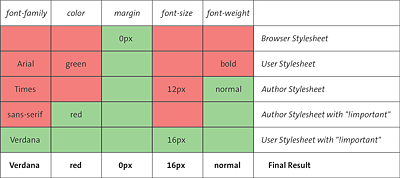
Figure 10.8 Theoretical Example of Sorting by Importance
CSS Features for the Appropriate Media Type
I haven’t mentioned yet that in the first step, before sorting by importance, the system checks whether CSS features have been included for an HTML element that are also valid for the current media type. The first step is to search for all declarations that should be applied to the current output medium for the elements.
10.2.4 Sorting by Weighting the Selectors (Specificity)
Besides sorting the importance according to the origin of the stylesheets, there’s also a priority rule among the selectors. This type of sorting is used when there are equivalent specifications within a stylesheet. In this process, a value is calculated for each selector, indicating the weighting of the selector. That value is referred to as the specificity. The specificity is expressed as a numerical value, and the higher this numerical value, the more important the selector, which then overrides any competing selector with a lower value.
The specificities of a selector are divided into the following four groups:
-
A (first digit: 1,0,0,0)
This value is set only if the HTML element uses inline styling via the style attribute. Otherwise, this value remains at 0. -
B (second digit: 0,1,0,0)
This group counts the number of ID attributes in a selector. -
C (third digit: 0,0,1,0)
This group stores the number of attributes, classes, and pseudo-classes selected by a selector. -
D (fourth digit: 0,0,0,1)
The group with the lowest weighting contains the number of element names (type selectors) and pseudo-elements.
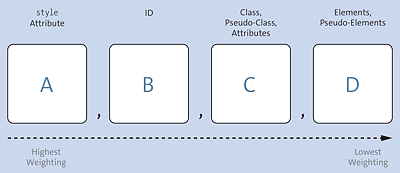
Figure 10.9 Calculating the Specificity: If There’s a Conflict, the Web Browser Will Use the Selector with the Higher Weighting
No Weighting for...
Universal selectors with * don’t get any weighting and behave neutrally. The same applies to the combinator characters >, +, and ~, as well as the space between two selectors. The two selectors do increase the weighting in group D by at least the value 2 (because there are two selectors), but the combinator characters are also neutral here.
HTML elements or attributes classified as deprecated by the W3C are also evaluated by current web browsers without a weighting.
In addition, the pseudo-class :not() doesn’t add any weighting. For this purpose, the elements within the pseudo-class are evaluated as prescribed.
Table 10.1 contains several examples of such calculations.
|
Selectors |
A |
B |
C |
D |
Specificity |
Description |
|---|---|---|---|---|---|---|
|
* {...} |
0 |
0 |
0 |
0 |
0,0,0,0 |
1 universal selector |
|
p {...} |
0 |
0 |
0 |
1 |
0,0,0,1 |
1 type selector |
|
ol li {...} |
0 |
0 |
0 |
2 |
0,0,0,2 |
2 type selectors |
|
.note |
0 |
0 |
1 |
0 |
0,0,1,0 |
1 class selector |
|
*.note |
0 |
0 |
1 |
0 |
0,0,1,0 |
1 universal selector 1 class selector |
|
*[type=checkbox] {...} |
0 |
0 |
1 |
0 |
0,0,1,0 |
1 universal selector 1 attribute selector |
|
p:first-child {...} |
0 |
0 |
1 |
1 |
0,0,1,1 |
1 pseudo class 1 type selector |
|
ul li.info {...} |
0 |
0 |
1 |
2 |
0,0,1,2 |
2 type selectors 1 class selector |
|
#content {...} |
0 |
1 |
0 |
0 |
0,1,0,0 |
1 ID selector |
|
#content p {...} |
0 |
1 |
0 |
1 |
0,1,0,1 |
1 ID selector 1 type selector |
|
#content *:not(nav) li {...} |
0 |
1 |
0 |
2 |
0,1,0,2 |
1 ID selector 1 universal selector 2 type selectors 1 pseudo-class (:not() doesn’t count) |
|
ul#nav li.hyper a {...} |
0 |
1 |
1 |
3 |
0,1,1,3 |
3 type selectors 1 class selector 1 ID selector |
|
<a style="..."> |
1 |
0 |
0 |
0 |
1,0,0,0 |
1 inline style |
Table 10.1 Some Sample Calculations of the Specificity of Selectors
When you look at the end result of specificity in Table 10.1, you could also imagine a specificity such as 0,0,1,1 as decimal 11 or specificity 0,1,1,3 as decimal 113.
Nevertheless, you should keep in mind that this is not the decimal system with base 10. Consequently, a commonly heard explanation such as “ID selector counts 100, class selector counts 10, and normal element counts 1” isn’t correct. For example, if you have a specificity such as 0,1,2,11 (exaggerated), this does not mean that 11 for category D results in the decimal value 131, as it would in the decimal system with base 10. Admittedly, the value 11 for group D is a bit exaggerated; this would be the case, for example, if you used 11 type selectors there.
Let’s look at a simple example:
...
<article>
  <h1>Inheritance</h1>
  <p>1. Paragraph text for article</p>
  <ul id="index">
     <li class="aclass">list item 1</li>
     <li class="aclass">list item 2</li>
  </ul>
</article>
...
Listing 10.9 /examples/chapter010/10_2_4/index.html
From this HTML code, the li element is to be selected using the following CSS rules, all of which compete with each other:
.aclass { color: green; }
#index li.aclass { color: orange; }
li { color: red; }
li.aclass { color: blue; }
body article ul li { color: yellow; }
#index li { color: gray; }
Listing 10.10 /examples/chapter010/10_2_4/css/style.css
You’re now invited to try out for yourself in which color the li element will eventually be displayed, or use the specificity of selectors learned previously and calculate for yourself which CSS rule has the highest weighting. The solution is shown in Table 10.2.
|
Selectors |
A |
B |
C |
D |
Specificity |
Description |
|---|---|---|---|---|---|---|
|
.aclass |
0 |
0 |
1 |
0 |
0,0,1,0 |
1 class selector |
|
0 |
1 |
1 |
1 |
0,1,1,1 |
1 ID selector 1 type selector 1 class selector |
|
|
li |
0 |
0 |
0 |
1 |
0,0,0,1 |
1 type selector |
|
li.aclass |
0 |
0 |
1 |
1 |
0,0,1,1 |
1 type selector 1 class selector |
|
body article ul li |
0 |
0 |
0 |
4 |
0,0,0,4 |
4 type selectors |
|
#index li |
0 |
1 |
0 |
1 |
0,1,0,1 |
1 ID selector 1 type selector |
Table 10.2 Calculating the Specificity of Selectors; in the Example, the <li> Element Is Shown in Orange
What about the Short Notation "h1, h2, h3, p {...}"?
If you separate multiple type selectors with commas, such as the following:
h1, h2, h3, p { font-family: Arial; }
Those four selectors will only be counted in total with the value 1 in group D. This notation ultimately corresponds only to a shorter notation:
h1 { font-family: Arial; }
h2 { font-family: Arial; }
h3 { font-family: Arial; }
p { font-family: Arial; }
Sorting with Equal Weighting
If two CSS rules have the same weight and are of the same origin, then the rule that occurred last takes precedence. However, note that CSS features declared with !important again take precedence. The only way to override a CSS feature declared with !important is to use another !important declaration. In terms of specificity, you could imagine !important with the value 1,0,0,0—although this category or group doesn’t exist in CSS.
10.2.5 Summary of the Cascading Rules System
Here’s another summarizing overview of how the cascading sequence is processed in a web browser when it searches for stylesheet specifications in a document:
-
Sorting by origin and importance in the following order:
-
User stylesheet with !important goes before author stylesheet with !important.
-
Author stylesheet with !important has priority over author stylesheet without !important.
-
Author stylesheet without !important takes preference over user stylesheet without !important.
-
User stylesheet without !important takes preference over browser stylesheets.
-
-
For equivalent specifications within stylesheets, in turn, the specificity gets calculated and, according to the weighting, the selector with a higher calculated value is used.
-
For specifications that contain an identical specificity, the most recently occurred statement takes precedence.
10.2.6 Analyzing the Cascading in the Browser
Again, the developer tools of the web browser can be of great help. In most web browsers, you open these tools via (Ctrl) + (Shift) + (I). If you select the styled HTML element here on the left, the CSS for it gets displayed in the Styles tab on the right. There you can see which CSS features are inherited from the web browser (User agent stylesheet) and which are inherited from other elements (Inherited from). Elements that are crossed-out were overwritten by another element. For example, in Figure 10.10 the CSS feature color of the body element was overridden in the article element.
The analysis via the developer tool of the web browser is indispensable for the design of a website and for finding an error if it doesn’t work properly with the CSS of a certain element.
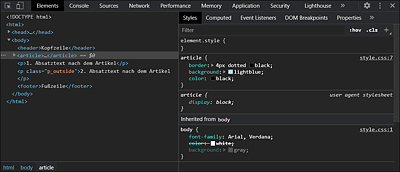
Figure 10.10 Indispensable for Analyzing the CSS Is the Developer Tool of the Web Browser