6.9 Including Other Active Content
Now there’s <video> for video content, <audio> for audio content, and <img> for images. But for a number of other types of content, no special HTML element exists, for example, Excel files, AutoCAD, or special movie formats such as QuickTime movies, which aren’t provided directly by the web browser, but via an external extension (plug-in) for the web browser. Those extensions aren’t integrated in the web browser, and if such an extension is missing, the content can’t be executed.
To embed active content in an HTML document that isn’t supported by the web browser itself but via extensions, you have at least two helpers available: the object element and the embed element.
What Can We Use <embed> and <object> For?
Most modern web browsers have removed or disabled direct support for browser plug-ins. It’s therefore obvious that it isn’t advisable to build a website based on the embed or object elements if you want the regular visitor to be able to use the website properly as well. Especially things such as Java applets, ActiveX, or Flash, which have become obsolete, should be completely avoided nowadays. For other elements, such as video, audio, and images, the HTML elements <video>, <audio>, and <img> can be used.
6.9.1 HTML Element <embed>
The standalone embed element has long been supported by all major web browsers, but even so, it was a relatively late addition to standard HTML. You can use the embed element for all possible active elements, which usually requires an extension (browser plug-in). <embed> enables you to integrate an object in the HTML document. Because the embed element is a standalone element without a closing tag, you can’t use alternative text here that gets displayed if the web browser can’t handle the content because, for example, no extension is available or installed for it.
Here’s a simple example using the embed element, where a QuickTime movie has been embedded into the HTML document. However, the movie will only play if the QuickTime plug-in for the corresponding web browser has been installed:
...
<h1>Viewing a QuickTime movie</h1>
<embed type="video/quicktime" src="movie.mov" width="640" height="480">
...
You can reference the element to embed via the src attribute. In practice, you should also specify the height (height) and width (width) because web browsers can’t read this resource themselves. Likewise, it’s recommended to specify the MIME type using the type attribute, which is video/quicktime for a QuickTime movie.
6.9.2 HTML Element <object>
You can also use the object element to include active content in the HTML document that isn’t supported by the web browser directly, but via extensions. Because <object> has a closing tag, it’s possible with this HTML element to write alternative content (e.g., text, graphic, or downloadable content) between <object> and </object>, which will be displayed if the content can’t be rendered.
Here’s an example of the object element:
...
    <h1>Playing a QuickTime movie</h1>
    <object width="640" height="480" type="video/quicktime" data="Drone.mov">
      QuickTime can’t be played back. Plug-in missing.<br />
      <a href="Drone.mov" download>Download movie</a>
    </object>
...
Listing 6.18 /examples/chapter006/6_9_2/index.html
The example is basically equivalent to the example with the embed element. However, unlike <embed>, <object> offers the advantage of being able to provide replacement content or information if the content can’t be executed. Nevertheless, it’s also better here to avoid browser plug-ins for a general website if possible and to always fall back on the original HTML solutions. This way, you can ensure that any user with any web browser can view or operate the content. Don’t make your website dependent on a browser plug-in that users may need to install first or that may not even exist for a specific web browser.
6.9.3 HTML Element <iframe>
The <iframe> element represents another possibility to embed something into an HTML document. In practice, this element is mainly used to embed external HTML documents into the current HTML document. While <iframe> can be rendered by any web browser, you can still specify alternative text between <iframe> and </iframe>.
Here’s a simple example for the iframe element:
...
<h1>Using iframe</h1>
<iframe height="320" width="680"
        src="product-placement.html">
  Your web browser does not support iframe!
   <br> Click here for the content:
   <a href="product-placement.html">Product placement</a>
<iframe>
...
Listing 6.19 examples/chapter006/6_9_3/index.html
Here’s the embedded HTML document product-placement.html:
<!DOCTYPE html>
<html>
<head>
  <meta charset="UTF-8">
  <title>Product placement</title>
</head>
<body>
<div>
  <img src="images/cover.png" alt="Cover" style="float:left;">
  <a href=" https://www.sap-press.com/javascript_5554/"
     target="_parent"> Begin your JavaScript journey... </a>
</div>
</body>
</html>
Listing 6.20 examples/chapter006/6_9_3/product-placement.html
In this example with <iframe>, the HTML file product-placement.html is embedded as an advertisement in the current HTML document. You can reference the HTML file via the src attribute and specify a size for the frame using the width and height attributes. You should write the size specification in any case because the web browser can’t know how big the embedded HTML document should be. You can see the example in Figure 6.23 during execution.
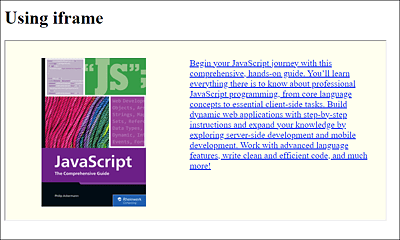
Figure 6.23 An HTML Document Has Been Embedded within the Current HTML Document Using <iframe>
<iframe>, <object>, or <embed>
Alternatively, you can achieve the same result by using <object> or <embed>, and there’s basically nothing wrong with that. In practice, however, you should rather prefer <object> to <embed>. I personally use <iframe> to embed HTML documents because it allows me to see more quickly what I want to do here. But that’s a matter of personal taste. In addition, <iframe> has a few useful attributes (especially sandbox) that you don’t have when using <object>.
When you embed an external HTML document, it may be necessary to restrict certain things for security reasons. Such a restriction is available via the sandbox attribute. By using the sandbox="" attribute in <iframe>, you can prevent scripts from running, links from going out of the frame, plug-ins from being used, cookies from being accessed, and forms from being submitted. You can remove individual restrictions via the following values: allow-form, allow-origin, allow-scripts, and allow-top-navigation.
Another standalone attribute of HTML is seamless, which not only allows you to embed the specified resource but also to include it in the src attribute. The resource included with seamless then behaves as if it were a block-generating HTML element in the HTML document, meaning, for example, that the stylesheet definitions also affect the content of the iframe resource, which isn’t the case if you don’t use seamless.