6.8 Playing Audio Files Using the HTML Element <audio>
Basically, the HTML element <audio> works in the same way as <video>, except that you use it to play audio files. Here, too, there are currently three formats: MP3 (MPEG-1/MPEG-2 Audio Layer III), OGG, and WAV (Waveform Audio File), which can be played without additional software using <audio>.
All modern web browsers can handle the MP3 format, and it should probably be the ideal choice apart from the OGG format. The WAV format might be the worst choice for the web most of the time due to the size of the file. If the browser doesn’t support the audio element, you can write text between <audio> and </audio> that will be displayed instead. As with <video>, you can provide all three formats here via the source element.
An example in practice will make clear what I’ve just described in a little more detail:
...
<audio controls>
   <source src="sound/Hello.ogg" type="audio/ogg">
   <source src="sound/Hello.mp3" type="audio/mpeg">
   This web browser does not support the audio tag.
<audio>
...
Listing 6.17 /examples/chapter006/6_8/index.html
You can specify multiple source elements with the desired audio files between <audio> and </audio> to offer multiple formats. The web browser uses the first format it supports. Otherwise, the same applies to the source element as with the video element. For a list of media types (for type), see Table 6.9. You can see the example in Figure 6.22 during execution.
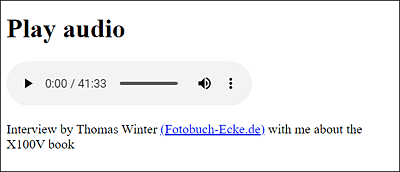
Figure 6.22 Playing an Audio File with the <audio> Element
|
File Format |
Media Type |
|---|---|
|
MP3 |
audio/mpeg |
|
OGG |
audio/ogg |
|
WAV |
audio/wav |
Table 6.9 Audio Formats for <audio>
6.8.1 HTML Attributes for the HTML Element <audio>
Most attributes of <audio> are Boolean attributes and can be used with the attribute name. In the first example in Section 6.8, the controls attribute was used, which means that a control (play, pause, volume, etc.) is displayed for the audio to be played. See Table 6.10 for an overview of the common attributes you can use for the audio element.
|
Attribute |
Description |
|---|---|
|
Starts the audio file as soon as it has been loaded: <audio autoplay ...> |
|
|
Displays the controls for controlling the audio (play, pause, volume, etc.): <audio controls ...> |
|
|
Sets the audio to play in a continuous loop, restarting as soon as it reaches its end: <audio loop ...> |
|
|
Mutes the sound: <audio muted ...> |
|
|
Specifies how the audio file should be loaded. With the default setting preload="auto", the entire audio file gets loaded when the page loads. Alternatively, you can use metadata to specify that only the metadata gets loaded, whereas none makes sure that nothing at all gets loaded along with the loading of the page: <audio preload="none" ...> |
|
|
Allows you to indicate the audio format. Possible values can be found in Table 6.9. |
|
|
Specifies the URL of the audio file: <audio src="audio.mp3" type="audio/mp3"...> |
Table 6.10 Attributes for the <audio> Element
Controlling Audio Using JavaScript
You can also control audio content with JavaScript.