18.10 WordPress Technical Overview
By now it’s obvious that WordPress meets the standards of a decent CMS from an end user’s perspective. This section delves deeper into the installation, configuration, and use of WordPress, including themes and plugins customizations.
WordPress is written in PHP and relies on a database engine to function. You therefore require a server configured in much the same way as the systems you have used thus far. The WordPress PHP code is distributed in a zipped folder so its installation can be as simple as putting the right code in the right file location.
18.10.1 Installation
WordPress proudly boasts that it can be installed in five minutes.14 Despite that incredibly fast installation, many hosting companies also provide a “single-click” installation of WordPress that can be installed from cPanel or similar interface.
18.10.2 File Structure
A WordPress install comes with many PHP files, as well as images, style sheets, and two simple plugins. The structure of the WordPress source folders is shown in Figure 18.35 and consists of three main folders: wp-content, wp-admin, and wp-includes. Although wp-admin and wp-includes contain the core files that you don’t need to change, wp-content will contain files specific to your site including folders for user uploads, themes, templates, and plugins.
Figure 18.35 Screenshot of the WordPress directory structure
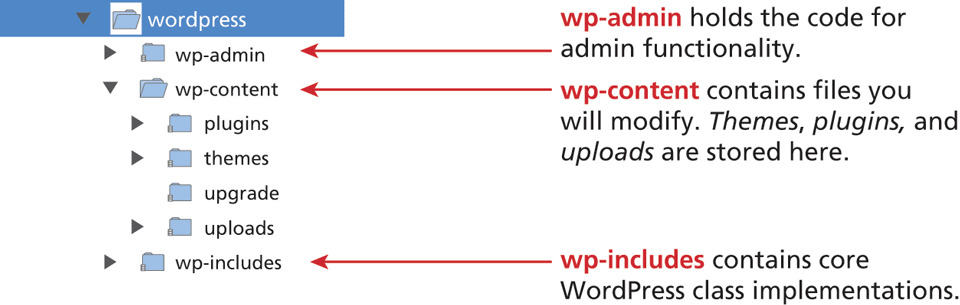
When backing up your site, be sure to back up these files in addition to wp-config.php and .htaccess, which may contain directives specific to your installation.
Multiple Sites with One WordPress Installation
Consider for a moment that you may want to support more than one website running WordPress for the same client (or multiple clients that you host). Rather than install it anew for each site, it’s possible to configure a single installation to work with multiple sites as illustrated in Figure 18.36. In fact WordPress.com, where you can get a free WordPress blog, runs with this configuration.
Figure 18.36 Difference in installation between a single and multisite
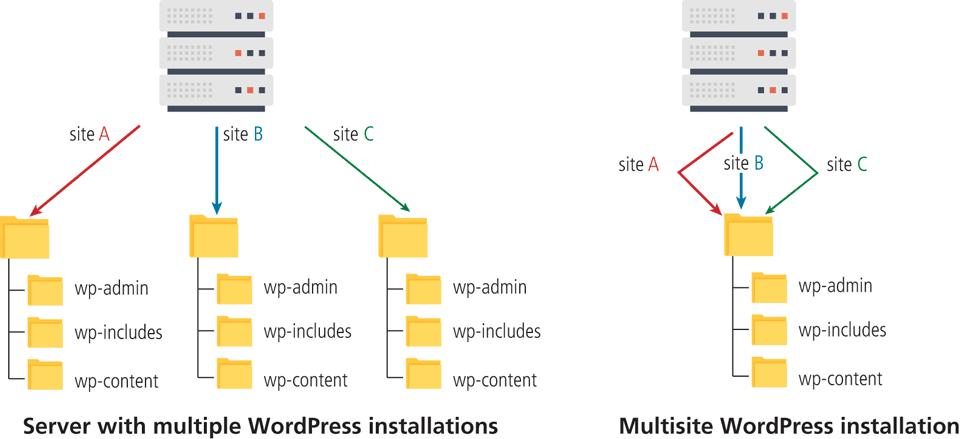
The advantage of a single installation is that you can share plugins and templates across sites, and when you update the CMS, you are updating all sites at once. The disadvantage is that shared resources limit your ability to customize, and a mistake on the site could affect all the domains being hosted. Any customization of the PHP code is coupled to all the sites, so you should be careful if two distinct clients are involved.
 Pro Tip
Given that WordPress is so open, it is straightforward for an attacker to test their attack on their own installation before attacking you. In particular, there are many malicious people (and scripts) that will try and exploit known weaknesses in old versions, or even try to brute-force guess an administrator password to get access to your site. For that reason, some people think that renaming the folders will grant them greater protection from such scripts so that the files are not where the attacker expects them to be. The authors recommend leaving the files and folders as they are since plugins will expect them in standard locations. Instead, focus on hardening your site by keeping it updated and installing plugins to prevent attacks.
It’s critical to use a multisite installation in only the appropriate situations. If the sites are for multiple divisions of the same company (like departments of a university), or they are very basic sites for clients that do not want many plugins, then multisite is ideal. Hosting multiple, distinct clients on a multisite is trickier because they will want different plugins and possibly different customizations, all of which can break the multisite model. Although the multisite model may reduce maintenance in simple situations, it can make maintenance harder if you try to do too much with each site. For the remainder of this chapter, we will assume you are using a single-site installation.
18.10.3 WordPress Nomenclature
WordPress has its own terminology that you must be familiar with if you want to work with the system or search for issues in the community. While WordPress adopts many of the terms from CMS literature, it has its own distinct terms such as pages, posts, themes, widgets, and plugins, summarized in Figure 18.37. We will focus on themes and templates in this edition of the textbook since those are most common aspects of customizing WordPress.
Figure 18.37 Illustration of WordPress components used to generate HTML output
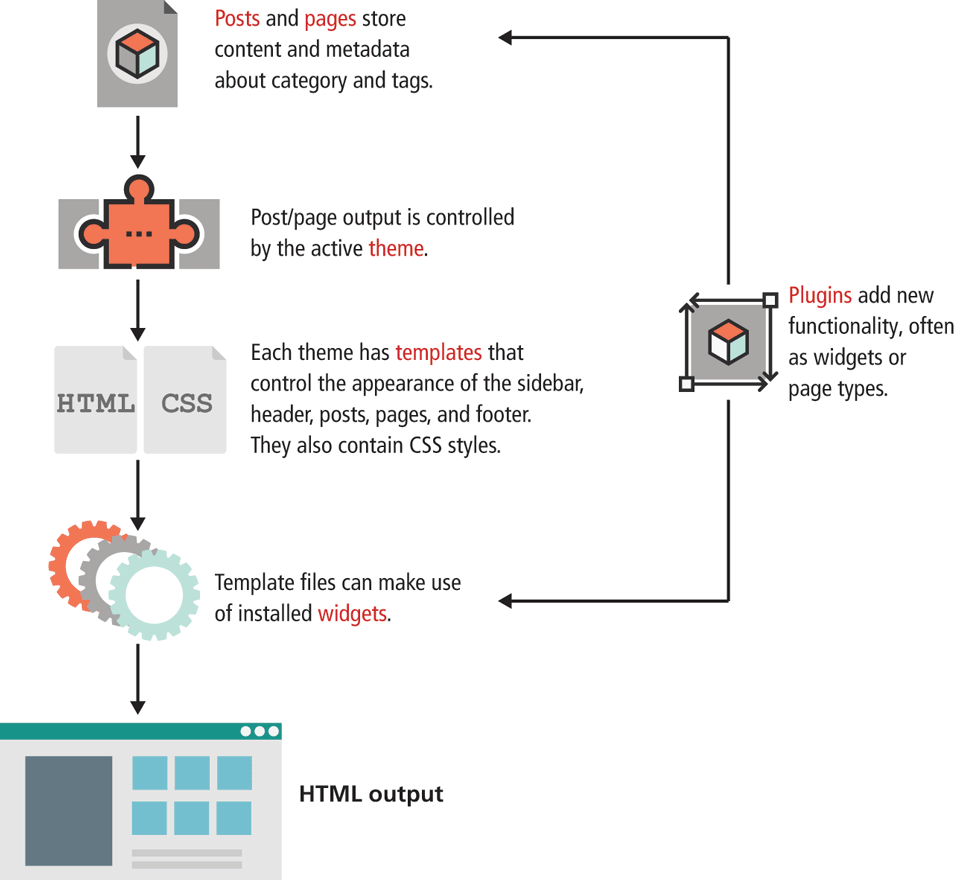
WordPress templates are the PHP files that control how content is pulled from the database and presented to the user.
WordPress themes are a collection of templates, images, styles, and other code snippets that together define the look and feel of your entire site. WordPress comes with one theme installed, but you can very easily install and use others.15 Themes are designed to be swapped out as you update and change your site and are therefore not the best place to write custom code (plugins are that place). Your themes contain all of your templates, so if you switch themes, any custom-built templates will stop working.
There is an entire industry built around theme creation and customization of WordPress themes, although there are also thousands available for free. To change, download, and modify themes, navigate to Appearance > Themes in the dashboard.
Plugins
Plugins refer to the third-party add-ons that extend the functionality of WordPress, many of which you can download for free. Plugins are modularized pieces of PHP code that interact with the WordPress core to add new features. Plugins are managed through the Plugins link on the dashboard.
18.10.4 WordPress Template Hierarchy
The default WordPress installation comes with a default theme containing many templates to support the most common types of wireframes you will need. There are templates to display a single page or post, the home page, a 404 not found page, and a set of templates for categories of posts including archive and categories as shown in Figure 18.38.
Figure 18.38 A simplified illustration of the default template selection hierarchy in WordPress
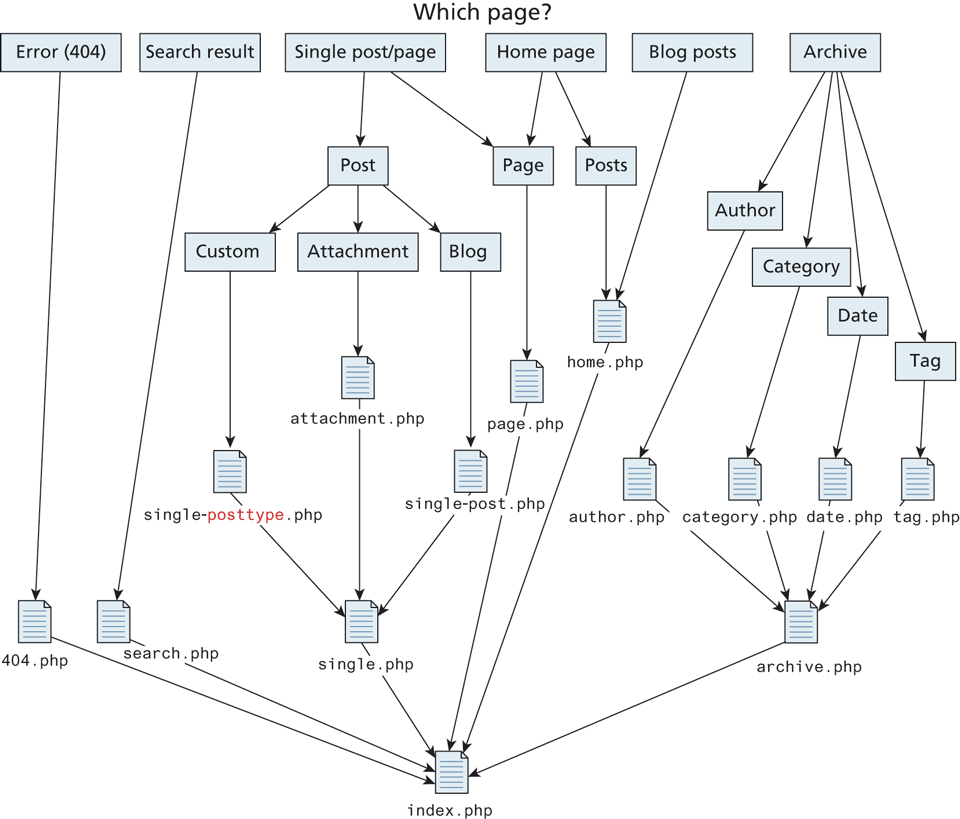
When a user makes a request, the WordPress CMS determines which template to use to format and deliver the content based on the attributes of the requested page. If a particular template cannot be found, WordPress continues going down the hierarchy until it finds one, ultimately ending with index.php. A more detailed summary of the template section mechanism can be found on the WordPress website.16