18.9 WordPress Overview
As mentioned at the beginning of the chapter, a managed website typically requires a range of features and tools such as asset management, templating, user management, and so on. A CMS provides implementations of these components within a single piece of software. Most content systems use some type of dashboard as an easy-to-use front end to all the major functionality of the system.
 Note
Note
WordPress is designed to be easy to use. If you have a running server, you should really stop reading this section and install WordPress right now! Reading this section while you play around in your own installation’s dashboard will help reinforce how WordPress implements the key aspects of a CMS in an experiential way. Later, when we go into the customization of WordPress, we will assume you have completed the lab exercises and have gained some experience.
In WordPress the dashboard is accessible by going to /wp-admin/ off the root of your installation in a web browser. You will have to log in with a username and password, as specified during the installation process (more on that later). Most users find that the dashboard can be navigated without reading too much documentation, since the links are well named and the interface is intuitive.
18.9.1 Post and Page Management
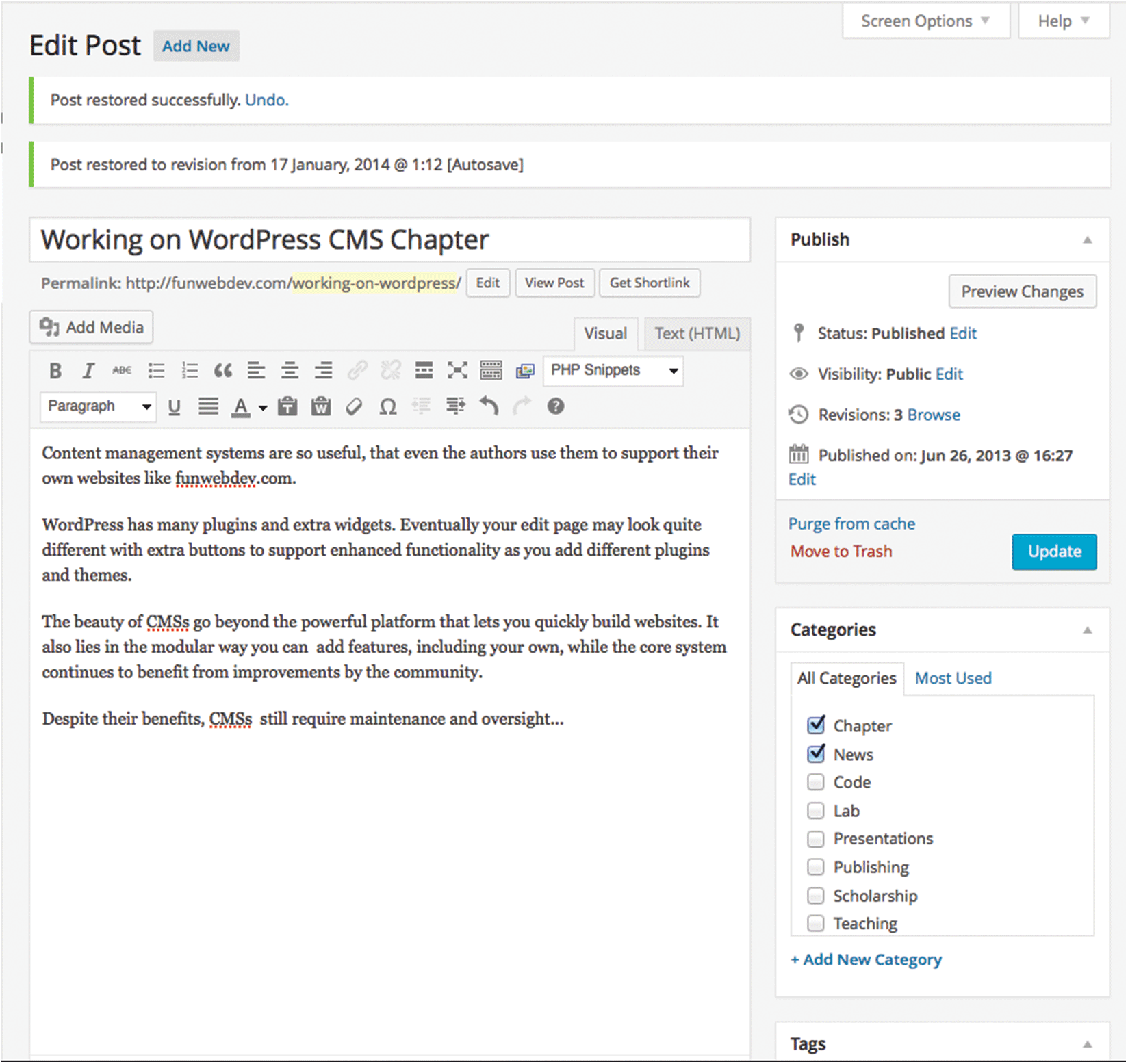
Blogging environments such as WordPress use posts as one important way of adding content to the site. Posts are usually displayed in reverse chronological order (i.e., most recent first) and are typically assigned to categories or tagged with keywords as a way of organizing them. Many sites allow users to comment on posts as well. Figure 18.26 illustrates the postediting page in WordPress. Notice the easy-to-use category and tag interfaces on the right side of the editor.
Figure 18.26 Screenshot of the post editor in WordPress
CMSs typically use pages as the main organizational unit. Pages contains content and typically do not display the date, categories, and tags that posts use. The main menu hierarchy of a CMS site will typically be constructed from pages.
WordPress supports both posts and pages; you typically use pages for substantial content that needs to be readily available, while posts are used for smaller chunks of content that are associated with a timestamp, categories, and tags.
Most CMSs impose restrictions on page and postmanagement. Some users may only be able to edit existing pages; others may be allowed to create posts but not pages. More complex CMSs impose a workflow where edits from users need to be approved by other users before they are published. Larger organizations often require this type of workflow management to ensure consistency of content or to provide editorial or legal control over content.
18.9.2 WYSIWYG Editors
What You See Is What You Get (WYSIWYG) design is a user interface design pattern where you present the users with an exact (or close to it) view of what the final product will look like, rather than a coded representation. These tools generate HTML and CSS automatically through intuitive user interfaces such as the one shown in Figure 18.27.
Figure 18.27 Screenshot of the TinyMCE WYSIWYG editor included with WordPress
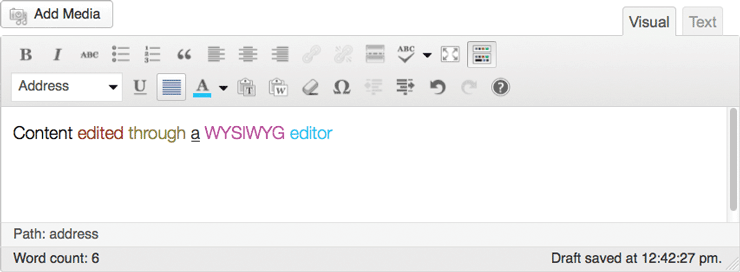
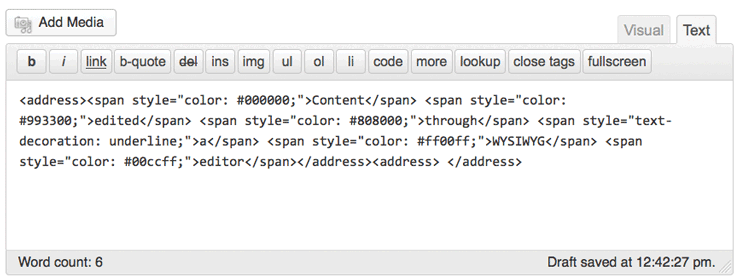
The advantage of these tools is that users are not required to know HTML and CSS, allowing them to edit and create pages with a focus on the content, rather than the medium it will be encoded into (HTML). Although these tools also allow the user to edit the underlying HTML (as shown in Figure 18.28), developers should resist the urge to write custom HTML and CSS, since themes and templates provide the means for consistent styling.
Figure 18.28 The HTML view of a WYSIWYG editor
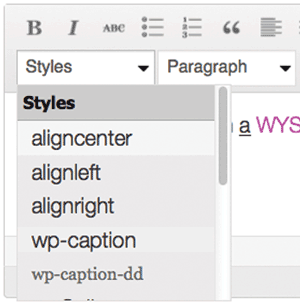
WYSIWYG editors often contain useful tools like validators, spell checkers, and link builders. A good CMS will also allow a super-user like you to define CSS styles, which are then available through the editor in a dropdown list as illustrated in Figure 18.29. This control allows content creators to choose from predefined styles, rather than define them every time. It maintains consistency from page to page, and yet still allows them to create new styles if need be.
Figure 18.29 TinyMCE with a style dropdown box using the styles from a predefined CSS stylesheet
18.9.3 Template Management
Template management refers to the systems that manage the structure of a website, independently of the content of each particular page, and is one of the most important parts of any CMS. The concept of a template is an old one and is used in disciplines outside web development. Newspapers, magazines, and even cake decorators have adopted the design principle of having a handful of layouts (i.e., templates), and then inserting content into them as needed.
When you sketch a wireframe design (i.e., a rough preliminary design) of a website, you might think of the wires as the template, with everything else being the content. Several pages can use the same wireframe, but with distinct content as shown in Figure 18.30. While the content is often managed by mapping URLs to pages in a database, conceptually the content can come from anywhere.
Figure 18.30 Multiple templates and their relationship to content
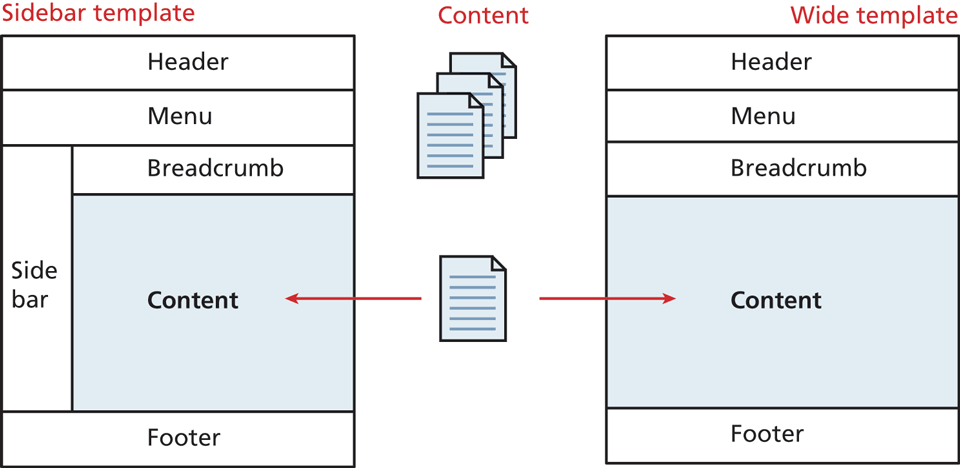
One of the trickiest aspects of creating a dynamic website is implementing the menu and sidebars, since not only are they very dynamic, but they need to be consistent as well. Templates allow you to manage multiple wireframes all using the same content and then change them on a per-page or site-wide basis as needed. One common usage is to design a template for use on the home page and a second template for the rest of the pages on a site. Another common use of templates is to create multiple, similar layouts, one with a sidebar full of extra links, and another for wide content as in Figure 18.30.
18.9.4 Menu Control
The term menu refers to the hierarchical structure of the content of a site as well as the user interface reflection of that hierarchy (typically a prominent list of links). The user interacts with the menu frequently, and they can range in style and feel from pop-up menus to static lists. A menu is often managed alongside templates since the template must integrate the menu for display purposes.
Some key pieces of functionality that should be supported in the menu control capability of a CMS include:
Rearranging menu items and their hierarchy
Changing the destination page or URL for any menu item
Adding, editing, or removing menu items
Changing the style and look/feel of the menu in one place
Managing short URLs associated with each menu item
WordPress menus are typically managed by creating pages, which are associated with menu items in a traditional hierarchy. By controlling the structure and ordering of pages, you can define your desired hierarchies. Under Appearance > Menus, hierarchy and visibility can be controlled manually in the menu management interface, allowing for more granular management of multiple menu lists.
18.9.5 User Management and Roles
User management refers to a system’s ability to have many users all working together on the same website simultaneously. While some corporate content management systems tie into existing user management products like Active Directory or LDAP, a stand-alone CMS must include the facility to manage users as well.
A CMS that includes user management must provide easy-to-use interfaces for a nontechnical person to manage users. These functions include:
Adding a new user
Resetting a user password
Allowing users to recover their own passwords
Manage their own profiles, including name, avatars, email addresses, Tracking logins
In a modern CMS the ability to assign roles to users is also essential since you may not want all your users to be able to perform the above functions. Typically, user management is delegated to one of the senior roles like site manager or super administrator.
18.9.6 User Roles
Users in a CMS are given a user role, which specifies which rights and privileges that user has. Roles in WordPress are analogous to roles in the publishing industry where the jobs of a journalist, editor, and photographer are distinct.
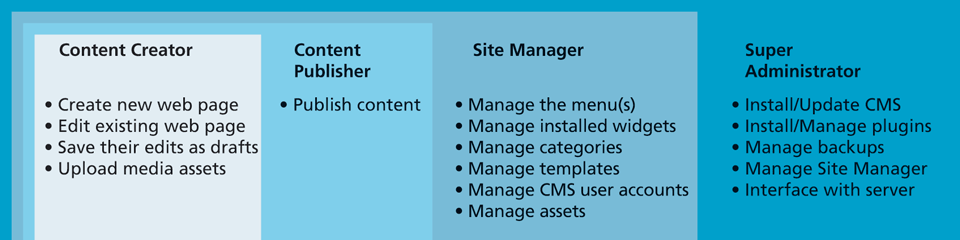
A typical CMS allows users to be assigned one of the four roles as illustrated in Figure 18.31: content creator, content publisher, site manager, and super administrator. Although more finely grained controls are normally used in practice, the essential theory behind roles can be illustrated using just these four.
Figure 18.31 Typical roles and responsibilities in a web CMS
Content Creator
Content creators do exactly what their title implies: they create new pieces of content for the website. This role is often the one that requires subroles because there are many types of content that they can contribute. These users are able to:
Create new web pages
Edit existing web pages
Save their edits in a draft form
Upload media assets such as images and videos
None of this role’s activities result in any change whatsoever to the live website. Instead the draft submissions of new or edited pages are subject to oversight by the next role, the publisher.
Content Publisher
Content publishers are gatekeepers who determine if a submitted piece of content should be published. This category exists because entities like corporations or universities need to vet their public messages before they go live. The major piece of functionality for these users is the ability to publish pages to the live website. Since they can also perform all the duties of a content creator, they can also make edits and create new pages themselves, but unlike a creator, they can publish immediately.
The relationship between the publisher and creator is a complex one, but the whole concept of workflow (covered in the next section) relies on the existence of these roles.
Site Manager
The site manager is the role for users who cannot only perform all the creation and publishing tasks of the roles beneath them, but can also control more complicated aspects of the site including:
Menu management
Management of installed plugins and widgets
Category and template management
CMS user account management
Asset management
Although this user does not have unlimited access to the CMS installation, they are able to manage most of the day-to-day activity in the site. These types of users are typically more comfortable with computational thinking, although they can still be nonprogrammers. Since they can control the menu and templates, these users can also significantly impact the site, including possibly breaking some functionality.
Super Administrator
The super administrator role is normally reserved for a technical person, often the web developer who originally configured and installed the CMS. These users are able to access all of the functionality within the CMS and normally have access to the underlying server it is hosted on as well. In addition to all of the functionality of the other types of user, the super administrator is often charged with:
Managing the backup strategy for the site
Creating/deleting CMS site manager accounts
Keeping the CMS up to date
Managing plugin and template installation
Ideally, the super administrator will rarely be involved in the normal day-to-day operation of the CMS. Although in theory, you can make every user a super administrator, doing so is extremely unwise since this would significantly increase the chance that a user will make a destructive change to the site (this is an application of the principle of least privilege from Chapter 17).
WordPress Roles
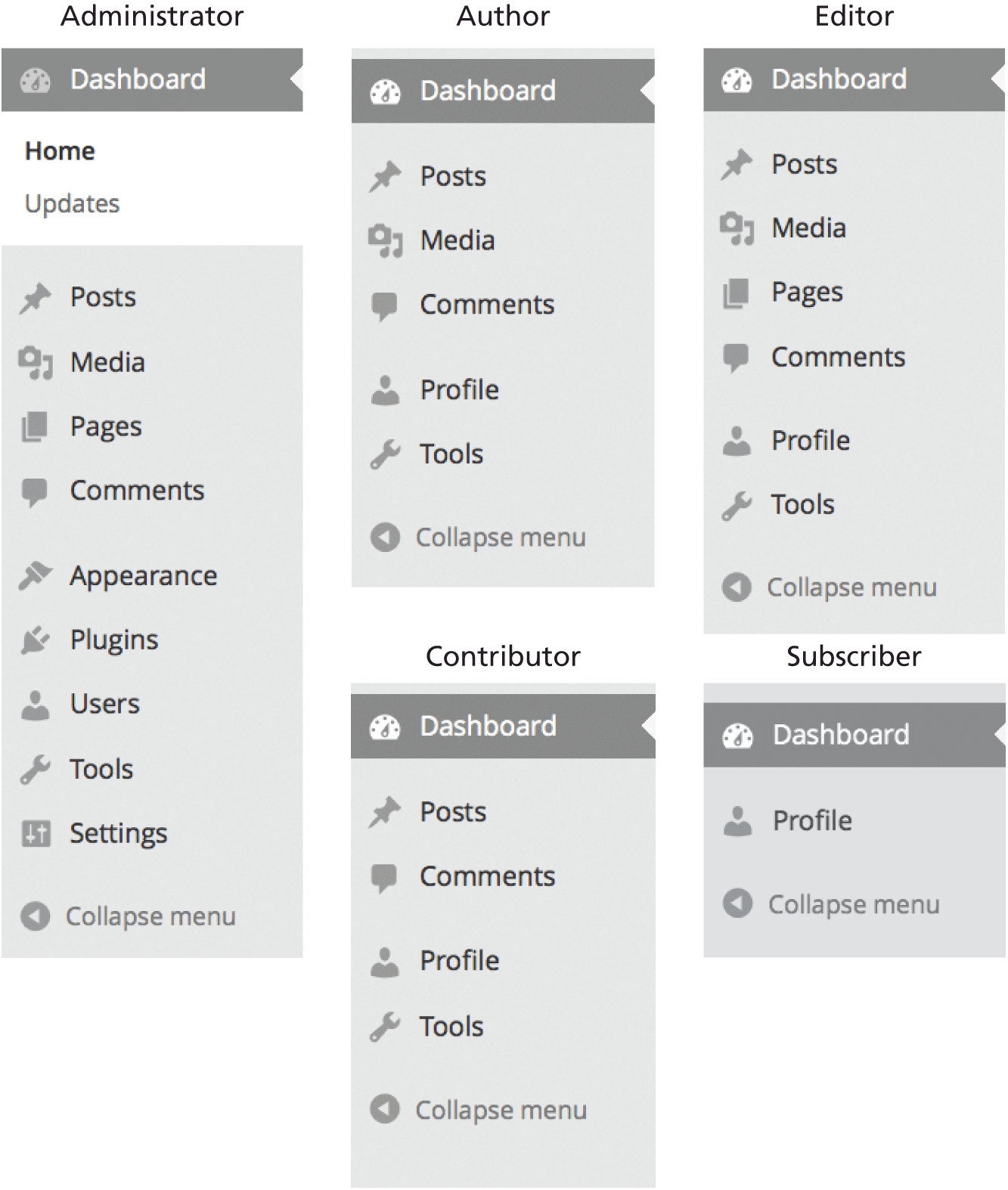
In WordPress the default roles are Administrator, Author, Editor, Contributor, and Subscriber, which are very similar to our generic roles with the Administrator being our super administrator and the Subscriber being a new type of role that is read-only. One manifestation of roles is how they change the dashboard for each class of user as illustrated in Figure 18.32. The diagram does not show some of the additional details, like the ability to publish versus save as draft, but it gives an overall sense of the capabilities.
Figure 18.32 Multiple dashboard menus for the five default roles in WordPress
18.9.7 Workflow and Version Control
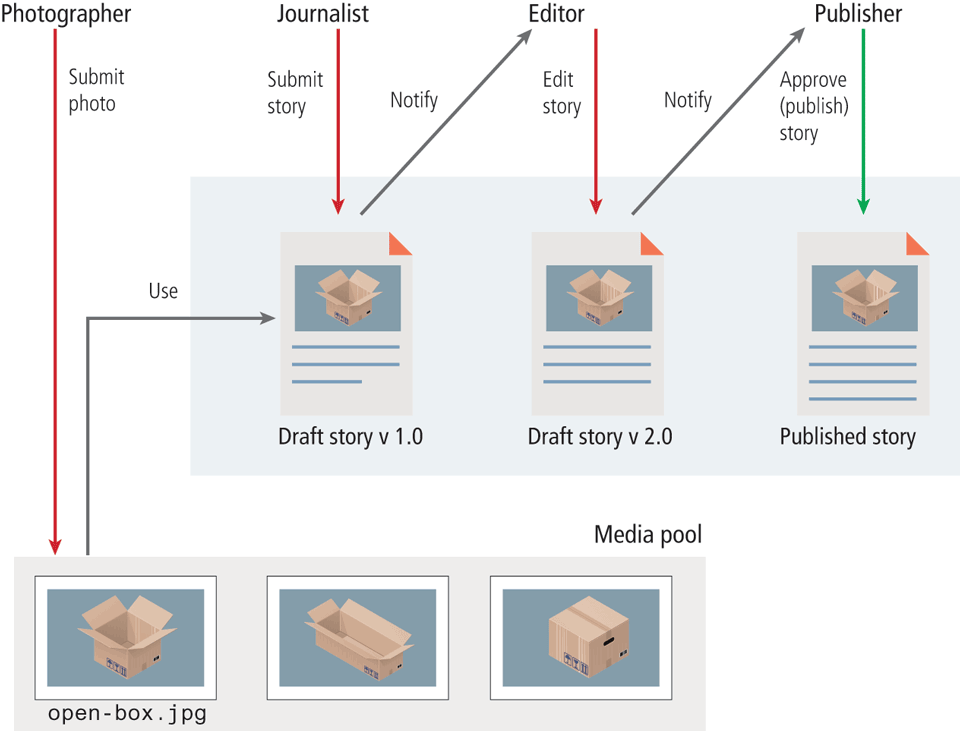
Workflow refers to the process of approval for publishing content. It is best understood by considering the way that journalists and editors work together at a newspaper. Using roles as described above, you can see that the content created by content creators must eventually be approved or published by a higher-ranking user. While many journalists can be submitting stories, it is the editor who decides what gets published and where. In this structure another class of contributor, photographers, may be able to upload pictures, but editors (or journalists) choose where they will be published.
CMSs integrate the notion of workflow by generalizing the concept and allowing for every user in the system to have roles. Each role is then granted permission to do various things including publishing a post, saving a draft, uploading an image, and changing the home page.
Figure 18.33 illustrates a sample workflow to get a single news story published in a newspaper or magazine office. The first draft of the story is edited, creating new versions, until finally the publisher approves the story for print. Notice that the super administrator plays no role in this workflow; while that user is all-powerful, he or she is seldom needed in the regular course of business.
Figure 18.33 Illustration of multiple people working in a workflow
18.9.8 Asset Management
Websites can include a wide array of media. There are HTML documents, but also images, videos, and sound files, as well other document types or plugins. The basic functionality of digital asset management software enables the user to:
Import new assets
Edit the metadata associated with assets
Delete assets
Browse assets for inclusion in content
Perform searches or apply filters to find assets
In a web context there are two categories of asset. The first are the pages of a website, which are integrated into the navigation and structure of the site. The second are the non-HTML assets of a site, which can be linked to from pages, or embedded as images or plugins. Although some asset management systems manage both in the same way, the management of non-HTML assets requires different capabilities than pages.
In WordPress, media management is done through a media management portal and through the media widgets built into the page’s WYSIWYG editor. This allows you to manage the media in one location as shown in Figure 18.34 but also lets content creators search for media right from the place they edit their web pages.
Figure 18.34 Media management portal in WordPress
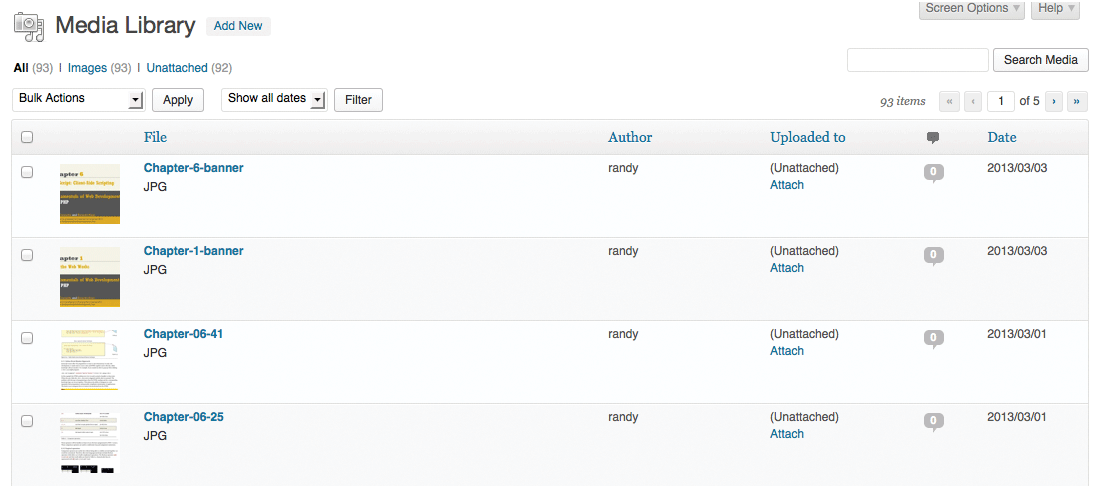
The media management portal allows the manager of the site to categorize and tag assets for easier search and retrieval. It also allows the management of where the files are uploaded and how they are stored.
18.9.9 Search
Searching has become a core way that users navigate the web, not only through search engines, but also through the built-in search boxes on websites.
Unfortunately, creating a fast and correct search of all your content is not straightforward. Ironically, as the size of your site increases, so too does the need for search functionality and the complexity of such functionality. There are three strategies to do website search: SQL queries using LIKE, third-party search engines, and search indexes.
Although you could search for a word in every page of content using the MySQL LIKE with % wildcards, that technique cannot make use of database indexes, and thus suffers from poor performance. A poorly performing search is computationally expensive, and results in poor user satisfaction. Included by default with WordPress, it’s worth seeking a replacement.
To address this poor performance, many websites offload search to a third-party search engine. Using Google, for example, one can search our site easily by typing site:funwebdev.com SearchTerm into the search field.
The problem with using a third party is that you are subject to their usage policies and restrictions. You are encouraging users to leave your site to search, which is never good, since there is a chance they won’t return. You are also relying on the third party having updated their cache with your newest posts, something you cannot be sure of at all times.
Doing things properly requires that the system build and manage its own index of search terms based on the content, so that the words on each page are indexed and cross referenced, and thus quickly searchable. This is a trade off where the preprocessing (which is intensive) happens at a scheduled time once, and then on-the-fly search results can use the produced index, resulting in faster search speeds.
While you could build a search index yourself (as described earlier this chapter), plugins exist, such as WPSearch, which already implement search indexes so that you can easily build an index to get faster user searches.13
18.9.10 Upgrades and Updates
Running a public site using an older version of a CMS is a real security risk. Newer versions of a CMS typically not only add improvements and fixes bugs, but they also close vulnerabilities that might let a hacker gain control of your site. As we described in depth in Chapter 16, the security of your site is only as good as the weakest link, and an outdated version of WordPress (or any other CMS) may have publicly disclosed vulnerabilities that can be easily exploited.
When logged in as an editor in WordPress, the administrative dashboard prominently displays indicators for out-of-date plugins and warning messages about pending updates.
Note
One benefit of open-source software like WordPress is the ability of the developer community to collectively identify and patch vulnerabilities in a short time frame. However, the openness of the identification and patching process provides hackers with a detailed guide on how to exploit vulnerabilities in old versions.
What actually happens during an update is that the WordPress source PHP files are replaced with new versions, as needed. If you made any changes to WordPress, these changes might be at risk. Your wp-config and other content files are safe, but a backup should always be performed before proceeding, just in case something goes wrong. There is also a very real danger that your plugins are not compatible with the updated version. Be prepared to check your site for errors after updating it.
The other complication with upgrading is that the user doing the upgrade needs to know the FTP or SSH password to the server running WordPress. If you do allow a nontechnical person to do updates, you should make sure the SSH user and password they are provided has as few privileges as possible. Since upgrades can break plugins and cause downtime to your site if unsuccessful, this task should be left to someone who is qualified enough to troubleshoot if a problem arises. You can configure automatic updates to improve the security of your system without manual intervention; however, updates may still create errors, especially with plug ins and themes.