17.6 Request and Response Management
In addition to the powerful directives that relate to a web server’s overall configuration, there are numerous directives related to practical web development problems like hosting multiple sites on one server or URL redirection.
17.6.1 Managing Multiple Domains on One Web Server
A web server can easily be made to serve multiple sites from the same machine. Whether the sites are subdomains of the same parent domain, entirely different domains, or even the same domain on different ports (say a different site if secure connection), Apache can host multiple sites on the same machine at the same time, all within one instance of your server.
Having multiple sites running on a single server can be a great advantage to companies or individuals hosting multiple small websites. In practice, many web developers provide a value-added service of hosting their client’s websites for a reasonable cost. There are cost savings and profit margins in doing so, and increased performance over purchasing simple shared hosting for each client. The trick is to ensure that the shared host has enough power to support all of the domains so that they are all responsive.
The reason multiple sites are so easily supported is that every HTTP request to your web server contains, among other things, the domain being requested. The server knows which domain is being requested, and using server directives controls what to serve in response. Apache stores each domain you want as a VirtualHost, and NginX uses a similar mechanism called server_name.
A VirtualHost is an Apache configuration directive that associates a particular combination of server name and port to a folder on the server. Each distinct VirtualHost must specify which IP and port to listen on and what file system location to use as the root for that domain. Going one step further, using NameVirtualHost allows you to use domain names instead of IP addresses as shown in Listing 17.3, which illustrates a configuration for two domains based on Apache’s sample file.12
Listing 17.3 Apache VirtualHost directives in httpd.conf for two different domains on same IP address
NameVirtualHost *:80

<VirtualHost *:80>
ServerName www.funwebdev.com
DocumentRoot /www/funwebdev
</VirtualHost>

<VirtualHost *:80>
ServerName www.otherdomain.tld
DocumentRoot /www/otherdomain
</VirtualHost>
Figure 17.20 illustrates how a GET request from a client is deciphered by Apache (using VirtualHosts configuration) to route the request to the right folder for that domain. You can readily see how you can host multiple domains and subdomains on your own host and see how simple shared hosting can host thousands of sites on the same machine using this same strategy.
Figure 17.20 How three sites are hosted on one IP address with VirtualHosts
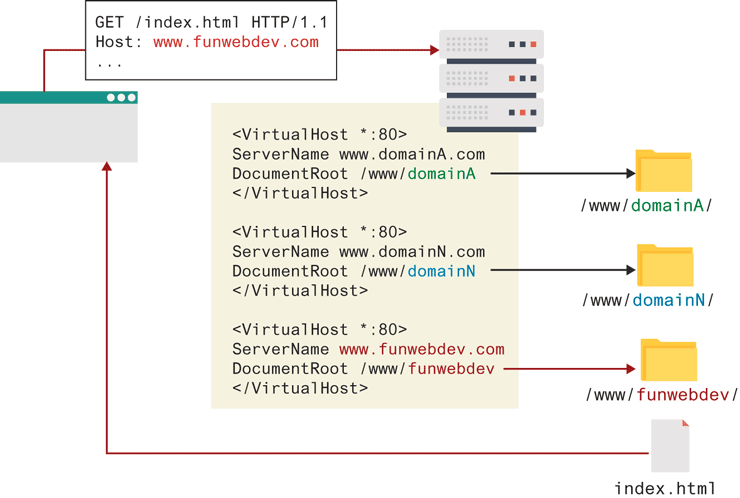
If a client is using HTTP 1.0 rather than HTTP 1.1 (which does not include the domain) or a request was made using the IP address directly, with no host, the server will respond with the default domain.
 Pro Tip
Up until recently, only one secure https domain could be served per IP address, making HTTPS a costly addition since companies host many domains on 1 IP address. An extension to the SSL protocol (RFC 4366), called Server Name Indication (SNI) addresses this shortcoming (so long as your clients are using an up-to-date browser). Up-to-date Apache will have this enabled by default, and it allows secure VirtualHosts to be added in much the same way as nonvirtual ones.
17.6.2 Handling Directory Requests
Thus far, the examples have been requesting a particular file from a domain. In practice, users normally request a domain’s home page URL without specifying what file they want. In addition there are times when clients are requesting a folder path, rather than a file path. A web server must be able to decide what to do in response to such requests. The domain root is a special case of the folder question, where the folder being requested is the root folder for that domain.
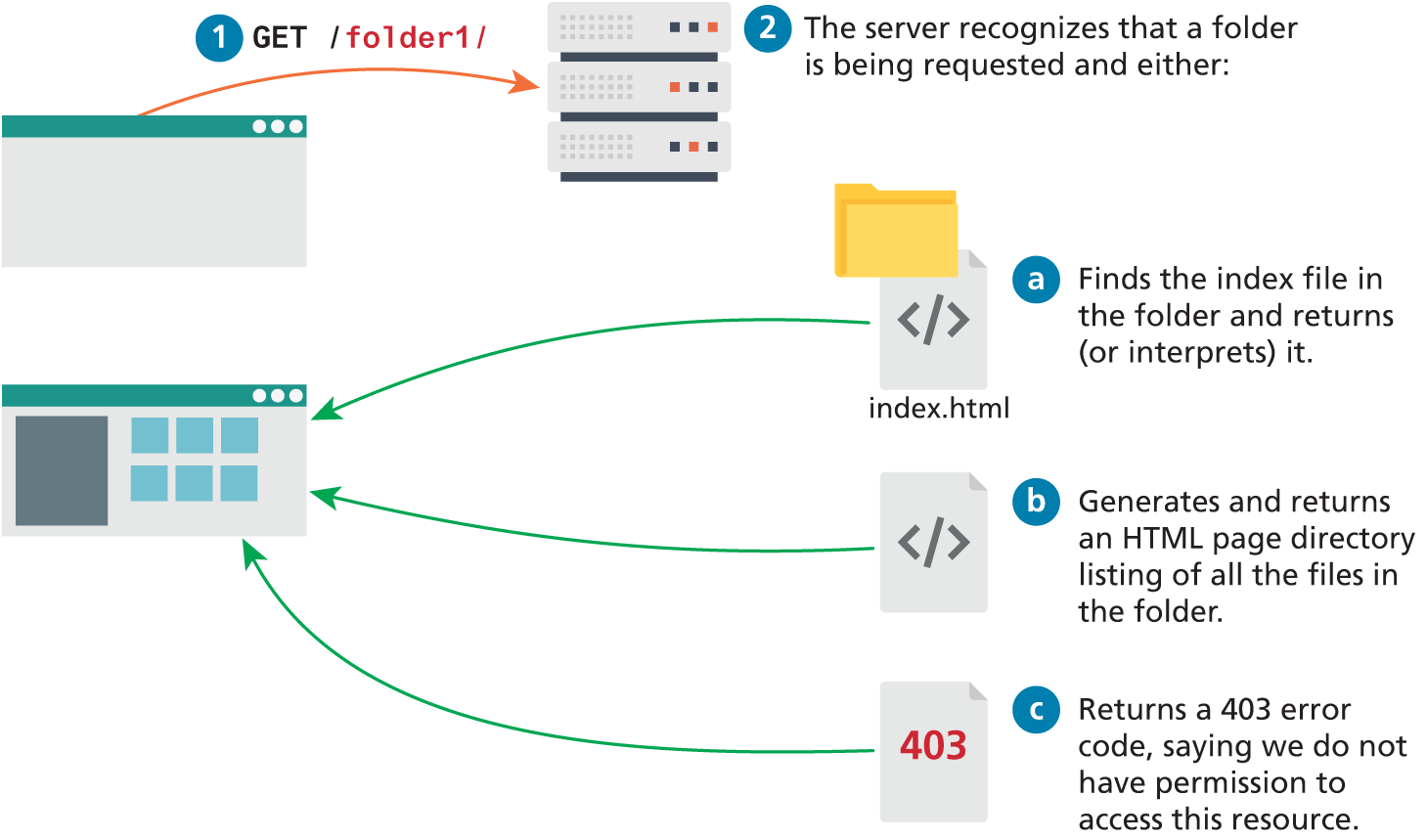
However a folder is requested, the server must be able to determine what to serve in response as illustrated in Figure 17.21. The server could choose a file to serve  , display the directory contents
  , or return an error code
  . You can control this by adding
 DirectoryIndex and Options directives to the Apache configuration file, or adding "autoindex on" to your NginX configuration.
Figure 17.21 The ways of responding to a folder request
 Note
Note
Many administrators disable DirectoryIndex to avoid disclosing the names of all files and subfolders to hackers and crawlers. With file and directory names public, those files can easily be requested and downloaded, whereas otherwise it would be impossible to guess all the file and folder names in a directory.
The DirectoryIndex directive as shown in Listing 17.4 configures the server to respond with a particular file, in this case index.php, and if it’s not present, index.html. In the event none of the listed files exists, you may provide additional direction on what to serve.
Listing 17.4 Apache Options directives to add directory listings to folders below /var/www/folder1
<Directory /var/www/folder1/>
DirectoryIndex index.php index.html
Options +Indexes
</Directory>
The Options directives can be used to tell the server to build a clickable index page from the content of the folder in response to a folder request. Specifically, you add the type +Indexes (2 disables directory listings) to the Options directive as shown in Listing 17.4. There are additional fields that can be configured through Apache to make directory listings more attractive, if you are interested.13
If neither directory index files nor directory listing is set up, then a web server will return a 403 forbidden response to a directory request.
17.6.3 Responding to File Requests
The most basic operation a web server performs is responding to an HTTP request for a static file. Having mapped the request to a particular file location using the connection management options above, the server sends the requested file, along with the relevant HTTP headers to signify that this request was successfully responded to.
However, unlike static requests, dynamic requests to a web server are made to files that must be interpreted at request time rather than sent back directly as responses. That is why when requesting index.php, you get HTML in response, rather than the PHP code.
A web server associates certain file extensions with MIME types that need to be interpreted. When you install Apache for PHP, this is done automatically but can be overridden through directives. If you wanted files with PHP as well as HTML extensions to be interpreted (so you could include PHP code inside them), you would add the directive below, which uses the PHP MIME types:
AddHandler application/x-httpd-php .php
AddHandler application/x-httpd-php .html
17.6.4 URL Redirection
Many times it would be nice to take the requested URL from the client and map that request to another location. Back in Chapter 16, you learned about how nice- looking URLs are preferable to the sometimes-cryptic URLs that are useful to developers. When you learn about search engines in Chapter 23, you will learn more about why pretty URLs are important to search engines. In Apache, there are two major classes of redirection, public redirection and internal redirection (also called URL rewriting).
Note
MME Types (multipurpose Internet mail extensions) are identifiers first created for use with email attachments.14 They consist of two parts, a type and a subtype, which together define what kind of file an attachment is. These identifiers are used throughout the web, and in file output, upload, and transmission. They can be calculated with various degrees of confidence from a particular file extension, and are a source of security concern, since running a file as a certain type of extension can expose the underlying system to attacks.
Public Redirection
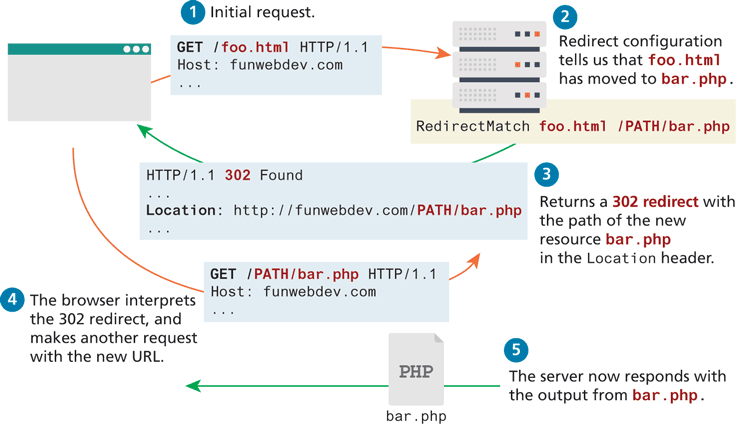
In public redirection, you may have a URL that no longer exists or has been moved. This often occurs after refactoring an existing website into a new location or configuration. If users have bookmarks to the old URLs, they will get 404 error codes when requesting them (and so will search engines). It is a better practice to inform users that their old pages have moved, using a HTTP 302 header. In Apache, such URL redirection is easily achieved, using Apache directives (stored in the root configuration file or directory-based files). The example illustrated in Figure 17.22 makes all requests for foo.html return an HTTP redirect header pointing to bar.php using the RedirectMatch directive as follows:
RedirectMatch /foo.html /FULLPATH/bar.phpFigure 17.22 Apache server using a redirect on a request
Alternatively the RewriteEngine module can be invoked to create an equivalent rule:
RewriteEngine on
RewriteRule  ^/foo\.html$ /FULLPATH/bar.php [R]
This example uses the RewriteRule directive illustrated in Figure 17.23. These directives consist of three parts: the pattern to match, the substitution, and flags.
Figure 17.23 Illustration of the RewriteRule syntax
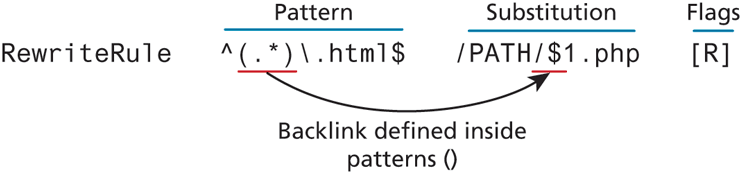
The pattern makes use of the powerful regular expression syntax that matches patterns in the URL, optionally allowing us to capture back-references for use in the substitution. Recall that Chapter 15 covered regular expressions in depth. In the example from Figure 17.23, all requests for HTML files result in redirect requests for equivalently named PHP files (help.html results in a request for help.php).
The substitution can itself be one of three things: a full file system path to a resource, a web path to a resource relative to the root of the website, or an absolute URL. The substitution can make use of any backlinks identified in the pattern that was matched. In our example, the $1 makes reference to the portion of the pattern captured between the first set of () brackets (in our case everything before the .html). Additional references are possible to internal server variables, which are accessed as %{VAR_NAME}. To append the client IP address as part of the URL, you could modify our directive to the following:
RewriteRule ^(.*)\.html$
/PATH/$1.php?ip=%{REMOTE_ADDR}[R]
The flags in a rewrite rule control how the rule is executed. Enclosed in square brackets [], these flags have long and short forms. Multiple flags can be added, separated by commas. Some of the most common flags are redirect (R), passthrough (PT), proxy (P), and type (T). The Apache website provides a complete list of valid flags.15
Internal Redirection
The above redirections work well, but one drawback is that they notify the client of the moved resource. As illustrated in Figure 17.23, this means that multiple requests and responses are required. If the server had instead applied an internal redirect rule, the client would not know that foo.html had moved, and it would only require one request, rather than two. Although the client would see the contents from the new bar .php, they would still see foo.html in their browser URL as shown in Figure 17.24.
Figure 17.24 Internal URL rewriting rules as seen by the client
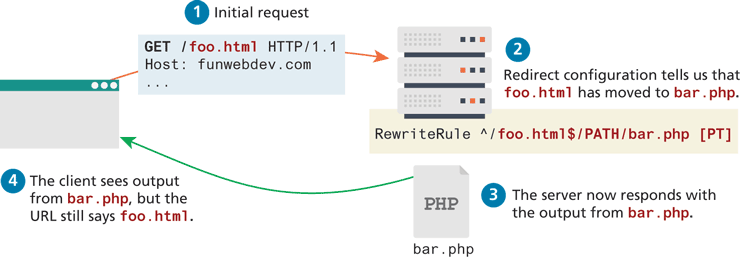
To enable such a case, simply modify the rewrite rule’s flag from redirect (R) to pass-through (PT), which indicates to pass-through internally and not redirect.
RewriteEngine on
RewriteRule  ^/foo\.html$ /FULLPATH/bar.php [PT]
Internal redirection and the RewriteEngine are able to go far beyond the internal redirection of individual files. Redirection is allowed to new domains and new file paths and can be conditional, based on client browsers or geographic location.
Conditional URL Rewriting
Rewriting URLs is a simple mechanism but the syntax can be challenging to those unfamiliar with regular expressions. The core syntactic mechanism RewriteCondition illustrated in Figure 17.25, combined with the RewriteRule, can be thought of as a conditional statement. If more than one rewrite condition is specified, they must all match for the rewrite to execute. The RewriteCond consists of two parts, a test string and a conditional pattern. Infrequently a third parameter, flags, is also used.
Figure 17.25 Illustration of the RewriteCond directive matching an IP address

The example shown in Figure 17.25 allows us to redirect if the request is coming from an IP that begins with 192.168. As you may recall IP addresses in that range are reserved for local use, and thus such a pattern could be used to redirect internal users to an internal site.
The test string can contain plain text to match, but can also reference the current RewriteRule’s back-references or previous conditional references. Most common is to access some of the server variables such as HTTP_USER_AGENT, HTTP_HOST, and REMOTE_HOST.
The conditional pattern can contain regular expressions to match against the test string. These patterns can contain back-references, which can then be used in subsequent directives.
The optional flags are limited compared to the RewriteRule flags. Two common ones are NC to mean case insensitive, and OR, which means only one of this and the condition below must match.
Conditional rewriting can allow us to do many advanced things, including distribute requests between mirrored servers, or use the IP address to determine which localized national version of a site to redirect to. One common use is to prevent others from hot-linking to your image files. Hot-linking is when another domain uses links to your images in their site, thereby offloading the bandwidth to you.
To combat this use of your bandwidth, you could write a conditional redirect that only allows images to be returned if the HTTP_REFERER header is from our domain. Such a redirect is shown below.
RewriteEngine On
RewriteCond %{HTTP_REFERER} !^http://(www\.)? funwebdev\.com/.*$ [NC]
RewriteRule \.(jpg|gif|bmp|png)$ - [F]
Note that the condition has an exclamation mark in front of the conditional pattern, which negates the pattern and means any requests without a reference from this domain will be matched and execute the RewriteRule. The RewriteRule itself has a blank substitution (-), and a flag of F, which means the request is forbidden, and no image will be returned.
To go a step further, the server could be configured to return a small static image for all invalid requests that says “this image was hotlinked” or “banned” with the following directives:
RewriteEngine On
RewriteCond %{HTTP_REFERER} !^http://(www\.)?funwebdev\.com/.*$ [NC]
RewriteRule \.(jpg|gif|bmp|png)$  http://funwebdev.com/stopIt.png
17.6.5 Managing Access with .htaccess
Without extra configuration, all files placed inside the root folder for your domain are accessible by all so long as their permission grants the Apache user access. However, some additional mechanisms let you easily protect all the files beneath a folder from being accessed.
While most websites will track and manage users using a database with PHP authentication scripts (as seen in Chapter 16), a simpler mechanism exists when you need to quickly password protect a folder or file.
In NginX you can only password protect a folder through the root configuration file, while Apache provides a second mechanism allowing us to manage configuration in a particular folder. Within a folder, .htaccess files are the directory-level configuration files used by Apache to store directives to apply to this particular folder. Using the per-directory configuration technique allows users to control their own folders without having to have access to the root configuration file.
The .htaccess directory configuration file is placed in the folder you want to password protect and must be named .htaccess (the period in front of the name matters). An .htaccess file can also set additional configuration options that allow it to connect to an existing authentication system (like LDAP or a database).
Whether in Apache or NginX, you first create a password file. This is done using a command-line program named htpasswd. To create a new password file, you would type the following command:
htpasswd –c passwordFile ricardoThis will create a file named passwordFile and prompt you for a password for the user ricardo (I chose password). Upon confirming the password, the file will be created inside the folder that you ran the command. Adding another user named randy can easily be done by typing
htpasswd passwordFile randyFor this user I will use the password password2. Examining the file in Listing 17.5 shows that passwords are hashed (using MD5), although the usernames are not.
Listing 17.5 The contents of a file generated with htpasswd
ricardo:$apr1$qFAJGBx3$.eEjyugxi3y3OGfQ/.prJ.
randy:$apr1$WuQfiWjK$zXnzy71YL0XNTDPfnXq/x.
Step 2 is to link that password file to the webserver's authentication mechanism. In Apache you create an .htaccess file inside the folder you want to protect. Inside that file you write Apache directives (as shown in Listing 17.6) to link to the password file created above and define a prompt to display to the user.
Listing 17.6 A sample .htaccess file to password protect a folder
AuthUserFile /location/of/our/passwordFile
AuthName "Enter your Password to access this secret folder"
AuthType Basic
require valid-user
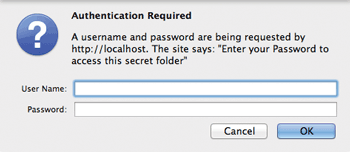
Now when you surf to the folder with that file, you will be prompted to enter your credentials as shown in Figure 17.26. If successful, you will be granted access; otherwise, you will be denied.
Figure 17.26 Prompt for authentication from an .htaccess file
Note
Since you are referencing a file in our .htaccess file, you should ensure that that file is above the root of our web server so that it cannot be surfed to directly, thereby divulging our usernames and (hashed) passwords.
17.6.6 Server Caching
When serving static files, there is an inherent inefficiency in having to open those files from the disk location for each request, especially when many of those requests are for the same files. Even for dynamically created content, there may be reason to not refresh the content for each request, limiting the update to perhaps every minute or so to alleviate computation for high-traffic sites.
Server caching is distinct from the caching mechanism built into the HTTP protocol (called HTTP caching). In HTTP caching, when a client requests a resource, it can send in the request header the date the file was created. In response the server will look at the resource, and if not updated since that date, it will respond with a 304 (not modified) HTTP response code, indicating that the file has not been updated, and it will not resend the file. In HTTP caching, the cached file resides on the client machine.
Server caching using Apache is also distinct from the caching technique using PHP described in Chapter 13. Server caching in Apache and NginX allows you to save copies of HTTP responses on the server so that the PHP script that created them won’t have to run again.
Caching is based on URLs so that every cached page is associated with a particular URL. The first time any URL is requested, no cache exists and the page is created dynamically using the PHP script and then saved as the cached version with the key being the URL. Whenever subsequent requests for the same URL occur, the web server can decide to serve the cached page rather than create a fresh one based on configuration options you control. Some important Apache directives related to caching are as follows
CacheEnable turns caching on.
CacheRoot defines the folder on your server to store all the cached resources.
CacheDefaultExpire determines how long in seconds something in cache is stored before the cached copy expires.
CacheIgnoreCacheControl is a Boolean directive that overrides the client’s preferences for cached content send in the headers with
Cache-Control: no-cacheorPragma: no-cache.CacheIgnoreQueryString is another Boolean directive and allows us to ignore query strings in the URLs if we so desire. This is useful if we want to serve the same page, regardless of query string parameters. For example, some marketing campaigns will embed a unique code in the query string for tracking purposes that has no effect on the resulting HTML page displayed. By enabling this for a massive surge of marketing campaign traffic, your server can perform effectively.
CacheIgnoreHeaders allows you to ignore certain HTTP headers when deciding whether to save a cached page or not. Normally you want to prevent the cookie from being used to set the cache page with:
CacheIgnoreHeaders Set-CookieOtherwise a logged-in user could generate a cached page that would then be served to other users, even though the cached page might include personal details from that logged-in user!
If you are considering caching your content to speed up your site, you might consider installing a NginX load caching server instead to take advantage of NginX’s faster hosting speed and ease of use.