15.6 Chapter Summary
Most websites larger than a few pages will eventually require some manner of persisting information on one page (generally referred to as “state”) so that it is available to other pages in the site. This chapter examined the options for managing state using what is available to us in HTTP (query strings, the URL, and cookies) as well as those for managing state on the server (session state). The chapter finished with caching, an important technique for optimizing real-world web applications.
15.6.1 Key Terms
15.6.2 Review Questions
Why is state a problem for web applications?
What are HTTP cookies? What is their purpose?
Describe exactly how cookies work.
What is the difference between session cookies and persistent cookies? How does the browser know which type of cookie to create?
Describe best practices for using persistent cookies.
What is web storage in HTML5? How does it differ from HTTP cookies?
What is session state?
Describe how session state works.
In PHP, how are sessions stored between requests?
How does object serialization relate to stored sessions in PHP?
What issues do web farms create for session state management?
What is caching in the context of web applications? What benefit does it provide?
What is the difference between page output caching and application data caching?
What are memcache, node-cache, and redis? What are the relative strengths and weaknesses?
What is the difference between write-back caching and write-through caching?
15.6.3 Hands-On Practice
Project 1: Cookies
Difficulty Level: Intermediate
Overview
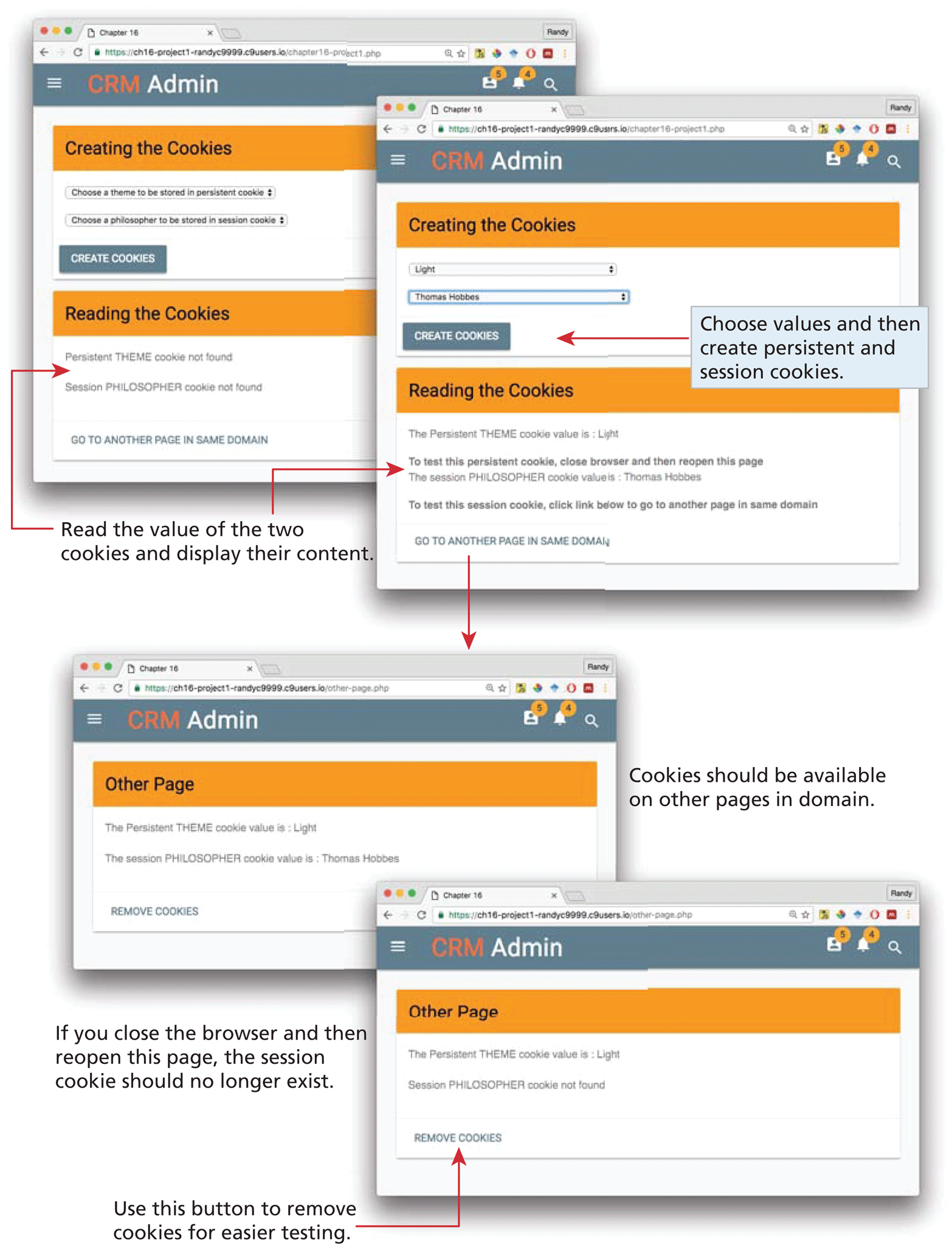
Demonstrate your ability to work with Cookies in PHP. You will create and read both persistent and session cookies, as shown in Figure 15.18.
Figure 15.18 Completed Project 1
Instructions
You have been provided with a starting file named ch15-proj1.php along with a second page named other-page.php. The first file will be used to create the cookies as well as read them; the second page will verify that the cookies are available across other pages in the same domain. Examine the
<form>element in ch15-proj1.php and note that the action is a file named make-cookies.php.Create a new file named make-cookies.php. This file will contain no markup: it will just save the form data (the values of the two
<select>lists) as cookie values.After checking for the existence of the relevant form data, save the theme value as a persistent cookie using the
setcookie()function. Set the expiry to be a day from the current time. You may need to set the domain value, which is the fifth parameter to thesetcookie()function. Save the philosopher value as a session cookie by setting the expiry to 0. After setting the cookies, redirect back to chapter15-project1.php using aheader("Location: chapter15-project1.php") function call.Within the “Reading the Cookie” card in chapter15-project1.php, read and display the contents of these two cookies. Be sure to display an appropriate message of the cookies are not available (see Figure 15.18).
Add the same read and display cookie code to other-page.php. Notice that the link for Remove Cookies is for a file named remove-cookie.php.
Create a new file named remove-cookie.php. This file will contain no markup: it will just remove the cookies. To do this, use the
unset()function on the two cookie values within the$_COOKIESarray. As well, use thesetcookie()function but with an expiry date in the past. Afterwards, redirect to ch15-proj1.php.
Guidance and Testing
You may need to close the browser entirely to test your session cookies.
Project 2: Art Store
Difficulty Level: Intermediate
Overview
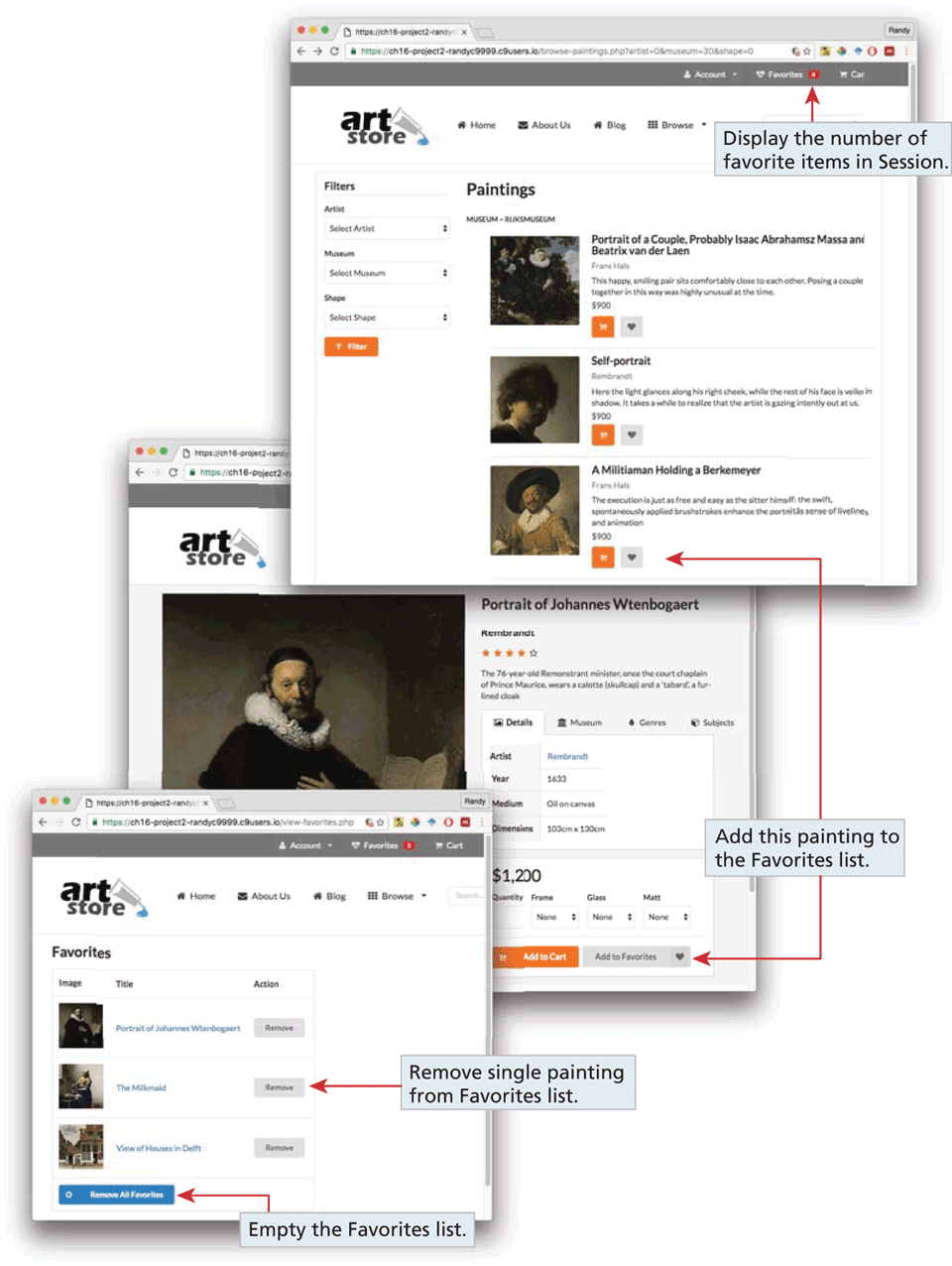
Building on the PHP pages already created in earlier chapters, you will add the functionality to implement a favorite paintings list using a session variable, as shown in Figure 15.19.
Figure 15.19 Completed Project 2
Instructions
Begin by finding the project folder you have created for the Art Store. Session integration requires adding the
session_start()function call to all pages that will use session data.Both browse-painting.php and single-painting.php contain Add to Favorites links styled as buttons. Modify these links so that clicking on them will take the user to addToFavorites.php. These links need to provide indicate which painting to add to the favorites list via a query string. To make our view favorites page easier to implement, include the
PaintingID,ImageFileName, andTitlefields in the query string.Create a new file named addToFavorites.php that will handle a GET request to add a painting to the favorites list. This file will contain no markup: it will check for the existence of the relevant query string fields, and then add the painting information to session state.
The favorites list will be represented as an array of arrays. Each favorite item will be an array that contains the
PaintingID,ImageFileName, andTitlefields for the painting. You will need to retrieve the favorites array from session state (or create it as a blank array if it doesn’t exist), and then add the array for the new favorite item to the favorites array. You must then store the modified favorites array back in session state. After this, redirect to view-favorites.php using theheader()function.Modify the view-favorites.php page so that it displays the content of the favorites list in a table. For each painting in the favorites list, display a small version of the painting (from the images/art/works/small-square folder) and its title. Make the title a link to single-painting.php with the appropriate querystring.
Change the button links that will remove each painting from the favorites list as well as the button link to empty all the favorites from the list. These will be links to remove-favorites.php; for the remove single painting links, the
PaintingIDof the painting to remove will be provided as a query string parameter.Create a new file named, remove-favorites.php that will handle a GET request to remove a single painting to the favorites list (or remove all paintings). This file will contain no markup: it will check for the existence of the relevant query string fields and then remove the specified paintings from the favorites array in session state. After removing, redirect back to the view-favorites.php page.
Modify the art-header.inc.php file to display a count of the items in the favorites list. Use the class “ui red mini label.”
Guidance and Testing
Use the browse-painting.php page as the starting point. Test the add to favorites functionality with the browser. Click on any painting to view the single-painting.php page and test the add to favorites functionality. Add several items to the list.
Test the remove functionality.
15.6.4 References
1. PHP, “setcookie.” [Online]. http:/
/ www.php.net/ manual/ en/ function.setcookie.php. 2. PHP, “Session Handling.” [Online]. http:/
/ ca1.php.net/ manual/ en/ book.session.php. 3. PECL, “PECL PHP Extensions.” [Online]. http:/
/ pecl.php.net/ .