9.4 Event Types
There are many different types of events that can be triggered in the browser. Perhaps the most obvious event is the click event, but JavaScript and the DOM support several others. In actuality, there are several classes of event, with several types of events within each class specified by the W3C. Some of the most commonly used event types are mouse events, keyboard events, touch events, form events, and frame events.
9.4.1 Mouse Events
Mouse events are defined to capture a range of interactions driven by the mouse. These can be further categorized as mouse click and mouse move events. Table 9.6 lists some of the possible events one can listen for from the mouse.
Table 9.6 Mouse Events in JavaScript
| Event | Description |
|---|---|
click |
The mouse was clicked on an element. |
dblclick |
The mouse was double clicked on an element. |
mousedown |
The mouse was pressed down over an element. |
mouseup |
The mouse was released over an element. |
mouseover |
The mouse was moved (not clicked) over an element. |
mouseout |
The mouse was moved off of an element. |
mousemove |
The mouse was moved while over an element. |
Interestingly, many mouse events can be sent at a time. The user could be moving the mouse off of one <div> and onto another in the same moment, triggering mouseon and mouseout events as well as the mousemove event. The Cancelable and Bubbles properties of the event object can be used to handle these complexities. The nearby Extended Example provides a practical example illustrating the use of mouse events.
9.4.2 Keyboard Events
Keyboard events are often overlooked by novice web developers, but are important tools for power users. Table 9.7 lists the most common keyboard events.
Table 9.7 Keyboard Events in JavaScript
| Event | Description |
|---|---|
keydown |
The user is pressing a key (this happens first). |
keyup |
The user releases a key that was down (this happens last). |
These events are most useful within input fields. We could, for example, validate an email address, or send an asynchronous request for a dropdown list of suggestions with each key press.
We could listen to key press events for an input box with an id of key and echo each pressed key back to the user as shown in Listing 9.7.
Listing 9.7 Listener that hears and alerts key presses
document.getElementById("key").addEventListener("keydown",
  function (e) {
     // get the raw key code
     let keyPressed=e.key;
     // convert to string
     let character=String.fromCharCode(keyPressed);
     alert("Key " + character + " was pressed");
});
9.4.3 Form Events
Forms are the main means by which user input is collected and transmitted to the server. Table 9.8 lists several of the most common form events.
Table 9.8 Form Events in JavaScript
| Event | Description |
|---|---|
blur |
Triggered when a form element has lost focus (i.e., control has moved to a different element), perhaps due to a click or Tab key press. |
change |
Some <input>, <textarea>, or <select> field had their value change. This could mean the user typed something, or selected a new choice. |
focus |
Complementing the blur event, this is triggered when an element gets focus (the user clicks in the field or tabs to it). |
reset |
HTML forms have the ability to be reset. This event is triggered when that happens. |
select |
When the users selects some text. This is often used to try and prevent copy/paste. |
submit |
When the form is submitted this event is triggered. We can do some prevalidation of the form in JavaScript before sending the data on to the server. |
The events triggered by forms allow us to do some timely processing in response to user input. The most common JavaScript listener for forms is the submit event. In Listing 9.8, we listen for that event on a form with id loginForm. If the password field (with id pw) is blank, we prevent submitting to the server using preventDefault() and alert the user. Otherwise we do nothing, which allows the default event to happen (submitting the form). Section 9.5 will examine form event handling in more detail.
Listing 9.8 Handling the submit event
document.querySelector("#loginForm").addEventListener("submit",   function(e) {
    let pass = document.querySelector("#pw").value;
    if (pass=="")  {
         alert ("enter a password");
         e.preventDefault();
    }
});
9.4.4 Media Events
Media events are those connected to the <audio> and <video> elements. Table 9.9 lists some of the events available for working with these two media elements.
Table 9.9 Media Events in JavaScript
| Event | Description |
|---|---|
ended |
Triggered when playback of audio or video element is completed. |
pause |
Triggered when playback is paused. |
play |
Triggered when playback is no longer paused. |
ratechange |
Triggered when playback speed changes. |
volumechange |
Triggered when audio volume has changed. |
9.4.5 Frame Events
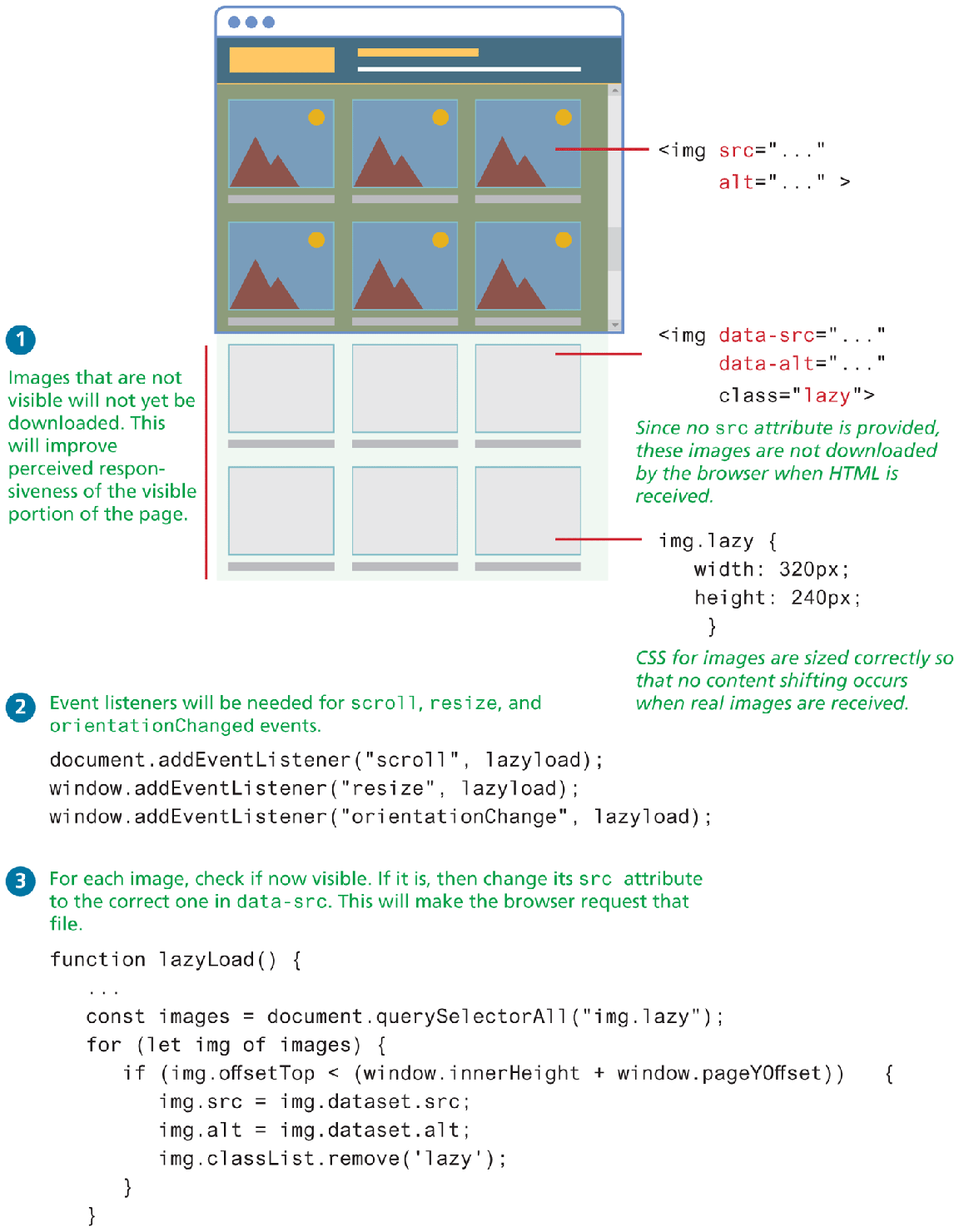
Frame events (see Table 9.10) are the events related to the browser frame that contains your web page. You have already encountered load and DOMContentLoaded events back in Section 9.3.2 on page loading. Another commonly used frame event in real-world web sites is the scroll event. Have you visited a site with multiple images but those images don’t appear until you scroll the browser? This approach that defers the loading (i.e., the requesting) of images until they are needed is often referred to as lazy loading, and is an important approach in creating performant web sites that contain a large number of images. Figure 9.17 illustrates lazy loading and how some coding around the scroll, resize, and orientationchange events achieves this effect.
Table 9.10 Frame Events in JavaScript
| Event | Description |
|---|---|
abort |
An object was stopped from loading. |
error |
An object or image did not properly load. |
load |
When window content is fully loaded. |
DOMContentLoaded |
When DOM elements in document are loaded. |
orientationchange |
The device‘s orientation has changed from portrait to landscape, or vice-versa. |
resize |
The document view was resized. |
scroll |
The document view was scrolled. |
unload |
The document has unloaded. |
Figure 9.17 Lazy loading via frame events
 Pro Tip
The recent Intersection Observer API provides an alternative approach for determining the visibility of an element that doesn’t require the sometimes tricky math involved in determining if an element is visible. However, this API has only been supported widely by modern browsers since the autumn of 2018.