8.7 Objects
Objects are essential to most programming activities in JavaScript. We have already encountered a few of the built-in objects in JavaScript, namely, arrays along with the Math, Date, and document objects. In this section, we will learn how to create our own objects and examine some of the unique features of objects within JavaScript.
In JavaScript, objects are a collection of named values (which are called properties in JavaScript). Almost everything within JavaScript is an object (or can be treated as an object). Unlike languages such as C++ or Java, objects in JavaScript are not created from classes. Instead, we could say that JavaScript is a prototype-based language, in that new objects are created from already existing prototype objects, an idea that we will examine in Chapter 10. While ES6 added classes to JavaScript, as you will learn in Chapter 10, they are not classes like in these other languages, but only an alternative syntax for defining prototypes.
8.7.1 Object Creation Using Object Literal Notation
JavaScript has several ways to instantiate new objects. The most common way is to use object literal notation (which we also saw earlier with arrays). In this notation, an object is represented by a list of key-value pairs with colons between the key and value, with commas separating key-value pairs, as shown in the following example:
const objName = {
    name1: value1,
    name2: value2,
    // ...
    nameN: valueN
};
To reference this object’s properties, we can use either dot notation or square bracket notation. For instance, in the object just created, we can access the first property using either of the following:
objName.name1
objName["name1"]
Which of these should you use? Generally speaking, you will want to use dot notation since it is easier to type and read. However, if you need to dynamically access a property of an object whose name is unknown at design time (i.e., will be determined at runtime), then square bracket notation will be needed. Also, if a property name has a space or hyphen or other special character, then square bracket notation will also be needed.
It should be stressed that properties can be added at any time to any object. Indeed, even variables of primitive types can have properties added to them. In such a case, the primitive is temporarily coerced into its object form. This can lead, however, to some unusual behavior as can be seen in Listing 8.8.
Listing 8.8 Coercion of primitives to objects
// hello1 is a string literal
let hello1 = "hello";
// hello2 is a string object
let hello2 = new String("hello");

// hello1 is temporarily coerced into a string object
hello1.french = "bonjour";
// hello2 is already an object so new property can be added to it
hello2.french = "bonjour";

// displays undefined because hello1 is back to being a primitive
console.log(hello1.french);
// displays bonjour
console.log(hello2.french);
8.7.2 Object Creation Using Object Constructor
Another way to create an instance of an object is to use the Object constructor, as shown in the following:
// first create an empty object
const objName = new Object();
// then define properties for this object
objName.name1 = value1;
objName.name2 = value2;
You may wonder if it is possible to create empty objects with literal notation as well. The answer is yes, and the technique is as follows:
// create an empty object using literal notation
const obj2 = {};
It should be noted that there really is no such thing as an “empty object” in JavaScript. All objects inherit a set of properties from the Object.prototype property. We will learn more about this in Chapter 10 when we cover prototypes.
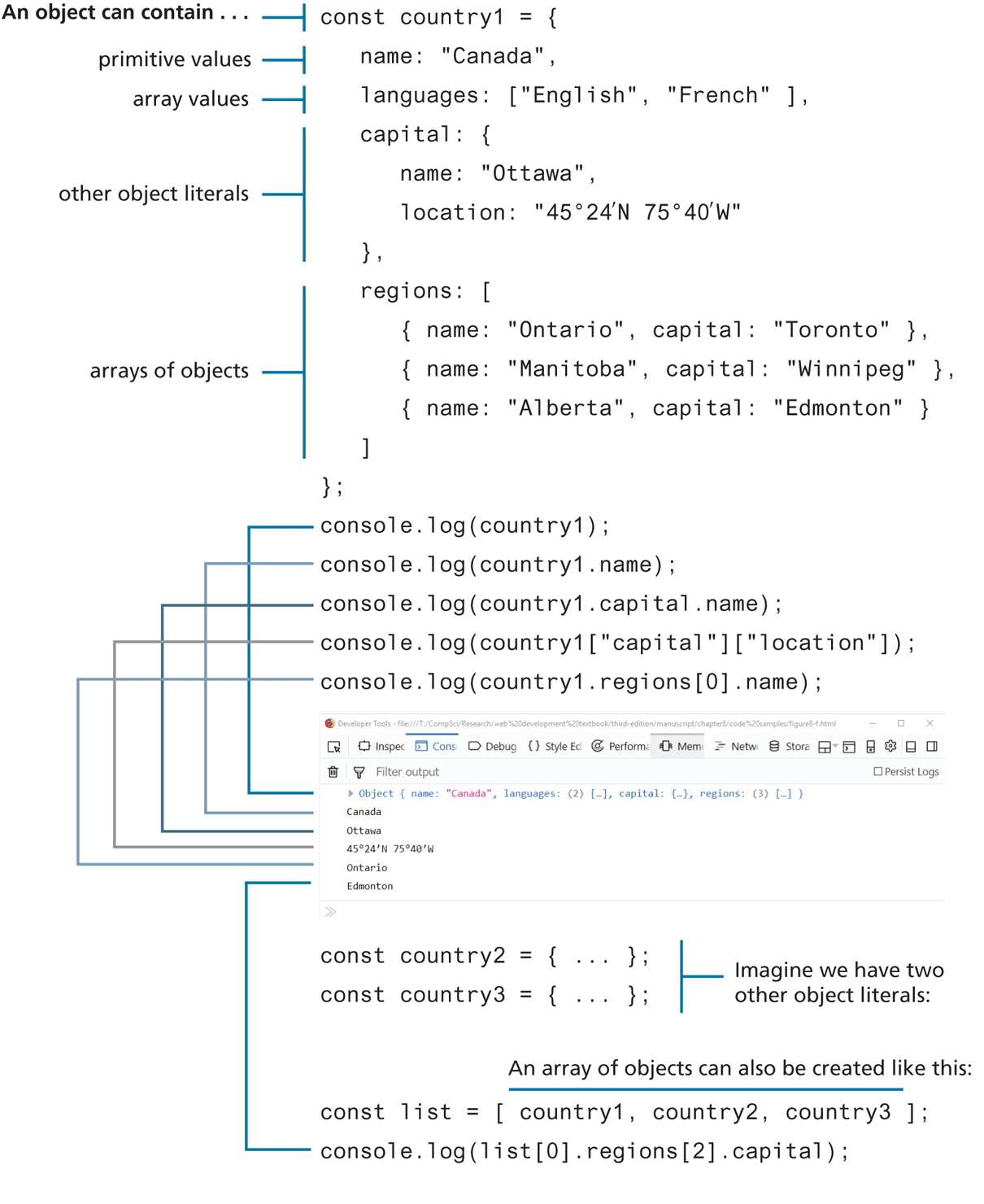
So which of these notations should you use? Generally speaking, object literal notation is preferred in JavaScript over the constructed form. Many programmers feel that the literal notation is easier to read and quicker to type. Literal notation is also quicker to execute since there is no need to perform scope resolution (which we will cover in the next section). Another benefit of the literal form is that it makes it clearer that objects are simply collections of name-value pairs and not something that gets created from some type of class. Also, it is common for objects to contain other objects, and this approach is much easier to create using literal notation. For instance, Figure 8.14 illustrates how objects can contain primitive values, arrays, other objects, and arrays of objects.
Figure 8.14 Objects containing other content
There is another (and very important) technique for creating objects called the constructor function approach. But before we can cover that approach, we must first learn more about functions in Section 8.8.
8.7.3 Object Destructuring
Just as arrays can be destructured using spread syntax, so too can objects. Let’s begin with the following object literal definition.
const photo = {
    id: 1,
    title: "Central Library",
    location: {
       country: "Canada",
       city: "Calgary"
    }
};
One can extract out a given property using dot or bracket notation as follows.
let id = photo.id;
let title = photo["title"];
let country = photo.location.country;
let city = photo.location["country"];
The equivalent assignments using object destructuring syntax would look like the following:
let { id,title } = photo;
let { country,city } = photo.location;
These two statements could be combined into a single one:
let { id, title, location: {country,city} } = photo;This statement could be read as “Populate the variable id, title, and from location populate the variable country and city.”
JavaScript will match the variable names with identically named properties in the object being destructured. It is possible to specify different names for the extracted variables, as shown in the following:
let { id:photoId, location: {city:photoCity} } = photo;
// this is equivalent to
let photoId = photo.id;
let photoCity = photo.location.city;
Spread Syntax and Object Destructuring
You can also make use of the spread syntax to copy contents from one array into another. Using the photo object from the previous section, we could copy some of its properties into another object using spread syntax:
const foo = { name:"Bob", ...photo.location, iso:"CA" };This is equivalent to:
const foo = {
  name:"Bob", country:"Canada", city:"Calgary", iso:"CA"
};
It should be noted that this is a shallow copy, in that primitive values are copied, but for object references, only the references are copied. Listing 8.9 demonstrates how foo only receives a copy of the array reference via the spread operator, not the array itself.
Listing 8.9 Shallow copies using spread syntax
const obj1 = { names:["bob","sue","max"], age: 23 };
const obj2 = { company: "IBM", year: 2020 };
// will use spread syntax to make shallow copies
const foo = { ...obj1, ...obj2 };

console.log(foo.names[1]); // outputs "sue"
console.log(foo.company);  // outputs "IBM"

obj1.names[1] = "randy";
obj2.company = "Apple";

console.log(foo.names[1]); // outputs "randy"
console.log(foo.company);  // still outputs "IBM"
8.7.4 JSON
There is a variant of object literal notation called JavaScript Object Notation or JSON which is used as a language-independent data interchange format analogous in use to XML. The main difference between JSON and object literal notation is that property names are enclosed in quotes, as shown in the following example:
// this is just a string though it looks like an object literal
const text = '{ "name1" : "value1",
               "name2" : "value2",
               "name3" : "value3"
             }';
Notice that this variable is set equal to a string literal that contains an object definition in JSON format (but is still just a string). To turn this string into an actual JavaScript object requires using the built-in JSON object.
// this turns the JSON string into an object
const anObj = JSON.parse(text);
// displays "value1"
console.log(anObj.name1);
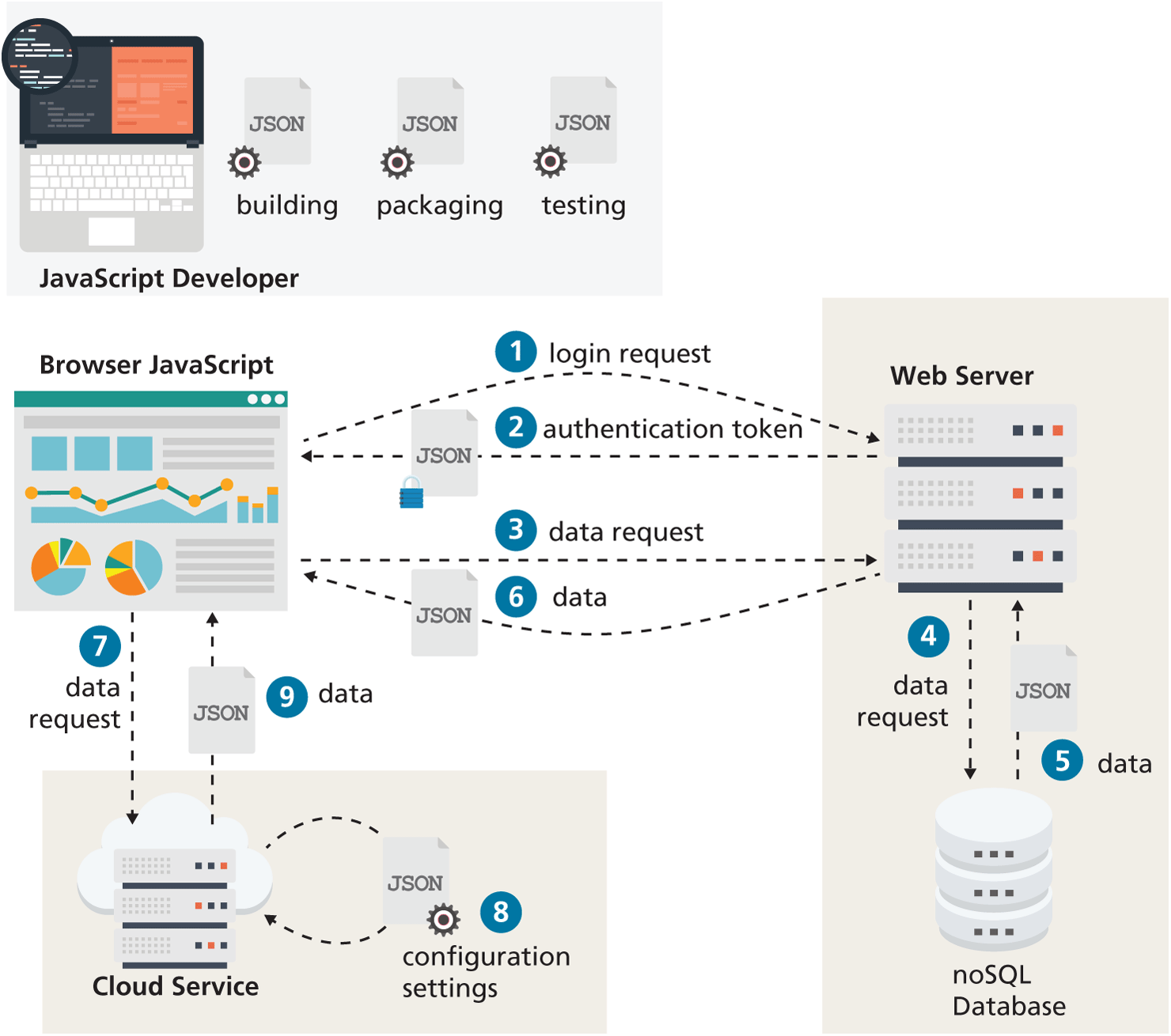
You might wonder why one would do such a thing. As you can see in Figure 8.15, JSON is encountered frequently in contemporary web development. It is used by developers as part of their workflow, and most importantly, many web applications receive JSON from other sources, like other programs or websites, and parse the JSON into JavaScript objects. This ability to interact with other web-based programs or sites will be covered in more detail in Chapter 10 when we consume web APIs.
Figure 8.15 JSON in contemporary web development
Until then, you can use external JSON files to provide data to your sample pages. However, you can’t simply include and use a JSON data file; instead, you will have to turn the JSON array into a string variable (typically using template string literals), which will require adding the following code to the JSON file:
// this turns the JSON array into a string variable
const content = `
[
  {
     "id": 534,
     "title": "British Museum",
     ...
  },
  { ... },
  ...
]
`;
You can include the external JSON file using the <script> tag, as shown in the following:
<!-- in your HTML file -->
<script src="js/photos.json"></script>
<script src="js/ex14.js"></script>
Then in your Javascript code (in .js/ex14.js), you can convert the JSON string into an actual array using JSON.parse():
const photos = JSON.parse(content);

// you can now make use of the data array
console.log(photos[0].id);
for (let ph of photos) {
  console.log(ph.title);
}
Test Your Knowledge #4
In this Test Your Knowledge, you will be working with objects and arrays. You will use a variety of array manipulation functions along with loops and conditionals.
The starting files lab08-test04.html, lab08-test04.js, and data.js have been provided. You will be editing lab08-test04.js.
Examine data.js to see the data variables you will be manipulating.
Modify lab08-test04.js and implement the following tasks. For each task, output the transformed array or string via
console.log. Use the online Mozilla Documentation1 for usage information about the various array functions.Create a new variable named
countrieswhose value is an array returned from thesplit()function. Pass the suppliedcsvvariable as an argument tosplit().Convert the
countriesarray into the delimited string usingjoin().Output if
csvandcountriesare arrays usingisArray().Sort the
countriesarray usingsort().Reverse the sort using
reverse().Remove the first element in
countriesusingshift().Remove the last element in
countriesusingpop().Add two new elements to the front of the array using
unshift().Search for the country named Germany using
includes().Find the index for the country named Germany using
indexOf().Make a new array by extracting from the
countriesarray usingsplice().
Modify lab08-test04.js and implement the following tasks using the other variables in data.js.
Use a loop to output all cities whose
continent=="NA".Use a loop to output gallery name property whose
country=="USA".Convert JSON
colorsAsStringto JavaScript literal object usingJSON.parse().Use a loop to output the color
nameproperty ifluminance < 75.Use two nested loops to output the color name and the sum of the numbers in the
rpgarray.
Modify lab08-test04.js and implement the following task, which will require you to use the
document.write()function to output the necessary markup.Output an unordererd list of links to the galleries in the
galleriesarray. Make the label of the link the name property, and thehrefof the link the theurlproperty.