8.2 Where Does JavaScript Go?
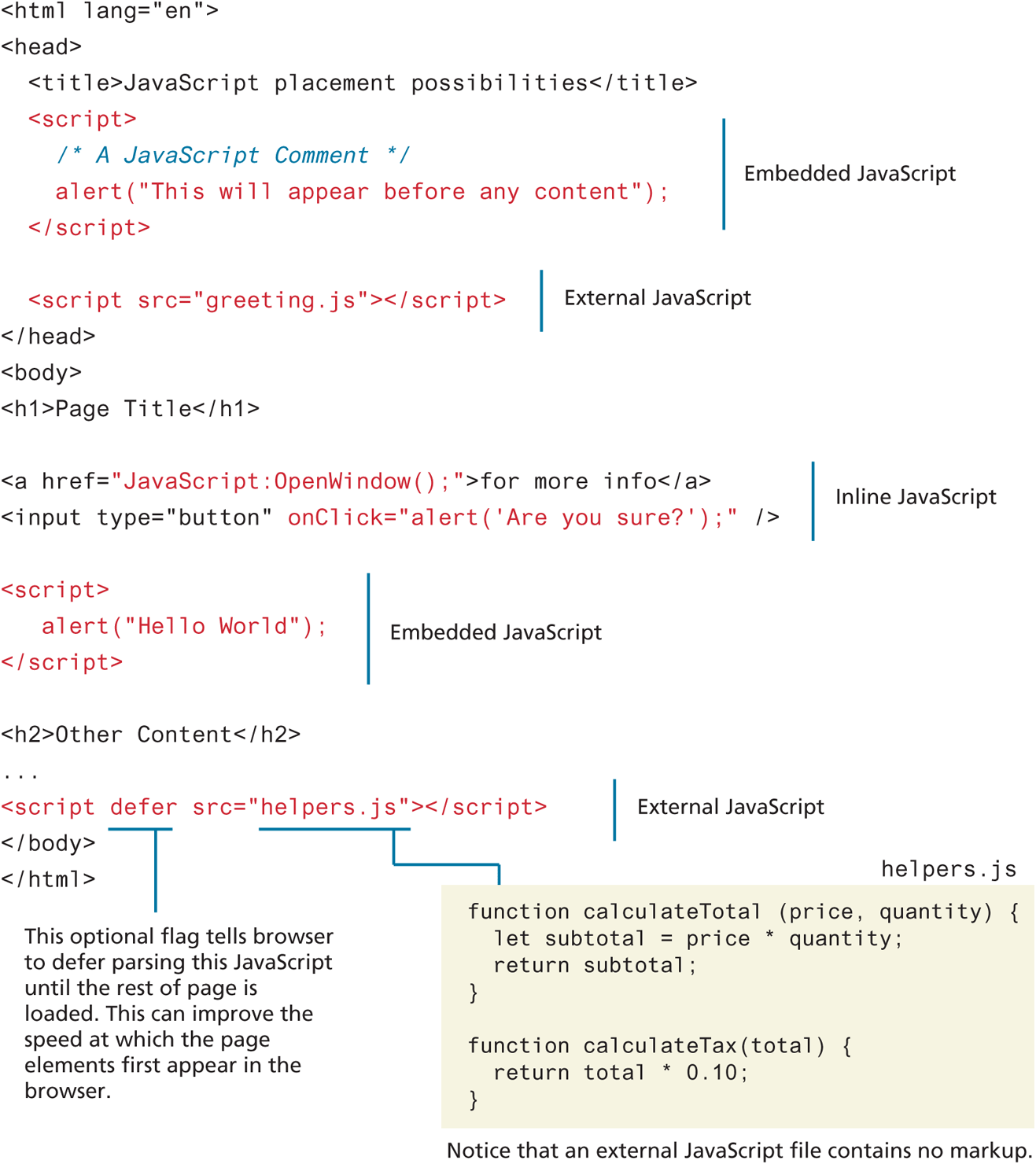
Just as CSS styles can be inline, embedded, or external, JavaScript can be included in a number of ways. Just as with CSS, these can be combined, but external is the preferred method for simplifying the markup page and ease of maintenance. Figure 8.4 illustrates the three different ways JavaScript can be added to an HTML page. Notice that JavaScript can appear in both the <head> and the <body> elements.
Figure 8.4 Adding JavaScript to a page
Running JavaScript scripts in your browser requires downloading the JavaScript code to the browser and then running it. Pages with lots of scripts can potentially run slowly, resulting in a degraded experience while users wait for the page to load. Different browsers manage the downloading and loading of scripts in different ways, which are important things to realize when you decide how to link your scripts.
8.2.1 Inline JavaScript
Inline Javascript refers to the practice of including JavaScript code directly within some HTML element attributes, as can be seen in Figure 8.4. You may recall that in Chapter 4 on CSS, you were warned that inline CSS is in general a bad practice and should be avoided. The same is true with JavaScript. In fact, inline JavaScript is much worse than inline CSS, as maintaining inline JavaScript is a real nightmare, requiring maintainers to scan through almost every line of HTML looking for your inline JavaScript. We strongly discourage you from using inline JavaScript.
8.2.2 Embedded JavaScript
Embedded JavaScript refers to the practice of placing JavaScript code within a <script> element, as shown in Figure 8.4. Like its equivalent in CSS, embedded JavaScript is okay for quick testing and for learning scenarios (e.g., small samples in this book) but is usually avoided. As with inline JavaScript, embedded scripts can be difficult to maintain.
8.2.3 External JavaScript
The recommended way to use JavaScript is to place it in an external file. You do this via the <script> tag as shown in Figure 8.4. By convention, JavaScript external files have the extension .js. Modern websites often have links to several, maybe even dozens, of external JavaScript files (also called libraries). These external files typically contain function definitions, data definitions, and other blocks of JavaScript code.
In Figure 8.4, the links to the external JavaScript file appear both in the <head> and in the <body> elements. Generally speaking, for maintainability reasons, <script> elements are usually placed within the <head> element (and for performance reasons, after any CSS <link> elements). For performance reasons, some scripts are placed at the end of the document, just before the </body> closing tag.
Some of the initial examples in the next chapter place the <script> tag right before the </body> tag for a different reason. Those examples are performing DOM manipulation, which can only occur after the body/document is completely read in. However, once event handling is covered, the <script> tag will move back to the <head>.
 Pro Tip
Just as we saw with CSS in Chapter 7, production sites generally minify their external JavaScript code. Recall that minification refers to the process of removing unnecessary characters such as extra spaces and comments in order to reduce the size of the code and thus reduce the time it takes to download it. Your programming editor may be able to minify your code. There are also numerous websites that can do this task.
Pro Tip
Some high-traffic sites use both embedded styles and embedded JavaScript. Why?
High-traffic sites will embed styles and JavaScript within the HTML to speed up performance by reducing the need for extra HTTP requests. In these cases performance improves because the size of the embedded styles and JavaScript are quite modest.
For most sites and pages, external JavaScript (and CSS) will actually provide the best performance because for frequently visited sites, the external files will more than likely be cached locally by the user’s browser if those external files are referenced by multiple pages in the site.
Thus, if users for a site tend to view multiple pages on that site with each visit, and many of the site’s pages reuse the same scripts and style sheets, then the site will likely benefit from cached external files.
8.2.4 Users without JavaScript
Too often website designers believe (erroneously) that users without JavaScript are somehow relics of a forgotten age, using decade-old computers in a bomb shelter somewhere, philosophically opposed to updating their OS and browsers and therefore not worth worrying about. Users have a myriad of reasons for not using JavaScript; indeed, perhaps the most important users of them all—search engines—are limited in their ability to successfully decode all the JavaScript within many sites. Also, a user may not have JavaScript enabled because they are using a browser extension that blocks it, or they are using a text browser, or they are visually impaired.
The <NoScript> Tag
HTML provides an easy way to handle users who do not have JavaScript enabled: the <noscript> element. Any text between the opening and closing tags will only be displayed to users without the ability to load JavaScript. It is often used to prompt users to enable JavaScript but can also be used to show additional text to search engines.