6.4 Audio and Video
While audio and video have been a significantly important part of the web experience for many users, adding audio and video capabilities to web pages has tended to be an advanced topic seldom covered in most introductory books on web development. A big reason for that is that until HTML5, adding audio or video to a web page typically required making use of additional, often proprietary, plug-ins to the browser. Perhaps the most common way of adding audio and video support until recently was through Adobe Flash (now called Adobe Animate), a technology we will briefly introduce in Chapter 8.
It is possible now with HTML5 to add these media features in HTML without the involvement of any plug-in. Unfortunately, the browsers do not support the same list of media formats, so browser incompatibilities are still a problem with audio and video.
6.4.1 Media Concepts
If you thought that it was confusing that there are three different image file formats, then be prepared for significantly more confusion. There are a lot of different audio and video formats, many with odd and unfamiliar names like OGG and H.264. While this book will not go into the details of the different media formats like it did with the different image formats, it will briefly describe two concepts that are essential to understanding media formats.
The first of these is media encoding (also called media compression). Audio and video files can be very large and thus rely on compression. Videos that are transported across the Internet will need to be compressed significantly more than videos that are transported from a DVD to a player.
Media is encoded using compression/decompression software, usually referred to as a codec (for compression/decompression). There are literally thousands of codecs. As with image formats, different codecs vary in terms of losslessness, compression algorithms, color depth, audio sampling rates, and so on. While the term codec formally refers only to the programs that are compressing/decompressing the video, the term is often also commonly used to refer to the different compression/decompression formats as well. For web-based video, there are three main codecs: H.264, Theora, and VP8. For audio, there are three main audio codecs: MP3, AAC, and Vorbis.
The second key concept for understanding media formats is that of container formats. A video file, for instance, contains audio and images; the container format specifies how that information is stored in a file, and how the different information within it is synchronized. A container then is similar in concept to ZIP files: both are compressed file formats that contain other content.
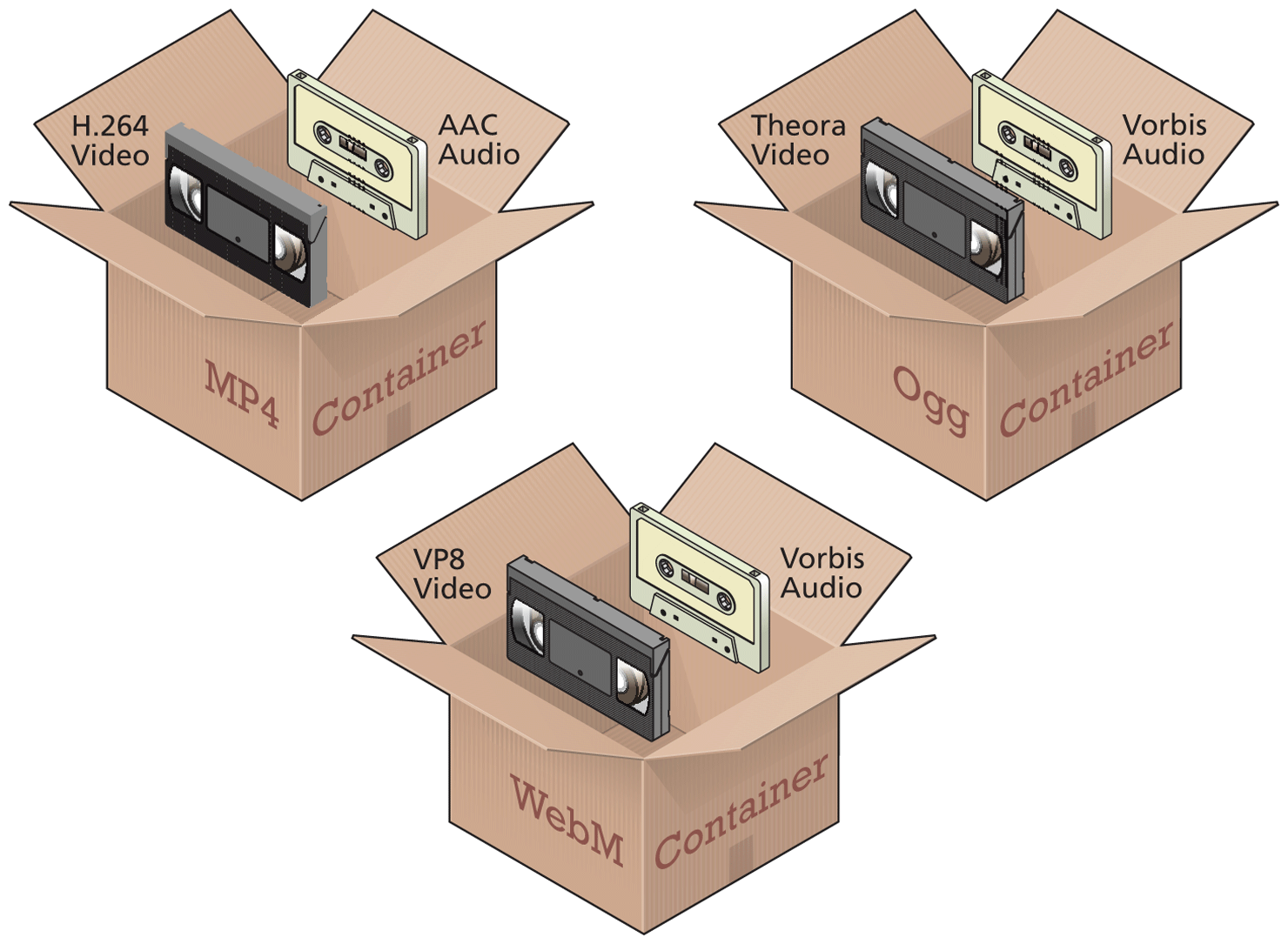
As with codecs, there is a large number of container formats. A given container format may even use different media encoding standards, as shown in Figure 6.33.
Figure 6.33 Media encoding and containers
With this knowledge, we can now understand what happens when you watch a video on your computer. Your video player is actually doing three things for you. It is examining and extracting information from the container format used by the file. It is decoding the video stream within the container using a video codec. And finally, it is decoding the audio stream within the container, using an audio codec and synchronizing it with the video stream.
6.4.2 Browser Video Support
For videos at present, there appear to be three main combinations of codecs and containers that have at least some measure of common browser support.
MP4 container with H.264 Video and AAC Audio. This combination is generally referred to as MPEG-4 and has the .mp4 or .m4v file extension. H.264 is a powerful video codec, but because it is patented and because the browser manufacturer must pay a licensing fee to decode it, not all browsers support it.
WebM container with VP8 video and Vorbis audio. This combination was created by Google to be open-source and royalty free. Files using this combination usually have the .webm file extension.
Ogg container with Theora video and Vorbis audio. Like the previous combination, this one is open-source and royalty free. Files using this combination usually have the .ogv file extension.
Table 6.2 lists the current browser support for these different combinations at the time of writing. Until very recently there was no single video container and codec combination that worked in every HTML5 browser.
Table 6.2 Browser Support for Video Formats (as of Spring 2020)
| Type | Edge | Chrome | FireFox | Safari | Opera | Android |
|---|---|---|---|---|---|---|
| MP4+H.264+AAC | Y | Y | Y | Y | Y | Y |
| WebM+VP8+Vorbis | Y | Y | Y | N | Y | Y |
| Ogg+Theora+Vorbis | Y | Y | Y | N | Y | N |
For the foreseeable future at least, if you intend to provide video in your pages, you will need to serve more than one type. Thankfully, HTML5 makes this a reasonably painless procedure. Figure 6.34 illustrates how the <video> element can be used to include a video in a web page. Notice that it allows you to still use Flash video as a fallback.
Figure 6.34 Using the <video> element
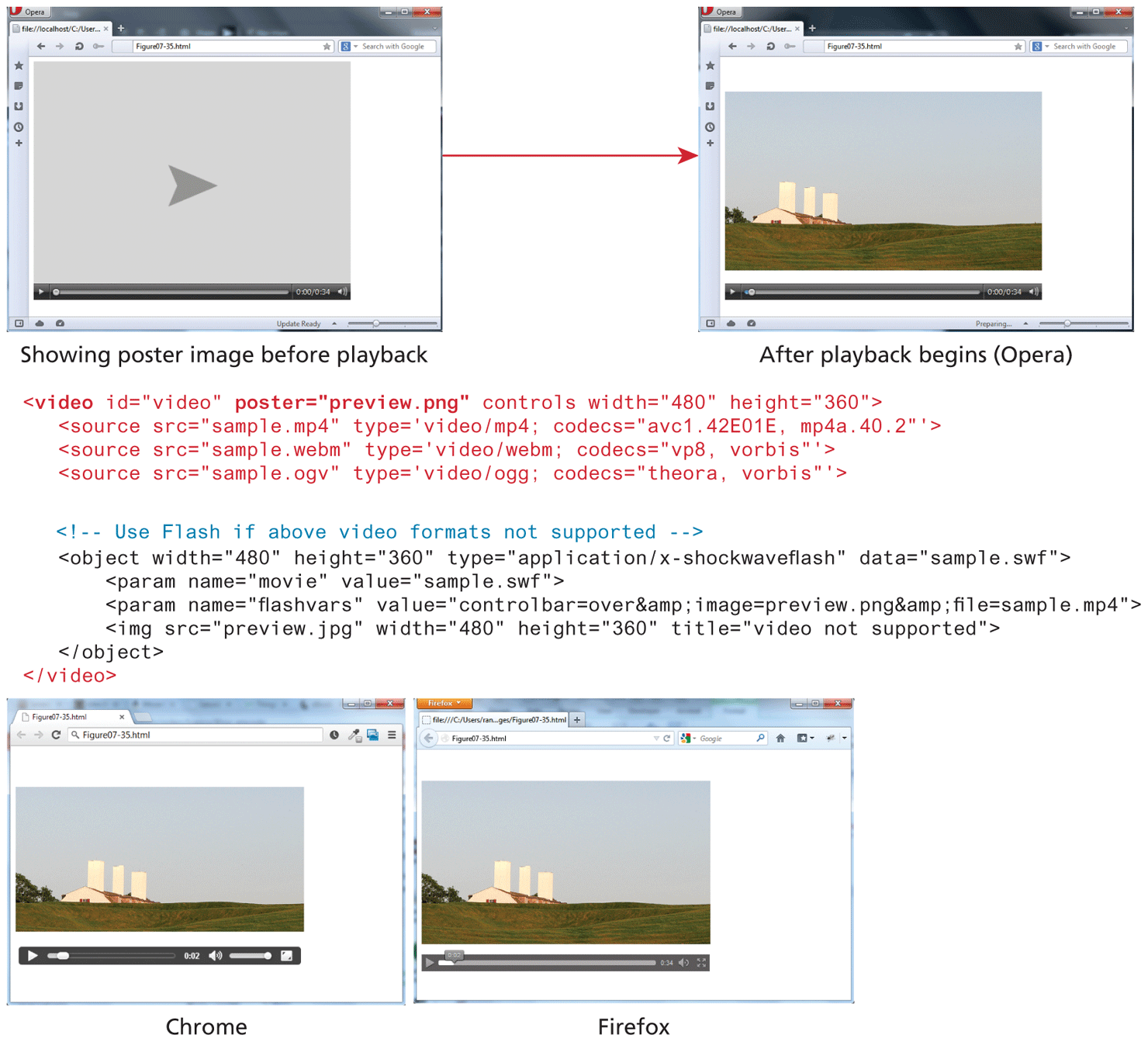
Each browser handles the user interface of video (and audio) in its own way, as shown in Figure 6.34. But because the <video> element is HTML, its elements can be styled in CSS and its playback elements customized or even replaced using JavaScript.
 Pro Tip
To make your video more accessible, you can add the <track> element to the <video> container. This is an optional element that can be used to add subtitles, captions, or text descriptions contained within a WebVTT file.
6.4.3 Browser Audio Support
Audio support is a somewhat easier matter than video support. As with video, there are different codecs and different containers, none of which have complete support in all browsers.
MP3. Both a container format and a codec. It is patented and requires browser manufacturers to pay licensing fees. Usually has the .mp3 file extension.
WAV. Also a container and a codec. Usually has the .wav file extension.
OGG. Container with Vorbis audio. Open-source. Usually has the .ogg file extension.
Web. Container with Vorbis audio. Open-source. Usually has the .webm file extension.
MP4. Container with AAC audio. Also requires licensing. Usually has the .m4a file extension.
Pro Tip
Not every server is configured to serve video or audio files. Some servers will need to be configured to serve and support the appropriate MIME (Multipurpose Internet Mail Extensions) types for audio and video. For Apache servers, this will mean adding the following lines to the server’s configuration file:
AddType audio/mpeg mp3
AddType audio/mp4 m4a
AddType audio/ogg ogg
AddType audio/ogg oga
AddType audio/webm webma
AddType audio/wav wav
AddType video/ogg .ogv
AddType video/ogg .ogg
AddType video/mp4 .mp4
AddType video/webm .webm
For IIS servers, you have to do something similar. Instead of editing a configuration file, you would add these values via the IIS Manager.
Chapter 22 covers MIME types in more detail.
Table 6.3 lists the current support for these different audio combinations at the time of writing.
Table 6.3 Browser Support for Audio Formats (as of Spring 2020)
| Type | Edge | Chrome | FireFox | Safari | Opera | Android |
|---|---|---|---|---|---|---|
| MP3 | Y | Y | Y | Y | Y | Y |
| WAV | Y | Y | Y | Y | Y | Y |
| OGG+Vorbis | Y | Y | Y | N | Y | Y |
| WebM+Vorbis | N | Y | Y | Y | Y | Y |
| MP4+AAC | Y | Y | Partial | Y | Y | Y |
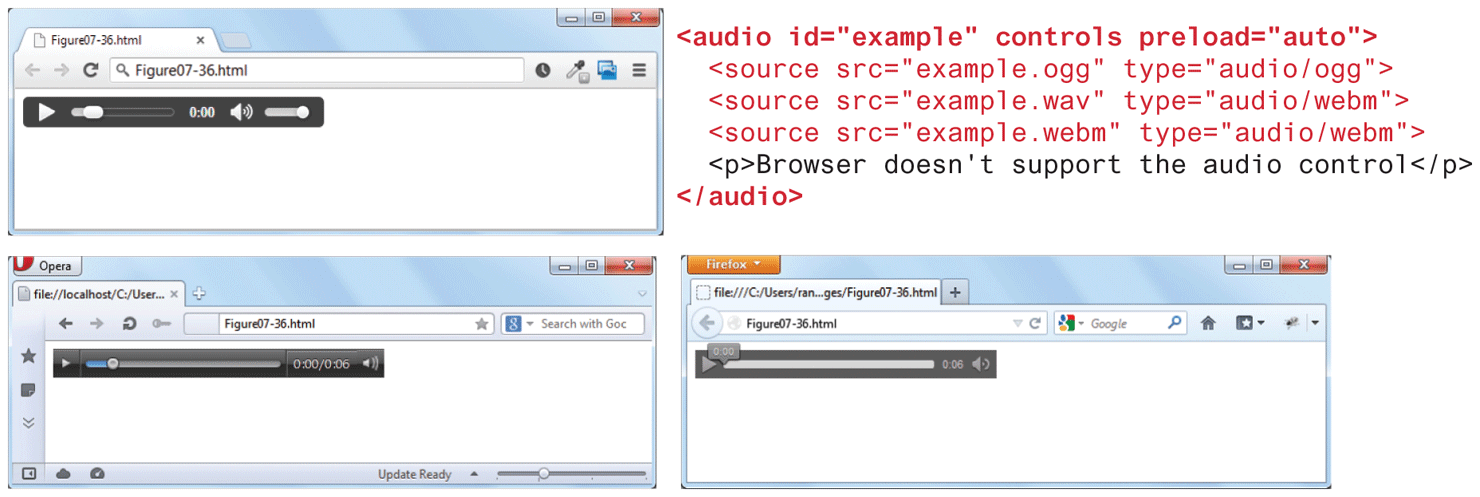
As with video, if you intend to provide audio in your pages, you will need to serve more than one type. Figure 6.35 illustrates the use of the HTML5 <audio> as well as its differing appearance in different browsers. Like the <video> element, the <audio> element can be restyled with CSS and customized using JavaScript.
Figure 6.35 Using the <audio> element
Pro Tip
Another web media element in HTML5 is the <canvas> element, a two-dimensional drawing surface that uses JavaScript coding to perform the actual drawing.
The <canvas> element is often compared to the Flash environment, since it can be used to create animations, games, and other forms of interactivity. Unlike with Flash, which provides a sophisticated interface for drawing and animating objects without programming, creating similar effects using the <canvas> element at present can only be achieved via JavaScript programming. There is a variety of specialized JavaScript libraries such as EaselJS and Fabric.js to aid in the process of creating <canvas> and JavaScript-based sites. Other libraries, such as WebGL, use JavaScript in conjunction with the <canvas> element to create desktop-quality two- and three-dimensional graphics within the browser environment.