6.3 File Formats
In 2010, this would have been a simpler section to write. Back then, there were really only two file formats that had complete cross-browser support: JPEG and GIF. Now there are five image formats. With the retirement of IE6, a third file format, PNG, became available, which over time was meant to replace most of the uses for the GIF format. All recent browsers now support SVG, which is a vector image file format. The new WebP format is also available but is not in supported on iOS Safari, so as a consequence has not been widely adopted.
6.3.1 JPEG
JPEG (Joint Photographic Experts Group) or JPG is a 24-bit, true-color file format that is ideal for photographic images. It uses a sophisticated compression scheme that can dramatically reduce the file size (and hence download time) of the image, as can be seen in Figure 6.21.
Figure 6.21 JPEG file format
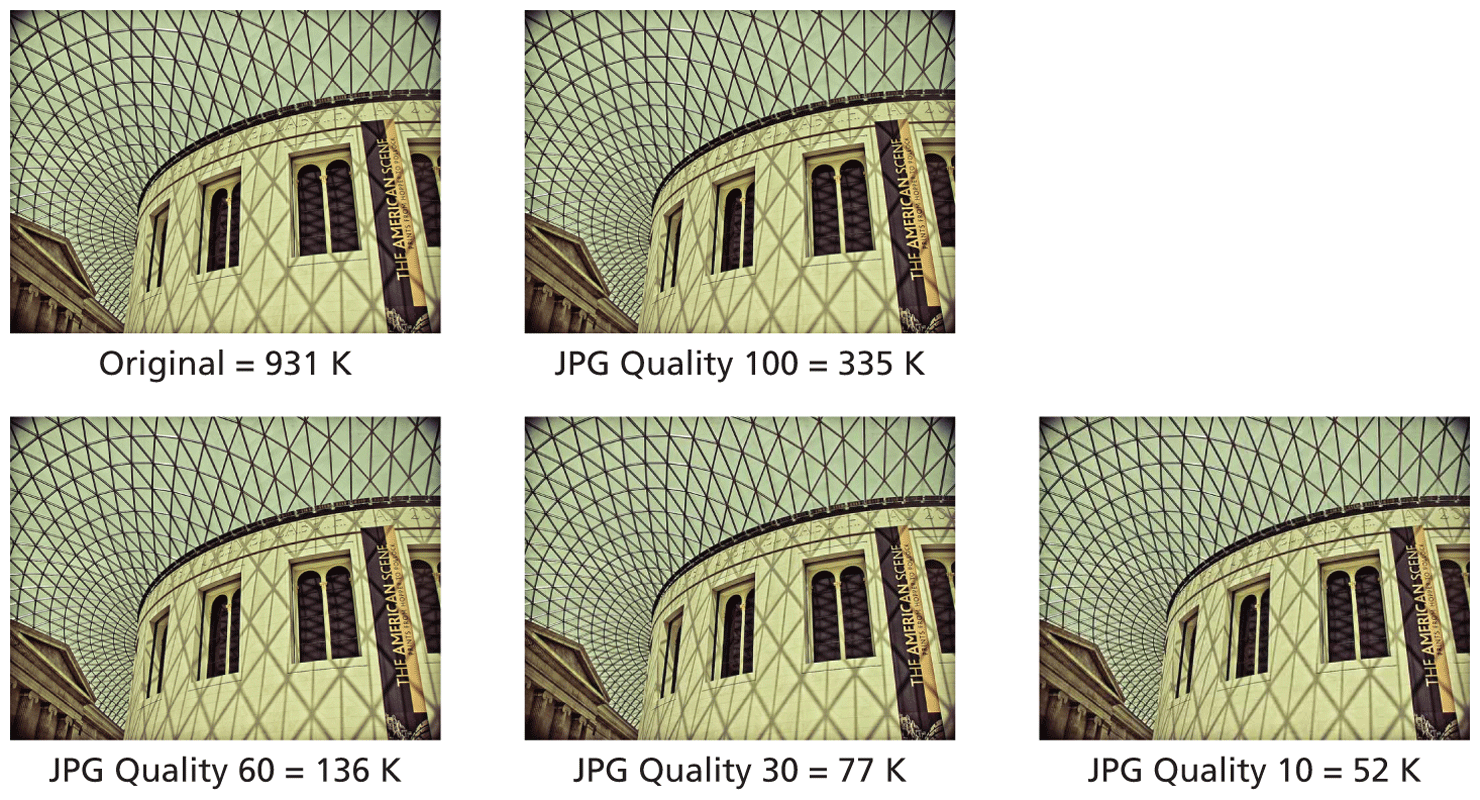
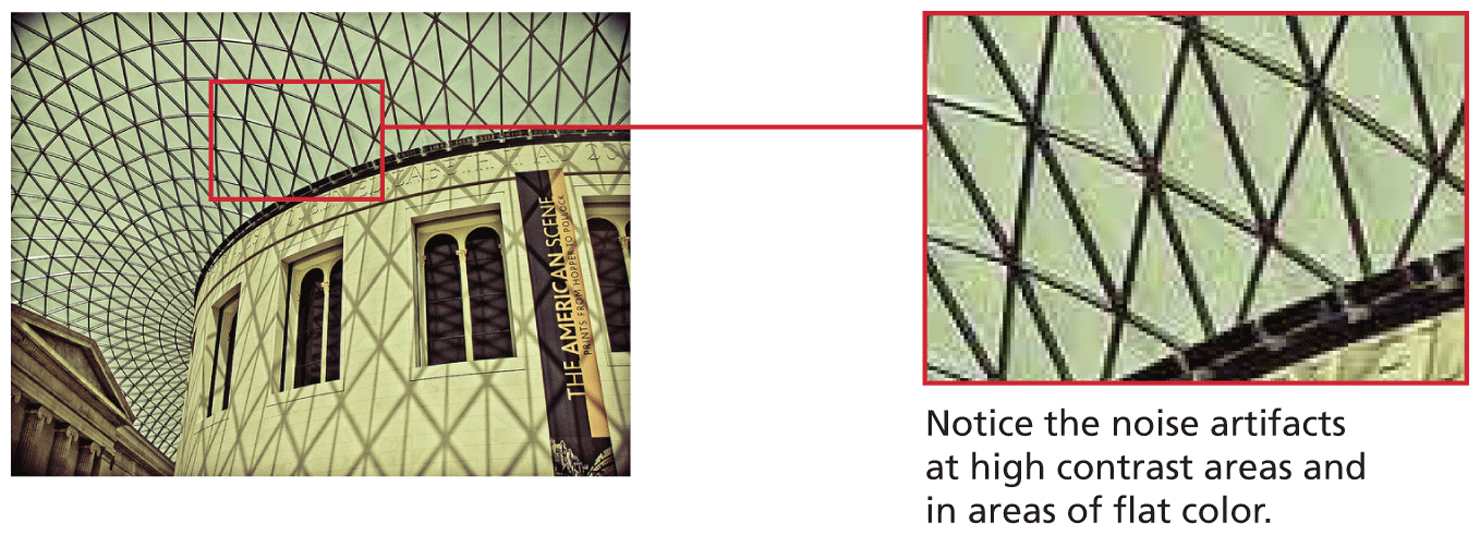
It is, however, a lossy compression scheme, meaning that it reduces the file size by eliminating pixel information with each save. You can control the amount of compression (and hence the amount of pixel loss) when you save a JPEG. At the highest levels of compression, you will begin to see blotches and noise (also referred to as artifacts) appear at edges and in areas of flat color, as can be seen in Figure 6.22.
Figure 6.22 JPEG artifacts
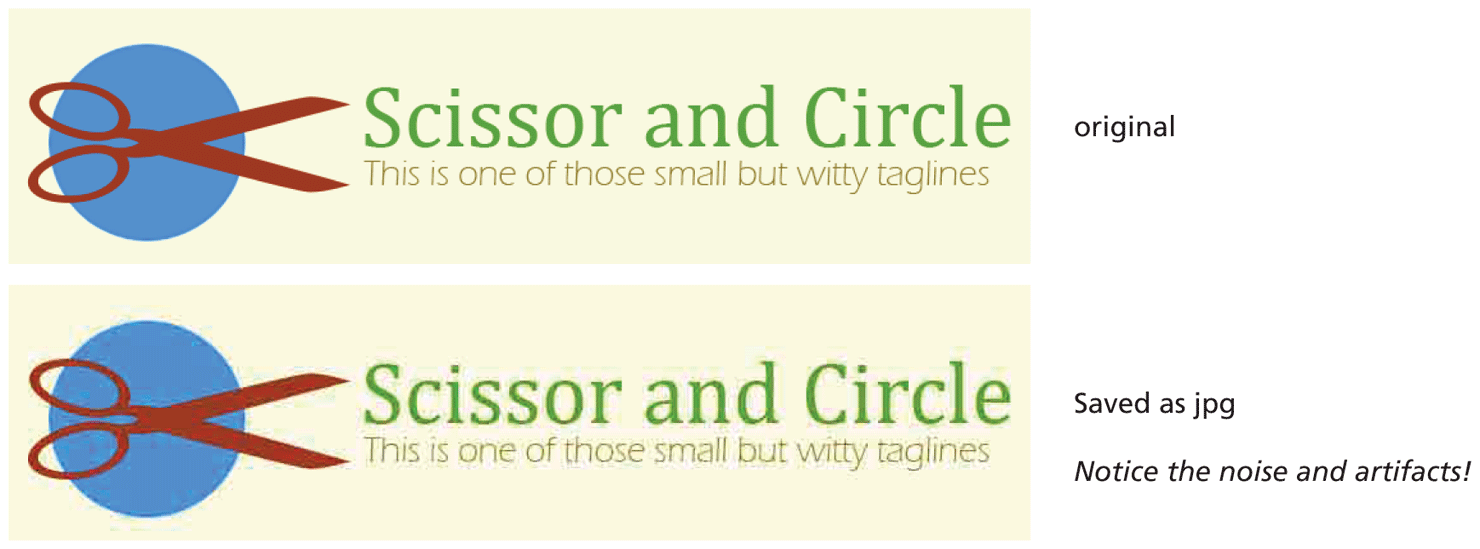
JPEG is the ideal file format for photographs and other continuous-tone images such as paintings and grayscale images. As can be seen in Figure 6.23, the JPEG format is quite poor for vector art or diagrams or any image with a large area of a single color, due to the noise pattern of compression garbage around the flat areas of color and at high-contrast transition areas.
Figure 6.23 JPEG and art work
 Note
Note
Each time you save a JPEG, the quality gets worse, so ideally keep a nonlossy (also called lossless), non-JPG version (such as TIF or PNG) of the original as well.
6.3.2 GIF
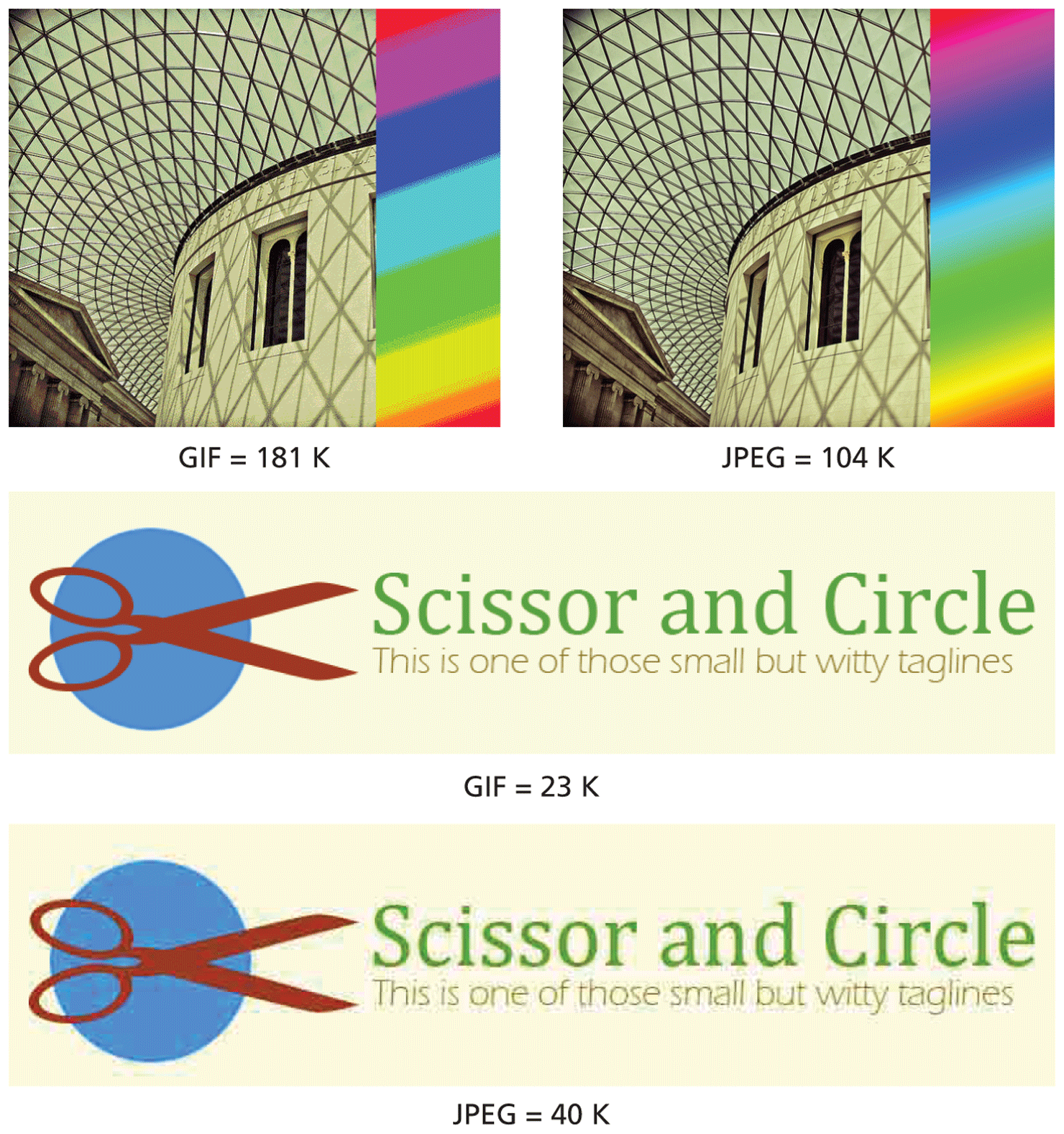
The GIF (Graphic Interchange Format) file was the first image format supported by the earliest web browsers. Unlike the 24-bit JPEG format, GIF is an 8-bit or less format, meaning that it can contain no more than 256 colors. It is ideal for images with flat-bands of color or with limited number of colors; however, it is not very good for photographic images due to the 256-color limit, as can be seen in Figure 6.24.
Figure 6.24 GIF file format
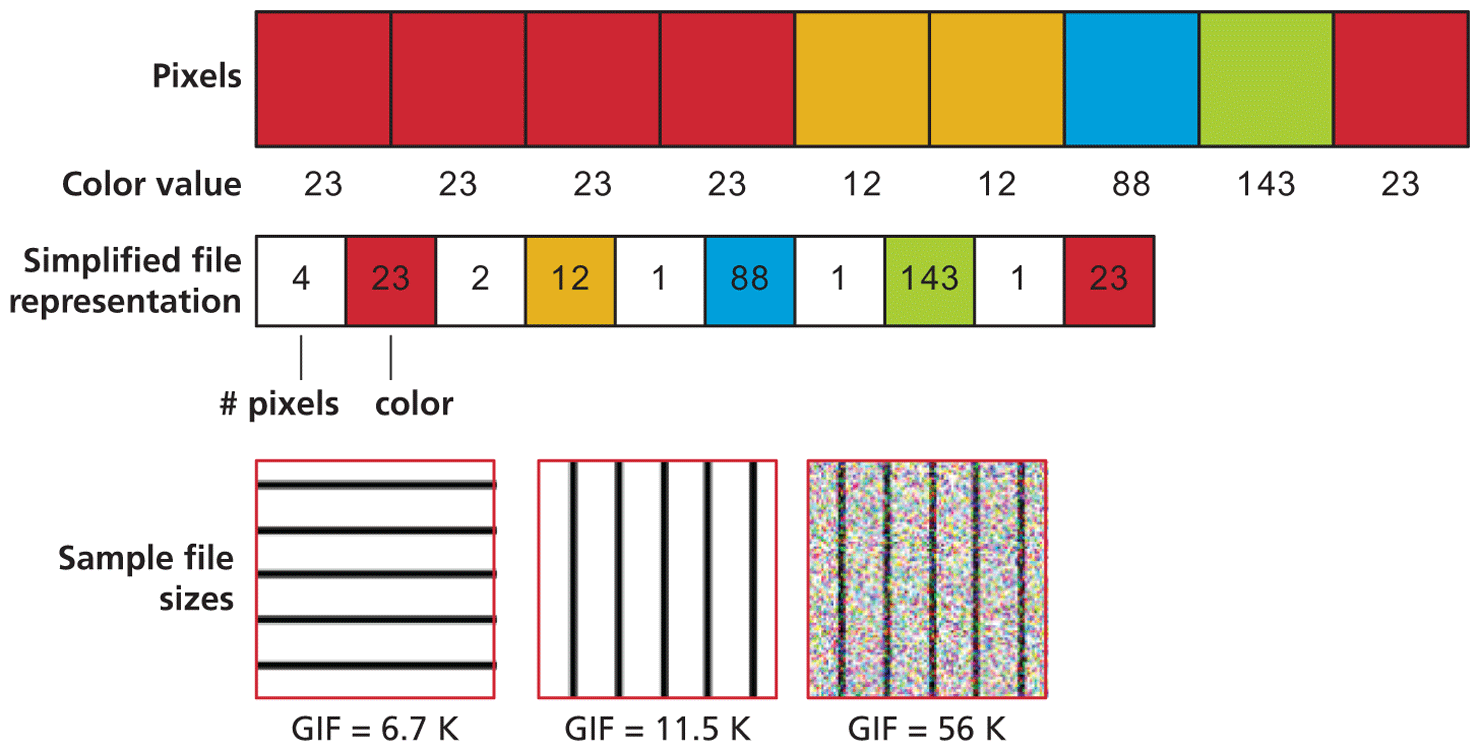
GIF uses a simpler lossless compression system, which means that no pixel information is lost. The compression system, illustrated in Figure 6.25, is called run-length compression (also called LZW compression). As can be seen in Figure 6.25, images that have few horizontal changes in color will be compressed to a much greater degree than images with many horizontal changes. For this reason, GIF is ideal for vector-based art and logos.
Figure 6.25 Run-length compression
8-Bit or Less Color
The GIF file format uses indexed color, meaning that an image will have 256 or fewer colors. You might be wondering which 256 (or fewer) colors? Index color files dedicate 8 bits (or fewer) to each color pixel in the image. Those 8 or fewer bits for each pixel reference (or index) a color that is described in a color palette (also called a color table or color map), as shown in Figure 6.26.
Figure 6.26 Color palette
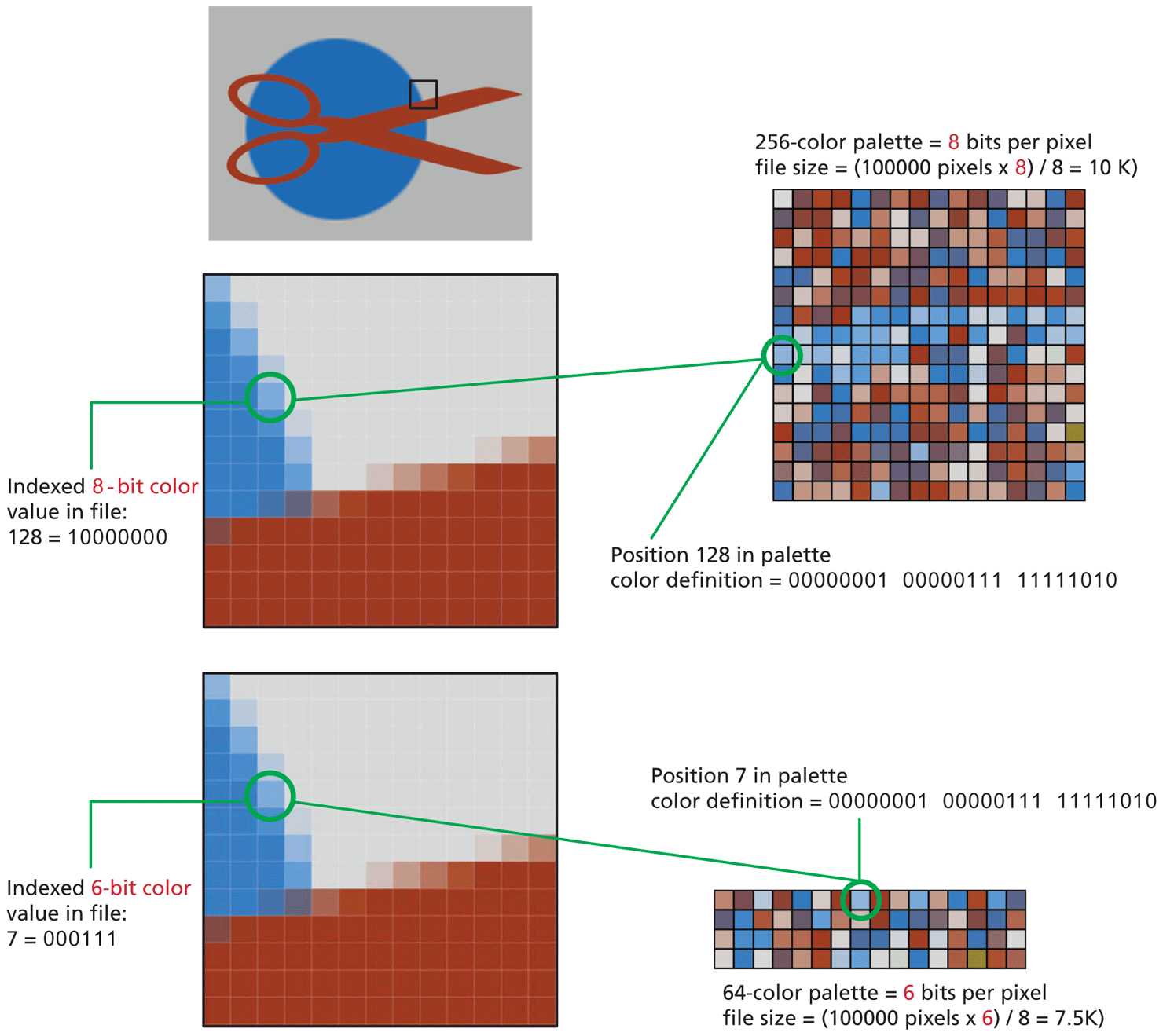
Different GIF files can have different color palettes. Back when most computers displayed only 256 colors, it was common for designers to use the so-called web-safe color palette, which contained the 216 colors that were shared by the Windows and Mac system palettes. While there is less need to use this palette today, one of the strengths of indexed color is that the designer can optimize it to reduce file sizes while maintaining image quality.
For instance, in Figure 6.26, the image being saved as a GIF has relatively few colors so it is a good candidate for GIF optimization. At first glance the image appears to consist of only three colors, but that isn’t in fact true; if you zoom in to the edges, you can see that there are indeed many more than three colors.
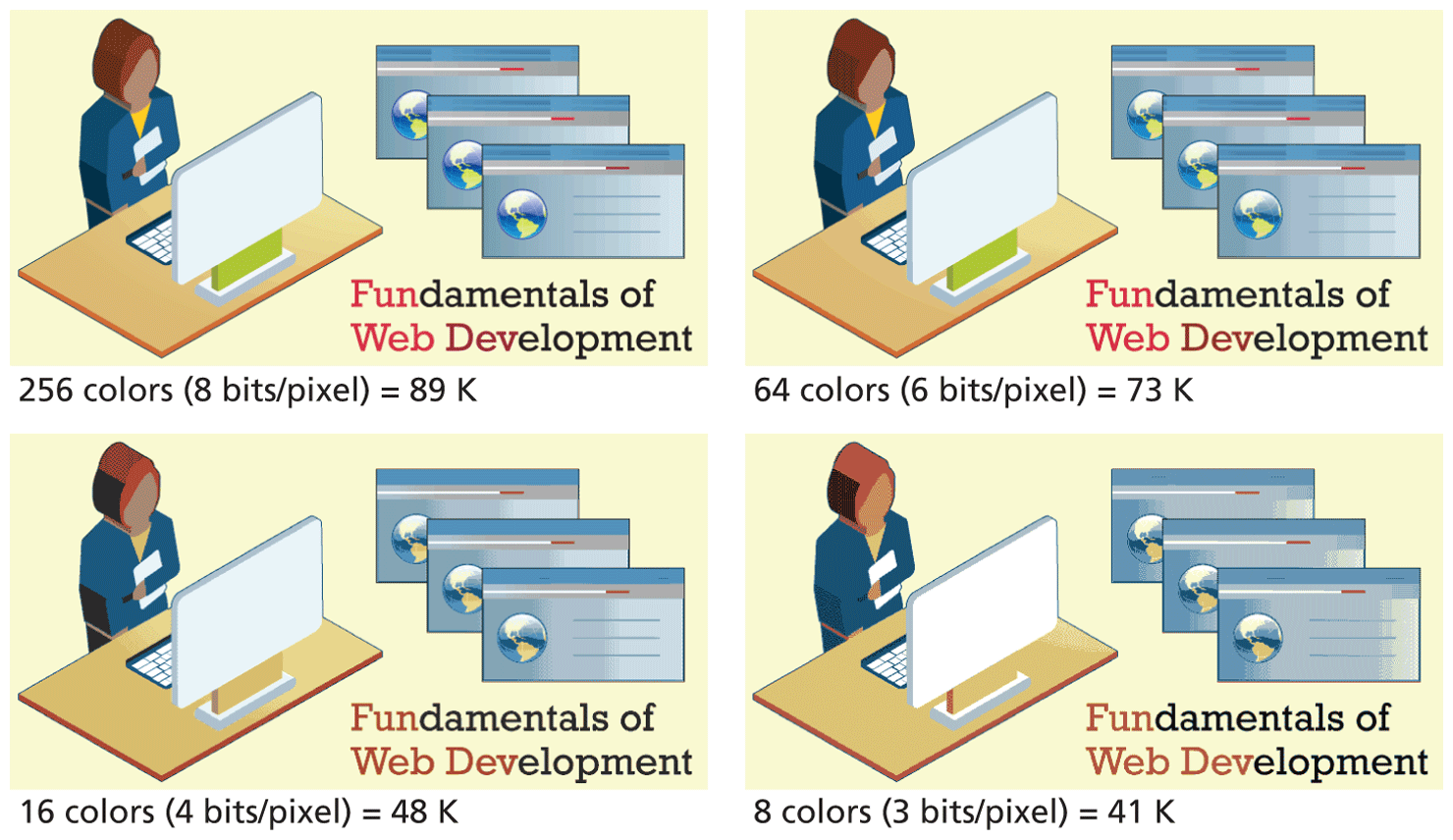
Optimizing GIF images is thus a trade-off between trying to reduce the size of the file as much as possible while at the same time maintaining the image’s quality. As can be seen in Figure 6.27, you eventually reach a point of diminishing returns, where the file size savings are too small, and where the image quality begins to suffer as well. Though it may be difficult to tell with the printed version of the image in Figure 6.27, when viewed in a browser, the image quality starts to noticeably suffer around 5 bits per pixel.
Figure 6.27 Optimizing GIF images
Transparency
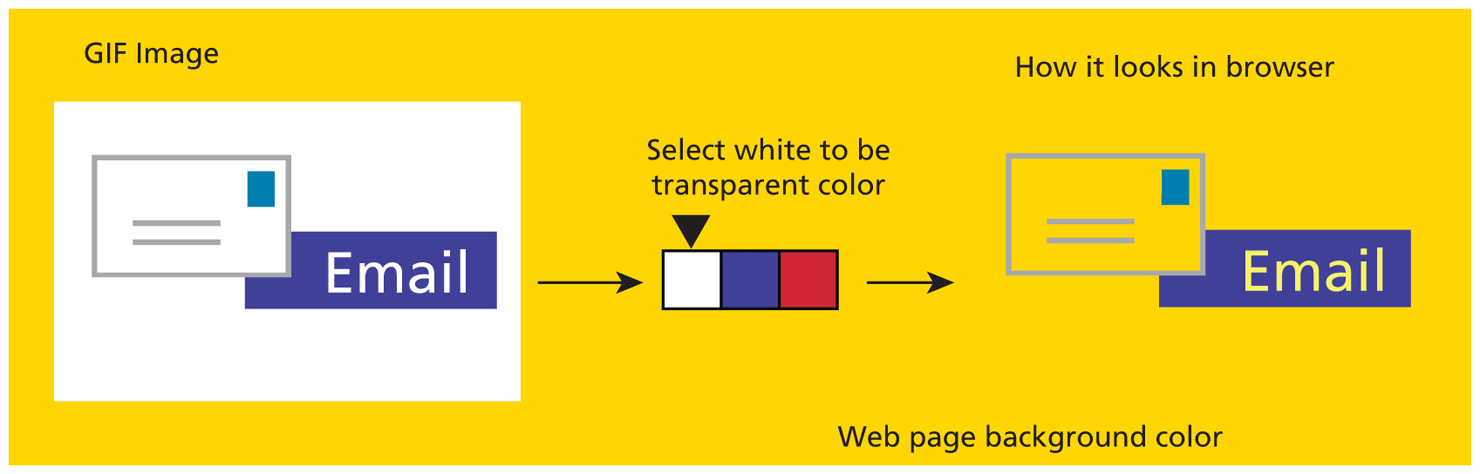
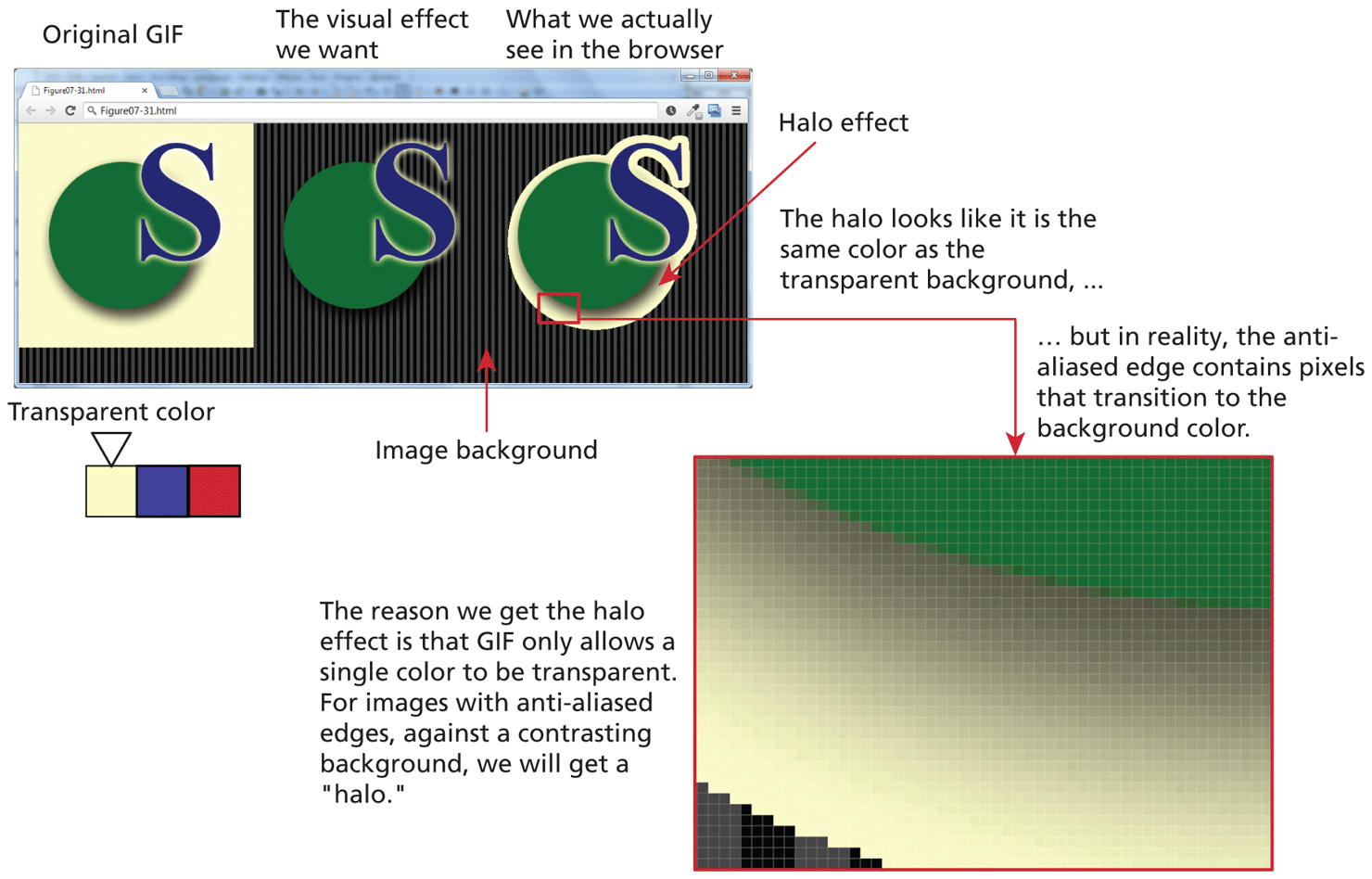
One of the colors in the color lookup table (i.e., the palette) of the GIF can be transparent. When a color is flagged as transparent, all occurrences of that color in the GIF will be transparent, meaning that any colors “underneath” the GIF (such as colored HTML elements or CSS-set image backgrounds) will be visible, as can be seen in Figure 6.28.
Figure 6.28 GIF transparency
However, because GIF has only 1-bit transparency (that is, a pixel is either fully transparent or fully opaque), transparent GIF files can also be disappointing when the graphic contains anti-aliased edges with pixels of multiple colors. Anti-aliasing refers to the visual “smoothing” of diagonal edges and contrast edges via pixels of intermediate colors along boundary edges. With only 1 bit of transparency, these anti-aliased edges often result in a “halo” of color when you set a transparent color in a GIF, as can be seen in Figure 6.29.
Figure 6.29 GIF transparency and anti-aliasing
Animation
GIFs can also be animated. Animations are created by having multiple frames, with each frame the equivalent of a separate GIF image. You can specify how long to pause between frames and how many times to loop through the animation. GIF animations were de rigueur back in the middle 1990s, but after that, have been used only for advertisements or for creating retro-web experiences. And, as you will learn in the next chapter, CSS now supports animations, so most of the animation effects that you likely encountered in today’s web were likely created in CSS (or perhaps in JavaScript). For this reason, the use cases for the GIF file format have almost been eliminated. You are much more likely to instead use PNG, which expands and improves on the characteristics of GIF.
6.3.3 PNG
The PNG (Portable Network Graphics) format is a more recent format and was created when it appeared that there were going to be patent issues in the late 1990s with the GIF format. Its main features are as follows:
Lossless compression.
8-bit (or 1-bit, 2-bit, and 4-bit) indexed color as well as full 24-bit true color (higher color depths are supported as well).
From 1 to 8 bits of transparency.
For normal photographs, JPEG is generally still a better choice because the file size will be smaller than using PNG. For images that contain mainly photographic content, but still have large areas of similar color, then PNG will be a better choice. PNG is usually a better choice than GIF for artwork or if nonsingle color transparency is required. If that same file requires animation or needs to be displayed by IE7 or earlier, then GIF is a better choice.
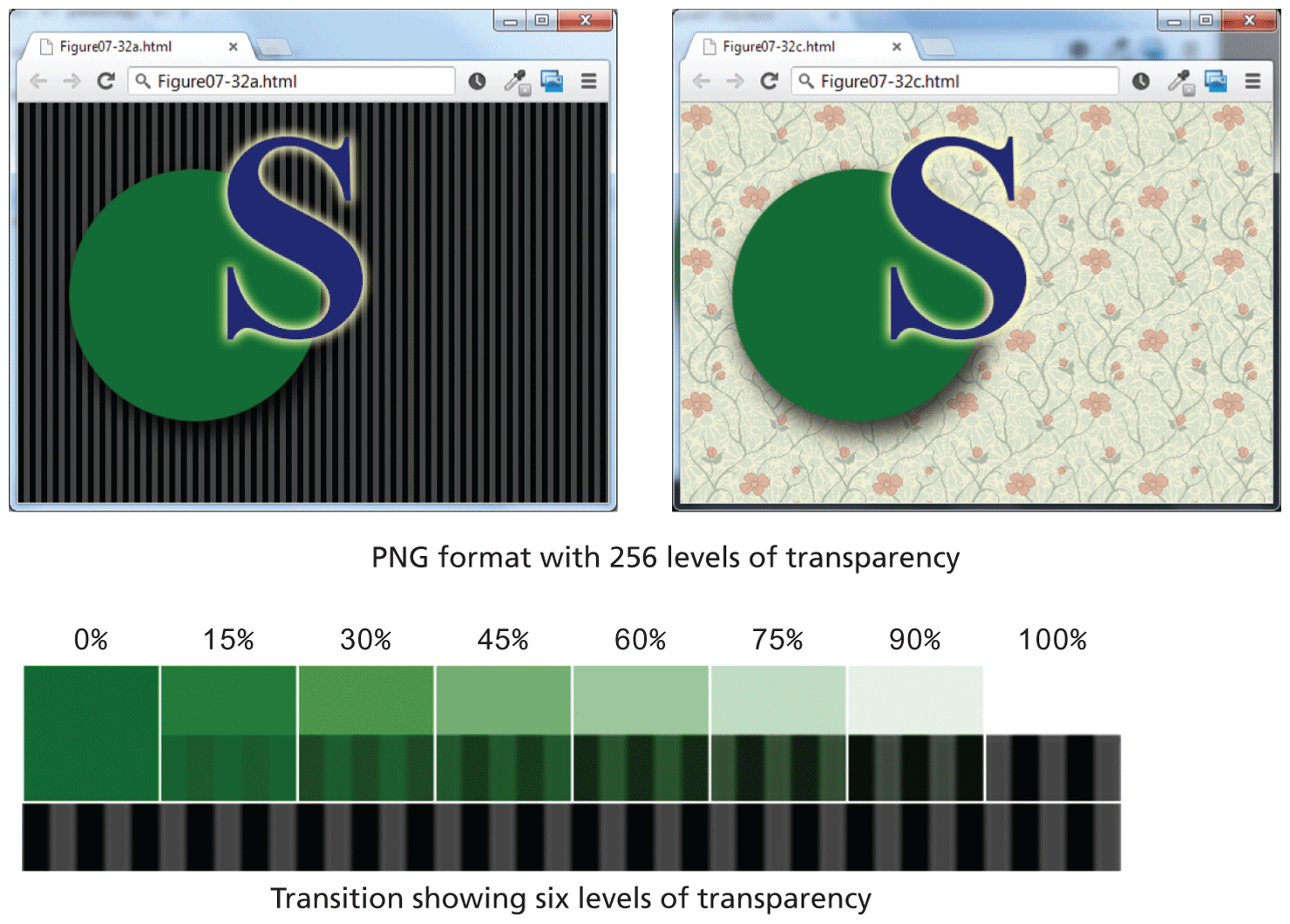
One of the key benefits of PNG is its support for 8 bits (i.e., 256 levels) of transparency. This means that pixels can become progressively more and more transparent along an image’s anti-aliased edges, eliminating the transparency halo of GIF images. Figure 6.30 illustrates how PNG transparency improves the transparency effect of the same image as Figure 6.29.
Figure 6.30 PNG transparency
6.3.4 SVG
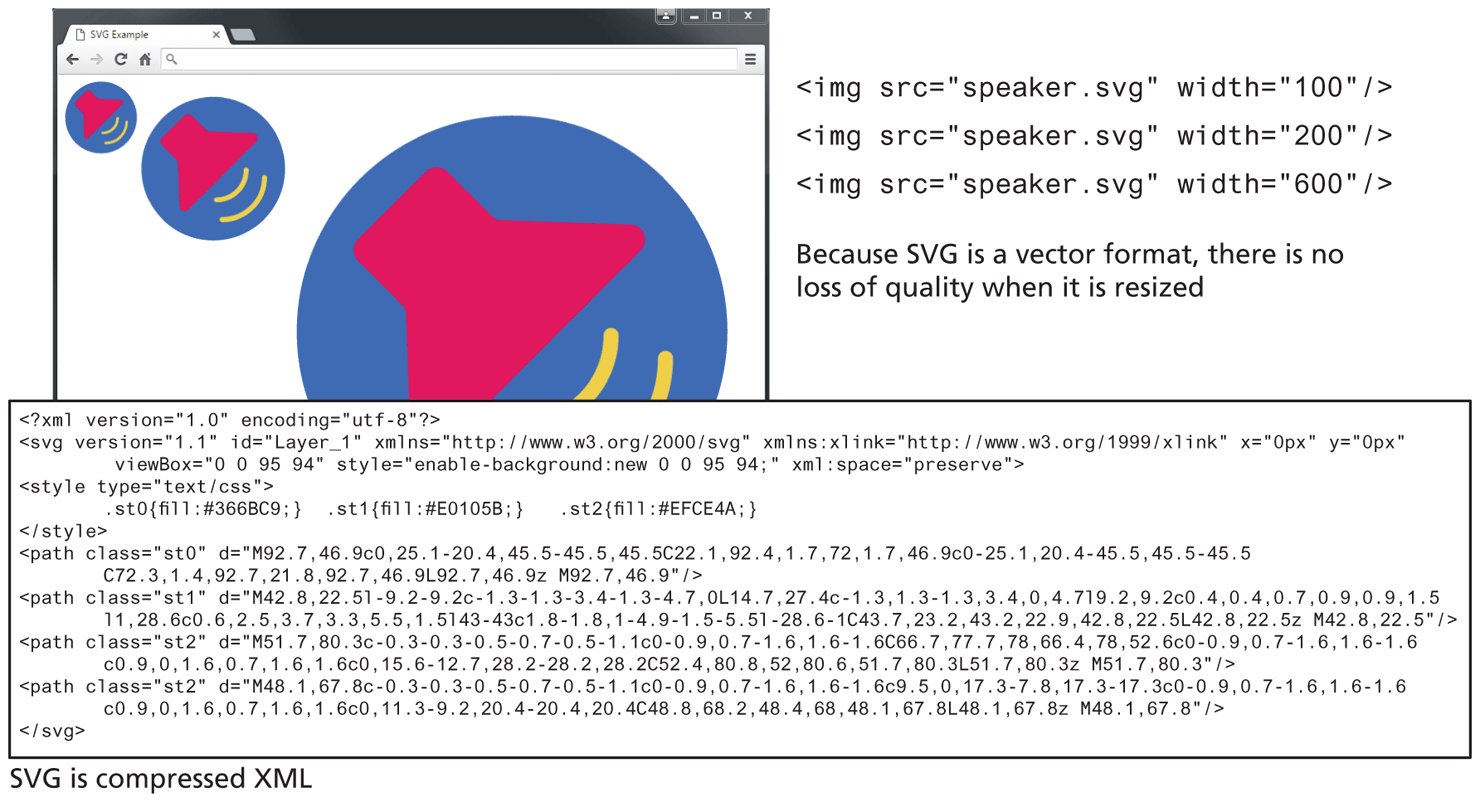
The SVG (Scalable Vector Graphics) file format is a vector format and now has reasonably solid browser support. Like all vector formats, SVG graphics do not lose quality when enlarged or reduced. Of course, vector images generally do not look realistic but are a sensible choice for line art, charts, and logos. In the contemporary web development world, in which pages must look good on a much wider range of output devices than a decade ago, SVG will likely be used more in the future than is the case today.
SVG is an open-source standard, and the files are actually XML files, so they could potentially be created in a regular text editor, though of course it is more common to use a dedicated drawing program. Furthermore, SVG files end up being part of the HTML document, thus, they can be manipulated by JavaScript and CSS.
Figure 6.31 illustrates an example of SVG in the browser along with the SVG’s XML source. You use SVG files in the same way as GIF or JPGs—that is, with the <img> element or in an CSS property such as background image.
Figure 6.31 SVG example
6.3.5 Other Formats
There are many other file formats for graphical information. Because most cannot be viewed by browsers, we are not interested in them as web developers. But as developers who work with images, it might make sense to have some knowledge of at least one other file format.
The TIF (Tagged Image File) format is a cross-platform lossless image format that supports multiple color depths, 8-bit transparency, layers and color channels, the CMYK and RGB color space, and other features especially useful to print professionals. TIF files are often used as a way to move graphical information from one application to another with no loss of information.
WebP is a new image file format promoted by Google. It supports both lossy and lossless compression, and Google claims WebP compression results are superior in comparison to JPG or PNG formats. Lossless WebP also supports transparency. At the time of writing, however, Safari on iOS does not support this format.
 Pro Tip
There is another web file format (.ico) whose sole use is for favicon (short for favorite icon) images. This favicon appears within browser tabs or bookmarks for the page. The favicon for a page is generally specified using the <link> element.
<link rel="icon" href="http://www.funwebdev.com/favicon.ico" />Some browsers are able to locate the favicon even without this <link> element if a file named favicon.ico is in the site’s root folder.