6.2 Image Concepts
There are a number of other concepts that you should be familiar with in order to fully understand digital media. The first of these is the essential concept of color depth.
6.2.1 Color Depth
Color depth refers to the maximum number of possible colors that an image can contain. For raster images, this value is determined by the number of bits used to represent the color or tone information for each pixel in the image. Figure 6.13 illustrates how an image containing pixels is ultimately represented by a series of numbers.
Figure 6.13 Visualizing image color depth
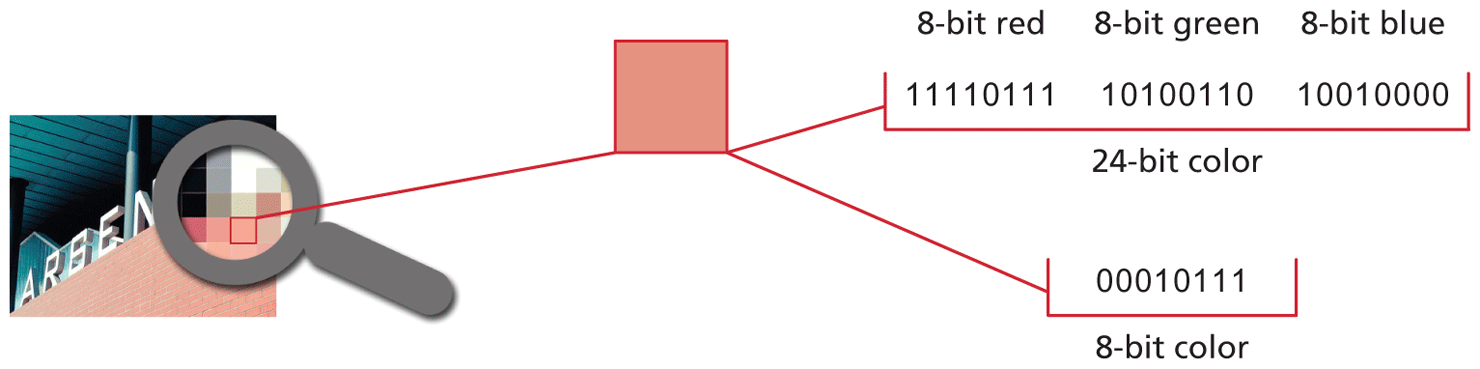
The more bits used to represent the color, the more possible colors an image can contain. An image that is using just 4 bits per pixel to represent color information can only represent 16 possible colors; an image using 24 bits per pixel can represent millions. The number of bits used to represent a color is not arbitrary. Table 6.1 lists the main possibilities.
Table 6.1 Image Color Depth Possibilities
| # Bits/Pixel | Description |
|---|---|
| 8 bits or less | Sometimes referred to as indexed color. No more than 28 or 256 colors can be represented. Using 7 bits per pixel would allow only 128 colors, 6 bits per pixel would allow only 64 colors, 5 bits = 32 colors, 4 bits = 16 colors, 3 bits = 8 colors, 2 bits = 4 colors, and 1 bit = 2 colors. |
| 24 bits | Also called true color. 16.8 million colors can be represented. Eight bits each are used for red, green, and blue information. |
| 32 bits | Same as 24 bit, but 8 bits of alpha transparency information is added. |
| 48 bits | 16 bits per red, green, and blue. While not supported in browsers, these deep color image depths are supported by specialized photo editing software. |
It should also be mentioned that image color depth is not the same thing as device color depth, which refers to the number of simultaneous colors a device can actually display. A decade ago, video card memory was a limiting factor, but this is rarely the case any more. Instead, display devices are now the main limiting factor. Most home and business-class LCD monitors are in fact often only 18-bit display devices, meaning that they can only display 262,144 colors. LCD monitors that can display true 24-bit color are more expensive and for that reason a bit more uncommon.
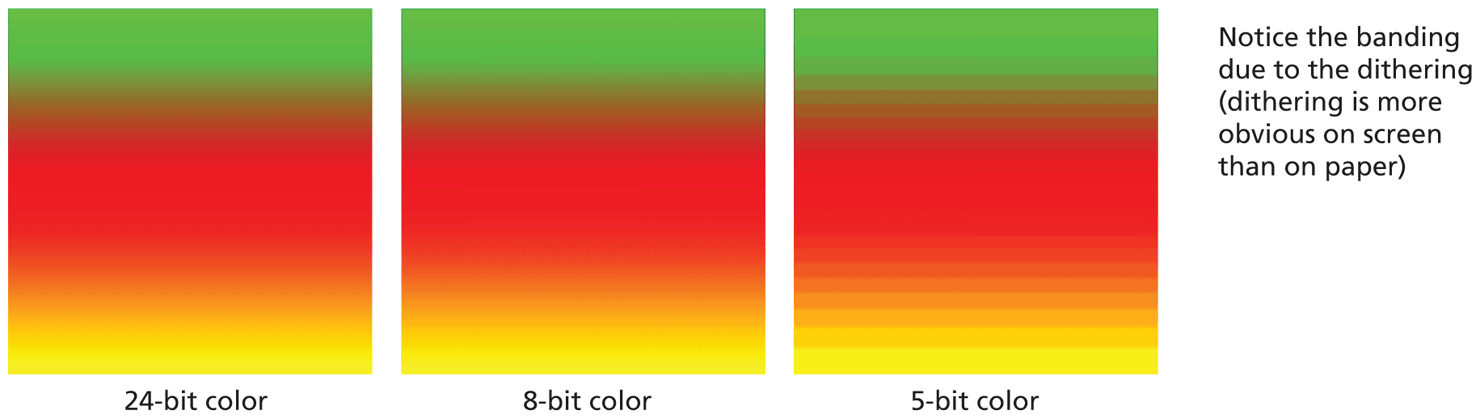
Monitors limited to less than true color create the illusion of more colors by dithering the available colors in a diffuse pattern of pixels, as shown in Figure 6.14. Image editors also use dithering to convert 24-bit color images to 8-bit color images.
Figure 6.14 Dithering
6.2.2 Image Size
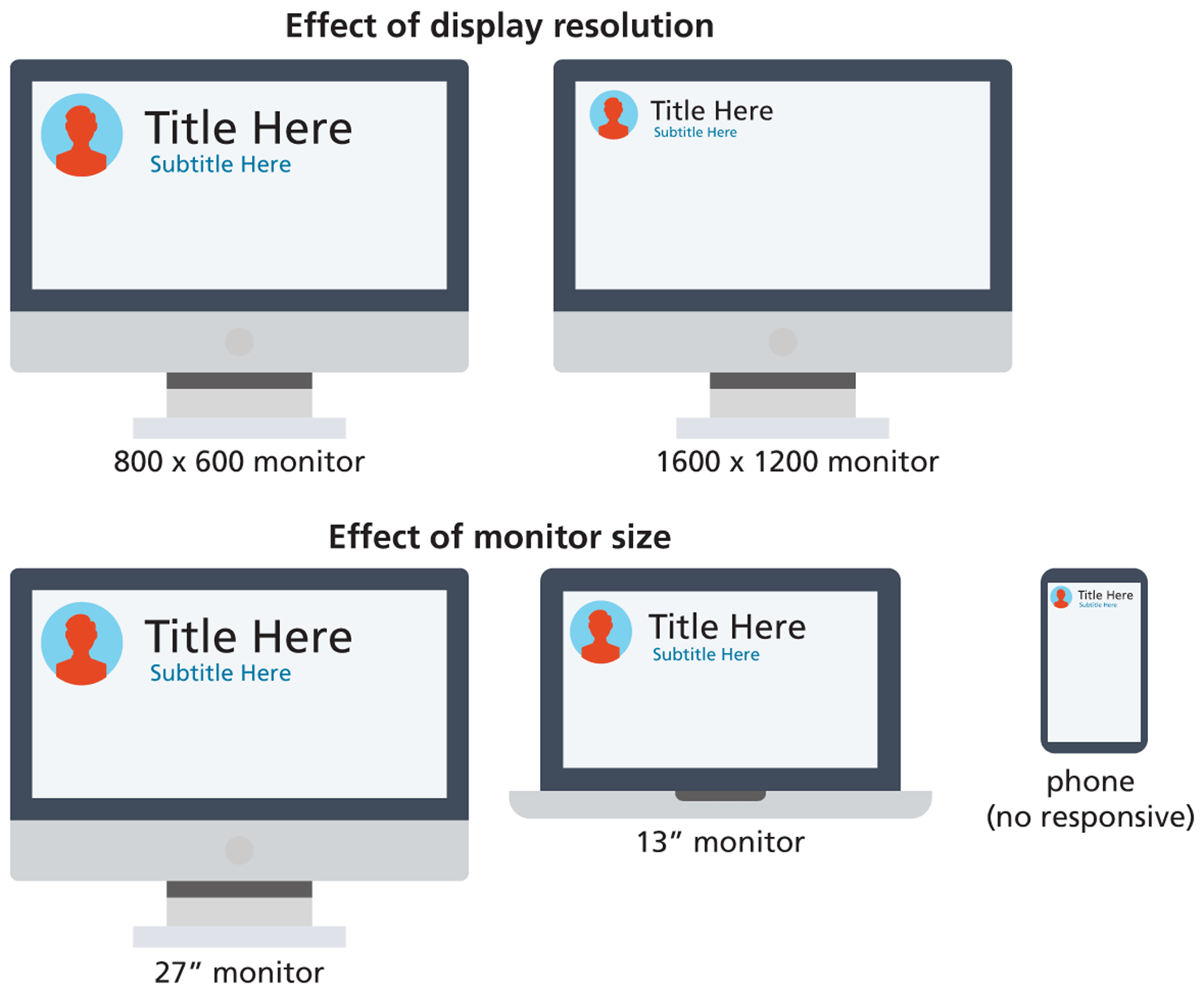
Raster images contain a fixed number of pixels; as such, image size refers to how many pixels it contains, usually expressed by how many pixels wide by how many pixels high it is. Notice that you do not use real-world measurement units such as inches or centimeters to describe the size of an image. The size of an image on-screen is determined by the pixel dimensions of the image, the monitor size, and the computer’s display resolution, only one of which is at the control of the web designer.
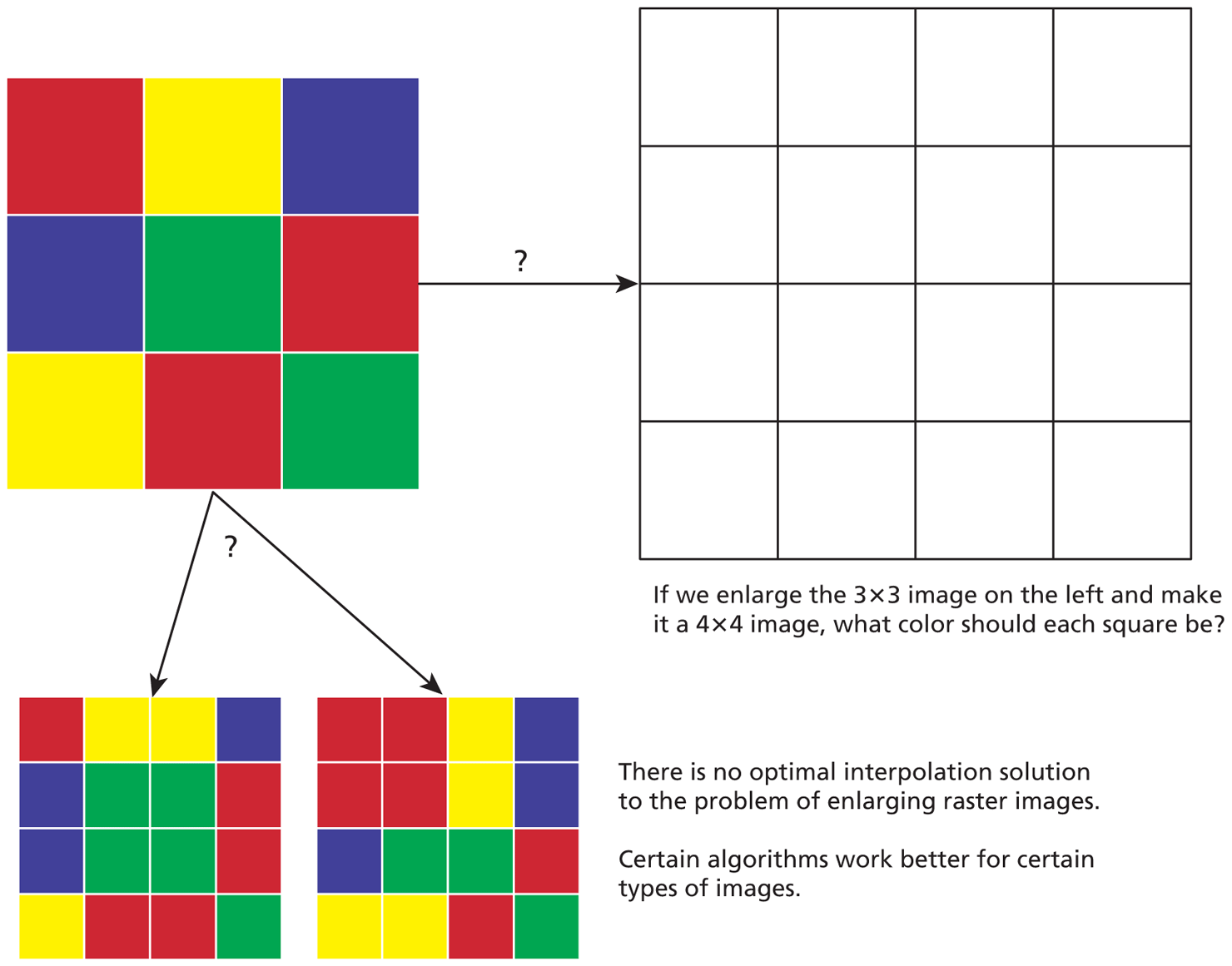
Whenever you resize (either larger or smaller) a raster image, the program (the browser, Photoshop, or any other program) doing the resizing must interpolate—that is, add pixels to the image based on what is in the image already. This may sound like a trivial problem, but as can be seen in Figure 6.15, it is difficult to write a software algorithm to do a task that doesn’t have a completely satisfactory solution.
Figure 6.15 Interpolating
The key point here is that resizing an image always reduces its quality. The result is that the image will become fuzzy and/or pixelated depending on the interpolation algorithm that is being used, as you have already seen in Figure 6.5 and also in Figure 6.16.
Figure 6.16 Enlarging versus reduction
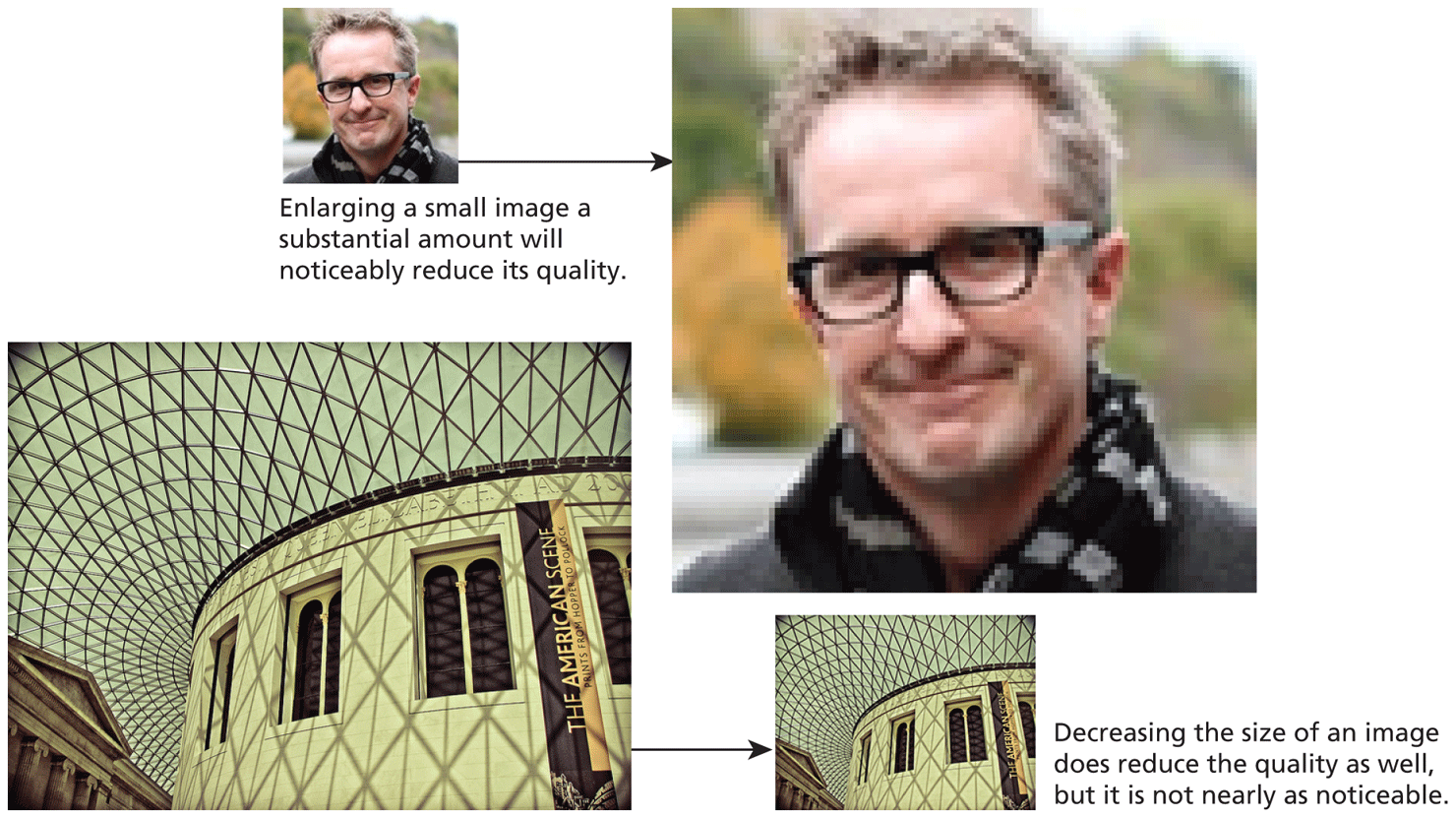
Making an image larger degrades the image much more than making it smaller, as can be seen in Figure 6.16. As well, increasing the size just a small percentage (say 10–20%) may likely result in completely satisfactory results. Similarly, photographic content tends to look less degraded than text and nonphotographic artwork and logos.
By far the best way to change the size of a nonphotographic original is to make the change in the program that created it (e.g., by increasing/decreasing the font size, and changing the size of vector objects), as shown in Figure 6.17.
Figure 6.17 Resizing artwork in the browser versus resizing originals
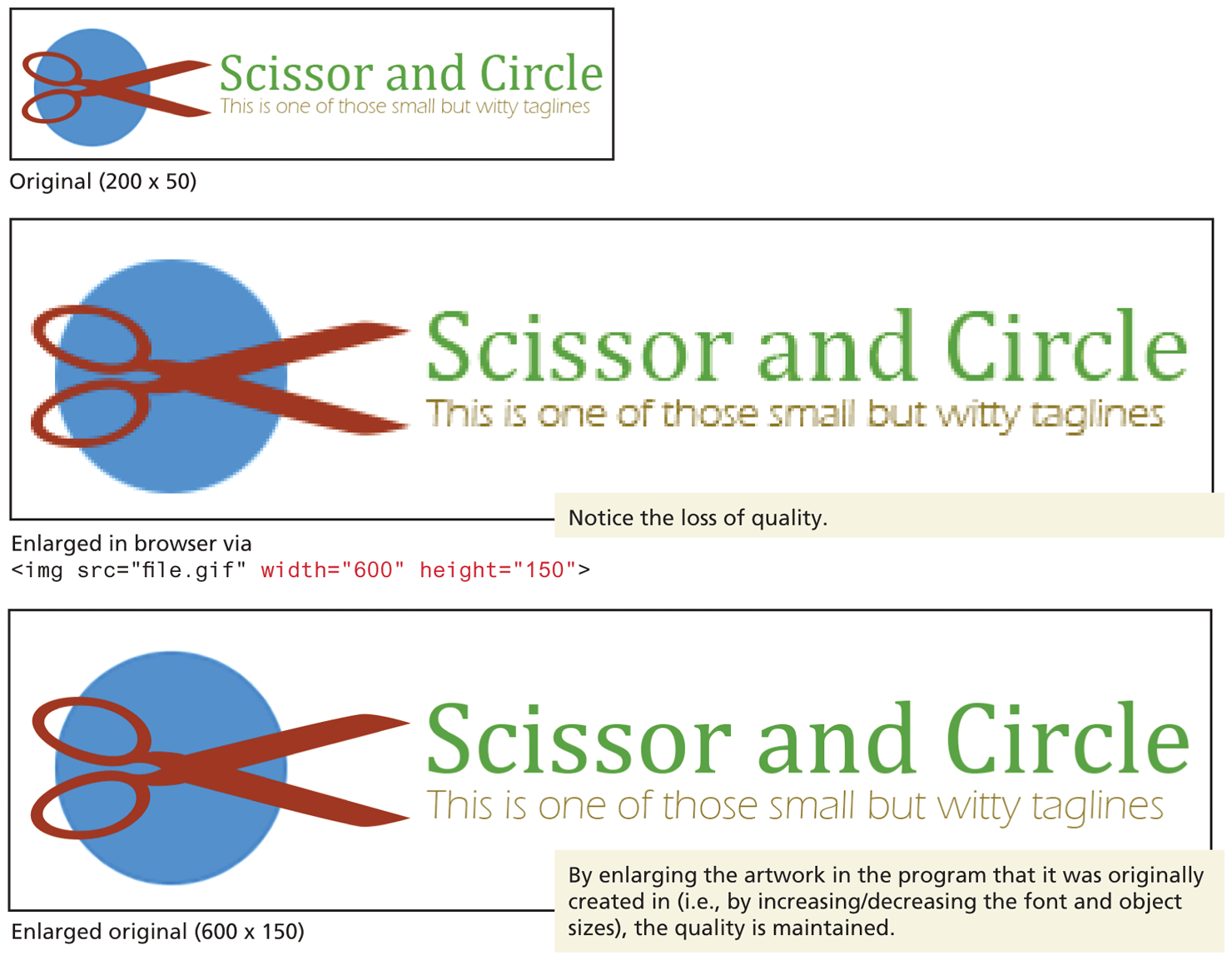
If a photographic image needs to be increased in size, one should ideally do it by downsizing a large original. For this reason, you should ideally keep large originals of your site’s photographic images.
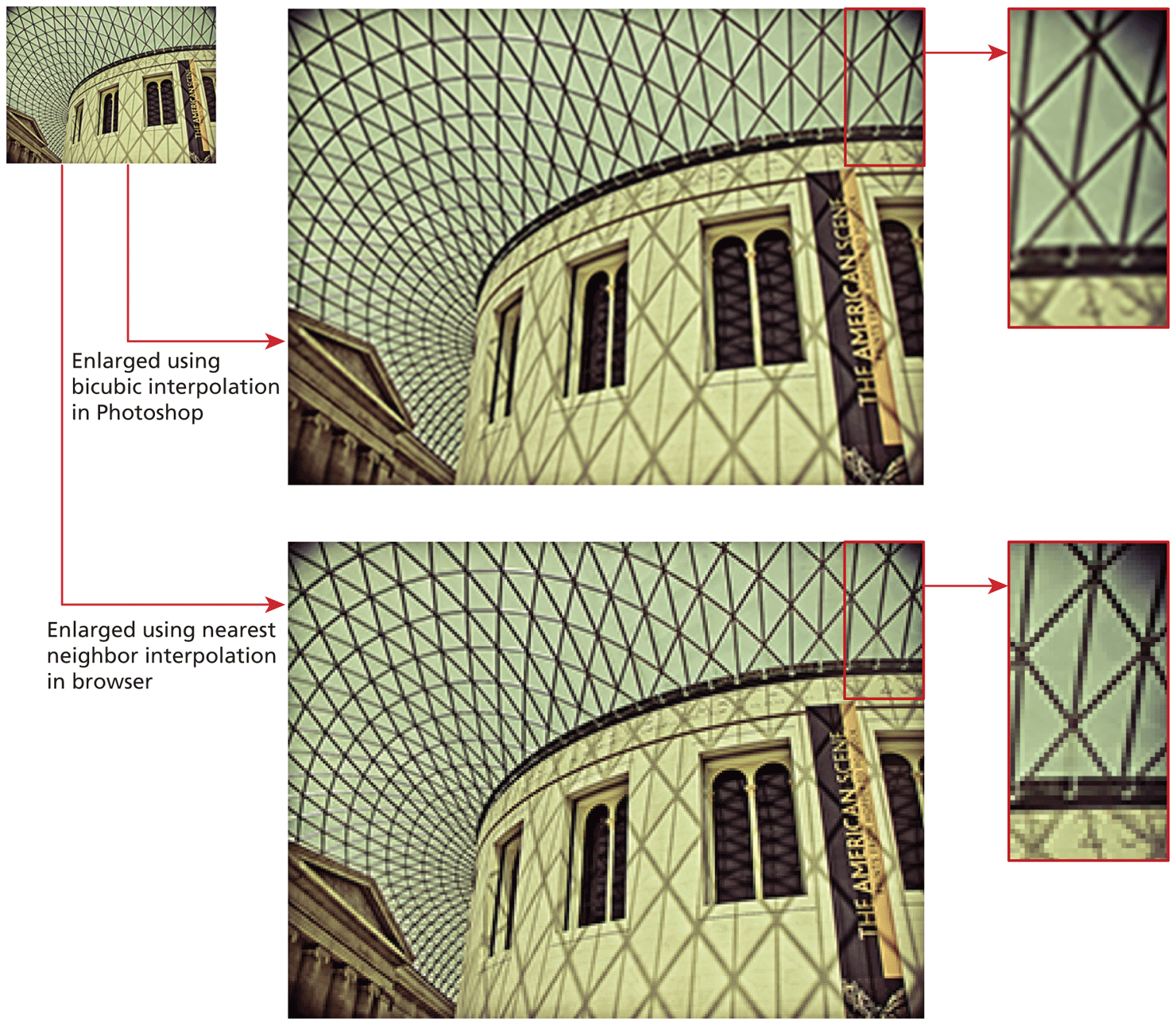
If you do not have access to larger versions of a photographic image and you need to enlarge it, then you will get better results if you enlarge it in a dedicated image editing program than in the browser, as such a program will have more sophisticated interpolation algorithms than the browser, as can be seen in Figure 6.18. But as you saw back in Figure 6.16, significantly increasing the size of a small raster image is going to look unacceptably poor, even if you do use an image editing program.
Figure 6.18 Interpolation algorithms
6.2.3 Display Resolution
The display resolution refers to how many pixels a device can display. This is partly a function of hardware limitations as well as settings within the underlying operating system. Like image size, it is expressed in terms of the number of pixels horizontally by the number of pixels vertically. Some common display resolutions include and .
The physical size of pixels and their physical spacing will change according to the current display resolutions and monitor size. Thus, any given web page (and its parts) will appear smaller on a high-resolution system (and larger on a low-resolution system), as shown in Figure 6.19.
Figure 6.19 Effect of display resolution versus monitor size