6.1 Representing Digital Images
When you see text and images on your desktop monitor or your mobile screen, you are seeing many small squares of colored light called pixels that are arranged in a two-dimensional grid. These same images and text on the printed page are not created from pixels, but from small overlapping dots usually called halftones, as shown in Figure 6.1.
Figure 6.1 Pixels versus halftones
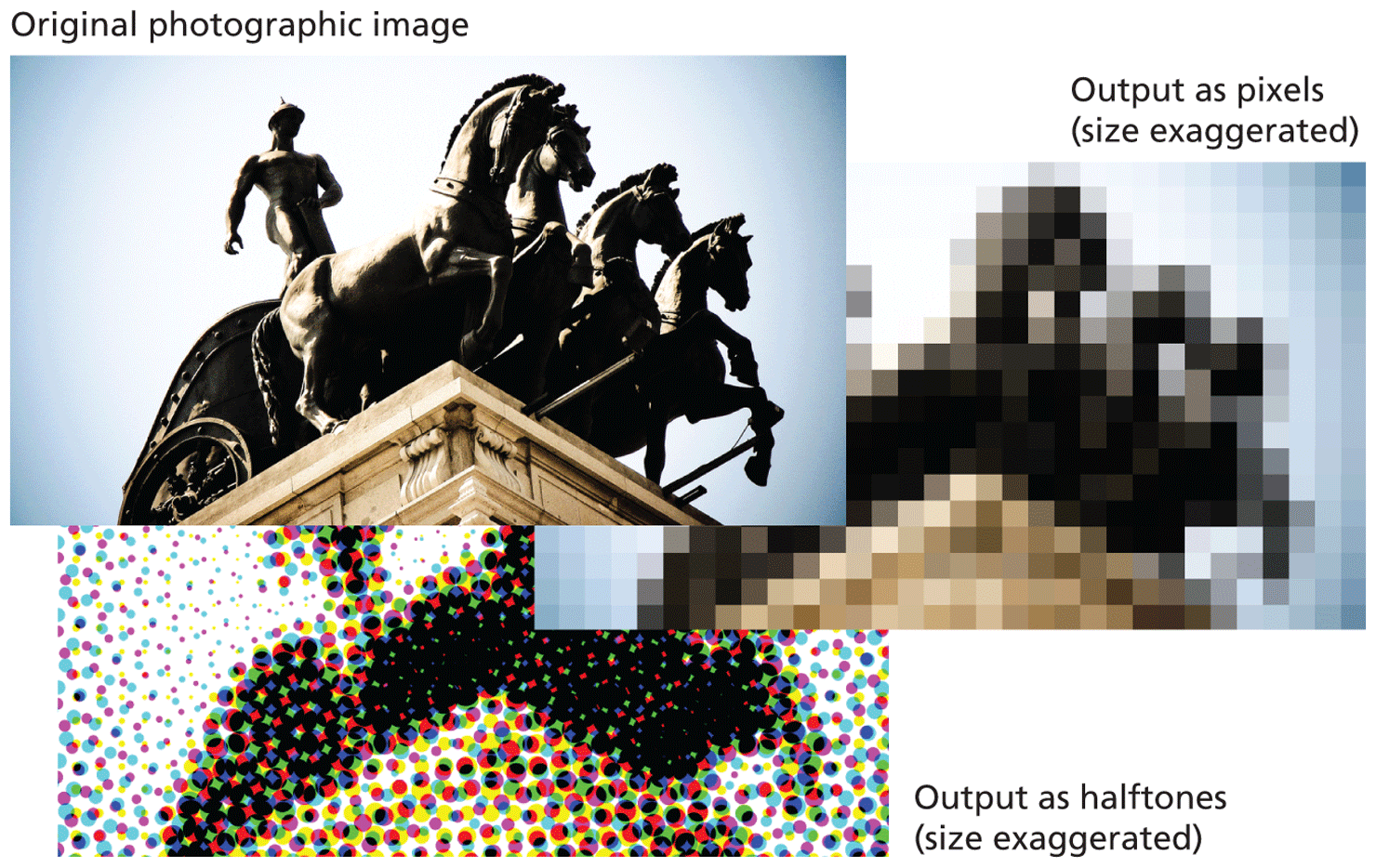
The point here is that computers are able to output to both screens and printers, so computers need some way to digitally represent the information in a way that is potentially independent of the output device.
Everything on the computer ultimately has to be represented in binary, so the term digital representation ultimately refers to representing information as numbers. You may recall that text characters are digitally represented using standardized 8-bit (ASCII) or 16-bit (UNICODE) numbers. This type of standardization was possible because there are a very finite number of text characters in any language. There is an infinite variety of images, however, so there is no possibility to have a standardized set of codes for images.
6.1.1 Image Types
Instead of standard codes, an image is broken down into smaller components, and those components are represented as numbers. There are two basic categories of digital representations for images: raster and vector.
In a raster image (also called a bitmap image) the smaller components are pixels. That is, the image is broken down into a two-dimensional grid of colored squares, as shown in Figure 6.2. Each colored square uses a number that represents its color value. Because a raster image has a set number of pixels, dramatically increasing or decreasing its size can dramatically affect its quality.
Figure 6.2 Raster images
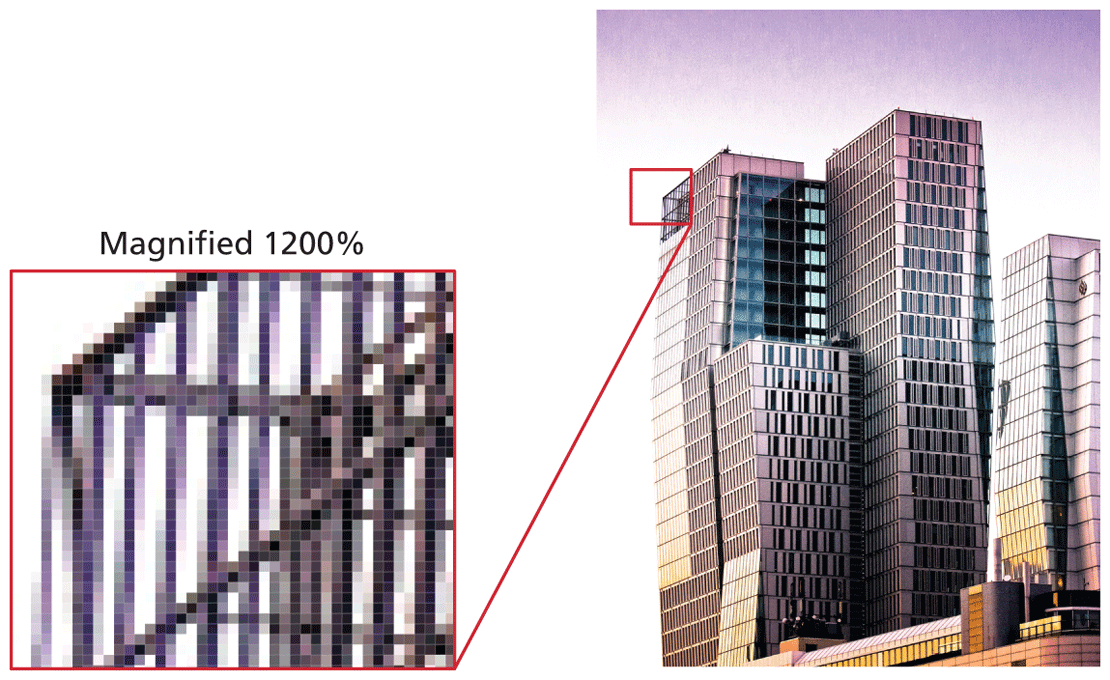
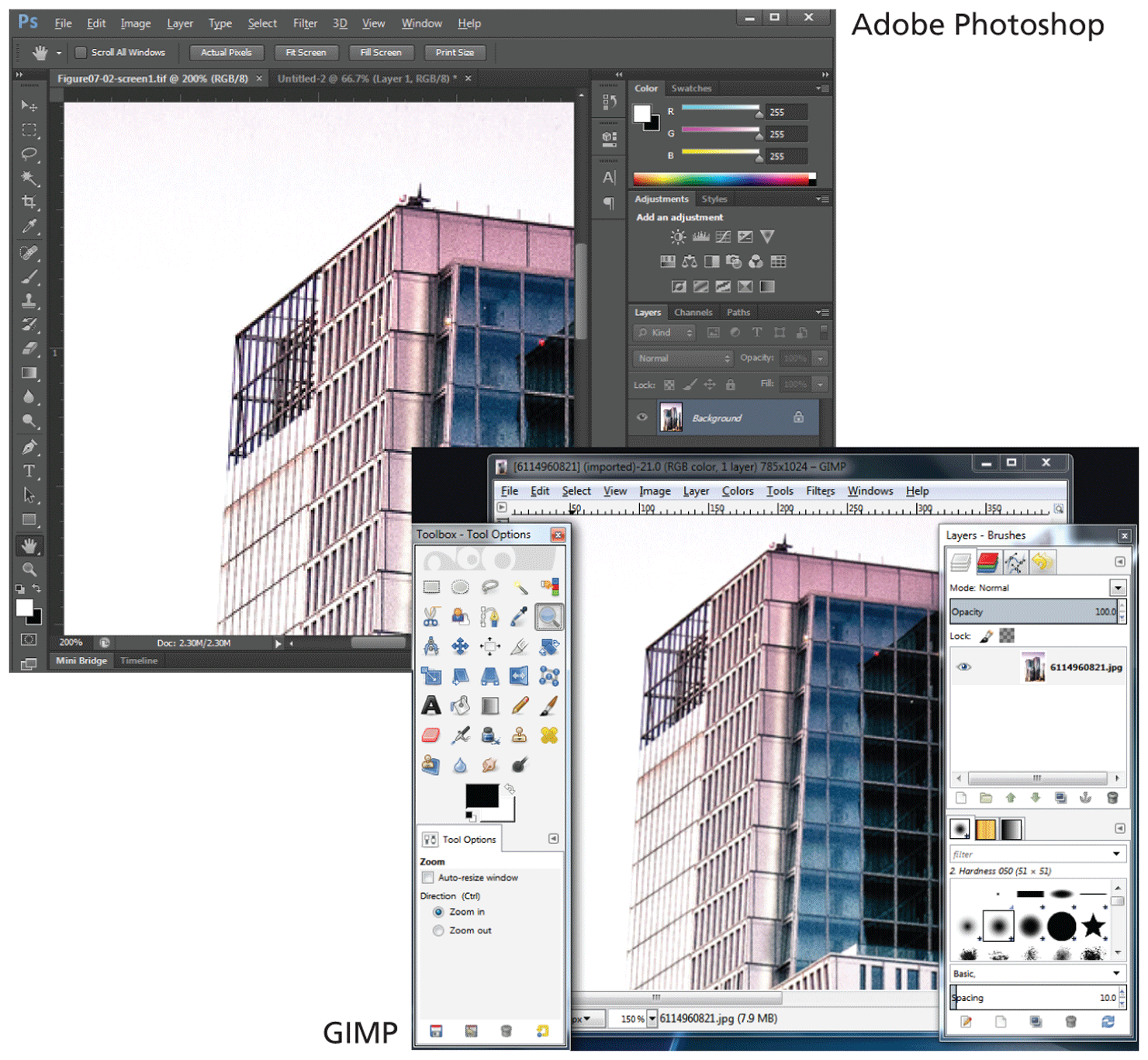
Raster images can be manipulated on a pixel-by-pixel basis by painting programs such as Adobe Photoshop, Apple Aperture, Microsoft Paint, or the open-source GIMP (see Figure 6.3). As you shall see later in the chapter, three of the main image file formats supported by web browsers are raster file formats.
Figure 6.3 Raster editors
A vector image is not composed of pixels but instead is composed of objects such as lines, circles, Bezier curves, and polygons, as shown in Figure 6.4. Font files are also an example of vector-based digital representation.
Figure 6.4 Vector images
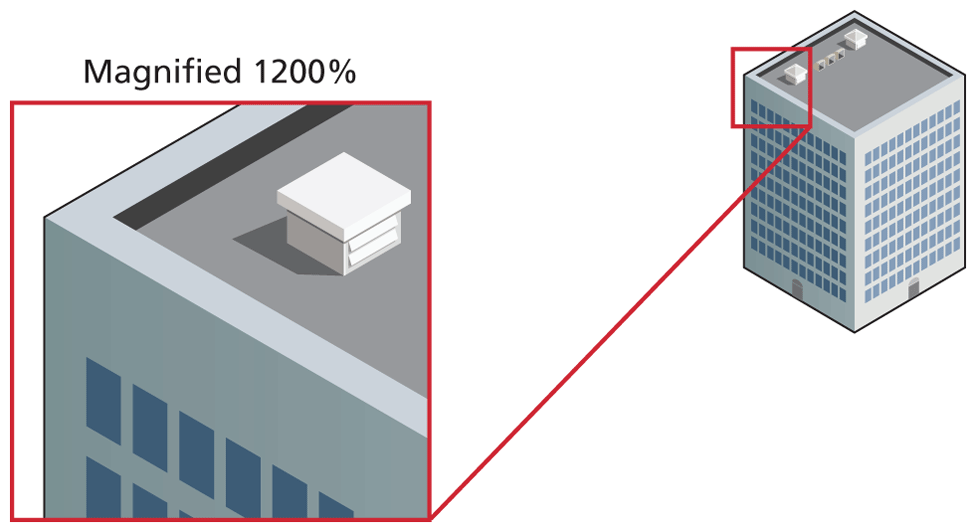
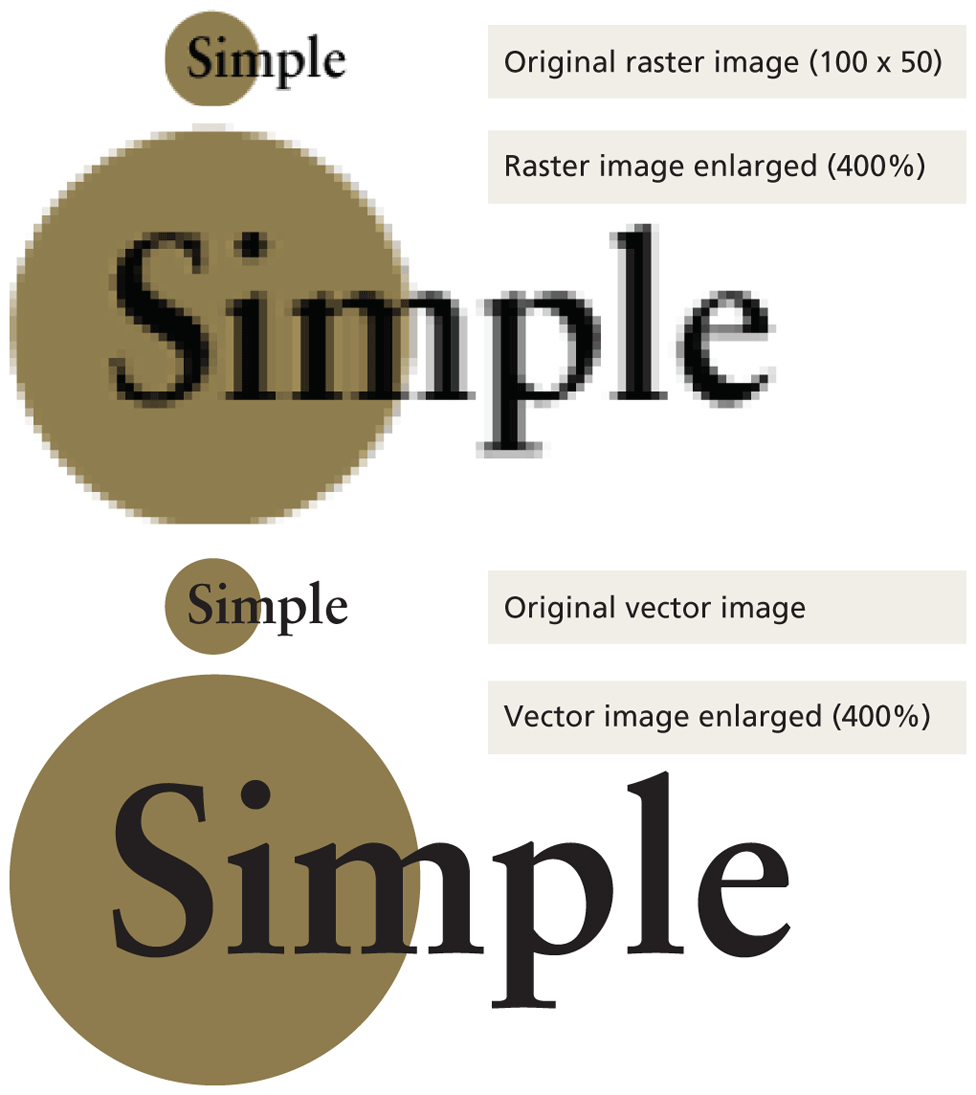
The main advantage of vector images is that they are resolution independent, meaning that while both vector and raster images are displayed with pixels (or dots), only vector images can be shrunken or enlarged without a loss of quality, as shown in Figure 6.5.
Figure 6.5 Resizing raster images versus vector images
Adobe Illustrator, Microsoft Visio, Adobe Animate (formerly Adobe Flash), Affinity Designer (Mac only), and the open-source Inkscape are all examples of vector drawing programs. As you shall see later, there is a vector-based file format (SVG) that is now supported by all browsers, but whose usage still remains relatively low.
6.1.2 Color Models
Both raster and vector images need a way to describe color. As you have already seen, in HTML and CSS there is a variety of different ways to specify color on the web. The simplest way is to use color names, which is fine for obvious colors such as red and white, but perhaps a trifle ambiguous for color names such as Gainsboro and Moccasin.
RGB
The more common way to describe color in HTML and CSS is to use the hexadecimal #RRGGBB form in which a number between 0 and FF (255 in decimal) is used for the red, green, and blue values. You may recall from Table 4.2 that you can also specify a color in CSS with decimal numbers using the notation: rgb(100,55,245). These are examples of the most commonly used color model, namely, the RGB (for Red-Green-Blue) color model.
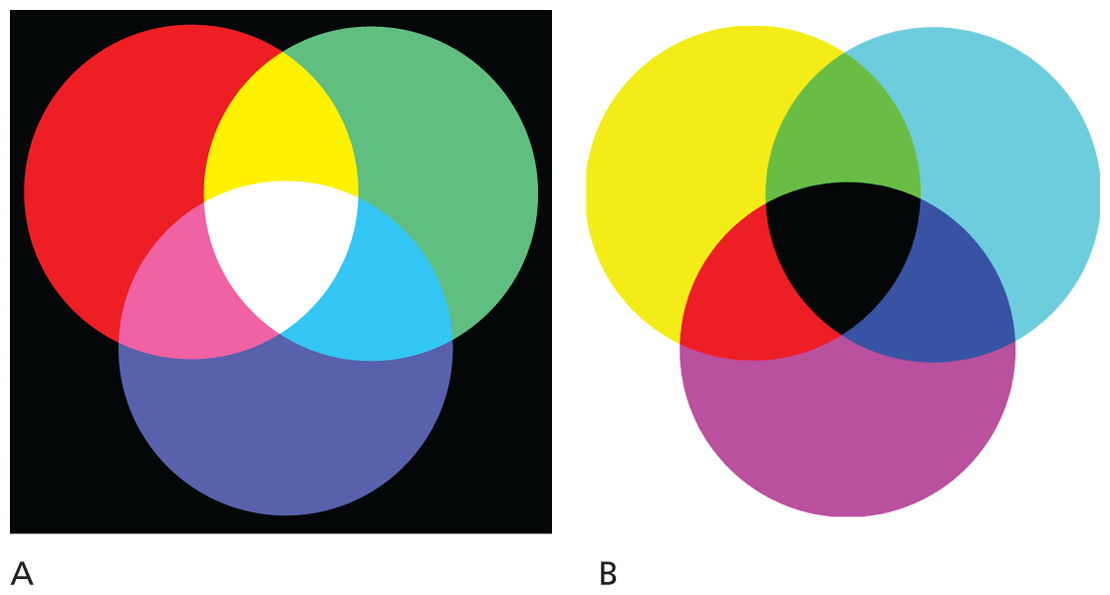
A substantial percentage of the human visible color spectrum can be displayed using a combination of red, green, and blue lights, which is precisely what computer monitors, television sets, and mobile screens do to display color. Each tiny pixel in an RGB device is composed of even tinier red, green, and blue subpixels. Because the RGB colors combine to create white, they are also called additive colors. That is, the absence of colored light is black; adding all colors together creates white, as can be seen in Figure 6.6.
Figure 6.6 (A) RGB color model (B) CMYK color model
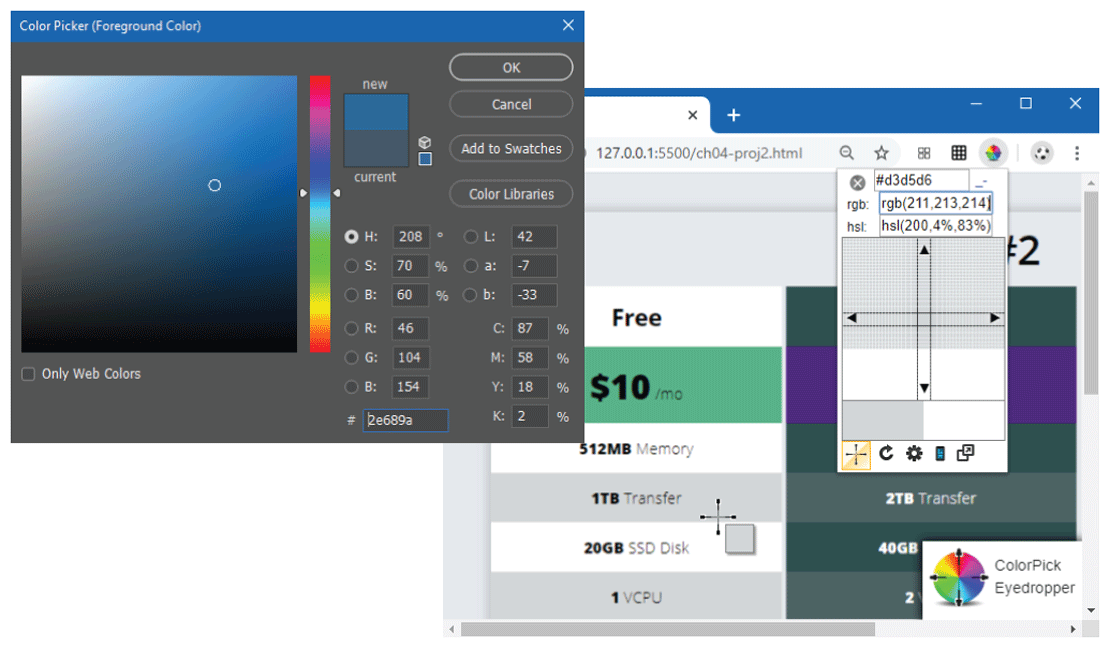
You may wonder how to go about finding the proper RGB numbers for a given color. There is a number of tools to help you. Your image editor can do it; there are also a wide variety of online sites and browser extensions that provide color pickers, some of which allow you to sample a color from any website (see Figure 6.7).
Figure 6.7 Picking RGB colors
CMYK
The RGB color model is ideal for websites since they are viewed on RGB devices. However, not every image will be displayed on an RGB device. Some images are printed, and because printers do not output colored light but colored dots, a different color model is necessary, namely, the CMYK color model for Cyan-Magenta-Yellow-Key (or blacK).
In traditional color printing, color is created through overlapping cyan, magenta, yellow, and black dots that, from a distance, create the illusion of the combined color, as shown in Figure 6.6.
As white light strikes the color ink dots, part of the visible spectrum is absorbed, and part is reflected back to your eyes. For this reason, these colors are called subtractive colors. In theory, pure cyan (C), magenta (M), and yellow (Y) ink should combine to absorb all color and produce black. However, due to the imperfection of printing inks, black ink (K) is also needed (and also to reduce the amount of ink needed to create dark colors).
Since this is a book on web development, it will not really be concerned with the CMYK color model. Nonetheless, it is worth knowing that the range of colors that can be represented in the CMYK model is not the same as the range of colors in the RGB model. The term gamut is often used in this context. A gamut is the range of colors that a color system can display or print. The spectrum of colors seen by the human eye is wider than the gamut available in any color model. At any rate, as can be seen in Figure 6.8, the color gamut of CMYK is generally smaller than that of RGB.
Figure 6.8 Color gamut
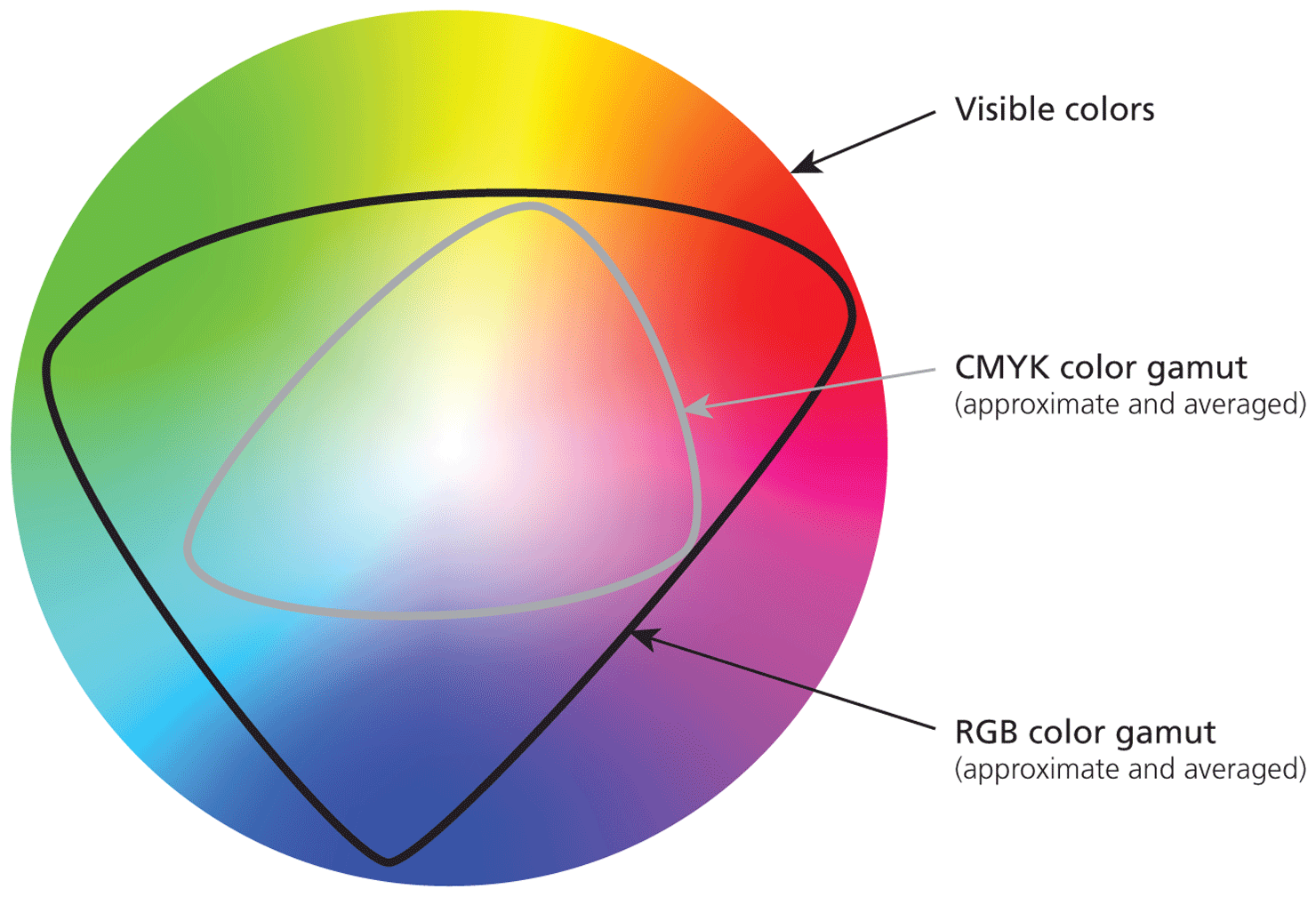
The practical consequence of this is that an RGB image might not look the same when it is printed on a CMYK device; bright saturated (see the HSL discussion below for definition) colors in particular will appear less bright and less saturated when printed. Modern desktop inkjet printers sometimes now use a fifth and sixth ink color to help increase the gamut of its printed colors.
HSL
When you describe a color in the real world, it is unlikely that you say “that shirt is a nice #33CA8F color.” Instead you use more descriptive phrases such as “that shirt has a nice bright and rich green color to it.” The HSL color model (also called the HSB color model, in which the B stands for brightness) is more closely aligned to the way we generally talk about color. It breaks a color down into three components: hue (what we generally refer to as color); saturation (the intensity or strength of a color— the less the saturation, the grayer the color); and lightness (that is, the relative lightness or darkness of a color). Figure 6.9 illustrates the HSL color model.
Figure 6.9 HSL color model
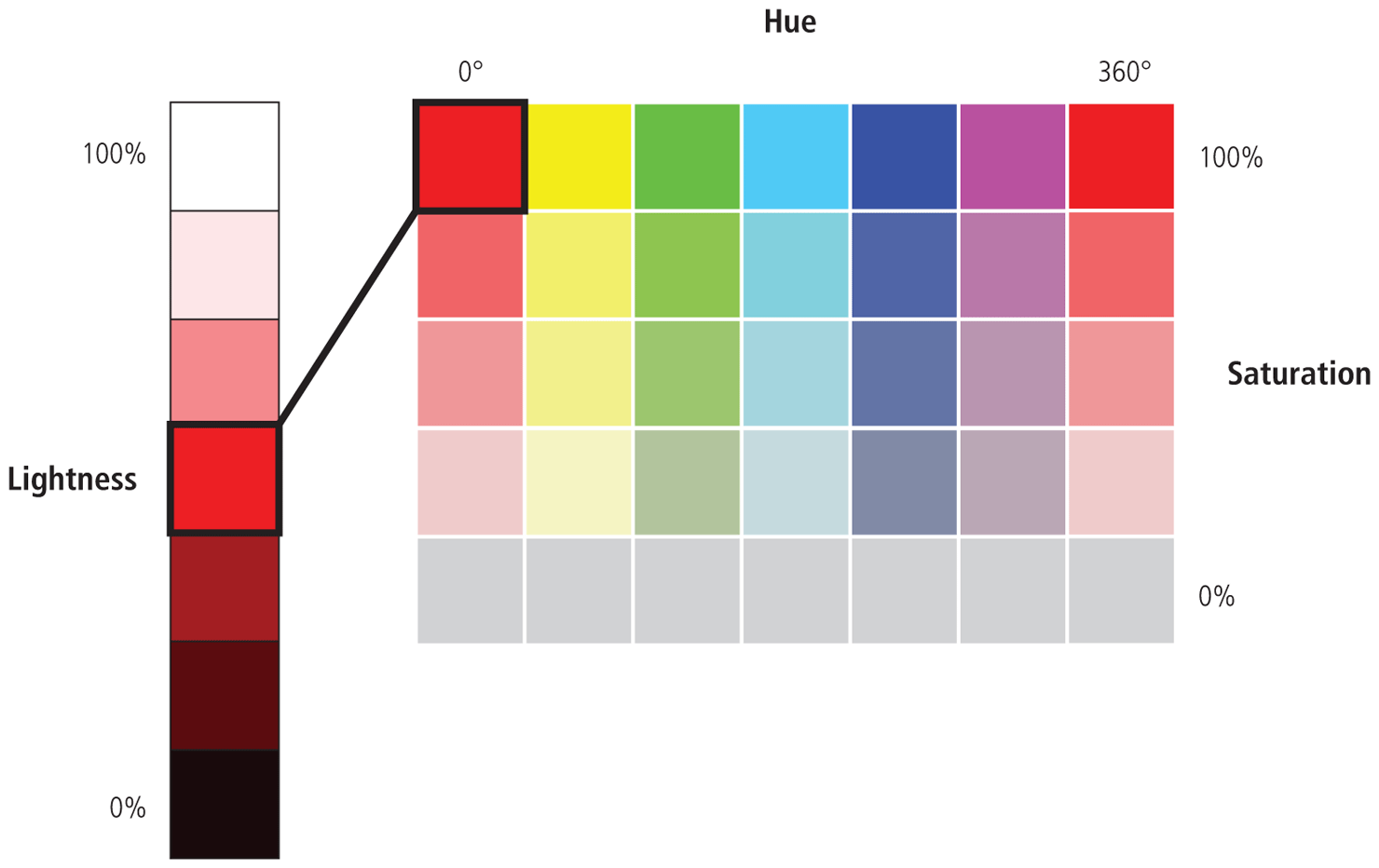
CSS3 introduced a new way to describe color that supports the HSL model using the notation: hsl(hhh, ss%, bb%). With this notation, the hue is an angle between 0 and 360 (think of hue as a circle); the saturation is a percentage between 0 and 100, where 0% is completed desaturated (gray) while 100% is fully saturated; and the luminosity is a percentage between 0 and 100, with 0 percent being pure dark (black) and 100 percent being pure bright (white).
Opacity
There is another dimension to color that is independent of the color model and is supported by many image editors as well as CSS. That other dimension is opacity—that is, the degree of transparency in the color. This value is also referred to as alpha transparency. The idea behind opacity is that the color that is displayed will vary depending on what colors are “behind” it, as shown in Figure 6.10.
Figure 6.10 Opacity settings
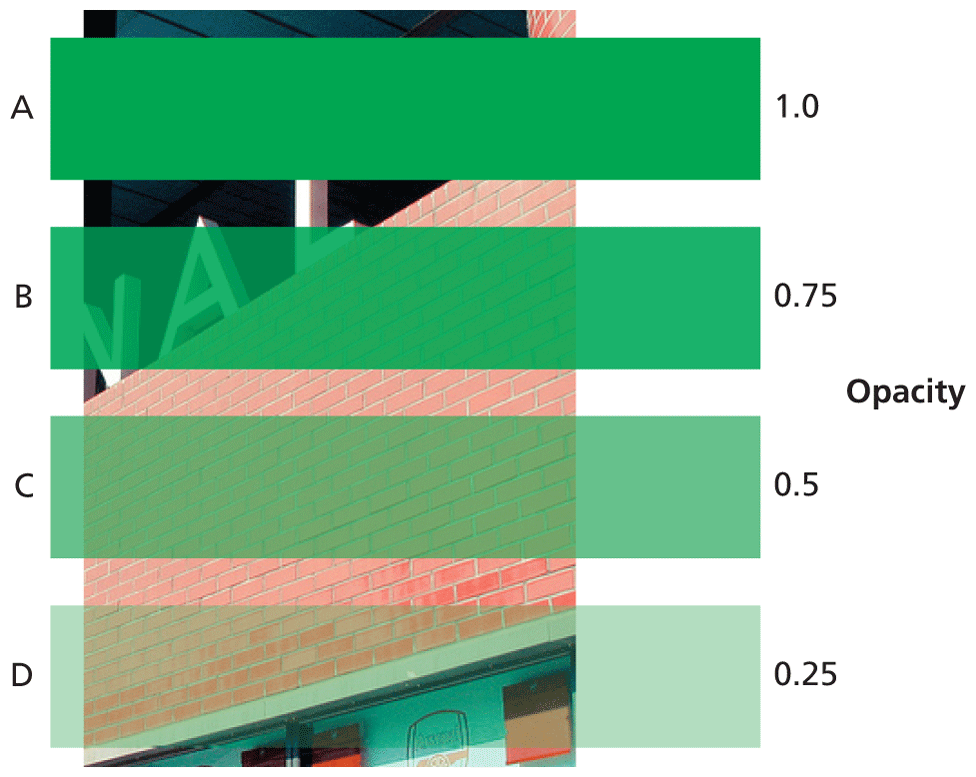
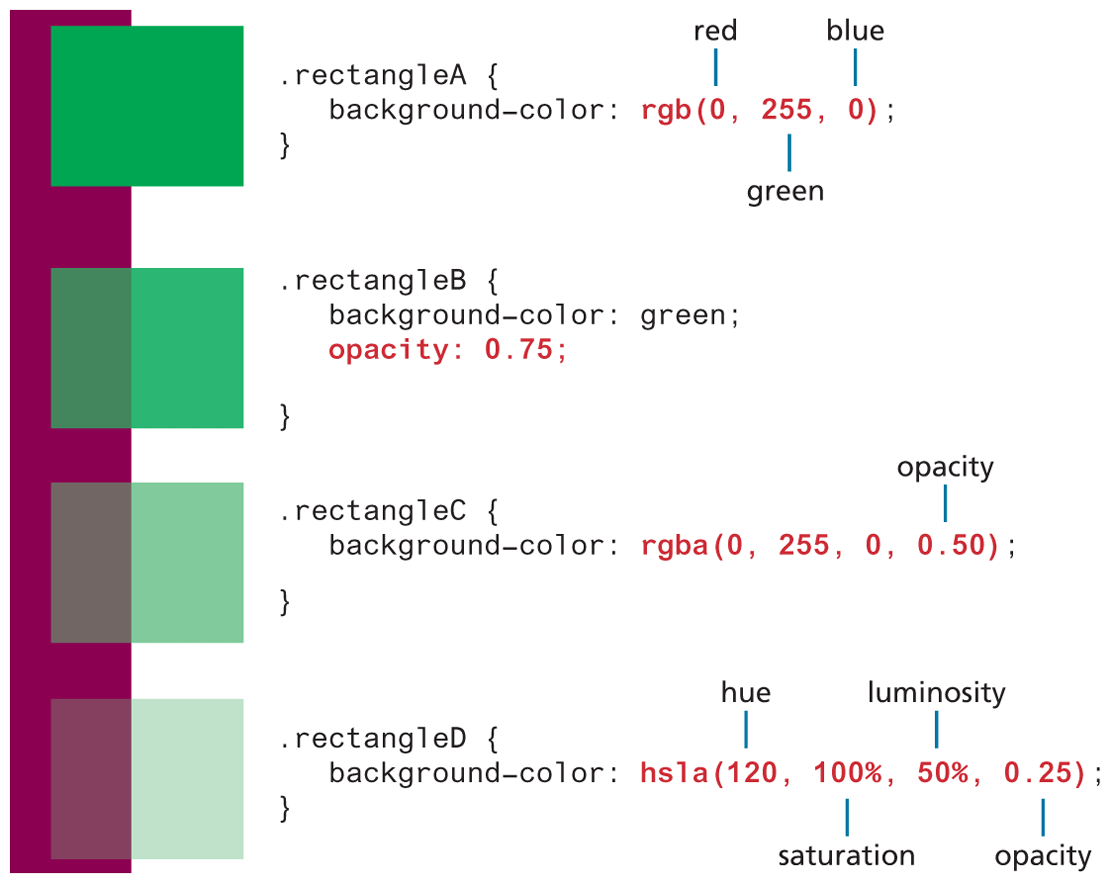
Opacity is typically a percentage value between 0 and 100 (or between 0 and 1.0). In CSS, there is an opacity property that takes a value between 0 and 1.0. An opacity value of 0 means that the element has no opacity; that is, it is fully transparent. An opacity value of 100 means that the element is fully opaque—that is, it has no transparency. You can also add opacity values to a color specification using the rgba() or hsla() functions in CSS, as shown in Figure 6.11.
Figure 6.11 Specifying the opacities shown in Figure 6.10 using CSS
Gradients
A gradient is a transition or blend between two or more colors. In the past, when gradients were used, for instance, as a web page background, they were generated in a raster editor, such as Photoshop, and referenced via the background-image CSS property. All modern browsers now support linear and radial gradients within CSS that do not require any image files, as illustrated in Figure 6.12.
Figure 6.12 Example CSS gradients
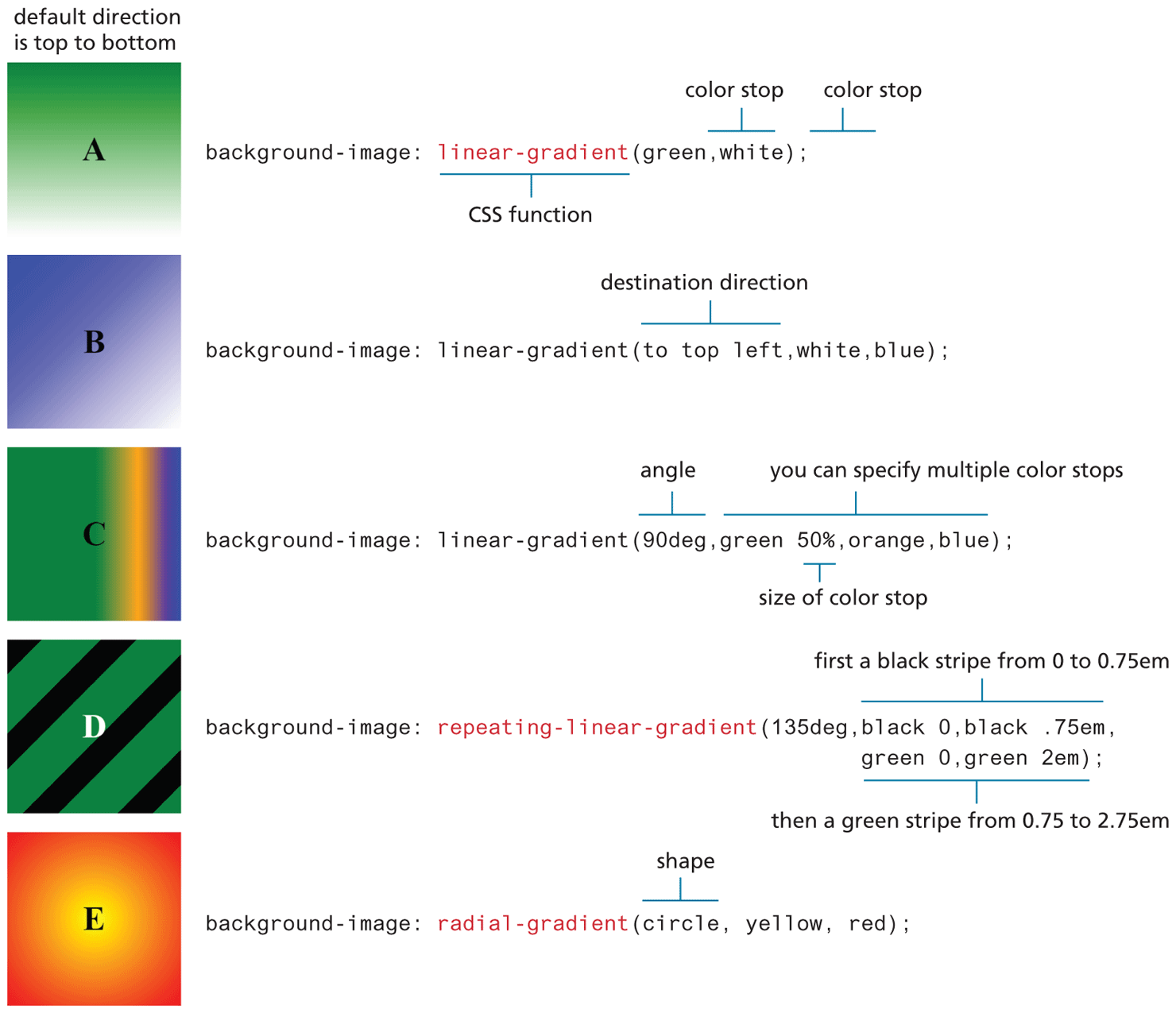
You will notice that the gradients in this example are still used in conjunction with the background-image property. Gradients can only be used with CSS properties that are expecting an image type because CSS gradients are actually an image generated by the browser. As well, you will notice that gradients in CSS are specified using CSS functions, which have a similar syntax as functions in programming languages such as JavaScript.