5.7 Validating User Input
User input must never be trusted. It could be missing. It might be in the wrong format. It might even contain JavaScript or SQL as a means to causing some type of havoc. Thus, almost always user input must be tested for validity.
5.7.1 Types of Input Validation
The following list indicates most of the common types of user input validation.
Required information. Some data fields just cannot be left empty. For instance, the principal name of things or people is usually a required field. Other fields such as emails, phones, or passwords are typically required values.
Correct data type. While some input fields can contain any type of data, other fields, such as numbers or dates, must follow the rules for its data type in order to be considered valid.
Correct format. Some information, such as postal codes, credit card numbers, and social security numbers have to follow certain pattern rules. It is possible, however, to go overboard with these types of checks. Try to make life easier for the user by making user input forgiving. For instance, it is an easy matter for your program to strip out any spaces that users entered in their credit card numbers, which is a better alternative to displaying an error message when the user enters spaces into the credit card number.
Comparison. Some user-entered fields are considered correct or not in relation to an already inputted value. Perhaps the most common example of this type of validation is entering passwords: most sites require the user to enter the password twice and then a comparison is made to ensure the two entered values are identical. Other forms might require a value to be larger or smaller than some other value (this is common with date fields).
Range check. Information such as numbers and dates have infinite possible values. However, most systems need numbers and dates to fall within realistic ranges. For instance, if you are asking a user to input her birthday, it is likely you do not want to accept January 1, 214 as a value; it is quite unlikely she is 1800 years old! As a result, almost every number or date should have some type of range check performed.
Custom. Some validations are more complex and are unique to a particular application. Some custom validations can be performed on the client side. For instance, the author once worked on a project in which the user had to enter an email (i.e., it was required), unless the user entered both a phone number and a last name. This required multiple conditional validation logic. Other custom validations require information on the server. Perhaps the most common example is user registration forms that will ensure that the user doesn’t enter a login name or email that already exists in the system.
5.7.2 Notifying the User
What should your pages do when a validation check fails? Clearly, the user needs to be notified, but how? Most user validation problems need to answer the following questions:
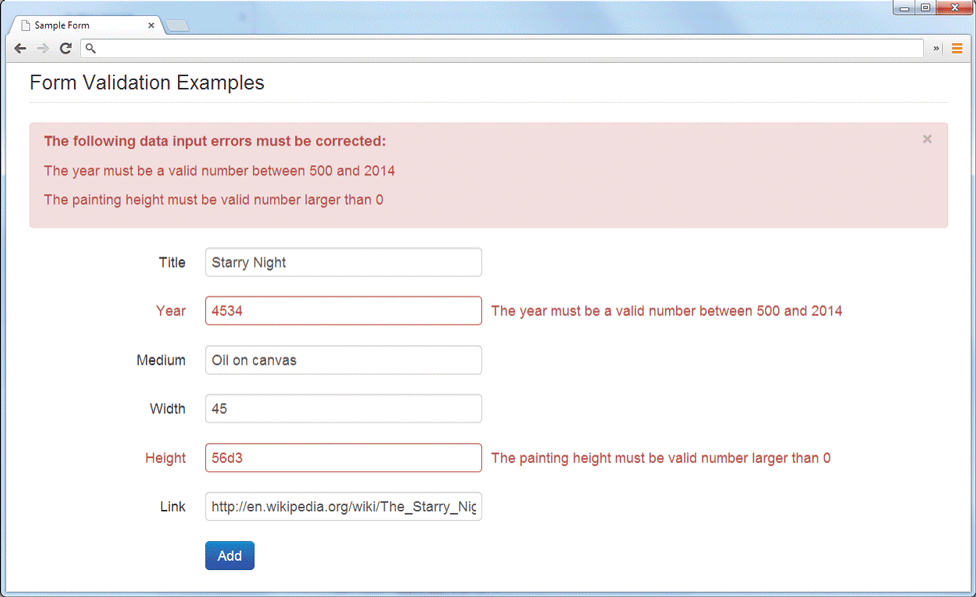
What is the problem? Users do not want to read lengthy messages to determine what needs to be changed. They need to receive a visually clear and textually concise message. These messages can be gathered together in one group and presented near the top of a page and/or beside the fields that generated the errors. Figure 5.34 illustrates both approaches.
Figure 5.34 Displaying error messages
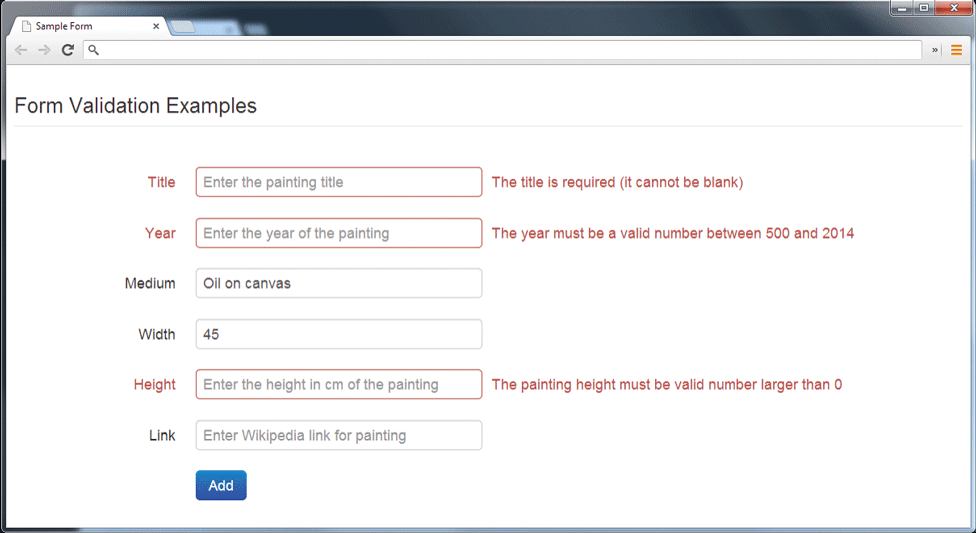
Where is the problem? Some type of error indication should be located near the field that generated the problem. Some sites will do this by changing the background color of the input field or by placing an asterisk or even the error message itself next to the problem field. Figure 5.35 illustrates the latter approach.
Figure 5.35 Indicating where an error is located
If appropriate, how do I fix it? For instance, don’t just tell the user that a date is in the wrong format; tell him or her what format you are expecting, such as “The date should be in yy/mm/dd format.”
5.7.3 How to Reduce Validation Errors
Users dislike having to do things again, so if possible, we should construct user input forms in a way that minimizes user validation errors. The basic technique for doing so is to provide the user with helpful information about the expected data before she enters it. Some of the most common ways of doing so include:
Using pop-up JavaScript alert (or other popup) messages. This approach is fine if you are debugging a site still in development mode or you are trying to re-create the web experience of 1998, but it is an approach that you should generally avoid for almost any other production site. Probably the
only usability justification for pop-up error messages is for situations where it is absolutely essential that the user see the message. Destructive and/or consequential actions such as deleting or purchasing something might be an example of a situation requiring pop-up messages or confirmations.
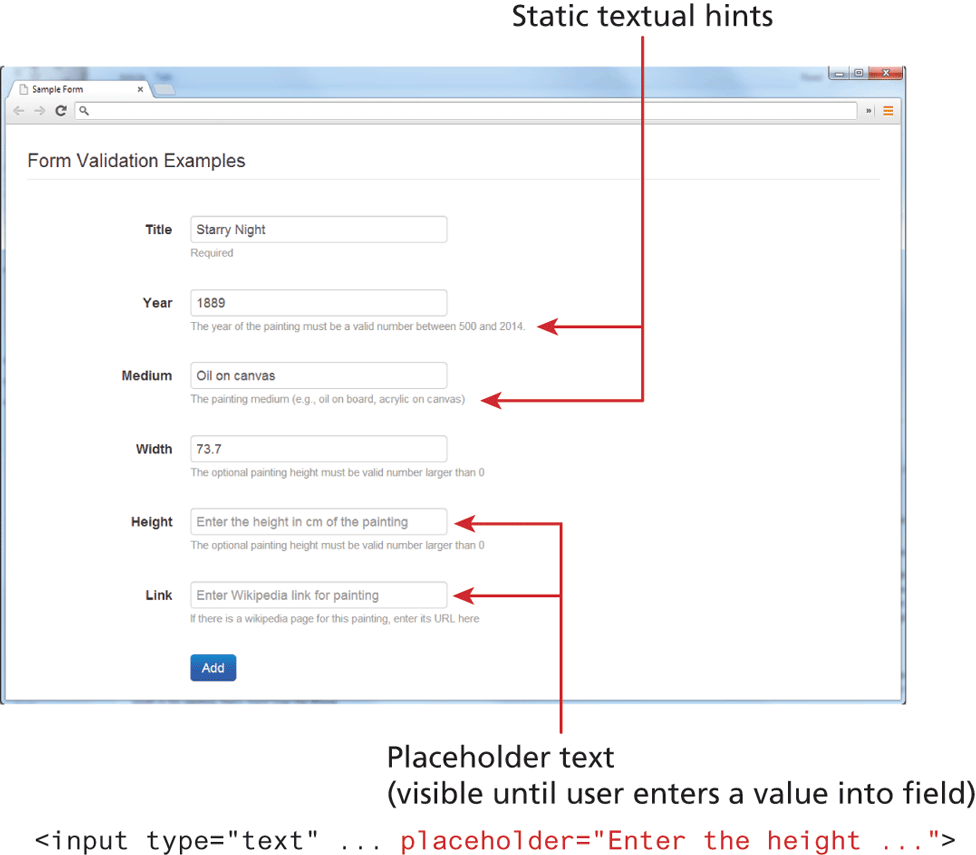
Provide textual hints to the user on the form itself, as shown in Figure 5.36. These could be static or dynamic (i.e., only displayed when the field is active). The
placeholderattribute in text fields is an easy way to add this type of textual hint (though it disappears once the user enters text into the field).Figure 5.36 Providing textual hints
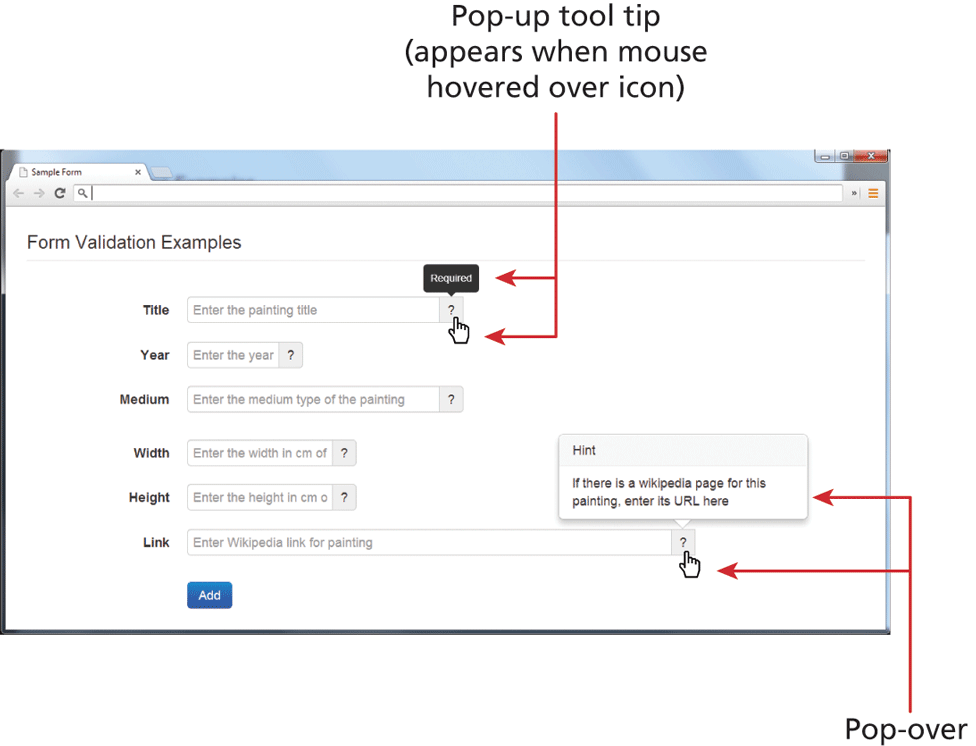
Using tool tips or pop-overs to display context-sensitive help about the expected input, as shown in Figure 5.37. These are usually triggered when the user hovers over an icon or perhaps the field itself. These pop-up tips are especially helpful for situations in which there is not enough screen space to display static textual hints. However, hover-based behaviors will generally not work in environments without a mouse (e.g., mobile or tablet-based browsers). HTML does not provide support for tool tips or pop-ups, so you will have to use a JavaScript-based library to add this behavior to your pages. The examples shown in Figure 5.37 were added via the Bootstrap framework introduced in Chapter 4.
Figure 5.37 Using tool tips
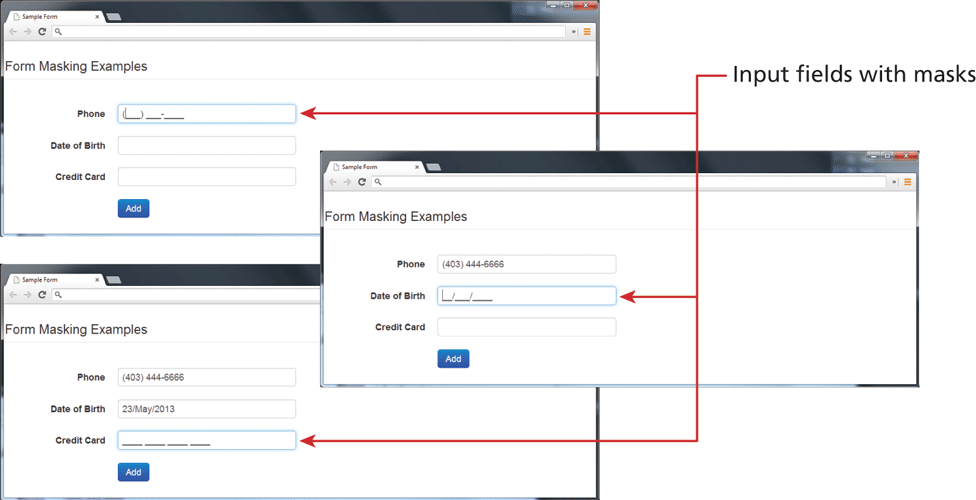
Another technique for helping the user understand the correct format for an input field is to provide a JavaScript-based mask, as shown in Figure 5.38. The advantage of a mask is that it provides immediate feedback about the nature of the input and typically will force the user to enter the data in a correct form. While HTML5 does provide support for regular expression checks via the
patternattribute, if you want visible masking, you will have to use a JavaScript-based library to add masking to your input fields.Figure 5.38 Using input masks
Providing sensible default values for text fields can reduce validation errors (as well as make life easier for your user). For instance, if your site is in the .uk top-level domain, make the default country for new user registrations the United Kingdom.
Finally, many user input errors can be eliminated by choosing a better data entry type than the standard
<input type="text">. For instance, if you need the user to enter one of a small number of correct answers, use a select list or radio buttons instead. If you need to get a date from the user, then use either the HTML5<input type="date">type (or one of the many freely available JavaScript-enabled custom versions). If you need a number, use the HTML5<input type="number">input type.
 Pro Tip
One of the most common problems facing the developers of real-world web forms is how to ensure that the user submitting the form is actually a human and not a bot (i.e., a piece of software). The reason for this is that automated form bots (often called spam bots) can flood a web application form with hundreds or thousands of bogus requests.
This problem is generally solved by a test commonly referred to as a CAPTCHA (which stands for Completely Automated Public Turing test to tell Computers and Humans Apart) test. Most forms of CAPTCHA ask the user to enter a string of numbers and letters that are displayed in an obscured image that is difficult for a software bot to understand. Other CAPTCHAs ask the user to solve a simple mathematical question or trivia question.
We think it is safe to state that most human users dislike filling in CAPTCHA fields, as quite often the text is unreadable for humans as well as for bots. They also present a usability challenge for users with visual disabilities. As such, in general one should only add CAPTCHA capabilities to a form if your site is providing some type of free service or the site is providing a mechanism for users to post content that will appear on the site. Both of these scenarios are especially vulnerable to spam bots.
If you do need CAPTCHA capability, there is a variety of third-party solutions. Perhaps the most common is reCAPTCHA, which is a free open-source component available from Google. It comes with a JavaScript component and PHP libraries that make it quite easy to add to any form.
5.7.4 Where to Perform Validation
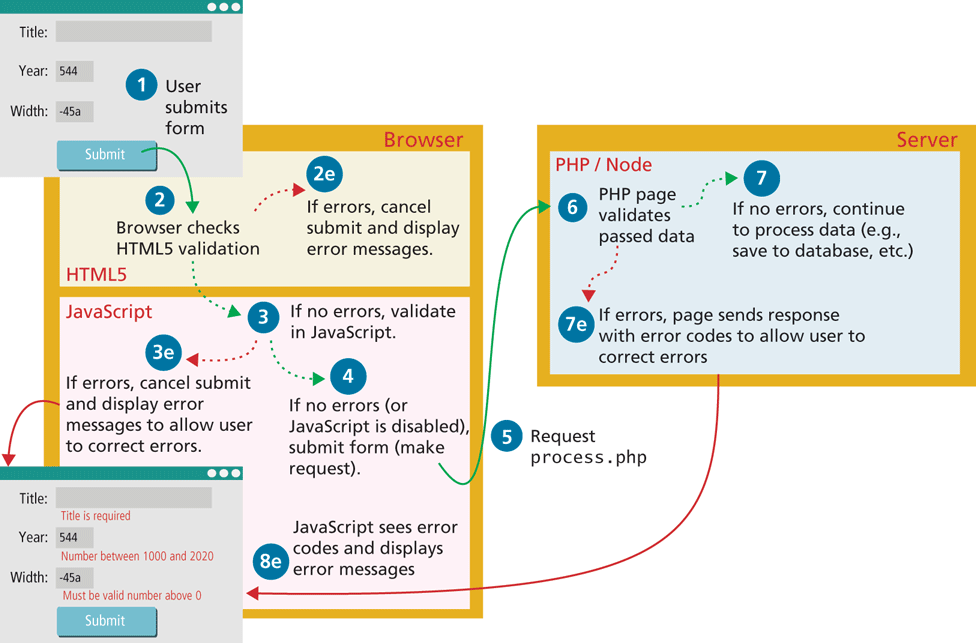
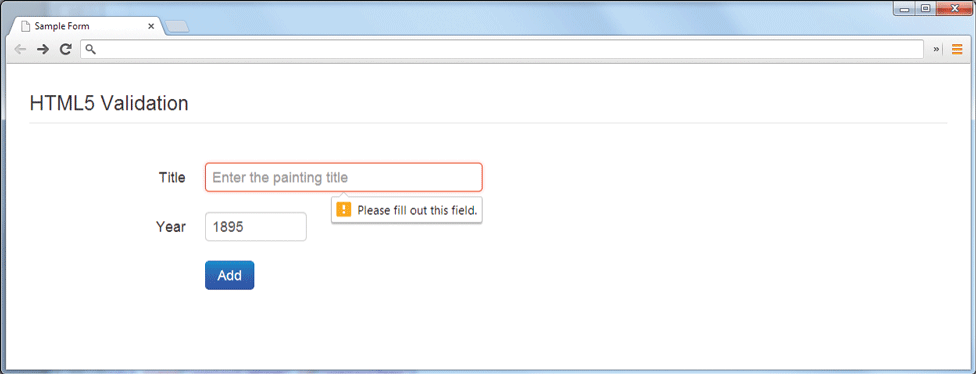
Validation can be performed at three different levels. With HTML5, the browser can perform basic validation. Figure 5.39 illustrates how HTML5 validation appears in the browser. For instance, in the following example, the required and pattern attributes are used to validate a date in the format ##/##/####.
<input type="text" pattern="\d{1,2}/\d{1,2}/\d{4}" required>Figure 5.39 HTML5 browser validation
What is that strange set of text used in this pattern attribute? It is a regular expression, a popular standardized language used in a wide variety of languages and platforms for the matching and manipulating text. Regular expressions will be covered in a bit more detail in Chapter 9.
However, since the validation that can be achieved in HTML5 is quite basic (and there is no real control over how it looks and behaves), many web applications do not use this level of validation and instead perform validation in the browser using JavaScript (covered in Chapters 8–11). If you wish to disable browser validation (perhaps because you want a unified visual appearance to all validations), you can do so by adding the novalidate attribute to the form attribute:
<form id="sampleForm" method="..." action="..." novalidate>The advantage of validation using JavaScript is that it reduces server load and provides immediate feedback to the user. The immediacy of JavaScript validation dramatically improves the user experience of data-entry forms, and for this reason it is an essential feature of any real-world web site that uses forms.
Unfortunately, JavaScript validation cannot be relied on: for instance, it might be turned off on the user’s browser. For these reasons, validation should always be done on the server side as well. Indeed, server-side validation is arguably the most important since it is the only validation that is guaranteed to run. Figure 5.40 illustrates the interaction of the different levels of validation.
Figure 5.40 Visualizing levels of validation