5.5 Table and Form Accessibility
Web developers should be aware that not all web users are able to view the content on web pages in the same manner. Users with sight disabilities, for instance, experience the web using voice reading software. Color-blind users might have trouble differentiating certain colors in proximity; users with muscle control problems may have difficulty using a mouse, while older users may have trouble with small text and image sizes. The term accessibility refers to the assistive technologies, various features of HTML that work with those technologies, and different coding and design practices that can make a site more usable for people with visual, mobility, auditory, and cognitive disabilities.
In order to improve the accessibility of websites, the W3C created the Web Accessibility Initiative (WAI) in 1997. The WAI produces guidelines and recommendations as well as organizing different working groups on different accessibility issues. One of its most helpful documents is the Web Content Accessibility Guidelines, which is available at http:/
Perhaps the most important guidelines in that document are:
Provide text alternatives for any nontext content so that it can be changed into other forms people need, such as large print, braille, speech, symbols, or simpler language.
Create content that can be presented in different ways (for example, simpler layout) without losing information or structure.
Make all functionality available from a keyboard.
Provide ways to help users navigate, find content, and determine where they are.
The guidelines provide detailed recommendations on how to achieve this advice. This section will look at how one can improve the accessibility of tables and forms, two HTML structures that are often plagued by a variety of accessibility issues.
5.5.1 Accessible Tables
HTML tables can be quite frustrating from an accessibility standpoint. Users who rely on visual readers can find pages with many tables especially difficult to use. One vital way to improve the situation is to only use tables for tabular data, not for layout. Using the following accessibility features for tables in HTML can also improve the experience for those users:
Describe the table’s content using the
<caption>element (see Figure 5.6). This provides the user with the ability to discover what the table is about before having to listen to the content of each and every cell in the table. If you have an especially long description for the table, consider putting the table within a<figure>element and use the<figcaption>element to provide the description.Connect the cells with a textual description in the header. While it is easy for a sighted user to quickly see what row or column a given data cell is in, for users relying on visual readers, this is not an easy task.
It is quite revealing to listen to reader software recite the contents of a table that has not made these connections. It sounds like this: “row 3, cell 4: 45.56; row 3, cell 5: Canada; row 3, cell 6: 25,000; etc.” However, if these connections have been made, it sounds instead like this: “row 3, Average: 45.56; row 3, Country: Canada; row 3, City Count: 25,000; etc.,” which is a significant improvement.
Listing 5.1 illustrates how to use the scope attribute to connect cells with their headers.
Listing 5.1 Connecting cells with headers
<table>
   <caption>Famous Paintings</caption>
   <tr>
      <th scope="col">Title</th>
      <th scope="col">Artist</th>
      <th scope="col">Year</th>
      <th scope="col">Width</th>
      <th scope="col">Height</th>
   </tr>
   <tr>
      <td>The Death of Marat</td>
      <td>Jacques-Louis David</td>
      <td>1793</td>
      <td>162cm</td>
      <td>128cm</td>
   </tr>
   <tr>
      <td>Burial at ornans</td>
      <td>Gustave Courbet</td>
      <td>1849</td>
      <td>314cm</td>
      <td>663cm</td>
   </tr>
</table>
5.5.2 Accessible Forms
HTML forms are also potentially problematic from an accessibility standpoint. If you remember the advice from the WAI about providing keyboard alternatives and text alternatives, your forms should be much less of a problem.
The forms in this chapter already made use of the <fieldset>, <legend>, and <label> elements, which provide a connection between the input elements in the form and their actual meaning. In other words, these controls add semantic content to the form.
While the browser does provide some unique formatting to the <fieldset> and <legend> elements, their main purpose is to logically group related form input elements together with the <legend> providing a type of caption for those elements. You can, of course, use CSS to style (or even remove the default styling) these elements.
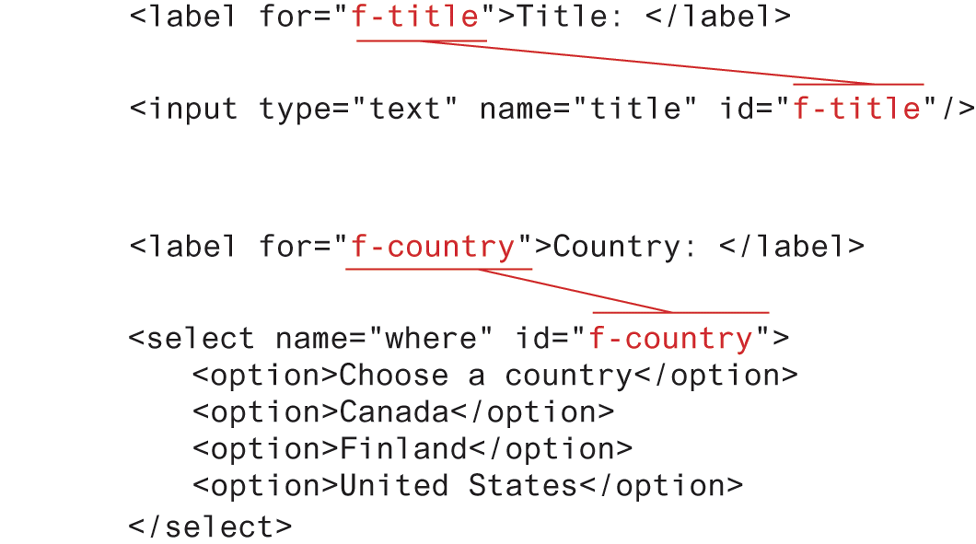
The <label> element has no special formatting (though we can use CSS to do so). Each <label> element should be associated with a single input element. You can make this association explicit by using the for attribute, as shown in Figure 5.30. Doing so means that if the user clicks on or taps the <label> text, that control will receive the focus (i.e., it becomes the current input element, and any keyboard input will affect that control).
Figure 5.30 Associating labels and input elements