5.2 Styling Tables
There is certainly no limit to the way one can style a table. While most of the styling that one can do within a table is simply a matter of using the CSS properties from Chapter 4, there are a few properties unique to styling tables that you have not yet seen.
5.2.1 Table Borders
As can be seen in Figure 5.7, borders can be assigned to both the <table> and the <td> element (they can also be assigned to the <th> element as well). Interestingly, borders cannot be assigned to the <tr>, <thead>, <tfoot>, and <tbody> elements.
Figure 5.7 Styling table borders
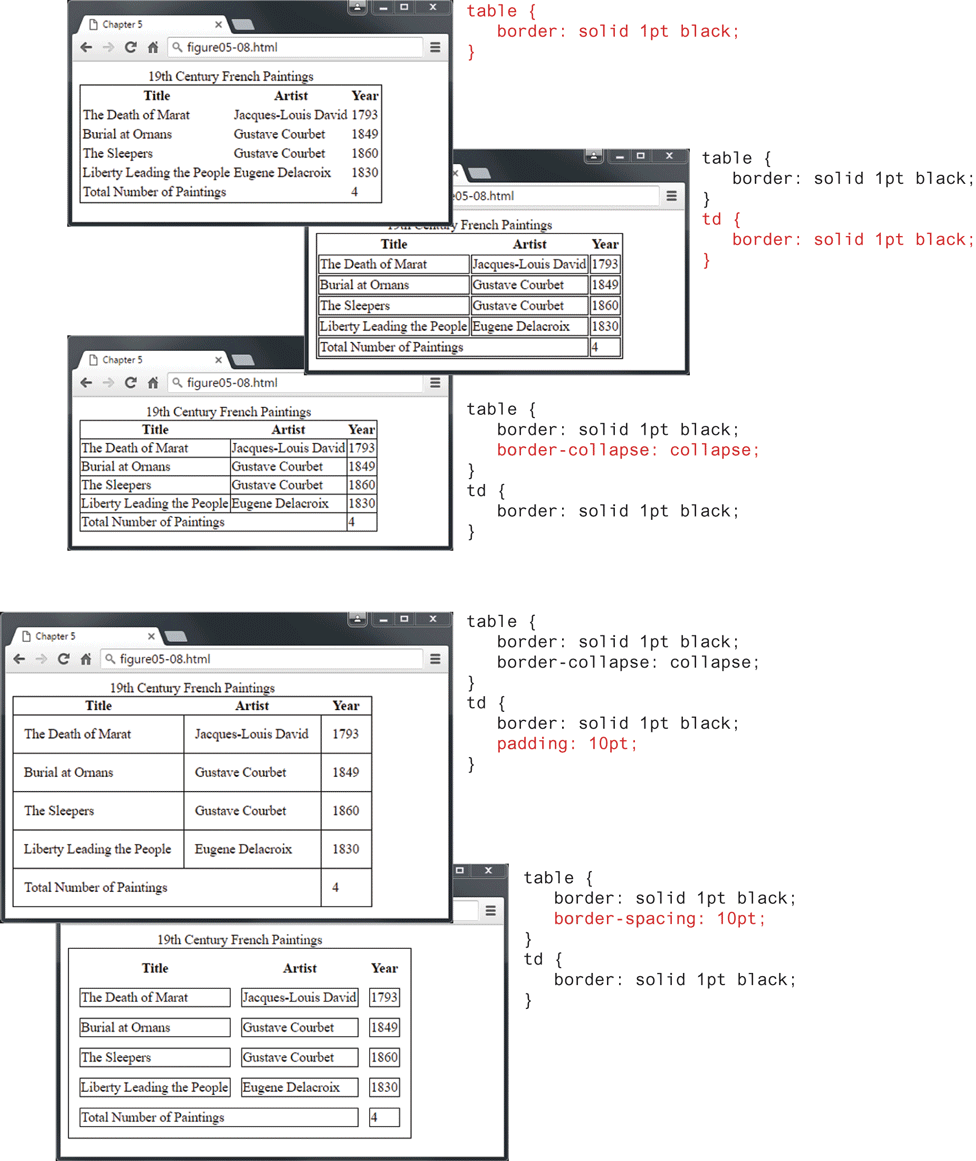
Notice as well the border-collapse property. This property selects the table’s border model. The default, shown in the second screen capture in Figure 5.7, is the separated model or value. In this approach, each cell has its own unique borders. You can adjust the space between these adjacent borders via the border-spacing property, as shown in the final screen capture in Figure 5.7. In the third screen capture, the collapsed border model is being used; in this model adjacent cells share a single border.
 Note
Note
While now officially deprecated in HTML5, there are a number of table attributes that are still supported by the browsers and which you may find in legacy markup. These include the following attributes:
width, height—for setting the width and height of cellscellspacing—for adding space between every cell in the tablecellpadding—for adding space between the content of the cell and its borderbgcolor—for changing the background color of any table elementbackground—for adding a background image to any table elementalign—for indicating the alignment of a table in relation to the surrounding container
You should avoid using these attributes for new markup and instead use the appropriate CSS properties.
5.2.2 Boxes and Zebras
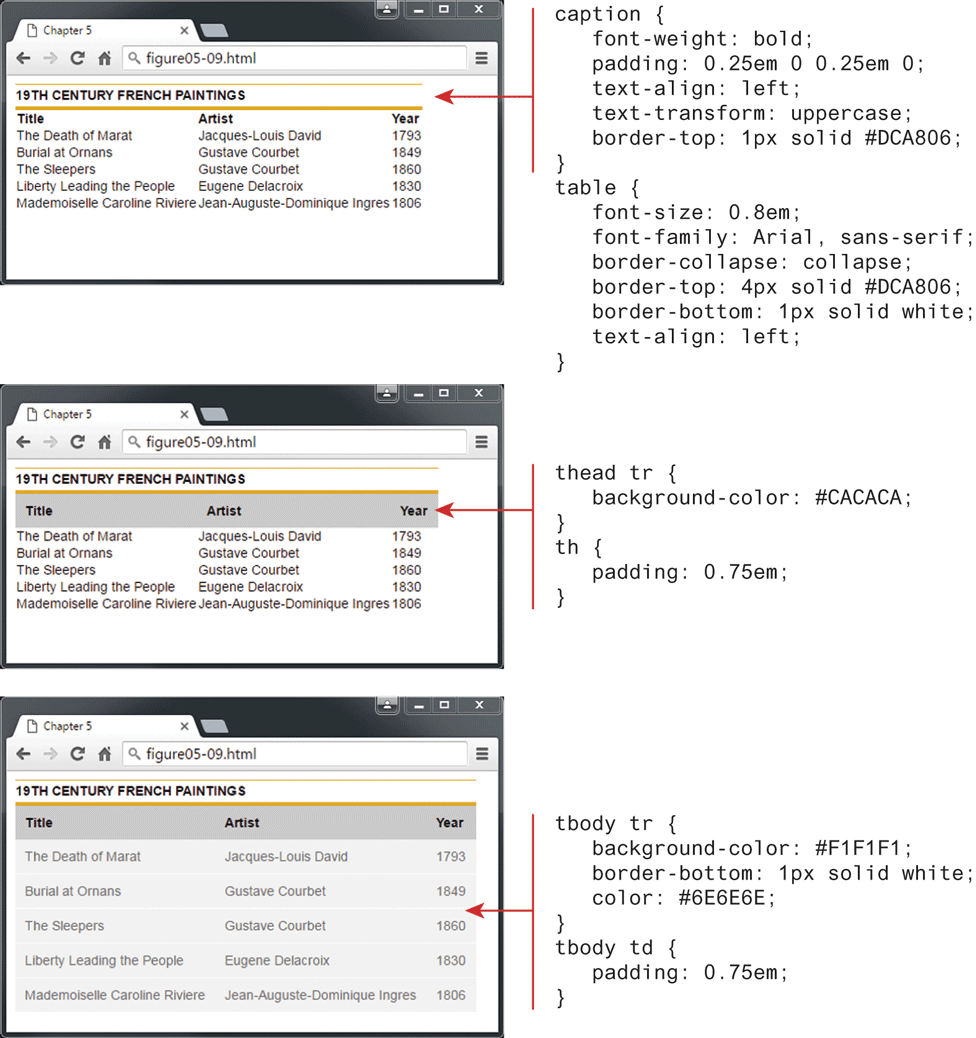
While there is almost no end to the different ways one can style a table, there is a number of pretty common approaches. We will look at two of them here. The first of these is a box format, in which we simply apply background colors and borders in various ways, as shown in Figure 5.8.
Figure 5.8 An example boxed table
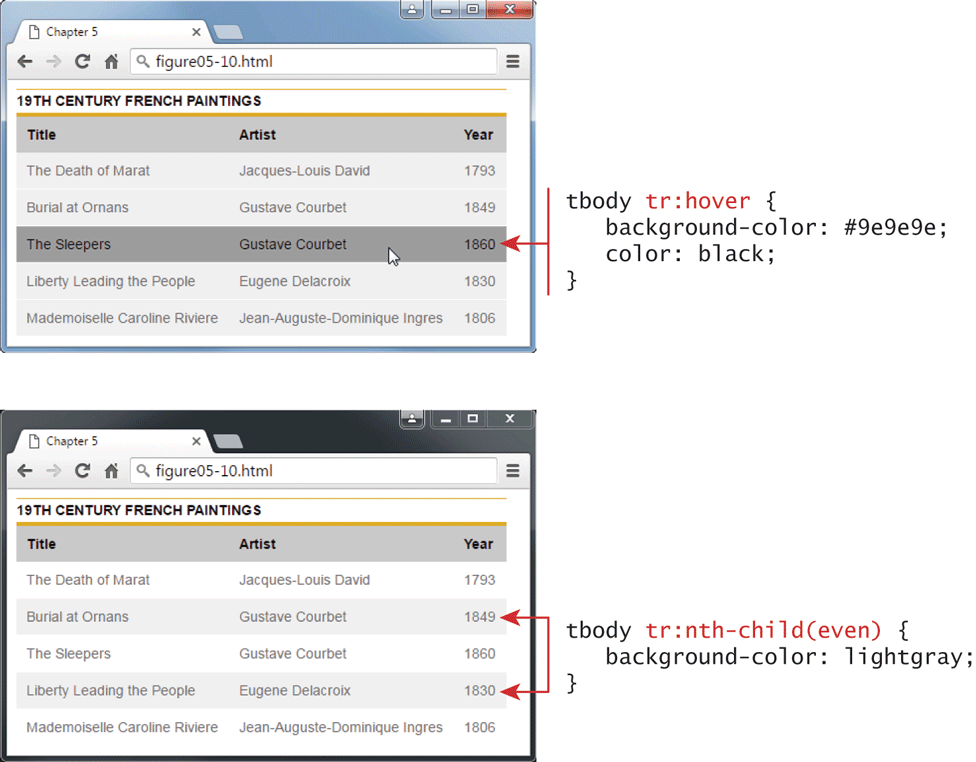
We can then add special styling to the :hover pseudo-class of the <tr> element to highlight a row when the mouse cursor hovers over a cell, as shown in Figure 5.9. That figure also illustrates how the pseudo-element nth-child (covered in Chapter 4) can be used to alternate the format of every second row.
Figure 5.9 Hover effect and zebra stripes
Test Your Knowledge #1
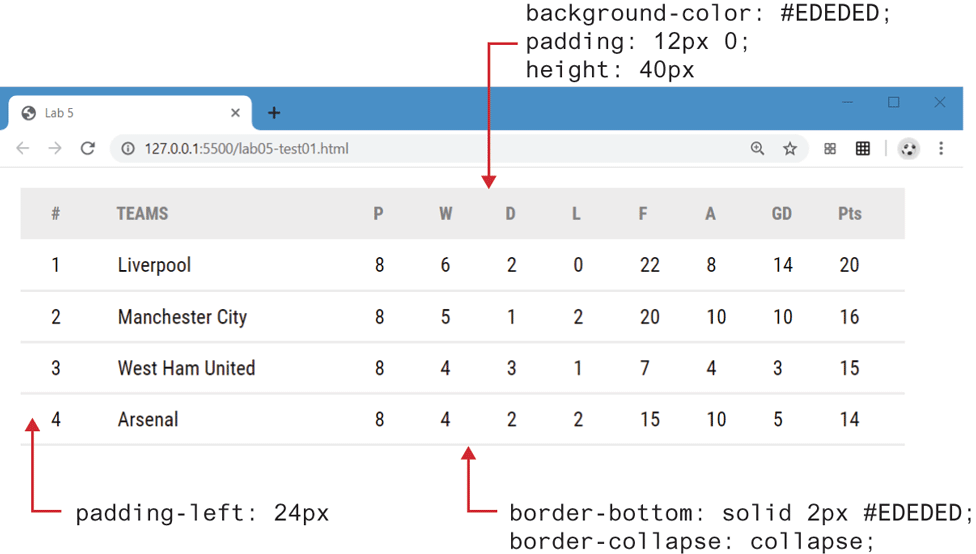
Modify lab05-test01.html by adding the markup to implement the table shown in Figure 5.10. Then add styles to lab05-test01.css.
In order for borders to appear, the
border-collapseproperty of the table must be set tocollapse.You will need to style the heading row differently than the other rows. It should have a smaller
font-sizeproperty and abackgroundcolor.The team column is wider than the other columns. The easiest way to achieve this is by adding a class selector to those
<td>elements and set thewidthin that class. Alternately you could use thenth-childpseudo-class selector.The very first column will need to have additional left padding. You can do this via a class or the
nth-childpseudo-class selector. If you haven’t yet used the pseudo-class, you should try it with this alternate selector approach.
Figure 5.10 Completed Test Your Knowledge #1