3.6 HTML5 Semantic Structure Elements
Section 3.3 discussed the idea of semantic markup and how it improves the maintainability and accessibility of web pages. In the code examples so far, the main semantic elements you have seen are headings, paragraphs, lists, and some inline elements. You also saw the other key semantic block element, namely, the division (i.e., <div> element).
Figure 3.16 did, however, illustrate one substantial problem with modern, pre-HTML5 semantic markup. Many complex websites are absolutely packed solid with <div> elements. Many of these are marked with different id or class attributes. You will see in Chapter 7 that complex layouts are typically implemented using CSS that targets the various <div> elements for CSS styling. Unfortunately, all these <div> elements can make the resulting markup confusing and hard to modify. Developers typically try to bring some sense and order to the <div> chaos by using id or class names that provide some clue as to their meaning, as shown in Figure 3.21.
Figure 3.21 Sample <div>-based XHTML layout (with HTML5 equivalents)
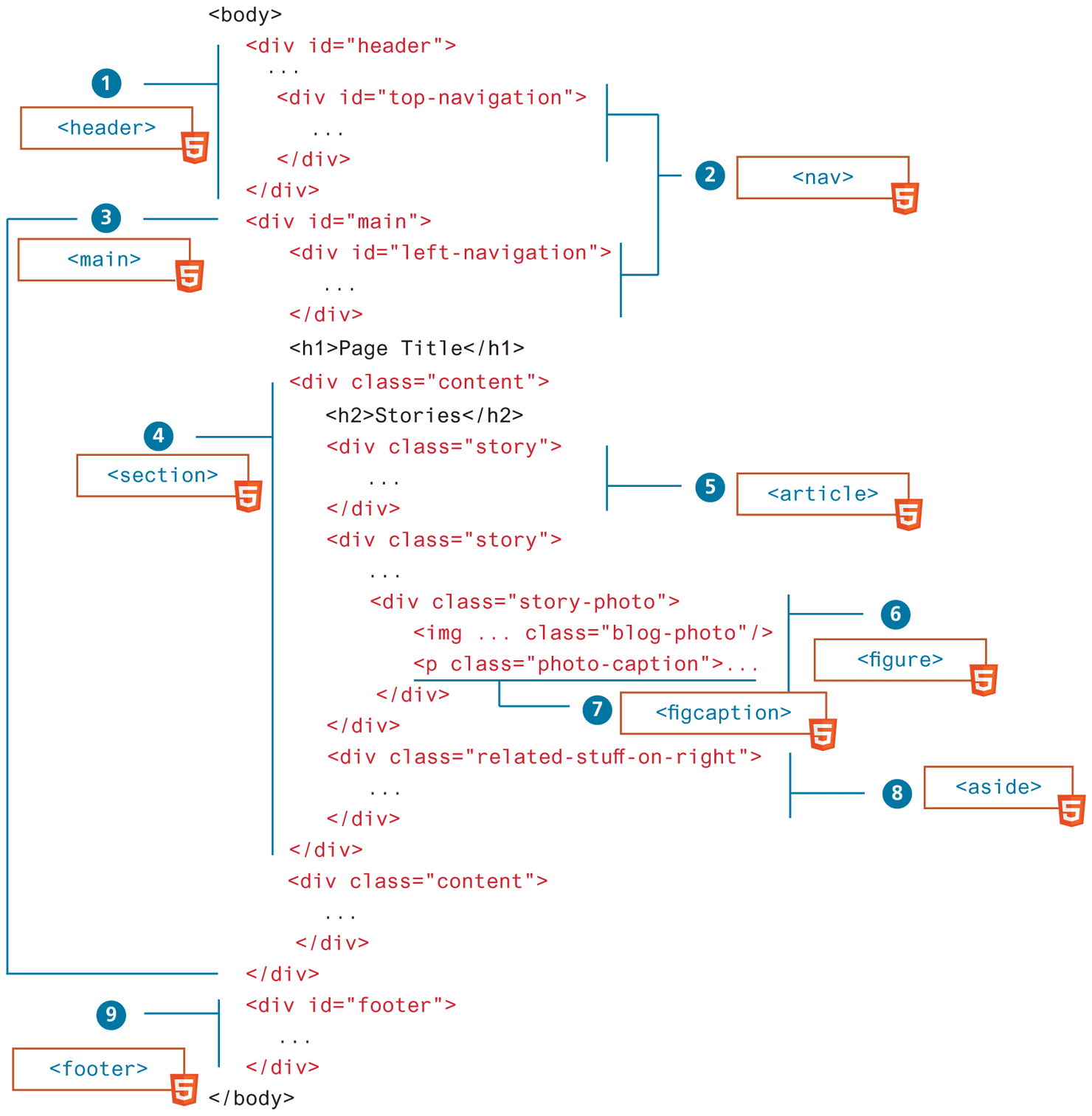
As HTML5 was being developed, researchers at Google and Opera had their search spiders examine millions of pages to see what were the most common id and class names. Their findings helped standardize the names of the new semantic block structuring elements in HTML5, most of which are also shown in Figure 3.22.
Figure 3.22 Visualizing semantic structure
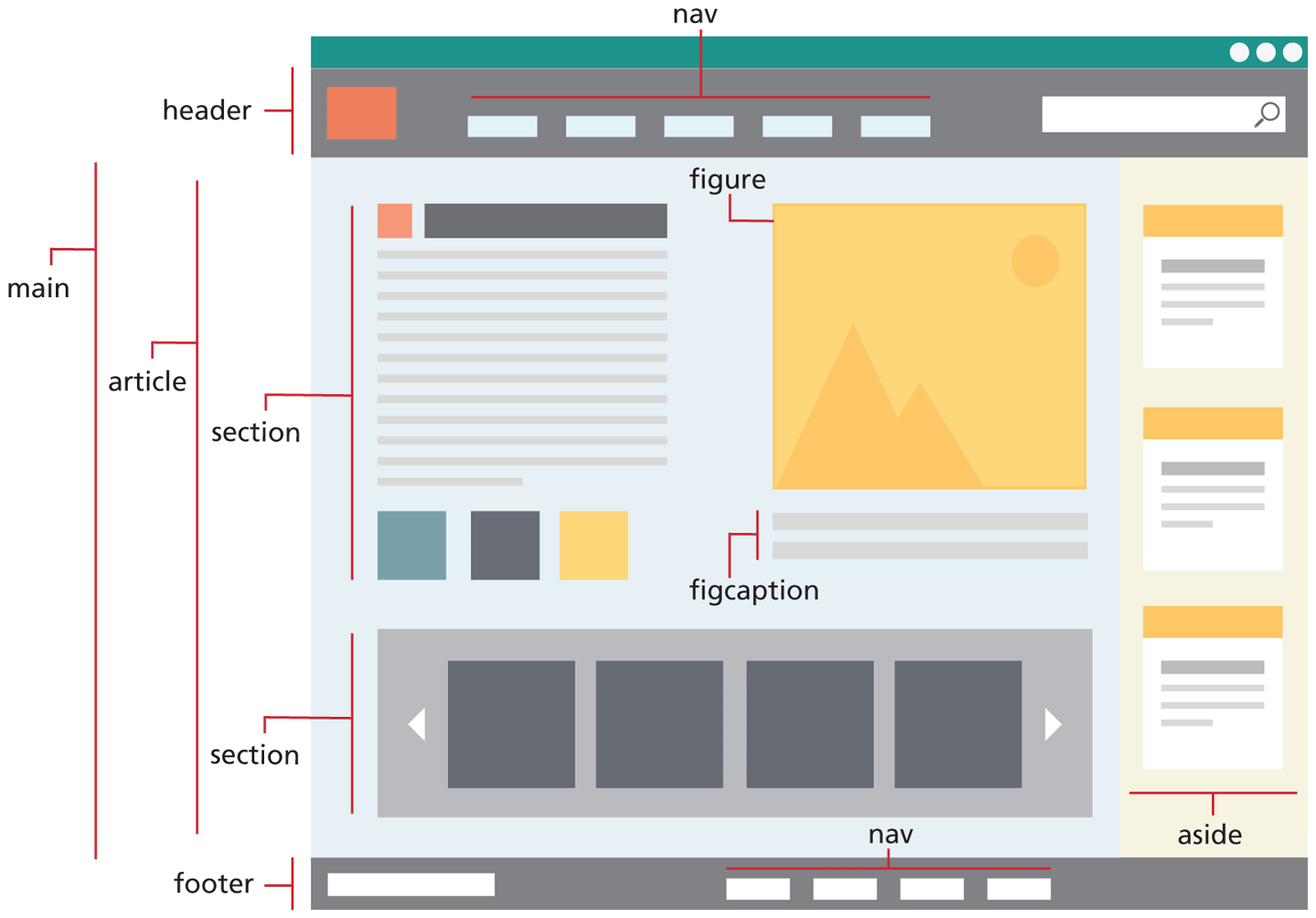
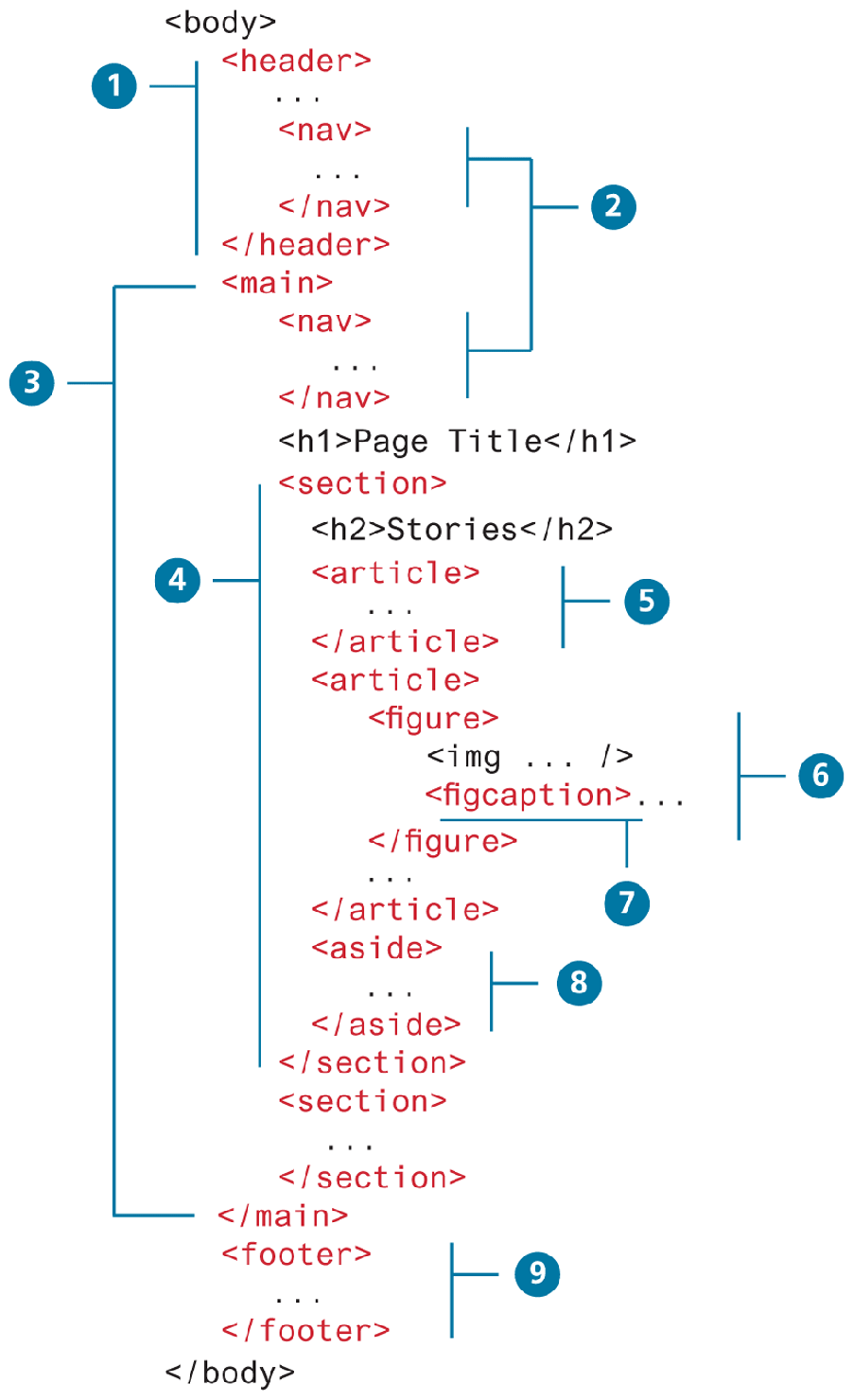
The idea behind using these elements is that your markup will be easier to understand because you will be able to replace some of your <div> sprawl with cleaner and more self-explanatory HTML5 elements. Figure 3.23 illustrates the simpler version of Figure 3.21, one that uses the semantic elements in HTML5. Each of these elements is briefly discussed in the following sections.
Figure 3.23 Sample layout using new HTML5 semantic structure elements
3.6.1 Header and Footer
Most website pages have a recognizable header and footer section. Typically the header contains the site logo and title (and perhaps additional subtitles or taglines), horizontal navigation links, and perhaps one or two horizontal banners. The typical footer contains less important material, such as smaller text versions of the navigation, copyright notices, information about the site’s privacy policy, and perhaps twitter feeds or links to other social sites.
Both the HTML5 <header> and <footer> element can be used not only for page headers and footers (as shown in items  and
and  in Figure 3.23) but also for header and footer elements within other HTML5 containers, such as
 <article> or <section>. Listing 3.1 demonstrates both uses of the <header> element.
Listing 3.1 Example usages of <header>
<header>
<img src="logo.gif" alt="logo" />
<h1>Fundamentals of Web Development</h1>
...
</header>
<article>
   <header>
     <h2>HTML5 Semantic Structure Elements</h2>
     <p> By <em>Randy Connolly</em></p>
     <p><time>September 30, 2015</time></p>
   </header>
   ...
</article>
The browser really doesn’t care how one uses these HTML5 semantic structure elements. Just like with the <div> element, there is no predefined presentation for these tags.
3.6.2 Navigation
The <nav> element (item  in Figure 3.23) represents a section of a page that contains links to other pages or to other parts within the same page. Like the other new HTML5 semantic elements, the browser does not apply any special presentation to the
 <nav> element. The <nav> element was intended to be used for major navigation blocks, presumably the global and secondary navigation systems as well as perhaps search facilities. However, like all the new HTML5 semantic elements in Section 3.6, from the browser’s perspective, there is no definite right or wrong way to use the <nav> element. Its sole purpose is to make your markup easier to understand, and by limiting the use of the <nav> element to major elements, your markup will more likely achieve that aim. Listing 3.2 illustrates a typical example usage of the <nav> element.
Listing 3.2 Example usage of the <nav> element
<header>
  <img src="logo.gif" alt="logo" />
  <h1>Fundamentals of Web Development</h1>
  <nav>
    <ul>
       <li><a href="index.html">Home</a></li>
       <li><a href="about.html">About Us</a></li>
       <li><a href="browse.html">Browse</a></li>
    </ul>
  </nav>
</header>
3.6.3 Main
The <main> element (item  in Figure 3.23) was a late addition to the HTML5 specification. It is meant to contain the main unique content of the document. Elements that repeat across multiple pages (such as headers, footers, and navigation) or are incidental to the main content (such as advertisements and marketing callouts) do not belong in the
 <main> element. As described by the W3C Recommendation, the main content area should “consist of content that is directly related to or expands upon the central topic of a document or central functionality of an application.”
While not a required element, as shown in Figure 3.23, it provides a semantic replacement for markup such as <div id="main"> or <div id="container">. It is worth noting that the <main> element has some clear usage rules. First, there should only be one <main> element in a document. Second, it should not be nested within any the <article>, <aside>, <footer>, <header>, or <nav> containers.
3.6.4 Articles and Sections
The book you are reading is divided into smaller blocks of content called chapters, which make this long book easier to read. Furthermore, each chapter is further divided into sections (and these sections into even smaller subsections), all of which make the content of the book easier to manage for both the reader and the authors. Other types of textual content, such as newspapers, are similarly divided into logical sections. The new HTML5 semantic elements <section> and <article> (items  and
and  , respectively, in Figure 3.23) play a similar role within web pages.
It might not be clear how to choose between these two elements. According to the W3C, <section> is a much broader element, while the <article> element is to be used for blocks of content that could potentially be read or consumed independently of the other content on the page. We can gain a further understanding of how to use these two elements by looking at the more expansive WHATWG specification.
The section element represents a generic section of a document or application. A section, in this context, is a thematic grouping of content, typically with a heading. Examples of sections would be chapters, the various tabbed pages in a tabbed dialog box, or the numbered sections of a thesis. A website’s home page could be split into sections for an introduction, news items, and contact information.
The article element represents a self-contained composition in a document, page, application, or site and that is, in principle, independently distributable or reusable, e.g., in syndication. This could be a forum post, a magazine or newspaper article, a blog entry, a user-submitted comment, an interactive widget or gadget, or any other independent item of content.
—WHATWG HTML specification
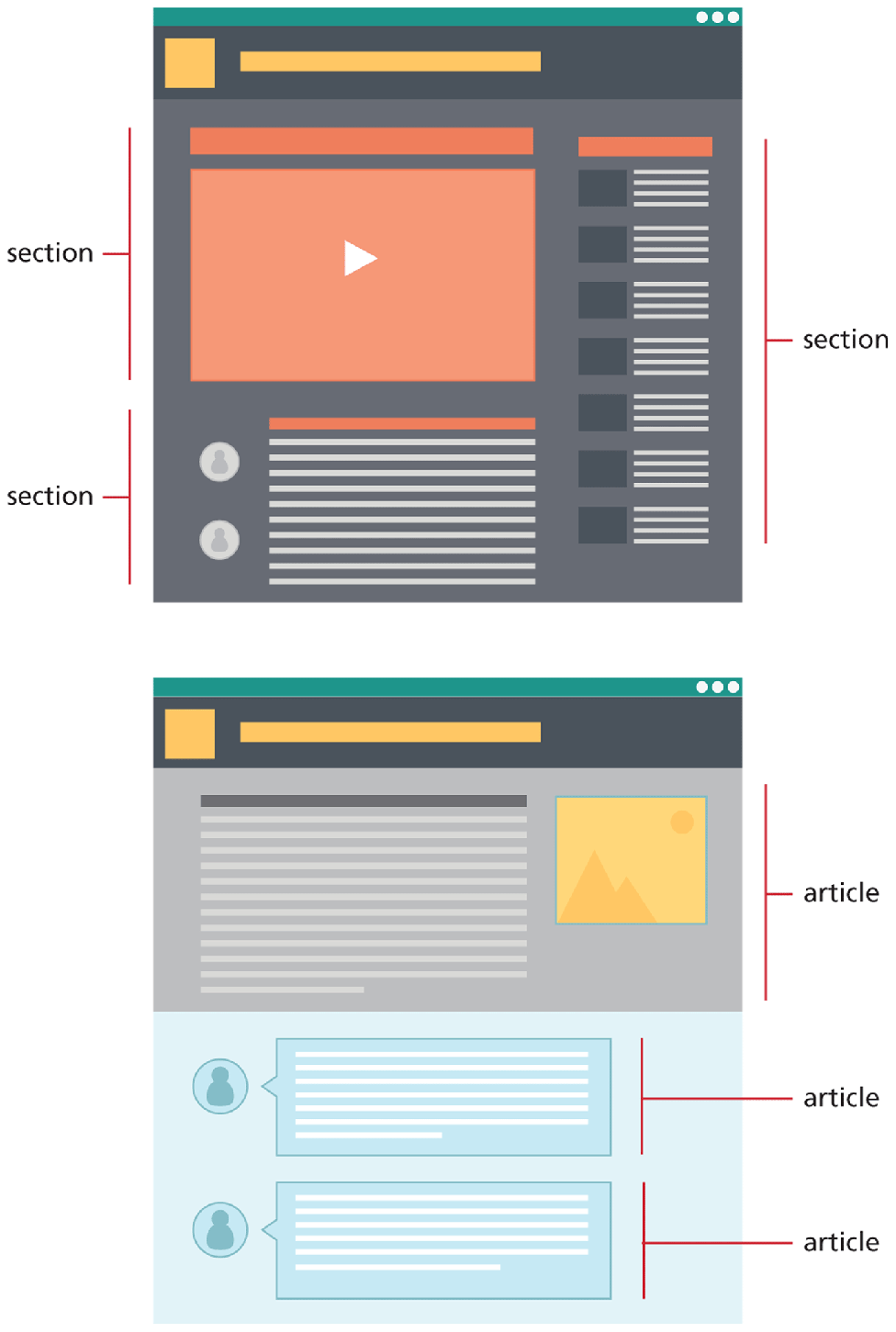
Figure 3.24 illustrates how the <article> and <section> elements could be used. An article makes sense on its own (perhaps in any order), while sections are a way to thematically divide content on a page (and thus each section typically begins with a heading). A section may be divided into articles, or an article may be divided into sections. Don’t stress out about getting it right; they are there only to help you better organize your markup.
Figure 3.24 Articles and sections
3.6.5 Figure and Figure Captions
Throughout this chapter you have seen screen captures or diagrams or photographs that are separate from the text (but related to it), which are described by a caption, and which are given the generic name of Figure. Prior to HTML5, web authors typically wrapped images and their related captions within a nonsemantic <div> element. In HTML5 we can instead use the more obvious <figure> and <figcaption> elements (items  and
and  in Figure 3.23).
The W3C Recommendation indicates that the <figure> element can be used not just for images but for any type of essential content that could be moved to a different location in the page or document, and the rest of the document would still make sense.
The figure element represents some flow content, optionally with a caption, that is self-contained and is typically referenced as a single unit from the main flow of the document.
The element can thus be used to annotate illustrations, diagrams, photos, code listings, etc, that are referred to from the main content of the document but that could, without affecting the flow of the document, be moved away from that primary content, e.g., to the side of the page, to dedicated pages, or to an appendix.
—WHATWG HTML specification
For instance, as I write this section, I will at some point make reference to one of the figures or code listings. But I cannot write “the illustration above” or “the code listing to the right,” even though it is possible that on the page you are looking at right now, there is an illustration just above these words or the code listing might be just to the right. I cannot do this because at the point of writing these words, the actual page layout is still many months away. But I can make nonspatial references in the text to “Figure 3.25” or to “Listing 3.3”—that is, to the illustration or code samples’ captions. The figures and code listings are not optional; they need to be in the text. However, their ultimate position on the page is irrelevant to me as I write the text.
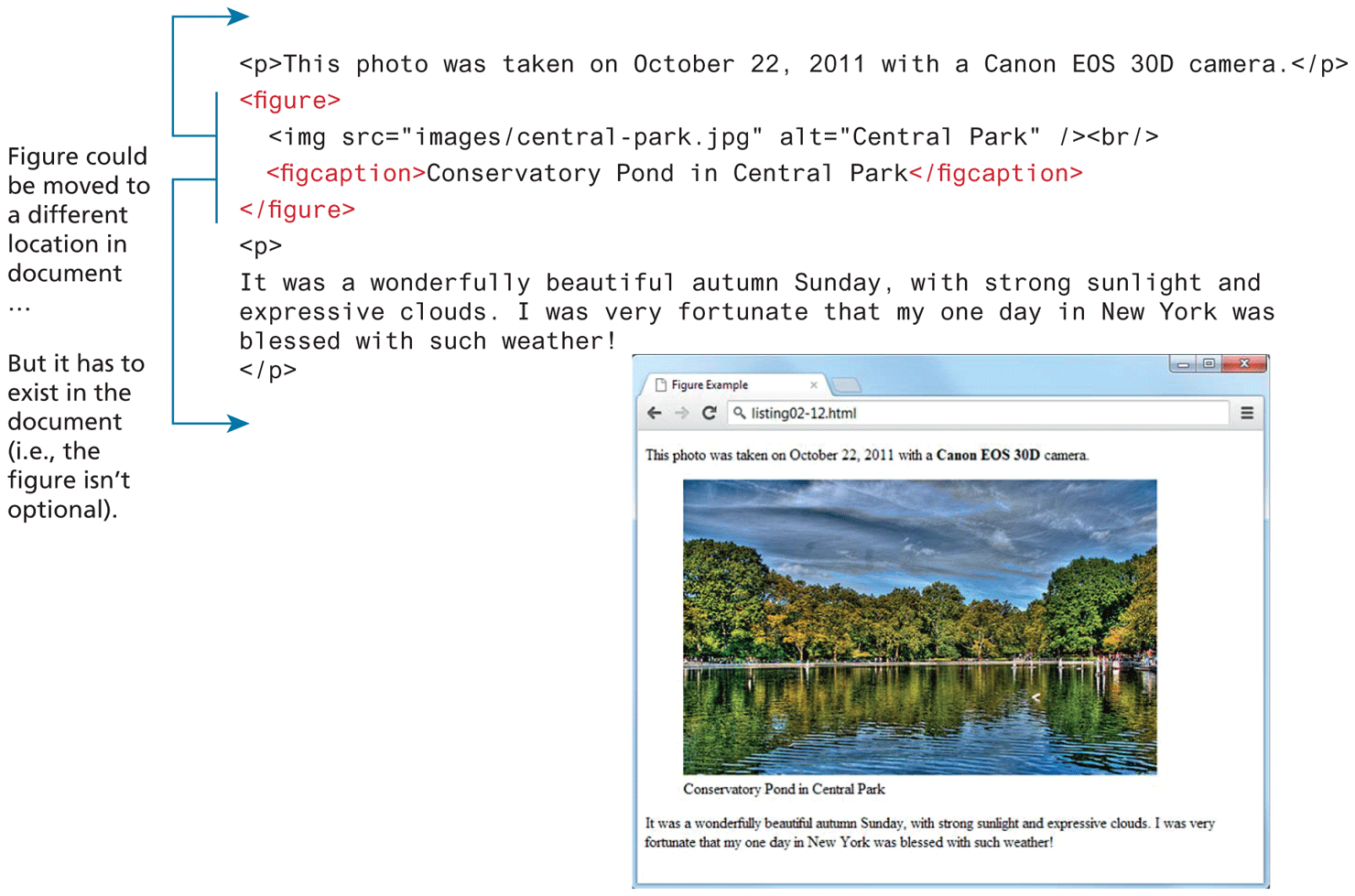
Figure 3.25 The figure and figcaption elements in the browser
Listing 3.3 Examples of the <blockquote> and <address> elements
<blockquote cite="https://developer.mozilla.org/en-US/docs/Web/HTML/Element/blockquote"><p>The HTML blockquote element indicates that the enclosed text is an extended quotation. Usually, this is rendered visually by indentation. A URL for the source of the quotation may be given using the cite attribute.</p></blockquote><address><h3>Contact Us</h3><h4>The Museum of Modern Art</h4>11 West 53 Street, New York, NY 10019</address><address><a href="http://www.getty.edu/museum/">http://www.getty.edu/museum/</a><br />1200 Getty Center Drive<br />Los Angeles, CA 90049-1687<br /><a href="tel:+310-440-7330">+1 (310) 440-7330</a><br /><a href="gettymuseum@getty.edu">gettymuseum@getty.edu</a></address>
 Note
Note
The <figure> element should not be used to wrap every image. For instance, it makes no sense to wrap the site logo or nonessential images such as banner ads and graphical embellishments within <figure> elements. Instead, only use the <figure> element for circumstances where the image (or other content) has a caption and where the figure is essential to the content but its position on the page is relatively unimportant.
Figure 3.25 illustrates a sample usage of the <figure> and <figcaption> element. While this example places the caption below the figure in the markup, this is not required. Similarly, this example shows an image within the <figure>, but it could be any content.
3.6.6 Aside
The <aside> element (item  in Figure 3.23) is similar to the
 <figure> element in that it is used for marking up content that is separate from the main content on the page. But while the <figure> element was used to indicate important information whose location on the page is somewhat unimportant, the <aside> element “represents a section of a page that consists of content that is tangentially related to the content around the aside element” (from WHATWG specification).
The <aside> element could thus be used for sidebars, pull quotes, groups of advertising images, or any other grouping of nonessential elements.
3.6.7 Details and Summary
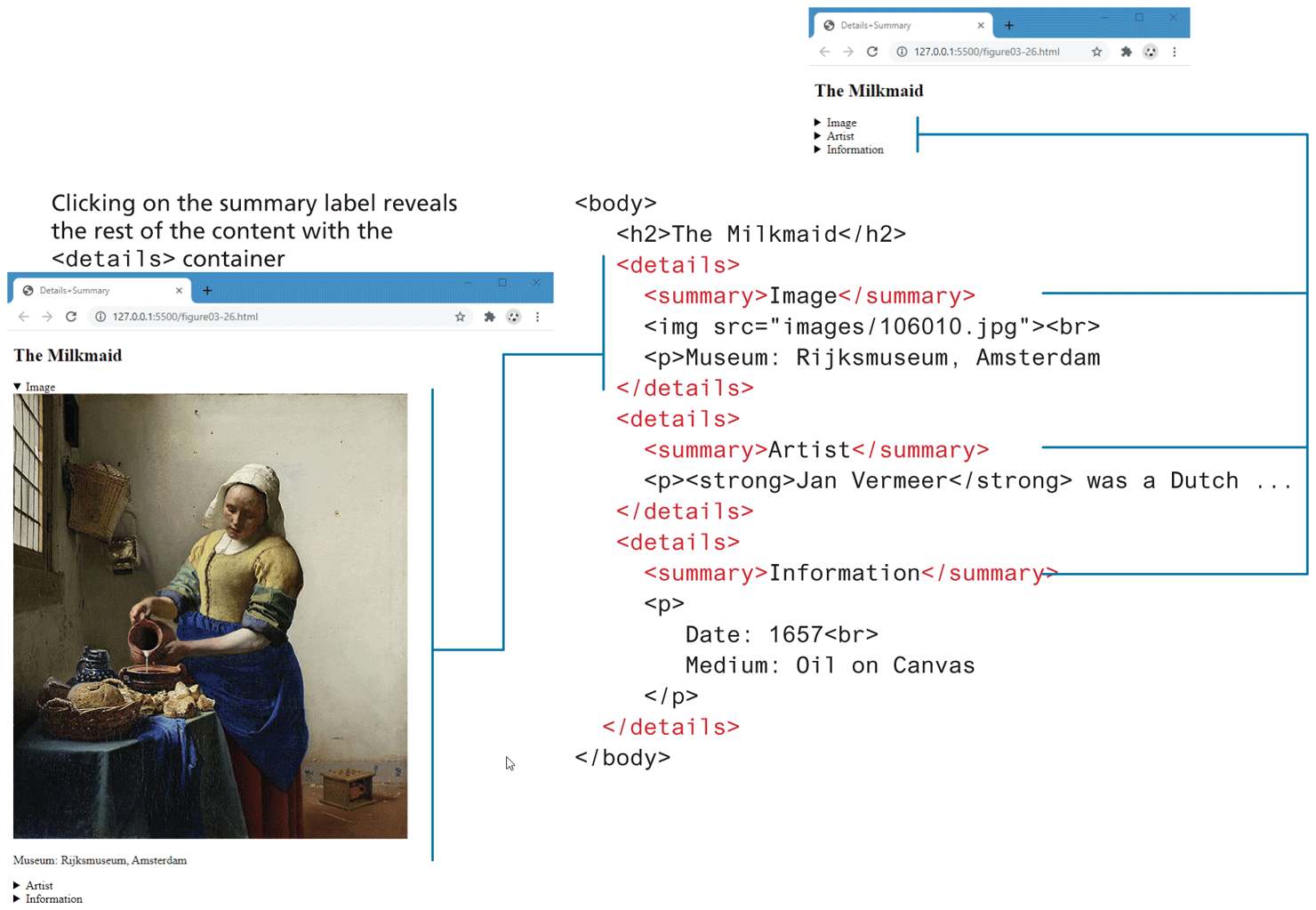
Two of the new related semantic elements added to HTML 5.1 are the <details> and <summary> elements. They represent, in the words of the Specification, “a disclosure widget from which the user can obtain additional information or controls.” What does this mean? One of the more common uses of JavaScript in the user interface is so-called accordion widgets, which are used to toggle the visibility of a block of content (see Figure 3.26).
Figure 3.26 The details and summary elements
 Pro Tip
One way to “safely” make use of new HTML elements that are not universally available in all browsers is to make use of a so-called polyfill, which is a small piece of JavaScript code that provides an implementation of some functionality that is not yet available in some browsers. Like real-world Polyfilla, which is typically used to fill a hole in a wall in your house, a polyfill on the web fills a “hole” in your browser’s (or more importantly, your user’s browser) functionality or supports new features in HTML or JavaScript.
For instance, let’s say you want to use the <details> element but are worried that users with Edge browsers do not yet support this element. By adding the relevant link to a JavaScript polyfill library for this element (and perhaps adding some JavaScript initialization code), your users will be able to experience this element regardless of whether their browser supports it.
3.6.8 Additional Semantic Elements
HTML did have a number of semantic elements before HTML5. These include <code>, <strong>, <em>, and the other inline semantic elements listed in Table 3.2.
The <blockquote> element is a way to indicate a quotation from another source. The <address> element indicates that the enclosed HTML contains contact information for a person or organization. The structure of the enclosed information is up to the author. Like with several of the other semantic elements examined in this section, the <address> element has no built-in formatting. Listing 3.3 demonstrates sample usages of these two elements.
Note
HTML5 defines many other important elements that we have not covered in this chapter. Table and form elements will be covered in Chapter 5. Media elements such as <video>, <picture>, and <canvas> will be covered in Chapter 6 on Web Media.
The <details> and <summary> elements provide a way of representing this functionality in markup. For browsers that support these elements (at the time of writing, only Chrome, Opera, and Safari), the accordion functionality is included as well (thus no JavaScript programming is required). Figure 3.26 illustrates the markup and the result in a supporting browser.