Long description
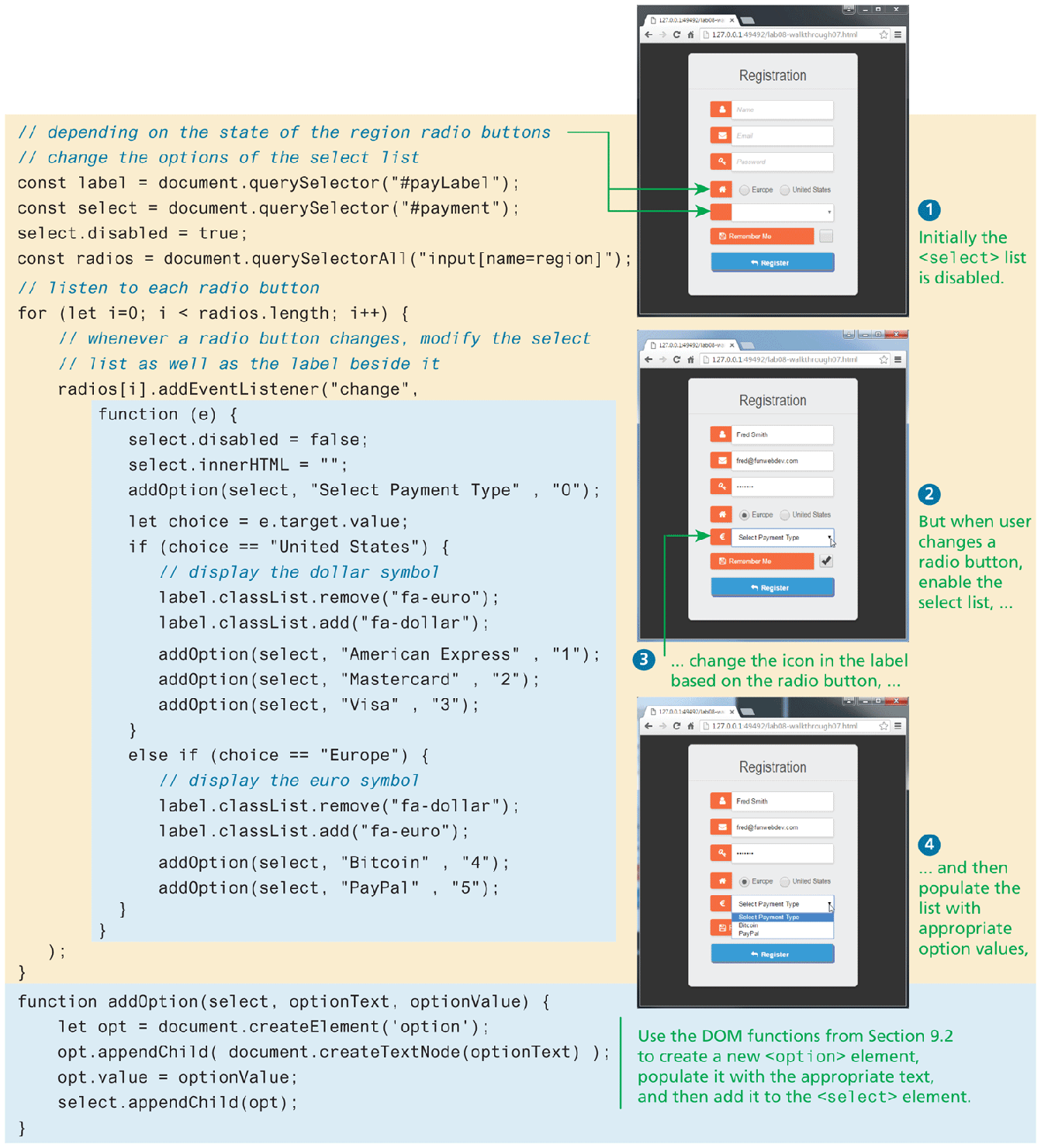
The H T M L code consists of 40 lines of code. The code reads as follows: Line 1: forward slash forward slash depending on the state of the region radio buttons at indentation level 0. Line 2: forward slash forward slash change the options of the select list at indentation level 0. Line 3: const label equals document dot getElementBy I d open parenthesis open double quotes payLabel close double quotes close parenthesis semicolon at indentation level 0. Line 4: const select equals document dot getElementBy I d open parenthesis open double quotes payment close double quotes close parenthesis semicolon at indentation level 0. Line 5: select dot disabled equals true semicolon at indentation level 0. Line 6: const radios equals document dot querySelectorAll open parenthesis open double quotes input open square bracket name equals region close square bracket close double quotes close parenthesis semicolon at indentation level 0. Line 7: forward slash forward slash listen to each radio button at indentation level 0. Line 8: for open parenthesis StartCommand let EndCommand i equals 0 semicolon i less than radios dot length semicolon 1 increment close parenthesis open curly brace at indentation level 0. Line 9: forward slash forward slash whenever a radio button changes, modify the select at indentation level 1. Line 10: forward slash forward slash list as well as the label beside it at indentation level 1. Line 11: radios open square bracket i close square bracket dot addEventListener open parenthesis open double quotes change close double quotes comma at indentation level 1. Line 12: function open parenthesis e close parenthesis open curly brace at indentation level 2. Line 13: select dot disabled equals false semicolon at indentation level 3. Line 14: select dot inner H T M L equals open double quotes close double quotes semicolon at indentation level 3. Line 15: addOption open parenthesis select comma open double quotes Select Payment Type close double quotes comma open double quotes 0 close double quotes close parenthesis semicolon at indentation level 3. Line 16: StartCommand let EndCommand choice equals e dot target dot value semicolon at indentation level 3. Line 17: StartCommand if EndCommand open parenthesis choice equals equals open double quotes United States close double quotes close parenthesis open curly brace at indentation level 3. Line 18: forward slash forward slash display the dollar symbol at indentation level 4. Line 19: label dot classList dot remove open parenthesis open double quotes fa hyphen euro close double quotes close parenthesis semicolon at indentation level 4. Line 20: label dot classList dot add open parenthesis open double quotes fa hyphen dollar close double quotes close parenthesis semicolon at indentation level 4. Line 21: addOption open parenthesis select comma open double quotes American Express close double quotes comma open double quotes 1 close double quotes close parenthesis semicolon at indentation level 4. Line 22: addOption open parenthesis select open parenthesis open double quotes Mastercard close double quotes comma open double quotes 2 close double quotes close parenthesis semicolon at indentation level 4. Line 23: addOption open parenthesis select comma open double quotes Visa close double quotes comma open double quotes 3 close double quotes close parenthesis semicolon at indentation level 4. Line 24: close curly brace at indentation level 3. Line 25: StartCommand else if open parenthesis choice equals equals open double quotes Europe close double quotes close parenthesis open curly brace at indentation level 3. Line 26: forward slash forward slash display the euro symbol at indentation level 4. Line 27: label dot classList dot remove open parenthesis open double quotes fa hyphen dollar close double quotes close parenthesis semicolon at indentation level 4. Line 28: label dot classList dot add open parenthesis open double quotes fa hyphen euro close double quotes close parenthesis semicolon at indentation level 4. Line 29: addOption open parenthesis select comma open double quotes Bitcoin close double quotes dot open double quotes 4 close double quotes close parenthesis semicolon at indentation level 4. Line 30: addOption open parenthesis select comma open double quotes PayPal close double quotes comma open double quotes 5 close double quotes close parenthesis semicolon at indentation level 4. Line 31: close curly brace at indentation level 3. Line 32: close curly brace at indentation level 2. Line 33: close parenthesis semicolon at indentation level 1. Line 34: close curly brace at indentation level 0. Line 35: function addOption open parenthesis select comma optionText comma optionValue close parenthesis open curly brace at indentation level 0. Line 36: StartCommand let EndCommand opt equals document dot createElement open parenthesis open single quote option close single quote close parenthesis semicolon at indentation level 1. Line 37: opt dot appendChild open parenthesis document dot createTextNode open parenthesis optionText close parenthesis close parenthesis semicolon at indentation level 1. Line 38: opt dot value equals optionValue semicolon at indentation level 1. Line 39: select dot appendChild open parenthesis opt close parenthesis semicolon at indentation level 1. Line 40: close curly brace at indentation level 0.
The first browser labeled 1 Initially the open angle bracket select close angle bracket list is disabled is at the top right of the code. The browser consists of a level-1 heading, four textboxes, two radio buttons, one checkbox, and two buttons. The browser starts with a level 1 heading that reads, Registration. The first textbox labeled Name is placed below the level-1 heading. The second textbox labeled Email is placed below the first textbox. The third textbox labeled Password is placed below the second textbox. The first radio button labeled Europe and the second radio button labeled United States are placed side-by-side below the third textbox. The fourth textbox has a dropdown list and is placed below the radio buttons. The first button labeled Remember Me is placed below the fourth textbox. The checkbox is placed at the right of the first button. The second button labeled Register is placed below the first button. An arrow from line 1 of the code points at the radio buttons and the fourth textbox in the first browser.
The second browser labeled 2 But when user changes a radio button, enable the select list, ellipsis is placed below the first browser. The browser consists of a level-1 heading, four textboxes, two radio buttons, one checkbox, and two buttons. The browser starts with a level 1 heading that reads, Registration. The first textbox containing the value Fred Smith is placed below the level-1 heading. The second textbox containing the value Fred at the rate funwebdev dot com is placed below the first textbox. The third textbox containing seven hidden values is placed below the second textbox. The first radio button labeled Europe and the second radio button labeled United States are placed side-by-side below the third textbox. The radio button preceding Europe is checked. The fourth textbox has a dropdown list and is placed below the radio buttons. The extreme left of the textbox has a euro symbol and the textbox contains the value Select Payment Type. The first button labeled Remember Me is placed below the fourth textbox. The checkbox is placed at the right of the first button and is checked. The second button labeled Register is placed below the first button.
The third browser labeled 3 ellipsis change the icon in the label based on the radio button, ellipsis is placed below the second browser. An arrow points from label 3 to the fourth textbox in the second browser. The browser consists of a level-1 heading, four textboxes, two radio buttons, one checkbox, and a button. The browser starts with a level 1 heading that reads, Registration. The first textbox containing the value Fred Smith is placed below the level-1 heading. The second textbox containing the value Fred at the rate funwebdev dot com is placed below the first textbox. The third textbox containing seven hidden values is placed below the second textbox. The first radio button labeled Europe and the second radio button labeled United States are placed side-by-side below the third textbox. The radio button preceding Europe is checked. The fourth textbox has a dropdown list and is placed below the radio buttons. The extreme left of the textbox has a euro symbol and the textbox contains a list with the following values: Select Payment Type, Bitcoin, and PayPal. The button labeled Register is placed below the first button. The right of the browser has another label that reads, 4 ellipsis and then populate the list with appropriate option values comma.
Lines 36 to 39 are labeled Use the DOM functions to create a new open angle bracket option close angle bracket element, populate it with the appropriate text, and then add it to the open angle bracket select close angle bracket element.
Back