Long description
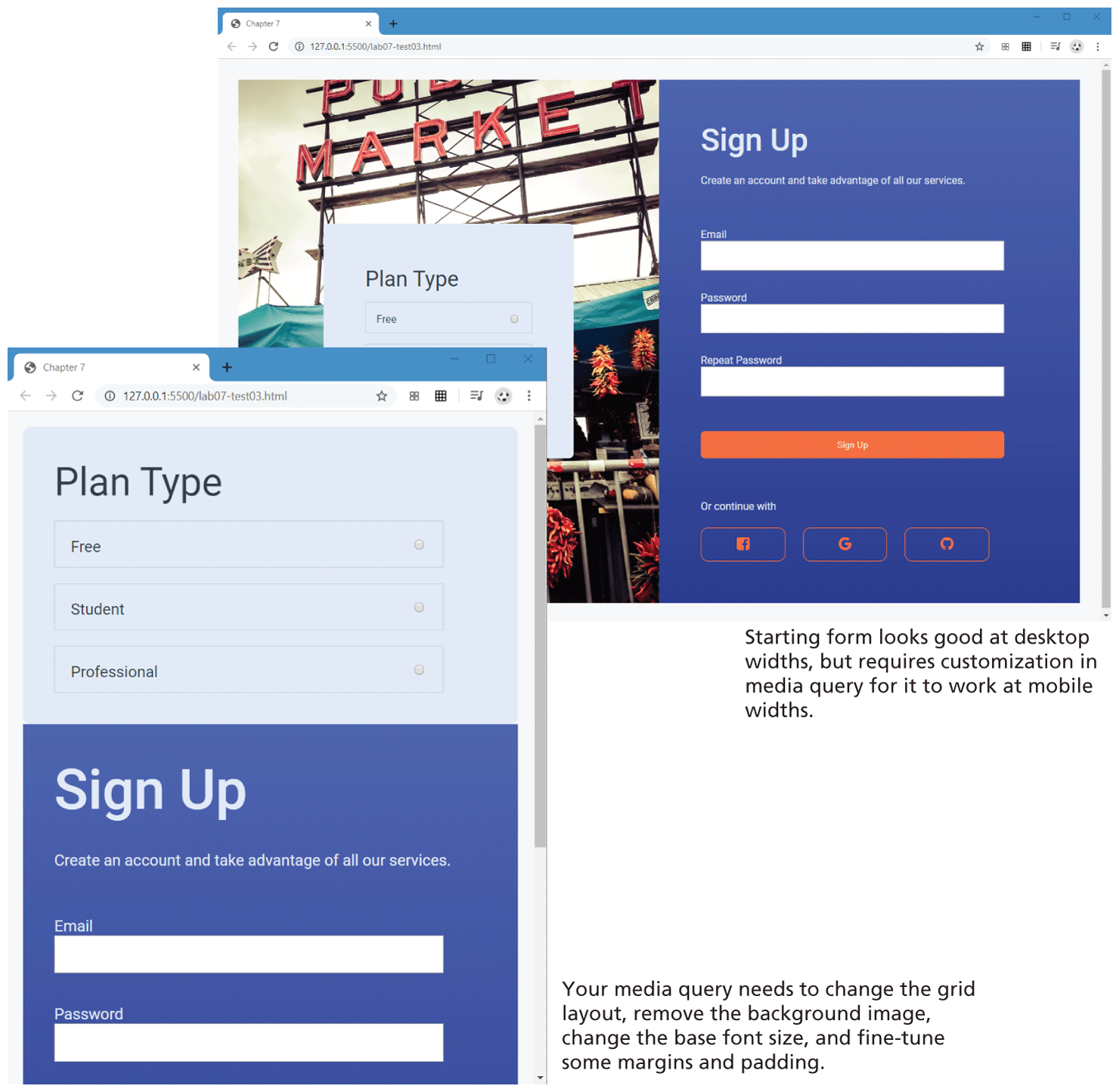
Browser Window 1 appears on the top right of the figure. It has a user form data that has 2 blocks placed side-by-side, each occupying fifty percent of window.
Block 1 has a dialog box appearing in the middle of the page placed over a background image. The dialog box has a level-1 heading that reads, Plan Type. Three textboxes are placed one below the other below the heading. Each of the textboxes has a text aligned to the left and a radio button aligned to the right. The text reads from top to bottom as follows: Free, Student, Professional.
Block 2 has a level-1 heading that reads, Sign Up and is followed by a line of text. Three textboxes are placed one below the other below the heading. The textboxes are labeled as follows: Email, Password, Request Password. A button labeled Sign Up is placed below the third textbox. There is an additional text and 3 icons placed side-by-side at the bottom of the block.
Note: Starting form looks good at desktop widths, but requires customization in media query for it to work at mobile widths.
Browser Windows 2 appears at the bottom left of the Browser Window 1. It has a user form data that has 2 blocks placed one below other.
Block 1 shows the dialog box that appears in block 1 of browser window 1 without the background image.
Block 2 shows the 50 percent of the contents of block 2 in browser window 1. A vertical scrollbar at the right side of the browser window helps to see the rest of the content of the block.
The contents of the blocks in browser window 2 appears larger than the contents in browser window 1. Note: Your media query needs to change the grid layout, remove the background image, change the base font size, and fine-tune some margins and padding.
Back