Long description
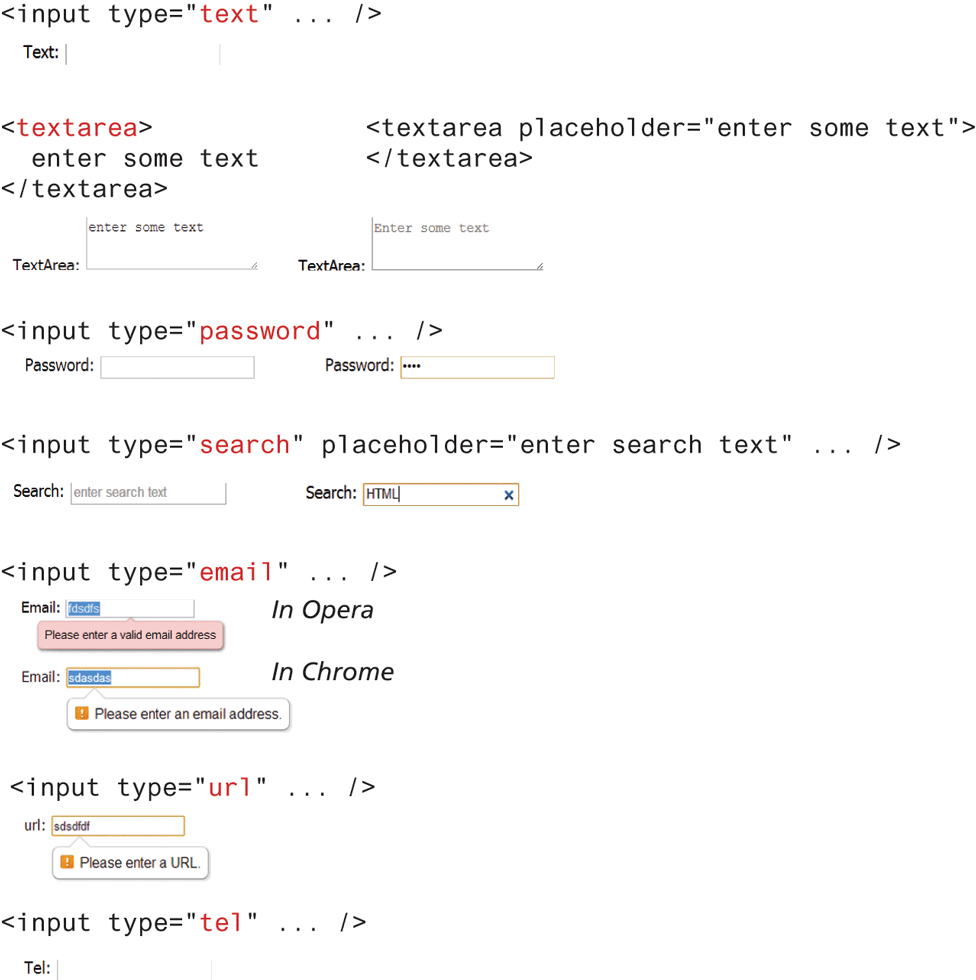
The figure shows 11 textboxes.
The first textbox is labeled Text colon. The textbox has borders only on the left and right side. The corresponding code reads, open angle bracket input type equals open double quotes text close double quotes ellipsis forward slash close angle bracket.
The second textbox is labeled TextArea colon and has a placeholder value enter some text. The textbox has borders only on the left and bottom. The corresponding code reads as follows. Line 1: open angle bracket textarea close angle bracket at indentation level 0. Line 2: enter some text at indentation level 0. Line 3: open angle bracket forward slash textarea close angle bracket at indentation level 0.
The third textbox is labeled TextArea colon and has a placeholder value Enter some text. The textbox has borders only on the top, left, and bottom. The corresponding code reads as follows. Line 1: open angle bracket textarea placeholder equals open double quotes enter some text close double quotes close angle bracket at indentation level 0. Line 2: open angle bracket forward slash textarea close angle bracket at indentation level 0.
The fourth textbox is labeled password colon. The textbox has borders only on all four sides. The fifth textbox is labeled Password colon and contains the four asterisks that indicate hidden characters. The fifth textbox has borders on all four sides and is highlighted in yellow that indicates the selection of the textbox. The corresponding code reads, open angle bracket input type equals open double quotes password close double quotes ellipsis forward slash close angle bracket.
The sixth textbox is labeled Search colon contains a placeholder value enter search text. The textbox has borders on the left, bottom, and right side. The seventh textbox is labeled Search colon and contains the value H T M L. The seventh textbox has borders on all four sides and is highlighted in yellow and a cursor is shown inside the textbox. A close button is also shown inside the textbox at the right end. The corresponding code reads, open angle bracket input type equals open double quotes search close double quotes placeholder equals open double quotes enter search text close double quotes ellipsis forward slash close angle bracket.
The eighth textbox is labeled Email colon and contains the value f d s d f s. The textbox has shadows on the left, bottom, and right side. The value on the textbox is highlighted that indicates its selection. A popup message from the textbox is shown below and reads, Please enter a valid email address. This is the view in the Opera browser.
The ninth textbox is labeled Email colon and contains the value s d “a” s s d “a” s. The value on the textbox is highlighted that indicates its selection. The textbox has borders on all four sides and is highlighted in yellow. A popup message from the textbox is shown below and reads, Exclamation Please enter a valid email address. This is the view in the Chrome browser.
The corresponding code reads, open angle bracket input type equals open double quotes email close double quotes forward slash close angle bracket.
The tenth textbox is labeled u r l colon and contains the value s d s d f d f. The textbox is highlighted in yellow. A popup message from the textbox is shown below and reads, Exclamation Please enter a U R L. The textbox has borders on all four sides and is highlighted in yellow The corresponding code reads, open angle bracket input type equals open double quotes u r l close double quotes ellipsis forward slash close angle bracket.
The eleventh textbox is labeled Tel colon. The textbox has borders on the left, top, and right side. The corresponding code reads, open angle bracket input type equals open double quotes tel close double quotes ellipsis forward slash close angle bracket.
Back