Long description
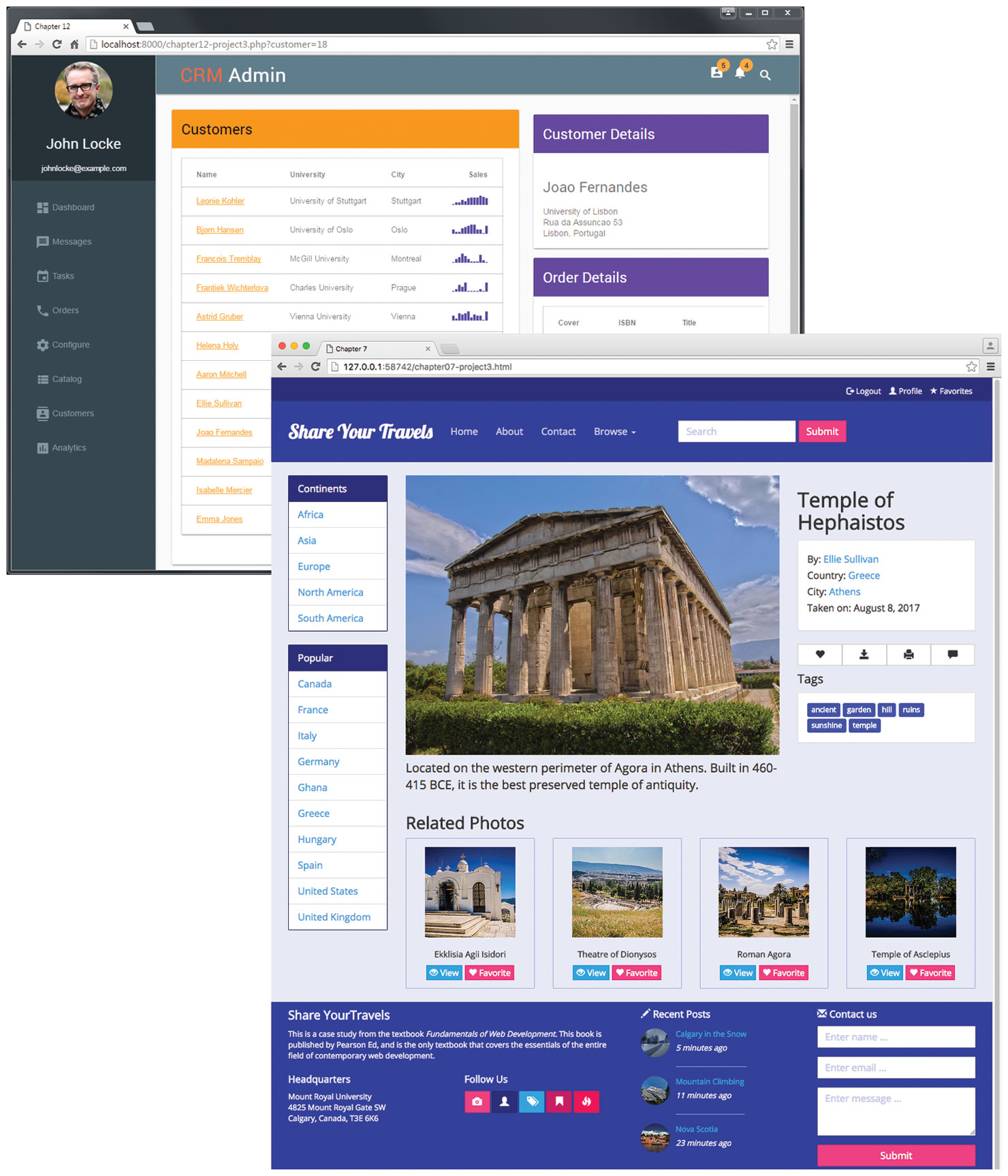
Browser 1: The Browser Window is divided into two parts. The first part consists of User Information in a vertical column. The column shows an Image of a user, name: John Locke, email I D: johnlocke at the rate example dot com. The rest of the column shows multiple tabs placed one below the other with an icon followed by labels at the right that are as follows. Dashboard, Messages, Tasks, Orders, Configure, Catalog, Customers, and Analytics.
The second part placed at the right side of the first part has a title on top that reads, C R M Admin. To the right, there are 3 icons that depict contact, notification, and search. The message icon shows the number 5 inside a solid yellow circle above it. The notification icon shows the number 4 inside a solid yellow circle above it. The rest of the second part consists of 2 vertical sections.
Section 1: There is a title on top that is labeled Customers. This is followed by a table of data with multiple rows that shows information about the customers, such as, Name, University, City, and Sales. Section 2: This shows information regarding Customer Details with Name, Address, and the Order Details.
Browser 2: The browser window is placed at the bottom right of the first browser window, overlapping it. This shows a travel webpage displayed in 4 different Sections arranged horizontally one below the other.
Section 1: This section has a header that shows a Logout icon, Profile icon, and Favorites with a star icon aligned to the top right corner of the page. The navigation bar is shown below the icons mentioned earlier. The navigation bar has a title that reads, Share Your Travels. There are multiple tabs that read, Home, About, Contact, and Browser at the right side of the title. There is a search box followed by a Submit button at the right side of the tabs.
Section 2: The information is displayed in 3 vertical columns. Column 1: This shows a list of Continents and Popular Countries placed in two blocks one below the other. Column 2: This shows an Image of a place followed by textual information about the place below it. Column 3: This gives information regarding the picture, such as, the Title, By, Country, City, and Taken on. A tab with the icons for Like, Download, Print, and Message is placed below the textual information about the place. There are various tags for the image that are mentioned below the tab with icons.
At the bottom of Section 2, there is a list of 4 small images of places that are placed side-by-side with the title Related Photos. The related photos show the name of the place followed by two buttons that read, Views and Favorite.
The footer of Browser 2 shows information, such as, the Page Title, Summary of the page, Headquarters location, Follow Us tab with icons, Recent Posts, and Contact Us form with a submit button.
Back