19
User Accounts

At the heart of a web application is the ability for any user, anywhere in the world, to register an account with your app and start using it. In this chapter, you’ll build forms so users can add their own topics and entries, and edit existing entries. You’ll also learn how Django guards against common attacks against form-based pages, so you won’t have to spend much time thinking about securing your apps.
You’ll also implement a user authentication system. You’ll build a registration page for users to create accounts, and then restrict access to certain pages to logged-in users only. Then you’ll modify some of the view functions so users can only see their own data. You’ll learn to keep your users’ data safe and secure.
Allowing Users to Enter Data
Before we build an authentication system for creating accounts, we’ll first add some pages that allow users to enter their own data. We’ll give users the ability to add a new topic, add a new entry, and edit their previous entries.
Currently, only a superuser can enter data through the admin site. We don’t want users to interact with the admin site, so we’ll use Django’s form-building tools to build pages that allow users to enter data.
Adding New Topics
Let’s start by allowing users to add a new topic. Adding a form-based page works in much the same way as adding the pages we’ve already built: we define a URL, write a view function, and write a template. The one significant difference is the addition of a new module called forms.py, which will contain the forms.
The Topic ModelForm
Any page that lets a user enter and submit information on a web page involves an HTML element called a form. When users enter information, we need to validate that the information provided is the right kind of data and is not malicious, such as code designed to interrupt our server. We then need to process and save valid information to the appropriate place in the database. Django automates much of this work.
The simplest way to build a form in Django is to use a ModelForm, which uses the information from the models we defined in Chapter 18 to build a form automatically. Write your first form in the file forms.py, which should be created in the same directory as models.py:
forms.py
from django import forms

from .models import Topic

❶ class TopicForm(forms.ModelForm):
    class Meta:
❷         model = Topic
❸         fields = ['text']
❹         labels = {'text': ''}
We first import the forms module and the model we’ll work with, Topic. We then define a class called TopicForm, which inherits from forms.ModelForm ❶.
The simplest version of a ModelForm consists of a nested Meta class telling Django which model to base the form on and which fields to include in the form. Here we specify that the form should be based on the Topic model ❷, and that it should only include the text field ❸. The empty string in the labels dictionary tells Django not to generate a label for the text field ❹.
The new_topic URL
The URL for a new page should be short and descriptive. When the user wants to add a new topic, we’ll send them to http://localhost:8000/new_topic/. Here’s the URL pattern for the new_topic page; add this to learning_logs/urls.py:
learning_logs/urls.py
--snip--
urlpatterns = [
    --snip--
    # Page for adding a new topic.
    path('new_topic/', views.new_topic, name='new_topic'),
]
This URL pattern sends requests to the view function new_topic(), which we’ll write next.
The new_topic() View Function
The new_topic() function needs to handle two different situations: initial requests for the new_topic page, in which case it should show a blank form; and the processing of any data submitted in the form. After data from a submitted form is processed, it needs to redirect the user back to the topics page:
views.py
from django.shortcuts import render, redirect

from .models import Topic
from .forms import TopicForm

--snip--
def new_topic(request):
    """Add a new topic."""
❶     if request.method != 'POST':
        # No data submitted; create a blank form.
❷         form = TopicForm()
    else:
        # POST data submitted; process data.
❸         form = TopicForm(data=request.POST)
❹         if form.is_valid():
❺             form.save()
❻             return redirect('learning_logs:topics')

    # Display a blank or invalid form.
❼     context = {'form': form}
    return render(request, 'learning_logs/new_topic.html', context)
We import the function redirect, which we’ll use to redirect the user back to the topics page after they submit their topic. We also import the form we just wrote, TopicForm.
GET and POST Requests
The two main types of requests you’ll use when building apps are GET and POST. You use GET requests for pages that only read data from the server. You usually use POST requests when the user needs to submit information through a form. We’ll be specifying the POST method for processing all of our forms. (A few other kinds of requests exist, but we won’t use them in this project.)
The new_topic() function takes in the request object as a parameter. When the user initially requests this page, their browser will send a GET request. Once the user has filled out and submitted the form, their browser will submit a POST request. Depending on the request, we’ll know whether the user is requesting a blank form (GET) or asking us to process a completed form (POST).
We use an if test to determine whether the request method is GET or POST ❶. If the request method isn’t POST, the request is probably GET, so we need to return a blank form. (If it’s another kind of request, it’s still safe to return a blank form.) We make an instance of TopicForm ❷, assign it to the variable form, and send the form to the template in the context dictionary ❼. Because we included no arguments when instantiating TopicForm, Django creates a blank form that the user can fill out.
If the request method is POST, the else block runs and processes the data submitted in the form. We make an instance of TopicForm ❸ and pass it the data entered by the user, which is assigned to request.POST. The form object that’s returned contains the information submitted by the user.
We can’t save the submitted information in the database until we’ve checked that it’s valid ❹. The is_valid() method checks that all required fields have been filled in (all fields in a form are required by default) and that the data entered matches the field types expected—for example, that the length of text is less than 200 characters, as we specified in models.py in Chapter 18. This automatic validation saves us a lot of work. If everything is valid, we can call save() ❺, which writes the data from the form to the database.
Once we’ve saved the data, we can leave this page. The redirect() function takes in the name of a view and redirects the user to the page associated with that view. Here we use redirect() to redirect the user’s browser to the topics page ❻, where the user should see the topic they just entered in the list of topics.
The context variable is defined at the end of the view function, and the page is rendered using the template new_topic.html, which we’ll create next. This code is placed outside of any if block; it will run if a blank form was created, and it will run if a submitted form is determined to be invalid. An invalid form will include some default error messages to help the user submit acceptable data.
The new_topic Template
Now we’ll make a new template called new_topic.html to display the form we just created:
new_topic.html
{% extends "learning_logs/base.html" %}

{% block content %}
  <p>Add a new topic:</p>

❶   <form action="{% url 'learning_logs:new_topic' %}" method='post'>
❷     {% csrf_token %}
❸     {{ form.as_div }}
❹     <button name="submit">Add topic</button>
  </form>

{% endblock content %}
This template extends base.html, so it has the same base structure as the rest of the pages in Learning Log. We use the <form></form> tags to define an HTML form ❶. The action argument tells the browser where to send the data submitted in the form; in this case, we send it back to the view function new_topic(). The method argument tells the browser to submit the data as a POST request.
Django uses the template tag {% csrf_token %} ❷ to prevent attackers from using the form to gain unauthorized access to the server. (This kind of attack is called a cross-site request forgery.) Next, we display the form; here you can see how simple Django can make certain tasks, such as displaying a form. We only need to include the template variable {{ form.as_div }} for Django to create all the fields necessary to display the form automatically ❸. The as_div modifier tells Django to render all the form elements as HTML <div></div> elements; this is a simple way to display the form neatly.
Django doesn’t create a submit button for forms, so we define one before closing the form ❹.
Linking to the new_topic Page
Next, we include a link to the new_topic page on the topics page:
topics.html
{% extends "learning_logs/base.html" %}

{% block content %}

  <p>Topics</p>

  <ul>
    --snip--
  </ul>

  <a href="{% url 'learning_logs:new_topic' %}">Add a new topic</a>

{% endblock content %}
Place the link after the list of existing topics. Figure 19-1 shows the resulting form; try using the form to add a few new topics of your own.
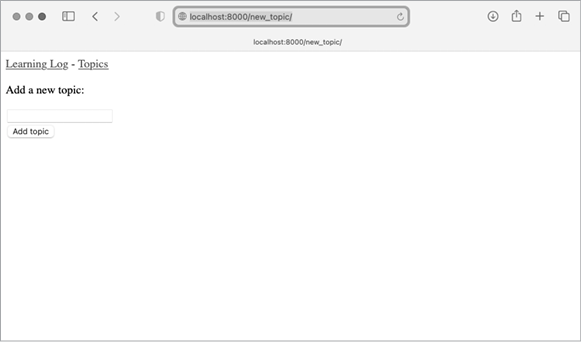
Figure 19-1: The page for adding a new topic
Adding New Entries
Now that the user can add a new topic, they’ll want to add new entries too. We’ll again define a URL, write a view function and a template, and link to the page. But first, we’ll add another class to forms.py.
The Entry ModelForm
We need to create a form associated with the Entry model, but this time, with a bit more customization than TopicForm:
forms.py
from django import forms

from .models import Topic, Entry

class TopicForm(forms.ModelForm):
    --snip--

class EntryForm(forms.ModelForm):
    class Meta:
        model = Entry
        fields = ['text']
❶         labels = {'text': ''}
❷         widgets = {'text': forms.Textarea(attrs={'cols': 80})}
We update the import statement to include Entry as well as Topic. We make a new class called EntryForm that inherits from forms.ModelForm. The EntryForm class has a nested Meta class listing the model it’s based on, and the field to include in the form. We again give the field 'text' a blank label ❶.
For EntryForm, we include the widgets attribute ❷. A widget is an HTML form element, such as a single-line text box, multiline text area, or drop-down list. By including the widgets attribute, you can override Django’s default widget choices. Here we’re telling Django to use a forms.Textarea element with a width of 80 columns, instead of the default 40 columns. This gives users enough room to write a meaningful entry.
The new_entry URL
New entries must be associated with a particular topic, so we need to include a topic_id argument in the URL for adding a new entry. Here’s the URL, which you add to learning_logs/urls.py:
learning_logs/urls.py
--snip--
urlpatterns = [
    --snip--
    # Page for adding a new entry.
    path('new_entry/<int:topic_id>/', views.new_entry, name='new_entry'),
]
This URL pattern matches any URL with the form http://localhost:8000/new_entry/id/, where id is a number matching the topic ID. The code <int:topic_id> captures a numerical value and assigns it to the variable topic_id. When a URL matching this pattern is requested, Django sends the request and the topic’s ID to the new_entry() view function.
The new_entry() View Function
The view function for new_entry is much like the function for adding a new topic. Add the following code to your views.py file:
views.py
from django.shortcuts import render, redirect

from .models import Topic
from .forms import TopicForm, EntryForm

--snip--
def new_entry(request, topic_id):
    """Add a new entry for a particular topic."""
❶     topic = Topic.objects.get(id=topic_id)

❷     if request.method != 'POST':
        # No data submitted; create a blank form.
❸         form = EntryForm()
    else:
        # POST data submitted; process data.
❹         form = EntryForm(data=request.POST)
        if form.is_valid():
❺             new_entry = form.save(commit=False)
❻             new_entry.topic = topic
            new_entry.save()
❼             return redirect('learning_logs:topic', topic_id=topic_id)

    # Display a blank or invalid form.
    context = {'topic': topic, 'form': form}
    return render(request, 'learning_logs/new_entry.html', context)
We update the import statement to include the EntryForm we just made. The definition of new_entry() has a topic_id parameter to store the value it receives from the URL. We’ll need the topic to render the page and process the form’s data, so we use topic_id to get the correct topic object ❶.
Next, we check whether the request method is POST or GET ❷. The if block executes if it’s a GET request, and we create a blank instance of EntryForm ❸.
If the request method is POST, we process the data by making an instance of EntryForm, populated with the POST data from the request object ❹. We then check whether the form is valid. If it is, we need to set the entry object’s topic attribute before saving it to the database. When we call save(), we include the argument commit=False ❺ to tell Django to create a new entry object and assign it to new_entry, without saving it to the database yet. We set the topic attribute of new_entry to the topic we pulled from the database at the beginning of the function ❻. Then we call save() with no arguments, saving the entry to the database with the correct associated topic.
The redirect() call requires two arguments: the name of the view we want to redirect to and the argument that view function requires ❼. Here, we’re redirecting to topic(), which needs the argument topic_id. This view then renders the topic page that the user made an entry for, and they should see their new entry in the list of entries.
At the end of the function, we create a context dictionary and render the page using the new_entry.html template. This code will execute for a blank form, or for a form that’s been submitted but turns out to be invalid.
The new_entry Template
As you can see in the following code, the template for new_entry is similar to the template for new_topic:
new_entry.html
{% extends "learning_logs/base.html" %}

{% block content %}

❶   <p><a href="{% url 'learning_logs:topic' topic.id %}">{{ topic }}</a></p>

  <p>Add a new entry:</p>
❷   <form action="{% url 'learning_logs:new_entry' topic.id %}" method='post'>
    {% csrf_token %}
    {{ form.as_div }}
    <button name='submit'>Add entry</button>
  </form>

{% endblock content %}
We show the topic at the top of the page ❶, so the user can see which topic they’re adding an entry to. The topic also acts as a link back to the main page for that topic.
The form’s action argument includes the topic.id value in the URL, so the view function can associate the new entry with the correct topic ❷. Other than that, this template looks just like new_topic.html.
Linking to the new_entry Page
Next, we need to include a link to the new_entry page from each topic page, in the topic template:
topic.html
{% extends "learning_logs/base.html" %}

{% block content %}

  <p>Topic: {{ topic }}</p>

  <p>Entries:</p>
  <p>
    <a href="{% url 'learning_logs:new_entry' topic.id %}">Add new entry</a>
  </p>

  <ul>
  --snip--
  </ul>

{% endblock content %}
We place the link to add entries just before showing the entries, because adding a new entry will be the most common action on this page. Figure 19-2 shows the new_entry page. Now users can add new topics and as many entries as they want for each topic. Try out the new_entry page by adding a few entries to some of the topics you’ve created.
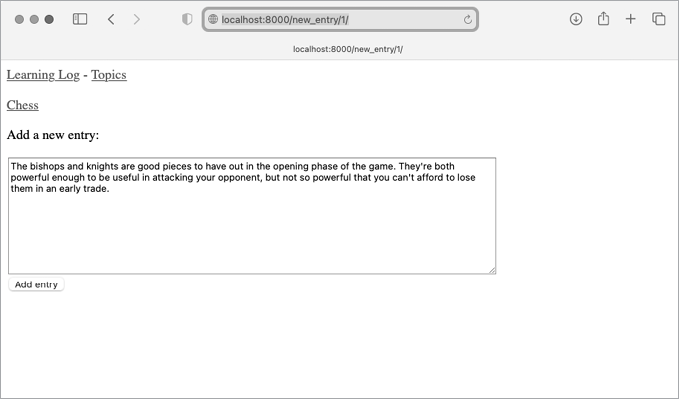
Figure 19-2: The new_entry page
Editing Entries
Now we’ll make a page so users can edit the entries they’ve added.
The edit_entry URL
The URL for the page needs to pass the ID of the entry to be edited. Here’s learning_logs/urls.py:
urls.py
--snip--
urlpatterns = [
    --snip--
    # Page for editing an entry.
    path('edit_entry/<int:entry_id>/', views.edit_entry, name='edit_entry'),
]
This URL pattern matches URLs like http://localhost:8000/edit_entry/id/. Here the value of id is assigned to the parameter entry_id. Django sends requests that match this format to the view function edit_entry().
The edit_entry() View Function
When the edit_entry page receives a GET request, the edit_entry() function returns a form for editing the entry. When the page receives a POST request with revised entry text, it saves the modified text into the database:
views.py
from django.shortcuts import render, redirect

from .models import Topic, Entry
from .forms import TopicForm, EntryForm
--snip--

def edit_entry(request, entry_id):
    """Edit an existing entry."""
❶     entry = Entry.objects.get(id=entry_id)
    topic = entry.topic

    if request.method != 'POST':
        # Initial request; pre-fill form with the current entry.
❷         form = EntryForm(instance=entry)
    else:
        # POST data submitted; process data.
❸         form = EntryForm(instance=entry, data=request.POST)
        if form.is_valid():
❹             form.save()
❺             return redirect('learning_logs:topic', topic_id=topic.id)

    context = {'entry': entry, 'topic': topic, 'form': form}
    return render(request, 'learning_logs/edit_entry.html', context)
We first import the Entry model. We then get the entry object that the user wants to edit ❶ and the topic associated with this entry. In the if block, which runs for a GET request, we make an instance of EntryForm with the argument instance=entry ❷. This argument tells Django to create the form, prefilled with information from the existing entry object. The user will see their existing data and be able to edit that data.
When processing a POST request, we pass both the instance=entry and the data=request.POST arguments ❸. These arguments tell Django to create a form instance based on the information associated with the existing entry object, updated with any relevant data from request.POST. We then check whether the form is valid; if it is, we call save() with no arguments because the entry is already associated with the correct topic ❹. We then redirect to the topic page, where the user should see the updated version of the entry they edited ❺.
If we’re showing an initial form for editing the entry or if the submitted form is invalid, we create the context dictionary and render the page using the edit_entry.html template.
The edit_entry Template
Next, we create an edit_entry.html template, which is similar to new_entry.html:
edit_entry.html
{% extends "learning_logs/base.html" %}

{% block content %}

  <p><a href="{% url 'learning_logs:topic' topic.id %}">{{ topic }}</a></p>

  <p>Edit entry:</p>

❶   <form action="{% url 'learning_logs:edit_entry' entry.id %}" method='post'>
    {% csrf_token %}
    {{ form.as_div }}
❷     <button name="submit">Save changes</button>
  </form>

{% endblock content %}
The action argument sends the form back to the edit_entry() function for processing ❶. We include the entry.id as an argument in the {% url %} tag, so the view function can modify the correct entry object. We label the submit button as Save changes to remind the user they’re saving edits, not creating a new entry ❷.
Linking to the edit_entry Page
Now we need to include a link to the edit_entry page for each entry on the topic page:
topic.html
--snip--
    {% for entry in entries %}
      <li>
        <p>{{ entry.date_added|date:'M d, Y H:i' }}</p>
        <p>{{ entry.text|linebreaks }}</p>
        <p>
          <a href="{% url 'learning_logs:edit_entry' entry.id %}">
           Edit entry</a></p>
      </li>
--snip--
We include the edit link after each entry’s date and text has been displayed. We use the {% url %} template tag to determine the URL for the named URL pattern edit_entry, along with the ID attribute of the current entry in the loop (entry.id). The link text Edit entry appears after each entry on the page. Figure 19-3 shows what the topic page looks like with these links.
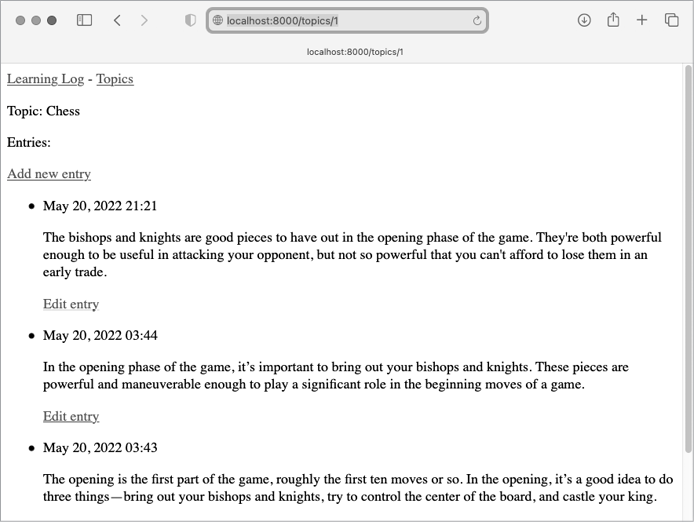
Figure 19-3: Each entry now has a link for editing that entry.
Learning Log now has most of the functionality it needs. Users can add topics and entries, and they can read through any set of entries they want. In the next section, we’ll implement a user registration system so anyone can make an account with Learning Log and create their own set of topics and entries.
Setting Up User Accounts
In this section, we’ll set up a user registration and authorization system so people can register an account, log in, and log out. We’ll create a new app to contain all the functionality related to working with users. We’ll use the default user authentication system included with Django to do as much of the work as possible. We’ll also modify the Topic model slightly so every topic belongs to a certain user.
The accounts App
We’ll start by creating a new app called accounts, using the startapp command:
(ll_env)learning_log$ python manage.py startapp accounts
(ll_env)learning_log$ ls
❶ accounts db.sqlite3 learning_logs ll_env ll_project manage.py
(ll_env)learning_log$ ls accounts
❷ __init__.py admin.py apps.py migrations models.py tests.py views.py
The default authentication system is built around the concept of user accounts, so using the name accounts makes integration with the default system easier. The startapp command shown here makes a new directory called accounts ❶ with a structure identical to the learning_logs app ❷.
Adding accounts to settings.py
We need to add our new app to INSTALLED_APPS in settings.py, like so:
settings.py
--snip--
INSTALLED_APPS = [
    # My apps
    'learning_logs',
    'accounts',

    # Default django apps.
    --snip--
]
--snip--
Now Django will include the accounts app in the overall project.
Including the URLs from accounts
Next, we need to modify the root urls.py so it includes the URLs we’ll write for the accounts app:
ll_project/urls.py
from django.contrib import admin
from django.urls import path, include

urlpatterns = [
    path('admin/', admin.site.urls),
    path('accounts/', include('accounts.urls')),
    path('', include('learning_logs.urls')),
]
We add a line to include the file urls.py from accounts. This line will match any URL that starts with the word accounts, such as http://localhost:8000/accounts/login/.
The Login Page
We’ll first implement a login page. We’ll use the default login view Django provides, so the URL pattern for this app looks a little different. Make a new urls.py file in the directory ll_project/accounts/ and add the following to it:
accounts/urls.py
"""Defines URL patterns for accounts."""

from django.urls import path, include

app_name = 'accounts'
urlpatterns = [
    # Include default auth urls.
    path('', include('django.contrib.auth.urls')),
]
We import the path function, and then import the include function so we can include some default authentication URLs that Django has defined. These default URLs include named URL patterns, such as 'login' and 'logout'. We set the variable app_name to 'accounts' so Django can distinguish these URLs from URLs belonging to other apps. Even default URLs provided by Django, when included in the accounts app’s urls.py file, will be accessible through the accounts namespace.
The login page’s pattern matches the URL http://localhost:8000/accounts/login/. When Django reads this URL, the word accounts tells Django to look in accounts/urls.py, and login tells it to send requests to Django’s default login view.
The login Template
When the user requests the login page, Django will use a default view function, but we still need to provide a template for the page. The default authentication views look for templates inside a folder called registration, so we’ll need to make that folder. Inside the ll_project/accounts/ directory, make a directory called templates; inside that, make another directory called registration. Here’s the login.html template, which should be saved in ll_project/accounts/templates/registration:
login.html
{% extends 'learning_logs/base.html' %}

{% block content %}

❶   {% if form.errors %}
    <p>Your username and password didn't match. Please try again.</p>
  {% endif %}

❷   <form action="{% url 'accounts:login' %}" method='post'>
    {% csrf_token %}
❸     {{ form.as_div }}

❹     <button name="submit">Log in</button>
  </form>

{% endblock content %}
This template extends base.html to ensure that the login page will have the same look and feel as the rest of the site. Note that a template in one app can inherit from a template in another app.
If the form’s errors attribute is set, we display an error message ❶, reporting that the username and password combination doesn’t match anything stored in the database.
We want the login view to process the form, so we set the action argument as the URL of the login page ❷. The login view sends a form object to the template, and it’s up to us to display the form ❸ and add a submit button ❹.
The LOGIN_REDIRECT_URL Settting
Once a user logs in successfully, Django needs to know where to send that user. We control this in the settings file.
Add the following code to the end of settings.py:
settings.py
--snip--
# My settings.
LOGIN_REDIRECT_URL = 'learning_logs:index'
With all the default settings in settings.py, it’s helpful to mark off the section where we’re adding new settings. The first new setting we’ll add is LOGIN_REDIRECT_URL, which tells Django which URL to redirect to after a successful login attempt.
Linking to the Login Page
Let’s add the login link to base.html so it appears on every page. We don’t want the link to display when the user is already logged in, so we nest it inside an {% if %} tag:
base.html
<p>
  <a href="{% url 'learning_logs:index' %}">Learning Log</a> -
  <a href="{% url 'learning_logs:topics' %}">Topics</a> -
❶   {% if user.is_authenticated %}
❷     Hello, {{ user.username }}.
  {% else %}
❸     <a href="{% url 'accounts:login' %}">Log in</a>
  {% endif %}
</p>

{% block content %}{% endblock content %}
In Django’s authentication system, every template has a user object available that always has an is_authenticated attribute set: the attribute is True if the user is logged in and False if they aren’t. This attribute allows you to display one message to authenticated users and another to unauthenticated users.
Here we display a greeting to users currently logged in ❶. Authenticated users have an additional username attribute set, which we use to personalize the greeting and remind the user they’re logged in ❷. For users who haven’t been authenticated, we display a link to the login page ❸.
Using the Login Page
We’ve already set up a user account, so let’s log in to see if the page works. Go to http://localhost:8000/admin/. If you’re still logged in as an admin, look for a logout link in the header and click it.
When you’re logged out, go to http://localhost:8000/accounts/login/. You should see a login page similar to the one shown in Figure 19-4. Enter the username and password you set up earlier, and you should be brought back to the home page. The header on the home page should display a greeting personalized with your username.
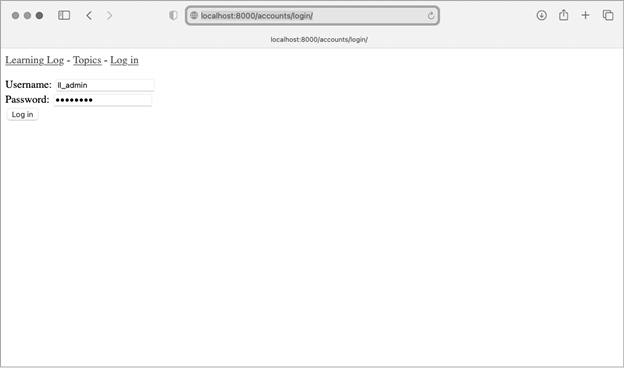
Figure 19-4: The login page
Logging Out
Now we need to provide a way for users to log out. Logout requests should be submitted as POST requests, so we’ll add a small logout form to base.html. When users click the logout button, they’ll go to a page confirming that they’ve been logged out.
Adding a Logout Form to base.html
We’ll add the form for logging out to base.html so it’s available on every page. We’ll include it in another if block, so only users who are already logged in can see it:
base.html
--snip--
{% block content %}{% endblock content %}

{% if user.is_authenticated %}
❶   <hr />
❷   <form action="{% url 'accounts:logout' %}" method='post'>
    {% csrf_token %}
    <button name='submit'>Log out</button>
  </form>
{% endif %}
The default URL pattern for logging out is 'accounts/logout/'. However, the request has to be sent as a POST request; otherwise, attackers can easily force logout requests. To make the logout request use POST, we define a simple form.
We place the form at the bottom of the page, below a horizontal rule element (<hr />) ❶. This is an easy way to always keep the logout button in a consistent position below any other content on the page. The form itself has the logout URL as its action argument, and 'post' as the request method ❷. Every form in Django needs to include the {% csrf_token %}, even a simple form like this one. This form is empty except for the submit button.
The LOGOUT_REDIRECT_URL Setting
When the user clicks the logout button, Django needs to know where to send them. We control this behavior in settings.py:
settings.py
--snip--
# My settings.
LOGIN_REDIRECT_URL = 'learning_logs:index'
LOGOUT_REDIRECT_URL = 'learning_logs:index'
The LOGOUT_REDIRECT_URL setting shown here tells Django to redirect logged-out users back to the home page. This is a simple way to confirm that they were logged out, because they should no longer see their username after logging out.
The Registration Page
Next, we’ll build a page so new users can register. We’ll use Django’s default UserCreationForm, but write our own view function and template.
The register URL
The following code provides the URL pattern for the registration page, which should be placed in accounts/urls.py:
accounts/urls.py
"""Defines URL patterns for accounts."""

from django.urls import path, include

from . import views

app_name = accounts
urlpatterns = [
    # Include default auth urls.
    path('', include('django.contrib.auth.urls')),
    # Registration page.
    path('register/', views.register, name='register'),
]
We import the views module from accounts, which we need because we’re writing our own view for the registration page. The pattern for the registration page matches the URL http://localhost:8000/accounts/register/ and sends requests to the register() function we’re about to write.
The register() View Function
The register() view function needs to display a blank registration form when the registration page is first requested, and then process completed registration forms when they’re submitted. When a registration is successful, the function also needs to log the new user in. Add the following code to accounts/views.py:
accounts/views.py
from django.shortcuts import render, redirect
from django.contrib.auth import login
from django.contrib.auth.forms import UserCreationForm

def register(request):
    """Register a new user."""
    if request.method != 'POST':
        # Display blank registration form.
❶         form = UserCreationForm()
    else:
        # Process completed form.
❷         form = UserCreationForm(data=request.POST)

❸         if form.is_valid():
❹             new_user = form.save()
            # Log the user in and then redirect to home page.
❺             login(request, new_user)
❻             return redirect('learning_logs:index')

    # Display a blank or invalid form.
    context = {'form': form}
    return render(request, 'registration/register.html', context)
We import the render() and redirect() functions, and then we import the login() function to log the user in if their registration information is correct. We also import the default UserCreationForm. In the register() function, we check whether we’re responding to a POST request. If we’re not, we make an instance of UserCreationForm with no initial data ❶.
If we’re responding to a POST request, we make an instance of UserCreationForm based on the submitted data ❷. We check that the data is valid ❸—in this case, that the username has the appropriate characters, the passwords match, and the user isn’t trying to do anything malicious in their submission.
If the submitted data is valid, we call the form’s save() method to save the username and the hash of the password to the database ❹. The save() method returns the newly created user object, which we assign to new_user. When the user’s information is saved, we log them in by calling the login() function with the request and new_user objects ❺, which creates a valid session for the new user. Finally, we redirect the user to the home page ❻, where a personalized greeting in the header tells them their registration was successful.
At the end of the function, we render the page, which will be either a blank form or a submitted form that’s invalid.
The register Template
Now create a template for the registration page, which will be similar to the login page. Be sure to save it in the same directory as login.html:
register.html
{% extends "learning_logs/base.html" %}

{% block content %}

  <form action="{% url 'accounts:register' %}" method='post'>
    {% csrf_token %}
    {{ form.as_div }}

    <button name="submit">Register</button>
  </form>

{% endblock content %}
This should look like the other form-based templates we’ve been writing. We use the as_div method again so Django will display all the fields in the form appropriately, including any error messages if the form isn’t filled out correctly.
Linking to the Registration Page
Next, we’ll add code to show the registration page link to any user who isn’t currently logged in:
base.html
--snip--
  {% if user.is_authenticated %}
    Hello, {{ user.username }}.
  {% else %}
    <a href="{% url 'accounts:register' %}">Register</a> -
    <a href="{% url 'accounts:login' %}">Log in</a>
  {% endif %}
--snip--
Now users who are logged in see a personalized greeting and a logout button. Users who aren’t logged in see a registration link and a login link. Try out the registration page by making several user accounts with different usernames.
In the next section, we’ll restrict some of the pages so they’re available only to registered users, and we’ll make sure every topic belongs to a specific user.
Allowing Users to Own Their Data
Users should be able to enter private data in their learning logs, so we’ll create a system to figure out which data belongs to which user. Then we’ll restrict access to certain pages so users can only work with their own data.
We’ll modify the Topic model so every topic belongs to a specific user. This will also take care of entries, because every entry belongs to a specific topic. We’ll start by restricting access to certain pages.
Restricting Access with @login_required
Django makes it easy to restrict access to certain pages through the @login_required decorator. Recall from Chapter 11 that a decorator is a directive placed just before a function definition, which modifies how the function behaves. Let’s look at an example.
Restricting Access to the Topics Page
Each topic will be owned by a user, so only registered users can request the topics page. Add the following code to learning_logs/views.py:
learning_logs/views.py
from django.shortcuts import render, redirect
from django.contrib.auth.decorators import login_required

from .models import Topic, Entry
--snip--

@login_required
def topics(request):
    """Show all topics."""
    --snip--
We first import the login_required() function. We apply login_required() as a decorator to the topics() view function by prepending login_required with the @ symbol. As a result, Python knows to run the code in login_required() before the code in topics().
The code in login_required() checks whether a user is logged in, and Django runs the code in topics() only if they are. If the user isn’t logged in, they’re redirected to the login page.
To make this redirect work, we need to modify settings.py so Django knows where to find the login page. Add the following at the end of settings.py:
settings.py
--snip--
# My settings.
LOGIN_REDIRECT_URL = 'learning_logs:index'
LOGOUT_REDIRECT_URL = 'learning_logs:index'
LOGIN_URL = 'accounts:login'
Now when an unauthenticated user requests a page protected by the @login_required decorator, Django will send the user to the URL defined by LOGIN_URL in settings.py.
You can test this setting by logging out of any user accounts and going to the home page. Click the Topics link, which should redirect you to the login page. Then log in to any of your accounts, and from the home page, click the Topics link again. You should be able to access the topics page.
Restricting Access Throughout Learning Log
Django makes it easy to restrict access to pages, but you have to decide which pages to protect. It’s best to think about which pages need to be unrestricted first, and then restrict all the other pages in the project. You can easily correct over-restricted access, and it’s less dangerous than leaving sensitive pages unrestricted.
In Learning Log, we’ll keep the home page and the registration page unrestricted. We’ll restrict access to every other page.
Here’s learning_logs/views.py with @login_required decorators applied to every view except index():
learning_logs/views.py
--snip--
@login_required
def topics(request):
    --snip--

@login_required
def topic(request, topic_id):
    --snip--

@login_required
def new_topic(request):
    --snip--

@login_required
def new_entry(request, topic_id):
    --snip--

@login_required
def edit_entry(request, entry_id):
    --snip--
Try accessing each of these pages while logged out; you should be redirected back to the login page. You’ll also be unable to click links to pages such as new_topic. But if you enter the URL http://localhost:8000/new_topic/, you’ll be redirected to the login page. You should restrict access to any URL that’s publicly accessible and relates to private user data.
Connecting Data to Certain Users
Next, we need to connect the data to the user who submitted it. We only need to connect the data highest in the hierarchy to a user, and the lower-level data will follow. In Learning Log, topics are the highest level of data in the app, and all entries are connected to a topic. As long as each topic belongs to a specific user, we can trace the ownership of each entry in the database.
We’ll modify the Topic model by adding a foreign key relationship to a user. We’ll then have to migrate the database. Finally, we’ll modify some of the views so they only show the data associated with the currently logged-in user.
Modifying the Topic Model
The modification to models.py is just two lines:
models.py
from django.db import models
from django.contrib.auth.models import User

class Topic(models.Model):
   """A topic the user is learning about."""
    Text = models.CharField(max_length=200)
    date_added = models.DateTimeField(auto_now_add=True)
    owner = models.ForeignKey(User, on_delete=models.CASCADE)

    def __str__(self):
        """Return a string representing the topic."""
        Return self.text

class Entry(models.Model):
    --snip--
We import the User model from django.contrib.auth. Then we add an owner field to Topic, which establishes a foreign key relationship to the User model. If a user is deleted, all the topics associated with that user will be deleted as well.
Identifying Existing Users
When we migrate the database, Django will modify the database so it can store a connection between each topic and a user. To make the migration, Django needs to know which user to associate with each existing topic. The simplest approach is to start by assigning all existing topics to one user—for example, the superuser. But first, we need to know that user’s ID.
Let’s look at the IDs of all users created so far. Start a Django shell session and issue the following commands:
(ll_env)learning_log$ python manage.py shell
❶ >>> from django.contrib.auth.models import User
❷ >>> User.objects.all()
<QuerySet [<User: ll_admin>, <User: eric>, <User: willie>]>
❸ >>> for user in User.objects.all():
...     print(user.username, user.id)
...
ll_admin 1
eric 2
willie 3
>>>
We first import the User model into the shell session ❶. We then look at all the users that have been created so far ❷. The output shows three users for my version of the project: ll_admin, eric, and willie.
Next, we loop through the list of users and print each user’s username and ID ❸. When Django asks which user to associate the existing topics with, we’ll use one of these ID values.
Migrating the Database
Now that we know the IDs, we can migrate the database. When we do this, Python will ask us to connect the Topic model to a particular owner temporarily or to add a default to our models.py file to tell it what to do. Choose option 1:
❶ (ll_env)learning_log$ python manage.py makemigrations learning_logs
❷ It is impossible to add a non-nullable field 'owner' to topic without
specifying a default. This is because...
❸ Please select a fix:
 1) Provide a one-off default now (will be set on all existing rows with a
    null value for this column)
 2) Quit and manually define a default value in models.py.
❹ Select an option: 1
❺ Please enter the default value now, as valid Python
The datetime and django.utils.timezone modules are available...
Type 'exit' to exit this prompt
❻ >>> 1
Migrations for 'learning_logs':
  learning_logs/migrations/0003_topic_owner.py
- Add field owner to topic
(ll_env)learning_log$
We start by issuing the makemigrations command ❶. In the output, Django indicates that we’re trying to add a required (non-nullable) field to an existing model (topic) with no default value specified ❷. Django gives us two options: we can provide a default right now, or we can quit and add a default value in models.py ❸. Here I’ve chosen the first option ❹. Django then asks us to enter the default value ❺.
To associate all existing topics with the original admin user, ll_admin, I entered the user ID of 1 ❻. You can use the ID of any user you’ve created; it doesn’t have to be a superuser. Django then migrates the database using this value and generates the migration file 0003_topic_owner.py, which adds the field owner to the Topic model.
Now we can execute the migration. Enter the following in an active virtual environment:
(ll_env)learning_log$ python manage.py migrate
Operations to perform:
  Apply all migrations: admin, auth, contenttypes, learning_logs, sessions
Running migrations:
❶   Applying learning_logs.0003_topic_owner... OK
(ll_env)learning_log$
Django applies the new migration, and the result is OK ❶.
We can verify that the migration worked as expected in a shell session, like this:
>>> from learning_logs.models import Topic
>>> for topic in Topic.objects.all():
...     print(topic, topic.owner)
...
Chess ll_admin
Rock Climbing ll_admin
>>>
We import Topic from learning_logs.models and then loop through all existing topics, printing each topic and the user it belongs to. You can see that each topic now belongs to the user ll_admin. (If you get an error when you run this code, try exiting the shell and starting a new shell.)
Restricting Topics Access to Appropriate Users
Currently, if you’re logged in, you’ll be able to see all the topics, no matter which user you’re logged in as. We’ll change that by showing users only the topics that belong to them.
Make the following change to the topics() function in views.py:
learning_logs/views.py
--snip--
@login_required
def topics(request):
    """Show all topics."""
    topics = Topic.objects.filter(owner=request.user).order_by('date_added')
    context = {'topics': topics}
    return render(request, 'learning_logs/topics.html', context)
--snip--
When a user is logged in, the request object has a request.user attribute set, which contains information about the user. The query Topic.objects.filter(owner=request.user) tells Django to retrieve only the Topic objects from the database whose owner attribute matches the current user. Because we’re not changing how the topics are displayed, we don’t need to change the template for the topics page at all.
To see if this works, log in as the user you connected all existing topics to, and go to the topics page. You should see all the topics. Now log out and log back in as a different user. You should see the message “No topics have been added yet.”
Protecting a User’s Topics
We haven’t restricted access to the topic pages yet, so any registered user could try a bunch of URLs (like http://localhost:8000/topics/1/) and retrieve topic pages that happen to match.
Try it yourself. While logged in as the user that owns all topics, copy the URL or note the ID in the URL of a topic, and then log out and log back in as a different user. Enter that topic’s URL. You should be able to read the entries, even though you’re logged in as a different user.
We’ll fix this now by performing a check before retrieving the requested entries in the topic() view function:
learning_logs/views.py
from django.shortcuts import render, redirect
from django.contrib.auth.decorators import login_required
❶ from django.http import Http404

--snip--
@login_required
def topic(request, topic_id):
    """Show a single topic and all its entries."""
    topic = Topic.objects.get(id=topic_id)
    # Make sure the topic belongs to the current user.
❷     if topic.owner != request.user:
        raise Http404

    entries = topic.entry_set.order_by('-date_added')
    context = {'topic': topic, 'entries': entries}
    return render(request, 'learning_logs/topic.html', context)
--snip--
A 404 response is a standard error response that’s returned when a requested resource doesn’t exist on a server. Here we import the Http404 exception ❶, which we’ll raise if the user requests a topic they shouldn’t have access to. After receiving a topic request, we make sure the topic’s user matches the currently logged-in user before rendering the page. If the requested topic’s owner is not the same as the current user, we raise the Http404 exception ❷, and Django returns a 404-error page.
Now if you try to view another user’s topic entries, you’ll see a “Page Not Found” message from Django. In Chapter 20, we’ll configure the project so users will see a proper error page instead of a debugging page.
Protecting the edit_entry Page
The edit_entry pages have URLs of the form http://localhost:8000/edit_entry/entry_id/, where the entry_id is a number. Let’s protect this page so no one can use the URL to gain access to someone else’s entries:
learning_logs/views.py
--snip--
@login_required
def edit_entry(request, entry_id):
    """Edit an existing entry."""
    entry = Entry.objects.get(id=entry_id)
    topic = entry.topic
    if topic.owner != request.user:
        raise Http404

    if request.method != 'POST':
        --snip--
We retrieve the entry and the topic associated with this entry. We then check whether the owner of the topic matches the currently logged-in user; if they don’t match, we raise an Http404 exception.
Associating New Topics with the Current User
Currently, the page for adding new topics is broken because it doesn’t associate new topics with any particular user. If you try adding a new topic, you’ll see the message IntegrityError along with NOT NULL constraint failed: learning_logs_topic.owner_id. Django is saying you can’t create a new topic without specifying a value for the topic’s owner field.
There’s a straightforward fix for this problem, because we have access to the current user through the request object. Add the following code, which associates the new topic with the current user:
learning_logs/views.py
--snip--
@login_required
def new_topic(request):
    --snip--
    else:
        # POST data submitted; process data.
        form = TopicForm(data=request.POST)
        if form.is_valid():
❶             new_topic = form.save(commit=False)
❷             new_topic.owner = request.user
❸             new_topic.save()
            return redirect('learning_logs:topics')

    # Display a blank or invalid form.
    context = {'form': form}
    return render(request, 'learning_logs/new_topic.html', context)
 --snip--
When we first call form.save(), we pass the commit=False argument because we need to modify the new topic before saving it to the database ❶. We then set the new topic’s owner attribute to the current user ❷. Finally, we call save() on the topic instance we just defined ❸. Now the topic has all the required data and will save successfully.
You should be able to add as many new topics as you want for as many different users as you want. Each user will only have access to their own data, whether they’re viewing data, entering new data, or modifying old data.
Summary
In this chapter, you learned how forms allow users to add new topics and entries, and edit existing entries. You then learned how to implement user accounts. You gave existing users the ability to log in and out, and used Django’s default UserCreationForm to let people create new accounts.
After building a simple user authentication and registration system, you restricted access to logged-in users for certain pages using the @login_required decorator. You then assigned data to specific users through a foreign key relationship. You also learned to migrate the database when the migration requires you to specify some default data.
Finally, you learned how to make sure a user can only see data that belongs to them by modifying the view functions. You retrieved appropriate data using the filter() method, and compared the owner of the requested data to the currently logged-in user.
It might not always be immediately obvious what data you should make available and what data you should protect, but this skill will come with practice. The decisions we’ve made in this chapter to secure our users’ data also illustrate why working with others is a good idea when building a project: having someone else look over your project makes it more likely that you’ll spot vulnerable areas.
You now have a fully functioning project running on your local machine. In the final chapter, you’ll style Learning Log to make it visually appealing, and you’ll deploy the project to a server so anyone with internet access can register and make an account.