12
A Ship That Fires Bullets
Let’s build a game called Alien Invasion! We’ll use Pygame, a collection of fun, powerful Python modules that manage graphics, animation, and even sound, making it easier for you to build sophisticated games. With Pygame handling tasks like drawing images to the screen, you can focus on the higher-level logic of game dynamics.
In this chapter, you’ll set up Pygame and then create a rocket ship that moves right and left and fires bullets in response to player input. In the next two chapters, you’ll create a fleet of aliens to destroy, and then continue to refine the game by setting limits on the number of ships you can use and adding a scoreboard.
While building this game, you’ll also learn how to manage large projects that span multiple files. We’ll refactor a lot of code and manage file contents to organize the project and make the code efficient.
Making games is an ideal way to have fun while learning a language. It’s deeply satisfying to play a game you wrote, and writing a simple game will teach you a lot about how professionals develop games. As you work through this chapter, enter and run the code to identify how each code block contributes to overall gameplay. Experiment with different values and settings to better understand how to refine interactions in your games.
Planning Your Project
When you’re building a large project, it’s important to prepare a plan before you begin to write code. Your plan will keep you focused and make it more likely that you’ll complete the project.
Let’s write a description of the general gameplay. Although the following description doesn’t cover every detail of Alien Invasion, it provides a clear idea of how to start building the game:
In Alien Invasion, the player controls a rocket ship that appears at the bottom center of the screen. The player can move the ship right and left using the arrow keys and shoot bullets using the spacebar. When the game begins, a fleet of aliens fills the sky and moves across and down the screen. The player shoots and destroys the aliens. If the player destroys all the aliens, a new fleet appears that moves faster than the previous fleet. If any alien hits the player’s ship or reaches the bottom of the screen, the player loses a ship. If the player loses three ships, the game ends.
For the first development phase, we’ll make a ship that can move right and left when the player presses the arrow keys and fire bullets when the player presses the spacebar. After setting up this behavior, we can create the aliens and refine the gameplay.
Installing Pygame
Before you begin coding, install Pygame. We’ll do this the same way we installed pytest in Chapter 11: with pip. If you skipped Chapter 11 or need a refresher on pip, see “Installing pytest with pip” on page 210.
To install Pygame, enter the following command at a terminal prompt:
$ python -m pip install --user pygameIf you use a command other than python to run programs or start a terminal session, such as python3, make sure you use that command instead.
Starting the Game Project
We’ll begin building the game by creating an empty Pygame window. Later, we’ll draw the game elements, such as the ship and the aliens, on this window. We’ll also make our game respond to user input, set the background color, and load a ship image.
Creating a Pygame Window and Responding to User Input
We’ll make an empty Pygame window by creating a class to represent the game. In your text editor, create a new file and save it as alien_invasion.py; then enter the following:
alien_invasion.py
import sys

import pygame

class AlienInvasion:
    """Overall class to manage game assets and behavior."""

    def __init__(self):
        """Initialize the game, and create game resources."""
❶         pygame.init()

❷         self.screen = pygame.display.set_mode((1200, 800))
        pygame.display.set_caption("Alien Invasion")

    def run_game(self):
        """Start the main loop for the game."""
❸         while True:
            # Watch for keyboard and mouse events.
❹             for event in pygame.event.get():
❺                 if event.type == pygame.QUIT:
                    sys.exit()

            # Make the most recently drawn screen visible.
❻             pygame.display.flip()

if __name__ == '__main__':
    # Make a game instance, and run the game.
    ai = AlienInvasion()
    ai.run_game()
First, we import the sys and pygame modules. The pygame module contains the functionality we need to make a game. We’ll use tools in the sys module to exit the game when the player quits.
Alien Invasion starts as a class called AlienInvasion. In the __init__() method, the pygame.init() function initializes the background settings that Pygame needs to work properly ❶. Then we call pygame.display.set_mode() to create a display window ❷, on which we’ll draw all the game’s graphical elements. The argument (1200, 800) is a tuple that defines the dimensions of the game window, which will be 1,200 pixels wide by 800 pixels high. (You can adjust these values depending on your display size.) We assign this display window to the attribute self.screen, so it will be available in all methods in the class.
The object we assigned to self.screen is called a surface. A surface in Pygame is a part of the screen where a game element can be displayed. Each element in the game, like an alien or a ship, is its own surface. The surface returned by display.set_mode() represents the entire game window. When we activate the game’s animation loop, this surface will be redrawn on every pass through the loop, so it can be updated with any changes triggered by user input.
The game is controlled by the run_game() method. This method contains a while loop ❸ that runs continually. The while loop contains an event loop and code that manages screen updates. An event is an action that the user performs while playing the game, such as pressing a key or moving the mouse. To make our program respond to events, we write an event loop to listen for events and perform appropriate tasks depending on the kinds of events that occur. The for loop ❹ nested inside the while loop is an event loop.
To access the events that Pygame detects, we’ll use the pygame.event.get() function. This function returns a list of events that have taken place since the last time this function was called. Any keyboard or mouse event will cause this for loop to run. Inside the loop, we’ll write a series of if statements to detect and respond to specific events. For example, when the player clicks the game window’s close button, a pygame.QUIT event is detected and we call sys.exit() to exit the game ❺.
The call to pygame.display.flip() ❻ tells Pygame to make the most recently drawn screen visible. In this case, it simply draws an empty screen on each pass through the while loop, erasing the old screen so only the new screen is visible. When we move the game elements around, pygame.display.flip() continually updates the display to show the new positions of game elements and hide the old ones, creating the illusion of smooth movement.
At the end of the file, we create an instance of the game and then call run_game(). We place run_game() in an if block that only runs if the file is called directly. When you run this alien_invasion.py file, you should see an empty Pygame window.
Controlling the Frame Rate
Ideally, games should run at the same speed, or frame rate, on all systems. Controlling the frame rate of a game that can run on multiple systems is a complex issue, but Pygame offers a relatively simple way to accomplish this goal. We’ll make a clock, and ensure the clock ticks once on each pass through the main loop. Anytime the loop processes faster than the rate we define, Pygame will calculate the correct amount of time to pause so that the game runs at a consistent rate.
We’ll define the clock in the __init__() method:
alien_invasion.py
    def __init__(self):
        """Initialize the game, and create game resources."""
        pygame.init()
        self.clock = pygame.time.Clock()
        --snip--
After initializing pygame, we create an instance of the class Clock, from the pygame.time module. Then we’ll make the clock tick at the end of the while loop in run_game():
    def run_game(self):
        """Start the main loop for the game."""
        while True:
            --snip--
            pygame.display.flip()
            self.clock.tick(60)
The tick() method takes one argument: the frame rate for the game. Here I’m using a value of 60, so Pygame will do its best to make the loop run exactly 60 times per second.
Setting the Background Color
Pygame creates a black screen by default, but that’s boring. Let’s set a different background color. We’ll do this at the end of the __init__() method.
alien_invasion.py
    def __init__(self):
        --snip--
        pygame.display.set_caption("Alien Invasion")

        # Set the background color.
❶         self.bg_color = (230, 230, 230)

    def run_game(self):
        --snip--
            for event in pygame.event.get():
                if event.type == pygame.QUIT:
                    sys.exit()

            # Redraw the screen during each pass through the loop.
❷             self.screen.fill(self.bg_color)

            # Make the most recently drawn screen visible.
            pygame.display.flip()
            self.clock.tick(60)
Colors in Pygame are specified as RGB colors: a mix of red, green, and blue. Each color value can range from 0 to 255. The color value (255, 0, 0) is red, (0, 255, 0) is green, and (0, 0, 255) is blue. You can mix different RGB values to create up to 16 million colors. The color value (230, 230, 230) mixes equal amounts of red, blue, and green, which produces a light gray background color. We assign this color to self.bg_color ❶.
We fill the screen with the background color using the fill() method ❷, which acts on a surface and takes only one argument: a color.
Creating a Settings Class
Each time we introduce new functionality into the game, we’ll typically create some new settings as well. Instead of adding settings throughout the code, let’s write a module called settings that contains a class called Settings to store all these values in one place. This approach allows us to work with just one settings object anytime we need to access an individual setting. This also makes it easier to modify the game’s appearance and behavior as our project grows. To modify the game, we’ll change the relevant values in settings.py, which we’ll create next, instead of searching for different settings throughout the project.
Create a new file named settings.py inside your alien_invasion folder, and add this initial Settings class:
settings.py
class Settings:
    """A class to store all settings for Alien Invasion."""

    def __init__(self):
        """Initialize the game's settings."""
        # Screen settings
        self.screen_width = 1200
        self.screen_height = 800
        self.bg_color = (230, 230, 230)
To make an instance of Settings in the project and use it to access our settings, we need to modify alien_invasion.py as follows:
alien_invasion.py
--snip--
import pygame

from settings import Settings

class AlienInvasion:
    """Overall class to manage game assets and behavior."""

    def __init__(self):
        """Initialize the game, and create game resources."""
        pygame.init()
        self.clock = pygame.time.Clock()
❶         self.settings = Settings()

❷         self.screen = pygame.display.set_mode(
            (self.settings.screen_width, self.settings.screen_height))
        pygame.display.set_caption("Alien Invasion")

    def run_game(self):
            --snip--
            # Redraw the screen during each pass through the loop.
❸             self.screen.fill(self.settings.bg_color)

            # Make the most recently drawn screen visible.
            pygame.display.flip()
            self.clock.tick(60)
--snip--
We import Settings into the main program file. Then we create an instance of Settings and assign it to self.settings ❶, after making the call to pygame.init(). When we create a screen ❷, we use the screen_width and screen_height attributes of self.settings, and then we use self.settings to access the background color when filling the screen ❸ as well.
When you run alien_invasion.py now you won’t yet see any changes, because all we’ve done is move the settings we were already using elsewhere. Now we’re ready to start adding new elements to the screen.
Adding the Ship Image
Let’s add the ship to our game. To draw the player’s ship on the screen, we’ll load an image and then use the Pygame blit() method to draw the image.
When you’re choosing artwork for your games, be sure to pay attention to licensing. The safest and cheapest way to start is to use freely licensed graphics that you can use and modify, from a website like https://opengameart.org.
You can use almost any type of image file in your game, but it’s easiest when you use a bitmap (.bmp) file because Pygame loads bitmaps by default. Although you can configure Pygame to use other file types, some file types depend on certain image libraries that must be installed on your computer. Most images you’ll find are in .jpg or .png formats, but you can convert them to bitmaps using tools like Photoshop, GIMP, and Paint.
Pay particular attention to the background color in your chosen image. Try to find a file with a transparent or solid background that you can replace with any background color, using an image editor. Your games will look best if the image’s background color matches your game’s background color. Alternatively, you can match your game’s background to the image’s background.
For Alien Invasion, you can use the file ship.bmp (Figure 12-1), which is available in this book’s resources at https://ehmatthes.github.io/pcc_3e. The file’s background color matches the settings we’re using in this project. Make a folder called images inside your main alien_invasion project folder. Save the file ship.bmp in the images folder.
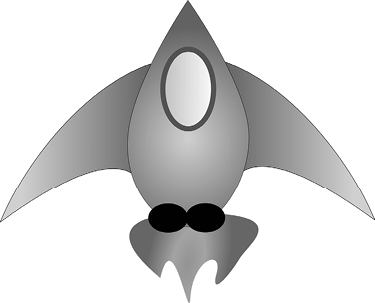
Figure 12-1: The ship for Alien Invasion
Creating the Ship Class
After choosing an image for the ship, we need to display it on the screen. To use our ship, we’ll create a new ship module that will contain the class Ship. This class will manage most of the behavior of the player’s ship:
ship.py
import pygame

class Ship:
    """A class to manage the ship."""

    def __init__(self, ai_game):
        """Initialize the ship and set its starting position."""
❶         self.screen = ai_game.screen
❷         self.screen_rect = ai_game.screen.get_rect()

        # Load the ship image and get its rect.
❸         self.image = pygame.image.load('images/ship.bmp')
        self.rect = self.image.get_rect()

        # Start each new ship at the bottom center of the screen.
❹         self.rect.midbottom = self.screen_rect.midbottom

❺     def blitme(self):
        """Draw the ship at its current location."""
        self.screen.blit(self.image, self.rect)
Pygame is efficient because it lets you treat all game elements like rectangles (rects), even if they’re not exactly shaped like rectangles. Treating an element as a rectangle is efficient because rectangles are simple geometric shapes. When Pygame needs to figure out whether two game elements have collided, for example, it can do this more quickly if it treats each object as a rectangle. This approach usually works well enough that no one playing the game will notice that we’re not working with the exact shape of each game element. We’ll treat the ship and the screen as rectangles in this class.
We import the pygame module before defining the class. The __init__() method of Ship takes two parameters: the self reference and a reference to the current instance of the AlienInvasion class. This will give Ship access to all the game resources defined in AlienInvasion. We then assign the screen to an attribute of Ship ❶, so we can access it easily in all the methods in this class. We access the screen’s rect attribute using the get_rect() method and assign it to self.screen_rect ❷. Doing so allows us to place the ship in the correct location on the screen.
To load the image, we call pygame.image.load() ❸ and give it the location of our ship image. This function returns a surface representing the ship, which we assign to self.image. When the image is loaded, we call get_rect() to access the ship surface’s rect attribute so we can later use it to place the ship.
When you’re working with a rect object, you can use the x- and y-coordinates of the top, bottom, left, and right edges of the rectangle, as well as the center, to place the object. You can set any of these values to establish the current position of the rect. When you’re centering a game element, work with the center, centerx, or centery attributes of a rect. When you’re working at an edge of the screen, work with the top, bottom, left, or right attributes. There are also attributes that combine these properties, such as midbottom, midtop, midleft, and midright. When you’re adjusting the horizontal or vertical placement of the rect, you can just use the x and y attributes, which are the x- and y-coordinates of its top-left corner. These attributes spare you from having to do calculations that game developers formerly had to do manually, and you’ll use them often.
We’ll position the ship at the bottom center of the screen. To do so, make the value of self.rect.midbottom match the midbottom attribute of the screen’s rect ❹. Pygame uses these rect attributes to position the ship image so it’s centered horizontally and aligned with the bottom of the screen.
Finally, we define the blitme() method ❺, which draws the image to the screen at the position specified by self.rect.
Drawing the Ship to the Screen
Now let’s update alien_invasion.py so it creates a ship and calls the ship’s blitme() method:
alien_invasion.py
--snip--
from settings import Settings
from ship import Ship

class AlienInvasion:
    """Overall class to manage game assets and behavior."""

    def __init__(self):
        --snip--
        pygame.display.set_caption("Alien Invasion")

❶         self.ship = Ship(self)

    def run_game(self):
            --snip--
            # Redraw the screen during each pass through the loop.
            self.screen.fill(self.settings.bg_color)
❷             self.ship.blitme()

            # Make the most recently drawn screen visible.
            pygame.display.flip()
            self.clock.tick(60)
--snip--
We import Ship and then make an instance of Ship after the screen has been created ❶. The call to Ship() requires one argument: an instance of AlienInvasion. The self argument here refers to the current instance of AlienInvasion. This is the parameter that gives Ship access to the game’s resources, such as the screen object. We assign this Ship instance to self.ship.
After filling the background, we draw the ship on the screen by calling ship.blitme(), so the ship appears on top of the background ❷.
When you run alien_invasion.py now, you should see an empty game screen with the rocket ship sitting at the bottom center, as shown in Figure 12-2.
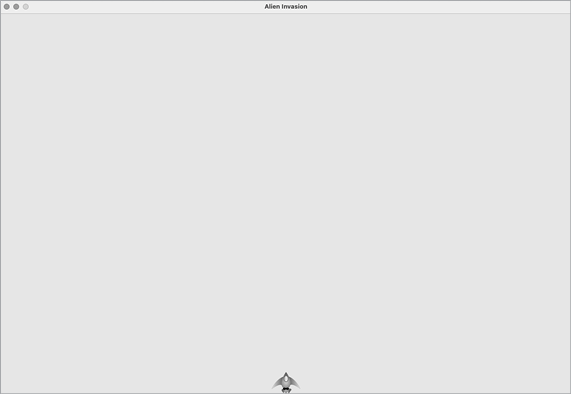
Figure 12-2: Alien Invasion with the ship at the bottom center of the screen
Refactoring: The _check_events() and _update_screen() Methods
In large projects, you’ll often refactor code you’ve written before adding more code. Refactoring simplifies the structure of the code you’ve already written, making it easier to build on. In this section, we’ll break the run_game() method, which is getting lengthy, into two helper methods. A helper method does work inside a class but isn’t meant to be used by code outside the class. In Python, a single leading underscore indicates a helper method.
The _check_events() Method
We’ll move the code that manages events to a separate method called _check_events(). This will simplify run_game() and isolate the event management loop. Isolating the event loop allows you to manage events separately from other aspects of the game, such as updating the screen.
Here’s the AlienInvasion class with the new _check_events() method, which only affects the code in run_game():
alien_invasion.py
    def run_game(self):
        """Start the main loop for the game."""
        while True:
❶             self._check_events()

            # Redraw the screen during each pass through the loop.
            --snip--

❷     def _check_events(self):
        """Respond to keypresses and mouse events."""
        for event in pygame.event.get():
            if event.type == pygame.QUIT:
                sys.exit()
We make a new _check_events() method ❷ and move the lines that check whether the player has clicked to close the window into this new method.
To call a method from within a class, use dot notation with the variable self and the name of the method ❶. We call the method from inside the while loop in run_game().
The _update_screen() Method
To further simplify run_game(), we’ll move the code for updating the screen to a separate method called _update_screen():
alien_invasion.py
    def run_game(self):
        """Start the main loop for the game."""
        while True:
            self._check_events()
            self._update_screen()
            self.clock.tick(60)

    def _check_events(self):
        --snip--

    def _update_screen(self):
        """Update images on the screen, and flip to the new screen."""
        self.screen.fill(self.settings.bg_color)
        self.ship.blitme()

        pygame.display.flip()
We moved the code that draws the background and the ship and flips the screen to _update_screen(). Now the body of the main loop in run_game() is much simpler. It’s easy to see that we’re looking for new events, updating the screen, and ticking the clock on each pass through the loop.
If you’ve already built a number of games, you’ll probably start out by breaking your code into methods like these. But if you’ve never tackled a project like this, you probably won’t know exactly how to structure your code at first. This approach gives you an idea of a realistic development process: you start out writing your code as simply as possible, and then refactor it as your project becomes more complex.
Now that we’ve restructured the code to make it easier to add to, we can work on the dynamic aspects of the game!
Piloting the Ship
Next, we’ll give the player the ability to move the ship right and left. We’ll write code that responds when the player presses the right or left arrow key. We’ll focus first on movement to the right, and then we’ll apply the same principles to control movement to the left. As we add this code, you’ll learn how to control the movement of images on the screen and respond to user input.
Responding to a Keypress
Whenever the player presses a key, that keypress is registered in Pygame as an event. Each event is picked up by the pygame.event.get() method. We need to specify in our _check_events() method what kinds of events we want the game to check for. Each keypress is registered as a KEYDOWN event.
When Pygame detects a KEYDOWN event, we need to check whether the key that was pressed is one that triggers a certain action. For example, if the player presses the right arrow key, we want to increase the ship’s rect.x value to move the ship to the right:
alien_invasion.py
    def _check_events(self):
        """Respond to keypresses and mouse events."""
        for event in pygame.event.get():
            if event.type == pygame.QUIT:
                sys.exit()
❶             elif event.type == pygame.KEYDOWN:
❷                 if event.key == pygame.K_RIGHT:
                    # Move the ship to the right.
❸                     self.ship.rect.x += 1
Inside _check_events() we add an elif block to the event loop, to respond when Pygame detects a KEYDOWN event ❶. We check whether the key pressed, event.key, is the right arrow key ❷. The right arrow key is represented by pygame.K_RIGHT. If the right arrow key was pressed, we move the ship to the right by increasing the value of self.ship.rect.x by 1 ❸.
When you run alien_invasion.py now, the ship should move to the right one pixel every time you press the right arrow key. That’s a start, but it’s not an efficient way to control the ship. Let’s improve this control by allowing continuous movement.
Allowing Continuous Movement
When the player holds down the right arrow key, we want the ship to continue moving right until the player releases the key. We’ll have the game detect a pygame.KEYUP event so we’ll know when the right arrow key is released; then we’ll use the KEYDOWN and KEYUP events together with a flag called moving_right to implement continuous motion.
When the moving_right flag is False, the ship will be motionless. When the player presses the right arrow key, we’ll set the flag to True, and when the player releases the key, we’ll set the flag to False again.
The Ship class controls all attributes of the ship, so we’ll give it an attribute called moving_right and an update() method to check the status of the moving_right flag. The update() method will change the position of the ship if the flag is set to True. We’ll call this method once on each pass through the while loop to update the position of the ship.
Here are the changes to Ship:
ship.py
class Ship:
    """A class to manage the ship."""

    def __init__(self, ai_game):
        --snip--
        # Start each new ship at the bottom center of the screen.
        self.rect.midbottom = self.screen_rect.midbottom

        # Movement flag; start with a ship that's not moving.
❶         self.moving_right = False

❷     def update(self):
        """Update the ship's position based on the movement flag."""
        if self.moving_right:
            self.rect.x += 1

    def blitme(self):
        --snip--
We add a self.moving_right attribute in the __init__() method and set it to False initially ❶. Then we add update(), which moves the ship right if the flag is True ❷. The update() method will be called from outside the class, so it’s not considered a helper method.
Now we need to modify _check_events() so that moving_right is set to True when the right arrow key is pressed and False when the key is released:
alien_invasion.py
    def _check_events(self):
        """Respond to keypresses and mouse events."""
        for event in pygame.event.get():
            --snip--
            elif event.type == pygame.KEYDOWN:
                if event.key == pygame.K_RIGHT:
❶                     self.ship.moving_right = True
❷             elif event.type == pygame.KEYUP:
                if event.key == pygame.K_RIGHT:
                    self.ship.moving_right = False
Here, we modify how the game responds when the player presses the right arrow key: instead of changing the ship’s position directly, we merely set moving_right to True ❶. Then we add a new elif block, which responds to KEYUP events ❷. When the player releases the right arrow key (K_RIGHT), we set moving_right to False.
Next, we modify the while loop in run_game() so it calls the ship’s update() method on each pass through the loop:
alien_invasion.py
     def run_game(self):
        """Start the main loop for the game."""
        while True:
            self._check_events()
            self.ship.update()
            self._update_screen()
            self.clock.tick(60)
The ship’s position will be updated after we’ve checked for keyboard events and before we update the screen. This allows the ship’s position to be updated in response to player input and ensures the updated position will be used when drawing the ship to the screen.
When you run alien_invasion.py and hold down the right arrow key, the ship should move continuously to the right until you release the key.
Moving Both Left and Right
Now that the ship can move continuously to the right, adding movement to the left is straightforward. Again, we’ll modify the Ship class and the _check_events() method. Here are the relevant changes to __init__() and update() in Ship:
ship.py
    def __init__(self, ai_game):
        --snip--
        # Movement flags; start with a ship that's not moving.
        self.moving_right = False
        self.moving_left = False

    def update(self):
        """Update the ship's position based on movement flags."""
        if self.moving_right:
            self.rect.x += 1
        if self.moving_left:
            self.rect.x -= 1
In __init__(), we add a self.moving_left flag. In update(), we use two separate if blocks, rather than an elif, to allow the ship’s rect.x value to be increased and then decreased when both arrow keys are held down. This results in the ship standing still. If we used elif for motion to the left, the right arrow key would always have priority. Using two if blocks makes the movements more accurate when the player might momentarily hold down both keys when changing directions.
We have to make two additions to _check_events():
alien_invasion.py
    def _check_events(self):
        """Respond to keypresses and mouse events."""
        for event in pygame.event.get():
            --snip--
            elif event.type == pygame.KEYDOWN:
                if event.key == pygame.K_RIGHT:
                    self.ship.moving_right = True
                elif event.key == pygame.K_LEFT:
                    self.ship.moving_left = True

            elif event.type == pygame.KEYUP:
                if event.key == pygame.K_RIGHT:
                    self.ship.moving_right = False
                elif event.key == pygame.K_LEFT:
                    self.ship.moving_left = False
If a KEYDOWN event occurs for the K_LEFT key, we set moving_left to True. If a KEYUP event occurs for the K_LEFT key, we set moving_left to False. We can use elif blocks here because each event is connected to only one key. If the player presses both keys at once, two separate events will be detected.
When you run alien_invasion.py now, you should be able to move the ship continuously to the right and left. If you hold down both keys, the ship should stop moving.
Next, we’ll further refine the ship’s movement. Let’s adjust the ship’s speed and limit how far the ship can move so it can’t disappear off the sides of the screen.
Adjusting the Ship’s Speed
Currently, the ship moves one pixel per cycle through the while loop, but we can take finer control of the ship’s speed by adding a ship_speed attribute to the Settings class. We’ll use this attribute to determine how far to move the ship on each pass through the loop. Here’s the new attribute in settings.py:
settings.py
class Settings:
    """A class to store all settings for Alien Invasion."""

    def __init__(self):
        --snip--

        # Ship settings
        self.ship_speed = 1.5
We set the initial value of ship_speed to 1.5. When the ship moves now, its position is adjusted by 1.5 pixels (rather than 1 pixel) on each pass through the loop.
We’re using a float for the speed setting to give us finer control of the ship’s speed when we increase the tempo of the game later on. However, rect attributes such as x store only integer values, so we need to make some modifications to Ship:
ship.py
class Ship:
    """A class to manage the ship."""

    def __init__(self, ai_game):
        """Initialize the ship and set its starting position."""
        self.screen = ai_game.screen
❶         self.settings = ai_game.settings
        --snip--

        # Start each new ship at the bottom center of the screen.
        self.rect.midbottom = self.screen_rect.midbottom

        # Store a float for the ship's exact horizontal position.
❷         self.x = float(self.rect.x)

        # Movement flags; start with a ship that's not moving.
        self.moving_right = False
        self.moving_left = False

    def update(self):
        """Update the ship's position based on movement flags."""
        # Update the ship's x value, not the rect.
        if self.moving_right:
❸             self.x += self.settings.ship_speed
        if self.moving_left:
            self.x -= self.settings.ship_speed

        # Update rect object from self.x.
❹         self.rect.x = self.x

    def blitme(self):
        --snip--
We create a settings attribute for Ship, so we can use it in update() ❶. Because we’re adjusting the position of the ship by fractions of a pixel, we need to assign the position to a variable that can have a float assigned to it. You can use a float to set an attribute of a rect, but the rect will only keep the integer portion of that value. To keep track of the ship’s position accurately, we define a new self.x ❷. We use the float() function to convert the value of self.rect.x to a float and assign this value to self.x.
Now when we change the ship’s position in update(), the value of self.x is adjusted by the amount stored in settings.ship_speed ❸. After self.x has been updated, we use the new value to update self.rect.x, which controls the position of the ship ❹. Only the integer portion of self.x will be assigned to self.rect.x, but that’s fine for displaying the ship.
Now we can change the value of ship_speed, and any value greater than 1 will make the ship move faster. This will help make the ship respond quickly enough to shoot down aliens, and it will let us change the tempo of the game as the player progresses in gameplay.
Limiting the Ship’s Range
At this point, the ship will disappear off either edge of the screen if you hold down an arrow key long enough. Let’s correct this so the ship stops moving when it reaches the screen’s edge. We do this by modifying the update() method in Ship:
ship.py
    def update(self):
        """Update the ship's position based on movement flags."""
        # Update the ship's x value, not the rect.
❶         if self.moving_right and self.rect.right < self.screen_rect.right:
            self.x += self.settings.ship_speed
❷         if self.moving_left and self.rect.left > 0:
            self.x -= self.settings.ship_speed

        # Update rect object from self.x.
        self.rect.x = self.x
This code checks the position of the ship before changing the value of self.x. The code self.rect.right returns the x-coordinate of the right edge of the ship’s rect. If this value is less than the value returned by self.screen_rect.right, the ship hasn’t reached the right edge of the screen ❶. The same goes for the left edge: if the value of the left side of the rect is greater than 0, the ship hasn’t reached the left edge of the screen ❷. This ensures the ship is within these bounds before adjusting the value of self.x.
When you run alien_invasion.py now, the ship should stop moving at either edge of the screen. This is pretty cool; all we’ve done is add a conditional test in an if statement, but it feels like the ship hits a wall or force field at either edge of the screen!
Refactoring _check_events()
The _check_events() method will increase in length as we continue to develop the game, so let’s break _check_events() into two separate methods: one that handles KEYDOWN events and another that handles KEYUP events:
alien_invasion.py
    def _check_events(self):
        """Respond to keypresses and mouse events."""
        for event in pygame.event.get():
            if event.type == pygame.QUIT:
                sys.exit()
            elif event.type == pygame.KEYDOWN:
                self._check_keydown_events(event)
            elif event.type == pygame.KEYUP:
                self._check_keyup_events(event)

    def _check_keydown_events(self, event):
        """Respond to keypresses."""
        if event.key == pygame.K_RIGHT:
            self.ship.moving_right = True
        elif event.key == pygame.K_LEFT:
            self.ship.moving_left = True

    def _check_keyup_events(self, event):
        """Respond to key releases."""
        if event.key == pygame.K_RIGHT:
            self.ship.moving_right = False
        elif event.key == pygame.K_LEFT:
            self.ship.moving_left = False
We make two new helper methods: _check_keydown_events() and _check_keyup_events(). Each needs a self parameter and an event parameter. The bodies of these two methods are copied from _check_events(), and we’ve replaced the old code with calls to the new methods. The _check_events() method is simpler now with this cleaner code structure, which will make it easier to develop further responses to player input.
Pressing Q to Quit
Now that we’re responding to keypresses efficiently, we can add another way to quit the game. It gets tedious to click the X at the top of the game window to end the game every time you test a new feature, so we’ll add a keyboard shortcut to end the game when the player presses Q:
alien_invasion.py
    def _check_keydown_events(self, event):
        --snip--
        elif event.key == pygame.K_LEFT:
            self.ship.moving_left = True
        elif event.key == pygame.K_q:
            sys.exit()
In _check_keydown_events(), we add a new block that ends the game when the player presses Q. Now, when testing, you can press Q to close the game instead of using your cursor to close the window.
Running the Game in Fullscreen Mode
Pygame has a fullscreen mode that you might like better than running the game in a regular window. Some games look better in fullscreen mode, and on some systems, the game may perform better overall in fullscreen mode.
To run the game in fullscreen mode, make the following changes in __init__():
alien_invasion.py
    def __init__(self):
        """Initialize the game, and create game resources."""
        pygame.init()
        self.settings = Settings()

❶         self.screen = pygame.display.set_mode((0, 0), pygame.FULLSCREEN)
❷         self.settings.screen_width = self.screen.get_rect().width
        self.settings.screen_height = self.screen.get_rect().height
        pygame.display.set_caption("Alien Invasion")
When creating the screen surface, we pass a size of (0, 0) and the parameter pygame.FULLSCREEN ❶. This tells Pygame to figure out a window size that will fill the screen. Because we don’t know the width and height of the screen ahead of time, we update these settings after the screen is created ❷. We use the width and height attributes of the screen’s rect to update the settings object.
If you like how the game looks or behaves in fullscreen mode, keep these settings. If you liked the game better in its own window, you can revert back to the original approach where we set a specific screen size for the game.
A Quick Recap
In the next section, we’ll add the ability to shoot bullets, which involves adding a new file called bullet.py and making some modifications to some of the files we’re already using. Right now, we have three files containing a number of classes and methods. To be clear about how the project is organized, let’s review each of these files before adding more functionality.
alien_invasion.py
The main file, alien_invasion.py, contains the AlienInvasion class. This class creates a number of important attributes used throughout the game: the settings are assigned to settings, the main display surface is assigned to screen, and a ship instance is created in this file as well. The main loop of the game, a while loop, is also stored in this module. The while loop calls _check_events(), ship.update(), and _update_screen(). It also ticks the clock on each pass through the loop.
The _check_events() method detects relevant events, such as keypresses and releases, and processes each of these types of events through the methods _check_keydown_events() and _check_keyup_events(). For now, these methods manage the ship’s movement. The AlienInvasion class also contains _update_screen(), which redraws the screen on each pass through the main loop.
The alien_invasion.py file is the only file you need to run when you want to play Alien Invasion. The other files, settings.py and ship.py, contain code that is imported into this file.
settings.py
The settings.py file contains the Settings class. This class only has an __init__() method, which initializes attributes controlling the game’s appearance and the ship’s speed.
ship.py
The ship.py file contains the Ship class. The Ship class has an __init__() method, an update() method to manage the ship’s position, and a blitme() method to draw the ship to the screen. The image of the ship is stored in ship.bmp, which is in the images folder.
Shooting Bullets
Now let’s add the ability to shoot bullets. We’ll write code that fires a bullet, which is represented by a small rectangle, when the player presses the spacebar. Bullets will then travel straight up the screen until they disappear off the top of the screen.
Adding the Bullet Settings
At the end of the __init__() method, we’ll update settings.py to include the values we’ll need for a new Bullet class:
settings.py
    def __init__(self):
        --snip--
        # Bullet settings
        self.bullet_speed = 2.0
        self.bullet_width = 3
        self.bullet_height = 15
        self.bullet_color = (60, 60, 60)
These settings create dark gray bullets with a width of 3 pixels and a height of 15 pixels. The bullets will travel slightly faster than the ship.
Creating the Bullet Class
Now create a bullet.py file to store our Bullet class. Here’s the first part of bullet.py:
bullet.py
import pygame
from pygame.sprite import Sprite

class Bullet(Sprite):
    """A class to manage bullets fired from the ship."""

    def __init__(self, ai_game):
        """Create a bullet object at the ship's current position."""
        super().__init__()
        self.screen = ai_game.screen
        self.settings = ai_game.settings
        self.color = self.settings.bullet_color

        # Create a bullet rect at (0, 0) and then set correct position.
❶         self.rect = pygame.Rect(0, 0, self.settings.bullet_width,
            self.settings.bullet_height)
❷         self.rect.midtop = ai_game.ship.rect.midtop

        # Store the bullet's position as a float.
❸         self.y = float(self.rect.y)
The Bullet class inherits from Sprite, which we import from the pygame.sprite module. When you use sprites, you can group related elements in your game and act on all the grouped elements at once. To create a bullet instance, __init__() needs the current instance of AlienInvasion, and we call super() to inherit properly from Sprite. We also set attributes for the screen and settings objects, and for the bullet’s color.
Next we create the bullet’s rect attribute ❶. The bullet isn’t based on an image, so we have to build a rect from scratch using the pygame.Rect() class. This class requires the x- and y-coordinates of the top-left corner of the rect, and the width and height of the rect. We initialize the rect at (0, 0), but we’ll move it to the correct location in the next line, because the bullet’s position depends on the ship’s position. We get the width and height of the bullet from the values stored in self.settings.
We set the bullet’s midtop attribute to match the ship’s midtop attribute ❷. This will make the bullet emerge from the top of the ship, making it look like the bullet is fired from the ship. We use a float for the bullet’s y-coordinate so we can make fine adjustments to the bullet’s speed ❸.
Here’s the second part of bullet.py, update() and draw_bullet():
bullet.py
    def update(self):
        """Move the bullet up the screen."""
        # Update the exact position of the bullet.
❶         self.y -= self.settings.bullet_speed
        # Update the rect position.
❷         self.rect.y = self.y

    def draw_bullet(self):
        """Draw the bullet to the screen."""
❸         pygame.draw.rect(self.screen, self.color, self.rect)
The update() method manages the bullet’s position. When a bullet is fired, it moves up the screen, which corresponds to a decreasing y-coordinate value. To update the position, we subtract the amount stored in settings.bullet_speed from self.y ❶. We then use the value of self.y to set the value of self.rect.y ❷.
The bullet_speed setting allows us to increase the speed of the bullets as the game progresses or as needed to refine the game’s behavior. Once a bullet is fired, we never change the value of its x-coordinate, so it will travel vertically in a straight line even if the ship moves.
When we want to draw a bullet, we call draw_bullet(). The draw.rect() function fills the part of the screen defined by the bullet’s rect with the color stored in self.color ❸.
Storing Bullets in a Group
Now that we have a Bullet class and the necessary settings defined, we can write code to fire a bullet each time the player presses the spacebar. We’ll create a group in AlienInvasion to store all the active bullets so we can manage the bullets that have already been fired. This group will be an instance of the pygame.sprite.Group class, which behaves like a list with some extra functionality that’s helpful when building games. We’ll use this group to draw bullets to the screen on each pass through the main loop and to update each bullet’s position.
First, we’ll import the new Bullet class:
alien_invasion.py
--snip--
from ship import Ship
from bullet import Bullet
Next we’ll create the group that holds the bullets in __init__():
alien_invasion.py
    def __init__(self):
        --snip--
        self.ship = Ship(self)
        self.bullets = pygame.sprite.Group()
Then we need to update the position of the bullets on each pass through the while loop:
alien_invasion.py
    def run_game(self):
        """Start the main loop for the game."""
        while True:
            self._check_events()
            self.ship.update()
            self.bullets.update()
            self._update_screen()
            self.clock.tick(60)
When you call update() on a group, the group automatically calls update() for each sprite in the group. The line self.bullets.update() calls bullet.update() for each bullet we place in the group bullets.
Firing Bullets
In AlienInvasion, we need to modify _check_keydown_events() to fire a bullet when the player presses the spacebar. We don’t need to change _check_keyup_events() because nothing happens when the spacebar is released. We also need to modify _update_screen() to make sure each bullet is drawn to the screen before we call flip().
There will be a bit of work to do when we fire a bullet, so let’s write a new method, _fire_bullet(), to handle this work:
alien_invasion.py
    def _check_keydown_events(self, event):
        --snip--
        elif event.key == pygame.K_q:
            sys.exit()
❶         elif event.key == pygame.K_SPACE:
            self._fire_bullet()

    def _check_keyup_events(self, event):
        --snip--

    def _fire_bullet(self):
        """Create a new bullet and add it to the bullets group."""
❷         new_bullet = Bullet(self)
❸         self.bullets.add(new_bullet)

    def _update_screen(self):
        """Update images on the screen, and flip to the new screen."""
        self.screen.fill(self.settings.bg_color)
❹         for bullet in self.bullets.sprites():
            bullet.draw_bullet()
        self.ship.blitme()

        pygame.display.flip()
--snip--
We call _fire_bullet() when the spacebar is pressed ❶. In _fire_bullet(), we make an instance of Bullet and call it new_bullet ❷. We then add it to the group bullets using the add() method ❸. The add() method is similar to append(), but it’s written specifically for Pygame groups.
The bullets.sprites() method returns a list of all sprites in the group bullets. To draw all fired bullets to the screen, we loop through the sprites in bullets and call draw_bullet() on each one ❹. We place this loop before the line that draws the ship, so the bullets don’t start out on top of the ship.
When you run alien_invasion.py now, you should be able to move the ship right and left and fire as many bullets as you want. The bullets travel up the screen and disappear when they reach the top, as shown in Figure 12-3. You can alter the size, color, and speed of the bullets in settings.py.
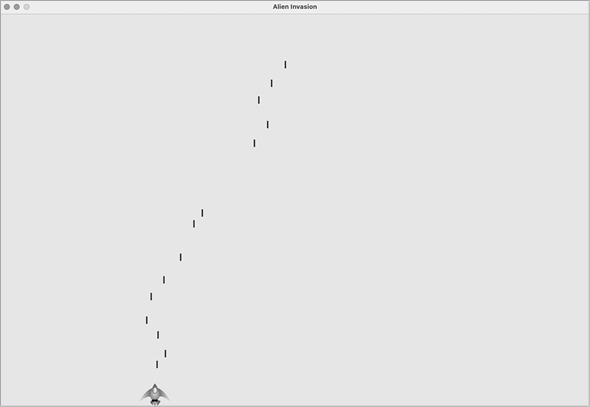
Figure 12-3: The ship after firing a series of bullets
Deleting Old Bullets
At the moment, the bullets disappear when they reach the top, but only because Pygame can’t draw them above the top of the screen. The bullets actually continue to exist; their y-coordinate values just grow increasingly negative. This is a problem because they continue to consume memory and processing power.
We need to get rid of these old bullets, or the game will slow down from doing so much unnecessary work. To do this, we need to detect when the bottom value of a bullet’s rect has a value of 0, which indicates the bullet has passed off the top of the screen:
alien_invasion.py
    def run_game(self):
        """Start the main loop for the game."""
        while True:
            self._check_events()
            self.ship.update()
            self.bullets.update()

            # Get rid of bullets that have disappeared.
❶             for bullet in self.bullets.copy():
❷                 if bullet.rect.bottom <= 0:
❸                     self.bullets.remove(bullet)
❹             print(len(self.bullets))

            self._update_screen()
            self.clock.tick(60)
When you use a for loop with a list (or a group in Pygame), Python expects that the list will stay the same length as long as the loop is running. That means you can’t remove items from a list or group within a for loop, so we have to loop over a copy of the group. We use the copy() method to set up the for loop ❶, which leaves us free to modify the original bullets group inside the loop. We check each bullet to see whether it has disappeared off the top of the screen ❷. If it has, we remove it from bullets ❸. We insert a print() call to show how many bullets currently exist in the game and verify they’re being deleted when they reach the top of the screen ❹.
If this code works correctly, we can watch the terminal output while firing bullets and see that the number of bullets decreases to zero after each series of bullets has cleared the top of the screen. After you run the game and verify that bullets are being deleted properly, remove the print() call. If you leave it in, the game will slow down significantly because it takes more time to write output to the terminal than it does to draw graphics to the game window.
Limiting the Number of Bullets
Many shooting games limit the number of bullets a player can have on the screen at one time; doing so encourages players to shoot accurately. We’ll do the same in Alien Invasion.
First, store the number of bullets allowed in settings.py:
settings.py
        # Bullet settings
        --snip--
        self.bullet_color = (60, 60, 60)
        self.bullets_allowed = 3
This limits the player to three bullets at a time. We’ll use this setting in AlienInvasion to check how many bullets exist before creating a new bullet in _fire_bullet():
alien_invasion.py
    def _fire_bullet(self):
        """Create a new bullet and add it to the bullets group."""
        if len(self.bullets) < self.settings.bullets_allowed:
            new_bullet = Bullet(self)
            self.bullets.add(new_bullet)
When the player presses the spacebar, we check the length of bullets. If len(self.bullets) is less than three, we create a new bullet. But if three bullets are already active, nothing happens when the spacebar is pressed. When you run the game now, you should only be able to fire bullets in groups of three.
Creating the _update_bullets() Method
We want to keep the AlienInvasion class reasonably well organized, so now that we’ve written and checked the bullet management code, we can move it to a separate method. We’ll create a new method called _update_bullets() and add it just before _update_screen():
alien_invasion.py
    def _update_bullets(self):
        """Update position of bullets and get rid of old bullets."""
        # Update bullet positions.
        self.bullets.update()

        # Get rid of bullets that have disappeared.
        for bullet in self.bullets.copy():
            if bullet.rect.bottom <= 0:
                 self.bullets.remove(bullet)
The code for _update_bullets() is cut and pasted from run_game(); all we’ve done here is clarify the comments.
The while loop in run_game() looks simple again:
alien_invasion.py
         while True:
            self._check_events()
            self.ship.update()
            self._update_bullets()
            self._update_screen()
            self.clock.tick(60)
Now our main loop contains only minimal code, so we can quickly read the method names and understand what’s happening in the game. The main loop checks for player input, and then updates the position of the ship and any bullets that have been fired. We then use the updated positions to draw a new screen and tick the clock at the end of each pass through the loop.
Run alien_invasion.py one more time, and make sure you can still fire bullets without errors.
Summary
In this chapter, you learned to make a plan for a game and learned the basic structure of a game written in Pygame. You learned to set a background color and store settings in a separate class where you can adjust them more easily. You saw how to draw an image to the screen and give the player control over the movement of game elements. You created elements that move on their own, like bullets flying up a screen, and you deleted objects that are no longer needed. You also learned to refactor code in a project on a regular basis to facilitate ongoing development.
In Chapter 13, we’ll add aliens to Alien Invasion. By the end of the chapter, you’ll be able to shoot down aliens, hopefully before they reach your ship!