10.8 Android
Android is a relatively new operating system designed to run on mobile devices. It is based on the Linux kernel—Android introduces only a few new concepts to the Linux kernel itself, using most of the Linux facilities you are already familiar with (processes, user IDs, virtual memory, file systems, scheduling, etc.) in sometimes very different ways than they were originally intended.
Since its introduction in 2008, Android has grown to be the most widely used operating systems in the world with, as of this writing, over 3 billion monthly active users of just the Google flavor of Android alone. Its popularity has ridden the explosion of smartphones, and it is freely available for manufacturers of mobile devices to use in their products. It is also an open-source platform, making it customizable to a diverse variety of devices. It is popular not only for consumer-centric devices where its third-party application ecosystem is advantageous (such as tablets, televisions, game systems, and media players), but is increasingly used as the embedded OS for dedicated devices that need a graphical user interface such as smart watches, automotive dashboards, airplane seatbacks, medical devices, and home appliances.
A large amount of the Android operating system is written in a high-level language, the Java programming language. The kernel and a large number of lowlevel libraries are written in C and C++. However, a large amount of the system is written in Java and, but for some small exceptions, the entire application API is written and published in Java as well. The parts of Android written in Java tend to follow a very object-oriented design as encouraged by that language.
10.8.1 Android and Google
Android is an unusual operating system in the way it combines open-source code with closed-source third-party applications. The open-source part of Android is called the AOSP (Android Open Source Project) and is completely open and free to be used and modified by anyone.
An important goal of Android is to support a rich third-party application environment, which requires having a stable implementation and API for applications to run against. However, in an open-source world where every device manufacturer can customize the platform however it wants, compatibility issues quickly arise. There needs to be some way to control this conflict.
Part of the solution to this for Android is the CDD (Compatibility Definition Document), which describes the ways Android must behave to be compatible with third party applications. This document describes what is required to be a compatible Android device. Without some way to enforce such compatibility, however, it will often be ignored; there needs to be some additional mechanism to do this.
Android solves this by allowing additional proprietary services to be created on top of the open-source platform, providing (typically cloud-based) services that the platform cannot itself implement. Since these services are proprietary, they can restrict which devices are allowed to include them, thus requiring CDD compatibility of those devices.
Google implemented Android to be able to support a wide variety of proprietary cloud services, with Google’s extensive set of services being representative cases: Gmail, calendar and contacts sync, cloud-to-device messaging, and many other services, some visible to the user, some not. When it comes to offering compatible apps, the most important service is Google Play.
Google Play is Google’s online store for Android apps. Generally when developers create Android applications, they will publish with Google Play. Since Google Play (or any other application store) is a significant channel through which applications are delivered to an Android device, that proprietary service is responsible for ensuring that applications will work on the devices it delivers them to.
Google Play uses two main mechanisms to ensure compatibility. The first and most important is requiring that any device shipping with it must be a compatible Android device as per the CDD. This ensures a baseline of behavior across all devices. In addition, Google Play must know about any features of a device that an application requires (such as having a touch screen, camera hardware, or telephony support) so the application is not made available on devices that lack them.
10.8.2 History of Android
Google developed Android in the mid-2000s, after acquiring Android as a startup company early in its development. Nearly all the development of the Android platform that exists today was done under Google’s management.
Early Development
Android, Inc. was a software company founded to build software to create smarter mobile devices. Originally looking at cameras, the vision soon switched to smartphones due to their larger potential market. That initial goal grew to addressing the then-current difficulty in developing for mobile devices, by bringing to them an open platform built on top of Linux that could be widely used.
During this time, prototypes for the platform’s user interface were implemented to demonstrate the ideas behind it. The platform itself was targeting three key languages, JavaScript, Java, and C++, in order to support a rich application-development environment.
Google acquired Android in July 2005, providing the necessary resources and cloud-service support to continue Android development as a complete product. A fairly small group of engineers worked closely together during this time, starting to develop the core infrastructure for the platform and foundations for higher-level application development.
In early 2006, a significant shift in plan was made: instead of supporting multiple programming languages, the platform would focus entirely on the Java programming language for its application development. This was a difficult change, as the original multilanguage approach superficially kept everyone happy with ‘‘the best of all worlds’’; focusing on one language felt like a step backward to engineers who preferred other languages.
Trying to make everyone happy, however, can easily make nobody happy. Building out three different sets of language APIs would have required much more effort than focusing on a single language, greatly reducing the quality of each one. The decision to focus on the Java language was critical for the ultimate quality of the platform and the development team’s ability to meet important deadlines.
As development progressed, the Android platform was developed closely with the applications that would ultimately ship on top of it. Google already had a wide variety of services—including Gmail, Maps, Calendar, YouTube, and of course Search—that would be delivered on top of Android. Knowledge gained from implementing these applications on top of the early platform was fed back into its design. This iterative process with the applications allowed many design flaws in the platform to be addressed early in its development.
Most of the early application development was done with little of the underlying platform actually available to the developers. The platform was usually running all inside one process, through a ‘‘simulator’’ that ran all of the system and applications as a single process on a host computer. In fact there are still some remnants of this old implementation around today, with things like the Application.onTerminate method still in the SDK (Software Development Kit), which Android programmers use to write applications.
In June 2006, two hardware devices were selected as software-development targets for planned products. The first, code-named ‘‘Sooner,’’ was based on an existing smartphone with a QWERTY keyboard and screen without touch input. The goal of this device was to get an initial product out as soon as possible, by leveraging existing hardware. The second target device, code-named ‘‘Dream,’’ was designed specifically for Android, to run it as fully envisioned. It included a large (for that time) touch screen, slide-out QWERTY keyboard, 3G radio (for faster Web browsing), accelerometer, GPS and compass (to support Google Maps), etc.
As the software schedule came better into focus, it became clear that the two hardware schedules did not make sense. By the time it was possible to release Sooner, that hardware would be well out of date, and the effort put on Sooner was pushing out the more important Dream device. To address this, it was decided to drop Sooner as a target device (though development on that hardware continued for some time until the newer hardware was ready) and focus entirely on Dream.
Android 1.0
The first public availability of the Android platform was a preview SDK released in November 2007. This consisted of a hardware device emulator running a full Android device system image and core applications, API documentation, and a development environment. At this point, the core design and implementation were in place, and in most ways closely resembled the modern Android system architecture we will be discussing. The announcement included video demos of the platform running on top of both the Sooner and Dream hardware.
Early development of Android had been done under a series of quarterly demo milestones to drive and show continued process. The SDK release was the first more formal release for the platform. It required taking all the pieces that had been put together so far for application development, cleaning them up, documenting them, and creating a cohesive development environment for third-party developers. Development now proceeded along two tracks: taking in feedback about the SDK to further refine and finalize APIs, and finishing and stabilizing the implementation needed to ship the Dream device. A number of public updates to the SDK occurred during this time, culminating in a 0.9 release in August 2008 that contained the nearly final APIs.
The platform itself had been going through rapid development, and in the spring of 2008 the focus was shifting to stabilization so that Dream could ship. Android at this point contained a large amount of code that had never been shipped as a commercial product, all the way from parts of the C library, through the Dalvik (and later ART) interpreter (which runs the apps), system services, and applications.
Android also contained quite a few novel design ideas that had never been done before, and it was not clear how they would pan out. This all needed to come together as a stable product, and the team spent a few nail-biting months wondering if all of this stuff would actually come together and work as intended.
Finally, in August 2008, the software was stable and ready to ship. Builds went to the factory and started being flashed onto devices. In September, Android was launched on the Dream device, now called the T-Mobile G1.
Continued Development
After Android’s 1.0 release, development continued at a rapid pace. There were about 15 major updates to the platform over the following 5 years, adding a large variety of new features and improvements from the initial 1.0 release.
The original Compatibility Definition Document basically allowed only for compatible devices that were very much like the T-Mobile G1. Over the following years, the range of compatible devices would greatly expand. Key points of this process were as follows:
During 2009, Android versions 1.5 through 2.0 introduced a soft keyboard to remove a requirement for a physical keyboard, much more extensive screen support (both size and pixel density) for lowerend QVGA devices and new larger and higher density devices like the WVGA Motorola Droid, and a new ‘‘system feature’’ facility for devices to report what hardware features they support and applications to indicate which hardware features they require. The latter is the key mechanism Google Play uses to determine application compatibility with a specific device.
During 2011, Android versions 3.0 through 4.0 introduced new core support in the platform for 10-inch and larger tablets; the core platform now fully supported device screen sizes everywhere from small QVGA phones, through smartphones and larger ‘‘phablets,’’ 7-inch tablets and larger tablets to beyond 10 inches.
As the platform provided built-in support for more diverse hardware, not only larger screens but also nontouch devices with or without a mouse, many more types of Android devices appeared. This included TV devices such as Google TV, gaming devices, notebooks, cameras, etc.
Significant development work also went into something not as visible: a cleaner separation of Google’s proprietary services from the Android open-source platform.
For Android 1.0, a significant amount of work had been put into having a clean third-party application API and an open-source platform with no dependencies on proprietary Google code. However, the implementation of Google’s proprietary code was often not yet cleaned up, having dependencies on internal parts of the platform. Often the platform did not even have facilities that Google’s proprietary code needed in order to integrate well with it. A series of projects were soon undertaken to address these issues:
In 2009, Android version 2.0 introduced an architecture for third parties to plug their own sync adapters into platform APIs like the contacts database. Google’s code for syncing various data moved to this well-defined SDK API.
In 2010, Android version 2.2 included work on the internal design and implementation of Google’s proprietary code. This ‘‘great unbundling’’ cleanly implemented many core Google services, from delivering cloud-based system software updates to ‘‘cloud-to-device messaging’’ and other background services, so that they could be delivered and updated separately from the platform.
In 2012, a new Google Play services application was delivered to devices, containing updated and new features for Google’s proprietary nonapplication services. This was the outgrowth of the unbundling work in 2010, allowing proprietary APIs such as cloud-to-device messaging and maps to be fully delivered and updated by Google.
Since then, there have been a regular series of Android releases. Below are the major releases, with select highlights of the changes in each release related to the core operating system. A number of these will be covered in more detail later.
Android 4.2 (2012): Added support for multi-user separation (allowing different people to share a device in isolated users). SELinux introduced in non-enforcing mode.
Android 4.3 (2013): Extended multi-user to enable ‘‘restricted users,’’ can create restricted environments for children, kiosk modes, point of sale systems, etc.
Android 4.4 (2013): SELinux now enforced across operating systems. Android Runtime (ART) is introduced as a developer preview and will later replace the original Dalvik virtual machine. ART features ahead-of-time compilation and a new concurrent garbage collector to avoid GC stalls that cause missed UI frames.
Android 5.0 (2014): Introduced the JobScheduler, which would be the future foundation for applications to schedule almost all of their background work with the system. Extended multi-user to support ‘‘profiles’’ where two users run concurrently under different identities (typically providing a concurrent personal and work profile that are isolated from each other). Introduced document-centric-recents model, where recent tasks can include documents or other sub-sections of an overall application. Added support for 64-bit apps.
Android 6.0 (2015): Permission model changed from install-time to runtime, reflecting a shift in focus from security to privacy and the increasing complexity of mobile applications with a growing number of secondary features. Introduced the original ‘‘doze mode’’ to take a stronger hand in what apps can do in the background. Security is about protected the device and the user from harm caused by outsiders whereas privacy is focused on protecting the user’s information from snooping. They are quite different and need different approaches.
Android 7.0 (2016): Extended ‘‘doze mode’’ to cover most situations when the screen is off. On all battery-powered devices, managed energy usage to avoid draining the battery too fast is crucial to the user experience, so in Android 7.0 there was more attention to it.
Android 8.0 (2017): A new abstraction, called Treble, was introduced between the Android system and lower-level hardware touched by the kernel and drivers. Similar to the HAL (Hardware Abstraction Layer) in the Windows kernel, Treble provides a stable interface between the bulk of Android and hardware-specific kernel and drivers. It is structured like a microkernel with Treble drivers running in separate userspace processes and Binder IPC (covered later) used to communicate with them. It also placed strong limits on how applications could run in the background, as well as differentiation between background vs. foreground for location access.
Android 9 (2018): Limited the ability of applications to launch into their foreground interface while running in the background. Introduced ‘‘adaptive battery,’’ where a machine-learning system helps guide the system in deciding the importance of background work across applications.
Android 10 (2019): Provided user control over an app’s ability to access location information while in the background. Introduced ‘‘scoped storage’’ to better control data access across applications that are putting data on external storage (such as SD cards).
Android 11 (2020): Allowed the user to select ‘‘only this once’’ for permissions that provide access to continuous personal data: location, camera, and microphone.
Android 12 (2021): Gave the user control over coarse vs. fine location access. Introduced a ‘‘permissions hub’’ allowing users to see how applications have been accessing their personal data. Limited other cases (using foreground services) where applications could go into a foreground state from the background.
10.8.3 Design Goals
A number of key design goals for the Android platform evolved during its development:
Provide a complete open-source platform for mobile devices. The open-source part of Android is a bottom-to-top operating system stack, including a variety of applications, that can ship as a complete product.
Strongly support proprietary third-party applications with a robust and stable API. As previously discussed, it is challenging to maintain a platform that is both truly open source and also stable enough for proprietary third-party applications. Android uses a mix of technical solutions (specifying a very well-defined SDK and division between public APIs and internal implementation) and policy requirements (through the CDD) to address this.
Allow all third-party applications, including those from Google, to compete on a level playing field. The Android open source code is designed to be neutral as much as possible to the higher-level system features built on top of it, from access to cloud services (such as data sync or cloud-to-device messaging APIs), to libraries (such as Google’s mapping library) and rich services like application stores.
Provide an application security model in which users do not have to deeply trust third-party applications and do not need to rely on a gatekeeper (like a carrier) to control which applications can be installed on the device in order to protect them. The operating system itself must protect the user from misbehavior of applications, not only buggy applications that can cause it to crash, but more subtle misuse of the device and the user’s data on it. The less users need to trust applications or the sources of those applications, the more freedom they have to try out and install them.
Support typical mobile user interaction, where the user often spends short amounts of time in many apps. The mobile experience tends to involve brief interactions with applications: glancing at new received email, receiving and sending an SMS message or IM, going to contacts to place a call, etc. The system needs to optimize for these cases with fast app launch and switch times; the goal for Android has generally been 200 msec to cold start a basic application up to the point of showing a full interactive UI.
Manage application processes for users, simplifying the user experience around applications so that users do not have to worry about closing applications when done with them. Mobile devices also tend to run without the swap space that allows operating systems to fail more gracefully when the current set of running applications requires more RAM than is physically available. To address both of these requirements, the system needs to take a more proactive stance about managing application processes and deciding when they should be started and stopped.
Encourage applications to interoperate and collaborate in rich and secure ways. Mobile applications are in some ways a return back to shell commands: rather than the increasingly large monolithic design of desktop applications, they are often targeted and more focused for specific needs. To help support this, the operating system should provide new types of facilities for these applications to collaborate together to create a larger whole.
Create a full general-purpose operating system. Mobile devices are a new expression of general purpose computing, not something simpler than our traditional desktop operating systems. Android’s design should be rich enough that it can grow to be at least as capable as a traditional operating system.
10.8.4 Android Architecture
Android is built on top of the standard Linux kernel, with only a few significant extensions to the kernel itself that will be discussed later. Once in user space, however, its implementation is quite different from a traditional Linux distribution and uses many of the Linux features you already understand, but in very different ways.
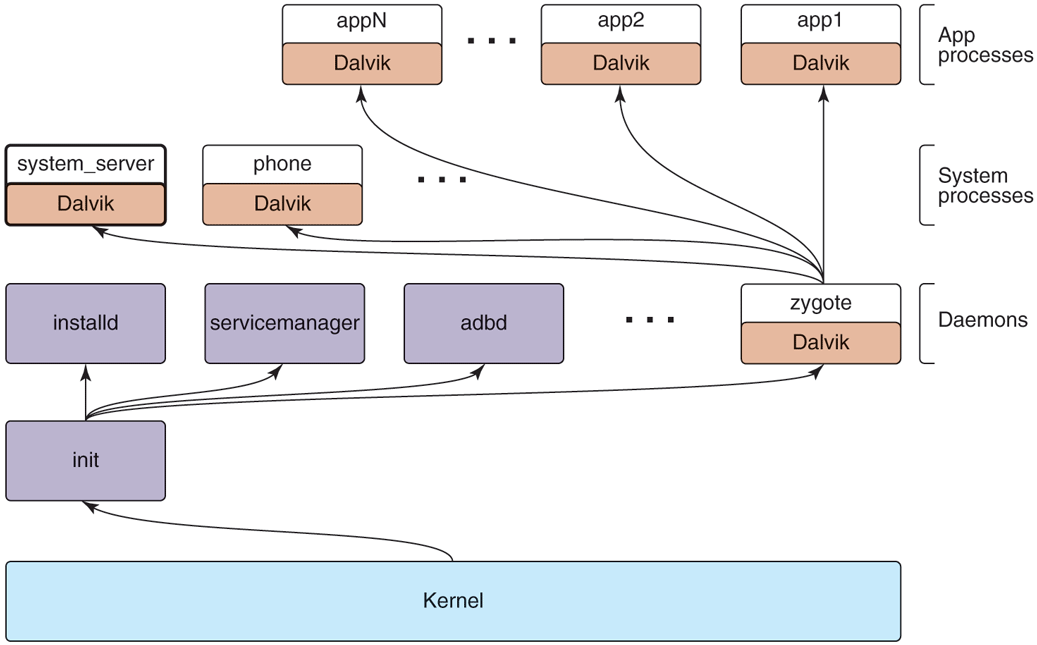
As in a traditional Linux system, Android’s first user-space process is init, which is the root of all other processes. The daemons Android’s init process starts are different, however, focused more on low-level details (managing file systems and hardware access) rather than higher-level user facilities like scheduling cron jobs. Android also has an additional layer of processes, those running ART (for Android Runtime which implements the Java language environment); these are responsible for executing all parts of the system implemented in Java.
Figure 10-39 illustrates the basic process structure of Android. First is the init process, which spawns a number of low-level daemon processes. One of these is zygote, which is the root of the higher-level Java language processes.
Figure 10-39
Android process hierarchy.
Android’s init does not run a shell in the traditional way, since a typical Android device does not have a local console for shell access. Instead, the daemon process adbd listens for remote connections (such as over USB) that request shell access, forking shell processes for them as needed. These parts are always there, no matter which platform is being used or what features it has.
Since most of Android is written in the Java language, the zygote daemon and processes it starts are central to the system. The first process zygote always starts is called system_server, which contains all of the core operating system services. Key parts of this are the power manager, package manager, window manager, and activity manager.
Other processes will be created from zygote as needed. Some of these are ‘‘persistent’’ processes that are part of the basic operating system, such as the telephony stack in the phone process, which must remain always running. Additional application processes will be created and stopped as needed while the system is running.
Applications interact with the operating system through calls to libraries provided by it, which together compose the Android framework. Some of these libraries can perform their work within that process, but many will need to perform interprocess communication with other processes, often services in the system_server process.
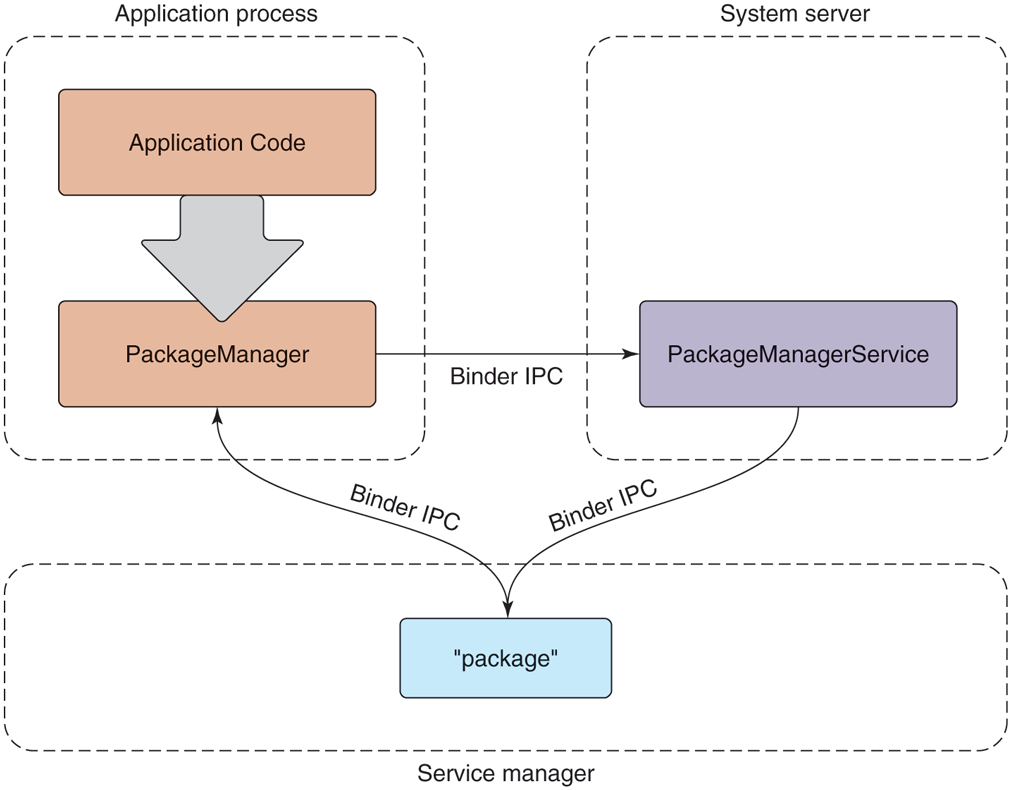
Figure 10-40 shows the typical design for Android framework APIs that interact with system services, in this case the package manager. The package manager provides a framework API for applications to call in their local process, here the PackageManager class. Internally, this class needs to get a connection to the coresponding service in the system_server. To accomplish this, at boot time the system_server publishes each service under a well-defined name in the service manager, a daemon started by init. The PackageManager in the application process retrieves a connection from the service manager to its system service using that same name.
Figure 10-40
Publishing and interacting with system services.
Once the PackageManager has connected with its system service, it can make calls on it. Most application calls to PackageManager are implemented as interprocess communication using Android’s Binder IPC mechanism, in this case making calls to the PackageManagerService implementation in the system_server. The implementation of PackageManagerService arbitrates interactions across all client applications and maintains state that will be needed by multiple applications.
10.8.5 Linux Extensions
For the most part, Android includes a stock Linux kernel providing standard Linux features. Most of the interesting aspects of Android as an operating system are in how those existing Linux features are used. There are also, however, several significant extensions to Linux that the Android system relies on.
Wake Locks
Power management on mobile devices is different than on traditional computing systems, so Android adds a new feature to Linux called wake locks (also called suspend blockers) for managing how the system goes to sleep. This is important in order to save energy and maximize the time before the battery is drained.
On a traditional computing system, the system can be in one of two power states: running and ready for user input, or deeply asleep and unable to continue executing without an external interrupt such as pressing a power key. While running, secondary pieces of hardware may be turned on or off as needed, but the CPU itself and core parts of the hardware must remain in a powered state to handle incoming network traffic and other such events. Going into the lower-power sleep state is something that happens relatively rarely: either through the user explicitly putting the system to sleep, or its going to sleep itself due to a relatively long interval of user inactivity. Coming out of this sleep state requires a hardware interrupt from an external source, such as pressing a key on a keyboard, at which point the device will wake up and turn on its screen.
Mobile device users have different expectations. Although the user can turn off the screen in a way that looks like putting the device to sleep, the traditional sleep state is not actually desired. While a device’s screen is off, the device still needs to be able to do work: it needs to be able to receive phone calls, receive and process data for incoming chat messages, and many other things.
The expectations around turning a mobile device’s screen on and off are also much more demanding than on a traditional computer. Mobile interaction tends to be in many short bursts throughout the day: you receive a message and turn on the device to see it and perhaps send a one-sentence reply or you run into friends walking their new dog and turn on the device to take a picture of her. In this kind of typical mobile usage, any delay from pulling the device out until it is ready for use has a significant negative impact on the user experience.
Given these requirements, one solution would be to just not have the CPU go to sleep when a device’s screen is turned off, so that it is always ready to turn back on again. The kernel does, after all, know when there is no work scheduled for any threads, and Linux (as well as most operating systems) will automatically make the CPU idle and use less power in this situation.
An idle CPU, however, is not the same thing as true sleep. For example:
On many chipsets, the idle state uses significantly more power than a true sleep state.
An idle CPU can wake up at any moment if some work happens to become available, even if that work is not important.
Just having the CPU idle does not tell you that you can turn off other hardware that would not be needed in a true sleep.
Wake locks on Android allow the system to go in to a deeper sleep mode, without being tied to an explicit user action like turning the screen off. The default state of the system with wake locks is that the device is asleep. When the device is running, to keep it from going back to sleep something needs to be holding a wake lock.
While the screen is on, the system always holds a wake lock that prevents the device from going to sleep, so it will stay running, as we expect.
When the screen is off, however, the system itself does not generally hold a wake lock, so it will stay out of sleep only as long as something else is holding one. When no more wake locks are held, the system goes to sleep, and it can come out of sleep only due to a hardware interrupt.
Once the system has gone to sleep, a hardware interrupt will wake it up again, as in a traditional operating system. Some sources of such an interrupt are timebased alarms, events from the cellular radio (such as for an incoming call), incoming network traffic, and presses on certain hardware buttons (such as the power button). Interrupt handlers for these events require one change from standard Linux: they need to acquire an initial wake lock to keep the system running after it handles the interrupt.
The wake lock acquired by an interrupt handler must be held long enough to transfer control up the stack to the driver in the kernel that will continue processing the event. That kernel driver is then responsible for acquiring its own wake lock, after which the interrupt wake lock can be safely released without risk of the system going back to sleep.
If the driver is then going to deliver this event up to user space, a similar handshake is needed. The driver must ensure that it continues to hold the wake lock until it has delivered the event to a waiting user process and ensured there has been an opportunity there to acquire its own wake lock. This flow may continue across subsystems in user space as well; as long as something is holding a wake lock, we continue performing the desired processing to respond to the event. Once no more wake locks are held, however, the entire system falls back to sleep and all processing stops.
After Android shipped, there was significant discussion with the Linux community about how to merge Android’s wake lock facility back into the mainline kernel. This was especially important because wake locks require that drivers use them to keep the system running when needed, causing a fork of not just the kernel but also any drivers that need to do this.
Ultimately Linux added a ‘‘wakeup event’’ facility, allowing drivers and other entities in the kernel to note when they are the source of a wakeup and/or need to ensure the device continues to stay way. The decision for whether to go into suspend, however, was moved to user space, keeping the policy for when to suspend out of the kernel. Android provides a user space implementation that makes the decision to suspend based on the wakeup event state in the kernel as well as wake lock requests coming to it from elsewhere in user space.
Out-of-Memory Killer
Linux includes an ‘‘out-of-memory killer’’ that attempts to recover when memory is extremely low. Out-of-memory situations on modern operating systems are nebulous affairs. With paging and swap, it is rare for applications themselves to see out-of-memory failures. However, the kernel can still get in to a situation where it is unable to find available RAM pages when needed, not just for a new allocation, but when swapping in or paging in some address range that is now being used.
In such a low-memory situation, the standard Linux out-of-memory killer is a last resort to try to find RAM so that the kernel can continue with whatever it is doing. This is done by assigning each process a ‘‘badness’’ level, and simply killing the process that is considered the most bad. A process’s badness is based on the amount of RAM being used by the process, how long it has been running, and other factors; the goal is to kill large processes that are hopefully not critical.
Android puts special pressure on the out-of-memory killer. It does not have a swap space, so it is much more common to be in out-of-memory situations: there is no way to relieve memory pressure except by dropping clean RAM pages mapped from storage that has been recently used. Even so, Android uses the standard Linux configuration to over-commit memory—that is, allow address space to be allocated in RAM without a guarantee that there is available RAM to back it. Overcommit is an extremely important tool for optimizing memory use, since it is common to mmap large files (such as executables) where you will only be needing to load into RAM small parts of the overall data in that file.
Given this situation, the stock Linux out-of-memory killer does not work well, as it is intended more as a last resort and has a hard time correctly identifying good processes to kill. In fact, as we will discuss later, Android relies extensively on the out-of-memory killer running regularly to reap processes and make good choices about which to select.
To address this, Android introduced its own out-of-memory killer to the kernel, with different semantics and design goals. The Android out-of-memory killer runs much more aggressively: whenever RAM is getting ‘‘low.’’ Low RAM is identified by a tunable parameter indicating how much available free and cached RAM in the kernel is acceptable. When the system goes below that limit, the out-of-memory killer runs to release RAM from elsewhere. The goal is to ensure that the system never gets into bad paging states, which can negatively impact the user experience when foreground applications are competing for RAM, since their execution becomes much slower due to continual paging in and out.
Instead of trying to guess which processes are least useful and therefore should be killed, the Android out-of-memory killer relies very strictly on information provided to it by user space. The traditional Linux out-of-memory killer has a per-process oom_adj parameter that can be used to guide it toward the best process to kill by modifying the process’ overall badness score. Android’s original outof-memory killer used this same parameter, but as a strict ordering: processes with a higher oom_adj will always be killed before those with lower ones. We will discuss later how the Android system decides to assign these scores.
In later versions of Android, a new user-space lmkd process was added to take care of killing processes, replacing the original Android implementation in the kernel. This was made possible by newer Linux features such as ‘‘pressure-stall information’’ provided to user space. Switching to lmkd not only allows Android to use a closer to stock Linux kernel, but also gives it more flexibility in how the higher-level system interacts with the low-memory-killer.
For example, the oom_adj parameter in the kernel has a limit range of values, from to 15. This greatly limits the granularity of process selection that can be provided to it. The new lmkd implementation allows a full integer for ordering processes.
10.8.6 Art
ART (Android RunTime) implements the Java language environment on Android that is responsible for running applications as well as most of its system code. Almost everything in the system_service process—from the package manager, through the window manager, to the activity manager—is implemented with Java language code executed by ART.
Android is not, however, a Java-language platform in the traditional sense. Java code in an Android application is provided in ART’s bytecode format, called DEX (Dalvik Executable), based around a register machine rather than Java’s traditional stack-based bytecode.
DEX allows for faster interpretation, while still supporting JIT (Just-in-Time) compilation. DEX is also more space efficient, both on disk and in RAM, through the use of string pooling and other techniques.
When writing Android applications, source code is written in Java and then compiled into standard Java bytecode using traditional Java tools. Android then introduces a new step: converting that Java bytecode into DEX. It is the DEX version of an application that is packaged up as the final application binary and ultimately installed on the device.
Android’s system architecture leans heavily on Linux for system primitives, including memory management, security, and communication across security boundaries. It does not use the Java language for core operating system concepts—there is little attempt to abstract away these important aspects of the underlying Linux operating system.
Of particular note is Android’s use of processes. Android’s design does not rely on the Java language to protect application from each other and the system, but rather takes the traditional operating system approach of process isolation. This means that each application is running in its own Linux process with its own ART environment, as are the system_server and other core parts of the platform that are written in Java.
Using processes for this isolation allows Android to leverage all of Linux’s features for managing processes, from memory isolation to cleaning up all of the resources associated with a process when it goes away. In addition to processes, instead of using Java’s SecurityManager architecture, Android relies exclusively on Linux’s security features.
The use of Linux processes and security greatly simplifies the ART environment, since it is no longer responsible for these critical aspects of system stability and robustness. Not incidentally, it also allows applications to freely use native code in their implementation, which is especially important for games which are usually built with C++-based engines.
Mixing processes and the Java language like this does introduce some challenges. Bringing up a fresh Java-language environment can take more than a second, even on modern mobile hardware. Recall one of the design goals of Android, to be able to quickly launch applications, with a target of 200 msec. Requiring that a fresh ART process be brought up for this new application would be well beyond that budget. A 200-msec launch is hard to achieve on mobile hardware, even without needing to initialize a new Java-language environment.
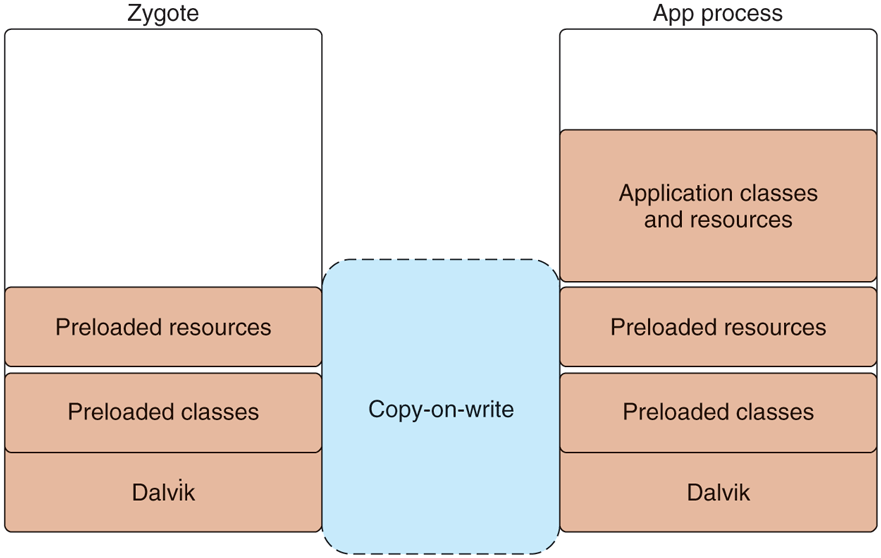
The solution to this problem is the zygote native daemon that we briefly mentioned earlier in the chapter. Zygote is responsible for bringing up and initializing ART, to the point where it is ready to start running system or application code written in Java. All new ART-based processes (system or application) are forked from zygote, allowing them to start execution with the environment already ready to go. This greatly speeds up launching apps.
It is not just ART that zygote brings up. Zygote also preloads many parts of the Android framework that are commonly used in the system and application, as well as loading resources and other things that are often needed.
Note that creating a new process from zygote involves a Linux fork system call but there is no exec system call. The new process is a replica of the original zygote process, with all of its preinitialized state already set up and ready to go. Figure 10-41 illustrates how a new Java application process is related to the original zygote process. After the fork, the new process has its own separate ART environment, though it is sharing all of the preloaded and initialed data with zygote through copy-on-write pages. All that now needs to be done to have the new running process ready to go is to give it the correct identity (UID, etc.), finish any initialization of ART that requires starting threads, and loading the application or system code to be run.
Figure 10-41
Creating a new ART process from zygote.
In addition to launch speed, there is another benefit that zygote brings. Because only a fork is used to create processes from it, the large number of dirty RAM pages needed to initialize ART and preload classes and resources can be shared between zygote and all of its child processes. This sharing is especially important for Android’s environment, where swap is not available; demand paging of clean pages (such as executable code) from ‘‘disk’’ (flash memory) is available. However, any dirty pages must stay locked in RAM; they cannot be paged out to ‘‘disk.’’
10.8.7 Binder IPC
Android’s system design revolves significantly around process isolation, between applications as well as between different parts of the system itself. This requires a large amount of interprocess communication to coordinate between the different processes, which can take a large amount of work to implement and get right. Android’s Binder interprocess communication mechanism is a rich general-purpose IPC facility that most of the Android system is built on top of.
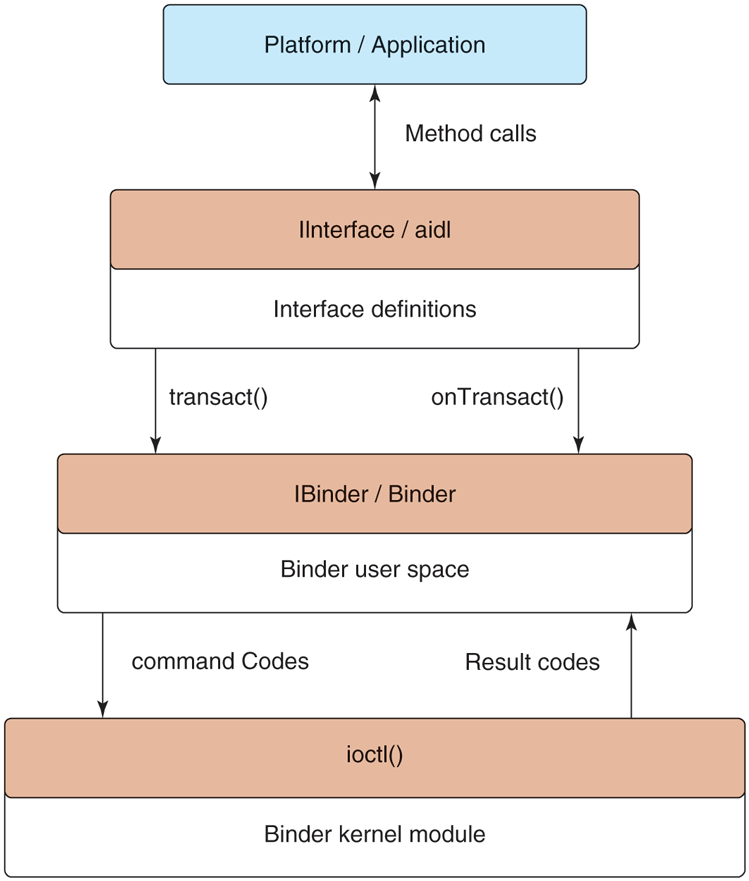
The Binder architecture is divided into three layers, shown in Fig. 10-42. At the bottom of the stack is a kernel module that implements the actual cross-process interaction and exposes it through the kernel’s ioctl function. (ioctl is a general-purpose kernel call for sending custom commands to kernel drivers and modules.) On top of the kernel module is a basic object-oriented user-space API, allowing applications to create and interact with IPC endpoints through the IBinder and Binder classes. At the top is an interface-based programming model where applications declare their IPC interfaces and do not otherwise need to worry about the details of how IPC happens in the lower layers.
Figure 10-42
Binder IPC architecture.
Binder Kernel Module
Rather than use existing Linux IPC facilities such as pipes, Binder includes a special kernel module that implements its own IPC mechanism. The Binder IPC model is different enough from traditional Linux mechanisms that it cannot be efficiently implemented on top of them purely in user space. In addition, Android does not support most of the System V primitives for cross-process interaction (semaphores, shared memory segments, message queues) because they do not provide robust semantics for cleaning up their resources from buggy or malicious applications.
The basic IPC model Binder uses is the RPC (Remote Procedure Call). That is, the sending process is submitting a complete IPC operation to the kernel, which is executed in the receiving process; the sender may block while the receiver executes, allowing a result to be returned back from the call. (Senders optionally may specify they should not block, continuing their execution in parallel with the receiver.) Binder IPC is thus message based, like System V message queues, rather than stream based as in Linux pipes. A message in Binder is referred to as a transaction, and at a higher level can be viewed as a function call across processes.
Each transaction that user space submits to the kernel is a complete operation: it identifies the target of the operation and identity of the sender as well as the complete data being delivered. The kernel determines the appropriate process to receive that transaction, delivering it to a waiting thread in the process.
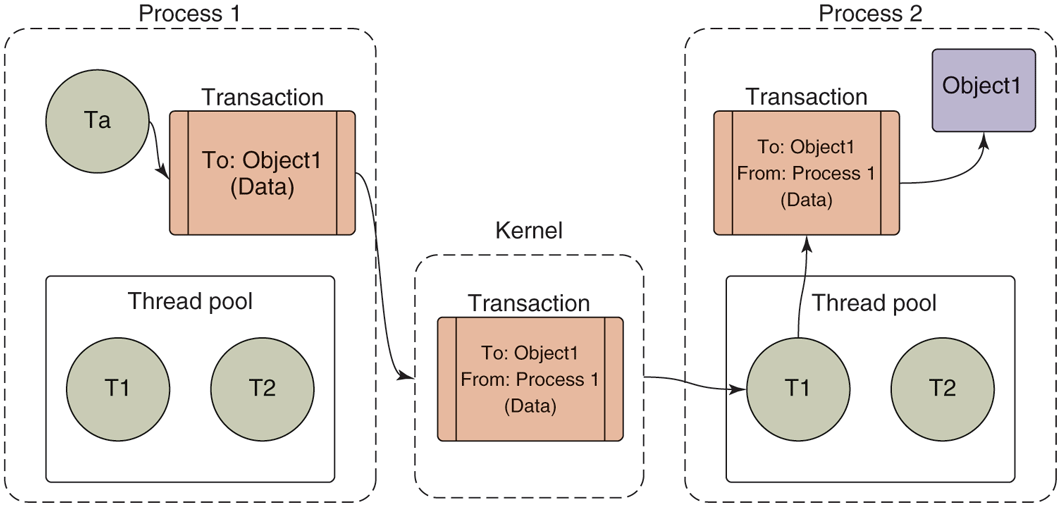
Figure 10-43 illustrates the basic flow of a transaction. Any thread in the originating process may create a transaction identifying its target, and submit this to the kernel. The kernel makes a copy of the transaction, adding to it the identity of the sender. It determines which process is responsible for the target of the transaction and wakes up a thread in the process to receive it. Once the receiving process is executing, it determines the appropriate target of the transaction and delivers it.
Figure 10-43
Basic Binder IPC transaction.
(For the discussion here, we are simplifying the way transaction data moves through the system as two copies, one to the kernel and one to the receiving process’s address space. The actual implementation does this in one copy. For each process that can receive transactions, the kernel creates a shared memory area with it. When it is handling a transaction, it first determines the process that will be receiving that transaction and copies the data directly into that shared address space.)
Note that each process in Fig. 10-43 has a ‘‘thread pool.’’ This is one or more threads created by user space to handle incoming transactions. The kernel will dispatch each incoming transaction to a thread currently waiting for work in that process’s thread pool. Calls into the kernel from a sending process, however, do not need to come from the thread pool—any thread in the process is free to initiate a transaction, such as Ta in Fig. 10-43.
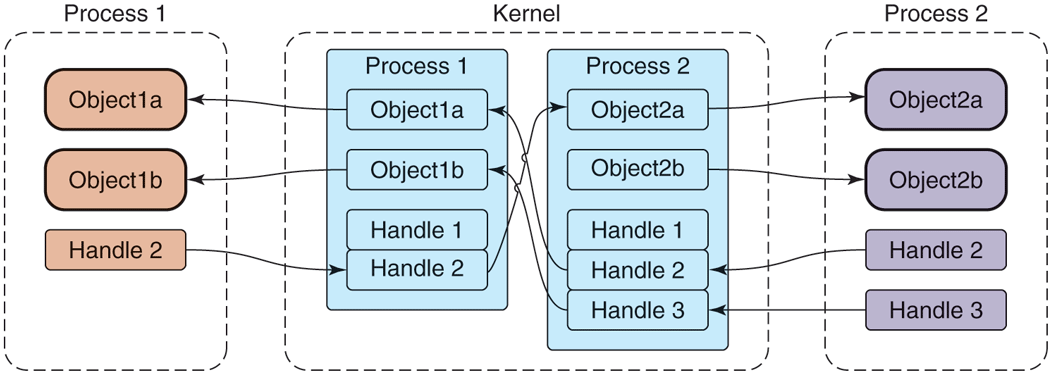
We have already seen that transactions given to the kernel identify a target object; however, the kernel must determine the receiving process. To accomplish this, the kernel keeps track of the available objects in each process and maps them to other processes, as shown in Fig. 10-44. The objects we are looking at here are simply locations in the address space of that process. The kernel only keeps track of these object addresses, with no meaning attached to them; they may be the location of a C data structure, C++ object, or anything else located in that process’s address space.
Figure 10-44
Binder cross-process object mapping.
References to objects in remote processes are identified by an integer handle, which is much like a Linux file descriptor. For example, consider Object2a in Process 2—this is known by the kernel to be associated with Process 2, and further the kernel has assigned Handle 2 for it in Process 1. Process 1 can thus submit a transaction to the kernel targeted to its Handle 2, and from that the kernel can determine this is being sent to Process 2 and specifically Object2a in that process.
Also like file descriptors, the value of a handle in one process does not mean the same thing as that value in another process. For example, in Fig. 10-44, we can see that in Process 1, a handle value of 2 identifies Object2a; however, in Process 2, that same handle value of 2 identifies Object1a. Further, it is impossible for one process to access an object in another process if the kernel has not assigned a handle to it for that process. Again in Fig. 10-44, we can see that Process 2’s Object2b is known by the kernel, but no handle has been assigned to it for Process 1. There is thus no path for Process 1 to access that object, even if the kernel has assigned handles to it for other processes.
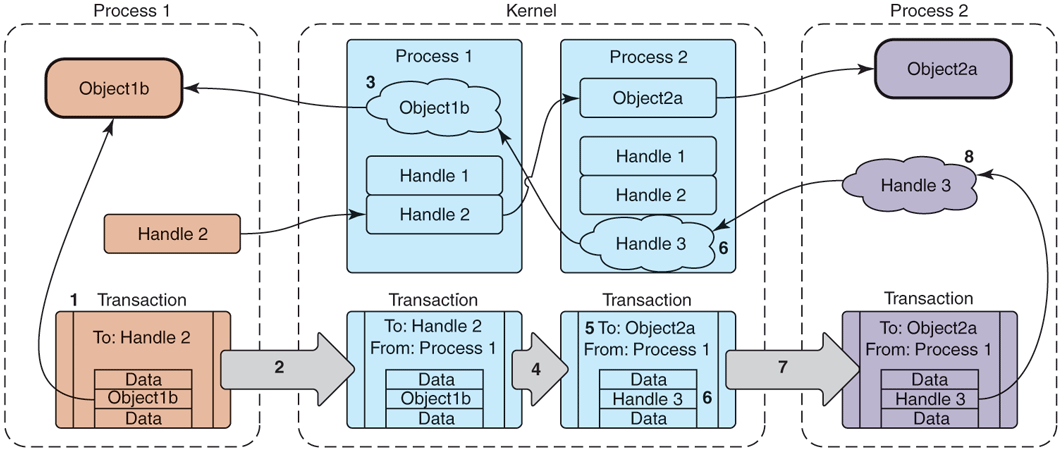
How do these handle-to-object associations get set up in the first place? Unlike Linux file descriptors, user processes do not directly ask for handles. Instead, the kernel assigns handles to processes as needed. This process is illustrated in Fig. 10-45. Here we are looking at how the reference to Object1b from Process 2 to Process 1 in the previous figure may have come about. The key to this is how a transaction flows through the system, from left to right at the bottom of the figure.
Figure 10-45
Transferring Binder objects between processes.
The key steps shown in Fig. 10-45 are as follows:
Process 1 creates the initial transaction structure, which contains the local address Object1b.
Process 1 submits the transaction to the kernel.
The kernel looks at the data in the transaction, finds the address Object1b, and creates a new entry for it since it did not previously know about this address.
The kernel uses the target of the transaction, Handle 2, to determine that this is intended for Object2a which is in Process 2.
The kernel now rewrites the transaction header to be appropriate for Process 2, changing its target to address Object2a.
The kernel likewise rewrites the transaction data for the target process; here it finds that Object1b is not yet known by Process 2, so a new Handle 3 is created for it.
The rewritten transaction is delivered to Process 2 for execution.
Upon receiving the transaction, the process discovers there is a new Handle 3 and adds this to its table of available handles.
If an object within a transaction is already known to the receiving process, the flow is similar, except that now the kernel only needs to rewrite the transaction so that it contains the previously assigned handle or the receiving process’s local object pointer. This means that sending the same object to a process multiple times will always result in the same identity, unlike Linux file descriptors where opening the same file multiple times will allocate a different descriptor each time. The Binder IPC system maintains unique object identities as those objects move between processes.
The Binder architecture essentially introduces a capability-based security model to Linux. Each Binder object is a capability. Sending an object to another process grants that capability to the process. The receiving process may then make use of whatever features the object provides. A process can send an object out to another process, later receive an object from any process, and identify whether that received object is exactly the same object it originally sent out.
Binder User-Space API
Most user-space code does not directly interact with the Binder kernel module. Instead, there is a user-space object-oriented library that provides a simpler API. The first level of these user-space APIs maps fairly directly to the kernel concepts we have covered so far, in the form of three classes:
IBinder is an abstract interface for a Binder object. Its key method is transact, which submits a transaction to the object. The implementation receiving the transaction may be an object either in the local process or in another process; if it is in another process, this will be delivered to it through the Binder kernel module as previously discussed.
Binder is a concrete Binder object. Implementing a Binder subclass gives you a class that can be called by other processes. Its key method is onTransact, which receives a transaction that was sent to it. The main responsibility of a Binder subclass is to look at the transaction data it receives here and perform the appropriate operation.
Parcel is a container for reading and writing data that are in a Binder transaction. It has methods for reading and writing typed data—integers, strings, arrays—but most importantly it can read and write references to any IBinder object, using the appropriate data structure for the kernel to understand and transport that reference across processes.
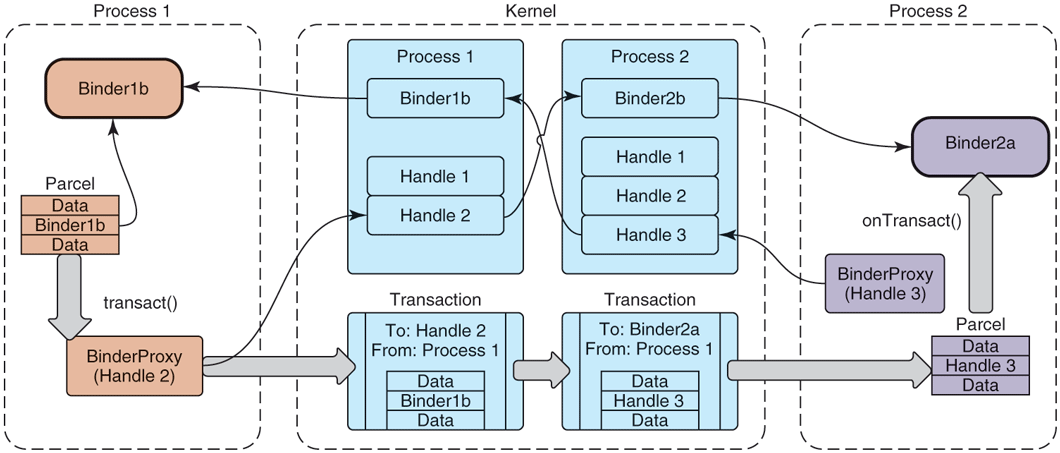
Figure 10-46 depicts how these classes work together, modifying Fig. 10-44 that we previously looked at with the user-space classes that are used. Here we see that Binder1b and Binder2a are instances of concrete Binder subclasses. To perform an IPC, a process now creates a Parcel containing the desired data, and sends it through another class we have not yet seen, BinderProxy. This class is created whenever a new handle appears in a process, thus providing an implementation of IBinder whose transact method creates the appropriate transaction for the call and submits it to the kernel.
Figure 10-46
Binder user-space API.
The kernel transaction structure we had previously looked at is thus split apart in the user-space APIs: the target is represented by a BinderProxy and its data are held in a Parcel. The transaction flows through the kernel as we previously saw and, upon appearing in user space in the receiving process, its target is used to determine the appropriate receiving Binder object while a Parcel is constructed from its data and delivered to that object’s onTransact method.
These three classes now make it fairly easy to write IPC code:
Subclass from Binder.
Implement onTransact to decode and execute incoming calls.
Implement corresponding code to create a Parcel that can be passed to that object’s transact method.
The bulk of this work is in the last two steps. This is the unmarshalling and marshalling code that is needed to turn how we’d prefer to program—using simple method calls—into the operations that are needed to execute an IPC. This is boring and error-prone code to write, so we’d like to let the computer take care of that for us.
Binder Interfaces and AIDL
The final piece of Binder IPC is the one that is most often used, a high-level interface-based programming model. Instead of dealing with Binder objects and Parcel data, here we get to think in terms of interfaces and methods.
The main piece of this layer is a command-line tool called AIDL (for Android Interface Definition Language). This tool is an interface compiler, taking an abstract description of an interface and generating from it the source code that is necessary to define that interface and implement the appropriate marshalling and unmarshalling code needed to make remote calls with it.
Figure 10-47 shows a simple example of an interface defined in AIDL. This interface is called IExample and contains a single method, print, which takes a single String argument.
Figure 10-47
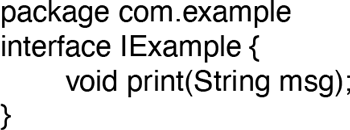
Simple interface described in AIDL.
An interface description like that in Fig. 10-47 is compiled by AIDL to generate three Java-language classes illustrated in Fig. 10-48:
-
IExample supplies the Java-language interface definition.
IExample.Stub is the base class for implementations of this interface. It inherits from Binder, meaning it can be the recipient of IPC calls; it inherits from IExample, since this is the interface being implemented. The purpose of this class is to perform unmarshalling: turn incoming onTransact calls in to the appropriate method call of IExample. A subclass of it is then responsible only for implementing the IExample methods.
IExample.Proxy is the other side of an IPC call, responsible for performing marshalling of the call. It is a concrete implementation of IExample, implementing each method of it to transform the call into the appropriate Parcel contents and send it off through a transact call on an IBinder it is communicating with.
Figure 10-48
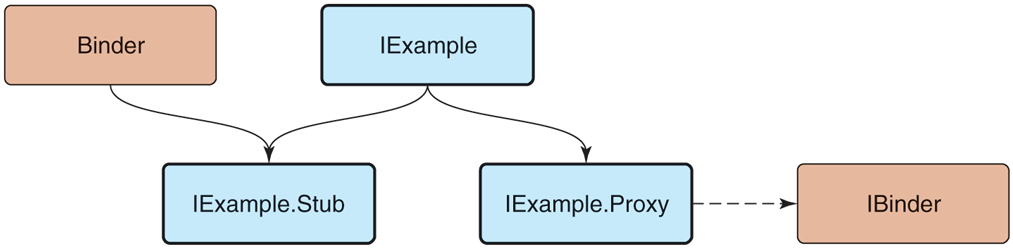
Binder interface inheritance hierarchy.
With these classes in place, there is no longer any need to worry about the mechanics of an IPC. Implementors of the IExample interface simply derive from IExample.Stub and implement the interface methods as they normally would. Callers will receive an IExample interface that is implemented by IExample.Proxy, allowing them to make regular calls on the interface.
The way these pieces work together to perform a complete IPC operation is shown in Fig. 10-49. A simple print call on an IExample interface turns into:
Figure 10-49
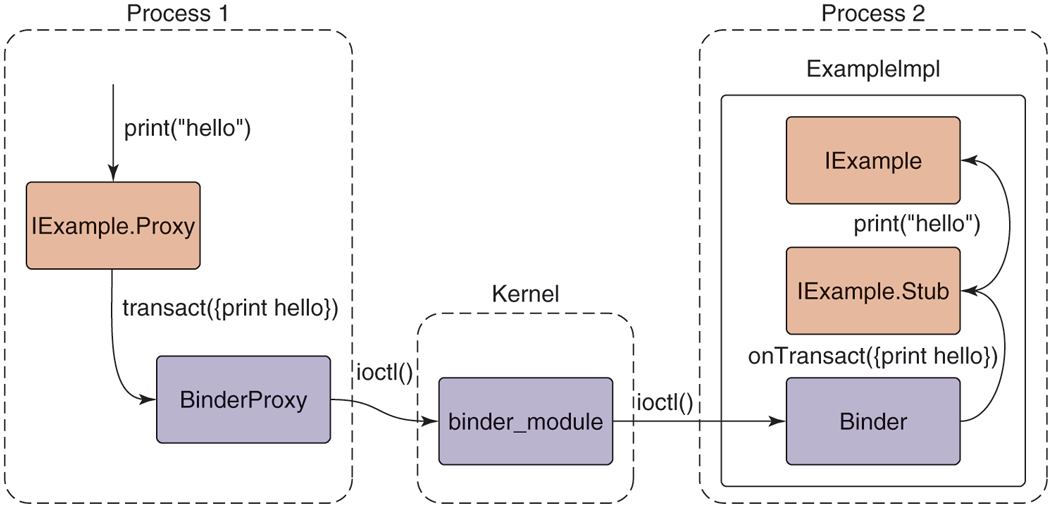
Full path of an AIDL-based Binder IPC.
-
IExample.Proxy marshals the method call into a Parcel, calling transact on the IBinder it is connected to, which is typically a BinderProxy for an object in another process.
BinderProxy constructs a kernel transaction and delivers it to the kernel through an ioctl call.
The kernel transfers the transaction to the intended process, delivering it to a thread that is waiting in its own ioctl call.
The transaction is decoded back into a Parcel and onTransact called on the appropriate local object, here ExampleImpl (which is a subclass of IExample.Stub).
IExample.Stub decodes the Parcel into the appropriate method and arguments to call, here calling print.
The concrete implementation of print in ExampleImpl finally executes.
The bulk of Android’s IPC is written using this mechanism. Most services in Android are defined through AIDL and implemented as shown here. Recall the previous Fig. 10-40 showing how the implementation of the package manager in the system server process uses IPC to publish itself with the service manager for other processes to make calls to it. Two AIDL interfaces are involved here: one for the service manager and one for the package manager. For example, Fig. 10-50 shows the basic AIDL description for the service manager; it contains the getService method, which other processes use to retrieve the IBinder of system service interfaces like the package manager.
Figure 10-50
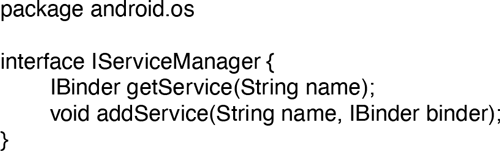
Basic service manager AIDL interface.
10.8.8 Android Applications
Android provides an application model that is very different from a typical command-line environment in the Linux shell or even applications launched from a graphical user interface such as Gnome or KDE. An application is not an executable file with a main entry point; it is a container of everything that makes up that app: its code, graphical resources, declarations about what it is to the system, and other data.
An Android application by convention is a file with the apk extension, for Android Package. This file is actually a normal zip archive, containing everything about the application. The important contents of an apk are as follows:
A manifest describing what the application is, what it does, and how to run it. The manifest must provide a
package namefor the application, a Java-style scoped string (such ascom.android.app.calculator), which uniquely identifies it.Resources needed by the application, including strings it displays to the user, XML data for layouts and other descriptions, graphical bitmaps, etc.
The code itself, which may be ART bytecode as well as native library code.
Signing information, securely identifying the author.
The key part of the application for our purposes here is its manifest, which appears as a precompiled XML file named AndroidManifest.xml in the root of the apk’s zip namespace. A complete example manifest declaration for a hypothetical email application is shown in Fig. 10-51: it allows you to view and compose emails and also includes components needed for synchronizing its local email storage with a server even when the user is not currently in the application.
Figure 10-51
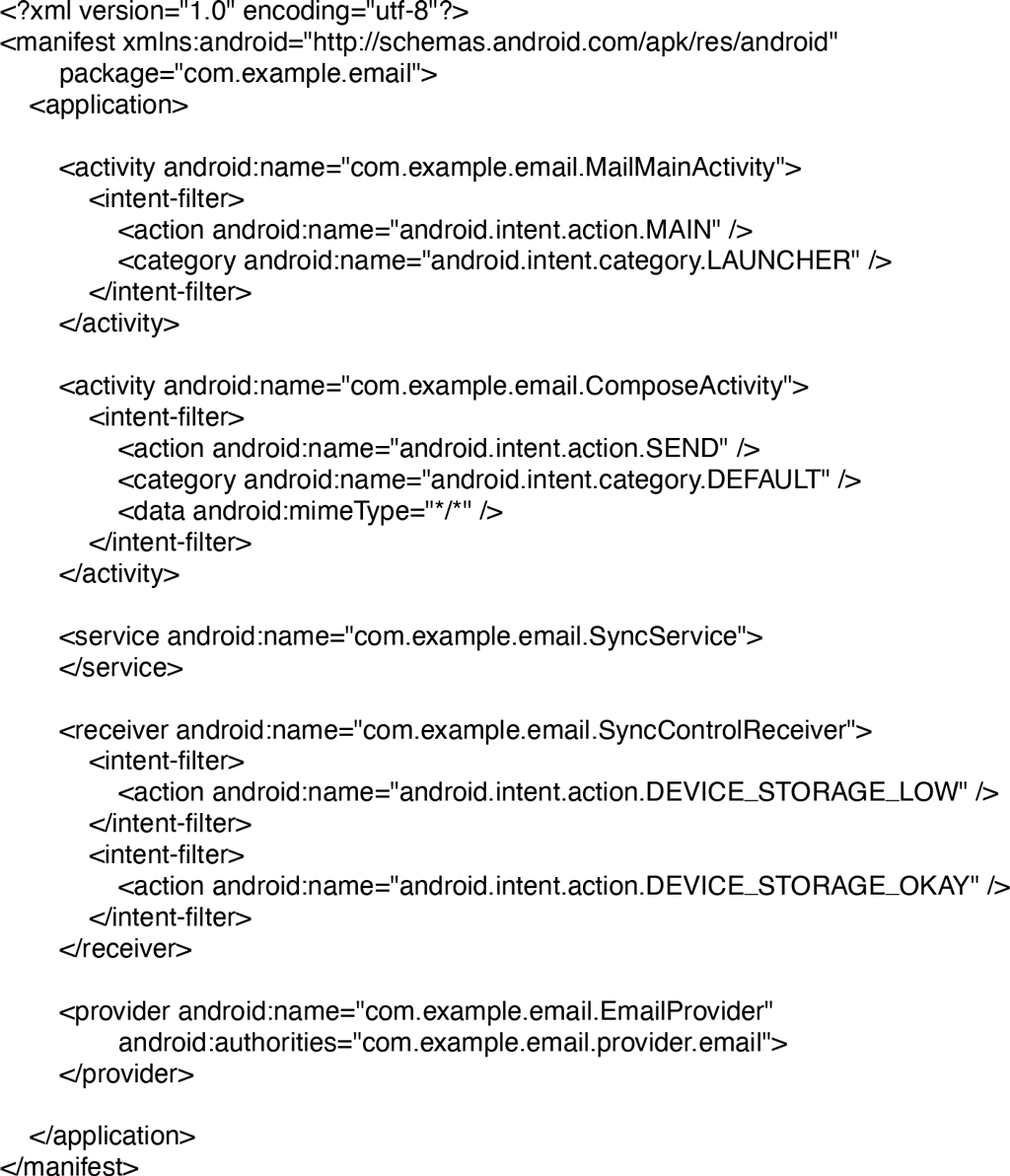
Basic structure of AndroidManifest.xml.
Keep in mind that while what is described here is a real application you could write for Android, in order to focus on illustrating key operating system concepts the example has been simplified and modified from how an actual application like this is typically designed. If you have written an Android application and seeing this example makes you feel like something is off, you are not wrong!
Android applications do not have a simple main entry point that is executed when the user launches them. Instead, they publish under the manifest’s <application> tag a variety of entry points describing the various things the application can do. These entry points are expressed as four distinct types, defining the core types of behavior that applications can provide: activity, receiver, service, and content provider. The example we have presented shows a few activities and one declaration of the other component types, but an application may declare zero or more of any of these.
Each of the different four component types an application can contain has different semantics and uses within the system. In all cases, the android:name attribute supplies the Java class name of the application code implementing that component, which will be instantiated by the system when needed.
The package manager is the part of Android that keeps track of all application packages. When a user downloads an app, it comes in a package containing everything the app needs. It parses every application’s manifest, collecting and indexing the information it finds in them. With that information, it then provides facilities for clients to query it about the app information those clients are allowed to access, such as whether an app is currently installed and the kinds of things an app can do. It is also responsible for installing applications (creating storage space for the application and ensuring the integrity of the apk) as well as everything needed to uninstall an app, which includes cleaning up everything associated with a previously installed version of the app.
Applications statically declare their entry points in their manifest so they do not need to execute code at install time that registers them with the system. This design makes the system more robust in many ways: since installing an application does not run any application code and the top-level capabilities of the application can always be determined by looking at its manifest, there is no need to keep a separate database of this information about the application which can get out of sync (such as across updates) with the application’s actual capabilities, and it guarantees no information about an application can be left around after it is uninstalled. This decentralized approach was taken to avoid many of these types of problems caused by Windows’ centralized Registry.
Breaking an application into finer-grained components also serves our goal of supporting interoperation and collaboration between applications. Applications can publish pieces of themselves that provide specific functionality, which other applications can make use of either directly or indirectly. This will be illustrated as we look in more detail at the four kinds of components that can be published.
Above the package manager sits another important system service, the activity manager. While the package manager is responsible for maintaining static information about all installed applications, the activity manager determines when, where, and how those applications should run. Despite its name, it is actually responsible for running all four types of application components and implementing the appropriate behavior for each of them.
Activities
An activity is a part of the application that interacts directly with the user through a user interface. When the user launches an application on their device, this is actually an activity inside the application that has been designated as such a main entry point. The application implements code in its activity that is responsible for interacting with the user.
The example email manifest shown in Fig. 10-51 contains two activities. The first is the main mail user interface, allowing users to view their messages; the second is a separate interface for composing a new message. The first mail activity is declared as the main entry point for the application; that is, the activity that will be started when the user launches it from the home screen.
Since the first activity is the main activity, it will be shown to users as an application they can launch from the main application launcher. If they do so, the system will be in the state shown in Fig. 10-52. Here the activity manager, on the left side, has made an internal ActivityRecord instance in its process to keep track of the activity. One or more of these activities are organized into containers called tasks, which roughly correspond to what the user experiences as an application. At this point the activity manager has started the email application’s process and an instance of its MainMailActivity for displaying its main UI, which is associated with the appropriate ActivityRecord. This activity is in a state called resumed since it is now in the foreground of the user interface.
Figure 10-52
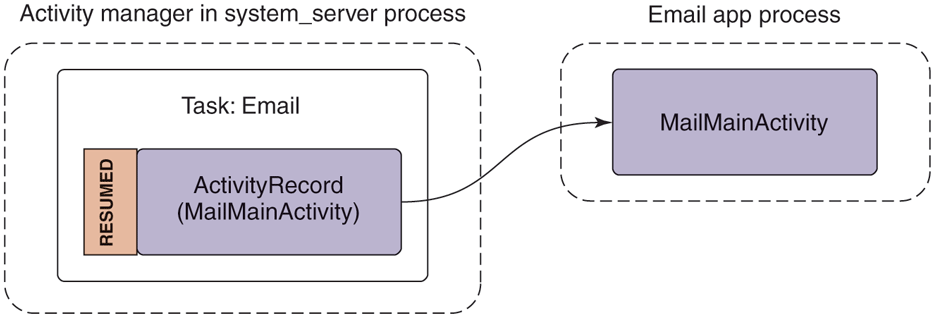
Starting an email application’s main activity.
If the user were now to switch away from the email application (not exiting it) and launch a camera application to take a picture, we would be in the state shown in Fig. 10-53. Note that we now have a new camera process running the camera’s main activity, an associated ActivityRecord for it in the activity manager, and it is now the resumed activity. Something interesting also happens to the previous email activity: instead of being resumed, it is now stopped and the ActivityRecord holds this activity’s saved state.
Figure 10-53
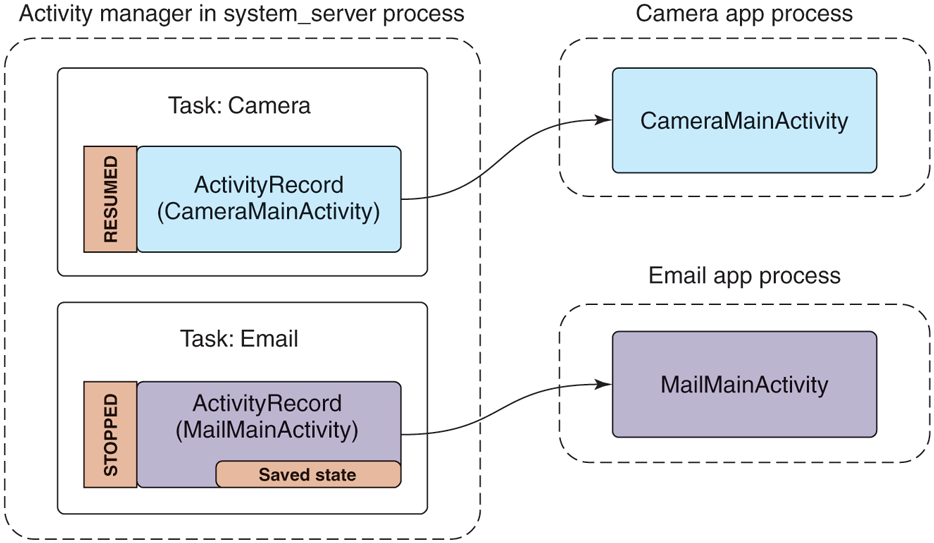
Starting the camera application after email.
When an activity is no longer in the foreground, the system automatically asks it to ‘‘save its state.’’ This involves the application creating a minimal amount of state information representing what the user currently sees that it returns to the activity manager; the activity manager, running in the system server process, retains that state in its ActivityRecord for that activity. The saved state for an activity is generally small, for example containing where you are scrolled in an email message; it would not contain data like the message itself, which the app would instead keep somewhere in its own persistent storage (so it remains around even if the user completely removes an activity).
Recall that although Android does demand paging (it can page in and out clean RAM that has been mapped from files on disk, such as code), it does not rely on swap space. This means all dirty RAM pages in an application’s process must stay in RAM. Having the email’s main activity state safely stored away in the activity manager gives the system back some of the flexibility in dealing with memory that swap provides.
For example, if the camera application starts to require a lot of RAM, the system can simply get rid of the email process, as shown in Fig. 10-54. The ActivityRecord, with its precious saved state, remains safely tucked away by the activity manager in the system server process. Since the system server process hosts all of Android’s core system services, it must always remain running, so the state saved here will remain around for as long as we might need it.
Figure 10-54
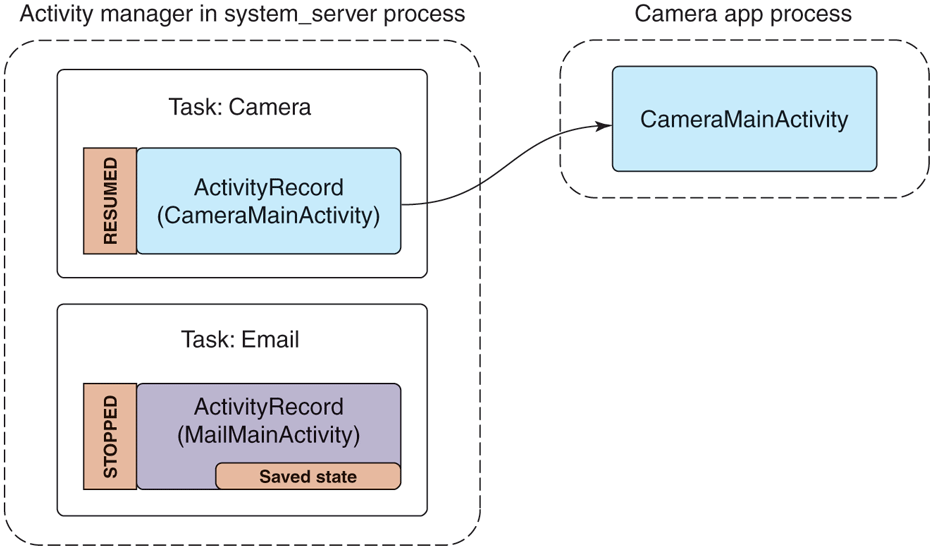
Removing the email process to reclaim RAM for the camera.
Our example email application not only has an activity for its main UI, but includes another ComposeActivity. Applications can declare any number of activities they want. This can help organize the implementation of an application, but more importantly it can be used to implement cross-application interactions. For example, this is the basis of Android’s cross-application sharing system, which the ComposeActivity here is participating in. If the user, while in the camera application, decides she wants to share a picture she took, our email application’s ComposeActivity is one of the sharing options she has. If it is selected, that activity will be started and given the picture to be shared. (Later we will see how the camera application is able to find the email application’s ComposeActivity.)
Performing that share option while in the activity state seen in Fig. 10-54 will lead to the new state in Fig. 10-55. There are a number of important things to note:
-
The email app’s process must be started again, to run its ComposeActivity.
However, the old MailMainActivity is not started at this point, since it is not needed. This reduces RAM use.
The camera’s task now has two records: the original CameraMainActivity we had just been in, and the new ComposeActivity that is now displayed. To the user, these are still one cohesive task: it is the camera currently interacting with them to email a picture.
The new ComposeActivity is at the top, so it is resumed; the previous CameraMainActivity is no longer at the top, so its state has been saved. We can at this point safely quit its process if its RAM is needed elsewhere.
Figure 10-55
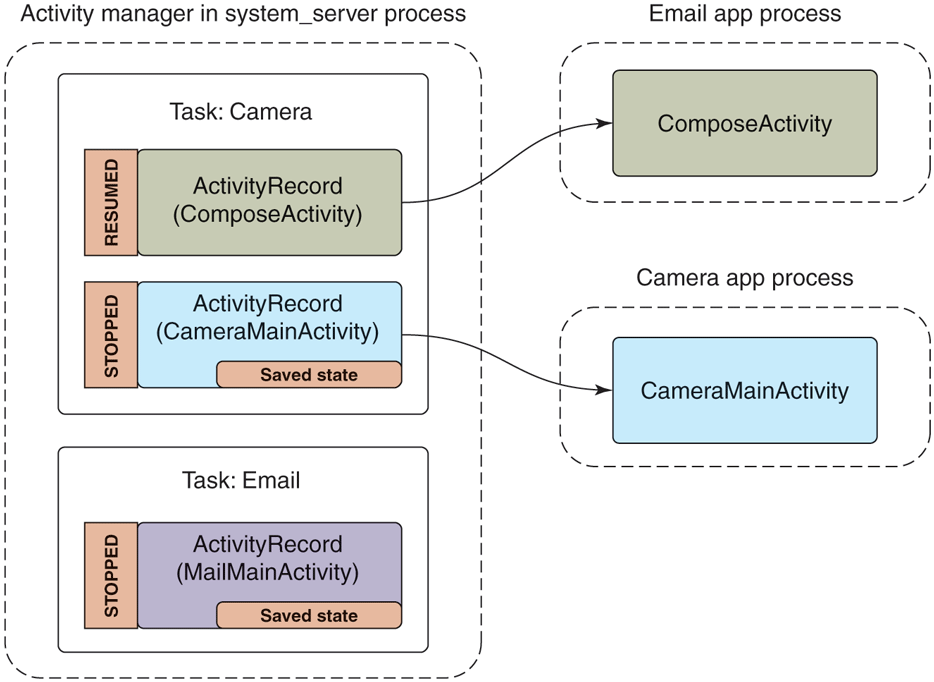
Sharing a camera picture through the email application.
If you want to experiment yourself with this on Android, it should be noted that starting in Android 5.0 a real share flow would result in the ComposeActivity appearing in its own third task, separate from CameraMainActivity. This was part of a switch to a ‘‘document-centric recents’’ model, described in
https:/
where the tasks we have here that are shown to users could be contextual parts of apps as well as the apps themselves. The activity abstraction between apps and the operating system allowed implementing this kind of significant user experience with little to no modification of the apps themselves.
Finally, let us look at what would happen if the user left the camera task while in this last state (that is, composing an email to share a picture) and returned to the email application. Figure 10-56 shows the new state the system will be in. Note that we have brought the email task with its main activity back to the foreground. This makes MailMainActivity the foreground activity, but there is currently no instance of it running in the application’s process.
Figure 10-56
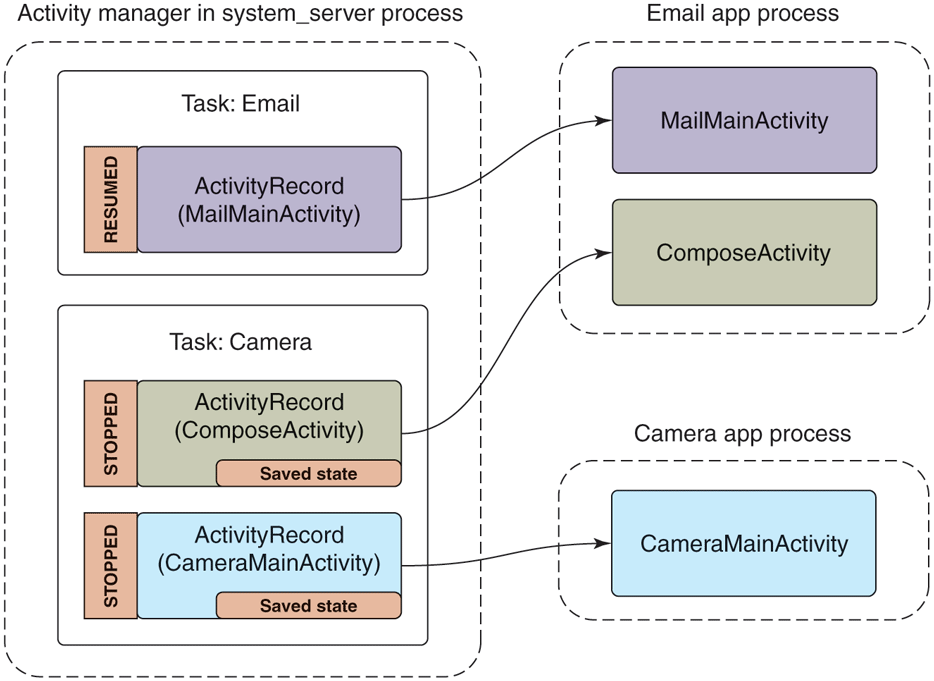
Returning to the email application.
To return to the previous activity, the system makes a new instance, handing it back the previously saved state the old instance had provided. This action of restoring an activity from its saved state must be able to bring the activity back to the same visual state as the user last left it. To accomplish this, the application will look in its saved state for the message the user was in, load that message’s data from its persistent storage, and then apply any scroll position or other user-interface state that had been saved.
Services
A service has two distinct identities:
It can be a self-contained long-running background operation. Common examples of using services in this way are performing background music playback, maintaining an active network connection (such as with an IRC server) while the user is in other applications, downloading or uploading data in the background, etc.
It can serve as a connection point for other applications or the system to perform rich interaction with the application. This can be used by applications to provide secure APIs for other applications, such as to perform image or audio processing, provide a text to speech, etc.
The example email manifest shown in Fig. 10-51 contains a service that is used to perform synchronization of the user’s mailbox. A common implementation would schedule the service to run at a regular interval, such as every 15 minutes, starting the service when it is time to run, and stopping itself when done.
This is a typical use of the first style of service, a long-running background operation. Figure 10-57 shows the state of the system in this case, which is quite simple. The activity manager has created a ServiceRecord to keep track of the service, noting that it has been started, and thus created its SyncService instance in the application’s process. While in this state the service is fully active (barring the entire system going to sleep if not holding a wake lock) and free to do what it wants. It is possible for the application’s process to go away while in this state, such as if the process crashes, but the activity manager will continue to maintain its ServiceRecord and can at that point decide to restart the service if desired.
Figure 10-57
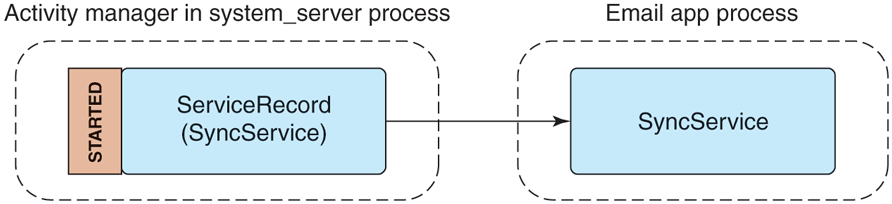
Starting an application service.
To see how one can use a service as a connection point for interaction with other applications, let us say that we want to extend our existing SyncService to have an API that allows other applications to control its sync interval. We will need to define an AIDL interface for this API, like the one shown in Fig. 10-58.
Figure 10-58
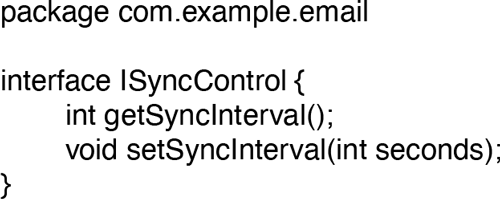
Interface for controlling a sync service’s sync interval.
To use this, another process can bind to our application service, getting access to its interface. This creates a connection between the two applications, shown in Fig. 10-59. The steps of this process are as follows:
-
The client application tells the activity manager that it would like to bind to the service.
If the service is not already created, the activity manager creates it in the service application’s process.
The service returns the IBinder for its interface back to the activity manager, which now holds that IBinder in its ServiceRecord.
Now that the activity manager has the service IBinder, it can be sent back to the original client application.
The client application now having the service’s IBinder may proceed to make any direct calls it would like on its interface.
Figure 10-59
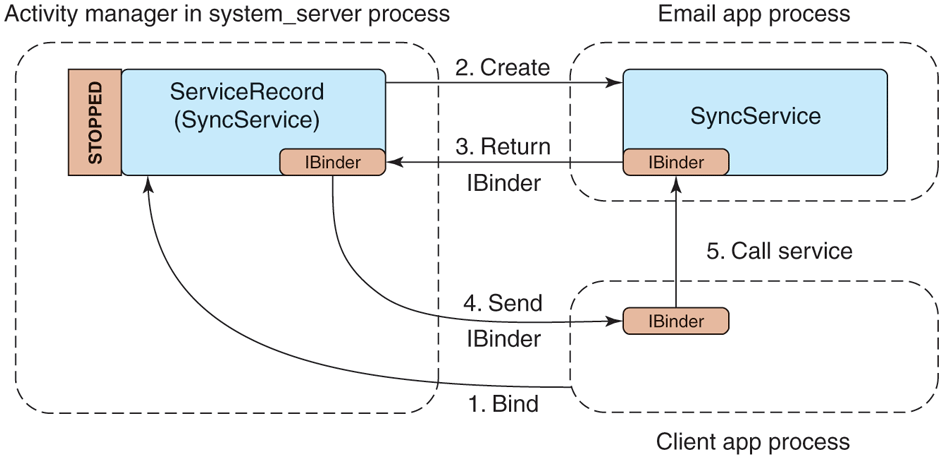
Binding to an application service.
Receivers
A receiver is the recipient of (typically external) event s that happen, most of the time in the background and outside of normal user interaction with an app. Receivers conceptually are the same as an application explicitly registering for a callback when something interesting happens (an alarm goes off, data connectivity changes, etc.), but do not require that the application be running in order to receive the event.
The example email manifest shown in Fig. 10-51 contains a receiver for the application to find out when the device’s storage becomes low in order for it to stop synchronizing email (which may consume more storage). When the device’s storage becomes low, the system will send a broadcast with the low storage code, to be delivered to all receivers interested in the event.
Figure 10-60 illustrates how such a broadcast is processed by the activity manager in order to deliver it to interested receivers. It first asks the package manager for a list of all receivers interested in the event, which is placed in a BroadcastRecord representing that broadcast. The activity manager will then proceed to step through each entry in the list, having each associated application’s process create and execute the appropriate receiver class.
Figure 10-60
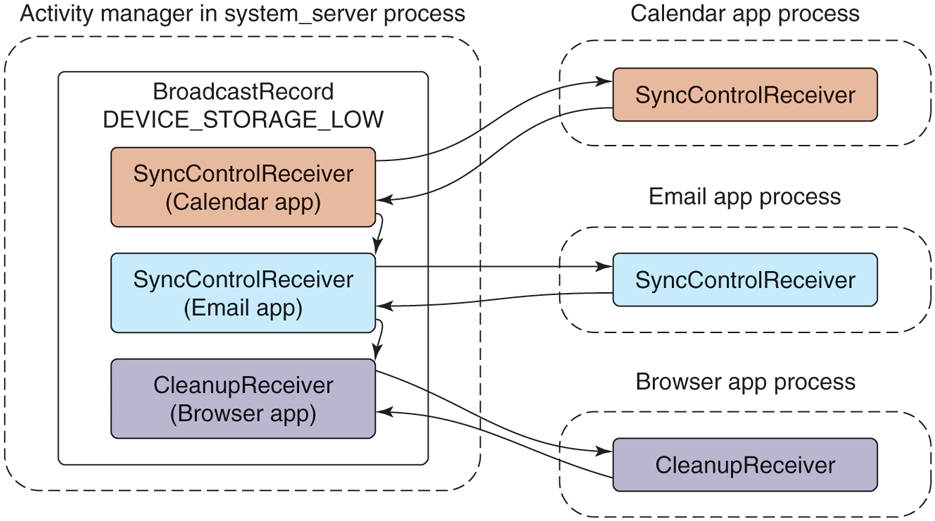
Sending a broadcast to application receivers.
Receivers only run as one-shot operations. They are activated only one time. When an event happens, the system finds any receivers interested in it, delivers that event to them, and once they have consumed the event they are done. There is no ReceiverRecord like those we have seen for other application components, because a particular receiver is only a transient entity for the duration of a single broadcast. Each time a new broadcast is sent to a receiver component, a new instance of that receiver’s class is created.
Content Providers
Our last application component, the content provider, is the primary mechanism that applications use to exchange data with each other. All interactions with a content provider are through URIs using a content: scheme; the authority of the URI is used to find the correct content-provider implementation to interact with.
For example, in our email application from Fig. 10-51, the content provider specifies that its authority is com.example.email.provider.email. Thus, URIs operating on this content provider would start with
content://com.example.email.provider.email/The suffix to that URI is interpreted by the provider itself to determine what data within it is being accessed. In the example here, a common convention would be that the URI
content://com.example.email.provider.email/messages
means the list of all email messages, while
content://com.example.email.provider.email/messages/1provides access to a single message at key number 1.
To interact with a content provider, applications always go through a system API called ContentResolver, where most methods have an initial URI argument indicating the data to operate on. One of the most often used ContentResolver methods is query, which performs a database query on a given URI and returns a Cursor for retrieving the structured results. For example, retrieving a summary of all of the available email messages would look something like:
query("content://com.example.email.provider.email/messages")Though this does not look like it to applications, what is actually going on when they use content providers has many similarities to binding to services. Figure 10-61 illustrates how the system handles our query example:
-
The application calls ContentResolver.query to initiate the operation.
The URI’s authority is handed to the activity manager for it to find (via the package manager) the appropriate content provider.
If the content provider is not already running, it is created.
Once created, the content provider returns to the activity manager its IBinder implementing the system’s IContentProvider interface.
The content provider’s Binder is returned to the ContentResolver.
The content resolver can now complete the initial query operation by calling the appropriate method on the AIDL interface, returning the Cursor result.
Figure 10-61
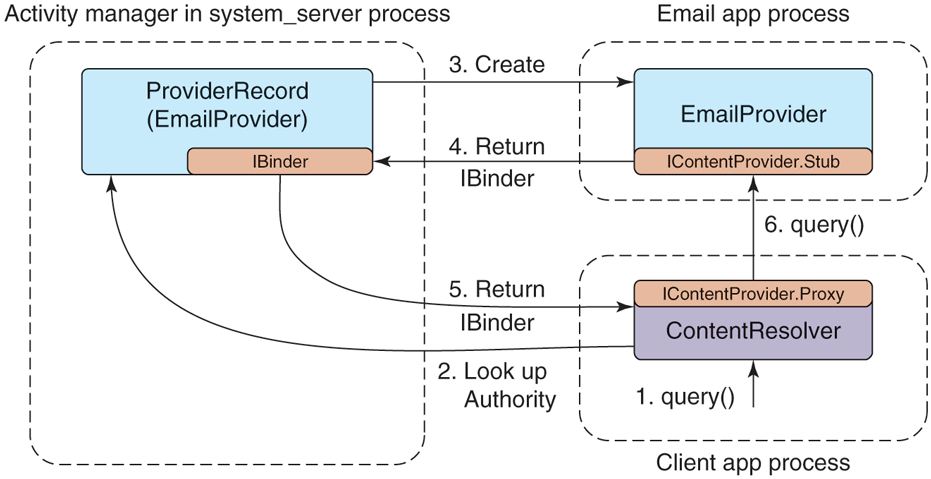
Interacting with a content provider.
Content providers are one of the key mechanisms for performing interactions across applications. For example, if we return to the cross-application sharing system previously described in Fig. 10-55, content providers are the way data are actually transferred. The full flow for this operation is:
A share request that includes the URI of the data to be shared is created and is submitted to the system.
The system asks the ContentResolver for the MIME type of the data behind that URI; this works much like the query method we just discussed, but asks the content provider to return a MIME-type string for the URI.
The system finds all activities that can receive data of the identified MIME type.
A user interface is shown for the user to select one of the possible recipients.
When one of these activities is selected, the system launches it.
The share-handling activity receives the URI of the data to be shared, retrieves its data through ContentResolver, and performs its appropriate operation: creates an email, stores it, etc.
10.8.9 Intents
A detail that we have not yet discussed in the application manifest shown in Fig. 10-51 is the <intent-filter> tags included with the activity and receiver declarations. This is part of the intent feature in Android, which is the cornerstone for how different applications identify each other in order to be able to interact and work together.
An intent is the mechanism Android uses to discover and identify activities, receivers, and services. It is similar in some ways to the Linux shell’s search path, which the shell uses to look through multiple possible directories in order to find an executable matching command names given to it.
There are two major types of intents: explicit and implicit. An explicit intent is one that directly identifies a single specific application component; in Linux shell terms it is the equivalent to supplying an absolute path to a command. The most important part of such an intent is a pair of strings naming the component: the package name of the target application and class name of the component within that application. Now referring back to the activity of Fig. 10-52 in application Fig. 10-51, an explicit intent for this component would be one with package name com.example.email and class name com.example.email.MailMainActivity.
The package and class name of an explicit intent are enough information to uniquely identify a target component, such as the main email activity in Fig. 10-52. From the package name, the package manager can return everything needed about the application, such as where to find its code. From the class name, we know which part of that code to execute.
An implicit intent is one that describes characteristics of the desired component, but not the component itself; in Linux shell terms this is the equivalent to supplying a single command name to the shell, which it uses with its search path to find a concrete command to be run. This process of finding the component matching an implicit intent is called intent resolution.
Android’s general sharing facility, as we previously saw in Fig. 10-55’s illustration of sharing a photo the user took from the camera through the email application, is a good example of implicit intents. Here the camera application builds an intent describing the action to be done, and the system finds all activities that can potentially perform that action. A share is requested through the intent action android.intent.action.SEND, and we can see in Fig. 10-51 that the email application’s compose activity declares that it can perform this action.
There can be three outcomes to an intent resolution: (1) no match is found, (2) a single unique match is found, or (3) there are multiple activities that can handle the intent. An empty match will result in either an empty result or an exception, depending on the expectations of the caller at that point. If the match is unique, then the system can immediately proceed to launching the now explicit intent. If the match is not unique, we need to somehow resolve it in another way to a single result.
If the intent resolves to multiple possible activities, we cannot just launch all of them; we need to pick a single one to be launched. This is accomplished through a trick in the package manager. If the package manager is asked to resolve an intent down to a single activity, but it finds there are multiple matches, it instead resolves the intent to a special activity built into the system called the ResolverActivity. This activity, when launched, simply takes the original intent, asks the package manager for a list of all matching activities, and displays these for the user to select a single desired action. When one is selected, it creates a new explicit intent from the original intent and the selected activity, calling the system to have that new activity started.
Android has another similarity with the Linux shell: Android’s graphical shell, the launcher, runs in user space like any other application. An Android launcher performs calls on the package manager to find the available activities and launch them when selected by the user.
10.8.10 Process Model
The traditional process model in Linux is a fork to create a new process, followed by an exec to initialize that process with the code to be run and then start its execution. The shell is responsible for driving this execution, forking and executing processes as needed to run shell commands. When those commands exit, the process is removed by Linux.
Android uses processes somewhat differently. As discussed in the previous section on applications, the activity manager is the part of Android responsible for managing running applications. It coordinates the launching of new application processes, determines what will run in them, and when they are no longer needed.
Starting Processes
In order to launch new processes, the activity manager must communicate with the zygote. When the activity manager first starts, it creates a dedicated socket with zygote, through which it sends a command when it needs to start a process. The command primarily describes the sandbox to be created: the UID that the new process should run (which will be discussed later on security) as and any other security restrictions that will apply to it. Zygote thus must run as root: when it forks, it does the appropriate setup for the sandbox it will run in, finally dropping root privileges and changing the process to the desired sandbox.
Recall in our previous discussion about Android applications that the activity manager maintains dynamic information about the execution of activities (in Fig. 10-52), services (Fig. 10-57), broadcasts (to receivers as in Fig. 10-60), and content providers (Fig. 10-61). It uses this information to drive the creation and management of application processes. For example, when the application launcher calls in to the system with a new intent to start an activity as we saw in Fig. 10-52, it is the activity manager that is responsible for making that new application run.
The flow for starting an activity in a new process is shown in Fig. 10-62. The details of each step in the illustration are as follows:
-
Some existing process (such as the app launcher) calls in to the activity manager with an intent describing the new activity it would like to have started.
Activity manager asks the package manager to resolve the intent to an explicit component.
Activity manager determines that the application’s process is not already running, and then asks zygote for a new process of the appropriate UID.
Zygote performs a
fork, creating a new process that is a clone of itself, drops privileges and sets up its sandbox appropriately, and finishes initialization of ART in that process so that the Java runtime is fully executing. For example, it must start threads like the garbage collector after it forks.The new process, now a clone of zygote with the Java environment fully up and running, calls back to the activity manager, asking ‘‘What am I supposed to do?’’
Activity manager returns back the full information about the application it is starting, such as where to find its code.
New process loads the code for the application being run.
Activity manager sends to the new process any pending operations, in this case ‘‘start activity X.’’
New process receives the command to start an activity, instantiates the appropriate Java class, and executes it.
Figure 10-62
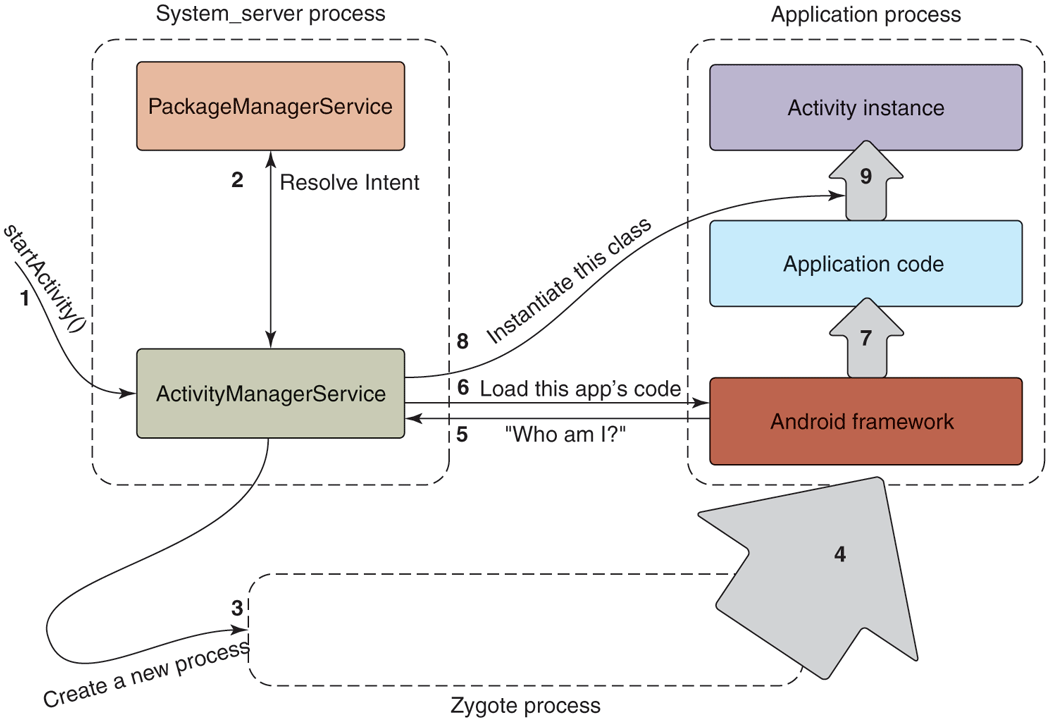
Steps in launching a new application process.
Note that when we started this activity, the application’s process may already have been running. In that case, the activity manager will simply skip to the end, sending a new command to the process telling it to instantiate and run the appropriate component. This can result in an additional activity instance running in the application, if appropriate, as we saw previously in Fig. 10-56.
Process Lifecycle
The activity manager is also responsible for determining when processes are no longer needed. It keeps track of all activities, receivers, services, and content providers running in a process; from this it can determine how important (or not) the process is.
Recall that Android’s out-of-memory killer in the kernel uses a process’s importance as given to lmkd as a strict ordering to determine which processes it should kill first. The activity manager is responsible for setting each process’s importance appropriately based on the state of that process, by classifying them into major categories of use. Figure 10-63 shows the main categories, with the most important category first. The last column shows a typical importance value that is assigned to processes of this type.
Figure 10-63
Category |
Description |
Importance |
|---|---|---|
SYSTEM |
The system and daemon processes |
|
PERSISTENT |
Always-running application processes |
|
FOREGROUND |
Currently interacting with user |
0 |
VISIBLE |
Visible to user |
100–199 |
PERCEPTIBLE |
Something the user is aware of |
200 |
SERVICE |
Running background services |
500 |
HOME |
The home/launcher process (when not in foreground) |
600 |
CACHED |
Processes not in use |
950–999 |
Process importance categories.
Now, when RAM is getting low, the system has configured the processes so that the out-of-memory killer will first kill cached processes to try to reclaim enough needed RAM, followed by home, service, and on up. Within a specific importance level, it will kill processes with a larger RAM footprint before smaller ones.
We’ve now seen how Android decides when to start processes and how it categorizes those processes in importance. Now we need to decide when to have processes exit, right? Or do we really need to do anything more here? The answer is, we do not. On Android, application processes never cleanly exit. The system just leaves unneeded processes around, relying on the kernel to reap them as needed.
Cached processes in many ways take the place of the swap space that Android lacks. As RAM is needed elsewhere, cached processes can be killed and their RAM quickly reclaimed. If an application later needs to run again, a new process can be created, restoring any previous state needed to return it to how the user last left it. Behind the scenes, the operating system is launching, killing, and relaunching processes as needed so the important foreground operations remain running and cached processes are kept around as long as their RAM would not be better used elsewhere.
Process Dependencies
We now have a good overview of how individual Android processes are managed. There is a further complication to this, however: dependencies between processes. Processes caninteract with other processes and that has to be managed.
As an example, consider our previous camera application holding the pictures that have been taken. These pictures are not part of the operating system; they are implemented by a content provider in the camera application. Other applications may want to access that picture data, becoming a client of the camera application.
Dependencies between processes can happen with both content providers (through simple access to the provider) and services (by binding to a service). In either case, the operating system must keep track of these dependencies and manage the processes appropriately.
Process dependencies impact two key things: when processes will be created (and the components created inside of them), and what the importance of the process will be. Recall that the importance of a process is that of the most important component in it. Its importance is also that of the most important process that is dependent on it.
For example, in the case of the camera application, its process and thus its content provider is not normally running. It will be created when some other process needs to access that content provider. While the camera’s content provider is being accessed, the camera process will be considered at least as important as the process that is using it.
To compute the final importance of every process, the system needs to maintain a dependency graph between those processes. Each process has a list of all services and content providers currently running in it. Each service and content provider itself has a list of each process using it. (These lists are maintained in records inside the activity manager, so it is not possible for applications to lie about them.) Walking the dependency graph for a process involves walking through all of its content providers and services and the processes using them.
Figure 10-64 illustrates a typical state processes can be in, taking into account dependencies between them. Part of this example contains two dependencies, where a content provider in a camera app is being used by a separate email app to add a picture attachment. (An illustration of this situation appears later in Fig. 10-70 and is discussed in more detail there.)
Figure 10-64
Process |
State |
Importance |
|---|---|---|
system |
Core part of operating system |
SYSTEM |
phone |
Always running for telephony stack |
PERSISTENT |
email |
Current foreground application |
FOREGROUND |
camera |
In use by email to load attachment |
FOREGROUND |
music |
Running background service playing music |
PERCEPTIBLE |
media |
In use by music app for accessing user’s music |
PERCEPTIBLE |
download |
Downloading a file for the user |
SERVICE |
launcher |
App launcher not current in use |
HOME |
maps |
Previously used mapping application |
CACHED |
Typical state of process importance.
Figure 10-65
Process |
State |
Importance |
|---|---|---|
system |
Core part of operating system |
SYSTEM |
phone |
Always running for telephony stack |
PERSISTENT |
email |
Current foreground application |
FOREGROUND |
music |
Running background service playing music |
PERCEPTIBLE |
media |
In-use by music app for accessing user’s music |
PERCEPTIBLE |
download |
Downloading a file for the user |
SERVICE |
launcher |
App launcher not current in use |
HOME |
camera |
Previously used by email |
CACHED |
maps |
Previously used mapping application |
CACHED+1 |
Process state after email stops using camera.
Figure 10-66
UID |
Purpose |
|---|---|
| 0 | Root |
| 1000 | Core system (system_server process) |
| 1001 | Telephony services |
| 1013 | Low-level media processes |
| 2000 | Command line shell access |
| 10000–19999 | Dynamically assigned application UIDs |
| 100000 | Start of secondary users |
Common UID assignments in Android.
Figure 10-67
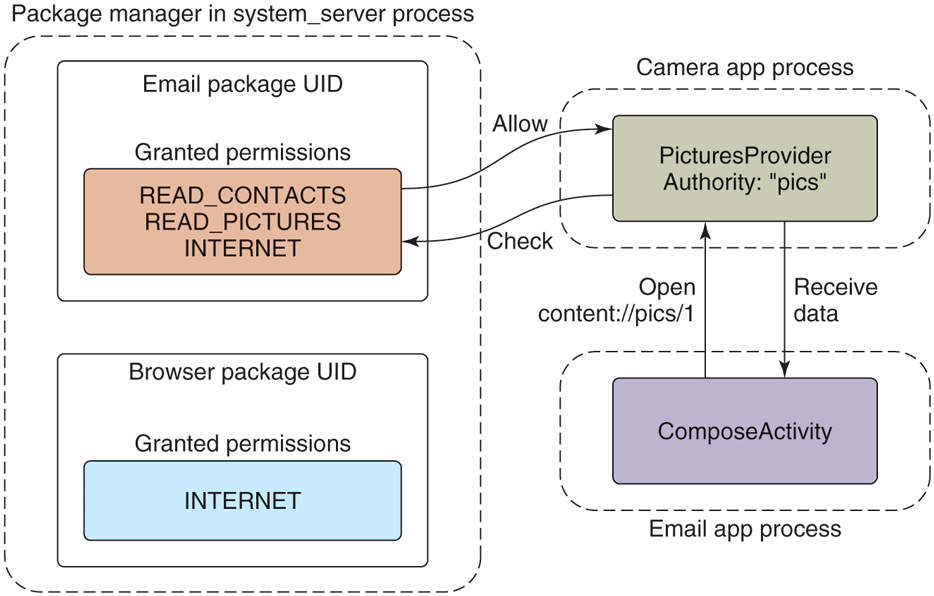
Requesting and using a permission.
Figure 10-68
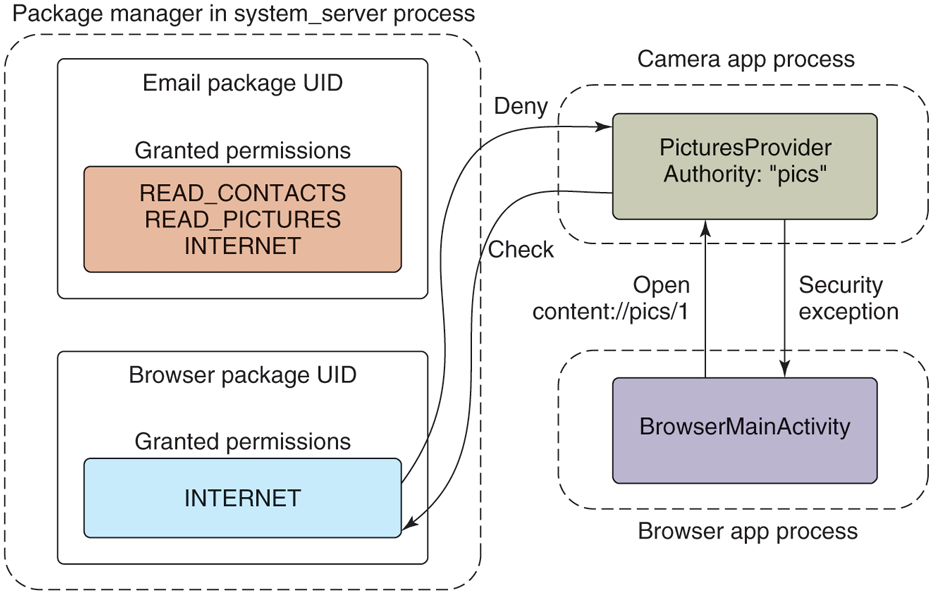
Accessing data without a permission.
Figure 10-69
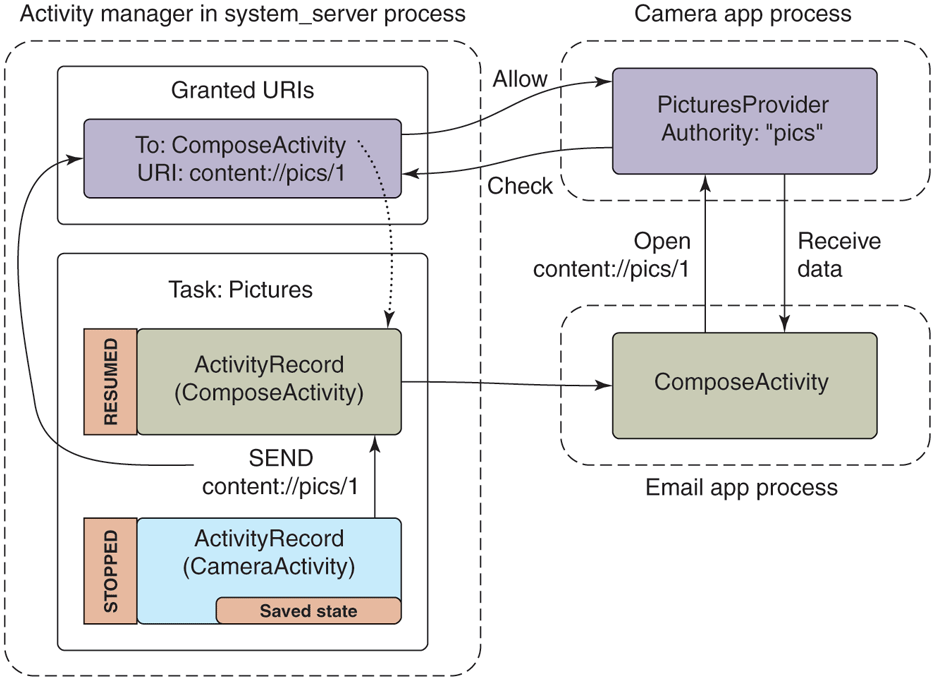
Sharing a picture using a content provider.
Figure 10-70
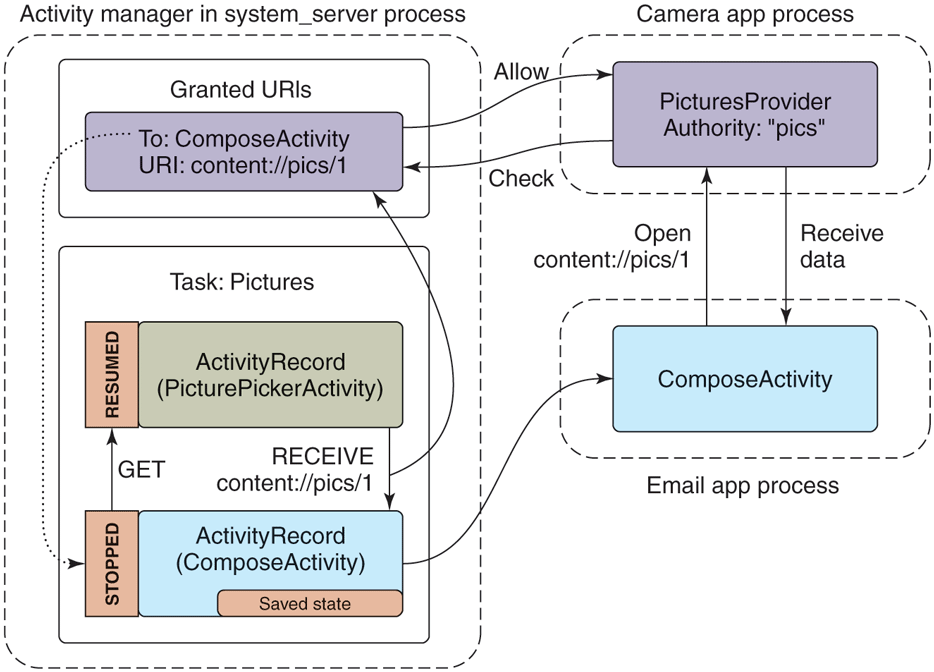
Adding a picture attachment using a content provider.
In this figure, after the regular system processes, is first that current foreground email application. The email application is making use of the camera content provider, raising the camera process up to the same importance as the email app. Next in the figure is a similar situation, a music application is playing music in the background with a service, and while doing so has a dependency on the media process for accessing the user’s music media, which similarly raises the media process up to the same importance as the music app.
Consider what happens if the state of Fig. 10-64 changes so that the email application is done loading the attachment, and no longer uses the camera content provider. Figure 10-65 illustrates how the process state will change. Note that the camera application is no longer needed, so it has dropped out of the foreground importance, and down to the cached level. Making the camera cached has also pushed the old maps application one step down in the cached LRU list.
These two examples give a final illustration of the importance of cached processes. If the email application again needs to use the camera provider, the provider’s process will typically already be left as a cached process. Using it again is then just a matter of setting the process back to the foreground and reconnecting with the content provider that is already sitting there with its database initialized.
10.8.11 Security and Privacy
When Android was being designed, the security protections users have from their applications was an area of rapidly evolving expectations that needed to be addressed. Since then, privacy has become an increasingly important area driving significant evolution to how Android manages applications. We will now look at these two topics, focusing first on the various aspects of security before looking at the newer world of privacy.
Application Sandboxes
Traditionally in operating systems, applications are seen as code executing as the user, on the user’s behalf. This behavior has been inherited from the command line, where you run the ls command and expect that to run as your identity (UID), with the same access rights as you have on the system. In the same way, when you use a graphical user interface to launch a game you want to play, that game will effectively run as your identity, with access to your files and many other things it may not actually need.
This is not, however, how we mostly use computers today. We run applications we acquired from some less trusted third-party source, and those apps can have sweeping functionality, doing a wide variety of things that we have little control over. There is a disconnect between the application model supported by the operating system and the one actually in use. This may be mitigated by strategies such as distinguishing between normal and ‘‘admin’’ user privileges and issuing a warning the first time an application runs, but those do not really address the underlying disconnect.
In other words, traditional operating systems are very good at protecting users from other users, but not at protecting users from themselves and their applications. All programs run with the power of the user and, if any of them misbehaves, it can do all the same damage as the user (and sometimes more). Think about it: how much damage could you do in, say, a UNIX environment? You could leak all information accessible to the user. You could perform rm –rf * to give yourself a nice, empty home directory. And if the program is not just buggy, but also malicious, it could encrypt all your files for ransom. Running everything with ‘‘the power of you’’ is dangerous!
On mobile devices at the time Android was being developed, this problem of protecting users from their applications was typically addressed by the introduction of a gatekeeper to the device: one or more trusted entities (such as the telecommunications carrier or manufacturer of the device) who are responsible for determining whether an application is safe before allowing it to be installed. Such an approach was counter to a key goal of Android, to create an open platform where everyone could compete equally and there was no single entity controlling what the user could do on their device, so another solution was needed.
Android addresses the problem with a core premise: that an application is actually the developer of that application running as a guest on the user’s device. Thus, an application is not trusted with anything sensitive that is not explicitly approved by the user.
In Android’s implementation, this philosophy is rather directly expressed through user IDs. When an Android application is installed, a new unique Linux user ID (or UID) is created for it, and all of its code runs as that ‘‘user.’’ Linux user IDs thus create a sandbox for each application, with their own isolated area of the file system, just as they create sandboxes for users on a desktop system. In other words, Android uses an existing core feature in Linux, but in a novel way. The result is better isolation.
Application security in Android revolves around UIDs. In Linux, each process runs as a specific UID, and Android uses the UID to identify and protect security barriers. The only way to interact across processes is through some IPC mechanism, which generally carries with it enough information to identify the UID of the caller. Binder IPC explicitly includes this information in every transaction delivered across processes so a recipient of the IPC can easily ask for the UID of the caller.
Android predefines a number of standard UIDs for the lower-level parts of the system, but most applications are dynamically assigned a UID, at first boot or install time, from a range of ‘‘application UIDs.’’ Figure 10-66 illustrates some common mappings of UID values to their meanings. UIDs below 10000 are fixed assignments within the system for dedicated hardware or other specific parts of the implementation; some typical values in this range are shown here. In the range 10000–19999 are UIDs dynamically assigned to applications by the package manager when it installs them; this means at most 10,000 applications can be installed on the system. Also note the range starting at 100000, which is used to implement a traditional multiuser model for Android: an application that is granted UID 10002 as its identity would be identified as 110002 when running as a second user.
When an application is first assigned a UID, a new storage directory is created for it, with the files there owned by its UID. The application gets full access to its private files there, but cannot access the files of other applications, nor can the other applications touch its own files. This makes content providers, as discussed in the earlier section on applications, especially important, as they are one of the few mechanisms that can transfer data between applications.
Even the system itself, running as UID 1000, cannot touch the files of applications. This is why the installd daemon exists: it runs with special privileges to be able to access and create files and directories for other applications. There is a very restricted API installd provided to the package manager for it to create and manage the data directories of applications as needed.
Permissions
In their base state, Android’s application sandboxes must disallow any cross-application interactions that can violate security between them. This may be for robustness (preventing one app from crashing another app), but most often it is about information access.
Consider our camera application. When the user takes a picture, the camera application stores that picture in its private data space. No other applications can access that data, which is what we want since the pictures there may be sensitive data to the user.
After the user has taken a picture, she may want to email it to a friend. Email is a separate application, in its own sandbox, with no access to the pictures in the camera application. How can the email application get access to the pictures in the camera application’s sandbox?
The best-known form of access control in Android is application permissions. Permissions are specific well-defined abilities that can be granted to an application at install time. The application lists the permissions it needs in its manifest, and depending on the type of permission they will either be granted at install time (if allowed) or can ask the user to grant them the permission while running.
Figure 10-67 shows how our email application could make use of permissions to access pictures in the camera application. In this case, the camera application has associated the READ_PICTURES permission with its pictures, saying that any application holding that permission can access its picture data. The email application declares in its manifest that it requires this permission. The email application can now access a URI owned by the camera, such as content://pics/1; upon receiving the request for this URI, the camera app’s content provider asks the package manager whether the caller holds the necessary permission. If it does, the call succeeds and appropriate data are returned to the application.
Permissions are not tied to content providers; any IPC into the system may be protected by a permission by asking the package manager if the caller holds the required permission. Recall that application sandboxing is based on processes and UIDs, so a security barrier always happens at a process boundary, and permissions themselves are associated with UIDs. Given this, a permission check can be performed by retrieving the UID associated with the incoming IPC and asking the package manager whether that UID has been granted the corresponding permission. For example, permissions for accessing the user’s location are enforced by the system’s location manager service when applications call in to it.
Figure 10-68 shows what happens when an application does not hold a permission needed for an operation it is performing. Here the browser application is trying to directly access the user’s pictures, but the only permission it holds is one for network operations over the Internet. In this case the PicturesProvider is told by the package manager that the calling process does not hold the needed READ_PICTURES permission, and as a result throws a SecurityException back to it.
Permissions provide broad, unrestricted access to classes of operations and data. They work well when an application’s functionality is centered around those operations, such as our email application requiring the INTERNET permission to send and receive email. However, does it make sense for the email application to hold a READ_PICTURES permission? There is nothing about an email application that is directly related to reading the user’s pictures, and no reason for an email application to have access to all of those pictures.
There is another issue with this use of permissions, which we can see by returning to Fig. 10-55. Recall how we can launch the email application’s ComposeActivity to share a picture from the camera application. The email application receives a URI of the data to share, but does not know where it came from—in the figure here it comes from the camera, but any other application could use this to let the user email its data, from audio files to word-processing documents. The email application only needs to read that URI as a byte stream to add it as an attachment. However, with permissions it would also have to specify up-front the permissions for all of the data of all of the applications it may be asked to send an email from.
We have two problems to solve. First, we do not want to give applications access to wide swaths of data that they do not really need. Second, they need to be given access to any data sources, even ones they do not have a priori knowledge about.
There is an important observation to make: the act of emailing a picture is actually a user interaction where the user has expressed a clear intent to use a specific picture with a specific application. As long as the operating system is involved in the interaction, it can use this to identify a specific hole to open in the sandboxes between the two applications, allowing that data through.
Android supports this kind of implicit secure data access through intents and content providers. Figure 10-69 illustrates how this situation works for our picture emailing example. The camera application at the bottom-left has created an intent asking to share one of its images, content://pics/1. In addition to starting the email compose application as we had seen before, this also adds an entry to a list of ‘‘granted URIs,’’ noting that the new ComposeActivity now has access to this URI. Now when ComposeActivity looks to open and read the data from the URI it has been given, the camera application’s PicturesProvider that owns the data behind the URI can ask the activity manager if the calling email application has access to the data, which it does, so the picture is returned.
This fine-grained URI access control can also operate the other direction. An example here is another intent action, android.intent.action.GET_CONTENT, which an application can use to ask the user to pick some data and return it back. This would be used in our email application, for example, to operate the other way around: the user while in the email application can ask to add an attachment, which will launch an activity in the camera application for them to select one.
Figure 10-70 shows this new flow. It is almost identical to Fig. 10-69, the only difference being in the way the activities of the two applications are composed, with the email application starting the appropriate picture-selection activity in the camera app. Once an image is selected, its URI is returned back to the email application, and at this point our URI grant is recorded by the activity manager.
This approach is extremely powerful, since it allows the system to maintain tight control over per-application data, granting specific access to data where needed, without the user needing to be aware that this is happening. Many other user interactions can also benefit from it. An obvious one is drag and drop to create a similar URI grant, but Android also takes advantage of other information such as current window focus to determine the kinds of interactions applications can have.
A final common security method Android uses is explicit user interfaces for allowing/removing specific types of access. In this approach, there is some way an application indicates it can optionally provide some functionally, and a system-supplied trusted user interface that provides control over this access.
A typical example of this approach is Android’s input-method architecture. An input method is a specific service supplied by a third-party application that allows the user to provide input to applications, typically in the form of an onscreen keyboard. This is a highly sensitive interaction in the system, since a lot of personal data will go through the input-method application, including passwords the user types.
An application indicates it can be an input method by declaring a service in its manifest with an intent filter matching the action for the system’s input-method protocol. This does not, however, automatically allow it to become an input method, and unless something else happens the application’s sandbox has no ability to operate like one.
Android’s system settings include a user interface for selecting input methods. This interface shows all available input methods of the currently installed applications and whether or not they are enabled. If users want to use a new input method after they have installed the application, they must go to this system settings interface and enable it. When doing that, the system can also inform the user of the kinds of things this will allow the application to do.
Even once an application is enabled as an input method, Android uses finegrained access-control techniques to limit its impact. For example, only the application that is being used as the current input method can actually have any special interaction; if the user has enabled multiple input methods (such as a soft keyboard and voice input), only the one that is currently in active use will have those features available in its sandbox. Even the current input method is restricted in what it can do, through additional policies such as only allowing it to interact with the window that currently has input focus.
SELinux and Defense in Depth
A robust security architecture is important: one where access to data is minimized, the architecture is easy to understand so that it is less likely for bugs to be introduced during development, and changes that violate the intended security guarantees are easy to identify. Even in the best design, however, bugs will always happen, resulting in significant security issues that are shipped and need to be fixed. It is thus also important to adopt a ‘‘defense in depth’’ strategy to minimize the impact of a single security bug.
Sandboxing forms the foundation of Android’s security architecture and defense-in-depth approach. For example, Android provides a special kind of UID sandbox called an ‘‘isolated service.’’ This is a service that runs in its own dedicated process, with a transient UID that is not associated with any capabilities: no access to any permissions, or most system services, or app filesystem, etc. This facility is used to render things like Web pages and PDF files, content that is extremely complicated to handle and thus often has bugs that allow such content, retrieved from an untrusted source, to deliver an exploit through bugs in the content handling code.
Since the capabilities of an isolated process are minimized, exploits in that content often need to find a security hole in both the isolated sandbox that allow it to get out to the app sandbox, and then a hole in the app sandbox to exploit the system itself.
This restricted sandbox approach is used throughout Android. Of particular note is the media system, which initially suffered a significant number of exploits (given the name ‘‘stagefright’’ from the name of the core media library). Like Web pages and PDFs, media codecs deal with complicated formats of data that comes from untrusted sources, making them ripe for exploit. The solution here was to likewise isolate these codecs and other parts of the media system into highly restricted sandboxes that only gave them the capabilities needed for their operation and nothing more.
Sandboxes do have limitations: their functionality, though limited, is still fairly significant. Vulnerabilities in the things they interact with (especially the kernel) can allow them to bypass most of the system’s security. In Android 5.0, SELinux was introduced as an additional security layer in the platform that works in conjunction with its existing UID-based sandboxes as well as providing more finegrained sandboxing for system components.
The security mechanisms we have talked about so far use a model called discretionary access control (DAC), meaning the entity creating a resource (such as a file) has the discretion to determine who has access to it. SELinux, in contrast, provides mandatory access control (MAC), meaning all access to resources is defined statically and separately from the code. In SELinux, an entity starts without access to anything, and rules are written to explicitly specify what it is allowed to do.
SELinux by itself cannot be used to implement Android’s security model, because it is not flexible enough: it would not allow one application to get access to a piece of data from another application only when the user says that is allowed. Rather, SELinux provides a parallel security mechanism with different capabilities and benefits. While some security restrictions are enforced via only UID or SELinux, where possible Android will utilize both mechanisms to provide defensein-depth for security restrictions.
As an example of what SELinux provides, consider a simple bug where some system code writes a file and accidentally makes it world readable, such as a file keeping track of the permissions granted to apps. In the UID-based security model, this mistake allows any app sandbox to modify this file, such as to change it to say it has a permission the user did not actually give it.
With SELinux enabled, however, this exploit is defeated: Android’s SELinux rules say that no app sandbox can read or write a system file, so the exploit will still be stopped. Each UID sandbox also has an associated SELinux context defining the rules for what it is allowed to do, written to be as minimal as possible. For example, the rules for an isolated service’s sandbox say that it has no read/write access at all to data files.
More information on how Android uses SELinux can be found online at https:/
Privacy and Permissions
Privacy is a newer but increasingly important issue that operating systems must address. Where security can be described as addressing the goal that ‘‘nothing placed on the device can harm it or the user’’ (such as harm its operation, force the user to pay money to access it, force ads on users, allow other apps to be installed they do not want, etc.), the goal of privacy is to help users be confident that ‘‘the information about them is being protected and only used for what they want.’’
Security is most notable to the user in its absence: if the device’s security is good, it always behaves as intended and the user never has a bad experience from malware. Privacy, in contrast, involves a more direct interaction between the operating system and the users, because it requires that they have confidence that the platform is looking out for their data, allows them to make the decisions they want about how their data is protected, and gives some visibility into what happens to their data.
To help illustrate the difference between security and privacy, consider Fig. 10-71, which the only thing most users want to know about the security of their operating system (if even that). Keep this in mind as we look at the thinking that goes behind designing the privacy of the system.
Figure 10-71
The only thing most users care about security.
Privacy cannot happen without security: without a secure foundation for controlling what apps can do, an operating system cannot give assurance about what happens to the users’ data—a malicious app could access their data through insecure paths without the user knowing. And though security on Android provides the walls that allow statements about privacy to have meaning, security is not by itself sufficient to address privacy concerns.
When Android was first designed, security was the primary focus for its users and developers: operating systems were still evolving to address security in the modern world of wide-spread use of devices that allow people to install and use apps without concern for them causing damage. Mobile devices further exacerbated security issues due the increased personal nature of them, such as always being with someone and thus always having potential access to sensitive information such as their location. This makes the evolution of Android around privacy an interesting case-study in how these issues have been evolving in the industry.
Android’s initial approach to privacy was security-focused: every application needed to declare in its manifest the sensitive data and capabilities it needed access to, and the platform strictly enforced this. The user experience revolved around showing the users what the app would have access to before it was installed, allowing them to decide if they were okay with it having that information before going forward to install (and with confidence it would not get any other information once installed). An example of this user experience is shown in Fig. 10-72.
Figure 10-72
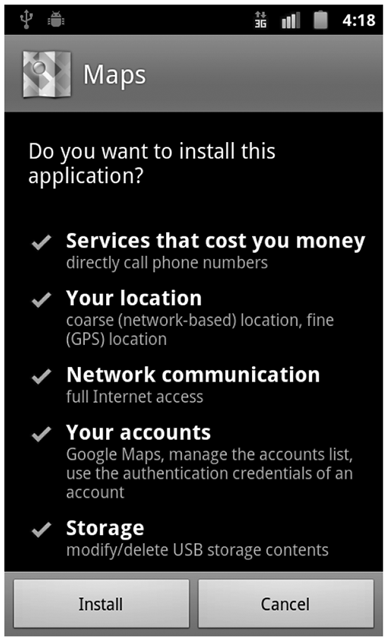
Confirming permissions at install time (circa 2010)
There were a wide variety of permissions, organized into categories to help users understand the major classes of operations the app may do. A summary of these permissions and their categories is shown in Fig. 10-73. The permissions listed here are all dangerous permissions, meaning they were considered important enough to always show to users to let them decide whether to proceed with an install.
Figure 10-73
Permission |
Group |
|---|---|
SEND_SMS |
COST_MONEY |
CALL_PHONE |
COST_MONEY |
RECEIVE_SMS |
MESSAGES |
READ_SMS |
MESSAGES |
WRITE_SMS |
MESSAGES |
READ_CONTACTS |
PERSONAL_INFO |
WRITE_CONTACTS |
PERSONAL_INFO |
READ_CALENDAR |
PERSONAL_INFO |
WRITE_CALENDAR |
PERSONAL_INFO |
BODY_SENSORS |
PERSONAL_INFO |
ACCESS_FINE_LOCATION |
LOCATION |
ACCESS_COARSE_LOCATION |
LOCATION |
INTERNET |
NETWORK |
BLUETOOTH |
NETWORK |
MANAGE_ACCOUNTS |
ACCOUNTS |
MODIFY_AUDIO_SETTINGS |
HARDWARE_CONTROLS |
RECORD_AUDIO |
HARDWARE_CONTROLS |
CAMERA |
HARDWARE_CONTROLS |
PROCESS_OUTGOING_CALLS |
PHONE_CALLS |
MODIFY_PHONE_STATE |
PHONE_CALLS |
READ_PHONE_STATE |
PHONE_CALLS |
WRITE_SETTINGS |
SYSTEM_TOOLS |
SYSTEM_ALERT_WINDOW |
SYSTEM_TOOLS |
WAKE_LOCK |
SYSTEM_TOOLS |
READ_EXTERNAL_STORAGE |
STORAGE |
WRITE_EXTERNAL_STORAGE |
STORAGE |
Select list of install-time dangerous permissions.
There were an additional set of normal permissions, which the application still needed to request in its manifest to be able to use, but would only be shown to the users if they explicitly asked to see more details before installing. A representative list of these permissions is shown in Fig. 10-74. Note for example that access to the camera and microphone is protected by dangerous permissions, above, since these give access to sensitive personal data; access to the vibration hardware and flashlight are normal since the worst the app can do with this is annoy the user.
Figure 10-74
Permission |
Group |
|---|---|
SET_ALARM |
SET_ALARM |
ACCESS_NETWORK_STATE |
NETWORK |
ACCESS_WIFI_STATE |
NETWORK |
GET_ACCOUNTS |
ACCOUNTS |
VIBRATE |
HARDWARE_CONTROLS |
FLASHLIGHT |
HARDWARE_CONTROLS |
EXPAND_STATUS_BAR |
SYSTEM_TOOLS |
KILL_BACKGROUND_PROCESSES |
SYSTEM_TOOLS |
SET_WALLPAPER |
SYSTEM_TOOLS |
Select list of install-time normal permissions.
Android 6.0 switched the user’s permission experience from the previous install-time model to a runtime model. This means that instead of granting the application a permission’s capabilities at the point of install, for many permissions the app now must explicitly ask the user at runtime through a system prompt as illustrated in Fig. 10-75.
Figure 10-75
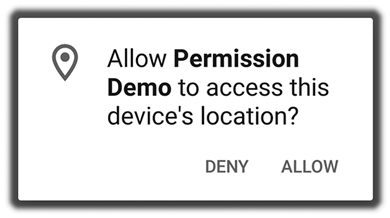
Android 6.0 runtime permission prompt.
Moving to runtime prompts could not simply take the existing permissions as is and present them to the user one at a time, while the app is running, as it needs them: that would be overwhelming to the user. It thus required extensive rework of the permission organization so they are appropriate for runtime permissions, resulting in the new model shown in Fig. 10-76.
Figure 10-76
Runtime prompt |
Permissions |
|---|---|
CONTACTS |
READ_CONTACTS, WRITE_CONTACTS, GET_ACCOUNTS |
CALENDAR |
READ_CALENDAR, WRITE_CALENDAR |
SMS |
SEND_SMS, RECEIVE_SMS, READ_SMS |
STORAGE |
READ_EXTERNAL_STORAGE, WRITE_EXTERNAL_STORAGE |
LOCATION |
ACCESS_FINE_LOCATION, ACCESS_COARSE_LOCATION |
PHONE |
READ_PHONE_STATE, CALL_PHONE, PROCESS_OUTGOING_CALLS |
MICROPHONE |
RECORD_AUDIO |
CAMERA |
CAMERA |
SENSORS |
BODY_SENSORS |
Select list of runtime permissions.
The permissions here (now on the right side of the table) are still classified as dangerous permissions, but not directly shown to users; rather, the group they are in (on the right side) is the runtime prompt that will be shown to the user, allowing the app to get access to all permissions it has requested in that group. The granularity of the underlying permissions is thus retained, but the amount of information and choice the user must deal with is greatly decreased.
There are still normal permissions, but they are no longer shown to the user at all. Instead, the platform still restricts access to them, so that information in the manifest can be used to audit applications with guarantees about what they can and cannot do on the device. The remaining permissions from before that are now auditable normal permissions are shown in Fig. 10-77.
Figure 10-77
Permission |
|---|
SET_ALARM |
ACCESS_NETWORK_STATE |
ACCESS_WIFI_STATE |
VIBRATE |
FLASHLIGHT |
EXPAND_STATUS_BAR |
KILL_BACKGROUND_PROCESSES |
SET_WALLPAPER |
INTERNET |
BLUETOOTH |
MODIFY_AUDIO_SETTINGS |
WAKE_LOCK |
Select list of auditable normal permissions.
This organizational change effectively moved the permission design from security-centric to privacy-centric. The new permission groups represent separate types of data the user may be interested in protecting, and everything else has been hidden from them.
For something to justify being shown as a runtime permission, it must clearly pass a test: ‘‘Is this something the user easily understands (which generally means it represents some clear data about them), and can be confident in making a decision about releasing access to that data?’’ Users answering yes to a runtime permission prompt is them making a statement that they are going to trust that app (and its developer) with all of that type of personal data on their device.
The INTERNET permission is a good case study in this design process: it was modified from a dangerous permission shown to the user at install, to a normal permission that does not require a runtime prompt and is never shown to the user. The reasoning behind this is given below:
How many applications would ask for this as a runtime permission? Most of them, so the user will be confronted with it frequently and needs to be especially confident about making a good decision. (Frequent prompts for decisions the user is not confident in can easily lead to all of the prompts being mostly ignored by them.)
Is this protecting some data the user can clearly understand? No. That makes it harder for the user to understand what is being asked.
Is this giving the application an ability the user cares about? Yes. In a way, apps being able to access the network seems like something that is of interest to the user’s privacy.
Why would a user decide whether or not to give an app the permission? A common thought process here is: ‘‘I do not want the app to access the network so it cannot send my data off the device.’’
Deciding to allow access to the network actually has a close connection to decisions around giving it access to personal data! That is, a user saying ‘‘no’’ to the network permission will often lead to them feeling better about saying ‘‘yes’’ to requests to get access to their data.
Wanting to control network access is thus actually a proxy for wanting a guarantee about the app not being able to export any data off the device. However, that is not what the network permission does. Even if an app does not have network access, there are many ways it can export data, even accidentally: for example if it opens the browser on a Website associated with it, the URL it hands to the browser can contain any data it wants, which is then sent to the app’s server.
It is best that network access not be a runtime permission, for multiple reasons. It would be requested by most apps, causing the user to be constantly confronted with it. They are being asked to make a decision that is not clear how it impacts them. The main reason that many users would infer why they should say ‘‘no’’—that it prevents the app from exporting data—can lead them to make bad decisions for other permissions the app requests. The last point compromises the fundamental permission model: that saying ‘‘yes’’ to a permission prompt is expressioning trust in the app with that data.
There are, finally, a few permissions that completely disappeared in the runtime mode, such as WRITE_SETTINGS and SYSTEM_ALERT_WINDOW. Typically these were deemed too dangerous to just hide or even have as a simple runtime prompt (or too hard to understand for the user to make a good decision in a simple runtime prompt). Typically these were transformed into an explicit user interface that the user must go in to manually enable access of the app to that permission, as covered previously when discussing permissions and explicit user interfaces for controlling them.
This then provides a basic framework for deciding how a particular feature in the platform will be secured, in a privacy-oriented way:
If it can be done as part of a larger user flow, where the users do not realize they are making a security/privacy decision, that is ideal. Examples of such flows are the URI permission grants driven by share and
android.intent.action.GET_CONTENTexperiences described previously.If it is something that does not significantly impact the user’s privacy or put the device at risk, a normal auditable permission is a good choice.
If it is associated with clear personal data, the user is likely to have a strong opinion about who can access it, so a runtime permission is probably a good choice.
Otherwise, it may need to be a separate explicit user interface for giving only certain apps that specific privilege. The more dangerous this is to the user, however, the more carefully it must be done. For example, the
WRITE_SMSpermission was changed to a separate interface where it is only given to one app that a user can designate as the preferred text messaging app. This helps everyone make a safer decision by instead thinking about which app should get this feature.
Evolving Runtime Permissions
The move to runtime permissions was only the start of Android’s privacy journey, which will continue to be a core design consideration for operating systems just like security. To illustrate these changes, we will look specifically at the location permission and how it evolved over later Android releases.
Recall that in Android 6.0, the user experience for location access shown in the previous Fig. 10-75 was a simple ‘‘yes’’ or ‘‘no’’ question, hiding even the difference between coarse and fine grained location access, to create a simple experience. This provided significant new control for users, but as the ability to access the user’s location increasingly became a point of concern (both due to increased user awareness and increased problematic use by apps), demands for more control drove a series of changes from the initial simple runtime permission.
The first change to location access was invisible to users: in Android 8.0 the concept of background vs. foreground location access was introduced. When an application is considered to be in the background, it is not able to get location updates at a high rate.
The motivation for this was partly to improve the battery life of Android devices, since applications constantly monitoring location in the background could consume significant power, but it also reduced the amount of information about the user that these apps could collect. (Applications that really need to closely monitor location while in the background can do this through the use of foreground services, which are discussed later in Background Execution.)
Android 10 took a more privacy-centric approach to this problem, making the difference between background and foreground location access an explicit part of the user’s experience. This was presented to the user in the form of a new runtime prompt, shown in Fig. 10-78, where the user could select the kind of access the app should have.
Figure 10-78
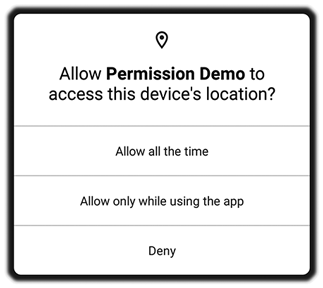
Android 10’s background vs. foreground location prompt.
Driven by growing demands for more privacy, this new permission prompt is the first time the platform used the concept of background vs. foreground execution of apps in its core user experience. Note the careful wording here: foreground is described as ‘‘only while the app is in use’’ and background is ‘‘all the time,’’ reflecting the actual underlying complexity of these concepts. For example, if you are currently using a mapping application to do navigation but are not actively in the app on the screen, is it considered foreground or background? From Android’s perspective it is foreground for location access, but ‘‘while the app is in use’’ better explains this to the user.
Android 11 went a step further and introduced a new concept of ‘‘only this once,’’ shown in Fig. 10-79, now giving the user an option to restrict location access to only their current session in the app. When selected, once the app is exited, the location permission will be silently revoked and cause the app to no longer have location access. The next time the app is used, there will be another prompt for location access and the user can decide in this new situation what to allow.
Figure 10-79
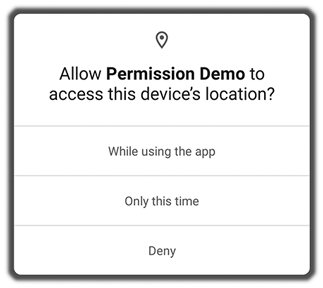
Android 11’s ‘‘only this once’’ prompt.
A transient permission grant is useful for permissions like location, where any time apps have access to it they have available a continuous stream of new personal data about the user, in this case where the user is located. (The same capability was at this time applied to two other permissions with similar semantics, access to the camera and microphone.) This addresses the situation where users feels like the app is asking for access to such data in a situation that makes sense now, but they do not think the app normally needs that access.
Note also another change to the location experience, where the option to give background access to location is completely gone. This happened because having more than three options results in an overly complicated experience for users trying to decide what they want, and the vast majority of applications do not need full background access since most such use cases are served better by foreground services.
For the rare cases where an app really could make use of full background location access, and the user can be convinced to allow this, the option still remains in the overall system settings for the app’s permissions, shown in Fig. 10-80. Here the user can see all of the possible options, including the option currently selected for the app (if any), and change the selection as desired.
Figure 10-80
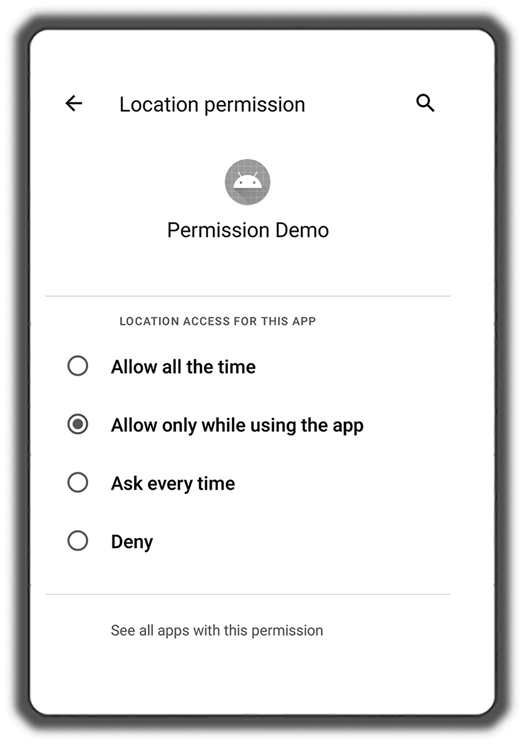
Android 11’s location permission settings.
Most recently, Android 12 further extends the options available to the user about location access by giving them the option to select between coarse vs. fine access as shown in Fig. 10-81. Note that these are essentially the same types of location access applications and the user could differentiate between back at the start in Android 1.0! They were hidden from the user, but were still options for the app, in Android 5.0. Android 12 again shows them explicitly to the user while also allowing them to override the app’s preference (if it is requesting fine access).
Figure 10-81
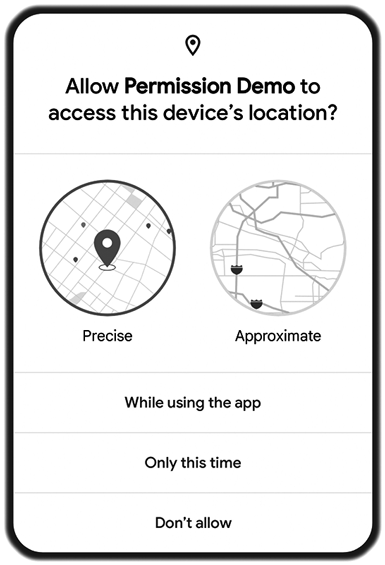
Android 12’s coarse vs. fine prompt.
Android 12 also introduced a new ‘‘privacy dashboard,’’ allowing users to see when apps are accessing their location and other personal data after they have granted that access. Fig. 10-82 shows an example of what a user may see about location access across their device. This provides a rich tool for users to monitor what their apps are doing, to reassure themselves they are comfortable with it and potentially change their decision about an app’s access based on what they see.
Figure 10-82
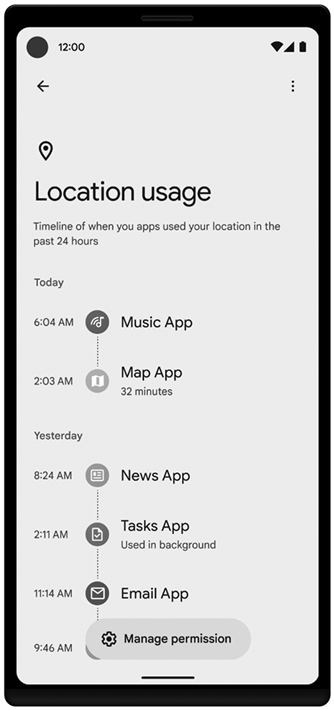
Android 12’s privacy dashboard showing ‘‘location’’ details.
The changes we have discussed (from the transition to runtime permissions, through evolution of location access, to privacy dashboard) all serve to illustrate how privacy has become a unique aspect of operating system design. Most operating system features are better the less the user is aware of them. This is true not only for security, as we previously described, but generally the better solution for a problem is one where the operating system can do something so that the user does not need to think about it. We saw another example of this earlier, with Android removing the need for users to think about explicitly starting and stopping their apps.
Privacy, in contrast, is a collaboration with the user, gaining their trust by clearly informing them of what is happening with their data and providing controls for them to express their preferences. It is hard for an operating system to do this automatically, not only because having this information and control is central to gaining trust, but also because there is no right set of answers for all users: if you survey users about their preferences for how their data is handled, some will care much less than others (caring more about features they get by providing their data), and some will have significantly stronger preferences for certain types of data compared to others with strong preferences for different data.
10.8.12 Background Execution and Social Engineering
One of Android’s initial design goals was to create an open mobile operating system, allowing regular app developers the flexibility to not only implement much of the same functionality as provided by its built-in applications, but also to create new kinds of applications not originally envisioned by the platform.
This design goal was expressed in the previously covered application model of activities, receivers, services, and content providers: a set of flexible basic building blocks applications use to express their needs to the operating system. Of special note is the service, a general mechanism for an app to express the need to do some work in the background even if the user is not currently running their app.
A service can represent a wide range of functionality, from various kinds of updating and syncing data in the background, to more explicitly user-controlled execution. For example, Android shipped with a music player that allowed the user to continue listening to music even while not in the application itself. Since this could be built with the basic service construct, from the first version of Android any regular application could implement that same functionality, and even use it for entirely new kinds of experiences such as driving navigation or exercise tracking.
Android’s flexibility in background execution was valuable, but also became an increasing challenge to manage, which this section will look at in more detail. But before doing that, let’s consider a simple case of foreground services.
A foreground service is a capability for a running service component to tell Android that it is especially important to the user. This gives the system an important distinction between more important and less important services, for things like memory management. Recall Fig. 10-63 showing different process importance categories. Whether a service is foreground or not determines whether its process is classified as perceptible or service. By being more important than regular services (but less important than the visible application), Android can correctly decide to get rid of processes for background services without breaking experiences like the user listening to music in the background.
In Android 1.0, a services was made foreground with a simple API that directly requested it, and the system trusted that apps used this for the intended purpose: something the user is aware of like background music playback. However, soon after 1.0 shipped, it was observed that applications would often use the API incorrectly, setting something to be foreground that was not really so important to the user. This behavior started to cause bad experiences for users, as the services they did care about would get killed due to services they did not.
The foreground service issue was addressed in Android 2.0 by requiring that, in order to make a service foreground, it also needs to have an ongoing notification associated with it. This tied the purpose of a foreground service (doing something the user is directly aware of) to something an app would only want to do in such a situation (inform the user about what it is doing in a very visible way). Playing music in the background, navigating with maps, tracking exercise—all of these things naturally involve displaying a notification so the user can easily see what is happening and control it, even when not in the app that is doing the operation.
Though the notification solution worked well in incentivizing developers to use foreground services for their intended purpose, over time a more general issue of apps running in the background became an growing problem for Android that needed to be further addressed. To understand why, let’s consider the way an operating system like Android deals with a limited resource such as battery power.
The battery of a mobile device is an important, limited resource. For each charge of the battery, you can get a fixed amount of work done. People expect their battery to last through a normal day without needing to be charged, so there is a fixed amount of work that a device can do each day. Ideally the battery only drains while its screen is on and in use, so there is a fairly clear amount of actual work you can use the device for each day. However, while the screen is off numerous things can also consume power, such as:
Keeping RAM refreshed so it retains its data.
Keeping CPUs asleep but ready to wake up when an external event happens.
Running the various radios: Cell, Wi-Fi, Bluetooth, etc.
Maintaining an active network connection to wake up when important events happen, such as receiving an instant message that should notify the user.
Apps doing work users may care about: syncing email (and possibly notifying of a new message arriving), updating current weather information for them to see next time they check their device, syncing news to show them current headlines next time they look, etc.
The more power consumed while not in use, the more the user’s experience degrades due to there being less time she can actually use her device qon a single charge during the day. Most of the above items simply must be done to keep the device functional, but the last point is more complicated: these are not necessary, and though they do create a better experience individually, this comes at the price of a worse overall battery life experience.
Consider a single app developer whose app lets you see news stories. It is important for people using the app to see the current news, possibly even for them to get notifications about recent news of interest, so the developer decides to refresh its news from the network even when the app is not directly in use. Of course the developer understands that just keeping the app running all of the time to constantly retrieve news is not good for the user, so a decision is made to do this only, say, twice an hour, to avoid draining the battery.
An app like this, doing some background work twice an hour, probably by itself has a good balance between experience in the app vs. overall battery life. However, now take 20 apps making this same trade-off and install them on a device: there is something wanting to do work in the background every 1.5 minutes! This will notably consume the device’s limited available battery power, and thus how much it can be used during the day.
This problem is an illustration of the economic science concept of the tragedy of the commons. This is a situation where, when there are individual users of a shared resource, making their own individual rational decision about how to use that resource, together those decisions can result in over-consumption of the resource that results in harm to all of them beyond the individual benefits any each user gains. None of the individuals need be malicious in any way for this to happen. The original example of the tragedy of the commons is a public pasture for grazing sheep. It is in the interest of each farmer to have as many sheep as possible, but this may result in so many sheep that the pasture is overgrazed and all the sheep starve.
Android’s approach of providing generic flexible building blocks for apps is a recipe for these kinds of tragedy of the commons issues. This design was important early on for Android to allow significant innovation on top of the platform in ways it could not anticipate. However, it also relies significantly on applications making good global decisions about their behavior. In particular, when an application asks to start a service, the platform must generally respect that (as much as it can) and allow the service to run, doing whatever it decides to do, until the app says it is done.
The most obvious problem this allows, however, is for apps that are poorly designed or buggy to rapidly drain the battery: starting a service for a long time, sitting there holding a wake lock keeping the device running, doing significant work on the CPU that uses power. Android 2.3 included the first major step in addressing background app battery use, shown in Fig. 10-83, which presents to the user how much the battery has drained and approximations for how much apps and other things on the device are responsible for that drain.
Figure 10-83
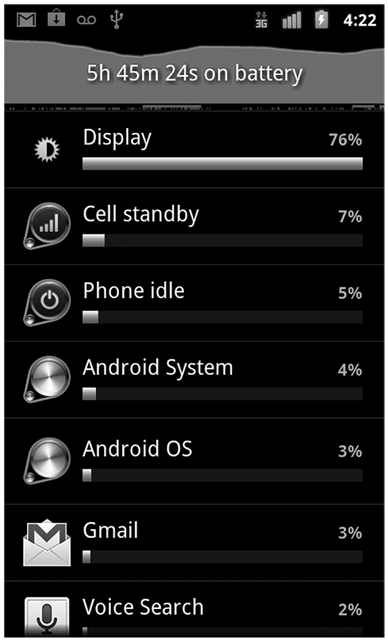
Android’s early battery use screen.
Viewing OS resource management as an economic/social problem, we have now seen two general strategies for addressing them. Tying foreground services to notifications is an example of creating incentives that achieve the desired outcome: in this case a strong disincentive to abuse foreground services, because the associated notification will annoy people and give them a negative impression of the app. The battery usage display is an example of creating accountability: making visible the things applications are doing that can have significant impact on the device, so they can be held accountable for bad behavior and allow the user to take action based on that.
Neither of these approaches helps address the tragedy of the commons problem, where many reasonably behaving apps together consume too much power. It is difficult to find incentives that would significantly change the decisions those apps make (or even clearly say what the right decision is for each app), and accountability from battery usage data would simply show a large number of apps each individually using a small amount of the overall power. This was not initially a significant issue for Android, but as time went on, and devices had increasing numbers of apps installed on them, and those apps grew increasing amounts of functionality, it needed to be addressed.
Android 5.0 made the first major step at addressing cross-app power consumption problems with the introduction of the JobScheduler API. This provides a new specialized kind of service, one the app does not explicitly start or bind to, but instead tells the platform information about when it should run, such as whether it needs network access, how frequently it should run, etc. Android then decides when to run the service and for how long.
JobScheduler gave Android the ability to look at the background work desires across all of the applications on a device and make scheduling decisions to balance how much work each app can do vs. their overall impact on battery life. For example, if Android determines that a particular app has not been used recently, it can significantly reduce how much work that app can do in the background in favor of other apps that are apparently more important to the user.
For JobScheduler to actually have an impact, however, apps need to use it; yet on its own, there is little incentive for them to do so. It did not replace the underlying flexible service mechanism, which apps were already using, were often easier to use (in a more simplistic way than jobs), and allowed them total flexibility to do the scheduling they wanted. Further changes were needed to change this situation.
Android 6.0 took the next step in taking more control over background execution by introducing ‘‘doze mode.’’ The idea here was to identify one specific use case where battery life is a clear problem, and thus where strong restrictions could be applied by the platform to get significant gains. The target use case here was tablets that are not used for days: if the user leaves their tablet sitting on a shelf for a day, it is a terrible experience to come back to it with the battery empty. There is also no reason for users to have that experience, because they generally do not care about the tablet doing much of anything in the background during that time.
Doze addressed these long periods by defining it as a clear state the device can identify itself as being in, and stop all background work it can. Going into this state happens when the screen has been off for more than an hour and the device has not been moving. At that point, numerous restrictions are placed on the device: apps do not have network access and cannot hold wakelocks (so even if they have a running service they cannot keep the device consuming power), as well as other limitations such as turning off Wi-Fi and Bluetooth scans, limiting and throttling alarms, etc.
A device comes out of doze when the screen is turned back on or it is moved significantly (and thus needs to do scans and other things to collect new location-related information). The latter is accomplished by a special feature in the sensor system called a ‘‘significant motion detector’’ that allows the main CPU to go to sleep but wake up if the detector triggers.
While in doze, there is still a need to keep some limited background work happening. For example, an incoming instant message should still trigger a notification on the device, and important background operations should still be able to run for some amount. These needs are addressed through two mechanisms:
Android always maintains a connection to a server that tells it about important real-time events it should deal with, such as incoming instant messages or changes in calendar events. These are normally not delivered during doze, but a special high priority message allows these critical events to briefly wake up the device and handle them without impacting the overall doze state.
-
While in doze, the system will go into short maintenance windows, shown in Fig. 10-84, where most doze restrictions are released; this allows some continued operation of things like background syncing of email, refreshing news, etc.
Figure 10-84
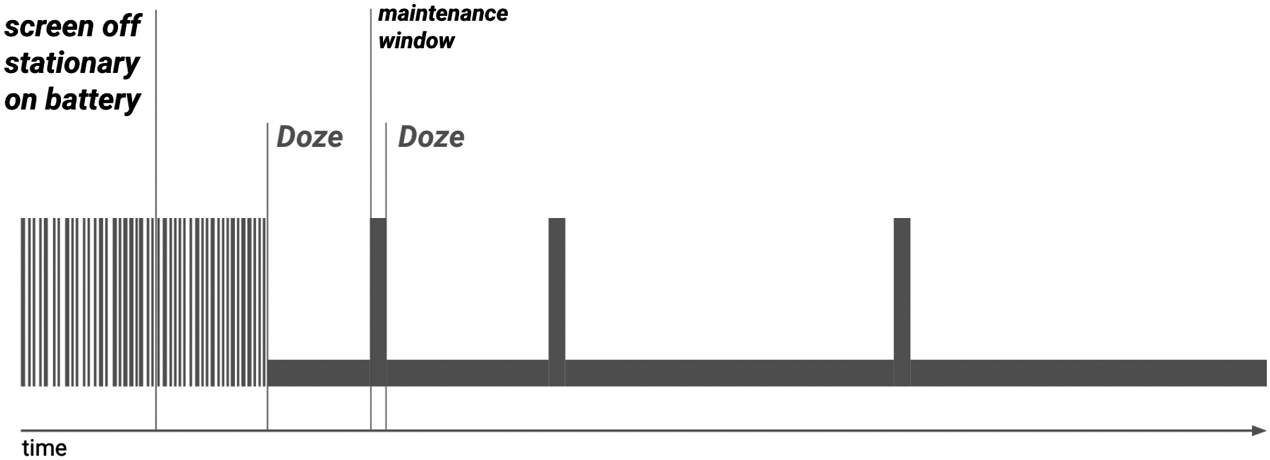
Doze and maintenance windows.
Apps can coordinate their work with doze maintenance windows through the previously mentioned JobScheduler. During doze, jobs are not scheduled, and the maintenance window is primarily a period when important pending jobs will be run by the system. This is the first significant incentive Android introduced for apps to switch from raw services to jobs, since services cannot as easily coordinate the work they are doing with the inability to access the network or hold wake locks during doze.
Android 7.0 created a new doze mode called ‘‘doze light.’’ This applies many of the background restriction benefits of doze to most cases when a device’s screen is off, even when it is being moved around. After the screen is off for a short period (around 15 minutes), doze light will kick in and apply the same network and wake lock restrictions as regular doze. Maintenance windows also exist in this mode, although they are much briefer in both duration and period between them. Since the device is allowed to be moving around in this mode, lower-level work like Wi-Fi and Bluetooth scans must be allowed to run.
Unfortunately, doze did not create sufficient incentives for apps to switch to JobScheduler (or at least to do this quickly), so Android 8.0 took a stronger approach with the creation of background execution restrictions. This applied a hard rule that most applications simply could no longer freely use plain services for background work, and now had to use JobScheduler. (At the same time, a new more explicit exception was created for purely foreground services in order to continue supporting their use cases.)
There is a mechanism for apps to remove background restrictions from themselves, through the explicit user interface mechanism previously discussed on the topic of permissions. This requires the user to make a deliberate decision to give up their device’s battery life to the app, which is a fairly high bar for most users; the result was sufficient pressure to drive most apps to finally move to JobScheduler instead.
Android 10 included a new restriction on activity launches. Prior to this release, an application in the background could freely launch an activity into the foreground. A number of use cases that needed this capability (such as incoming calls and alarm clocks) now had other facilities for getting the user’s attention, and this capability was increasingly abused by malware. Disallowing background launches was done primarily to address the malware issue, but also closed a door apps had to get away from Android’s background execution control: if they happened to be able to run a little bit in the background (such as receiving a broadcast), they could launch one of their activities to bring their app back to the foreground and escape any current background restrictions.
The changes up to Android 8, and to some degree the activity launch restrictions in Android 10, put the system in a much better position to manage the battery and ensure that users have a good experience. The state of things looked good for a few years, until a new issue started appearing: foreground services.
Recall that a foreground service is a special state for a service, marking it as important to the user. This state means that background restrictions and doze can not be applied to its app, for example, a foreground service being used to play music needs to run indefinitely, be able to keep the device awake, and have network access in case it is streaming audio from a server.
When background execution restrictions were implemented, an additional special carve-out needed to be created for foreground services. There are important cases where an app in the background will need to start a foreground service, such as starting their music playback in response to a media button being pressed while the app is not in the foreground. This has the same result as launching activities in the background, allowing them to escape background execution restrictions.
At this point, the original incentive to use foreground services for their intended purpose (doing something the user directly cares about), by requiring a notification, had broken down. Two major changes caused this. First, the increasing restrictions on background execution removed the alternative developers had of just using a regular service. Second, changes to the notification system had made app abuse of notifications less of a problem for them: originally, if the user was unhappy with a notification, their only option was to turn off all of the app’s notifications. This prevented the app from getting the user’s attention anywhere, since it could no longer post any notifications. Recent changes In Android allowed users to have finer control over notifications, so they could easily just hide the one for the foreground service without impacting other notifications.
Android 12 finally took on this problem by restricting foreground services. Much like the restriction on launching activities, applications could no longer start foreground services whenever they wanted. Instead, foreground services could now only be started when the app was in a state where it was considered okay to do so, such as any time the app itself was already in the foreground for another reason, or it was executing in response to something that could be related to a user intent (such as responding to the aforementioned media button event).
This leaves us at the state of background execution in Android, circa 2021. Android will, however, continue to evolve; not only to continue to optimize the battery life it can provide, but also as it has to address the changing behavior of its application ecosystem and expectations of its users.