4.2 Directories
To keep track of files, file systems normally have directories or folders, which are themselves files. In this section, we will discuss directories, their organization, their properties, and the operations that can be performed on them.
4.2.1 Single-Level Directory Systems
The simplest form of directory system is having one directory containing all the files. Sometimes it is called the root directory, but since it is the only one, the name does not matter much. On the first personal computers, this system was common, in part because there was only one user. Interestingly enough, the world’s first supercomputer, the CDC 6600, also had only a single directory for all files, even though it was used by many users at once. This decision was no doubt made to keep the software design simple.
An example of a system with one directory is given in Fig. 4-7. Here the directory contains four files. The advantages of this scheme are its simplicity and the ability to locate files quickly—there is only one place to look, after all. It is sometimes still used on simple embedded devices such as digital cameras and some portable music players.
Figure 4-7
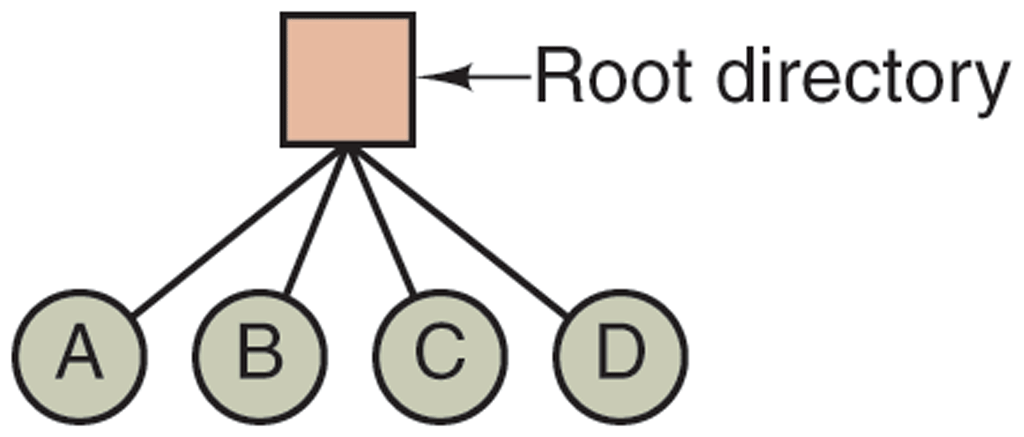
A single-level directory system containing four files.
Biologist Ernst Haeckel once said ‘‘ontogeny recapitulates phylogeny.’’ It’s not entirely accurate, but there is a grain of truth in it. Something analogous happens in the computer world. Some concept was in vogue on, say, mainframe computers, then discarded as they got more powerful, but picked up later on minicomputers. Then it was discarded there and later picked up on personal computers. Then it was discarded there and later picked up further down the food chain.
So we frequently see concepts (like having one directory for all files) no longer used on powerful computers, but now being used on simple embedded devices like digital cameras and portable music players. For this reason through this chapter (and, indeed, the entire book), we will often discuss ideas that were once popular on mainframes, minicomputers, or personal computers, but have since been discarded. Not only is this a good historical lesson, but often these ideas make perfect sense on yet lower-end devices. The chip on your credit card really does not need the full-blown hierarchical directory system we are about to explore. The simple file system used on the CDC 6600 supercomputer in the 1960s will do just fine, thank you. So when you read about some old concept here, do not think ‘‘how oldfashioned.’’ Think: Would that work on an RFID (Radio Frequency IDentification) chip? that costs 5 cents and is used on a public-transit payment card? It just might.
4.2.2 Hierarchical Directory Systems
The single level is adequate for very simple dedicated applications (and was even used on the first personal computers), but for modern users with thousands of files, it would be impossible to find anything if all files were in a single directory. Consequently, a way is needed to group related files together. A professor, for example, might have a collection of files that together form a book that she is writing, a second collection containing student programs submitted for another course, a third group containing the code of an advanced compiler-writing system she is building, a fourth group containing grant proposals, as well as other files for electronic mail, minutes of meetings, papers she is writing, games, and so on.
What is needed is a hierarchy (i.e., a tree of directories). With this approach, there can be as many directories as are needed to group the files in natural ways. Furthermore, if multiple users share a common file server, as is the case on many company networks, each user can have a private root directory for his or her own hierarchy. This approach is shown in Fig. 4-8. Here, the directories A, B, and C contained in the root directory each belong to a different user, two of whom have created subdirectories for projects they are working on.
Figure 4-8
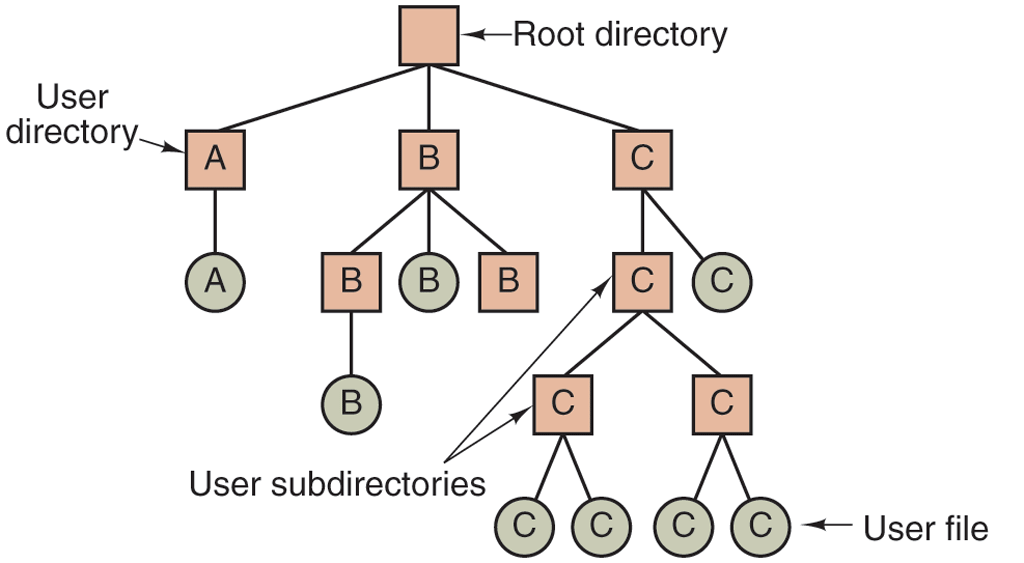
A hierarchical directory system.
The ability for users to create an arbitrary number of subdirectories provides a powerful structuring tool for users to organize their work. For this reason, all modern file systems are organized in this manner. It is worth noting that an hierarchical file system is one of many things that was pioneered by Multics in the 1960s.
4.2.3 Path Names
When the file system is organized as a directory tree, some way is needed for specifying file names. Two different methods are commonly used. In the first method, each file is given an absolute path name consisting of the path from the root directory to the file. As an example, the path /usr/ast/mailbox means that the root directory contains a subdirectory usr, which in turn contains a subdirectory ast, which contains the file mailbox. Absolute path names always start at the root directory and are unique. In UNIX the components of the path are separated by /. In Windows the separator is \. In MULTICS it was Thus, the same path name would be written as follows in these three systems:
Windows \usr\ast\mailboxUNIX /usr/ast/mailboxMULTICS >usr>ast>mailbox
No matter which character is used, if the first character of the path name is the separator, then the path is absolute.
The other kind of name is the relative path name. This is used in conjunction with the concept of the working directory (also called the current directory). A user can designate one directory as the current working directory, in which case all path names not beginning at the root directory are taken relative to the working directory. For example, if the current working directory is /usr/hjb, then the file whose absolute path is /usr/hjb/mailbox can be referenced simply as mailbox. In other words, the UNIX command
cp /usr/hjb/mailbox /usr/hjb/mailbox.bakand the command
cp mailbox mailbox.bakdo exactly the same thing if the working directory is /usr/hjb. The relative form is often more convenient, but it does the same thing as the absolute form.
Some programs need to access a specific file without regard to what the working directory is. In that case, they should always use absolute path names. For example, a spelling checker might need to read /usr/lib/dictionary to do its work. It should use the full, absolute path name in this case because it does not know what the working directory will be when it is called. The absolute path name will always work, no matter what the working directory is.
Of course, if the spelling checker needs a large number of files from /usr/lib, an alternative approach is for it to issue a system call to change its working directory to /usr/lib, and then use just dictionary as the first parameter to open. By explicitly changing the working directory, it knows for sure where it is in the directory tree, so it can then use relative paths.
Each process has its own working directory. When it changes its working directory and later exits, no other processes are affected and no traces of the change are left behind. In this way, a process can change its working directory whenever it is convenient. On the other hand, if a library procedure changes the working directory and does not change back to where it was when it is finished, the rest of the program may not work since its assumption about where it is may now suddenly be invalid. For this reason, library procedures rarely change the working directory, and when they must, they always change it back again before returning.
Most operating systems that support a hierarchical directory system have two special entries in every directory, ‘‘.’’ and ‘‘..’’, generally pronounced ‘‘dot’’ and ‘‘dotdot.’’ Dot refers to the current directory; dotdot refers to its parent (except in the root directory, where it refers to itself). To see how these are used, consider the UNIX file tree of Fig. 4-9. A certain process has /usr/ast as its working directory. It can use .. to go higher up the tree. For example, it can copy the file /usr/lib/dictionary to its own directory using the command
Figure 4-9
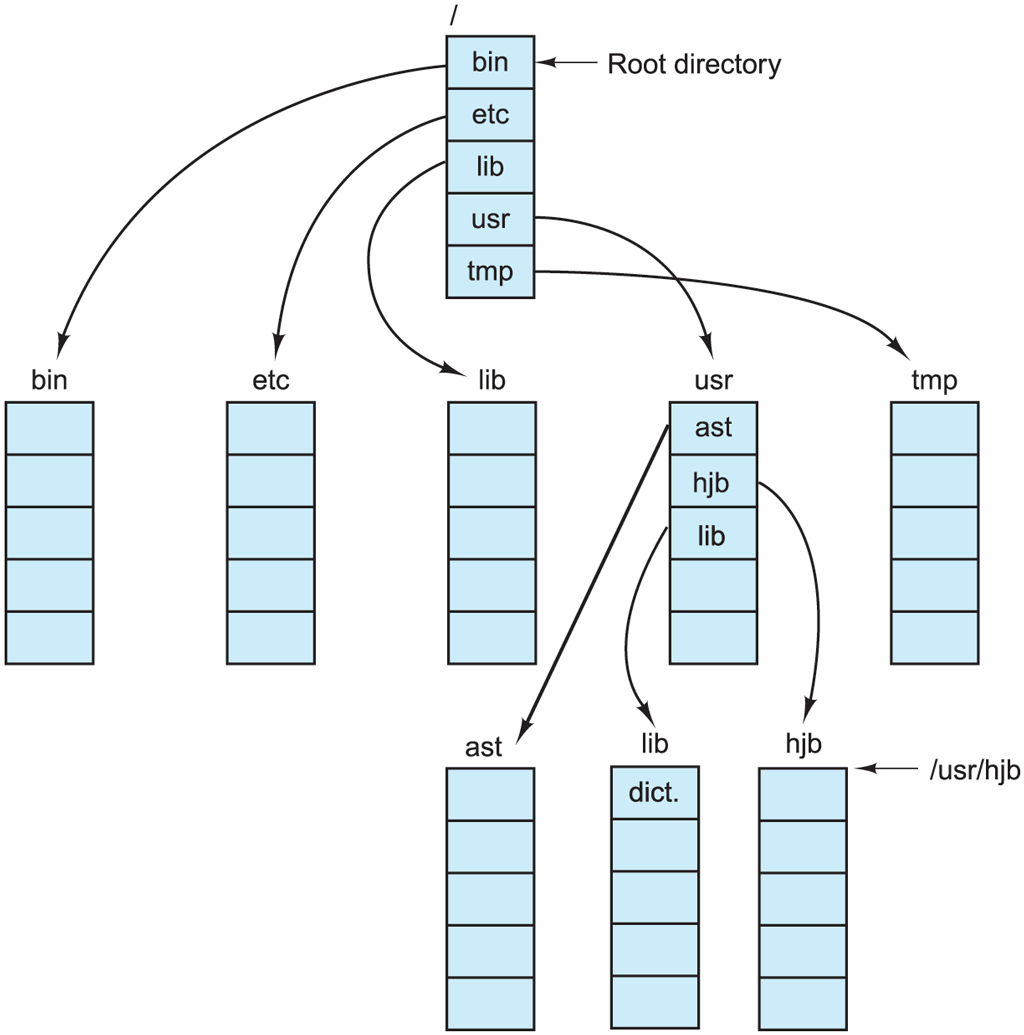
A UNIX directory tree.
cp ../lib/dictionary .The first path instructs the system to go upward (to the usr directory), then to go down to the directory lib to find the file dictionary.
The second argument (dot) names the current directory. When the cp command gets a directory name (including dot) as its last argument, it copies all the files to that directory. Of course, a more normal way to do the copy would be to use the full absolute path name of the source file:
cp /usr/lib/dictionary .Here the use of dot saves the user the trouble of typing dictionary a second time. Nevertheless, typing
cp /usr/lib/dictionary dictionaryalso works fine, as does
cp /usr/lib/dictionary /usr/ast/dictionaryAll of these do exactly the same thing.
4.2.4 Directory Operations
The allowed system calls for managing directories exhibit more variation from system to system than system calls for files. To give an impression of what they are and how they work, we will give a sample (taken from UNIX).
Create. A directory is created. It is empty except for dot and dotdot, which are put there automatically by the mkdir program.Delete. A directory is deleted. Only an empty directory can be deleted. A directorycontainingonly dot and dotdot is considered empty as these cannot be deleted.Opendir. Directories can be read. For example, to list all the files in a directory, a listing program opens the directory to read out the names of all the files it contains. Before a directory can be read, it must be opened, analogous to opening and reading a file.Closedir. When a directory has been read, it should be closed to free up internal table space.Readdir. This call returns the next entry in an open directory. Formerly, it was possible to read directories using the usualreadsystem call, but that approach has the disadvantage of forcing the programmer to know and deal with the internal structure of directories. In contrast,readdiralways returns one entry in a standard format, no matter which of the possible directory structures is being used.Rename. In many respects, directories are just like files and can be renamed the same way files can be.Link. Linking is a technique that allows a file to appear in more than one directory. This system call specifies an existing file and a path name, and creates a link from the existing file to the name specified by the path. In this way, the same file may appear in multiple directories. A link of this kind, which increments the counter in the file’s i-node (to keep track of the number of directory entries containing the file), is sometimes called a hard link.Unlink. A directory entry is removed. If the file being unlinked is only present in one directory (the normal case), it is removed from the file system. If it is present in multiple directories, only the path name specified is removed. The others remain. In UNIX, the system call for deleting files (discussed earlier) is, in fact,unlink.
The above list gives the most important calls, but there are a few others as well, for example, for managing the protection information associated with a directory.
A variant on the idea of linking files is the symbolic link (sometimes called a shortcut or alias). Instead, of having two names point to the same internal data structure representing a file, a name can be created that points to a tiny file naming another file. When the first file is used, for example, opened, the file system follows the path and finds the name at the end. Then it starts the lookup process all over using the new name. Symbolic links have the advantage that they can cross disk boundaries and even name files on remote computers. Their implementation is somewhat less efficient than hard links though.