4.1 Files
In the following pages, we will look at files from the user’s point of view, that is, how they are used and what properties they have.
4.1.1 File Naming
A file is an abstraction mechanism. It provides a way to store information on the disk and read it back later. This must be done in a way that shields the user from the details of how and where the information is stored, and how the disks actually work.
Probably the most important characteristic of any abstraction mechanism is the way the objects being managed are named, so we will start our examination of file systems with the subject of file naming. When a process creates a file, it gives the file a name. When the process terminates, the file continues to exist and can be accessed by other processes using its name.
The exact rules for file naming vary somewhat from system to system, but all current operating systems allow strings of letters as legal file names. Thus andrea, bruce, and cathy are possible file names. Frequently digits and special characters are also permitted, so names like 2, urgent!, and Fig. 2-14 are often valid as well. Some older file systems, such as the one that was used in MS-DOS in a century long ago, limit file names to eight letters maximum, but most modern systems support file names of up to 255 characters or more.
Some file systems distinguish between upper- and lowercase letters, whereas others do not. UNIX falls in the first category; the old MS-DOS falls in the second. Thus, a UNIX system can have all of the following as three distinct files: maria, Maria, and MARIA. In MS-DOS, all these names refer to the same file.
An aside on file systems is probably in order here. Older versions of Windows (such as Windows 95 and Windows 98) used the MS-DOS file system, called FAT-16, and thus inherited many of its properties, such as how file names are constructed. Admittedly, Windows 98 introduced some extensions to FAT-16, leading to FAT-32, but these two are quite similar. Modern versions of Windows all still support the FAT file systems, even though they also have a much more advanced native file system (NTFS) that has different properties (such as file names in Unicode). We will discuss NTFS in Chapter 11. There is also a second file system for Windows, known as ReFS (Resilient File System), but that one is targeted at the server version of Windows. In this chapter, when we refer to the MS-DOS or FAT file systems, we mean FAT-16 and FAT-32 as used on Windows unless specified otherwise. We will discuss the FAT file systems later in this chapter and NTFS in Chapter 12, where we will examine Windows 10 in detail. Incidentally, there is also an even newer FAT-like file system, known as exFAT file system, a Microsoft extension to FAT-32 that is optimized for flash drives and large file systems.
Many operating systems support two-part file names, with the two parts separated by a period, as in prog.c. The part following the period is called the file extension and usually indicates something about the file. In MS-DOS, for example, file names were 1–8 characters, plus an optional extension of 1–3 characters. In UNIX, the size of the extension, if any, is up to the user, and a file may even have two or more extensions, as in homepage.html.zip, where .html indicates a Web page in HTML and .zip indicates that the file (homepage.html) has been compressed using the zip program. Some of the more common file extensions and their meanings are shown in Fig. 4-1.
Figure 4-1
| Extension | Meaning |
|---|---|
| .bak | Backup file |
| .c | C source program |
| .gif | Compuserve Graphical Interchange Format image |
| .html | World Wide Web HyperText Markup Language document |
| .jpg | Still picture encoded with the JPEG standard |
| .mp3 | Music encoded in MPEG layer 3 audio format |
| .mpg | Movie encoded with the MPEG standard |
| .o | Object file (compiler output, not yet linked) |
| Portable Document Format file | |
| .ps | PostScript file |
| .tex | Input for the TEX formatting program |
| .txt | General text file |
| .zip | Compressed archive |
Some typical file extensions.
In some systems (e.g., all flavors of UNIX), file extensions are just conventions and are not enforced by the operating system. A file named file.txt might be some kind of text file, but that name is more to remind the owner than to convey any actual information to the computer. On the other hand, a C compiler may actually insist that files it is to compile end in .c, and it may refuse to compile them if they do not. However, the operating system does not care.
Conventions like this are especially useful when the same program can handle several different kinds of files. The C compiler, for example, can be given a list of several files to compile and link together, some of them C files and some of them assembly-language files. The extension then becomes essential for the compiler to tell which are C files, which are assembly files, and which are other files.
In contrast, Windows is aware of the extensions and assigns meaning to them. Users (or processes) can register extensions with the operating system and specify for each one which program ‘‘owns’’ that extension. When a user double clicks on a file name, the program assigned to its file extension is launched with the file as parameter. For example, double clicking on file.docx starts Microsoft Word with file.docx as the initial file to edit. In contrast, Photoshop will not open file ending in .docx, no matter how often or hard you click on the file name, because it knows that .docx files are not image files.
4.1.2 File Structure
Files can be structured in any of several ways. Three common possibilities are depicted in Fig. 4-2. The file in Fig. 4-2(a) is an unstructured sequence of bytes. In effect, the operating system does not know or care what is in the file. All it sees are bytes. Any meaning must be imposed by user-level programs. Both UNIX and Windows use this approach.
Figure 4-2
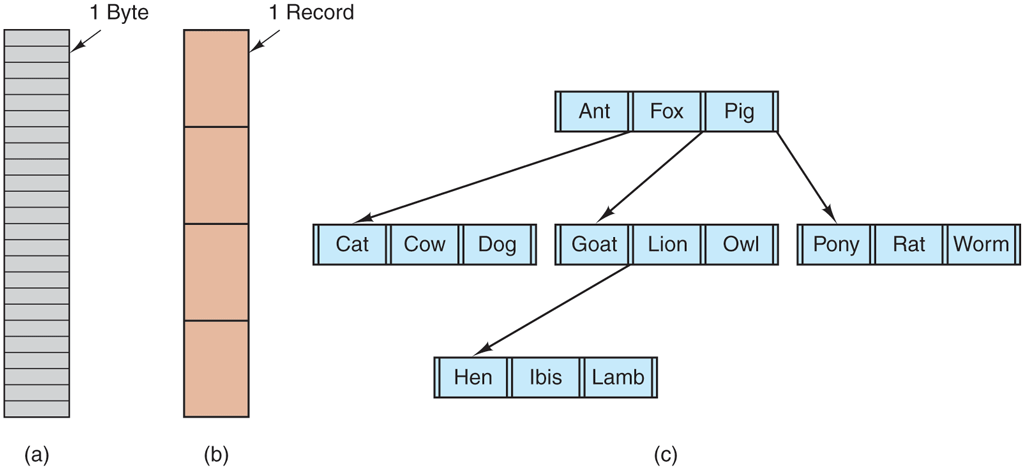
Three kinds of files. (a) Byte sequence. (b) Record sequence. (c) Tree.
Having the operating system regard files as nothing more than byte sequences provides the maximum amount of flexibility. User programs can put anything they want in their files and name them any way that they find convenient. The operating system does not help, but it also does not get in the way. For users who want to do unusual things, the latter can be very important. All versions of UNIX (including Linux and MacOS) as well as Windows use this file model. It is worth noting that in this chapter when we talk about UNIX the text usually applies MacOS (which was based on Berkeley UNIX) and Linux (which was carefully designed to be compatible with UNIX).
The first step up in structure is illustrated in Fig. 4-2(b). In this model, a file is a sequence of fixed-length records, each with some internal structure. Central to the idea of a file being a sequence of records is the idea that the read operation returns one record and the write operation overwrites or appends one record. As a historical note, in decades gone by, when the 80-column punched card was pretty much the only input medium available, many (mainframe) operating systems based their file systems on files consisting of 80-character records, in effect, card images. These systems also supported files of 132-character records, which were intended for the line printer (which in those days were big chain printers having 132 columns). Programs read input in units of 80 characters and wrote it in units of 132 characters, although the final 52 could be spaces, of course. No current general- purpose system uses this model as its primary file system any more, but back in the days of 80-column punched cards and 132-character line printer paper, this was a common model on mainframe computers.
The third kind of file structure is shown in Fig. 4-2(c). In this organization, a file consists of a tree of records, not necessarily all the same length, each containing a key field in a fixed position in the record. The tree is sorted on the key field, to allow rapid searching for a particular key.
The basic operation here is not to get the ‘‘next’’ record, although that is also possible, but to get the record with a specific key. For the zoo file of Fig. 4-2(c), one could ask the system to get the record whose key is pony, for example, without worrying about its exact position in the file. Furthermore, new records can be added to the file, with the operating system, and not the user, deciding where to place them. This type of file is clearly quite different from the unstructured byte streams used in UNIX and Windows and is used on some large mainframe computers for commercial data processing.
4.1.3 File Types
Many operating systems support several types of files. UNIX (again, including MacOS and Linux) and Windows, for example, have regular files and directories. UNIX also has character and block special files. Regular files are the ones that contain user information. All the files of Fig. 4-2 are regular files since these are the files most users deal with. Directories are system files for maintaining the structure of the file system. We will study directories below. Character special files are related to input/output and used to model serial I/O devices, such as terminals, printers, and networks. Block special files are used to model disks. In this chapter, we will be primarily interested in regular files.
Regular files are generally either ASCII files or binary files. ASCII files consist of lines of text. In some systems, each line is terminated by a carriage return character. In others, the line feed character is used. Some systems (e.g., Windows) use both. Lines need not all be of the same length.
The great advantage of ASCII files is that they can be displayed and printed as is, and they can be edited with any text editor. Furthermore, if large numbers of programs use ASCII files for input and output, it is easy to connect the output of one program to the input of another, as in shell pipelines. (The interprocess plumbing is not any easier, but interpreting the information certainly is if a standard convention, such as ASCII, is used for expressing it.)
Other files are binary, which just means that they are not ASCII files. Listing them on the printer gives an incomprehensible listing full of random junk. Usually, they have some internal structure known to programs that use them.
For example, in Fig. 4-3(a) we see a simple executable binary file taken from an early version of UNIX. Although technically the file is just a sequence of bytes, the operating system will execute a file only if it has the proper format. It has five sections: header, text, data, relocation bits, and symbol table. The header starts with a magic number, identifying the file as an executable file (to prevent the accidental execution of a file not in this format). Then come the sizes of the various pieces of the file, the address at which execution starts, and some flag bits. After the header are the text and data of the program itself. These are loaded into memory and relocated using the relocation bits. The symbol table is for debugging.
Figure 4-3
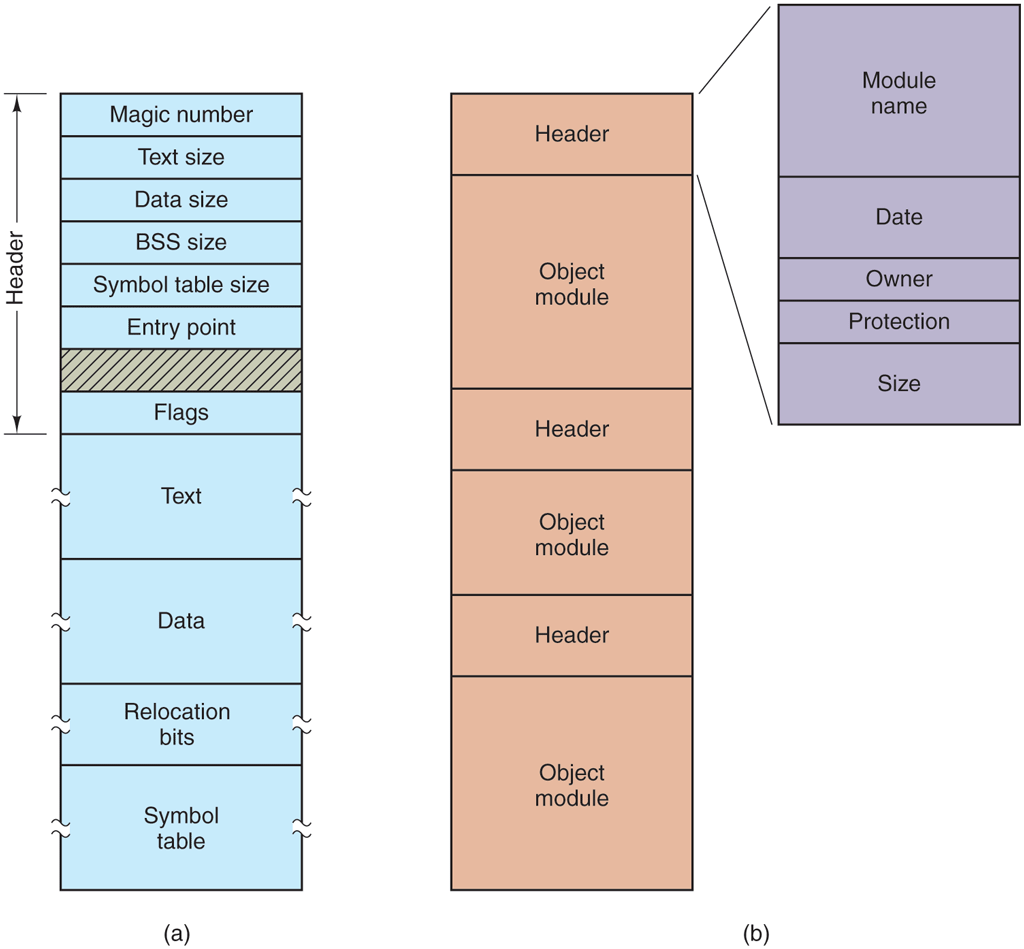
(a) An executable file. (b) An archive.
Our second example of a binary file is an archive, also from UNIX. It consists of a collection of library procedures (modules) compiled but not linked. Each one is prefaced by a header telling its name, creation date, owner, protection code, and size. Just as with the executable file, the module headers are full of binary numbers. Copying them to the printer would produce complete gibberish.
Every operating system must recognize at least one file type: its own executable file; some recognize more. The old TOPS-20 system (for the DECsystem20) went so far as to examine the creation time of any file to be executed. Then it located the source file and saw whether the source had been modified since the binary was made. If it had been, it automatically recompiled the source. In UNIX terms, the make program had been built into the shell. The file extensions were mandatory, so it could tell which binary program was derived from which source.
Having strongly typed files like this causes problems whenever the user does anything that the system designers did not expect. Consider, as an example, a system in which program output files have extension .dat (data files). If a user writes a program formatter that reads a .c file (C program), transforms it (e.g., by converting it to a standard indentation layout), and then writes the transformed file as output, the output file will be of type .dat. If the user tries to offer this to the C compiler to compile it, the system will refuse because it has the wrong extension. Attempts to copy file.dat to file.c will be rejected by the system as invalid (to protect the user against mistakes).
While this kind of ‘‘user friendliness’’ may help novices, it drives experienced users up the wall since they have to devote considerable effort to circumventing the operating system’s idea of what is reasonable and what is not.
Most operating systems offer a slew of tools to examine files. For instance, on UNIX you can use the file utility to examine the type of files. It uses heuristics to determine that something is a text file, a directory, an executable, etc. Examples of its use can be found in Fig. 4-4.
Figure 4-4
| Command | Result |
|---|---|
| file README.txt | UTF-8 Unicode text |
| file hjb.sh | POSIX shell script, ASCII text executable |
| file Makefile | makefile script, ASCII text |
| file /usr/bin/less | symbolic link to /bin/less |
| file /bin/ | directory |
| file /bin/less | ELF 64-bit LSB shared object, x86-64 [...more information...] |
Finding out file types.
4.1.4 File Access
Early operating systems provided only one kind of file access: sequential access. In these systems, a process could read all the bytes or records in a file in order, starting at the beginning, but could not skip around and read them out of order. Sequential files could be rewound, however, so they could be read as often as needed. Sequential files were convenient when the storage medium was magnetic tape rather than disk.
When disks came into use for storing files, it became possible to read the bytes or records of a file out of order, or to access records by key rather than by position. Files whose bytes or records can be read in any order are called random-access files. They are required by many applications.
Random access files are essential for many applications, for example, database systems. If an airline customer calls up and wants to reserve a seat on a particular flight, the reservation program must be able to access the record for that flight without having to read the records for thousands of other flights first.
Two methods can be used for specifying where to start reading. In the first one, every read operation gives the position in the file to start reading at. In the second one, a special operation, seek, is provided to set the current position. After a seek, the file can be read sequentially from the now-current position. The latter method is used in UNIX and Windows.
4.1.5 File Attributes
Every file has a name and its data. In addition, all operating systems associate other information with each file, for example, the date and time the file was last modified and the file’s size. We will call these extra items the file’s attributes. Some people call them metadata. The list of attributes varies considerably from system to system. The table of Fig. 4-5 shows some of the possibilities, but other ones also exist. No existing system has all of these, but each one is present in some system.
Figure 4-5
| Attribute | Meaning |
|---|---|
| Protection | Who can access the file and in what way |
| Password | Password needed to access the file |
| Creator | ID of the person who created the file |
| Owner | Current owner |
| Read-only flag | 0 for read/write; 1 for read only |
| Hidden flag | 0 for normal; 1 for do not display in listings |
| System flag | 0 for normal files; 1 for system file |
| Archive flag | 0 for has been backed up; 1 for needs to be backed up |
| ASCII/binary flag | 0 for ASCII file; 1 for binary file |
| Random access flag | 0 for sequential access only; 1 for random access |
| Temporary flag | 0 for normal; 1 for delete file on process exit |
| Lock flags | 0 for unlocked; nonzero for locked |
| Record length | Number of bytes in a record |
| Key position | Offset of the key within each record |
| Key length | Number of bytes in the key field |
| Creation time | Date and time the file was created |
| Time of last access | Date and time the file was last accessed |
| Time of last change | Date and time the file was last changed |
| Current size | Number of bytes in the file |
| Maximum size | Number of bytes the file may grow to |
Some possible file attributes.
The first four attributes relate to the file’s protection and tell who may access it and who may not. All kinds of schemes are possible, some of which we will study later. In some systems the user must present a password to access a file, in which case the password must be one of the attributes.
The flags are bits or short fields that control or enable some specific property. Hidden files, for example, do not appear in listings of all the files. The archive flag is a bit that keeps track of whether the file has been backed up recently. The backup program clears it, and the operating system sets it whenever a file is changed. In this way, the backup program can tell which files need backing up. The temporary flag allows a file to be marked for automatic deletion when the process that created it terminates.
The record-length, key-position, and key-length fields are only present in files whose records can be looked up using a key. They provide the information required to find the keys.
The times keep track of when the file was created, most recently accessed, and most recently modified. These are useful for a variety of purposes. For example, a source file that has been modified after the creation of the corresponding object file needs to be recompiled. These fields provide the necessary information.
The current size tells how big the file is at present. Some old mainframe operating systems required the maximum size to be specified when the file was created, in order to let the operating system reserve the maximum amount of storage in advance. Personal-computer operating systems are thankfully clever enough to do without this feature nowadays.
4.1.6 File Operations
Files exist to store information and allow it to be retrieved later. Different systems provide different operations to allow storage and retrieval. Below is a discussion of the most common system calls relating to files.
Create. The file is created with no data. The purpose of the call is to announce that the file is coming and to set some of the attributes.Delete. When the file is no longer needed, it has to be deleted to free up disk space. There is always a system call for this purpose.Open. Before using a file, a process must open it. The purpose of theopencall is to allow the system to fetch the attributes and list of disk addresses into main memory for rapid access on later calls.Close. When all the accesses are finished, the attributes and disk addresses are no longer needed, so the file should be closed to free up internal table space. Many systems encourage this by imposing a maximum number of open files on processes. A disk is written in blocks, and closing a file forces writing of the file’s last block, even though that block may not be entirely full yet.read. Data are read from file. Usually, the bytes come from the current position. The caller must specify how many data are needed and must also provide a buffer to put them in.Write. Data are written to the file again, usually at the current position. If the current position is the end of the file, the file’s size increases. If the current position is in the middle of the file, existing data are overwritten and lost forever.Append. This call is a restricted form ofwrite. It can add data only to the end of the file. Systems that provide a minimal set of system calls rarely haveappend, but some systems have this call.seek. For random-access files, a method is needed to specify from where to take the data. One common approach is a system call,seek, that repositions the file pointer to a specific place in the file. After this call has completed, data can be read from, or written to, that position.Get attributes. Processes often need to read file attributes to do their work. For example, the UNIX make program is commonly used to manage software development projects consisting of many source files. When make is called, it examines the modification times of all the source and object files and arranges for the minimum number of compilations required to bring everything up to date. To do its job, it must look at the attributes, namely, the modification times.Set attributes. Some of the attributes are user settable and can be changed after the file has been created. This system call makes that possible. The protection-mode information is an obvious example. Most of the flags also fall in this category.Rename. This call is not essential because a file that needs to be renamed can be copied and then the original file deleted. However, renaming a 50-GB movie by copying it and then deleting the original will take a long time.
4.1.7 An Example Program Using File-System Calls
In this section, we will examine a simple UNIX program that copies one file from its source file to a destination file. It is listed in Fig. 4-6. The program has minimal functionality and even worse error reporting, but it gives a reasonable idea of how some of the system calls related to files work.
Figure 4-6
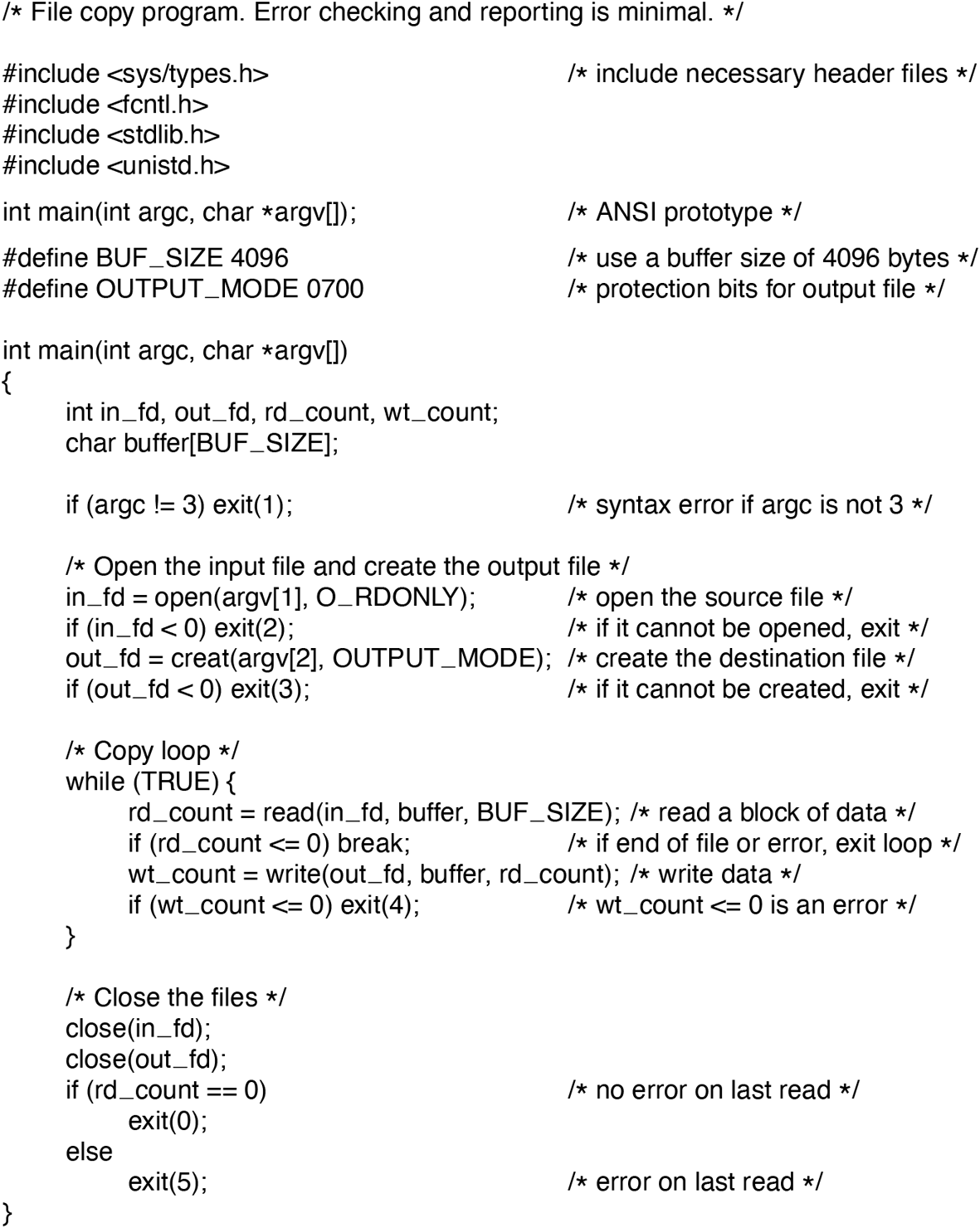
A simple program to copy a file.
The program, copyfile, can be called, for example, by the command line
copyfile abc xyzto copy the file abc to xyz. If xyz already exists, it will be overwritten. Otherwise, it will be created. The program must be called with exactly two arguments, both legal file names. The first is the source; the second is the output file.
The four #include statements near the top of the program cause a large number of definitions and function prototypes to be included in the program. These are needed to make the program conformant to the relevant international standards, but will not concern us further. The next line is a function prototype for main, something required by ANSI C, but also not important for our purposes.
The first #define statement is a macro definition that defines the character string BUF SIZE as a macro that expands into the number 4096. The program will read and write in chunks of 4096 bytes. It is considered good programming practice to give names to constants like this. The second #define statement determines who can access the output file.
The main program is called main, and it has two arguments, argc and argv. These are supplied by the operating system when the program is called. The first one tells how many strings were present on the command line that invoked the program, including the program name. It should be 3. The second one is an array of pointers to the arguments. In the example call given above, the elements of this array would contain pointers to the following values:
argv[0] = “copyfile”argv[1] = “abc”argv[2] = “xyz”
It is via this array that the program accesses its arguments.
SP 1v
Five variables are declared. The first two, in_fd and out_fd, will hold the file descriptors, small integers returned when a file is opened. The next two, rd_count and wt_count, are the byte counts returned by the read and write system calls, respectively. The last one, buffer, is the buffer used to hold the data read and supply the data to be written.
The first actual statement checks argc to see if it is 3. If not, it exits with status code 1. Any status code other than 0 means that an error has occurred. The status code is the only error reporting present in this program. A production version would normally print error messages as well.
Then we try to open the source file and create the destination file. If the source file is successfully opened, the system assigns a small integer to in_fd, to identify the file. Subsequent calls must include this integer so that the system knows which file it wants. Similarly, if the destination is successfully created, out_fd is given a value to identify it. The second argument to creat sets the protection mode. If either the open or the create fails, the corresponding file descriptor is set to and the program exits with an error code.
Now comes the copy loop. It starts by trying to read in 4 KB of data to buffer. It does this by calling the library procedure read, which actually invokes the read system call. The first parameter identifies the file, the second gives the buffer, and the third tells how many bytes to read. The value assigned to rd_count gives the number of bytes actually read. Normally, this will be 4096, except if fewer bytes are remaining in the file. When the end of the file has been reached, it will be 0. If rd_count is ever zero or negative, the copying cannot continue, so the break statement is executed to terminate the (otherwise endless) loop.
The call to write outputs the buffer to the destination file. The first parameter identifies the file, the second gives the buffer, and the third tells how many bytes to write, analogous to read. Note that the byte count is the number of bytes actually read, not BUF_SIZE. This point is important because the last read will not return 4096 unless the file just happens to be a multiple of 4 KB.
When the entire file has been processed, the first call beyond the end of file will return 0 to rd_count, which will make it exit the loop. At this point, the two files are closed and the program exits with a status indicating normal termination.
Although the Windows system calls are different from those of UNIX, the general structure of a command-line Windows program to copy a file is moderately similar to that of Fig. 4-6. We will examine the Windows calls in Chapter 11.