Improving the Search
When you pass text to Lunr, it’s turning the text into a search query. When you pass single words, it searches for all documents containing that word. But if you search for multiple words, Lunr defaults to searching for documents that contain either word. So a search for “first post” would return all the documents with the word “first” or the word “post”.
If you wanted to show documents that contain all of the words, you’d have to place plus signs in front of each word. For example, to find pages with “first post”, you’d have to search for +first +post.
Finally, Lunr supports partial word search. You can use wildcard characters. Search for jabber* and you’ll get the result you’re looking for.
Your visitors won’t know about these search capabilities unless you add instructions to the site, so let’s modify the behavior of the search to make it easier for people to use. You’ll add asterisks to each word, and then add a checkbox that specifies that you’re looking for all words. If it’s checked, you’ll change the query yourself.
Add the wildcards first. Take the value you get from the search form, use the split() function to turn it into an array of words, use the map() function to transform each word and append the asterisk to each word, and then use join() to convert the result back to a string:
| | function search() { |
| | let searchText = SearchApp.searchField.value; |
| | |
| » | searchText = searchText |
| » | .split(" ") |
| » | .map( word => { return word + "*" }) |
| » | .join(" "); |
Save the file. Then try out the search in your browser by searching for Fir. The “First Post” entry displays.
When you use asterisks, Lunr will no longer find some complete words. If you search for “Jabberwocky” now, it won’t return any results because using wildcards disables Lunr’s stemming support. Stemming[33] is the process of reducing a word to its stem. For example, if you have the words “building” or “builder”, the stem would be “build”. Lunr uses stemming to reduce the size of the index it builds. You can disable stemming support by removing it from the pipeline when you create the Lunr index:
| | SearchApp.searchIndex = lunr(function () { |
| » | this.pipeline.remove(lunr.stemmer); |
| » | this.searchPipeline.remove(lunr.stemmer); |
| | this.ref('href'); |
| | this.field('title'); |
| | this.field('body'); |
| | response.data.results.forEach(e => { |
| | this.add(e); |
| | }); |
| | }); |
Let’s add a checkbox to the form to allow users to require that all words are included in the search, instead of the default behavior. First, add a new checkbox field and corresponding label to the form. Open themes/basic/layouts/_default/search.html and add the new field:
| | <input type="search" id="searchField"> |
| | <button id="searchButton">Search</button> |
| » | <input id="allwords" type="checkbox"> |
| » | <label for="allwords">Require all words</label> |
Switch back to themes/basic/static/js/search.js and add a new field to the searchApp object that references the new checkbox:
| | window.SearchApp = { |
| | searchField: document.getElementById("searchField"), |
| | searchButton: document.getElementById("searchButton"), |
| » | allwords: document.getElementById("allwords"), |
| | output: document.getElementById("output"), |
| | searchData: {}, |
| | searchIndex: {} |
| | }; |
Finally, in the search() function, right before you perform the search, check the checkbox. If it’s checked, prepend each word with a plus sign, using the same technique you used to append asterisks for the wildcards:
| » | if (SearchApp.allwords.checked) { |
| » | searchText = searchText |
| » | .split(" ") |
| » | .map( word => { return "+" + word }) |
| » | .join(" "); |
| » | } |
| | |
| | let resultList = SearchApp.searchIndex.search(searchText); |
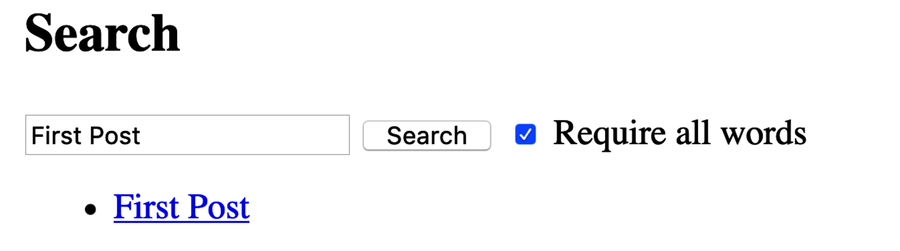
Save the file. Back in your browser, enter “first post” in the field, select the checkbox, and search. “First Post” is now the only result. Uncheck the box and you’ll get different results:
The order in which Lunr displays results is based on how many times the word appears in the document. When you perform the search, Lunr returns each result, along with a score. The more times a word appears, the higher the score. You can use these scores to set thresholds and tune your search even further.