Creating More Specific Layouts
You’ll often find that you’ll want some pages or sections of your site to have slightly different themes or layouts. Let’s make a specific layout for project pages that displays the list of projects in the sidebar of each project page so that visitors can navigate through projects easier. You’ll use a similar approach to the one you just used to make the list of projects.
In the themes/basic/layouts folder, create a new folder named projects. You can do that on the command line like this:
| | $ mkdir themes/basic/layouts/projects/ |
Then, create the file themes/basic/layouts/projects/single.html. Add this code to define the main block with sections for the content and the project list:
| | {{ define "main" }} |
| | <div class="project-container"> |
| | <section class="project-list"> |
| | <h2>Projects</h2> |
| | </section> |
| | |
| | <section class="project"> |
| | <h2>{{ .Title }}</h2> |
| | |
| | {{ .Content }} |
| | </section> |
| | |
| | </div> |
| | {{ end }} |
In the project-list section, add the code to iterate over all of your projects and display a link to each page. Since you’re not working with a collection in a list layout, you won’t have access to a .Pages variable. Hugo provides a mechanism where you can access any content collection. The .Site.RegularPages variable gives you access to all of the pages in your site. You can whittle that down with the where function, which works similar to how a SQL statement works. For example, to find all of the Project pages, you’d write this statement:
| | {{ range (where .Site.RegularPages "Type" "in" "projects") }} |
So, to display the list of all projects, add this code to the project_list section:
| | <section class="project-list"> |
| | <h2>Projects</h2> |
| » | <ul> |
| » | {{ range (where .Site.RegularPages "Type" "in" "projects") }} |
| » | <li><a href="{{ .RelPermalink }}">{{ .Title }}</a></li> |
| » | {{ end }} |
| » | </ul> |
| | </section> |
You can sort the items too. If you’d like to order them by the most recent project first, use the .ByDate function and the .Reverse function like this:
| | range (where .Site.RegularPages "Type" "in" "projects").ByDate.Reverse |
If you only wanted to display the most recent project, you could do this:
| | range first 1 (where .Site.RegularPages "Type" "in" "projects").ByDate.Reverse |
This would be one way to showcase your most recent project on your site’s home page. Note that even though you’re only getting one element, you still treat it like a collection.
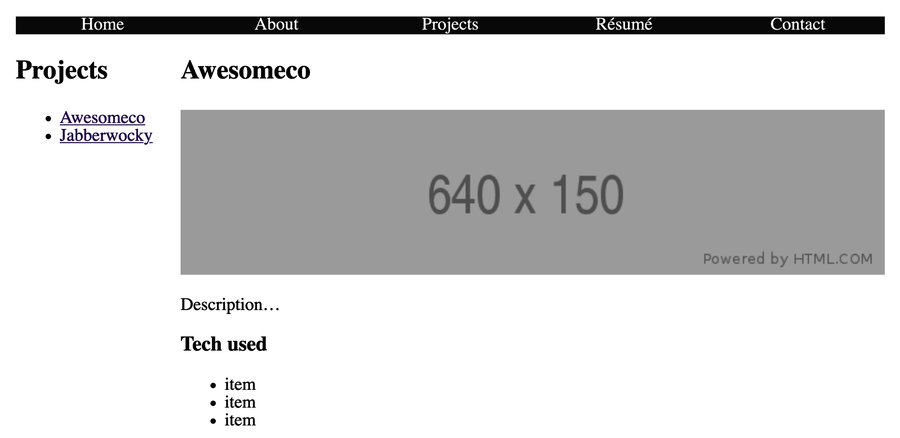
Start up the development server, switch back to your browser, and visit a project page. The list of projects shows up at the top of your page. Let’s turn that project list into a sidebar with a little CSS.
Open themes/basic/static/css/style.css in your editor. Locate the media query that targets screens larger than 768 pixels wide, and add the following code to align the project list to the left of the screen in those situations:
| | @media only screen and (min-width: 768px) { |
| | nav { flex-direction: row; } |
| | |
| » | .project-container { display: flex; } |
| » | |
| » | .project-container .project-list { width: 20%; } |
| » | |
| » | .project-container .project { flex: 1; } |
| | } |
The project info and the project list are contained in an element with the class project. Applying display: flex to that element makes the two child elements sit side by side. You then set the width of the project list section to 20%, and you set flex: 1 for the project_info section, which causes the element expands to fill the space. This gives you a nice two-column layout.
Before moving on, let’s look at how to add Markdown content to the page that lists your projects.