19.6 Responding to JavaScript Events
You can make your websites truly interactive using JavaScript events. Typical examples include the changing of images when the mouse is hovering over an HTML element or checking an input in forms.
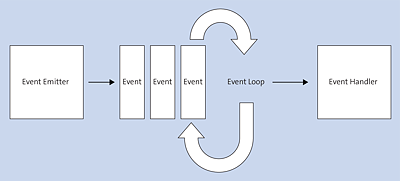
Figure 19.13 Classic Principle of Events and Event Handling
The principle is relatively simple: In the web browser, an event gets triggered when an action is performed in the document, in the web browser, or on a specific HTML element. For example, the web browser generates an event when the web page is fully loaded, the mouse is moved, or a button gets clicked. The triggered event is then enqueued in an event queue to ensure that an event which was triggered first is also handled first—the classic first in, first out principle. An event loop continuously checks whether a new event is present in the event queue and passes the event to an event handler. If you’re interested in a specific event here, you can register an event handler function for it, which will be executed when an event of that type gets triggered.
You don’t need to worry about the event types themselves, that is, which event has occurred. These are already included in JavaScript and applicable via special keywords. The number of available events in JavaScript is quite extensive, and you’ll first learn about only the most common ones in this section. JavaScript provides events to the following areas:
-
User interface (UI) events of the window (e.g., onload, onunload, onresize, onscroll, onerror, and onabort)
-
Mouse events (e.g., onclick, ondblclick, onmousedown, onmousemove, onmouseover, onemouseout, and onmouseup)
-
Keyboard events (e.g., onkeypress, onkeydown, and onkeyup)
-
Form events (e.g., onblur, onchange, onfocus, onreset, onselect, and onsubmit)
-
Touch events (e.g., touchstart, touching, touchcancel, touchleave, and touchmove)
-
Events for playing video and audio (e.g., onplay, oncanplay, onpause, oncanplaythrough, onplaying, ondurationchange, onvolumechange, and onended)
-
Drag-and-drop events (e.g., ondrag, ondragend, ondragenter, ondragleave, ondragover, ondragstart, and ondrop)
-
Animation events for CSS animations (e.g., animationstart, animationend, animationcancel, and animationiteration)
As you can see, the range of event types is enormous. In this chapter, you’ll only learn about classic events of a UI, such as mouse and keyboard events.
In addition to the type of event, you need an event target to which the event is linked. For example, if you want to handle a click event for a button, you must also use that button as the event target, which is usually a button element.
In addition to the event target that’s to be monitored and upon which you want to respond to an event, and the event type, you also need a callback function, which is supposed to be called when the event for the event target has occurred. This callback function can be set up using an event handler for a specific object and event type. Strictly speaking, a distinction is made here between event handlers, which are defined via the properties (e.g., onclick), and event listeners, which are defined via the addEventListener() method. The difference is that only one event handler can be defined on an element per event, but multiple event listeners can be defined.
When an event of the specified type is triggered at the specified target, the web browser calls the event handler so that you can take care of it with a JavaScript bounce function and respond accordingly. When the event handler is called for an object, this also often refers to the web browser having “triggered” the event.