16.3 Installing and Setting Up Sass
Now that you know you need a CSS preprocessor that compiles a CSS file from the SCSS file, let’s take a brief look at some possible options.
16.3.1 Online CSS Preprocessor without Installation
If you want to get started right away and aren’t yet sure if you want to use Sass, or don’t feel like installing and setting up an environment, you can take a look at the Sassmeister website (www.sassmeister.com). There you’ll find an online compiler that compiles an SCSS syntax (and also the Sass syntax) to CSS.
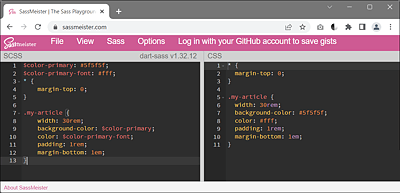
Figure 16.1 The Sassmeister Website Provides an Online CSS Preprocessor
16.3.2 Setting Up Sass Using Visual Studio Code
My favorite solution is to set up Sass with Visual Studio Code. First, it can be done with a few clicks, and second, the Visual Studio development environment is available on all common systems and enjoys great popularity.
To install Sass with Visual Studio Code, you want to click on the icon with Extensions on the left. In the search bar, enter “Sass compiler”, and select Live Sass Compiler. Then click Install in the description window. Restart Visual Studio Code.
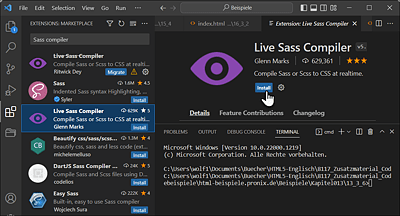
Figure 16.2 Finding and Installing Live Sass Compiler in Visual Studio
Next, I created a new folder in which I created an index.html file and a styles folder with the style.scss file in it. I’ve deliberately kept the index.html file simple.
...
<head>
    <title>Sass during execution</title>
    <meta charset="UTF-8">
    <link rel="stylesheet" href="styles/style.css">
</head>

<body>
    <article class="my-article">
        <h1>Article 1</h1>
        <p>Lorem ipsum dolor … </p>
    </article>
    <article class="my-article">
        <h1>Article 2</h1>
        <p>Lorem ipsum dolor … </p>
    </article>
</body>
...
Listing 16.1 /examples/chapter016/16_3_2/index.html
In the index.html file, I’ve already included the CSS file style.css, which doesn’t exist yet. We now want to style the my-article class using Sass. In the style.scss file, I wrote the following content:
$color1: #6d6d6d;
$color2: #fff;

.my-article {
    width: 30rem;
    background-color: $color1;
    color: $color2;
    padding: 2rem;
}
Listing 16.2 /examples/chapter016/16_3_2/style/style.scss
For the CSS preprocessor Sass to automatically make a CSS file named style.css out of it, all you need to do is enable the Watch Sass option at the bottom of the Visual Studio Code development environment. This enables a live translation from Sass or SCSS to CSS. Voilà, you’ve now created the CSS file from the SCSS file. That’s all it took.
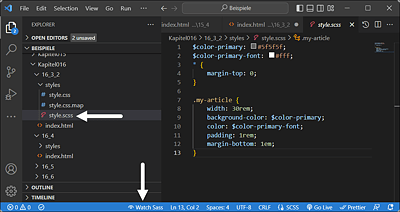
Figure 16.3 “Watch Sass” Allows You to Turn the SCSS File into a CSS File
No More Changes to the CSS File!
If you use Sass and have enabled the Watch Sass option, you shouldn’t make any changes to the CSS file because you’ve now given the CSS preprocessor Sass control over it with the SCSS file. The changes to the CSS document would be overwritten when the Sass preprocessor is active and the SCSS file gets recompiled.
The great thing now is that as long as you have Watch Sass enabled, you don’t have to worry about updating the CSS file. As soon as you make changes in the SCSS file, the CSS file will be automatically adjusted as well. You can recognize the active live translation when the Watch Sass label is replaced by the Watching label. The translation of the SCSS file takes place as soon as you save that file again.
16.3.3 Installing Sass for the Command Line
Of course, you can also install Sass from the command line. However, I’ll only briefly describe this here. Before you can install Sass, you need Ruby on the computer. On macOS, Ruby is already integrated. On Windows, you must download and install the Ruby Installer from https://rubyinstaller.org/. On Linux, the following command on the command line is sufficient to install Ruby:
$ sudo apt-get install ruby Once Ruby has been installed, you need to open the command line. On Windows, you open the Start menu and select Start Command Prompt with Ruby. On macOS and Linux, you want to launch the terminal. Then you must enter the following into the command line:
$ gem install sass You may need to use sudo on macOS and Linux (sudo gem install sass). Then enter “sass -v” in the command line. If a version number gets displayed, you can be sure that Sass has been installed.
To compile a SCSS file, you need to change in the command line to the directory where you’ve saved the Sass file with the extension *.scss. Then you can use the following command to compile the SCSS file to get a CSS file:
$ sass style.scss:style.css In this example, you compile the SCSS file style.scss and get the CSS file style.css.
In addition to the compilation of Sass files, you can also set up a monitoring service for files or directories in the command line, so that once a change has been saved in the SCSS file, it automatically gets compiled, as described in the preceding section with Visual Studio Code and the Watch Sass function. To monitor a single file, you need to use the following command in the command line:
$ sass --watch style.scss:style.css This makes sure that when the SCSS file style.scss gets changed, it will automatically be compiled and the result will be saved in the CSS file, style.css.
You can monitor an entire folder via the following command:
$ sass --watch styles:styles This will monitor all SCSS files in the styles directory and compile and save them as a CSS file in the same directory when a (saved) change occurs. For example, with an SCSS file named layout.scss, you would find a layout.css file in the styles directory after compilation. If you like it a bit neat, you can also create an scss folder and a css folder. In the scss folder, you store all SCSS files. Now, to save the CSS files in the css directory when compiling these SCSS files, you need to enter the following command:
$ sass --watch stylesheets/scss:stylesheets/css Setting Output Styles for the CSS
You can also specify the output style for the CSS that Sass is supposed to create from the SCSS file. With the default value nested, everything is neatly nested. There are also expanded (indented), compact (everything in one line), and compressed (without spaces and line breaks) available. You can specify these output styles using --style. Here’s how you can create a compressed style that’s best suited for performance optimization:
$ sass --watch --style compressed stylesheets/scss:stylesheets/css