Chapter 10 - Deployments with Ansible
Deploying application code to servers is one of the hardest, but most rewarding, tasks of any development team. Most shops using traditional deployment techniques (manual steps, shell scripts, and prayers) dread deployments, especially for complex, monolithic apps.
Deployments are less daunting when you adopt modern deployment processes and use the right amount of automation. In the best case, deployments become so boring and routine they barely register as a blip on your team’s radar.
Consider Etsy, a company whose engineers are deploying code to production up to 40 times per day, with no manual intervention from the operations team. The operations team is free to work on more creative endeavors, and the developers see their code go live in near-real-time!
Etsy’s production deployment schedule is enabled by a strong DevOps-oriented culture (with robust code repository management, continuous integration, well-tested code, feature flags, etc.). While it may not be immediately possible to start deploying your application to production 20 times a day, you can move a long way towards effortless deployments by automating deployments with Ansible.
Deployment strategies
There are dozens of ways to deploy code to servers. For the most basic applications, you may only need to switch to a new tag in a code repository on the server and restarting a service.
For more complex applications, you might do a full Blue-Green deployment, where you build an entire new infrastructure alongside your current production infrastructure, run tests on the new infrastructure, then automatically cut over to the new instances. This may be overkill for many applications (especially if <100% uptime is acceptable), but it is becoming more and more common—and Ansible automates the entire process.
In this chapter, we will be covering the following deployment strategies:
- Single-server deployments.
- Zero-downtime multi-server deployments.
- Capistrano-style and blue-green deployments.
These are three of the most common deployment techniques, and they cover many common use cases. There are other ways to strengthen your deployment processes, often involving application-level and organizational change, but those deployment aspects are out of the scope of this book.
Simple single-server deployments
The vast majority of small applications and websites are easily run on a single virtual machine or dedicated server. Using Ansible to provision and manage the configuration on the server is a no-brainer. Even though you only have to manage one server, it’s better to encapsulate all the setup so you don’t end up with a snowflake server.
In this instance, we are managing a Ruby on Rails site that allows users to perform CRUD operations on articles (database records with a title and body).
The code repository for this app is located on GitHub in the demo-rails-app repository.
Begin by creating a new Vagrant VM for local testing using the following Vagrantfile:
 1 # -*- mode: ruby -*-
 2 # vi: set ft=ruby :
 3
 4 Vagrant.configure(2) do |config|
 5   config.vm.box = "geerlingguy/ubuntu2004"
 6   config.vm.synced_folder '.', '/vagrant', disabled: true
 7   config.ssh.insert_key = false
 8
 9   config.vm.provider "virtualbox" do |v|
10     v.name = "rails-demo"
11     v.memory = 1024
12     v.cpus = 2
13   end
14
15   config.vm.hostname = "rails-demo"
16   config.vm.network :private_network, ip: "192.168.33.7"
17
18   config.vm.provision "ansible" do |ansible|
19     ansible.playbook = "playbooks/main.yml"
20     ansible.become = true
21   end
22
23 end
In this case, we have a VM at the IP address 192.168.33.7. When provisioned, it will run the Ansible playbook defined in playbooks/main.yml on the VM.
Provisioning a Ruby on Rails server
To prepare for our application deployment, we need to do the following:
- Install git (our application is version controlled in a git repository).
- Install Node.js (asset compilation requires its Javascript runtime).
- Install Ruby (our application requires version 2.6.0 or later).
- Install Passenger with Nginx (we need a fast web server to run our rails application).
- Install any other dependencies, and prepare the server for deployment.
Let’s create a new playbook just for the provisioning tasks (we’ll worry about deployment later), in a new file, playbooks/provision.yml:
 1 ---
 2 - hosts: all
 3   become: yes
 4
 5   vars_files:
 6     - vars.yml
 7
 8   roles:
 9     - geerlingguy.git
10     - geerlingguy.nodejs
11     - geerlingguy.ruby
12     - geerlingguy.passenger
13
14   tasks:
15     - name: Install app dependencies.
16       apt:
17         name:
18           - libsqlite3-dev
19           - libreadline-dev
20           - tzdata
21         state: present
22
23     - name: Ensure app directory exists and is writeable.
24       file:
25         path: "{{ app_directory }}"
26         state: directory
27         owner: "{{ app_user }}"
28         group: "{{ app_user }}"
29         mode: 0755
This is a straightforward playbook. We’ll need to define a few variables to make sure the geerlingguy.ruby role installs the correct version of Ruby (at least 2.6.0), and the geerlingguy.passenger role is configured to serve our app correctly.
There are also a few other variables we will need, like app_directory and app_user, so let’s create the variables file now, at playbooks/vars.yml:
 1 # Variables for our app.
 2 app_directory: /opt/demo-rails-app
 3 app_user: www-data
 4
 5 # Variables for Passenger and Nginx.
 6 passenger_server_name: 0.0.0.0
 7 passenger_app_root: /opt/demo-rails-app/public
 8 passenger_app_env: production
 9 passenger_ruby: /usr/local/bin/ruby
10
11 # Variables for Ruby installation.
12 ruby_install_from_source: true
13 ruby_download_url: https://cache.ruby-lang.org/pub/ruby/2.6/\
14 ruby-2.6.0.tar.gz
15 ruby_version: 2.6.0
The passenger variables tell Passenger to run a server available on every network interface, and to launch our app (which will be located in /opt/demo-rails-app/public) with production settings (the app’s environment), using the ruby binary we have installed in /usr/local/bin/ruby.
The Ruby variables tell the ruby role to install Ruby 2.6.0 from source, since the packages available through Ubuntu’s standard apt repositories only contain older versions.
The playbook specified in our Vagrantfile, playbooks/main.yml, doesn’t yet exist. Let’s create the playbook and include the above provisioning.yml playbook so our server will be provisioned successfully. We’ll separate out the deployment steps into another playbook and include that separately. Inside playbooks/main.yml:
1 ---
2 - import_playbook: provision.yml
Deploying a Rails app to the server
All the dependencies for our app’s deployment were configured in provision.yml, so we’re ready to build a playbook to perform all the deployment tasks.
Add a line to the main.yml file to include a new deploy.yml playbook:
1 ---
2 - import_playbook: provision.yml
3 - import_playbook: deploy.yml
Now we’re ready to create the deploy.yml playbook, which will do the following:
- Use git to check out the latest production release of the Rails app.
- Copy over a
secrets.ymltemplate with secure app data required for running the app. - Make sure all the gems required for the app are installed (via Bundler).
- Create the database (if it doesn’t already exist).
- Run
raketasks to make sure the database schema is up-to-date and all assets (like JS and CSS) are compiled. - Make sure the app files’ ownership is set correctly so Passenger and Nginx serve them without error.
- If any changes or updates were made, restart Passenger and Nginx.
Most of these tasks will use Ansible’s modules, but for a few, we’ll just wrap the normal deployment-related commands in command since there aren’t pre-existing modules to take care of them for us:
 1 ---
 2 - hosts: all
 3   become: yes
 4
 5   vars_files:
 6     - vars.yml
 7
 8   roles:
 9     - geerlingguy.passenger
10
11   tasks:
12     - name: Ensure demo application is at correct release.
13       git:
14         repo: https://github.com/geerlingguy/demo-rails-app.git
15         version: "{{ app_version }}"
16         dest: "{{ app_directory }}"
17         accept_hostkey: true
18         force: yes
19       register: app_updated
20       notify: restart nginx
21
22     - name: Ensure secrets file is present.
23       template:
24         src: templates/secrets.yml.j2
25         dest: "{{ app_directory }}/config/secrets.yml"
26         owner: "{{ app_user }}"
27         group: "{{ app_user }}"
28         mode: 0664
29       notify: restart nginx
30
31     - name: Install required dependencies with bundler.
32       command: "bundle install --path vendor/bundle \
33 chdir={{ app_directory }}"
34       when: app_updated.changed == true
35       notify: restart nginx
36
37     - name: Check if database exists.
38       stat: "path={{ app_directory }}/db/{{ app_environment.\
39 RAILS_ENV }}.sqlite3"
40       register: app_db_exists
41
42     - name: Create database.
43       command: "bundle exec rake db:create chdir={{ app_directory }}"
44       when: app_db_exists.stat.exists == false
45       notify: restart nginx
46
47     - name: Perform deployment-related rake tasks.
48       command: "{{ item }} chdir={{ app_directory }}"
49       with_items:
50         - bundle exec rake db:migrate
51         - bundle exec rake assets:precompile
52       environment: "{{ app_environment }}"
53       when: app_updated.changed == true
54       notify: restart nginx
55
56     - name: Ensure demo application has correct user for files.
57       file:
58         path: "{{ app_directory }}"
59         state: directory
60         owner: "{{ app_user }}"
61         group: "{{ app_user }}"
62         recurse: yes
63       notify: restart nginx
The first thing you’ll notice (besides the fact we’ve included the vars.yml file again, since we need those variables in this playbook as well) is we’ve added the geerlingguy.passenger role in this playbook. Since we’ll be using one of the handlers defined in that role (restart nginx), we need to include the role explicitly. We could’ve added a separate handler specific to this playbook, but using a role’s handlers usually makes maintenance easier.
Let’s walk through the tasks, one-by-one:
- (Lines 12-20) We put all the application files in place by checking out the git repository at the version
app_versioninto the directoryapp_directory. We setaccept_hostkeyto true so this task doesn’t hang the first time we deploy the app (since we haven’t yet accepted the Git server’s hostkey). - (Lines 22-29) We copy a
secrets.ymlfile to the application’s configuration directory. There are different ways to deploy app secrets, but this is the easiest, and allows us to store the app secrets in an Ansible Vault-protected vars file if we so desire. - (Lines 31-34) If the
app_updatedvariable shows a change occurred as part of the firstgittask, we’ll run a bundler command to ensure all the latest bundled dependencies are installed in thevendor/bundledirectory. - (Lines 36-43) Create the application database with
rake db:createif it doesn’t already exist. Since this application uses a SQLite database, it’s a matter of checking if the .sqlite3 file exists, and if not, running thedb:createtask. - (Lines 45-52) If the
app_updatedvariable shows a change occurred as part of the firstgittask, we’ll also run a coupleraketasks to make sure the database schema is up to date, and all assets (like scripts and stylesheets) are compiled. - (Lines 54-61) Make sure all app files have the correct permissions for Passenger/Nginx to serve them correctly.
Because many of the tasks result in filesystem changes that could change the behavior of the application, they all notify the restart nginx handler provided by the geerlingguy.passenger role, so Passenger reloads the configuration and restarts the app.
There are a few new variables we need to add to vars.yml, and we also need to add the secrets.yml.j2 template mentioned in the task that copies it into place.
First, we’ll create the secrets file, inside playbooks/templates/secrets.yml.j2:
1 development:
2   secret_key_base: {{ app_secrets.dev }}
3
4 test:
5   secret_key_base: {{ app_secrets.test }}
6
7 production:
8   secret_key_base: {{ app_secrets.prod }}
We’ll be using a dictionary variable for app_secrets, so let’s add it and all the other new variables to playbooks/vars.yml:
 1 ---
 2 # Variables for our app.
 3 app_version: 2.0.1
 4 app_directory: /opt/demo-rails-app
 5 app_user: www-data
 6 app_secrets:
 7   dev: fe562ec1e21eecc5af4d83f6a157a7
 8   test: 4408f36dd290766d2f368fdfcedf4d
 9   prod: 9bf801da1a24c9a103ea86a1438caa
10 app_environment:
11   RAILS_ENV: production
12
13 # Variables for Passenger and Nginx.
14 passenger_server_name: 0.0.0.0
15 passenger_app_root: /opt/demo-rails-app/public
16 passenger_app_env: production
17 passenger_ruby: /usr/local/bin/ruby
18
19 # Variables for Ruby installation.
20 ruby_install_from_source: true
21 ruby_download_url: http://cache.ruby-lang.org/pub/ruby/2.2/\
22 ruby-2.2.0.tar.gz
23 ruby_version: 2.2.0
Note the addition of the following variables to support our deploy.yml playbook:
-
app_version: This is the git tag, branch, or commit hash to be deployed to the server. -
app_secrets: A dictionary of Rails app secrets, which are used to verify the integrity of signed app cookies. You can generate new, unique strings for these variables usingrake secret. -
app_environment: Environment settings required for certain commands (likebundle execandrake) to run with the correct Rails application environment.
Provisioning and Deploying the Rails App
Since we now have our provision.yml and deploy.yml playbooks completed, and both are included in the main.yml playbook Vagrant will run, it’s time to bring up the new VM using Vagrant, and see if our application works!
The structure of your project folder should look like this:
Before running the playbook, we need to make sure all the role dependencies are present. If you were building everything from scratch, you might have a roles directory with all the roles inside, but in this case, since we’re using roles from Ansible Galaxy, it’s best to not include the role files directly with our playbook, but instead, add a requirements.yml file to the project and install the roles automatically with Galaxy.
Inside requirements.yml:
1 ---
2 roles:
3   - name: geerlingguy.git
4   - name: geerlingguy.ruby
5   - name: geerlingguy.nodejs
6   - name: geerlingguy.passenger
In the same directory as the requirements file, run the command $ ansible-galaxy install -r requirements.yml, and after a minute, all the required roles will be downloaded to your default Ansible roles directory, if they’re not already present.
Change directory back to the main directory containing the Vagrantfile, and run vagrant up. Assuming everything runs correctly, you should see the playbook complete successfully after a few minutes:
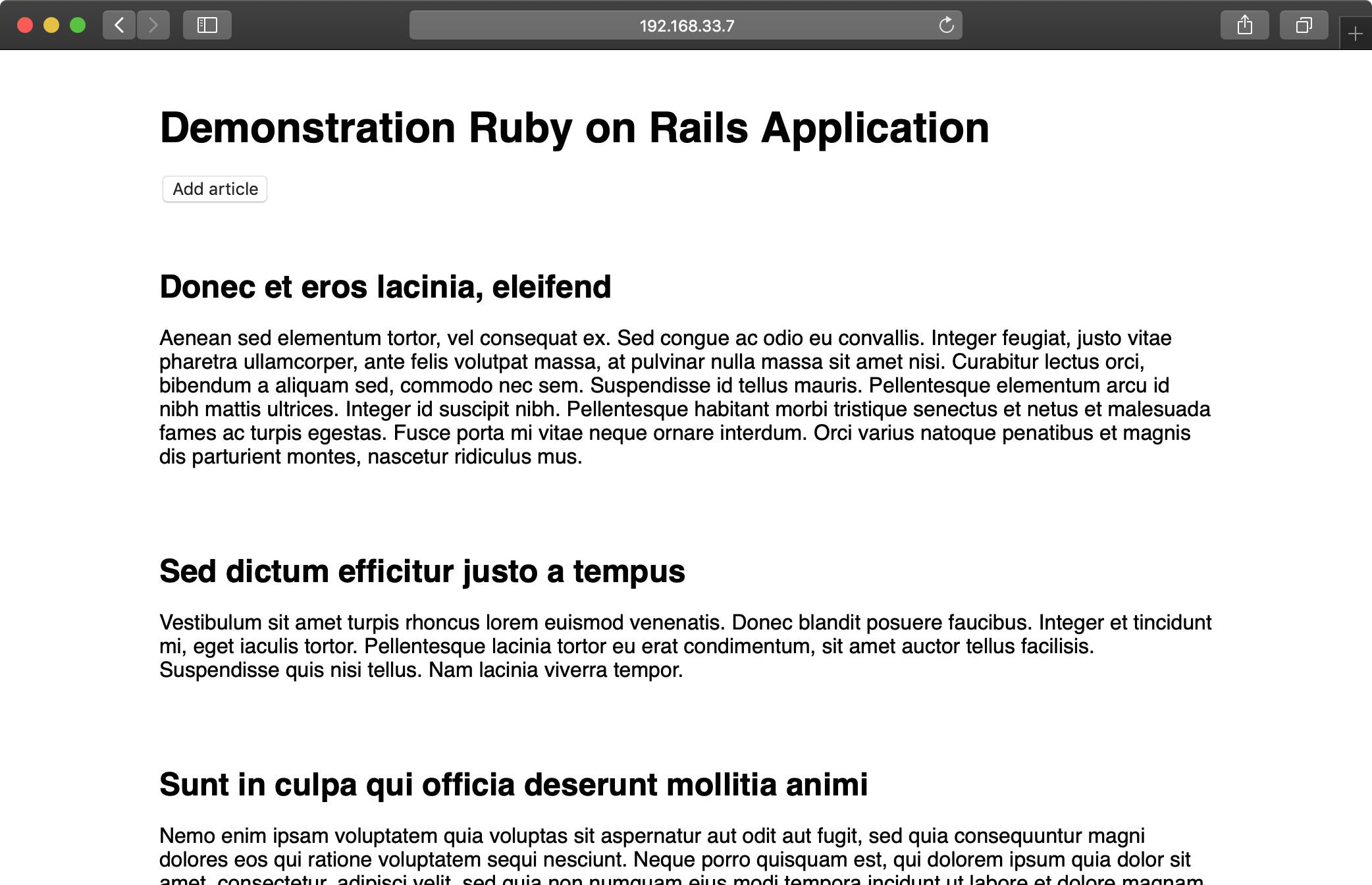
Now, jump over to a web browser and load http://192.168.33.7/. You should see something like the following:

Try creating, updating, and deleting a few articles to make sure the database and all app functionality is working correctly:
The app seems to function perfectly, but it could use some improvements. After more development work, we have a new version of to deploy. We could update the app_version variable in vars.yml and run vagrant provision to run the entire provisioning and deployment playbook again, but to save time using our flexible playbook layout (with separate provisioning and deployment playbooks), we can run the deploy.yml playbook separately.
Deploying application updates
First, to test deployment without provisioning, we need to create an inventory file to tell Ansible how to connect directly to the Vagrant-managed VM.
Create the file playbooks/inventory-ansible with the following contents:
1 [rails]
2 192.168.33.7
3
4 [rails:vars]
5 ansible_user=vagrant
6 ansible_ssh_private_key_file=~/.vagrant.d/insecure_private_key
Test the ability to run the deploy.yml playbook by running the following command inside the playbooks directory:
Hopefully the playbook completed its run successfully. It may have reported a change in the “Ensure demo application has correct user for files” task, and if so, it will have restarted Passenger. Run it again, and ansible should report no changes:
Hopefully you’ve noticed running the deploy.yml playbook standalone is much faster than running the provision and deploy playbooks together (deployment only takes 18 tasks, while both playbooks add up to 80+ tasks!). In the future, we can deploy application updates using only the deploy.yml playbook and changing the app_version either in vars.yml or by specifying the version on the command line in the ansible-playbook command.
Our application is a fairly generic web application with updates to application code (which require a web server reload), styles (which need recompiling), and possibly the database schema (which needs rake migrate tasks to be run). Any time app_version is changed inside playbooks/vars.yml, the deploy playbook will automatically run all the required tasks to get our app running with the latest code.
Update app_version to 2.1.0, and then run the following command again:
After a minute or so, the deployment should complete. Once complete, you’ll see the new-and-improved version of the Demonstration Ruby on Rails Application:
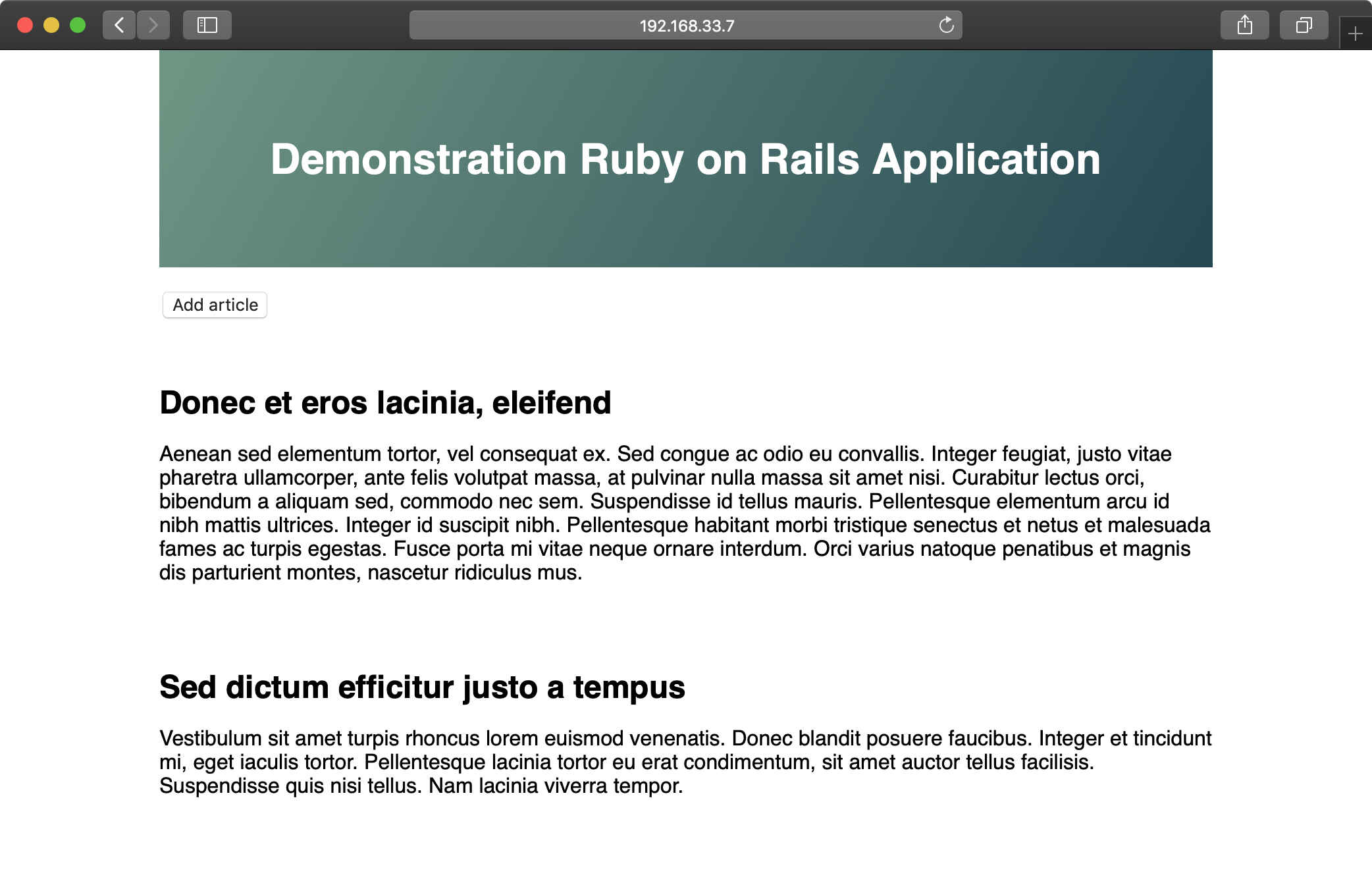
Application update deployments involve incrementing the app_version to the latest git tag, then running the deploy.yml playbook again. The main.yml playbook can be run to ensure the entire server stack is in the correct state, but it’s faster to just deploy the app updates.
Zero-downtime multi-server deployments
If you need to run an application on multiple servers for horizontal scalability or redundancy, deployments can be cumbersome, resulting in downtime and complicated deployment processes—but not when you use Ansible!
Server Check.in is a server and website monitoring service with a microservices-based architecture; there is a website, an API application, and a server checking application.
The server checking application needs to run on a variety of servers hosted around the world by different providers to provide redundancy and reliability. Server Check.in uses Ansible to manage rolling deployments for this application, so new code is deployed across all the servers in minutes while maintaining 100% uptime!
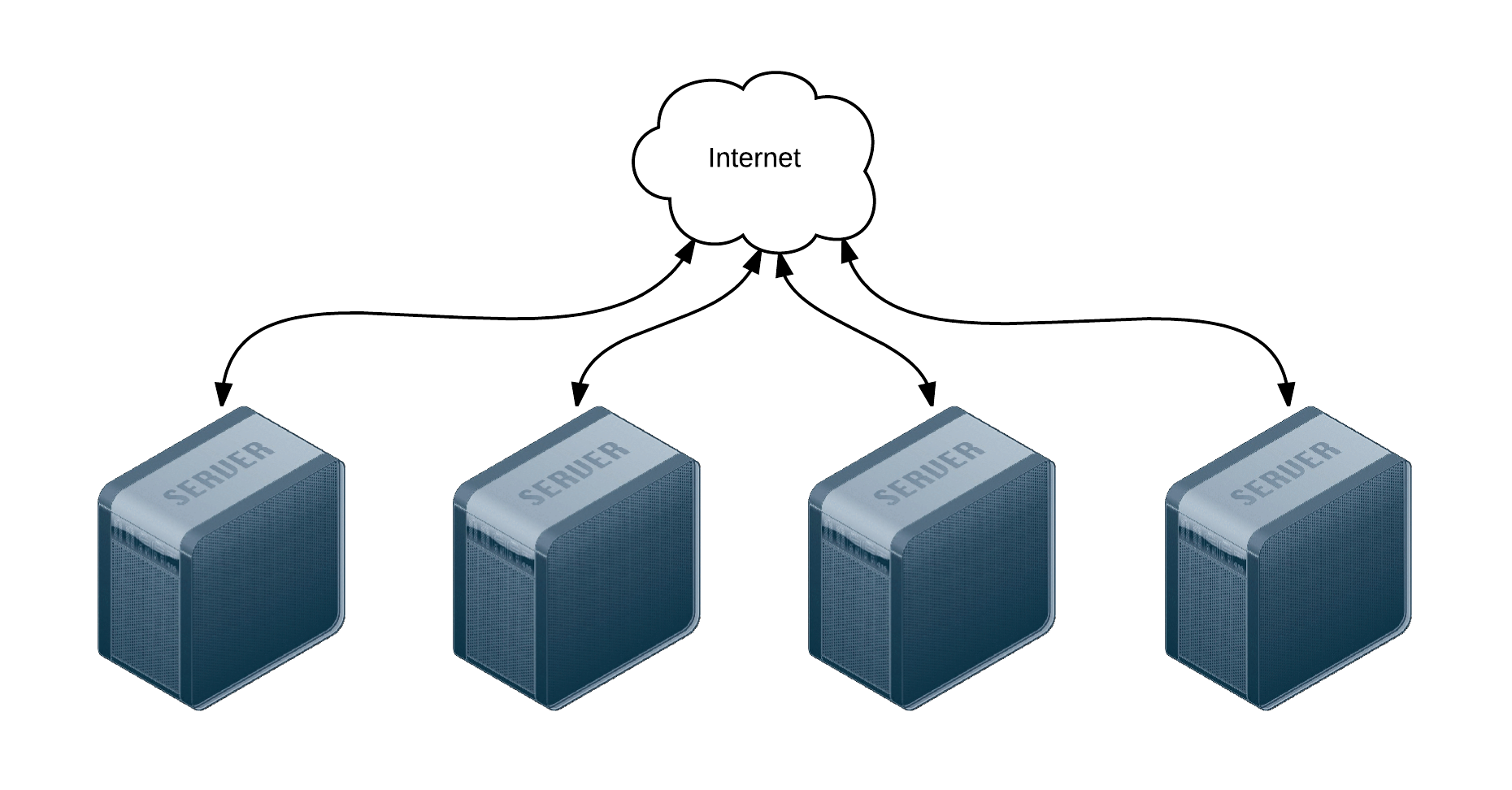
We’ll emulate part of Server Check.in’s infrastructure (the check server application) by deploying and updating a small Node.js application to a set of virtual machines. The code repository for this app is located on GitHub in the demo-nodejs-api repository. Here’s a diagram of the infrastructure we’ll be building:
To begin, create four lightweight Vagrant VMs using the following Vagrantfile:
 1 # -*- mode: ruby -*-
 2 # vi: set ft=ruby :
 3
 4 Vagrant.configure("2") do |config|
 5   # Base VM OS configuration.
 6   config.vm.box = "geerlingguy/ubuntu2004"
 7   config.vm.synced_folder '.', '/vagrant', disabled: true
 8   config.ssh.insert_key = false
 9
10   config.vm.provider :virtualbox do |v|
11     v.memory = 512
12     v.cpus = 1
13     v.linked_clone = true
14   end
15
16   # Define four VMs with static private IP addresses.
17   boxes = [
18     { :name => "nodejs1", :ip => "192.168.3.2" },
19     { :name => "nodejs2", :ip => "192.168.3.3" },
20     { :name => "nodejs3", :ip => "192.168.3.4" },
21     { :name => "nodejs4", :ip => "192.168.3.5" }
22   ]
23
24   # Provision each of the VMs.
25   boxes.each do |opts|
26     config.vm.define opts[:name] do |config|
27       config.vm.hostname = opts[:name]
28       config.vm.network :private_network, ip: opts[:ip]
29
30       # Provision all the VMs using Ansible after last VM is up.
31       if opts[:name] == "nodejs4"
32         config.vm.provision "ansible" do |ansible|
33           ansible.playbook = "playbooks/main.yml"
34           ansible.inventory_path = "inventory"
35           ansible.limit = "all"
36         end
37       end
38     end
39   end
40
41 end
The above Vagrantfile defines four VMs with 256MB of RAM and a unique hostname and IP address (defined by the boxes variable). Our Node.js app doesn’t require much in the way of processing power or memory.
In the provision section of the playbook, we told Vagrant to provision the all the VMs with Ansible, using the inventory file inventory, and the playbook playbooks/main.yml. Create these two files in the same folder as your Vagrantfile:
Inside the inventory file, we just need to define a list of all the Node.js API app VMs by IP address:
1 [nodejs-api]
2 192.168.3.2
3 192.168.3.3
4 192.168.3.4
5 192.168.3.5
6
7 [nodejs-api:vars]
8 ansible_user=vagrant
9 ansible_ssh_private_key_file=~/.vagrant.d/insecure_private_key
Inside the main.yml playbook, we’ll call out two separate playbooks—one for the initial provisioning (installing Node.js and making sure the server is configured correctly), and another for deployment (ensuring our Node.js API app is present and running):
1 ---
2 - import_playbook: provision.yml
3 - import_playbook: deploy.yml
Go ahead and create the provision.yml and deploy.yml playbooks, starting with provision.yml:
 1 ---
 2 - hosts: nodejs-api
 3   become: yes
 4
 5   vars:
 6     nodejs_install_npm_user: root
 7     npm_config_prefix: "/usr"
 8     nodejs_npm_global_packages:
 9       - forever
10     firewall_allowed_tcp_ports:
11       - "22"
12       - "8080"
13
14   pre_tasks:
15     - name: Update apt cache if needed.
16       apt: update_cache=yes cache_valid_time=3600
17
18   roles:
19     - geerlingguy.firewall
20     - geerlingguy.nodejs
21     - geerlingguy.git
This playbook runs on all the servers defined in our inventory file, and runs three roles on the servers: geerlingguy.firewall (which installs and configures a firewall, in this case opening ports 22 for SSH and 8080 for our app), geerlingguy.nodejs (which installs Node.js, NPM, and the forever package (installed globally), which we’ll use to run our app as a daemon), and geerlingguy.git (which installs git, used for app deployment).
Since we’re using two roles from Ansible Galaxy, it’s best practice to also include those roles in a requirements file so CI tools and others using this playbook can install all the required roles.
Create a requirements.yml file in the root folder and add the following:
1 ---
2 roles:
3   - name: geerlingguy.firewall
4   - name: geerlingguy.nodejs
5   - name: geerlingguy.git
Whenever someone wants to run the playbook, the command ansible-galaxy install -r requirements.yml will install all the required roles.
At this point, your project directory should be structured like the following:
Before we run vagrant up and see our infrastructure in action, we need to build out the deploy.yml playbook, which will ensure our app is present and running correctly on all the servers.
Inside deploy.yml, add the following:
1 ---
2 - hosts: nodejs-api
3   gather_facts: no
4   become: yes
5
6   vars_files:
7     - vars.yml
Use become, and set gather_facts to no to save a little time during deployments, since our app doesn’t require any of the gathered system facts to run.
Since we have a few variables to define, and we’d like to track them separately for easier file revision history, we’ll define the variables in a vars.yml file in the same directory as the deploy.yml playbook:
1 ---
2 app_repository: https://github.com/geerlingguy/demo-nodejs-api.git
3 app_version: "2.0.0"
4 app_directory: /opt/demo-nodejs-api
Once you’ve saved the vars.yml file, continue building out deploy.yml, starting with a task to clone the app’s repository (which we just defined in vars.yml):
 9   tasks:
10     - name: Ensure Node.js API app is present.
11       git:
12         repo: "{{ app_repository }}"
13         version: "{{ app_version }}"
14         dest: "{{ app_directory }}"
15         accept_hostkey: true
16       register: app_updated
17       notify: restart forever apps
Using variables for the git module’s repo and version affords flexibility; app version changes might happen frequently, and it’s easier to manage them in a separate vars.yml file.
We also want to notify a restart forever apps handler whenever the codebase is changed. We’ll define the restart forever apps handler later in the playbook.
18     - name: Stop all running instances of the app.
19       command: "forever stopall"
20       when: app_updated.changed
21
22     - name: Ensure Node.js API app dependencies are present.
23       npm: "path={{ app_directory }}"
24       when: app_updated.changed
25
26     - name: Run Node.js API app tests.
27       command: "npm test chdir={{ app_directory }}"
28       when: app_updated.changed
Once the app is present on the server, we need to use npm to install dependencies (using Ansible’s npm module), then run the app’s test suite using npm test. To save time, we only stop the application, update dependencies, and run tests if the application has changed (using the app_updated variable we registered when checking out the application code).
Running the tests for the app during every deployment ensures the app is present and in a functioning state. Having a thorough unit and integration test suite running on every deployment is prerequisite to a frequent or continuously-integrated project! Running the tests during deployments also enables zero-downtime deployments, as we’ll see later.
25     - name: Get list of all running Node.js apps.
26       command: forever list
27       register: forever_list
28       changed_when: false
29
30     - name: Ensure Node.js API app is started.
31       command: "forever start {{ app_directory }}/app.js"
32       when: "forever_list.stdout.find('app.js') == -1"
Once the app is present and running correctly, we need to make sure it’s started. There’s a command to get the list of all running apps (using forever), then a command to start the app if it’s not already running.
34     - name: Add cron entry to start Node.js API app on reboot.
35       cron:
36         name: "Start Node.js API app"
37         special_time: reboot
38         job: "forever start {{ app_directory }}/app.js"
The final task adds a cron job to make sure the app is started after the server reboots. Since we’re managing the deamonization of our app using forever instead of the OS’s init system, it’s best to make sure the app starts on system boot using a reboot cron job.
Remember when we added the line notify: restart forever apps to the task that ensured the app was present on the server? It’s time to define this handler, which runs the command forever restartall (which does exactly what it says):
40   handlers:
41     - name: restart forever apps
42       command: "forever restartall"
At this point, the Ansible playbooks and Vagrant configuration should be complete. The playbook will clone the demo-nodejs-api project, run its tests to make sure everything’s working correctly, then start the app using forever and make sure it’s started whenever the server reboots.
Run the command below to test all the new servers and make sure the app is running correctly:
If all the servers are online, you should see the text "hello john" repeated four times (once for each server):
Run vagrant provision to run the entire provisioning and deployment process again, or just run ansible-playbook -i inventory playbooks/deploy.yml to run the deployment playbook again. In either case, you should see no changes, and Ansible should verify everything is ok.
You now have a fleet of Node.js API servers similar to Server Check.in’s server checking infrastructure—except it doesn’t do much yet! Luckily, the project has seen some new feature development since the initial 2.0.0 version you just deployed. We now need a way to get the new version deployed to and running on all the servers while maintaining 100% uptime for the API as a whole.
Ensuring zero downtime with serial and integration tests
Now, after a little extra time in development, we have new features to deploy in a 2.0.1 version. You could run the exact same ansible-playbook command as above, adding in --extra-vars "app_version=2.0.1", but best practice is to update the variable in your included variables file, since that change is tracked in version control and used for automated deployments.
Change the app_version in playbooks/vars.yml to 2.0.1, and run the deployment playbook again:
Uh oh—after we deployed the new version, our tests started failing! Since we deployed to all four servers asynchronously, all four application servers are offline, and our boss and customers are going to be very angry.
In this case, rolling back is simple: revert to 2.0.0 and redeploy. Doing this now fixes the problem this time, but if part of the application update changed a database schema you could be in a world of hurt!
Ansible has two particular settings to protect you when you deploy to many servers while maintaining your infrastructure’s overall integrity during a failed deployment.
Open the deployment playbook (playbooks/deploy.yml) and modify the initial settings to match the following:
1 ---
2 - hosts: nodejs-api
3   gather_facts: no
4   become: yes
5   serial: 2
Note the addition of serial: 2. This tells Ansible to run the entire playbook on two servers at a time. If you update app_version to 2.0.1 again, and run the playbook, you should see it run on two of the four servers, and once it hits the test failure, the playbook execution will stop—leaving your other two servers up (and saving you a few hours on a conference bridge explaining the outage).
You could again revert back to 2.0.0, but in the time you were deploying the failed version, developers finished a new version that got all tests passing again, 2.0.2. Go ahead and update app_version and run the playbook again.
Whew! Everything is back online and operational, and all tests are passing with the latest version of the application.
Ansible exposes two different settings for controlling rolling deployment failure scenarios:
-
serial: Can be an integer (e.g.3) or a percentage (e.g.30%). Used to control how many hosts Ansible will manage at once. -
max_fail_percentage: An integer between1-100. Used to tell Ansible what percentage of hosts can fail a task before the play will be aborted.
If you have some headroom in your infrastructure, set these values higher. If you have only as much infrastructure running as your application needs, and having more than one or two servers offline would put your infrastructure into a bad state, you should be more conservative with these settings—and maybe provision a little more capacity!
Deploying to app servers behind a load balancer
In the case of Server Check.in, there are two separate API layers that manage the complexity of ensuring all server checks happen, regardless of whether certain servers are up or down. The ‘load balancing’ occurs on the application layer instead of as a separate infrastructure layer (this is extremely helpful when dealing with global latency and network reliability variation).
For many applications, especially those with app servers close together (e.g. in the same data center) the infrastructure layer follows a more traditional layout, with a load balancer to handle the API request distribution:

For a demonstration of zero-downtime deployment with a load balancer, let’s build a local infrastructure with one HAProxy load balancer and two Apache webservers.
First, create a new project folder deployments-balancer, and within it, create the following Vagrantfile:
 1 # -*- mode: ruby -*-
 2 # vi: set ft=ruby :
 3
 4 Vagrant.configure("2") do |config|
 5   # Base VM OS configuration.
 6   config.vm.box = "geerlingguy/ubuntu2004"
 7   config.vm.synced_folder '.', '/vagrant', disabled: true
 8   config.ssh.insert_key = false
 9
10   config.vm.provider :virtualbox do |v|
11     v.memory = 512
12     v.cpus = 1
13     v.linked_clone = true
14   end
15
16   # Define three VMs with static private IP addresses.
17   boxes = [
18     { :name => "bal1", :ip => "192.168.4.2" },
19     { :name => "app1", :ip => "192.168.4.3" },
20     { :name => "app2", :ip => "192.168.4.4" }
21   ]
22
23   # Provision each of the VMs.
24   boxes.each do |opts|
25     config.vm.define opts[:name] do |config|
26       config.vm.hostname = opts[:name]
27       config.vm.network :private_network, ip: opts[:ip]
28
29       # Provision all the VMs using Ansible after last VM is up.
30       if opts[:name] == "app2"
31         config.vm.provision "ansible" do |ansible|
32           ansible.playbook = "playbooks/provision.yml"
33           ansible.inventory_path = "inventory"
34           ansible.limit = "all"
35         end
36       end
37     end
38   end
39
40 end
This Vagrantfile will create three servers running Ubuntu: bal1 (the balancer), and app1 and app2 (the application servers). We referenced an Ansible playbook at playbooks/provision.yml (to install the required software on the servers), as well as a custom inventory file at inventory. First, create the inventory file (inventory, in the same directory as the Vagrantfile), with the appropriate groupings and connection variables:
 1 [balancer]
 2 192.168.4.2
 3
 4 [app]
 5 192.168.4.3
 6 192.168.4.4
 7
 8 [deployments:children]
 9 balancer
10 app
11
12 [deployments:vars]
13 ansible_user=vagrant
14 ansible_ssh_private_key_file=~/.vagrant.d/insecure_private_key
With this inventory, we can operate on just the balancer, just the app servers, or all the servers together (in the deployments group). Next, create a playbook (at playbooks/provision.yml) to provision the servers:
 1 ---
 2 - name: Firewall configuration.
 3   hosts: all
 4   become: yes
 5
 6   vars:
 7     firewall_allowed_tcp_ports:
 8       - "22"
 9       - "80"
10
11   pre_tasks:
12     - name: Update apt cache if needed.
13       apt: update_cache=yes cache_valid_time=3600
14
15   roles:
16     - geerlingguy.firewall
17
18 - name: HAProxy Load Balancer setup.
19   hosts: balancer
20   become: yes
21
22   vars:
23     haproxy_backend_servers:
24       - name: 192.168.4.3
25         address: 192.168.4.3:80
26       - name: 192.168.4.4
27         address: 192.168.4.4:80
28
29   roles:
30     - geerlingguy.haproxy
31
32 - name: Apache webserver setup.
33   hosts: app
34   become: yes
35
36   roles:
37     - geerlingguy.apache
These three plays set up a firewall on all servers, configure HAProxy on the load balancer, and install Apache (with its default configuration) on the app servers. The only required configuration to get this infrastructure working is firewall_allowed_tcp_ports and haproxy_backend_servers. We let the roles do all the hard work for us.
Now, to make sure we have all these roles installed, create a requirements file to install the roles from Ansible Galaxy. Create requirements.yml in the same directory as the Vagrantfile, with the following contents:
1 ---
2 roles
3   - name: geerlingguy.firewall
4   - name: geerlingguy.haproxy
5   - name: geerlingguy.apache
To install the required roles, run ansible-galaxy install -r requirements.yml.
At this point, if you want to bring up your local load-balanced infrastructure, run vagrant up in the deployments-balancer directory, and wait a few minutes. Once everything is up and running, visit http://192.168.4.2/, and you should see the default Ubuntu Apache2 landing page:

Verify round-robin load balancing is working by running the following command:
1 $ for i in {1..5}; do curl -Is http://192.168.4.2/ | grep Cookie; \
2 done
3 Set-Cookie: SERVERID=192.168.4.4; path=/
4 Set-Cookie: SERVERID=192.168.4.3; path=/
5 Set-Cookie: SERVERID=192.168.4.4; path=/
6 Set-Cookie: SERVERID=192.168.4.3; path=/
7 Set-Cookie: SERVERID=192.168.4.4; path=/
You should see the load balancer distributing requests between the two backend app servers.
When you deploy new code to the application servers, you need to guarantee the load balancer always has an app server from which requests can be served, so you want to use serial to do the deployment on each server (or groups of servers) in sequence. To make sure the servers are properly removed from HAProxy, then added again post-deploy, use pre_tasks and post_tasks.
Create another playbook alongside provision.yml called deploy.yml, with the following contents:
 1 ---
 2 - hosts: app
 3   become: yes
 4   serial: 1
 5
 6   pre_tasks:
 7     - name: Disable the backend server in HAProxy.
 8       haproxy:
 9         state: disabled
10         host: '{{ inventory_hostname }}'
11         socket: /var/lib/haproxy/stats
12         backend: habackend
13       delegate_to: "{{ item }}"
14       with_items: "{{ groups.balancer }}"
15
16   tasks:
17     - name: Wait a short time to simulate a deployment.
18       pause:
19         seconds: 20
20
21   post_tasks:
22     - name: Wait for backend to come back up.
23       wait_for:
24         host: '{{ inventory_hostname }}'
25         port: 80
26         state: started
27         timeout: 60
28
29     - name: Enable the backend server in HAProxy.
30       haproxy:
31         state: enabled
32         host: '{{ inventory_hostname }}'
33         socket: /var/lib/haproxy/stats
34         backend: habackend
35       delegate_to: "{{ item }}"
36       with_items: "{{ groups.balancer }}"
This playbook doesn’t do much in terms of actual deployment, but it does illustrate how to do a zero-downtime rolling update over two or more application servers:
- In
pre_tasks, thehaproxymodule disables the currentappserver (using theinventory_hostnamevariable) on all the load balancers in thebalancergroup, usingwith_items. The HAProxy task is delegated to each of thebalancerservers (in our case, only one), since the task affects the load balancer, not the currentapphost. - In the
post_tasks, we firstwait_forport 80 to be available, and once it is, thehaproxymodule re-enables the currentappserver on all the load balancers.
Run the playbook on the local infrastructure with the following command:
1 $ ansible-playbook -i inventory playbooks/deploy.yml
It take a minute or so to run, and once it’s finished, all the servers should be back in the mix for the load balancer. If you want to quickly confirm the deployment playbook is working as it should, add a task which always fails, immediately following the debug task:
15 # [...]
16 tasks:
17   - debug: msg="Deployment would be done here."
18   - command: /bin/false
19
20 post_tasks:
21 # [...]
If you run the deployment playbook again, wait for it to fail, then run the curl command again, you’ll notice all the requests are being directed to the second app server:
1 $ for i in {1..5}; do curl -Is http://192.168.4.2/ | grep Cookie; done
2 Set-Cookie: SERVERID=192.168.4.4; path=/
3 Set-Cookie: SERVERID=192.168.4.4; path=/
4 Set-Cookie: SERVERID=192.168.4.4; path=/
5 Set-Cookie: SERVERID=192.168.4.4; path=/
6 Set-Cookie: SERVERID=192.168.4.4; path=/
Fix the deployment by removing the /bin/false command. Run the playbook one more time to restore the infrastructure to a fully functional state.
This demonstration may seem basic, but the pre_tasks and post_tasks in the playbook are identical to what many large-scale production infrastructure deployments use!
Capistrano-style and blue-green deployments
Many developers who deal with Ruby applications are familiar with Capistrano, a task automation and application deployment application built with Ruby. Capistrano’s basic style of deployment is to create dated release directories, then symlink the current release into a stable application directory, along with resources that are continuous among releases (like logs and uploaded files).
Capistrano does a lot more than that basic deployment model, but many people want to replicate a simple application deployment workflow (which also makes rollbacks easy, since you just revert the symlink to the previous release directory!). This is easy to do with Ansible, and rather than walk you through the entire process in this book, I’ll point you to a few great resources and an Ansible Galaxy role that coordinates Capistrano-style deployments with ease:
- Rebuilding Capistrano-like deployment with Ansible
- project_deploy role on Ansible Galaxy
- Thoughts on deploying with Ansible (background for the above role)
- Ansible project-deploy (presentation about the above role)
Extending things a little further, many organizations use blue-green deployments. The basic concept involves bringing up a parallel production infrastructure, then switching over to it. The cutover may take only a few milliseconds and no active production infrastructure is ever offline during the deployment process.
A few different technologies and concepts, like container-based infrastructure and microservices (which are faster to deploy), and better cloud autoscaling and load balancing options, have made blue-green deployments much easier than in the past.
This book won’t go through a detailed example of this style of deployment, as the process is similar to other examples provided, the only difference being an additional task of switching a load balancer from the old to the new infrastructure once it’s up and running. Ansible’s blog has an excellent overview of AWS-based blue-green deployments: Immutable Systems and Ansible, and there are built-in modules to manage almost any type of load balancer you could use, including F5’s BIG-IP, HAProxy, Citrix NetScaler, and Amazon ELB.
Additional Deployment Features
There are a few other Ansible modules and options which are helpful in the context of deployments:
run_once and delegate_to are extremely helpful in scenarios like updating a database schema or clearing an application’s cache, where you need a particular task to only run one time, on a particular server:
- command: /opt/app/upgrade-database-schema
  run_once: true
  delegate_to: app1.example.com
Using run_once with delegate_to is similar to the pattern of using when: inventory_hostname == groups.groupname[0], but is a little more precise in describing what you’re trying to achieve—running a command once on a specific host.
Another important aspect of a successful deployment is communication. If you’re running playbooks as part of a CI/CD process, or in some other automated fashion, use one of the many built-in Ansible notification modules to share the deployment’s progress via chat, email, or even text-to-speech on your Mac with the osx_say module! Ansible includes easy-to-use notification modules for:
- Campfire
- HipChat
- IRC
- Jabber
- Slack
- Twilio
- Amazon SNS
- etc.
Many playbooks include notifications in both the pre_tasks and post_tasks sections, notifying admins in a chat channel when a deployment begins or ends. For example:
post_tasks:
  - name: Tell everyone on IRC the deployment is complete.
    irc:
      channel: my-org
      server: irc.example.com
      msg: "Deployment complete!"
    delegate_to: 127.0.0.1
For a great primer on Ansible notifications, see Ansible Inc’s blog post: Listen to your Servers Talk.
Summary
Automating deployments with Ansible enables your development team to have their code on production servers more reliably and quickly, and it enables your operations team to spend less time on repetitive tasks, and more time improving your infrastructure.
This chapter outlined only a few of the most popular deployment techniques, but Ansible is flexible enough to handle almost any situation out of the box.